The Razer Thunderbolt 5 Dock Chroma is the best overall gaming-laptop desk dock in this guide. Razer documents a Thunderbolt 5 desktop topology with 11 ports, three downstream Thunderbolt 5 connections, broad peripheral support, an empty M.2 expansion slot, and host charging up to 140W. That makes it the strongest fit for a fixed desk where storage, networking, cards, audio, and several fast peripherals need one connection to a compatible laptop.
That verdict is about documented connections and role, not measured gaming performance. A dock does not add frames per second, GPU capability, or native display streams. Your gaming laptop may still need its proprietary high-wattage power adapter connected separately during play, even when the dock advertises a high USB Power Delivery ceiling.
The other picks solve narrower jobs: a USB4 dock with a carefully documented high-refresh display route, a peripheral-heavy Thunderbolt 5 desk, a Thunderbolt 4 option with 2.5GbE, a DisplayLink dock for extra non-primary screens, and a compact USB-C travel setup. Start with the exact host port and intended monitor path, then check power and peripherals.
This post includes affiliate links, for which we may earn a commission at no extra cost to you should you make a purchase using our links. As an Amazon Associate, we can earn from qualifying purchases. Learn more.Updated July 16, 2026
We checked exact product identities, manufacturer documentation, and Amazon offer records on July 16, 2026. All six exact ASINs had at least one New offer marked in stock on that date. Offer state, merchant, and condition can change, so treat that as a dated availability record rather than a later stock promise.
The update also preserves an identity caution. UGREEN’s official US page labels the Revodok Max 213 as SKU 25054, while Amazon’s selected listing reports model or part 25054A. The product name and family agree, but the suffixes do not. Verify that bridge before purchase rather than assuming the extra letter has no significance.
Quick Picks
- Best overall gaming-laptop desk dock: Razer Thunderbolt 5 Dock Chroma for its manufacturer-documented 11-port TB5 topology, peripheral breadth, empty M.2 slot, and up to 140W host-charging ceiling.
- Best documented high-refresh dock path: StarTech 208N-USB4-DOCK for exact mode tables and explicit host, operating-system, cable, DP Alt Mode, color-depth, and DSC conditions.
- Best peripheral-heavy Thunderbolt 5 desk: CalDigit TS5 Plus for 20 documented ports, 10GbE, many 10Gbps USB ports, card readers, audio, and a clear direct-power warning for demanding laptop use.
- Best 2.5GbE Thunderbolt 4 peripheral desk: UGREEN Revodok Max 213 for its TB4 branches, DisplayPort, card readers, audio, USB, and 2.5GbE, subject to the
25054versus25054Aidentity check. - Best DisplayLink option for extra non-primary screens: Anker Prime DL7400 for software-created display expansion, not for the primary competitive-gaming route.
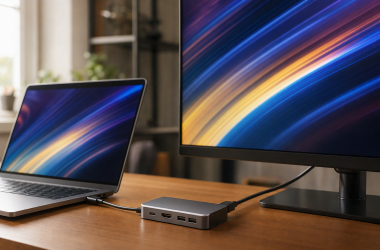
- Best compact travel option: Razer USB-C Dock for an 11-in-1, one-display setup in a documented 130 x 70 x 16mm, 183g body, with no power adapter included.
Gaming-Laptop Dock Comparison
| Image | Product | Details | Check Price |
|---|---|---|---|
 | Razer Thunderbolt 5 Dock Chroma, RC21-02290100-R3U1 | Host interface: Razer states Thunderbolt 5, up to 80Gbps bidirectional; conditional display bandwidth up to 120Gbps Display path: Native Thunderbolt display path, subject to the host GPU, OS, cable, and monitor Physical video outputs: Three downstream Thunderbolt 5 ports can carry supported display paths Documented display modes: Razer publishes conditional ceilings; no universal display count is promised here Ethernet: 1Gb Ethernet USB and peripheral I/O: Two USB-A 10Gbps, one USB-C 10Gbps, three downstream Thunderbolt 5 ports Audio, card, and storage relevance: 3.5mm audio, UHS-II SD, empty M.2 2280 PCIe Gen4x4 slot; Razer states support up to 8TB Host charging: Razer states up to 140W; 250W dock power input Main gaming-laptop power: Keep the proprietary adapter when the laptop or gaming load requires it Host and OS scope: Full behavior depends on the exact Thunderbolt host and documented display path Best for: Overall gaming-laptop desk dock Key caveat: Link and display ceilings are not measured gaming or storage performance | Check Price on Amazon |
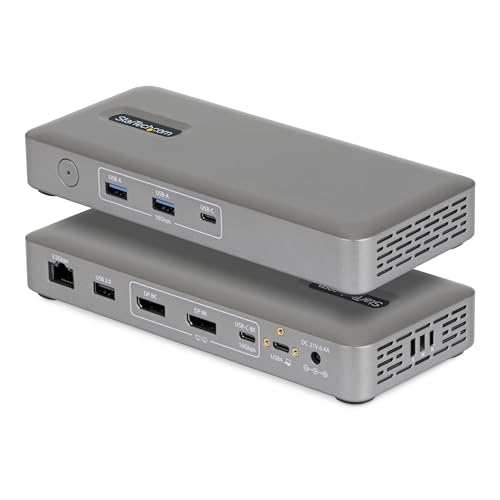 | StarTech Driverless USB4 Dock, 208N-USB4-DOCK | Host interface: StarTech states USB4 at 40Gbps; full function needs its documented USB4 or Thunderbolt host path Display path: Native DP Alt Mode path with host, GPU, OS, cable, color-depth, and DSC conditions Physical video outputs: Two DisplayPort outputs plus one video-capable USB-C port Documented display modes: StarTech states dual 4K144 or single 8K60 under exact conditions Ethernet: 2.5GbE USB and peripheral I/O: Two USB-A 10Gbps, one USB-A 2.0, one USB-C 10Gbps data port, one video/data USB-C port Audio, card, and storage relevance: Peripheral-heavy USB layout; no card-reader claim used Host charging: StarTech states up to 100W; adapter and 1m host cable included Main gaming-laptop power: Dock charging does not prove replacement of the laptop's main adapter Host and OS scope: StarTech documents Windows, macOS, Ubuntu, and ChromeOS with path-specific limits Best for: Documented high-refresh dock path Key caveat: No documented VRR, HDR, or measured latency result is inferred | Check Price on Amazon |
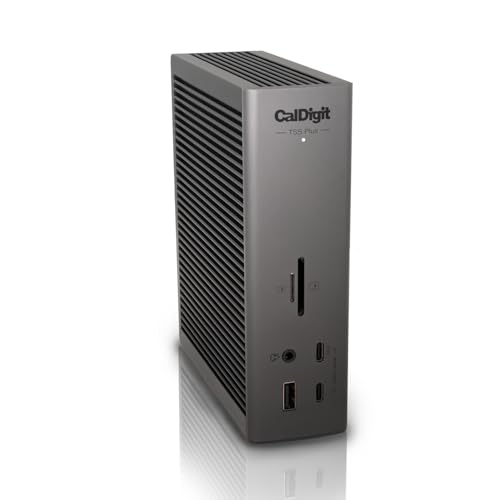 | CalDigit TS5 Plus, TBT5-TS5Plus-US-AMZ | Host interface: One Thunderbolt 5 host port; lower-capability hosts reduce available functions Display path: Native Thunderbolt and DisplayPort paths governed by CalDigit's host and DSC matrices Physical video outputs: DisplayPort 2.1 plus two downstream Thunderbolt 5 ports Documented display modes: Conditional CalDigit matrices; no universal triple-display promise Ethernet: 10GbE USB and peripheral I/O: Five USB-C 10Gbps and five USB-A 10Gbps ports Audio, card, and storage relevance: UHS-II SD and microSD, front and rear audio, downstream Thunderbolt or USB4 power up to 36W Host charging: CalDigit states up to 140W; required 330W supply and 1m cable included Main gaming-laptop power: CalDigit recommends direct laptop charging for CPU or GPU intensive use when applicable Host and OS scope: Windows 11+, macOS 15+, and qualified TB5, TB4, USB4, and TB3 Mac paths; TB3 Windows PCs unsupported Best for: Peripheral-heavy Thunderbolt 5 desk Key caveat: Twenty ports still share host and controller resources | Check Price on Amazon |
 | UGREEN Revodok Max 213, official 25054 versus Amazon 25054A | Host interface: UGREEN states Thunderbolt 4 at 40Gbps Display path: Native Thunderbolt and DisplayPort path with host, OS, GPU, cable, and monitor limits Physical video outputs: DisplayPort 1.4 plus two downstream Thunderbolt 4 ports Documented display modes: UGREEN states dual 4K60 or single 8K30 positioning; conditions apply Ethernet: 2.5GbE USB and peripheral I/O: Manufacturer-documented USB-C and USB-A data ports plus two downstream Thunderbolt 4 ports Audio, card, and storage relevance: SD and TF 4.0 plus 3.5mm audio Host charging: UGREEN states up to 90W; 180W charger included Main gaming-laptop power: The laptop may still need its proprietary adapter during gaming Host and OS scope: Exact output behavior depends on the host and operating system Best for: 2.5GbE Thunderbolt 4 peripheral desk Key caveat: Official SKU 25054 differs from Amazon model or part 25054A | Check Price on Amazon |
| Anker Prime Docking Station DL7400, A83B3 | Host interface: Anker states USB-C upstream up to 10Gbps with a compatible DisplayLink driver Display path: DisplayLink USB virtual graphics for extra non-primary screens Physical video outputs: One DisplayPort 1.4 and two HDMI 2.1 connectors Documented display modes: Manufacturer per-output ceilings only; no complete simultaneous triple-4K layout claimed here Ethernet: 2.5GbE USB and peripheral I/O: Three downstream USB-C, two USB-A 5Gbps, one USB-A 480Mbps Audio, card, and storage relevance: SD, TF, and audio connections Host charging: Anker states up to 140W only with PD 3.1 and its front-port conditions Main gaming-laptop power: Keep the main adapter when required; charging is separate from the DisplayLink path Host and OS scope: Anker documents Windows 10 and 11 plus macOS 13.5+ with compatible DisplayLink software Best for: Extra non-primary screens Key caveat: DisplayLink is not native GPU output or the preferred primary competitive-gaming route | Check Price on Amazon | |
 | Razer USB-C Dock, RC21-02250100-R3U1 | Host interface: USB-C host path; exact video, data, and charging functions depend on the host Display path: Native USB-C display path through HDMI 2.0 Physical video outputs: One HDMI 2.0 output Documented display modes: Razer states one display up to 4K60 Ethernet: Gigabit Ethernet USB and peripheral I/O: One USB-C 10Gbps, two USB-A 10Gbps, two USB-A 480Mbps Audio, card, and storage relevance: 3.5mm audio plus UHS-I SD and microSD Host charging: Razer states pass-through up to 85W; power adapter not included Main gaming-laptop power: A compatible dock charger and the laptop's proprietary adapter may both be needed Host and OS scope: Use only with Razer's documented device and OS paths; Linux support is not documented Best for: Compact travel setup Key caveat: It is a one-display travel dock, not a fully powered desktop replacement | Check Price on Amazon |
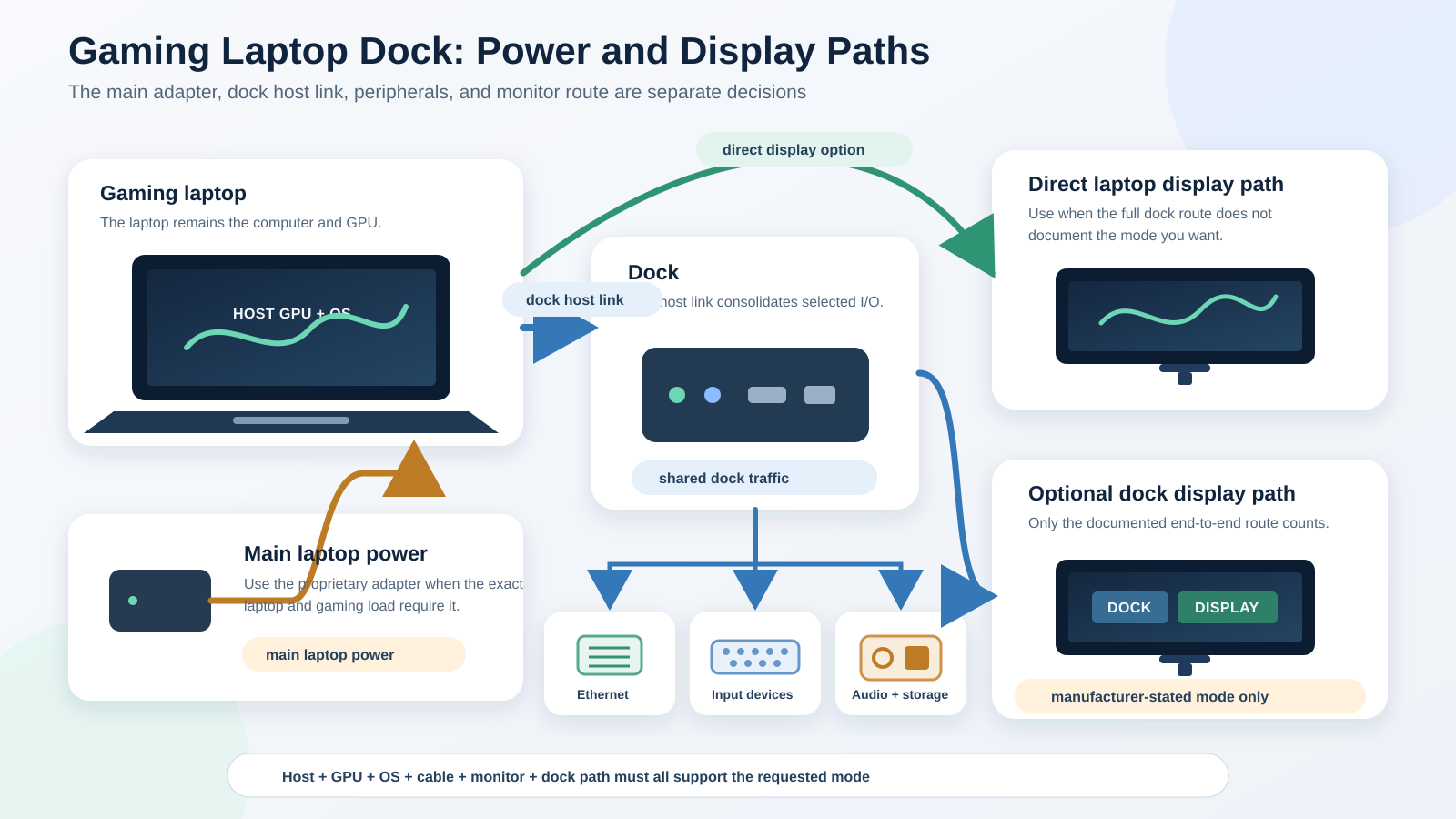
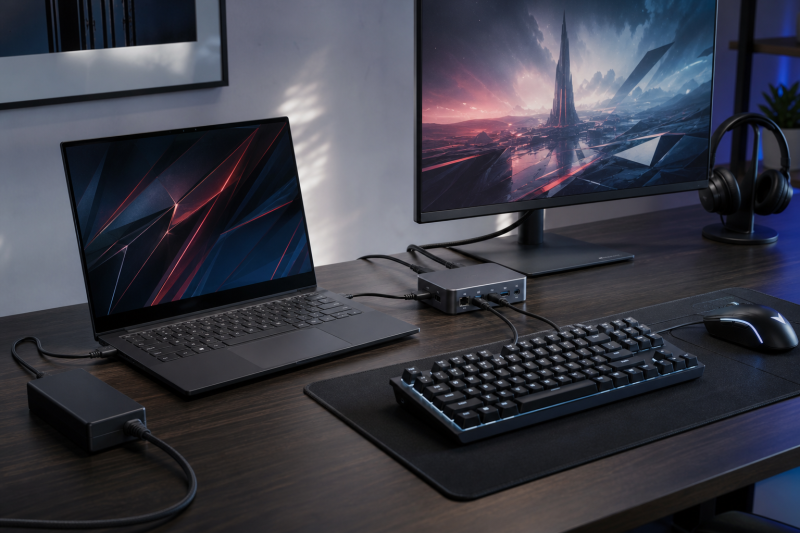
The topology separates the laptop’s proprietary adapter from the dock host cable, because those connections do different jobs. The main adapter supplies the computer’s gaming power, while the dock route carries shared Ethernet and peripheral traffic and may carry a documented display mode. Use a direct laptop output when the complete dock path does not establish the refresh, VRR, HDR, color-depth, or DSC behavior you need.
Table of Contents
- How a gaming-laptop dock fits the desk
- Razer Thunderbolt 5 Dock Chroma
- StarTech 208N USB4 Dock
- CalDigit TS5 Plus
- UGREEN Revodok Max 213
- Anker Prime DL7400
- Razer USB-C Dock
- Direct output versus dock output
- Native display paths versus DisplayLink
- Shared bandwidth, Ethernet, and peripherals
- How to choose a gaming-laptop dock
- Host and operating-system limits
- Frequently asked questions
- How we research and select
- Exclusions and adjacent intent
How a Gaming-Laptop Dock Fits the Desk
A docking station is an I/O concentrator. It can give a compatible laptop a repeatable desk connection for a monitor, Ethernet, keyboard, mouse, controller, headset, storage, card reader, and other devices. It does not become a second graphics processor. The laptop’s GPU still creates native display streams, while the host port, operating system, dock controller, cable, and display determine which route is available.
The power route is equally important. Gaming laptops commonly use proprietary adapters because sustained CPU and GPU loads can require more power than the host-charging path supplies. A dock may deliver negotiated USB Power Delivery for lighter use, top up the battery, or support a compatible thin gaming machine. That does not establish replacement of the laptop adapter. Host charging and main gaming power are separate decisions.
Display output is not automatic either. HDMI, DisplayPort, USB4, and Thunderbolt names identify connector or transport capabilities, but not every feature of the finished route. A manufacturer may document a resolution and refresh ceiling only for a particular GPU, operating system, cable, monitor, color depth, DP Alt Mode, or DSC path. If the full route does not state the gaming mode you want, connect the primary display directly to the laptop and use the dock for the rest of the desk.
This focus distinguishes a dock from a smaller branching device. Our dock versus hub comparison explains that category boundary, while the guide below stays centered on powered desk docks and one compact travel dock with enough documented I/O for this use.
1. Razer Thunderbolt 5 Dock Chroma, RC21-02290100-R3U1: Best Overall Gaming-Laptop Desk Dock
The Razer Thunderbolt 5 Dock Chroma takes the first position because its official topology covers the widest set of gaming-desk jobs in this group. Razer documents 11 ports, a Thunderbolt 5 host connection, three downstream Thunderbolt 5 ports, 1Gb Ethernet, 3.5mm audio, a UHS-II SD reader, two USB-A 10Gbps ports, and one USB-C 10Gbps port. This is a fixed-desk layout for a laptop, fast peripherals, cards, networking, and audio rather than a small cable-saving adapter.
Storage is part of the distinction. The dock contains an empty M.2 2280 PCIe Gen4x4 slot, and Razer states support for capacities up to 8TB. An SSD is not included. The PCIe and capacity labels are manufacturer ceilings, not measured transfer results, temperature data, or proof that storage and other active devices receive their headline rates at the same time.
Razer rates the Thunderbolt 5 connection at up to 80Gbps bidirectional and describes conditional display-heavy bandwidth up to 120Gbps. That 120Gbps figure is not ordinary bidirectional data bandwidth. The three downstream ports also do not create three guaranteed display streams. The exact laptop GPU, operating system, cable, display, and selected modes decide the result. Compare the host generation first with our Thunderbolt 3, 4, and 5 guide.
Power needs the same restraint. Razer specifies 250W power input and host charging up to 140W, plus a certified 0.8m Thunderbolt 5 cable. The laptop negotiates what it accepts. Keep its proprietary adapter attached when the model or workload needs it. The dock’s active cooling is a manufacturer design fact, not evidence about measured fan noise or temperature.
The display route should be selected by documentation, not by the number of downstream connectors. Use a supported dock route for a mode the exact host can provide. If the target gaming monitor needs a feature or mode the full path does not establish, use a direct laptop display output. Buyers whose host lacks Thunderbolt 5 should also expect the lower-capability host to set the ceiling rather than buying on the dock’s top label.
Who should skip it? Choose a smaller USB-C option if you need only one display and basic travel ports. Skip the storage feature if you do not plan to install an SSD, and do not choose this dock solely for a promised FPS, latency, VRR, HDR, thermal, or acoustic result. None was independently measured for this guide.
Our Take
Choose the Razer Thunderbolt 5 Dock Chroma when a compatible gaming laptop anchors a permanent desk and you want broad peripheral I/O plus an empty internal M.2 slot. Its documented topology makes it our first choice, while the laptop’s GPU, power brick, and display limits remain in charge.
- Eleven manufacturer-documented ports
- Three downstream Thunderbolt 5 ports
- Empty M.2 2280 slot with stated support up to 8TB
- Up to 140W host-charging ceiling
- SSD is not included
- Conditional 120Gbps figure is not ordinary bidirectional data
- Gaming laptop may still need its proprietary power adapter
2. StarTech Driverless USB4 Dock, 208N-USB4-DOCK: Best Documented High-Refresh Dock Path
The StarTech 208N-USB4-DOCK earns the high-refresh role because its exact data sheet states both the modes and the conditions. StarTech documents a USB4 40Gbps host connection, two DisplayPort outputs, and one video-capable USB-C 10Gbps port. It also specifies 2.5GbE, two USB-A 10Gbps ports, one USB-A 2.0 port, a USB-C 10Gbps data port, and the video/data USB-C connection.
StarTech states dual 4K144 and single 8K60 layouts, along with individual-output ceilings. Those numbers are not a gaming benchmark. Its documentation ties higher modes to the right host interface, operating system, GPU, cable, DP Alt Mode, color depth, monitor, and DSC support. Above-4K60 paths can require DSC from the monitor and host GPU. An ordinary USB-C connector does not establish the full route.
That is why this product is the best documented high-refresh path rather than a claim about lowest latency or best performance. The data sheet gives a buyer something concrete to verify against the laptop and monitor. It does not establish VRR, Adaptive Sync, G-SYNC, FreeSync, HDR, response time, or input latency. If one of those features is required, check the exact end-to-end documentation or connect the primary display directly.
The dock also covers the desk basics. StarTech specifies host charging up to 100W and includes an adapter and a 1m host cable. The laptop chooses the negotiated input, and a gaming model may still need its proprietary adapter. Ethernet and USB devices also share the upstream route with any display traffic; the 2.5GbE label is a link ceiling, not a ping or Internet-speed result.
StarTech documents driverless positioning and exact Windows, macOS, Ubuntu, and ChromeOS scope. That does not make every USB-C host fully functional. The host must provide the documented video and Power Delivery capabilities, and StarTech’s Thunderbolt 3 coverage has its own limitations. Linux buyers should follow the stated Ubuntu scope rather than turn it into a promise for every distribution, kernel, GPU driver, or desktop stack.
Skip it if the laptop lacks the required USB4 or qualified Thunderbolt path, if a direct GPU output is the only documented route for the desired VRR or HDR mode, or if you need the TS5 Plus’s much broader peripheral count. The separate USB4 explainer helps decode the host label without treating USB4 and Thunderbolt as identical certifications.
Our Take
Choose the StarTech 208N when you want a dock maker to state the high-refresh route and its conditions in an exact data sheet. The strength is documentation, not an unmeasured claim that the dock makes games faster or more responsive.
- Two DisplayPort outputs plus video-capable USB-C
- Conditional dual 4K144 and single 8K60 documentation
- 2.5GbE and several USB data ports
- Adapter and 1m host cable included
- Higher modes depend on a long list of host and display conditions
- No VRR, HDR, or latency result is established
- USB-C shape alone does not provide full function
3. CalDigit TS5 Plus, TBT5-TS5Plus-US-AMZ: Best Peripheral-Heavy Thunderbolt 5 Desk
The CalDigit TS5 Plus is the pick for a gaming desk with many peripherals. CalDigit documents 20 ports: one Thunderbolt 5 host connection, two downstream Thunderbolt 5 ports, five USB-C 10Gbps ports, five USB-A 10Gbps ports, DisplayPort 2.1, UHS-II SD and microSD readers, 10GbE, and front and rear audio. The attraction is connection breadth, not a promise that every port can sustain its headline rate at once.
That distinction matters on a desk with storage, capture hardware, a webcam, controller, keyboard, mouse, audio, and a display route. These devices share the upstream link and controller resources. CalDigit states downstream Thunderbolt or USB4 power up to 36W, but accessory power and data allocation are still separate from laptop host charging. Do not add the advertised port rates together.
CalDigit rates host charging up to 140W, requires the included 330W power supply, and includes a 1m Thunderbolt 5 cable. Its manual also says proprietary-charging or non-PD laptops may not charge and recommends using the laptop’s direct charger for CPU or GPU intensive applications. That is the clearest product-specific support for the ordinary two-cable gaming setup in this article.
Display behavior follows CalDigit’s matrices. The TS5 Plus exposes DisplayPort 2.1 and downstream Thunderbolt display routes, but display count and maximum mode depend on the host GPU, DSC, operating system, cable, and monitor. A laptop connected through a lower-capability host port does not gain full Thunderbolt 5 behavior. Read the exact matrix rather than treating the physical connectors as a universal triple-display promise. Our DisplayPort 2.1 guide provides standards context without replacing the product matrix.
CalDigit documents Windows 11+, macOS 15+, iPadOS, Thunderbolt 5, Thunderbolt 4, USB4, and a qualified Thunderbolt 3 Mac path. It says Thunderbolt 3 Windows PCs are unsupported. Those conditions are useful even in a Windows-focused guide because they identify a hard stop for an older PC. They should not be generalized to a different host, firmware, or operating-system version.
The dock weighs 1.98lb according to CalDigit, which suits a stationary desk more than light travel. Consider a smaller option if you do not need the 20-port layout, and do not buy it expecting a lower-capability host to become Thunderbolt 5. It is also the wrong reason to discard the laptop’s proprietary adapter during demanding use.
Our Take
Choose the TS5 Plus when peripheral count, 10GbE, card readers, audio, and multiple fast USB connections define the desk. CalDigit’s direct-charger warning makes its power boundary unusually clear. It remains a topology choice, not a measured aggregate-speed winner.
- Twenty manufacturer-documented ports
- Five USB-C and five USB-A 10Gbps ports
- 10GbE, UHS-II SD and microSD, and audio
- Clear direct-laptop-charger guidance for demanding use
- Large 330W supply is required
- Ports share host and controller resources
- Lower-capability hosts reduce available functions
4. UGREEN Revodok Max 213, official 25054 versus Amazon 25054A: Best 2.5GbE Thunderbolt 4 Peripheral Desk
The UGREEN Revodok Max 213 fills the Thunderbolt 4 desk role. UGREEN documents a 40Gbps Thunderbolt 4 host connection, two downstream Thunderbolt 4 ports, DisplayPort 1.4, USB-C and USB-A data ports, SD and TF 4.0 readers, 3.5mm audio, and 2.5GbE. It is the pick for a peripheral-heavy desk that does not require Thunderbolt 5.
Identity comes first. UGREEN’s official US page calls the product Revodok Max 213 and lists SKU 25054. The selected Amazon listing calls it the same product but reports model or part 25054A. Official 25054 and Amazon 25054A are not identical strings. Confirm the exact listing and package before ordering; this guide does not silently equate the suffixes.
UGREEN positions the product for dual 4K60 or single 8K30 and also lists individual DisplayPort and downstream Thunderbolt output ceilings. Those are conditional manufacturer statements, not one universal simultaneous layout. The host GPU, operating system, cable, display, and chosen mode still set the result. The presence of two downstream Thunderbolt ports does not prove two independent extended gaming displays on every system.
The power setup uses an included 180W charger, while UGREEN states host charging up to 90W. That charger powers the dock and its negotiated outputs. It does not establish that the gaming laptop can discard its proprietary adapter. Keep the main adapter when the laptop or workload requires more power, and treat downstream accessory power separately.
The 2.5GbE port is useful when the router, switch, cabling, and upstream network support that link. It does not prove lower ping, reduced jitter, or faster game-server response. Storage, networking, USB, audio, card-reader activity, and display traffic can all use the dock route. No measured contention data was available, so the article does not assign bandwidth shares.
Hold off until the 25054 versus 25054A suffix is acceptable for the exact listing. Skip it if your primary display requires a VRR, HDR, refresh, or topology claim that the complete dock route does not document. Buyers who want broader category choices can compare the Thunderbolt docking-station guide.
Our Take
Choose the Revodok Max 213 for its documented Thunderbolt 4 branches, 2.5GbE, card readers, audio, and USB desk I/O. The role is defensible only while the official 25054 and Amazon 25054A difference remains visible and receives a final identity check.
- Two downstream Thunderbolt 4 ports and DisplayPort 1.4
- 2.5GbE, card readers, audio, and USB data ports
- Included 180W charger
- Up to 90W manufacturer host-charging ceiling
- Official and Amazon suffixes conflict
- Output ceilings do not prove a universal simultaneous layout
- Gaming laptop may still require its main power adapter
5. Anker Prime Docking Station DL7400, A83B3: Best DisplayLink Option for Extra Non-Primary Screens
The Anker Prime DL7400 has a deliberate, narrow role: extra screens for chat, monitoring tools, documentation, streaming controls, or other non-primary work around a gaming setup. Anker documents DisplayLink technology and a USB-C upstream path rated up to 10Gbps. DisplayLink creates virtual displays over USB data through compatible software. It is not the laptop GPU’s native DisplayPort Alt Mode output.
Anker documents one DisplayPort 1.4 connector, two HDMI 2.1 connectors, 2.5GbE, three downstream USB-C ports, two USB-A 5Gbps ports, one USB-A 480Mbps port, SD and TF readers, and audio. The manufacturer page gives per-output display ceilings. Amazon’s listing title contains a triple-4K claim, but the manufacturer evidence used for this guide does not establish the complete simultaneous layout. This article therefore does not repeat that catalog scope as an official multi-display promise.
The software boundary is essential. Anker states Windows 10 and 11 plus macOS 13.5+ scope and requires a compatible DisplayLink driver. The operating system, driver, dock, host link, and displays all remain part of the path. The presence of three physical video connectors does not prove three supported screens in every combination.
For gaming, keep the primary display on a documented native or direct route. No independent evidence here establishes DisplayLink latency, compression behavior, protected-content behavior, or game performance for this exact dock. That means the honest recommendation is extra non-primary screens, not a categorical claim that DisplayLink is unsuitable for every visual task or a claim that it performs like a native GPU path.
Anker states host charging up to 140W only under its PD 3.1 and front-port conditions. That ceiling does not override the gaming laptop’s own input limit or its need for a proprietary adapter. Ethernet and all DisplayLink, USB, card, audio, and peripheral traffic also use the host route. The 2.5GbE label is not a latency measurement.
Who should skip it? Avoid this pick when the primary reason for the dock is competitive gameplay on a high-refresh display, when installing the compatible DisplayLink software is not allowed, or when the exact simultaneous screen layout is not supported by Anker’s documentation. A native dual-monitor buyer should start with the dual-monitor docking-station guide instead.
Our Take
Choose the DL7400 when software-created extra screens help the surrounding workflow and the primary gaming display keeps a documented native or direct route. Its broad I/O is useful, but the DisplayLink boundary is the reason to rank it fifth rather than treat it as the universal gaming pick.
- Three physical video connectors for supported DisplayLink layouts
- 2.5GbE plus USB, card, and audio connections
- Explicit Windows and compatible-driver scope
- Useful extra-screen role around a native primary display
- DisplayLink software is required
- Not the preferred primary competitive-gaming display path
- Anker’s page checked July 16, 2026 did not establish a complete simultaneous triple-4K layout
6. Razer USB-C Dock, RC21-02250100-R3U1: Best Compact Travel Option
The Razer USB-C Dock is the compact choice for moving between a desk, hotel, event, or shared workspace. Razer documents an 11-in-1 USB-C dock measuring 130 x 70 x 16mm and weighing 183g. Those are manufacturer figures, not a durability or portability test, but they establish a much smaller physical role than the powered desktop docks above.
Its port set covers one USB-C 10Gbps connection, two USB-A 10Gbps ports, two USB-A 480Mbps ports, HDMI 2.0, Gigabit Ethernet, UHS-I SD and microSD, 3.5mm audio, and USB-C Power Delivery input. Razer states one display up to 4K60. It does not document multiple displays, so this is a single-monitor travel dock.
Power is an explicit limitation. Razer does not include a power adapter. With a compatible charger, it states pass-through charging up to 85W, subject to the host and charger. A gaming laptop may still need its proprietary adapter, which can turn the travel setup into three pieces: laptop power, a dock charger if desired, and the dock host cable. You can also use the dock for data and I/O without pretending it supplies the laptop’s full gaming load.
The display ceiling remains conditional. The host must provide the required USB-C video path, the cable and display must support it, and the system must accept the selected mode. HDMI 2.0 does not independently prove HDR, VRR, response behavior, or universal 4K60. If the laptop’s direct output is the documented path for a high-refresh gaming monitor, keep using it.
Razer documents its own device and operating-system scope, while Linux support is not stated. Do not infer software, power, or display behavior for an undocumented host. A qualified cable is part of that path; our USB-C cable guide explains why the connector shape alone does not establish video, data, and charging support.
Choose a powered desktop dock instead if you need several downstream high-speed devices, multiple documented displays, an included power supply, or a fixed high-bandwidth workstation. This compact dock is for a modest one-display travel setup, not a substitute for the TS5 Plus or Razer Thunderbolt 5 Dock Chroma.
Our Take
Choose the Razer USB-C Dock when size, weight, one display, Ethernet, cards, audio, and basic USB expansion matter more than a fully powered desk. Its no-adapter design keeps the product compact but shifts charging choices back to you.
- Documented 130 x 70 x 16mm, 183g body
- Ethernet, HDMI, card readers, audio, and five USB data ports
- One display up to 4K60 under supported conditions
- Up to 85W power pass-through with a compatible charger
- Power adapter is not included
- Only one display is documented
- Linux support is not documented
Direct Laptop Output Versus Dock Output
The best display connection is the route that documents the mode you intend to use. A dock route can be convenient and can support a high resolution or refresh rate on a qualified host. A direct laptop HDMI, DisplayPort, USB-C, or Thunderbolt output can be the better choice when the dock’s full route does not state the required behavior.
Start at the laptop. Identify the exact port connected to the discrete or integrated GPU, the GPU’s display limits, and the operating system. Then follow the route through the host cable, dock controller, physical output, display cable, and monitor input. A manufacturer display table applies only when its conditions match that chain.
A connector label is not a complete display-mode promise. HDMI 2.1 does not alone prove VRR or a specific high-refresh mode. DisplayPort 1.4 or 2.1 does not establish DSC, HDR, color depth, or MST behavior by itself. USB4 and Thunderbolt identify transport capabilities but do not add native GPU streams.
Use the StarTech dock when its documented route matches the exact host and display. Use CalDigit, Razer TB5, or UGREEN outputs within their manufacturer matrices. Use the Razer USB-C Dock for its documented one-display ceiling. For a mode missing from the product documentation, a direct laptop output is the conservative route to investigate.
Native Display Paths Versus DisplayLink
A native path carries a display stream produced by the host GPU through a supported HDMI, DisplayPort Alt Mode, USB4, or Thunderbolt route. The dock routes that signal but does not create extra GPU capability. The exact host controls how many native streams exist and which modes they can carry.
DisplayLink uses software-created virtual displays sent over USB data. The Anker DL7400 is the only selected product with that documented path. It requires compatible DisplayLink software and fits extra non-primary screens around a gaming setup. It should not be described as native DisplayPort output or as a way to override every host limit.
This distinction is not a universal performance verdict. No exact independent measurements were available for latency, compression, protected content, capture behavior, or gaming on the DL7400. The safe advice is to reserve a documented native or direct route for the primary gaming display and use DisplayLink where its software and screen layout suit secondary tasks.
Shared Bandwidth, Ethernet, and Peripherals
Every dock in this guide has one upstream host route. Downstream labels describe port ceilings, but the active devices share the host connection and controller resources. A fast SSD transfer, display stream, Ethernet session, capture device, audio interface, webcam, controller, and card reader can be active together. Their advertised maxima cannot simply be added into a performance promise.
The same caution applies to Ethernet. A 10GbE or 2.5GbE port describes the local link capability under compatible network conditions. It does not measure ping, jitter, Internet service, server distance, Wi-Fi conditions elsewhere in the route, or game-server behavior. A faster local link may remove one local bottleneck, but it does not guarantee lower latency.
For a busy desk, prioritize the ports that must work together and leave headroom in the topology. Put the primary gaming display on a direct path if its requirements are uncertain. Keep latency-sensitive controllers on a documented USB route, and avoid assuming that one headline link rate describes every simultaneous operation.
How to Choose a Gaming-Laptop Dock
Match the Host Interface First
Read the laptop’s exact port specifications, not just the connector shape. Thunderbolt 5, Thunderbolt 4, USB4, and USB-C hosts expose different capabilities. A TB5 dock can attach to a lower-capability route only within the maker’s stated compatibility, and it cannot make that host operate at TB5 ceilings. Our Thunderbolt 5 dock guide covers the generation in more depth.
Decide the Primary Display Route
Write down the monitor’s target resolution, refresh, color depth, input, and required gaming features. Compare those needs with the dock’s exact mode table and the laptop GPU’s limits. If any essential feature is missing from the documented chain, plan to connect the primary monitor directly. A dock can still handle Ethernet, USB, audio, storage, and secondary displays.
Keep Four Power Values Separate
The laptop’s proprietary main adapter powers the computer for demanding work. The dock’s input or supply powers the dock. Host charging is negotiated power sent from the dock toward the laptop. Downstream accessory power serves connected devices. A large dock supply does not mean the laptop receives the same wattage, and a host ceiling does not mean every laptop accepts it.
Count Useful Ports, Not the Largest Total
Choose ports around the devices you own. The TS5 Plus is useful when several fast USB devices, 10GbE, cards, and audio must remain connected. UGREEN covers a TB4 desk with 2.5GbE. Razer TB5 adds an empty internal M.2 slot. Razer USB-C covers a lighter one-display trip. More ports are not better when they duplicate functions you will not use.
Check the Cable and Power Supply
An included cable removes one unknown only for the documented path. Cable length, certification, data rate, video support, and power rating still matter. The Razer travel dock includes no power adapter, while the powered desktop docks have their own supply arrangements. Our Thunderbolt 4 cable guide covers cable selection for compatible TB4 routes.
Choose a Dock or a Monitor With Built-In I/O
Some desks can move Ethernet, USB, and charging into the monitor instead. That may reduce hardware on the desk, but it creates its own host, display, and upgrade tradeoffs. The comparison of docking stations and monitors with built-in docks explains that alternative.
Host and Operating-System Limits
The operating system helps decide display topology, driver support, and device behavior. StarTech documents Windows, macOS, Ubuntu, and ChromeOS within its path conditions. CalDigit documents Windows 11+ and other named systems but excludes Thunderbolt 3 Windows PCs. Anker documents Windows 10 and 11 plus macOS 13.5+ for its DisplayLink product. The Razer USB-C Dock does not document Linux support.
Those statements are product boundaries, not a promise that every computer using the named system exposes every feature. Firmware, GPU driver, host controller, cable, display, and power negotiation remain relevant. Vendor utilities can also have a narrower operating-system scope than basic video or USB hardware.
Frequently Asked Questions
Does a Docking Station Improve Gaming FPS?
No. The gaming laptop’s CPU and GPU produce the game workload. A dock consolidates I/O and may route a display, but it does not add graphics capability or frames per second. A poorly matched route can also fail to support the mode you intended, which is why the direct-versus-dock decision matters.
Can a Dock Replace a Gaming Laptop’s Proprietary Power Adapter?
Not by default. The dock states a host-charging ceiling, the laptop negotiates what it accepts, and gaming loads can exceed what the USB Power Delivery path supplies. CalDigit specifically recommends direct laptop charging for CPU or GPU intensive applications when applicable. Plan for the proprietary adapter plus a separate dock host cable unless the exact laptop documentation proves otherwise.
Should a High-Refresh Monitor Connect to the Dock or Laptop?
Use the route that documents the complete mode and feature set. StarTech states high-refresh ceilings under exact conditions. That does not prove VRR, HDR, or measured latency. If the dock route does not establish what the monitor needs, connect the primary display directly to the laptop and use the dock for peripherals.
Does HDMI, DisplayPort, USB4, or Thunderbolt Guarantee VRR?
No. A connector or transport name does not prove Adaptive Sync, G-SYNC, FreeSync, VRR, HDR, DSC, MST, color depth, or a particular refresh rate across the complete route. Check the host, dock, cable, and monitor documentation together.
Does 2.5GbE or 10GbE Reduce Ping?
The label states a local link ceiling. It is not a ping, jitter, Internet, or game-server measurement. The network adapter, switch, router, service, route, server, and shared dock traffic can all affect the result.
Can Dock Devices Slow One Another Down?
They can contend for shared host and controller resources when active together. The exact effect depends on the dock topology and workload. This guide does not invent a bandwidth split or claim a measured slowdown.
Is DisplayLink Suitable for a Primary Gaming Monitor?
This guide reserves DisplayLink for extra non-primary screens. It is a software-created USB graphics path, not native GPU output. No exact independent game-performance evidence was available for the DL7400, so the primary gaming display should use a documented native or direct route.
Will a Thunderbolt 5 Dock Run at Full Speed on Thunderbolt 4 or USB-C?
No universal answer applies. A lower-capability host sets a lower ceiling, and the dock maker’s compatibility matrix controls which functions remain. Do not infer 80Gbps, conditional 120Gbps display bandwidth, charging, or the full display matrix from physical connection alone.
Can One Dock Work With Every Gaming Laptop?
No. Host interface, GPU limits, operating system, power input, proprietary charging, cable, monitor path, and driver requirements differ. Match the exact laptop and intended desk instead of shopping by connector shape alone.
How We Research and Select
We required an exact product and model identity, an exact US Amazon ASIN, a New offer on July 16, 2026, an exact manufacturer source, a suitable gaming-laptop host route, useful desk I/O, and a distinct buyer job. Six products across five brands passed those checks.
Amazon records control listing identity, selected configuration, ASIN, merchant, condition, and the dated offer state. Manufacturer pages, manuals, and data sheets control ports, link ceilings, display modes, charging, power supplies, cables, dimensions, weight, operating-system scope, and compatibility. No independent measured-review evidence was used for this guide.
The order reflects documented roles rather than a benchmark: broad Thunderbolt 5 desktop I/O, the clearest conditioned high-refresh route, a peripheral-heavy TB5 desk, a TB4 desk with 2.5GbE, extra DisplayLink screens, and compact USB-C travel. We did not rank by a hardcoded price or customer-review claims.
Exclusions and Adjacent Intent
The Kensington SD5000T5 EQ candidate failed because its saved official page covered the different K35201NA, marked it unavailable, and did not establish candidate K35202NA. Targus DOCK425GLZ failed exact Amazon discovery. CalDigit TS4 is already strongly associated with broader Thunderbolt 4 and USB-C dock intent, and the Razer USB4 Dock Mercury already leads the separate USB4 category. Late Plugable models were not added after the six-product group was set.
We also excluded eGPU and OCuLink enclosures, generic hubs, stands, chargers, cables, KVMs, capture cards, storage enclosures, bundles, renewed listings, color and regional duplicates, seller duplicates, and same-chassis variants. These products either fall outside docking-station intent or do not add a distinct buyer job.
Overlap is disclosed. StarTech 208N also appears in the USB4 dock category, where general USB4 ownership remains. UGREEN Max 213 appears in a platform-specific package and keeps its 25054 versus 25054A caution here. Anker DL7400 appears in DisplayLink and multi-monitor coverage, while this article limits it to extra non-primary screens. The broader USB-C docking-station guide and specialist interface guides retain their own category intent.
About the Author
The ThunderboltLaptop editorial team covers laptops, displays, docks, hubs, storage, and cables. Our guides separate manufacturer specifications, dated Amazon identity records, and independent measurements so you can see which claims are documented and which conditions still depend on your exact host.