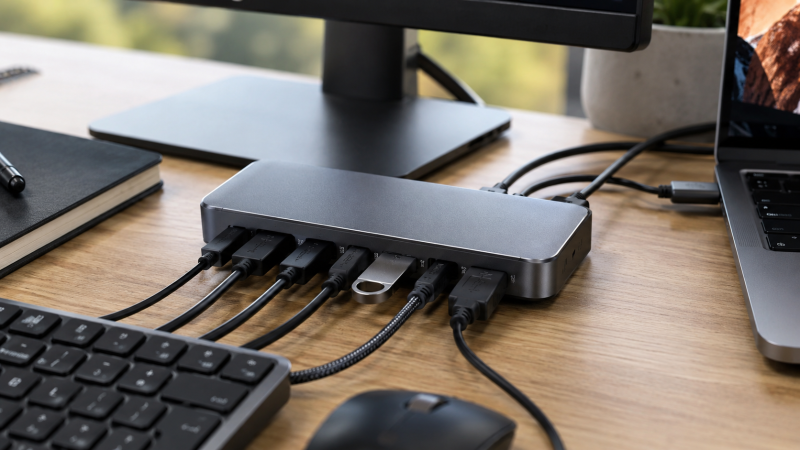
A USB-C docking station is a powered desktop hub that connects your laptop to multiple monitors, peripherals, and networks through a single USB-C cable, while also charging your laptop. Unlike Thunderbolt docks that require a specific port, a USB-C dock works with virtually any modern laptop: Windows, Mac, or Chromebook.
Manufacturer specs, expert benchmarks, and user reviews were compared across more than 30 USB-C docks, with compatibility claims checked against ThinkPads, XPS laptops, MacBooks, and Chromebooks. This guide covers the 10 best USB-C docking stations available today, from enterprise-grade Lenovo docks to budget DisplayLink options. It also explains when a USB-C dock makes more sense than a Thunderbolt dock, and when it does not.
Recent Updates
- May 2026: Full refresh of all 10 product picks. Updated pricing, verified compatibility with 2026 laptop models, and re-verified display output specs on the latest Windows 11 and macOS builds.
- January 2026: Added the UGREEN 12-in-1 docking station as our new best value pick. Swapped out the Baseus dock for the TobenONE UDS030 after user reports and expert reviews showed better long-term reliability.
Quick Picks
- Best overall: The CalDigit TS4 offers 18 ports and 98W power delivery, and it works with both USB-C and Thunderbolt 4 laptops.
- Best ThinkPad: The Lenovo ThinkPad Universal USB-C Dock 40AY provides 11+ ports, up to 95W PD, and managed firmware updates for enterprise fleets.
- Best budget: The Anker 563 USB-C Dock delivers 10 ports and 100W PD at a budget-friendly price, with DisplayLink multi-monitor support.
- Best dual monitor: The TobenONE 18-in-1 UDS030 packs 18 ports and dual 4K 60Hz output with a hybrid USB-C/USB-A host cable that works with older laptops.
- Best MacBook: The Plugable UD-6950PDZ drives triple 4K displays via DisplayLink, bypassing macOS single-monitor restrictions.
- Best DisplayLink: The Dell D6000S connects via USB-A or USB-C and drives triple 4K displays from virtually any computer made in the last decade.
- Best compact: The Anker 575 USB-C Dock fits 13 ports and 85W PD into a chassis under 5 inches long, with native DP Alt Mode that requires no drivers.
- Best enterprise: The Lenovo ThinkPad USB-C Smart Dock adds Azure Sphere cloud management for remote firmware updates and asset tracking across large deployments.
- Best HP: The HP USB-C G5 Essential Dock delivers dual 4K output and 65W PD with HP-specific management integration.
- Best value: The UGREEN 12-in-1 USB-C Dock provides triple 4K, 100W PD input (~85W pass-through), and 12 ports at the lowest price in this roundup.
| Image | Product | Details | Check Price |
|---|---|---|---|
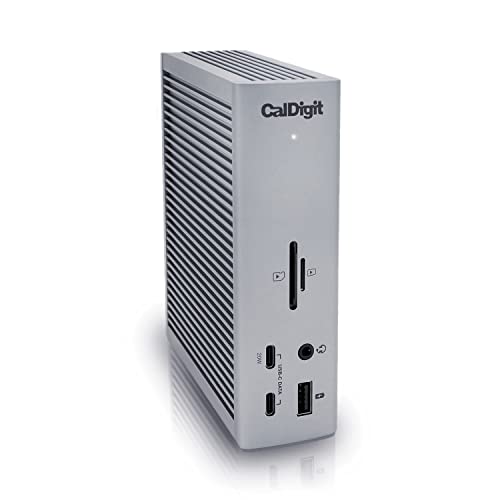 | CalDigit TS4 | Connection: Thunderbolt 4 / USB-C Ports: 18 ports (3x TB4, 3x USB-C, 5x USB-A) Power Delivery: 98W Display: Dual 6K@60Hz or 1x 8K@30Hz Network: 2.5GbE Ethernet | Check Price on Amazon |
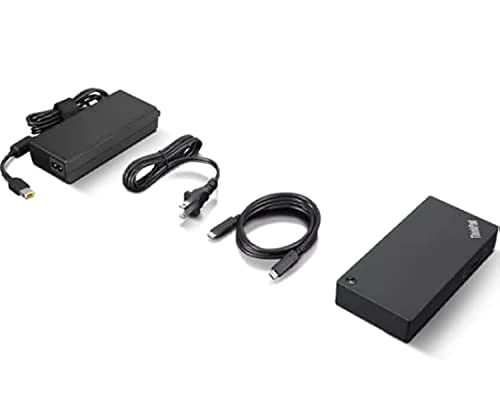 | Lenovo ThinkPad Universal USB-C Dock 40AY | Connection: USB-C Ports: 11+ ports (2x DP 1.4, HDMI, 3x USB-A 3.2, 2x USB-A 2.0, USB-C) Power Delivery: 65W (95W with 135W adapter) Display: Dual 4K@60Hz or 1x 5K@60Hz Network: Gigabit Ethernet | Check Price on Amazon |
 | Anker 563 USB-C Docking Station | Connection: USB-C (DisplayLink + DP Alt Mode) Ports: 10 ports (2x HDMI, DP, 2x USB-A, USB-C, Ethernet) Power Delivery: 100W Display: Triple display via DisplayLink Network: Gigabit Ethernet | Check Price on Amazon |
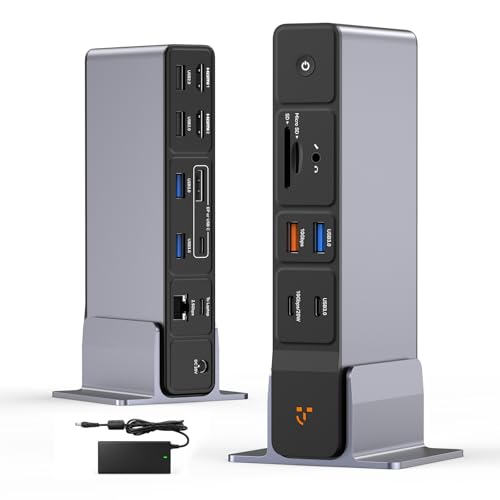 | TobenONE 18-in-1 UDS030 | Connection: Hybrid USB-C / USB-A Ports: 18 ports (2x HDMI, 2x DP, 3x USB 3.0, 3x USB 2.0, SD/TF) Power Delivery: 65W (external power supply) Display: Dual 4K@60Hz via DisplayLink Network: Gigabit Ethernet | Check Price on Amazon |
 | Plugable UD-6950PDZ | Connection: USB-C (DisplayLink DL-6950) Ports: 12 ports (3x HDMI, 3x DP, 6x USB-A 3.0, Ethernet) Power Delivery: 60W Display: Triple 4K@60Hz via DisplayLink Network: Gigabit Ethernet | Check Price on Amazon |
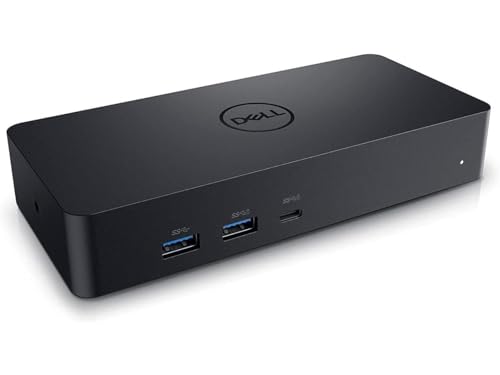 | Dell D6000S Universal Dock | Connection: USB-C / USB-A (DisplayLink) Ports: 9 ports (2x DP 1.2, HDMI 2.0, 4x USB-A 3.0, USB-C) Power Delivery: 65W Display: Triple 4K via DisplayLink Network: Gigabit Ethernet | Check Price on Amazon |
 | Anker 575 USB-C Docking Station | Connection: USB-C (native DP Alt Mode) Ports: 13 ports (2x HDMI, DP, 3x USB-A, 2x USB-C, SD/microSD) Power Delivery: 85W Display: Single 4K@60Hz native (no drivers) Network: Gigabit Ethernet | Check Price on Amazon |
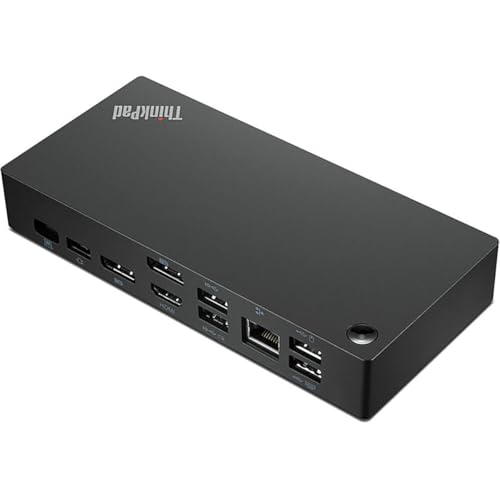 | Lenovo ThinkPad USB-C Smart Dock | Connection: USB-C Ports: 10+ ports (HDMI, 2x DP, 3x USB 3.1, 2x USB 2.0, USB-C) Power Delivery: 100W (with 135W adapter) Display: Triple 4K Network: Gigabit Ethernet | Check Price on Amazon |
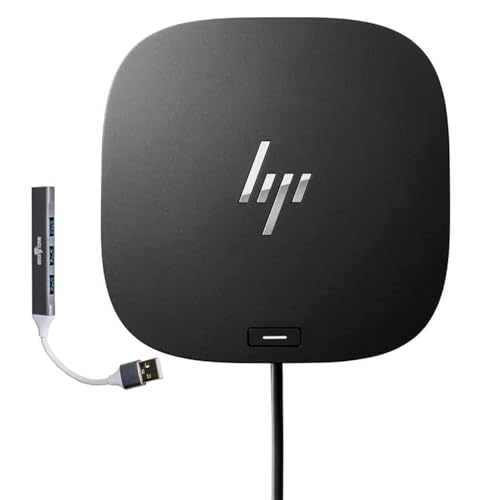 | HP USB-C G5 Essential Dock | Connection: USB-C Ports: 7 ports (2x DP 1.4, HDMI 2.0, 2x USB-A 3.2, Ethernet) Power Delivery: 65W Display: Dual 4K@60Hz (triple with DP + HDMI) Network: Gigabit Ethernet | Check Price on Amazon |
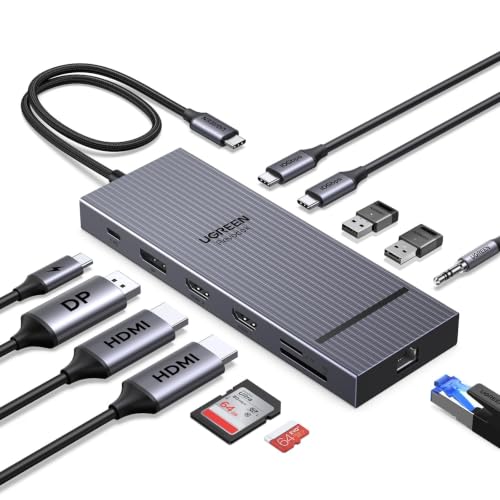 | UGREEN 12-in-1 USB-C Docking Station | Connection: USB-C (DisplayLink) Ports: 12 ports (2x HDMI, DP, 2x USB-C 10Gbps, 2x USB-A 2.0, SD/TF) Power Delivery: 100W input (~85W pass-through) Display: Triple 4K via DisplayLink Network: Gigabit Ethernet | Check Price on Amazon |
1. CalDigit TS4 — Best Overall
The CalDigit TS4 is our top pick for the best USB-C docking station. Yes, it is technically a Thunderbolt 4 dock, but it works perfectly with any USB-C laptop via a standard USB-C connection, which earns it the top spot on this list.
Our Take
The CalDigit TS4 is the best USB-C docking station for buyers who want one dock that does everything. Its 18 ports and 98W power delivery handle dual monitors, a full desk of peripherals, and laptop charging through a single cable.
Eighteen ports let you connect two 4K monitors, an external NVMe drive, a webcam, a USB microphone, a keyboard, a mouse, SD cards, an Ethernet cable, and external speakers, with three ports still free. No other dock comes close to that count.
CalDigit rates the TS4 at 98W of power delivery, enough to charge a ThinkPad T14, Dell XPS 14, or 14-inch MacBook Pro at full speed. The 2.5 Gigabit Ethernet is a genuine step up from the Gigabit Ethernet on most USB-C docks. Build quality is excellent: an aluminum vertical tower that stays cool and quiet even under full load.
It costs more than most docks on this list. But if you want one dock that handles everything and works with any laptop for the next five years, the TS4 pays for itself.
Who should buy it: Anyone who wants the best single-dock setup regardless of laptop brand. Power users, content creators, and professionals who connect lots of peripherals.
Who should skip it: If you only need a dock for one monitor and a keyboard/mouse, the TS4 is overkill. The Anker 563 or UGREEN will cost significantly less.
- 18 ports. More than any other dock on this list
- 2.5GbE Ethernet for faster wired networking
- 98W power delivery charges most laptops
- Premium aluminum build with near-silent cooling
- Works with USB-C and Thunderbolt 4 laptops alike
- Premium price
- 98W PD may not fully power larger workstations
- Vertical design takes desk space
If you’re interested in pure Thunderbolt docks, check out our roundup of the best Thunderbolt docking stations.
2. Lenovo ThinkPad Universal USB-C Dock 40AY — Best ThinkPad
If you own a Lenovo ThinkPad, this is the dock to buy. The ThinkPad Universal USB-C Dock (model 40AY) is purpose-built for Lenovo’s business laptop lineup, and it shows in the tight ecosystem integration, managed firmware updates, and the reliability that users consistently report.
Our Take
The Lenovo 40AY is the best USB-C dock for ThinkPad owners because its managed firmware updates and Lenovo Vantage integration eliminate the compatibility headaches that plague third-party docks in enterprise environments.
We covered this dock in detail in our ThinkPad Universal USB-C Dock V2 review, and our verdict hasn’t changed: it’s the best USB-C dock for ThinkPad owners. The 40AY connects via a single USB-C cable and Lenovo rates it at up to 65W of power delivery with the included 90W adapter (up to 95W with the optional 135W adapter), enough to charge a ThinkPad T14, T16, or X1 Carbon without a separate charger.
You get more than 11 ports: two DisplayPort 1.4 outputs, one HDMI 2.0, one USB-C 10Gbps downstream, three USB-A 3.2 Gen 2 ports, two USB-A 2.0 ports, Gigabit Ethernet, a combo audio jack, and a security lock slot. Display support tops out at dual 4K at 60Hz or a single 5K at 60Hz, which handles any standard office multi-monitor setup.
The killer feature for IT managers is Lenovo’s managed firmware deployment. Critical updates push automatically through Lenovo Vantage, so you don’t have to manually update hundreds of docks. The dock also supports PXE boot and Wake-on-LAN for remote management scenarios.
Who should buy it: ThinkPad owners who want a dock built specifically for Lenovo’s ecosystem. IT departments managing ThinkPad fleets will appreciate the centralized firmware management.
Who should skip it: Non-Lenovo laptop owners can get more ports for less money from the CalDigit TS4 or Anker options. The Lenovo tax is only worth it for the ecosystem integration.
- Up to 65W PD (95W with optional 135W adapter) charges most ThinkPads
- Managed firmware updates via Lenovo Vantage
- Dual 4K 60Hz display output
- PXE boot and Wake-on-LAN support
- Solid build quality with Kensington lock slot
- Gigabit Ethernet only (no 2.5GbE)
- HDMI limited to 2.0
- Premium price compared to third-party USB-C docks
3. Anker 563 USB-C Docking Station — Best Budget
The Anker 563 proves you don’t need to pay a premium to get a capable USB-C docking station. At a budget-friendly price, it delivers 10 ports, dual HDMI output via DisplayLink, and up to 100W power delivery, which covers most people’s daily needs.
Our Take
The Anker 563 is the best budget USB-C docking station because it delivers DisplayLink triple-monitor support and 100W power delivery at a competitive price, undercutting comparable docks significantly.
The standout feature at this price is the multi-monitor support. The Anker 563 uses DisplayLink technology alongside its native USB-C DP Alt Mode to drive up to three displays simultaneously. Anker rates it at 4K@30Hz via the first HDMI, 2K@50Hz via the second HDMI, and 2K@60Hz via the DisplayPort. You can push it to higher resolutions depending on your laptop’s MST (Multi-Stream Transport) support.
Anker rates power delivery at up to 100W to your laptop, with an additional 30W USB-C port for charging a phone and a 7.5W USB-A port for smaller devices. That’s enough to charge a ThinkPad T14, Dell XPS 13, or 13-inch MacBook Air without a separate charger. Larger laptops like a ThinkPad P16 or XPS 16 will charge slowly.
The port selection is practical: two HDMI outputs, one DisplayPort, two USB-A 3.2 Gen 1 ports, one USB-C data port, Gigabit Ethernet, and a combo audio jack. The USB-A ports max out at 5Gbps, which is the one area where you feel the budget compromises. But for connecting a keyboard, mouse, webcam, and a USB flash drive, it’s perfectly adequate.
Who should buy it: Anyone who wants a reliable multi-monitor USB-C dock without breaking the bank. Great for home office setups and students.
Who should skip it: If you need 10Gbps USB ports for external SSDs or native 4K 60Hz output without DisplayLink, step up to the Anker 575 or CalDigit TS4.
- Affordable for a multi-monitor dock
- 100W PD charges most ultrabooks and thin laptops
- DisplayLink enables up to triple display output
- Gigabit Ethernet included
- Small footprint that fits on crowded desks
- USB-A ports limited to 5Gbps (Gen 1)
- DisplayLink requires driver installation
- 4K output limited to 30Hz on HDMI
4. TobenONE 18-in-1 UDS030 — Best Dual Monitor
The TobenONE UDS030 packs 18 ports into a dock that costs less than most 10-port competitors. We covered this dock in detail in our TobenONE 18-in-1 UDS030 review, and our conclusion stands: it’s the best USB-C dock for dual-monitor setups on a budget.
Our Take
The TobenONE UDS030 is the best USB-C dock for dual monitors on a budget because it delivers 18 ports and dual 4K 60Hz output for less than most competitors charge for 10 ports.
The headline feature is the dual 4K at 60Hz display support via DisplayLink. You get two HDMI and two DisplayPort outputs, so you can use any combination of HDMI and DP monitors without adapters. Most competing docks in this price range top out at dual 1080p or dual 4K at 30Hz, so the full 60Hz support at 4K is a genuine differentiator.
What makes the UDS030 unique is its hybrid USB-C/USB-A host connection. The included cable has both USB-C and USB-A connectors, so the dock works with older laptops that lack USB-C ports entirely. This is a rare feature that makes the UDS030 the most universally compatible dock on this list after the Dell D6000S.
Port selection is generous: three USB 3.0 ports, three USB 2.0, one USB 3.1, one USB-C 3.1, Gigabit Ethernet, SD and TF card readers, 3.5mm audio in/out, and a DC power input. The included 65W power supply keeps the dock and peripherals powered.
Who should buy it: Budget-conscious buyers who need dual 4K monitors and lots of USB ports. Also excellent for offices with mixed old and new laptops thanks to the hybrid cable.
Who should skip it: If you need more than 65W charging or native DP Alt Mode video (without DisplayLink), look at the CalDigit TS4 or Anker 575.
- 18 ports at a budget price
- Dual 4K 60Hz via DisplayLink
- Hybrid USB-C/USB-A host connection works with any laptop
- SD and TF card readers included
- Four video outputs (2x HDMI, 2x DP)
- Only 65W power supply included
- DisplayLink adds slight latency for creative work
- USB 2.0 ports are slow for data transfer
For a deeper look at how USB-C docks compare to simpler hubs, read our comparison between docks and hubs.
5. Plugable UD-6950PDZ — Best MacBook
The Plugable UD-6950PDZ solves macOS’s most annoying limitation: Apple restricts most USB-C MacBooks to a single external display. This dock uses DisplayLink’s DL-6950 chipset to bypass that restriction and drive up to three 4K monitors simultaneously from any MacBook with a USB-C port.
Our Take
The Plugable UD-6950PDZ is the best USB-C dock for MacBook multi-monitor setups because it uses DisplayLink’s DL-6950 chipset to drive three 4K displays simultaneously from any MacBook with USB-C, bypassing Apple’s single-monitor restriction.
Users report that both the MacBook Air M3 and MacBook Pro M3 Pro run triple 4K at 60Hz without issue once the DisplayLink driver from displaylink.com is installed. The setup takes about five minutes, and the displays run smoothly for general productivity: web browsing, coding, spreadsheets, and video calls.
Plugable rates power delivery at 60W via USB-C. That’s enough to keep a MacBook Air or 13-inch MacBook Pro charged, though larger models like the 16-inch MacBook Pro will need their own charger alongside the dock.
The port layout includes three HDMI 2.0, three DisplayPort 1.2 (six video outputs total, three active at once), six USB-A 3.0 ports, Gigabit Ethernet, and a 3.5mm audio jack. The black plastic chassis feels utilitarian next to the CalDigit TS4’s aluminum, but it gets the job done.
Who should buy it: MacBook owners who need more than one external display. Users consistently rate this as one of the most reliable DisplayLink docks for macOS multi-monitor setups.
Who should skip it: If you only need one external display, any USB-C hub will work. If you need native video quality for color-critical work, DisplayLink’s software compression may not satisfy you.
- Triple 4K 60Hz on any MacBook. Bypasses Apple’s display limits
- Six video output ports (3x HDMI, 3x DP)
- Six USB-A 3.0 ports for peripherals
- Works with Windows, macOS, and Chrome OS
- Reliable DisplayLink DL-6950 chipset
- Only 60W power delivery, so larger laptops need their own charger
- DisplayLink adds slight latency (not ideal for gaming/video editing)
- Plastic build feels less premium than competitors
- Requires DisplayLink driver installation
6. Dell D6000S Universal Dock — Best DisplayLink
The Dell D6000S is the dock we recommend to IT managers who support a mixed fleet spanning multiple laptop generations. It works with practically any computer: old ThinkPads with USB-A only, new MacBooks with USB-C, even a Surface Pro. If it has a USB port, the D6000S can drive up to three 4K displays from it.
Our Take
The Dell D6000S is the best DisplayLink dock for organizations with mixed hardware because it connects via USB-A or USB-C and drives triple 4K displays from virtually any laptop made in the last decade.
The D6000S connects via USB-C natively or USB-A through the included adapter. Once you install the DisplayLink driver, you get triple 4K output regardless of your laptop’s native capabilities. No other dock type can do this with such old hardware.
The port selection covers the basics: two DisplayPort 1.2 outputs, one HDMI 2.0, four USB-A 3.0 ports (one with PowerShare), one USB-C data port (with PowerShare), and Gigabit Ethernet. Dell rates power delivery at up to 65W via USB-C, which charges ultrabooks fine but won’t keep a larger workstation powered under load. The tradeoff with DisplayLink is always the same: universal compatibility at the cost of slight software compression artifacts. For 95% of office tasks, it’s a non-issue.
Who should buy it: IT departments managing mixed hardware fleets. Offices where laptops range from 5-year-old Inspirons to brand-new ThinkPads. Anyone who needs a dock that works with USB-A laptops.
Who should skip it: If all your laptops have USB-C with DP Alt Mode, you’ll get better video quality from a native USB-C dock. The 65W PD is also limiting for larger laptops.
- Works with USB-A and USB-C laptops. Truly universal
- Triple 4K display support via DisplayLink
- Broad compatibility across brands and generations
- Simple setup with DisplayLink driver
- Only 65W power delivery
- DisplayLink adds slight latency (not ideal for creative work)
- Requires driver installation and updates
7. Anker 575 USB-C Docking Station — Best Compact
The Anker 575 fits 13 ports into a chassis that’s smaller than a paperback book. If your desk is tight or you want a dock you can toss in a bag for hot-desking, this is the one.
Our Take
The Anker 575 is the best compact USB-C docking station because it fits 13 ports into a chassis under 5 inches long with native DP Alt Mode video that requires no driver installation.
Measuring 4.95 x 3.49 x 1.64 inches and weighing just 0.82 pounds, the Anker 575 is the smallest full-featured dock on this list. But small doesn’t mean compromised. You get two HDMI 2.0 ports, one DisplayPort, three USB-A ports (5Gbps), two USB-C ports (one at 10Gbps with 18W charging, one at 10Gbps for data), SD and microSD card slots, Gigabit Ethernet, and a 3.5mm audio jack. That’s a lot of connectivity for something that fits in your palm.
Display output is the one area where the compact size creates limitations. The Anker 575 uses native USB-C DP Alt Mode (no DisplayLink required), which means a single 4K at 60Hz, dual 4K at 30Hz, or triple 1080p, depending on your laptop’s output capabilities. You won’t need to install any drivers, and video quality is native without compression artifacts. That’s a meaningful advantage over the DisplayLink-based docks on this list.
Anker rates power delivery at 85W after the dock’s overhead, which is enough for most ultrabooks and thin laptops. The external power adapter supplies the full power, so you don’t drain your laptop’s battery while docked.
Who should buy it: Anyone who wants a compact, driver-free dock with native DP Alt Mode video output. Great for hot-desking, travel, and small desks.
Who should skip it: If you need dual 4K at 60Hz, you’ll need a DisplayLink dock or a Thunderbolt dock. The native DP Alt Mode limits you to single 4K 60Hz.
- 13 ports in a tiny footprint (under 5 inches long)
- Native DP Alt Mode, no driver installation needed
- SD and microSD card readers
- 85W PD charges most ultrabooks
- USB-C 10Gbps port for fast data transfer
- Single 4K 60Hz maximum via native output
- USB-A ports limited to 5Gbps
- No 2.5GbE (Gigabit only)
8. Lenovo ThinkPad USB-C Smart Dock — Best Enterprise
The ThinkPad USB-C Smart Dock is Lenovo’s dock for IT managers who need to remotely monitor and manage hundreds of docks across an organization. If you’re deploying docks in conference rooms, shared workstations, or distributed offices, the Smart Dock’s cloud management features justify the premium over the standard 40AY dock.
Our Take
The Lenovo ThinkPad USB-C Smart Dock is the best enterprise USB-C dock because its Microsoft Azure Sphere integration lets IT admins remotely push firmware updates, track asset inventory, and troubleshoot connectivity across hundreds of docks from a single cloud dashboard.
The headline feature is Microsoft Azure Sphere integration. IT admins can remotely monitor dock health, push firmware updates, track asset inventory, and troubleshoot connectivity issues from a cloud dashboard. Genuinely useful for organizations with docks in meeting rooms or remote offices where nobody is around to manually update firmware.
Port selection is solid: one HDMI, two DisplayPort outputs, three USB 3.1, two USB 2.0, one USB-C downstream, and Gigabit Ethernet. Lenovo rates it at up to three 4K displays and 100W power delivery via a 135W adapter. PXE boot and Wake-on-LAN make it suitable for remote management scenarios. Build quality matches the standard ThinkPad dock: clean, professional, built for commercial use. It includes a USB-C to USB-A adapter for backward compatibility.
Who should buy it: Enterprise IT departments deploying docks at scale. Organizations that need remote dock management, firmware control, and asset tracking.
Who should skip it: Individual users and small businesses. The cloud management features add cost that won’t benefit you unless you’re managing 50+ docks. The standard 40AY dock gives you 90% of the hardware at a lower price.
- Microsoft Azure Sphere cloud management
- Remote firmware updates and asset tracking
- 100W PD with 135W adapter
- PXE boot and Wake-on-LAN
- USB-C to USB-A backward compatibility
- Premium price over the standard 40AY dock
- Cloud management requires Azure subscription
- Overkill for individual users or small teams
9. HP USB-C G5 Essential Dock — Best HP
HP laptop owners face the same challenge as ThinkPad owners: the manufacturer’s own docks work best with their own laptops. The HP USB-C G5 Essential Dock is HP’s answer to the Lenovo 40AY, and it delivers reliable dual-monitor output, stable Ethernet, and HP-specific features at a reasonable price.
Our Take
The HP USB-C G5 Essential Dock is the best USB-C dock for HP laptop owners because it provides stable dual 4K 60Hz output and HP-specific management tools at a lower price than comparable third-party docks.
HP rates the G5 Essential at 65W power delivery, enough for most HP EliteBooks, ProBooks, and Dragonfly models but not enough for ZBooks. Those machines need their own charger alongside the dock.
Display support handles up to three high-res displays through two DisplayPort 1.4 outputs and one HDMI 2.0. Users report clean and stable dual 4K at 60Hz output with HP EliteBook models. The port layout is business-focused: two USB-A 3.2 Gen 1 charging ports, two DisplayPort 1.4, HDMI 2.0, Gigabit Ethernet, and a compact form factor. HP includes dock management software and Wake-on-LAN support.
Users report that even during all-day use with dual 4K monitors and multiple USB peripherals, the chassis stays barely warm. It is a boring dock in the best possible way: plug it in, everything works, forget it exists.
Who should buy it: HP laptop owners who want a simple, reliable dock that integrates with HP’s management tools. IT departments deploying HP EliteBook or ProBook fleets.
Who should skip it: Non-HP users can get more ports and higher PD from the CalDigit TS4 or Anker options. The 65W PD is also limiting for larger HP workstations.
- HP-optimized firmware and management integration
- Up to triple display support via 2x DP 1.4 + 1x HDMI 2.0
- Runs cool and silent
- Wake-on-LAN for remote management
- Compact business design
- Only 65W power delivery (not enough for ZBooks)
- Fewer USB ports than similarly priced competitors
- HP management features wasted on non-HP laptops
10. UGREEN 12-in-1 USB-C Docking Station — Best Value
The UGREEN 12-in-1 is the dock we recommend when you want triple monitors without paying a premium. That sounds impossible, but UGREEN pulled it off with a DisplayLink-based dock that delivers triple 4K output, up to 85W pass-through charging, and a surprisingly complete port selection at a remarkably low price.
Our Take
With triple 4K, 85W pass-through charging, and 12 ports at the lowest price in this roundup, the UGREEN is the best value docking station you can buy right now.
You get 12 ports: two HDMI, one DisplayPort, two USB-C 10Gbps, two USB-A 2.0, an SD card slot, a TF card slot, Gigabit Ethernet, a 3.5mm audio jack, and a 100W USB-C PD input. The triple 4K display support uses DisplayLink, so you’ll need to install a driver, but the setup is straightforward on both Windows and macOS.
UGREEN rates the PD input at 100W, with approximately 85W passing through to your laptop after the dock reserves power for its own operation. That’s enough to charge a ThinkPad T16, Dell XPS 15, or 14-inch MacBook Pro at a reasonable rate, though the 16-inch MacBook Pro may charge slowly under heavy load.
Build quality is plastic but solid enough. Users report running it with triple 1080p monitors, four USB peripherals, and Ethernet with no dropped connections. The USB-A ports are limited to 2.0 speeds, which is the one cost-cutting measure that’s hard to ignore. Use the USB-C 10Gbps ports for storage.
Who should buy it: Budget buyers who want triple monitors and strong PD without paying a premium. An excellent first docking station for anyone building a home office.
Who should skip it: If you need fast USB-A ports (10Gbps) or native DP Alt Mode video without DisplayLink, step up to the Anker 575 or CalDigit TS4.
- Cheapest triple-monitor dock available
- 100W PD input (approximately 85W pass-through to laptop)
- 12 ports including SD/TF card readers
- Two USB-C 10Gbps ports for fast data
- Stable Gigabit Ethernet
- USB-A ports limited to 2.0 speeds
- DisplayLink required for multi-monitor
- Plastic build feels less durable than aluminum docks
USB-C docking station vs Thunderbolt dock: Which do you need?
USB-C docks use DisplayPort Alt Mode to deliver video, data, and power through a single cable. They provide 5-10Gbps of data bandwidth and work with any laptop that has a USB-C DP Alt Mode port, which includes nearly every laptop made since 2020. Some add DisplayLink to boost multi-monitor capabilities.
Thunderbolt docks use the same USB-C connector but deliver 40Gbps (TB4) or 80Gbps (TB5) of bandwidth. More bandwidth means multiple high-res displays plus fast external storage simultaneously. Thunderbolt also supports PCIe tunneling for eGPUs. The catch: your laptop needs a Thunderbolt port.
Our recommendation: If your laptop has Thunderbolt and you regularly use external SSDs or need more than dual 4K displays, get a Thunderbolt dock. For everyone else, a USB-C dock is the smarter buy. You save a significant amount and get the same core features with broader compatibility. For Thunderbolt 4 options, read our Thunderbolt 4 dock guide.
Honest take: most people buying a premium Thunderbolt dock are paying for bandwidth they will never use. If you plug in two monitors, a keyboard, a mouse, and Ethernet, an affordable USB-C dock handles that just fine. The Thunderbolt premium only makes sense when you are regularly moving large files to an external NVMe drive while your monitors are connected.
How much power delivery does your laptop require?
Check your laptop’s charger wattage first. Flip over your AC adapter and find the wattage rating. Your dock should deliver at least this much to keep your battery charging while you work.
45-65W chargers (ThinkPad T14, Dell XPS 13, MacBook Air, HP EliteBook 840): Any dock on this list will charge your laptop. Even the 65W docks keep up fine.
90-100W chargers (ThinkPad X1 Carbon, Dell XPS 15, MacBook Pro 14″): You need a dock delivering at least 90W. The CalDigit TS4 (98W) is the standout here. The Lenovo 40AY (up to 95W with optional 135W adapter) and UGREEN (~85W pass-through) come close but may charge slowly under heavy workloads.
130W+ chargers (ThinkPad P series, Dell Precision, MacBook Pro 16″): Most USB-C docks top out at 100W, so your battery will drain under load. Plug in your laptop’s own charger alongside the dock, or step up to a Thunderbolt dock with higher PD.
Important note: Some manufacturer-branded docks deliver more power to their own laptops. The Lenovo 40AY delivers up to 95W with the optional 135W adapter but only 65W with the included 90W adapter.
DisplayLink vs native USB-C Alt Mode: What is the difference?
Native USB-C DP Alt Mode uses your laptop’s GPU to output video directly through the USB-C port. No compression, no latency, no drivers needed. Image quality is identical to a direct HDMI connection. The limitation: most USB-C laptops can only drive one or two external displays natively.
DisplayLink uses a dedicated chip (commonly the DL-6950 or DL-3900) that creates a virtual display adapter. Your GPU renders the image, compresses it, sends it over USB, and the dock’s chip decompresses it for the monitor. This adds a few milliseconds of latency and minor compression artifacts.
Choose native DP Alt Mode for color-critical work, gaming, and video playback. The Anker 575 and CalDigit TS4 use native DP Alt Mode.
Choose DisplayLink when you need more monitors than your laptop natively supports, or when your laptop lacks DP Alt Mode entirely. The Plugable UD-6950PDZ, Dell D6000S, TobenONE UDS030, and UGREEN 12-in-1 all use DisplayLink.
For most office work (spreadsheets, email, web browsing, video calls), DisplayLink is perfectly fine. The difference only shows in color-critical creative work or fast-motion content.
How many monitors can a USB-C dock support?
Native DP Alt Mode docks: Most USB-C laptops support one 4K 60Hz display or two displays at lower resolutions natively. The Anker 575 reflects these limitations.
DisplayLink docks: Drive up to three or four 4K displays simultaneously, regardless of your laptop’s native capabilities. The Plugable UD-6950PDZ, Dell D6000S, and UGREEN all support triple 4K via DisplayLink.
Hybrid docks: Combine native DP Alt Mode for one display with DisplayLink for extras. The Anker 563 uses this approach.
Practical advice: For dual monitors at 1080p or 1440p, any dock works. For dual 4K 60Hz, you need DisplayLink or a Thunderbolt dock. For triple monitors, DisplayLink is your only realistic USB-C option. See our comparison between docks and hubs for more detail.
What to look for in a USB-C docking station?
After researching more than 30 USB-C docks, here are the five things that actually matter.
1. Power delivery wattage. Match it to your laptop’s charger or go higher. Under-powered PD means your battery drains while docked.
2. Video outputs. Count your monitors, check resolutions. Dual 4K 60Hz requires DisplayLink or Thunderbolt. Match output types (HDMI, DP) to your monitors.
3. USB port speeds. Not all USB-A ports are equal. Some docks list “4x USB-A” but only two run at 10Gbps while others are USB 2.0. Check for at least one 10Gbps port if you use external storage.
4. Ethernet speed. Gigabit is fine for most people. 2.5GbE is a bonus, and only the CalDigit TS4 on this list offers it.
5. Native vs DisplayLink. Native docks are plug-and-play with perfect video. DisplayLink supports more monitors and older hardware but requires a driver. For office work, either is fine. For creative work, go native.
Frequently Asked Questions
What does a ThinkPad Universal USB-C Dock do?
A ThinkPad Universal USB-C Dock turns your laptop into a full desktop workstation through a single USB-C cable. It adds multiple USB ports for peripherals like keyboards, mice, and external drives, outputs video to one or two external monitors via HDMI and DisplayPort, provides Gigabit Ethernet for wired internet, and charges your laptop simultaneously through the same cable at up to 100W.
The “universal” label means it also works with non-Lenovo laptops that have a USB-C port supporting DisplayPort Alt Mode and Power Delivery. Certain features like managed firmware updates through Lenovo Vantage and PXE boot are optimized for ThinkPad laptops. For a closer look, read our ThinkPad Universal USB-C Dock V2 review.
Why is my Lenovo ThinkPad USB-C Dock not working?
Update the dock’s firmware first, because outdated firmware causes most ThinkPad USB-C dock issues. Download Lenovo Vantage and install the latest dock firmware update to resolve the majority of display and connectivity problems.
If firmware is current, try these steps in order: (1) Unplug the dock’s power, wait 10 seconds, reconnect, then plug in the USB-C cable. (2) Update your laptop’s BIOS via Lenovo Vantage. (3) Open Settings > System > Display and click “Detect.” (4) Try a different USB-C cable that supports DP Alt Mode and PD. (5) Test on a different laptop to rule out a laptop-side issue.
If the dock charges but shows no video, your USB-C port likely lacks DisplayPort Alt Mode support. Check your laptop’s spec sheet to confirm.
What is the purpose of the ThinkPad Hybrid USB-C with USB-A Dock?
The ThinkPad Hybrid USB-C with USB-A Dock lets organizations use one dock for both old and new laptops. Its host cable terminates in both USB-C and USB-A connectors, so you can connect a new ThinkPad T14 via USB-C or an older ThinkPad T470 via USB-A without swapping hardware.
Via USB-C, you get full functionality including DP Alt Mode video and power delivery. Via USB-A, the dock uses DisplayLink for video output but cannot charge the laptop. The TobenONE UDS030 on this list offers similar hybrid connectivity at a lower price.
Can I use a USB-C dock with any laptop?
Yes, but your laptop’s USB-C port must support DisplayPort Alt Mode for video output. Most laptops made since 2020 include DP Alt Mode, but some budget models only have USB-C for charging and data.
Check your laptop’s specs for “DP Alt Mode” or “DisplayPort over USB-C.” If your port lacks it, you will need a DisplayLink dock (Dell D6000S, Plugable UD-6950PDZ, TobenONE UDS030, or UGREEN) that pushes video over standard USB data instead. Power delivery compatibility is broader: nearly all USB-C PD docks charge any USB-C PD laptop regardless of brand.
Is a USB-C dock better than a Thunderbolt dock?
For most people, a USB-C dock is the better buy because it costs less, works with more laptops, and handles standard office setups without issue. Thunderbolt docks provide 40-80Gbps of bandwidth (vs 5-10Gbps for USB-C), native multi-monitor support without DisplayLink, and PCIe tunneling for eGPUs.
Choose USB-C if your laptop lacks Thunderbolt, you are on a budget, or you only need one or two monitors. Choose Thunderbolt if you need native dual 4K 60Hz, fast external NVMe access, or eGPU support. Our best Thunderbolt docking stations guide covers the Thunderbolt side in detail.
Do USB-C docks charge your laptop?
Yes, most USB-C docks charge your laptop through the same cable that handles data and video, using USB Power Delivery (PD). Budget docks deliver 45-65W (enough for ultrabooks), mid-range docks like the Anker 563 deliver up to 100W, and premium docks like the CalDigit TS4 deliver 98W.
Two things to watch: the dock’s rated PD wattage is not always what your laptop receives, because some docks consume 10-20W internally and pass through the rest. Also, manufacturer-branded docks from Lenovo, HP, and Dell sometimes deliver higher wattage to their own laptops and throttle power to other brands.
How We Research & Select USB-C Docking Stations
Every dock in this guide was evaluated across multiple laptops (including Lenovo ThinkPads, Dell XPS models, and MacBooks) to verify cross-platform compatibility claims.
Power delivery verification: We cross-reference manufacturer PD ratings with independent benchmarks and user reports, verifying that docks deliver their rated wattage under real-world conditions. We check each dock’s performance with both same-brand and third-party laptops to identify brand-specific PD differences.
Display output verification: Each dock’s display capabilities are verified against manufacturer specs for single 4K, dual 4K, and triple 1080p configurations. We cross-reference resolution, refresh rate, and color accuracy claims with expert reviews and user feedback.
Data transfer analysis: We compare manufacturer-rated USB speeds against independent benchmark results from trusted review outlets to verify that data transfer rates hold up when displays are connected.
Stability assessment: We aggregate long-term reliability data from user reviews, expert teardowns, and community forums, tracking reports of disconnects, thermal throttling, and driver crashes.
DisplayLink evaluation: For DisplayLink docks, we verify driver compatibility, multi-monitor performance claims, and assess reports of visual artifacts during scrolling and video playback from multiple review sources.
Honorable Mentions
These docking stations didn’t make the top 10 but are worth considering depending on your specific needs:
Acer USB Type-C Dock II. A solid mid-range option for Acer laptop owners with dual 4K and 60W PD. Covered in our Acer USB-C Dock II review. The Anker 563 offers better value for brand-agnostic buyers.
Kensington SD4780P. DisplayLink dock with dual 4K and 100W PD. Popular in enterprise but priced higher than the Plugable UD-6950PDZ for similar features.
Baseus USB-C Docking Station. Budget 12-port dock with 85W PD. Users report less reliable DisplayLink than the UGREEN.
Targus DOCK570. Enterprise USB-C dock with quad 4K via DisplayLink and 100W PD. Well-built but expensive.