A laptop can put Thunderbolt on one USB-C receptacle and a different capability on another, sometimes on different sides of one chassis. Fill the map below from that model’s own manual, not from connector shape, charging behavior, or another model in the same product family.
| Chassis side | Position from the front edge or hinge | Nearby slot or connector | Chassis mark | Capability stated in the exact manual |
|---|---|---|---|---|
| Left | ||||
| Left | ||||
| Right | ||||
| Other |
A filled map names each opening by side and position, with the capability its manual states. A USB-C receptacle is physically small and reversible, but that shape does not tell you whether the port is Thunderbolt.
Identify the exact model before identifying a port
Use the model and configuration shown by the laptop or its maker. If the machine has a service tag or another unique product identifier, use it to reach the correct documentation. Dell states that the Service Tag uniquely identifies a computer, which helps prevent a manual for a similar chassis from becoming the evidence for the wrong configuration.
The manual has to show a side-view port diagram or a port table tied to physical positions. A generic family page is not enough when configurations differ. If the documentation does not distinguish the ports by side and position, stop rather than filling the map from appearance.
Read the manual’s orientation carefully. Hold the laptop the way its left and right views show, then use stable landmarks:
- the front edge and hinge;
- the number of USB-C receptacles on that side;
- a nearby card slot, audio connector, power connector, or other opening shown in the same diagram;
- the order of ports from front to back.
Give each USB-C receptacle its own row. Write “all USB-C ports” only when the manual for your model gives all of them the same capability.
Match the diagram to the physical laptop before plugging anything in. Count the openings from a fixed landmark, then compare that order with the manual. If a side has two identical USB-C receptacles and the manual assigns the same capability to both, one capability entry can support both positions. If the entries differ, keep separate rows even when the openings look identical.
Use the maker’s own wording in the row. Keep distinctions such as Thunderbolt 4, USB4, USB 3.2 Gen 2, DisplayPort, and Power Delivery instead of shortening all of them to “USB-C.” Each one names a capability the manual attaches to a position, not another word for the connector.
Worked map: Dell XPS 15 9520
Dell’s August 2023 revision A04 manual gives a bounded example of how much one chassis can vary. On page 6 of the manual, which is PDF page 5, the two USB-C receptacles on the left are identified as Thunderbolt 4 (USB4) ports with Power Delivery. On page 7, which is PDF page 6, the USB-C receptacle on the right is identified as USB 3.2 Gen 2 with DisplayPort and Power Delivery.
| Exact model | Side and position | Documented capability | Thunderbolt identification |
|---|---|---|---|
| Dell XPS 15 9520 | Left, first USB-C receptacle | Thunderbolt 4 (USB4) with Power Delivery | Yes, by the exact manual |
| Dell XPS 15 9520 | Left, second USB-C receptacle | Thunderbolt 4 (USB4) with Power Delivery | Yes, by the exact manual |
| Dell XPS 15 9520 | Right, USB-C receptacle | USB 3.2 Gen 2 with DisplayPort and Power Delivery | No Thunderbolt claim in this port entry |
The manual also says all three USB-C ports can accept the charger. Charging therefore cannot separate the two left Thunderbolt ports from the right non-Thunderbolt port on this model. DisplayPort support does not make the right port Thunderbolt either.
Keep this example bounded to the XPS 15 9520. It does not describe another XPS model, another year, or a configuration whose own manual says something different.
Use the mark only after the manual defines the port
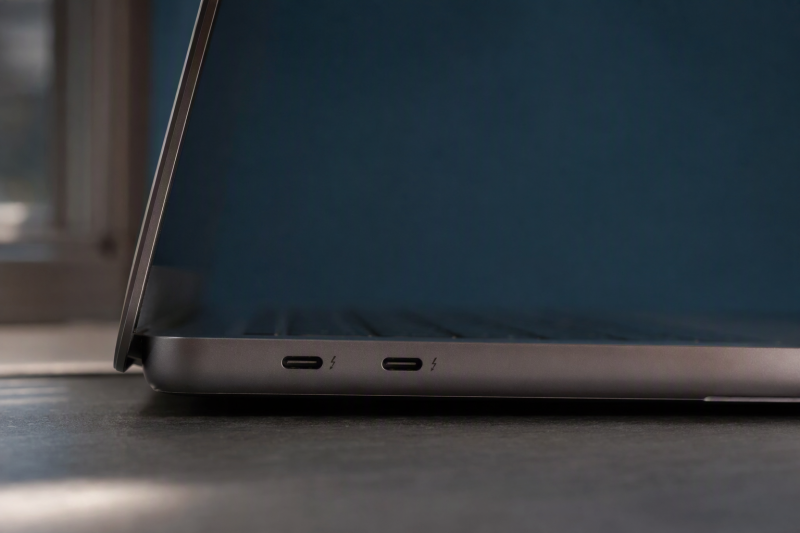
Intel advises readers to look for the Thunderbolt icon. The icon is a useful visual cue, especially while you match the manual’s diagram to the chassis. It still only corroborates the manual, and it cannot identify the port on its own.
A missing icon does not prove that a receptacle lacks Thunderbolt. A lightning-like mark is not automatically the Thunderbolt icon. Even a genuine-looking mark cannot tell you which capability applies when the maker’s documentation assigns the ports differently. Find the port in the manual first, then see whether the chassis mark supports that match.
Separate evidence from assumptions
| Evidence | What it proves | What it does not prove |
|---|---|---|
| Exact model manual with a side-view port map | The documented capability of the receptacle at that physical position | The capability of another model or configuration |
| Thunderbolt icon beside the mapped receptacle | A supporting visual cue consistent with Intel’s guidance | That every similar mark or every USB-C opening is Thunderbolt |
| Laptop charges through the receptacle | The tested charging route works | Thunderbolt, USB4, DisplayPort, or the capability of another port |
| Display output works through the receptacle | Display worked on that route | Thunderbolt identity |
| Windows shows USB4 Hubs and Devices | The system detected a USB4 host router | Which chassis receptacle is the Thunderbolt port, or that all receptacles match |
| A Thunderbolt device connects successfully | That the tested device, cable, and port worked together | A complete physical map of every USB-C port |
Trial and error alone is weak too. Microsoft notes that a Thunderbolt device should be connected to a USB-C port that supports Thunderbolt, and that both the cable and the port have to be right. A failure can therefore involve the chosen receptacle or the cable, so it cannot replace the manual’s physical map.
Resolve conflicting clues by evidence strength
When the clues appear to disagree, let the manual decide. A charge result cannot override a manual that separates Thunderbolt and non-Thunderbolt charging ports. A working display cannot promote a DisplayPort-capable USB-C port to Thunderbolt. A Windows USB4 entry cannot pick a receptacle, because that page does not show chassis positions.
The physical mark is useful only after its location and meaning fit the manual. If the icon is missing, worn, or hard to read, leave the mark column blank and keep the port position the manual gives. If the laptop in front of you has a different number or order of ports than the manual, stop. That mismatch suggests the model, configuration, orientation, or document has not been matched closely enough.
Working in that order avoids two common false matches: choosing the first USB-C opening that charges, and choosing any opening near a lightning-like symbol. Neither one links your model to a specific receptacle.
Use Windows USB4 inventory as corroboration
On supported Windows 11 systems, Microsoft places the USB4 page at Settings > Bluetooth & devices > USB > USB4 Hubs and Devices, and ties its availability to detection of a USB4 host router.
If the page appears, treat it as corroboration for the system as a whole. It cannot point at the left or right side of the laptop. Software inventory describes a detected host capability, while the manual ties that capability to a physical receptacle.
If the page does not appear, that absence does not make every port non-Thunderbolt. Microsoft ties page enablement to USB4 host-router detection, but a missing page is not a physical-port test. Keep using the manual for your model.
If your job is a general USB inventory rather than finding the physical Thunderbolt port, use how to detect the USB version on Windows 10 and 11. For display support without a Thunderbolt question, follow the USB-C DisplayPort Alt Mode check. The broader USB4 laptop list helps with model comparison, but it does not replace the manual for your configuration.
A Thunderbolt 4 docking-station guide becomes relevant only after the manual confirms that the mapped port is Thunderbolt 4 and you actually need a dock. A dock page is never evidence for the laptop port.
Records used to map the receptacle
- Dell XPS 15 9520 Setup and Specifications supplies the exact asymmetric left and right port map and the Service Tag boundary.
- Intel Thunderbolt 4 Infographic supplies the instruction to look for the Thunderbolt icon.
- Microsoft USB4 settings enablement supplies the Windows 11 path and USB4 host-router condition.
- Microsoft Fix USB-C problems in Windows supports checking both the correct Thunderbolt-capable port and cable.
Finish with the matched receptacle
| Exact model | Side | Physical position | Corroborating mark | Documented capability |
|---|---|---|---|---|
| Dell XPS 15 9520 | Left | Either of the two USB-C receptacles shown in the manual’s left-side view | Thunderbolt icon may corroborate the manual | Thunderbolt 4 (USB4) with Power Delivery |