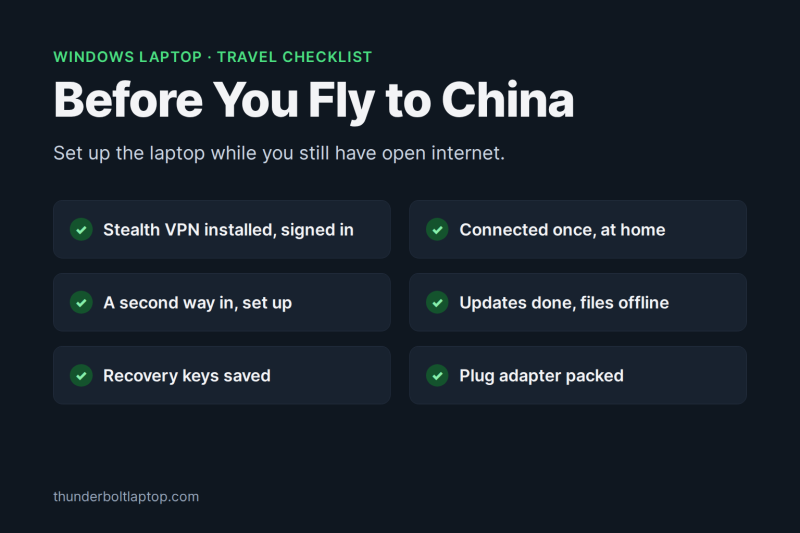
You land, get to the hotel, open the laptop, and half your workday is gone: Gmail won’t load, Google Drive times out, WhatsApp goes quiet. Mainland China’s internet filter blocks a long list of Western services, and once you’re on the other side it is much harder to download the tools that get around it.
This checklist is for Windows laptops. Do it at home in the week before you fly; it takes about half an hour, and most of it is the kind of thing you only learn the hard way.
What works and what doesn’t in mainland China
It changes by city, network and even month, so treat this as a rough map rather than a promise:
| Service | In mainland China, without a VPN |
|---|---|
| Google: Search, Gmail, Maps, Drive, YouTube | Blocked |
| WhatsApp, Facebook, Instagram, X | Blocked |
| Microsoft 365, Outlook, Teams, OneDrive | Usually works, sometimes slowly |
| Bing | Works |
| Many Western news sites | Often blocked |
If your work lives in Microsoft 365, you’ll mostly be fine. If it lives in Google Workspace, Slack-style tools or anything on Google’s cloud, you need a way out, and you need it set up before you board.
1. Install a VPN that actually gets through, before you leave
VPN websites and app downloads are blocked in China, so this is not something you can fix on arrival. Install, sign in and test at home.
The protocol matters more than the brand name. China’s filter recognises classic VPN protocols such as OpenVPN and WireGuard by their traffic patterns and blocks them quickly. What gets through are stealth protocols that look like ordinary web traffic:
- VLESS Reality looks like an HTTPS visit to a big, well-known website. In these packet captures, its TLS fingerprint looked like Chrome’s and an open-source DPI engine filed it under web browsing, while OpenVPN gave itself away in its very first byte.
- Hysteria2 runs over QUIC, like HTTP/3, and holds its speed on bad connections. In this benchmark, on a deliberately bad test network (125 ms ping plus 1% packet loss), it kept 57 Mbps while the TCP-based protocols dropped below 2 Mbps. On a clean connection all three ran at about 300 Mbps.
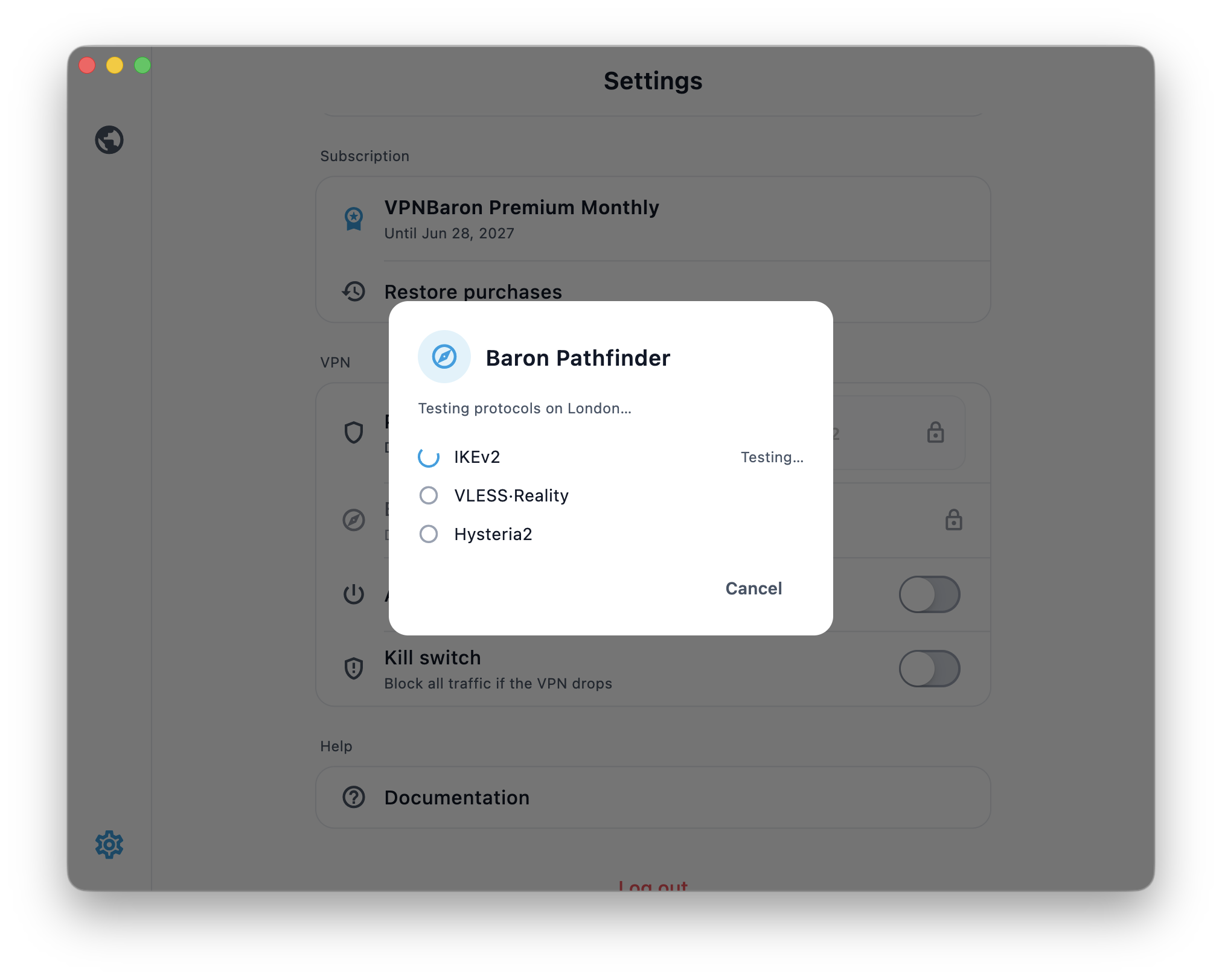
We use VPNBaron (here’s our review): its Windows app has both of those protocols plus IKEv2, and you don’t have to choose. Download it from vpnbaron.com/download/windows, sign in, and let Baron Pathfinder do the choosing: it tests the protocols on whatever network you’re on and connects through the one that works.
Do the first sign-in at home. vpnbaron.com itself is blocked in China, so the normal sign-in, which opens the website, won’t work there. If you ever need to sign in again in China, choose Sign in with an email code: the app requests a one-time code (OTP) through a separate route built for censored networks and never opens the website. The code arrives by email, so use an inbox you can open in China: Gmail is blocked without the VPN, while Outlook usually works.
2. Connect once at home, then pick your exit
Connect once and check that it works: any “what is my IP” site should show the VPN’s location instead of yours. Now the app has its server list and your subscription stored, so it doesn’t need to download anything when you arrive.
From the mainland, the shortest routes out are Hong Kong, Tokyo, Seoul and Singapore. Start with those, and switch to a location back home only when a website insists on it.
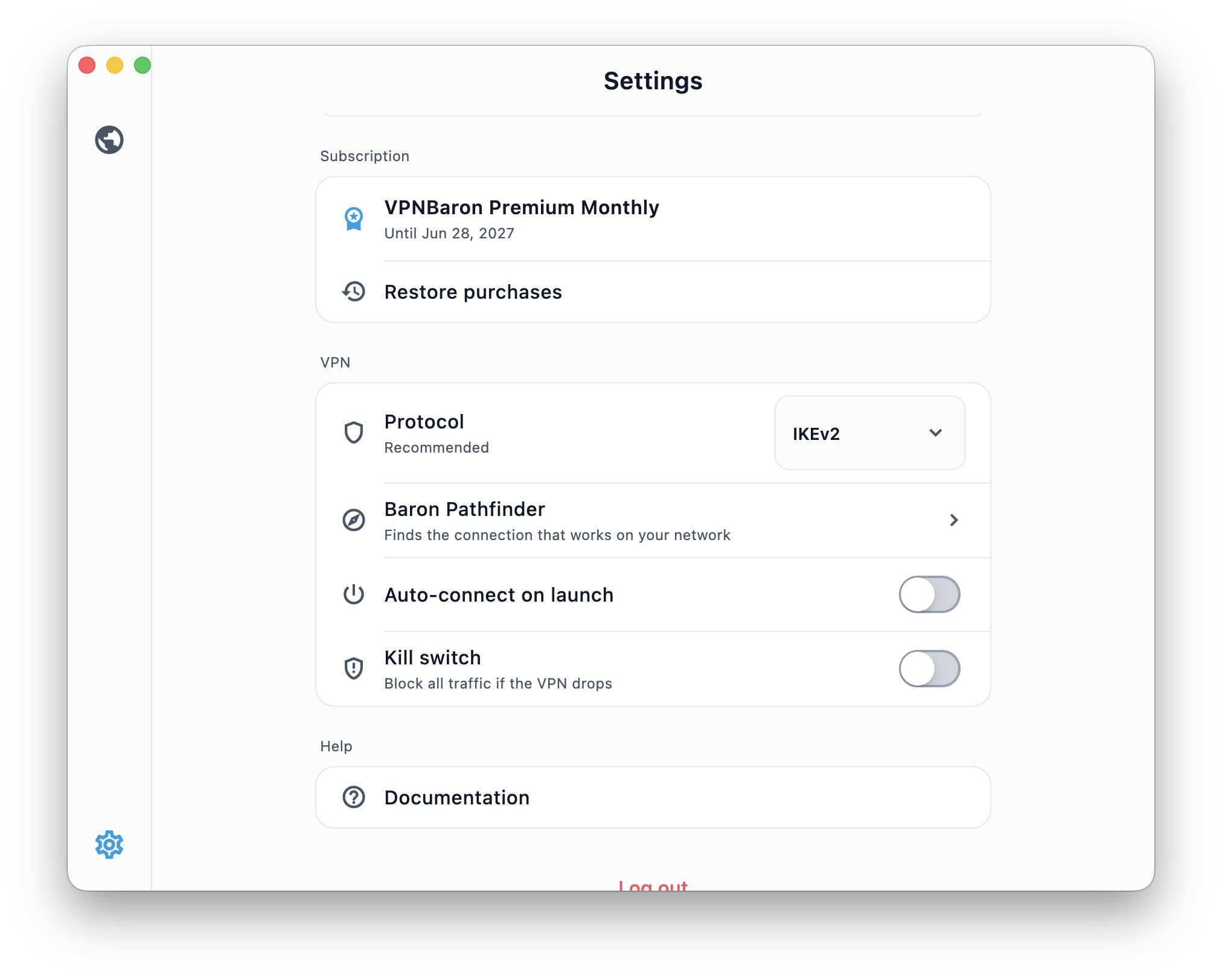
While you are in Settings, turn on the kill switch. If the VPN drops, it blocks traffic until you reconnect, so your mail and chat apps don’t quietly fall back to the filtered connection without you noticing.
3. Set up a second way in
Things fail on trips: a network that blocks one route, an app that misbehaves after an update. Two minutes now saves a day later.
- A backup client. Copy your stealth subscription link from your VPNBaron account and import it into Hiddify, a free Windows client. If the main app ever won’t connect, Hiddify already has every server.
- Your phone’s roaming data. Data roaming on your home SIM usually isn’t filtered, because it travels back through your home carrier before it reaches the internet, so tethering the laptop to your phone works as a fallback. It is expensive, though. Many travel eSIMs route the same way through Hong Kong or Singapore; check the provider’s notes before you buy one.
4. Get Windows ready
- Install updates now. Settings, Windows Update, Check for updates, and let it finish and restart. Large downloads over hotel Wi-Fi and a VPN are slow, and a forced restart in the middle of a meeting is worse.
- Save your BitLocker recovery key. If Windows ever asks for it (after a firmware update, for example), you need the 48-digit key. Find it at
aka.ms/myrecoverykeyand keep a copy on paper or on your phone. - Make files available offline. In OneDrive, right-click the folders you need and choose “Always keep on this device”. Do the same in Google Drive for Desktop, which won’t sync at all until the VPN is connected.
- Print backup codes. Two-factor prompts sent to an app or number you can’t reach abroad are a classic trip-killer. Save backup codes for your important accounts.
- Save the help pages offline. Save this setup checklist as a PDF; help pages may be slow or blocked once you are there.
5. Power: the easy part
China runs on 220 V at 50 Hz. Check the small print on your laptop charger: if it says 100-240V, as nearly all laptop and USB-C chargers do, you only need a plug adapter, not a voltage converter.
Sockets are Type A (two flat pins, like the US), Type I (angled flat pins, like Australia) and Type C (two round pins). Many hotels have combination sockets that take several shapes, but pack an adapter that covers A and I to be safe.
When you land
- Join the Wi-Fi and complete any login page first. If the VPN then won’t connect, our hotel Wi-Fi fixes apply in China too.
- Open VPNBaron and connect. The first connection on a filtered network can take a little longer while Pathfinder tests the routes; after that it reconnects quickly. Keep it connected in the background rather than reconnecting for every task.
- If nothing connects: switch networks (hotel Wi-Fi vs your phone’s hotspot), try another exit, or open Hiddify.
Expect it to be fine for mail, chat, documents and video calls. Large downloads are better left for a network you trust.
Taking a development machine? This developer guide covers GitHub, Docker Hub, npm and pip in China. And for what works where in more detail: VPN for China.
The checklist
| Before you fly | Done? |
|---|---|
| Stealth VPN installed, signed in, and connected once at home | ☐ |
| An email inbox you can open in China, for one-time sign-in codes (not Gmail) | ☐ |
| Exit picked: Hong Kong, Tokyo, Seoul or Singapore | ☐ |
| Kill switch on | ☐ |
| Backup client (Hiddify) imported | ☐ |
| Windows updates installed | ☐ |
| BitLocker recovery key saved off the laptop | ☐ |
| Work files set to stay offline | ☐ |
| Two-factor backup codes saved | ☐ |
| Plug adapter for Type A and I sockets | ☐ |
FAQ
Will my VPN work in China?
No VPN can promise it every single day. Stealth protocols such as VLESS Reality and Hysteria2 have the best odds, while classic OpenVPN and WireGuard connections are usually blocked quickly. That is why the backup client is on the list.
Can I download a VPN after I arrive?
Usually not easily: VPN websites and app downloads are blocked, and so are the app stores’ VPN listings. Install everything before you fly.
Do Microsoft 365 and Teams work in China?
Usually yes, without a VPN, although they can be slower than at home. Google’s services are the ones that need the VPN.