The CalDigit TS4 is the best Thunderbolt 4 dock for most people who need many ports, fast Ethernet, card readers, and strong laptop charging. The best pick changes if you use a base M-series Mac, need four Windows displays, manage a Dell or Lenovo fleet, or travel without a separate power brick.
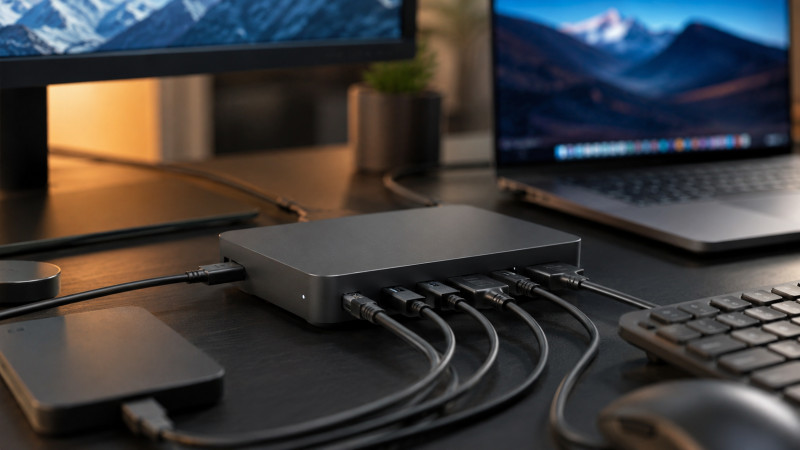
A Thunderbolt 4 dock connects displays, storage, Ethernet, audio, and USB devices through one laptop cable. A certified Thunderbolt 4 host link can carry up to 40Gbps of data and DisplayPort video while the dock sends power back to the laptop. The connector alone does not settle compatibility. Your laptop’s chip, operating system, DisplayPort streams, and charging rules still control what works.
None of the docks below is universal. A dock with two HDMI sockets can still drive only one external display when the host supplies one usable native display stream. A USB-C fallback can keep basic ports, charging, and one display working while losing Thunderbolt functions. Check the exact host conditions in each section before ordering.
Table of Contents
July 2026 update
We rebuilt this guide in July 2026 around nine exact products with current manufacturer documentation. We removed a duplicated CalDigit listing, a used-only older Kensington dock, a compact hub, and other products that no longer fit this page. We also replaced the conflicted Kensington SD5780T with the exact SD5760T revision K34110NA because its current identity, Gigabit Ethernet, display limits, and fallback behavior are documented consistently.
Quick picks
- Best overall: CalDigit TS4 for the broadest port set, 2.5GbE, both UHS-II card formats, and up to 98W host charging.
- Best for many Windows displays: Plugable TBT4-UDZ for four dedicated display outputs and up to four 4K 60Hz displays on a qualifying Windows TB4 or USB4 host.
- Best for current Dell fleets: Dell SD25TB4 for Dell-specific 130W charging, fleet functions, and a current business dock design.
- Best for travel without a brick: OWC Thunderbolt Go Dock because its 120W power supply is built into the dock.
- Best native HDMI setup for supported Macs: Plugable TBT-UDM for two HDMI outputs with clear chip and lid-state limits.
- Best for current Surface fleets: Microsoft Surface Thunderbolt 4 Dock for three downstream USB4 or TB4 ports and Surface-focused management.
- Best for downstream Thunderbolt expansion: UGREEN Revodok Max 208 for three downstream TB4 ports and an included 140W GaN supply.
- Best for dual HDMI plus two card formats: Kensington SD5760T K34110NA for two HDMI ports, SD, microSD, and 96W charging.
- Best for current Lenovo deployments: Lenovo ThinkPad Thunderbolt 4 Smart Dock Gen 2 7500 for Lenovo fleet functions and a wide display-port selection.
| Image | Product | Best for | Host link and charging | Qualified display ceiling | Ethernet and key ports | Card reader | Main caveat | Check price |
|---|---|---|---|---|---|---|---|---|
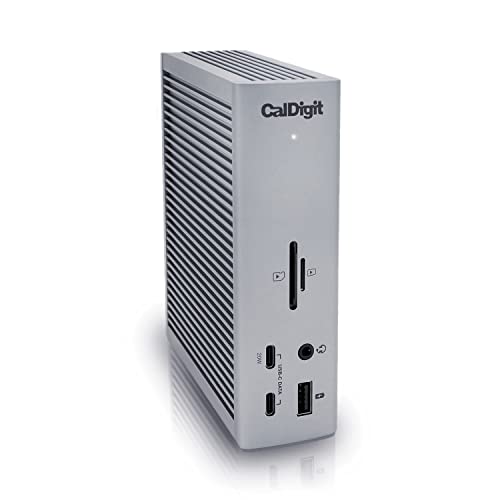 | CalDigit TS4 | Maximum port choice | Thunderbolt 4 host, up to 98W charging; reduced functions on TB3, USB4, and qualified USB-C hosts | Single 8K on a compatible Windows host; dual 4K on supported Windows, Intel Mac, and ChromeOS hosts; dual 6K on supported Pro, Max, and Ultra Macs; base Apple silicon stays host-limited | 2.5GbE; 2 downstream TB4; 3 USB-C 10Gbps; 5 USB-A 10Gbps; DisplayPort 1.4 | UHS-II SD and microSD | Socket count cannot override the host display limit, and some monitor paths need active adapters | Check price on Amazon |
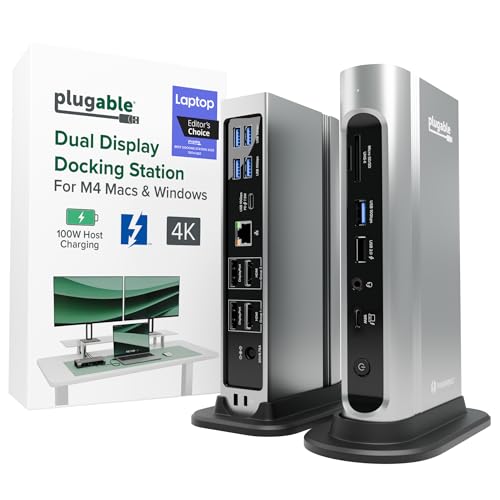 | Plugable TBT4-UDZ | Four displays on a qualifying Windows host | Thunderbolt 4 host, 98W charging; accepts TB3, USB4, and qualified USB-C with reduced functions | Up to four 4K 60Hz displays on qualifying Windows TB4 or USB4 hosts; up to two on supported TB3 hosts and Macs; one 4K 60Hz on base M1, M2, and M3 Macs | 2.5GbE; no downstream TB4; 4 display outputs; 1 USB-C and 6 USB-A | UHS-II SD and microSD | Four-display support depends on Windows MST; follow the detailed matrix, not the broader summary banner | Check price on Amazon |
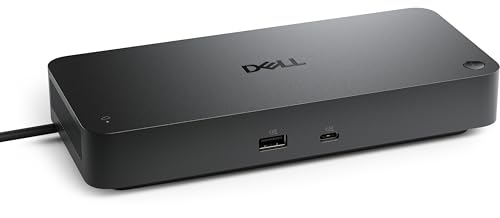 | Dell Pro Thunderbolt 4 Smart Dock SD25TB4 | Current Dell business fleets | Integrated TB4 cable; 130W to supported Dell systems and 96W to non-Dell systems | Up to four external displays only when the Dell host matrix confirms enough display bandwidth | 2.5GbE; 2 downstream TB4; 4 USB-A; 2 USB-C; 2 DisplayPort 1.4; HDMI 2.1 | None | High charging, power button, and management functions depend on a supported Dell deployment | Check price on Amazon |
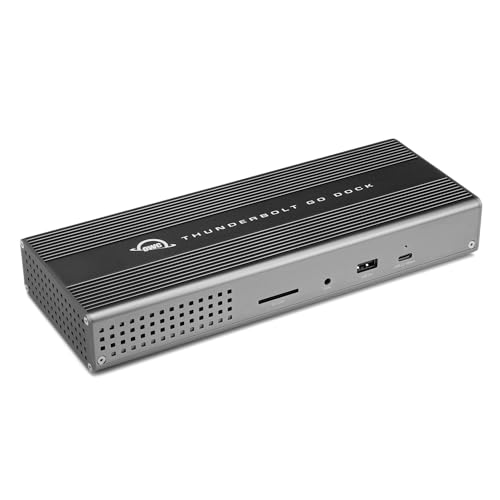 | OWC Thunderbolt Go Dock | Travel without a separate power brick | Thunderbolt 4 host, up to 90W charging; reduced functions on TB3, USB4, and USB-C hosts | Up to one 8K 60Hz, one 4K 120Hz, two 4K 60Hz, or two 5K 60Hz only when the host supplies the required streams | 2.5GbE; 2 downstream TB4; 1 USB-C 10Gbps; 2 USB-A 10Gbps; HDMI 2.1 | UHS-II SD | The built-in supply saves a brick but makes the dock heavier, and display limits still come from the host | Check price on Amazon |
 | Plugable TBT-UDM | Native dual HDMI on supported Macs | Thunderbolt 4 host, 96W certified charging; TB3 and USB-C fallback is limited to one display | Two 4K 60Hz HDMI displays on all M4 and M5 Macs, Pro or Max Macs, and supported Windows TB4 or USB4 hosts; base M1 and M2 use one; base M3 needs clamshell mode for two | 1GbE; 1 downstream TB4; 1 USB-C 10Gbps; 4 USB-A; 2 HDMI | UHS-II SD and microSD | Base Mac display rules differ by chip and lid state; this is not a DisplayLink workaround | Check price on Amazon |
 | Microsoft Surface Thunderbolt 4 Dock T8H-00001 | Current Surface fleets | Attached TB4 or USB4 host cable, up to 96W charging | Up to two 4K 60Hz displays on a supported TB4 host; supported USB-C Surface paths use one 4K 60Hz display | 2.5GbE; 3 downstream USB4 or TB4 USB-C ports; 3 USB-A 10Gbps | None | There are no HDMI or DisplayPort sockets, and management features are strongest on supported Surface and Windows systems | Check price on Amazon |
 | UGREEN Revodok Max 208 | Downstream Thunderbolt expansion | Thunderbolt 4 host, up to 85W charging; reduced functions on TB3, USB4, and qualified USB-C hosts | Dual 4K 60Hz or single 8K 30Hz on supported Windows hosts; dual 4K on supported Intel and Pro or Max Macs; one 4K on base M-series Macs and USB-C hosts | 1GbE; 3 downstream TB4 at 15W each; 3 USB-A 10Gbps | None | No card reader or dedicated display output; monitors need USB-C, Thunderbolt, or adapters | Check price on Amazon |
 | Kensington SD5760T K34110NA | Dual HDMI and two card formats | Thunderbolt 4 host, up to 96W charging; TB3 and USB4 retain the full host link, while USB-C falls back to 5Gbps or 10Gbps and one display | Single 8K 60Hz through downstream TB4 with DSC or dual 4K 60Hz through HDMI on qualifying hosts; base M1 and M2 Macs and USB-C Alt Mode hosts use one external display | 1GbE; 1 downstream TB4; 2 HDMI; 1 USB-C 10Gbps; 4 USB-A | UHS-II SD and microSD | It has one downstream TB4 port, and the 96W figure is the current first-party limit despite broader marketplace title copy | Check price on Amazon |
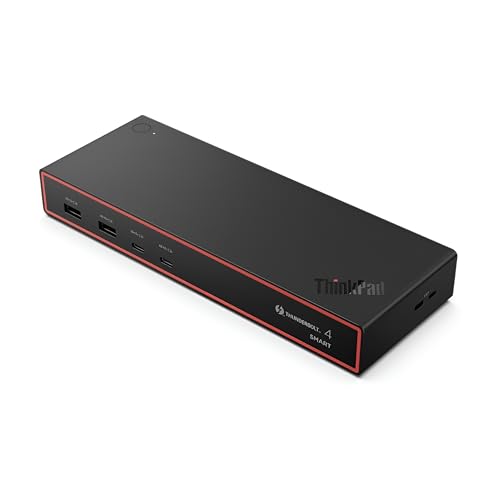 | Lenovo ThinkPad Thunderbolt 4 Smart Dock Gen 2 7500 | Current Lenovo managed deployments | Integrated 1m TB4 cable, up to 100W PD 3.1 charging | Lenovo lists one 8K 60Hz or up to four 4K 60Hz, but every mode requires a compatible host GPU and display-stream topology | 2.5GbE; 1 downstream TB4; 2 USB-C; 4 USB-A; 2 DisplayPort 1.4; HDMI 2.1 | None | Display ceilings and fleet functions are host-specific, and macOS support begins with the versions Lenovo documents | Check price on Amazon |
1. CalDigit TS4 for the broadest port selection
The CalDigit TS4 is the strongest general choice when you want one dock to handle displays, fast wired networking, storage cards, audio, and a large USB collection. CalDigit documents 18 ports, including two downstream Thunderbolt 4 ports, three USB-C 10Gbps ports, five USB-A 10Gbps ports, DisplayPort 1.4, 2.5GbE, UHS-II SD and microSD readers, and separate audio connections.
Who should buy it: Choose the TS4 if your desk has many peripherals or if you need both card formats and 2.5GbE without adding adapters. Its rear host port also works well in a fixed setup where you want the laptop cable routed away from the front edge.
Who should skip it: Skip it if you only need one monitor, basic USB, and ordinary Ethernet. Also skip it if you need built-in HDMI and do not want to use DisplayPort, a USB-C display, or an active adapter.
- Host link and fallback: The main path is Thunderbolt 4. CalDigit also supports Thunderbolt 3, USB4, and qualified USB-C hosts with reduced functionality. A USB-C host does not gain Thunderbolt tunneling, the full 2.5GbE path, or extra native display streams.
- Downstream Thunderbolt: Two Thunderbolt 4 ports, rated at up to 15W each.
- Host charging: Up to 98W from an external 230W power supply.
- Display ceiling: CalDigit lists single 8K on a compatible Windows host, dual 4K 60Hz on supported Windows, Intel Mac, and ChromeOS hosts, and dual 6K 60Hz on supported Pro, Max, and Ultra Apple silicon hosts. Base Apple silicon models remain limited by the Mac’s native display support.
- Ethernet and ports: 2.5GbE requires the proper Thunderbolt host path. DisplayPort 1.4, three USB-C 10Gbps ports, five USB-A 10Gbps ports, and audio cover most fixed-desk needs.
- Card readers: UHS-II SD and UHS-II microSD.
The mistake to avoid is assuming that 18 ports or three total TB4 sockets guarantee a particular monitor count. They do not. Some DisplayPort conversions also require an active adapter, so check CalDigit’s adapter guidance for the exact monitor input.
Our TakeThe TS4 earns the overall slot through port breadth and clearly documented host boundaries. Buy it for connectivity, not as a way to bypass a laptop’s native display limit.
- 18 ports, 2.5GbE, two downstream TB4 ports, 98W charging, and both UHS-II card formats
- No built-in HDMI, large external power supply, and display support still depends on the host
2. Plugable TBT4-UDZ for four displays on qualifying Windows hosts
The Plugable TBT4-UDZ is built around dedicated display outputs rather than downstream Thunderbolt expansion. It provides two HDMI ports and two DisplayPort connections, plus 2.5GbE, seven USB ports, audio, and UHS-II SD and microSD readers. The layout suits a Windows workstation with several ordinary HDMI or DisplayPort monitors.
Who should buy it: Buy it when a qualifying Windows Thunderbolt 4 or USB4 laptop needs three or four displays and its GPU and DisplayPort topology support the required streams. It is also useful when you want to avoid buying video adapters for HDMI and DisplayPort monitors.
Who should skip it: Skip it if you need downstream Thunderbolt ports for storage, displays, or daisy chains. Mac buyers should also skip it when their main goal is to exceed the native display count of the Mac.
- Host link and fallback: Thunderbolt 4 is the main path. The dock also accepts Thunderbolt 3, USB4, and qualified USB-C. Plugable’s detailed matrix does not support Linux or ChromeOS for this model, and reduced host paths have lower display ceilings.
- Downstream Thunderbolt: None. The four video connectors do not function as downstream TB4 ports.
- Host charging: 98W from an external 135W power supply.
- Display ceiling: The detailed matrix allows up to four 4K 60Hz displays on qualifying Windows TB4 or USB4 hosts through MST. Thunderbolt 3 hosts and supported Macs reach up to two 4K 60Hz displays. Base M1, M2, and M3 Macs are conservatively limited to one 4K 60Hz external display.
- Ethernet and ports: 2.5GbE, one USB-C 10Gbps port, three USB-A 10Gbps ports, two USB-A 5Gbps ports, one USB 2.0 charging port, and audio.
- Card readers: UHS-II SD and microSD.
The easy misread here is treating the four physical video outputs as a promise of four monitors on any laptop. Plugable’s summary banner is broader than its detailed compatibility matrix for base M3 Macs. We follow the detailed matrix and use the one-display boundary for base M1, M2, and M3 systems.
Our TakeThe TBT4-UDZ is the specialist choice for a qualifying Windows multi-monitor desk. Its value comes from dedicated display outputs, not from downstream Thunderbolt expansion.
- Four dedicated video outputs, up to four 4K 60Hz displays on qualifying Windows hosts, 2.5GbE, and two card readers
- No downstream TB4, no Linux or ChromeOS support in the detailed matrix, and base M1, M2, and M3 Macs remain at one display
3. Dell Pro Thunderbolt 4 Smart Dock SD25TB4 for Dell fleets
The Dell SD25TB4 is a current business dock for organizations that use supported Dell laptops and Dell’s management tools. It combines two downstream Thunderbolt 4 ports, two DisplayPort 1.4 connections, HDMI 2.1, 2.5GbE, four USB-A 10Gbps ports, and two USB-C 10Gbps ports. The integrated 0.83m host cable reduces one removable part at a managed desk.
Who should buy it: Choose it for supported Dell Latitude, Precision, and other business systems when 130W charging, the dock power button, remote management, Wake-on-LAN, or related fleet features are part of the deployment plan.
Who should skip it: Skip it for a mixed fleet if you expect every vendor-specific function to work on every laptop. A non-Dell TB4 system can use the core dock, but it does not receive the complete Dell experience.
- Host link and fallback: The integrated cable supplies a Thunderbolt 4 host link. Dell supports current Windows, ChromeOS, macOS, Ubuntu, and Red Hat paths with model-specific limits. A lower-capability USB-C path should not be treated as equivalent to the TB4 path.
- Downstream Thunderbolt: Two Thunderbolt 4 ports.
- Host charging: Up to 130W to supported Dell computers and up to 96W to non-Dell computers. The external supply is rated at 180W.
- Display ceiling: Dell lists up to four external displays, but the actual combination depends on the laptop’s graphics hardware, DisplayPort bandwidth, compression support, operating system, and the exact display matrix.
- Ethernet and ports: 2.5GbE, two DisplayPort 1.4, one HDMI 2.1, four USB-A 10Gbps, two USB-C 10Gbps, and two downstream TB4 ports.
- Card readers: None.
The trap is buying it for 130W charging or enterprise controls without checking the exact Dell laptop. Both benefits are separate from basic docking. Readers considering an older modular Dell dock can use our Dell WD22TB4 review as legacy context, but the SD25TB4 is the current pick here.
Our TakeThe SD25TB4 is a fleet choice first and a general dock second. Its strongest reasons to buy are tied to a supported Dell system and a managed deployment.
- 130W charging on supported Dell systems, broad display outputs, two downstream TB4 ports, 2.5GbE, and fleet tools
- 96W ceiling on non-Dell systems, no card reader, and display and management behavior require an exact host check
4. OWC Thunderbolt Go Dock for travel without a separate power brick
The OWC Thunderbolt Go Dock solves a specific travel problem. Its 120W power supply is built into the dock, so you carry an AC cable instead of a separate power brick. The dock still provides two downstream Thunderbolt 4 ports, HDMI, 2.5GbE, UHS-II SD, USB-C, USB-A, audio, and up to 90W of laptop charging.
Who should buy it: Buy it if you move between home, an office, and temporary workspaces and want one powered dock that can stay in the travel bag. The built-in supply is also useful on a hot desk where loose power bricks are easy to misplace.
Who should skip it: Skip it if your priority is the lowest travel weight or the smallest footprint. Integrating the supply removes a separate brick but makes the dock itself heavier than a small hub.
- Host link and fallback: Thunderbolt 4 is the full path. OWC also supports Thunderbolt 3, USB4, and USB-C hosts with reduced capabilities. A USB-C host can have a lower data rate, fewer displays, and different adapter requirements.
- Downstream Thunderbolt: Two Thunderbolt 4 ports.
- Host charging: Up to 90W from the built-in 120W AC power supply.
- Display ceiling: OWC lists one 8K 60Hz display, one 4K 120Hz display, two 4K 60Hz displays, or two 5K 60Hz displays when the host supplies the required streams and supports the chosen topology.
- Ethernet and ports: 2.5GbE, HDMI, one USB-C 10Gbps port, two USB-A 10Gbps ports, one USB 2.0 port, audio, and two downstream TB4 ports.
- Card readers: One UHS-II SD slot. There is no microSD slot.
One misread is assuming that a dock designed for travel is light or that its video ceiling applies to every host. It is a full AC-powered dock with a built-in supply. Some USB-C monitor paths also need an adapter or another supported connection method.
Our TakeChoose the Go Dock because you want full desktop connections without a loose power brick. Do not choose it to reduce the total weight of the dock itself.
- Built-in 120W supply, 90W charging, two downstream TB4 ports, HDMI, 2.5GbE, and UHS-II SD
- Heavier dock body, no microSD, and every high display mode still depends on the host
5. Plugable TBT-UDM for native HDMI on supported Macs
The Plugable TBT-UDM is a Mac-focused native display dock with two HDMI ports. It avoids DisplayLink drivers and keeps the display path native, which makes the host chip’s display rules especially important. Plugable documents different results for base M1, M2, and M3 Macs, newer base M4 and M5 systems, and Pro or Max chips.
Who should buy it: Choose it when a supported Mac needs two HDMI monitors and you want a driverless native display path. It also fits a Windows TB4 or USB4 laptop that needs two HDMI outputs, 1GbE, cards, USB, and one downstream TB4 port.
Who should skip it: Skip it if your base Mac cannot natively drive the display count you need. Also skip it when 2.5GbE or several downstream TB4 ports are required.
- Host link and fallback: Thunderbolt 4 is the main connection. Thunderbolt 3 and USB-C hosts can fall back to one display. The reduced path is not a way to add native display streams.
- Downstream Thunderbolt: One Thunderbolt 4 port.
- Host charging: Marketed at 100W and certified at 96W from an external 134W power supply.
- Display ceiling: Plugable supports two 4K 60Hz HDMI displays on all M4 and M5 Macs, on supported Pro or Max Macs, and on qualifying Windows TB4 or USB4 hosts. Base M1 and M2 Macs support one external display. A base M3 Mac supports two only in clamshell mode. A single display through downstream TB4 can reach up to 6K on a supported Mac or 8K on supported Windows hardware.
- Ethernet and ports: 1GbE, two HDMI, one USB-C 10Gbps, two USB-A 10Gbps, two USB-A 5Gbps, audio, and one downstream TB4 port.
- Card readers: UHS-II SD and microSD.
The detail buyers overlook is chip generation and lid state. A base M3 Mac needs clamshell mode for the two-display result, while base M1 and M2 systems remain at one. The dock uses native video and does not provide a software graphics workaround.
Our TakeThe TBT-UDM is the clean dual-HDMI choice for a Mac that already supports the required native display count. Its conservative host matrix is more useful than a broad Mac compatibility claim.
- Two HDMI outputs, clear Mac chip rules, 96W certified charging, cards, USB, and one downstream TB4 port
- 1GbE only, base M1 and M2 stay at one display, and base M3 needs clamshell mode for two
6. Microsoft Surface Thunderbolt 4 Dock T8H-00001 for Surface fleets
The Microsoft Surface Thunderbolt 4 Dock is a compact fleet dock with three downstream USB-C ports that carry USB4 or Thunderbolt 4 functions, three USB-A 10Gbps ports, 2.5GbE, audio, and up to 96W charging. It does not include dedicated HDMI or DisplayPort sockets, so monitor input planning is part of the purchase.
Who should buy it: Buy it for supported Surface devices when automatic firmware, management, security, and a consistent Microsoft accessory path are useful. It can also provide core docking to other TB4 or USB4 PCs when vendor-specific features are not required.
Who should skip it: Skip it if your monitors only accept HDMI or DisplayPort and you do not want adapters. Mixed Mac and PC desks may also get more predictable value from a dock whose main appeal is not tied to Surface management.
- Host link and fallback: The attached host cable uses Thunderbolt 4 or USB4. Microsoft documents a reduced USB-C path for supported Surface hardware, but the exact device must support video and charging over that connection.
- Downstream Thunderbolt: Three USB-C USB4 or Thunderbolt 4 ports with display support.
- Host charging: Up to 96W from an external 165W power supply.
- Display ceiling: Up to two 4K 60Hz displays on a supported TB4 host. A supported USB-C-only Surface path reaches one 4K 60Hz display when the device supports it.
- Ethernet and ports: 2.5GbE, three USB-A 10Gbps ports, three downstream USB-C USB4 or TB4 ports, and audio. HDMI and DisplayPort are absent.
- Card readers: None.
The Surface name is not proof that every Surface feature works on every laptop. Core USB, network, display, and charging functions are separate from Windows and Surface management, firmware, and security features. The monitor adapters you need also depend on the display input.
Our TakeThe Surface dock is a sensible standard for a supported Surface fleet. Its three downstream ports are useful, but the lack of dedicated video sockets and card readers makes it less direct for a general desk.
- Three downstream USB4 or TB4 ports, 96W charging, 2.5GbE, six USB connections, and Surface management support
- No HDMI, DisplayPort, or card reader, and advanced functions are not equal on non-Surface or non-Windows hosts
7. UGREEN Revodok Max 208 for downstream Thunderbolt expansion
The UGREEN Revodok Max 208 focuses on Thunderbolt expansion. Three downstream Thunderbolt 4 ports can connect displays, fast storage, or other Thunderbolt devices, and three USB-A 10Gbps ports handle ordinary peripherals. It also includes 1GbE and a 140W GaN power supply that sends up to 85W to the host.
Who should buy it: Choose it if your displays already use USB-C or Thunderbolt, or if you are comfortable choosing the correct video adapters. It also fits a desk that needs several downstream Thunderbolt devices but not card readers or dedicated display sockets.
Who should skip it: Skip it if you need HDMI, DisplayPort, SD, microSD, or 2.5GbE built into the dock. A full port-heavy dock will reduce the adapter count.
- Host link and fallback: Thunderbolt 4 provides full operation. UGREEN also lists Thunderbolt 3, USB4, and qualified USB-C compatibility with reduced functionality. USB-C hosts should be expected to lose Thunderbolt expansion and use one supported display path.
- Downstream Thunderbolt: Three Thunderbolt 4 ports, each rated at up to 15W for connected devices.
- Host charging: Up to 85W from the included external 140W GaN supply.
- Display ceiling: UGREEN documents dual 4K 60Hz or single 8K 30Hz for supported Windows laptops and dual 4K 60Hz for supported Intel and Pro or Max Macs. Base M-series Macs and full-feature USB-C hosts are limited to one 4K 60Hz display.
- Ethernet and ports: 1GbE, three downstream TB4 ports, and three USB-A 10Gbps ports. There are no dedicated video outputs.
- Card readers: None.
Do not expect a complete desktop port set from a Thunderbolt expansion design. UGREEN also says the dock is not compatible with the 2018 Intel Mac mini. Our Plugable TBT4-HUB3C review explains the smaller hub category if multiplying TB4 ports is the only job.
Our TakeThe Revodok Max 208 is the pick for three downstream Thunderbolt ports and ordinary USB expansion. It is a poor fit when built-in video outputs, cards, or faster Ethernet are required.
- Three downstream TB4 ports at up to 15W each, three USB-A 10Gbps ports, included 140W GaN supply, and 85W host charging
- 1GbE only, no dedicated video outputs, no card readers, and base M-series Macs remain at one display
8. Kensington SD5760T K34110NA for dual HDMI and card readers
The exact SD5760T revision in this guide is K34110NA. Kensington’s current product and support pages identify it as a Thunderbolt 4 dual-HDMI dock with one downstream Thunderbolt 4 port, up to 96W host charging, Gigabit Ethernet, USB-C, four USB-A ports, audio, and separate UHS-II SD and microSD readers. The exact Amazon ASIN maps to the same model revision.
Who should buy it: Choose it if you want two built-in HDMI outputs and both card formats in one cross-platform dock. It is also a practical fit when 1GbE is sufficient and one downstream TB4 port covers your storage or display chain.
Who should skip it: Skip it if 2.5GbE or several downstream TB4 ports are required. Base Mac owners should not assume that two HDMI sockets grant two native displays.
- Host link and fallback: Kensington supports Thunderbolt 4, Thunderbolt 3, and USB4 devices on Windows 10 or later and macOS 11 or later. USB-C fallback runs at 5Gbps or 10Gbps according to the host and supports one external display.
- Downstream Thunderbolt: One Thunderbolt 4 port.
- Host charging: Up to 96W through dynamic Power Delivery from an included external AC power supply.
- Display ceiling: A qualifying host can run one 8K 60Hz display through downstream TB4 when DSC is enabled or two 4K 60Hz displays through HDMI. Kensington lists dual 4K for M4 and M5 base Macs and supported Pro or Max chips. Base M1 and M2 Macs use one display. The current page does not list base M3 in its dual-display set, so confirm that exact path before buying for two displays.
- Ethernet and ports: 1GbE, two HDMI, one USB-C 10Gbps, two USB-A 10Gbps, two USB-A 5Gbps, audio, and one downstream TB4 port.
- Card readers: UHS-II SD and microSD.
The risk here is confusing this model with another Kensington revision, or using the broader Amazon title as the charging source. Kensington’s current first-party limit is 96W. Readers comparing the older product family can use our Kensington SD5700T review for legacy context.
Our TakeThe SD5760T earns this slot through a clean exact identity and a useful mix of dual HDMI, both card formats, and 96W charging. Keep the purchase tied to revision K34110NA.
- Two HDMI ports, one downstream TB4 port, 96W charging, UHS-II SD and microSD, and documented USB-C fallback
- 1GbE only, one downstream TB4 port, and dual-display support needs an exact host check
9. Lenovo ThinkPad Thunderbolt 4 Smart Dock Gen 2 7500 for Lenovo deployments
The ThinkPad Thunderbolt 4 Smart Dock Gen 2 7500 is Lenovo’s current managed TB4 dock in this group. Its integrated 1m host cable feeds two DisplayPort 1.4 connections, HDMI 2.1, one downstream Thunderbolt 4 port, two USB-C 10Gbps ports, four USB-A 10Gbps ports, 2.5GbE, and audio. Lenovo documents Windows, macOS, and Linux support with version and host limits.
Who should buy it: Choose it for a supported ThinkPad or another Lenovo business system when remote hardware management, PXE, MAC address pass-through, the dock power button, or a consistent deployment image has operational value.
Who should skip it: Skip it for a mixed fleet if you expect all Lenovo-specific controls and charging behavior on every computer. Mac users should check Lenovo’s current macOS version requirement and their chip’s native display support.
- Host link and fallback: The integrated cable uses Thunderbolt 4. Lenovo documents Windows, macOS, and Linux operation, but management and power-button functions are strongest on supported Lenovo business systems. A reduced USB-C path should not be assumed to preserve TB4 expansion.
- Downstream Thunderbolt: One full-function Thunderbolt 4 port.
- Host charging: Up to 100W using PD 3.1 from an external 135W power supply.
- Display ceiling: Lenovo lists one 8K 60Hz display or up to four 4K 60Hz displays, and it also lists two 4K 144Hz displays. Each is a ceiling for a compatible host GPU, display-stream topology, operating system, cables, and monitors. The dock does not create those capabilities on an unsupported host.
- Ethernet and ports: 2.5GbE, two DisplayPort 1.4, one HDMI 2.1, two USB-C 10Gbps, four USB-A 10Gbps, audio, and one downstream TB4 port.
- Card readers: None.
Do not read Lenovo’s maximum display line as a universal promise, or buy for fleet features without a supported Lenovo host. Lenovo’s current US page also ties Mac support to recent macOS versions, so an older managed image may need an update.
Our TakeThe Gen 2 7500 is the right Lenovo choice when deployment controls are part of the job. For a personal mixed-device desk, choose on ports and host compatibility rather than the management feature list.
- Wide display connections, 2.5GbE, 100W PD 3.1, six USB ports, and Lenovo fleet functions
- One downstream TB4 port, no card reader, and display and management claims depend on the exact host
How to choose a Thunderbolt 4 dock
Start with the host protocol
Look up the exact laptop model and port specification. A USB-C connector can carry Thunderbolt 4, Thunderbolt 3, USB4, or ordinary USB with DisplayPort Alt Mode. The connector shape does not prove which protocol is available. A dock can fall back on a USB-C host, but the fallback may reduce data speed, monitor count, Ethernet behavior, charging, and downstream Thunderbolt functions.
If the laptop has TB4 or a fully documented USB4 implementation, check whether the dock maker lists that operating system and host family. If the laptop has only USB-C, buy for the documented fallback instead of the Thunderbolt headline. A dock that works at reduced function is not working as a full Thunderbolt dock.
Match charging to the laptop
Compare the dock’s host charging limit with the laptop’s normal power adapter. A thin notebook may be comfortable below 100W, while a workstation can charge slowly or lose battery under a heavy load. Vendor charging rules also matter. Dell’s SD25TB4 can supply 130W to supported Dell systems but up to 96W to non-Dell systems. Lenovo’s and Microsoft’s management benefits are also separate from ordinary USB Power Delivery.
The capacity of the dock’s power supply is not the same as its host-charging limit. A dock uses part of its supply for USB devices, downstream TB4 ports, networking, and internal electronics. Compare the number the maker assigns to the host, not the larger number printed on the power adapter.
Count native display streams before sockets
A dock routes video that the laptop can provide. HDMI, DisplayPort, and downstream Thunderbolt sockets do not create extra native display streams. Windows systems can also differ because the GPU, DisplayPort version, MST support, compression support, and firmware determine the available combinations. Mac limits vary by chip generation, chip tier, laptop model, and sometimes lid state.
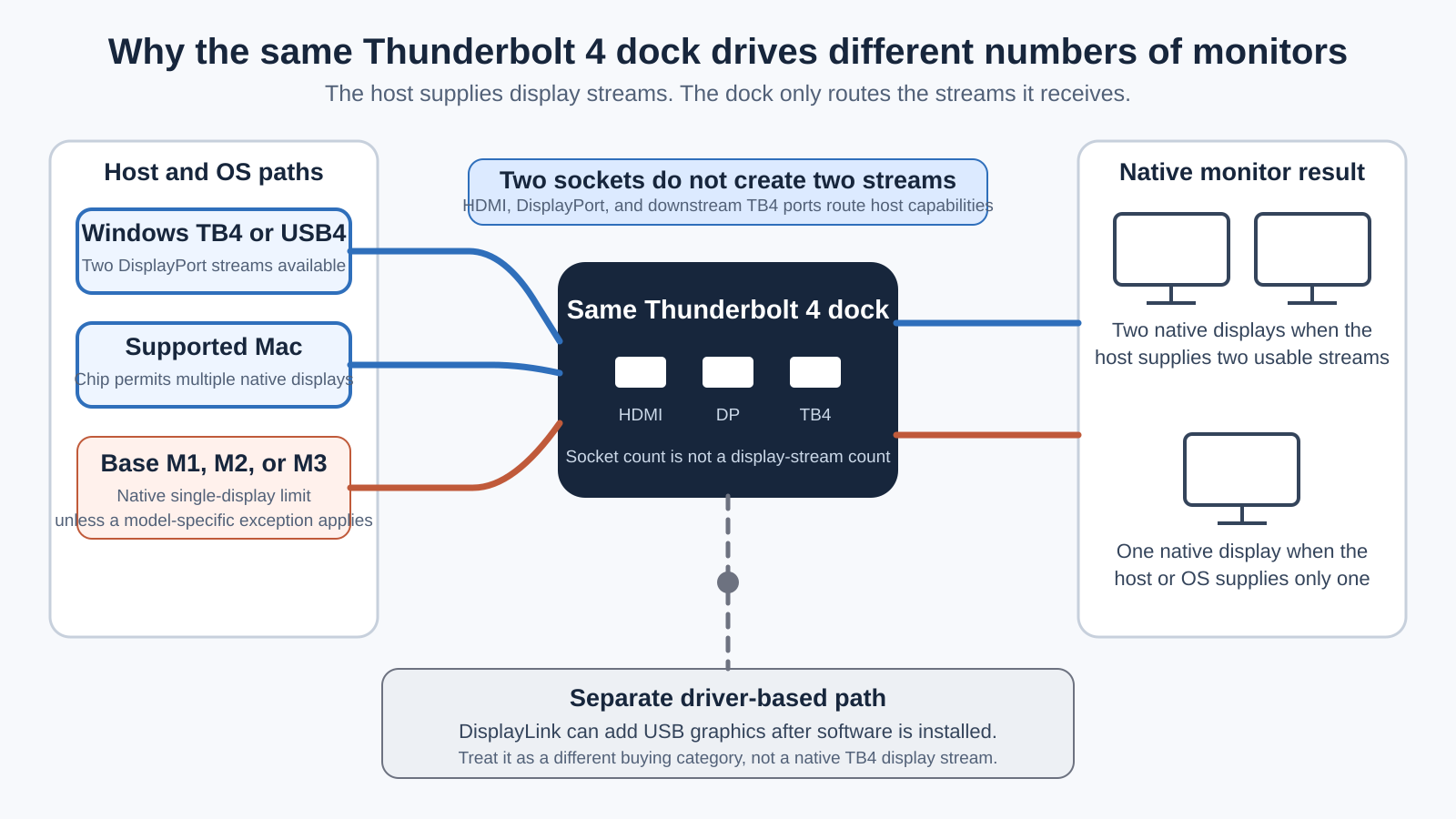
Write down the required resolution and refresh rate for every monitor, then check the exact topology in the maker’s matrix. A claim such as “up to four displays” is only a ceiling. It does not say that every laptop can drive four 4K monitors at the same refresh rate through every combination of ports.
Choose port roles, not the largest total
Separate downstream Thunderbolt from ordinary USB-C. A downstream TB4 port can carry Thunderbolt data and video to supported devices. A USB-C 10Gbps data port may look identical but cannot replace it. Also check whether Ethernet is 1GbE or 2.5GbE, whether a card reader supports UHS-II, and whether the dock includes HDMI or DisplayPort for your monitors.
Card slots also differ. Some docks include SD only, some include SD and microSD, and several include neither. If you already use an external reader, a dock without cards may still be the cleaner choice. The same logic applies to audio and Ethernet. Buy the ports that remove adapters from your actual desk.
Plan the return-risk check
Before ordering, record the exact laptop model, operating system version, chip or GPU, number of monitors, resolution, refresh rate, cable type, and required charging wattage. Compare the list with the manufacturer’s detailed compatibility page. Keep the packaging until sleep, wake, charging, Ethernet, and every display path work together.
Use the adjacent guide when Thunderbolt 4 is not the right category
- Choose a Thunderbolt 5 dock when the host has TB5 and the purchase depends on TB5 bandwidth, newer display modes, or higher charging.
- Use our Thunderbolt 3 dock guide for older TB3-first hardware and legacy compatibility.
- Choose a USB-C docking station when the laptop lacks Thunderbolt and the job is ordinary USB plus DisplayPort Alt Mode.
- Use the DisplayLink docking station guide when you accept a driver-based USB graphics path to add displays beyond the native host limit.
- Choose from the Thunderbolt hub guide when the main job is multiplying downstream TB ports rather than adding a complete desktop network, card, audio, and display set.
Frequently asked questions
Does every Thunderbolt 4 dock support two monitors?
A certified TB4 dock can expose the connections needed for two displays, but the laptop still controls the usable native display count. Base M1, M2, and M3 Macs are common examples where the host can impose a lower limit. Resolution, refresh rate, cable choice, and the exact connection topology can also reduce the result.
Can a Thunderbolt 4 dock work with a USB-C laptop?
Some can, with reduced functions. The manufacturer must document USB-C fallback for the exact dock. A typical fallback can keep USB data, charging, and one display while losing Thunderbolt tunneling, downstream TB devices, higher network performance, or additional native displays. Buying a USB-C dock is often cleaner when the laptop has no Thunderbolt or USB4 path.
Why does a dock have two HDMI ports if my Mac supports one display?
The dock is designed for several host types. A qualifying Windows laptop or a Mac chip that supports several native displays can use both outputs. A Mac with one native external-display stream cannot turn the second HDMI socket into another native stream. The unused socket is not a compatibility promise.
Do I need DisplayLink for a base M-series Mac?
You need DisplayLink only if you must go beyond the Mac’s native display limit and accept a driver-based USB graphics path. DisplayLink is separate from native Thunderbolt video. It adds software, compression, security permissions, and workload considerations, so it belongs in a separate buying decision.
Is 100W charging enough?
It depends on the laptop and workload. Compare the dock’s host-delivery limit with the laptop’s original adapter and the maker’s docking guidance. A system that uses a much larger adapter may charge slowly or draw from the battery during sustained work. Vendor-specific charging, such as Dell’s 130W path, requires a supported host.
Should I choose 1GbE or 2.5GbE?
Choose 2.5GbE only if the router, switch, cabling, and storage path can use it. A 1GbE dock is sufficient for many internet connections and office networks. Also confirm whether the faster Ethernet mode requires a full Thunderbolt host, as it does on some docks.
Can I use any USB-C cable between the dock and laptop?
Use the included certified Thunderbolt cable unless the manufacturer approves a replacement with the same data and charging capabilities. USB-C cables can differ in bandwidth, power, length, and video support while using the same connector. A basic charging cable can cause missing displays or lower data speed.
How We Research and Select
We select exact models, not product-family names. Each pick must map to a current Amazon US ASIN and to current first-party documentation that supports the core host, charging, display, network, port, card, and power facts used here.
We use detailed compatibility matrices when a summary and a topology table differ. For the Plugable TBT4-UDZ, that means the conservative one-display rule for base M1, M2, and M3 Macs. We also separate core docking from vendor features. Dell, Microsoft, and Lenovo management or high-power behavior is valuable only on supported systems.
We leave out prices, ratings, and stock counts because they change too often to be useful here. We also remove a product when its exact model is conflicted, used-only, duplicated, in another protocol category, or missing current first-party support. The goal is to help you avoid a return by matching the dock to the exact host and monitor path.