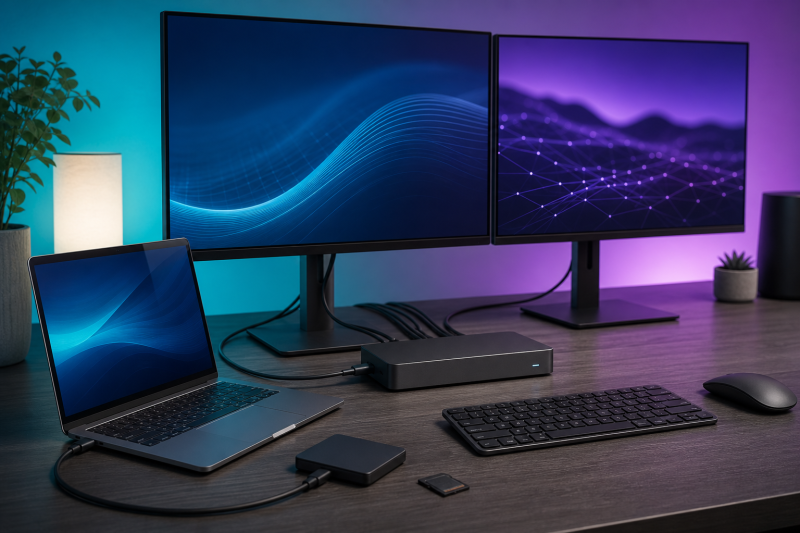
The CalDigit TS4 is still a sensible dock when its particular mix of ports matches your desk. Its strongest case is not that Thunderbolt 4 remains newer or faster, but that the TS4 combines native DisplayPort 1.4, two downstream Thunderbolt 4 ports, eight 10Gbps USB ports, dual card readers, 2.5GbE, and up to 98W host charging in one dock.
Thunderbolt 5 changes the comparison, but it does not erase that port mix. A newer dock can offer an 80Gbps host link, more host charging, or another downstream Thunderbolt port. It can also remove the native DisplayPort connection or reduce the number of ordinary USB ports you use every day. The right answer therefore starts with your laptop and peripherals, not the generation number on the box.
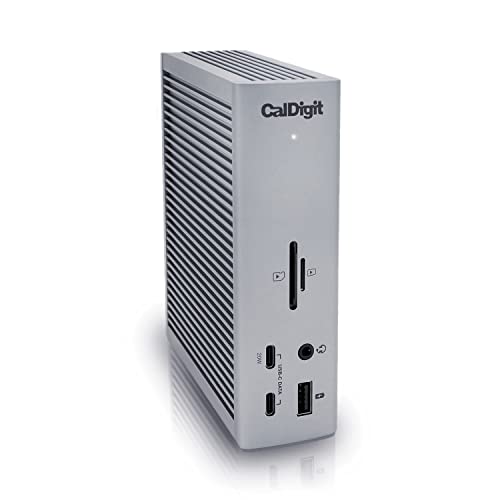
This review covers the CalDigit TS4 sold under ASIN B09GK8LBWS. The current Amazon listing identifies this item as model and part TS4-US 500971. That is the Thunderbolt Station 4, not the TS4 Plus, TS5, TS5 Plus, Element Hub, or TS3 Plus. The distinctions matter because their ports, power limits, and host requirements are different.
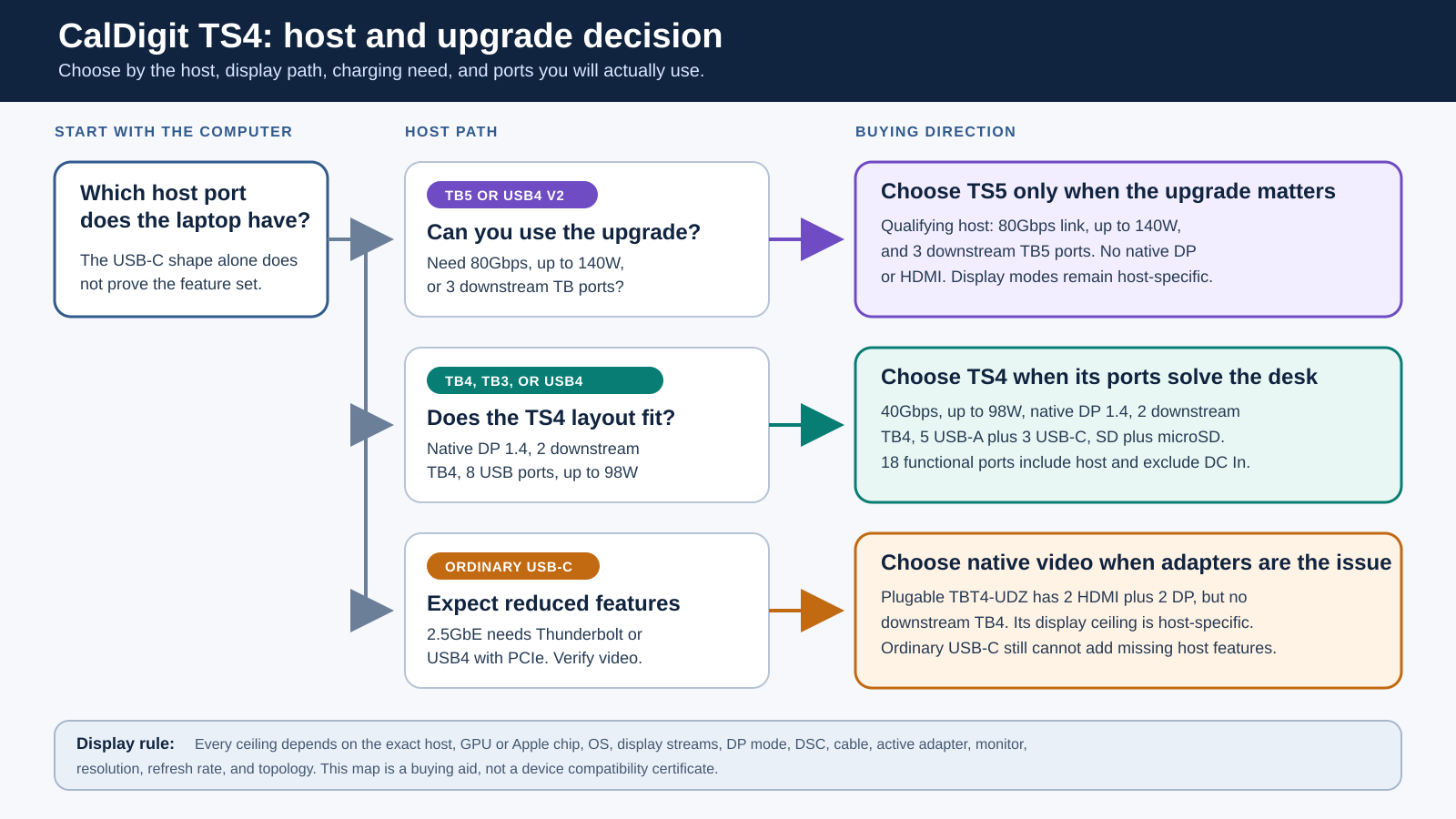
The most important warning is the display claim. CalDigit publishes several high monitor ceilings, but none applies to every computer. Your exact GPU or Apple chip, operating system, display streams, DisplayPort mode, DSC support, cable, adapter, monitor, resolution, refresh rate, and connection order can all change the result.
Quick verdict
Buy the TS4 if your laptop has a suitable Thunderbolt or USB4 connection, up to 98W charging is enough, and you value native DisplayPort plus a large mix of fast USB ports. It remains particularly easy to justify when you already own DisplayPort monitors, Thunderbolt storage, USB-A peripherals, and both SD and microSD cards.
Skip it if you need more than 98W through a standards-based host connection, want the bandwidth of Thunderbolt 5 for a compatible workload, require built-in HDMI, or have only ordinary USB-C and expect every TS4 feature to work. A buyer choosing specifically for three or four monitors should also begin with the laptop’s display matrix, not the dock’s total socket count.
| Your priority | Better starting point | Why |
|---|---|---|
| Native DisplayPort, two downstream Thunderbolt ports, many 10Gbps USB ports, up to 98W | CalDigit TS4 | Its port mix remains useful even with a newer host |
| 80Gbps, up to 140W, or three downstream Thunderbolt ports | CalDigit TS5 | A qualifying Thunderbolt 5 or USB4 v2 host can use capabilities TS4 does not provide |
| Several built-in HDMI and DisplayPort sockets on a Windows-heavy desk | Plugable TBT4-UDZ | It prioritizes native video outputs instead of downstream Thunderbolt |
| Slim Thunderbolt expansion with three downstream ports | Satechi Thunderbolt 4 Slim Hub Pro | Its 17mm-high hub has three downstream Thunderbolt 4 ports, but the supplied AC adapter also travels |
| Ordinary USB-C host | Verify before buying | TS4 fallback is reduced and is not equivalent to Thunderbolt |
What the CalDigit TS4 is in 2026
The TS4 is a Thunderbolt 4 dock with one upstream host connection and two downstream Thunderbolt 4 ports. A Thunderbolt 5 laptop can use it through backward compatibility, but the TS4 remains a 40Gbps Thunderbolt 4 device. Plugging it into a faster host does not turn its link into 80Gbps.
CalDigit markets 18 functional ports. That count is accurate when the interfaces are grouped consistently:
| Interface | Count | Important role |
|---|---|---|
| Thunderbolt 4 | 3 | One host port and two downstream ports |
| USB-C 10Gbps | 3 | Data and device charging, not host inputs |
| USB-A 10Gbps | 5 | Peripheral connections |
| DisplayPort 1.4 | 1 | Native display output |
| UHS-II card readers | 2 | One SD and one microSD |
| 2.5GbE | 1 | Network controller with a host-interface requirement |
| Audio | 3 | Front combo, rear output, and rear input |
| Total | 18 | Includes the host port |
The separate DC In connector is not part of the 18. This distinction prevents two common counting errors: treating all three Thunderbolt sockets as downstream ports, or adding the power connector to reach the advertised total.
The basic shape also explains why the TS4 can still beat a newer dock for a particular desk. It gives you native DisplayPort 1.4 and eight USB ports rated at 10Gbps. Those are practical connections that do not become less useful simply because Thunderbolt 5 docks now exist.
Check your host before the dock
Thunderbolt 4 host
A Thunderbolt 4 laptop is the clearest TS4 match. It can use the 40Gbps dock link, the downstream Thunderbolt ports, the PCIe-connected network controller, and the host’s supported display streams. That still does not guarantee a particular monitor count. Two laptops with Thunderbolt 4 ports can expose different GPU and display capabilities.
For Windows, check the laptop maker’s specifications for the exact port and GPU. A Thunderbolt logo alone does not tell you whether the host exposes two display streams, DP 1.4 HBR3, or DSC. Those details become important above ordinary dual 4K60 layouts.
Thunderbolt 3 host
CalDigit supports Thunderbolt 3 hosts, but older computers can expose an earlier DisplayPort path. The current product documentation warns that some Thunderbolt 3 hosts have lower resolution or refresh ceilings. Treat the laptop’s own specification as controlling.
The TS4 is still useful on a qualifying Thunderbolt 3 computer when its ports solve the desk layout. Do not buy it on the assumption that every newer display mode will be available. The dock cannot add GPU features or display streams the host does not have.
USB4 host
USB4 labels cover several possible implementations. CalDigit’s current TS4 page supports USB4, and it says the 2.5GbE controller requires Thunderbolt or USB4 with PCIe. That last clause matters. A USB4 port must expose the needed PCIe and display functions for the associated dock features to work.
Our USB4 versus Thunderbolt 4 guide explains why a shared connector does not guarantee an identical feature set. For this purchase, verify the computer’s exact USB4 implementation instead of relying only on the USB-C shape.
Thunderbolt 5 or USB4 v2 host
The TS4 can be a reasonable backward-compatible dock for a Thunderbolt 5 laptop. It makes sense when the TS4 port layout is the priority and 40Gbps is sufficient. It does not make sense if the purchase is supposed to unlock an 80Gbps peripheral path or more than 98W of host charging.
Read the host specification and the current Thunderbolt 5 specifications before paying for a newer dock. The useful question is whether your storage, displays, charging requirement, or downstream-device plan can use what a Thunderbolt 5 dock adds, not simply whether the laptop has Thunderbolt 5.
Ordinary USB-C host
CalDigit documents USB-C fallback with reduced functionality. Do not interpret that as a full TS4 experience through any USB-C port. Display output depends on the host’s DisplayPort Alt Mode support and available streams. The 2.5GbE controller has the separate Thunderbolt or USB4-with-PCIe requirement. Other PCIe-dependent behavior can also differ.
If your current and next laptop are both ordinary USB-C systems, compare purpose-built USB-C docking stations before choosing the TS4. A cheaper dock with native outputs that your host actually supports can be the safer buy.
The display decision comes before the 18-port headline
The TS4 gives you two main monitor routes. One display can use the native DisplayPort 1.4 socket. Another can connect through a downstream Thunderbolt 4 port with a direct USB-C or Thunderbolt monitor connection, or through a suitable adapter.
There is no native HDMI socket. CalDigit specifies an active DisplayPort-to-HDMI adapter for DisplayPort conversion. A downstream Thunderbolt port can also feed a suitable USB-C-to-HDMI adapter. Passive and active adapters are not interchangeable in every topology, so use the type required by CalDigit and verify the adapter’s own resolution and refresh support. Our guide to USB-C to DisplayPort cables and adapters covers the separate cable decision.
Windows display paths
CalDigit documents dual-display support for qualifying Thunderbolt and USB4 Windows hosts. Its manual also records a single display up to 8K for a compatible Windows path. These are ceilings, not default outcomes.
For dual displays above 4K60 or some high-refresh arrangements, the chain needs the right DP 1.4 HBR3 and DSC 1.2 support. That chain includes the computer, GPU, dock path, cable or active adapter, and monitors. The operating system and graphics driver must expose the mode as well.
If your goal is simply two office monitors, start with our dual-monitor docking-station guide and then verify the exact laptop matrix. If your goal is one very high-resolution or high-refresh display, check that one path directly rather than assuming the dual-display table proves it.
Intel Mac and Apple silicon paths
Supported Intel Macs can use dual-display paths through the TS4, but the exact resolution still depends on the Mac and monitor chain. Apple silicon needs a chip-specific check.
Base M1 and M2 Macs remain limited by the computer’s native external-display support. A dock based on ordinary DisplayPort streams does not bypass that host limit. Base M3 MacBook Air and the documented base M3 14-inch MacBook Pro path can reach two external displays only in the supported lid-closed arrangement.
CalDigit’s current compatibility text adds supported dual-display paths for base M4 and M5 Macs, while Pro, Max, and Ultra chips have their own higher display allowances. Do not generalize a result from one Apple chip to another. Even two Macs with similar names can have different external-display limits.
The practical rule for a MacBook Pro docking station is to match the exact chip and model year against CalDigit’s current matrix. Then match each monitor’s connection, resolution, and refresh rate. This is more reliable than shopping by the phrase “dual 6K” alone.
ChromeOS and other paths
CalDigit lists ChromeOS compatibility and qualified display support, but the Chromebook’s port and graphics implementation still control the result. The same principle applies to other USB-C devices in the compatibility list. A physical connection and device charging do not prove the full desktop feature set.
Charging and peripheral power
CalDigit rates TS4 host charging at up to 98W. The dock uses a 230W external power supply, but 230W is the supply rating for the whole system. It is not the wattage delivered to the laptop.
The host negotiates the power it can accept. A laptop that needs less should draw less. A workstation that expects more than 98W may charge more slowly, limit performance under load, or continue to need its original power adapter. The exact behavior belongs to the laptop maker, so the safe purchase test is whether that maker supports USB Power Delivery at or below the TS4 ceiling.
Peripheral power is port-specific:
- Each downstream Thunderbolt 4 port is rated up to 15W.
- The designated front USB-C port is rated up to 20W.
- The other USB-C ports are rated up to 7.5W.
- CalDigit rates the USB-A ports up to 7.5W, with selected ports supporting offline charging.
These are manufacturer ceilings, not measurements of simultaneous output. A connected device also decides what it can negotiate.
The front 20W USB-C socket is not another laptop host connection. This is an easy mistake to make from a port diagram. The computer belongs on the Thunderbolt host port, while the front USB-C port is for data and device charging.
USB, storage, networking, cards, and audio
The TS4’s eight 10Gbps USB ports are one of its clearest reasons to remain on a shortlist. Three are USB-C and five are USB-A. CalDigit describes the USB-C group as data ports, so displays belong on native DisplayPort or the downstream Thunderbolt path rather than these ordinary USB-C sockets.
Port ratings are shared interface ceilings. They do not guarantee that several storage devices will sustain their headline speed together. The upstream 40Gbps link, protocol overhead, controller paths, and the activity of other devices all affect the available bandwidth. This review does not substitute a synthetic benchmark for CalDigit’s interface specifications.
The 2.5GbE port is backward-compatible with slower Ethernet networks. CalDigit’s current page limits the controller to Thunderbolt or USB4 hosts with PCIe. A 2.5GbE label also does not guarantee an internet or file-transfer result. Your router, switch, cable, server, storage, and network settings remain part of the path.
Both SD and microSD readers use the UHS-II interface and can operate together. That is useful for a mixed-camera desk, but the interface ceiling is not a measured transfer result for every card.
Audio has another small but important boundary. The TS4 includes a front headset combo connection plus separate rear input and output connections. CalDigit says the front and rear paths cannot all be used at the same time, and the front takes priority when both are connected. A buyer who expects three simultaneous audio interfaces should not count the sockets as three independent active paths.
TS4 versus TS5: what the newer dock changes
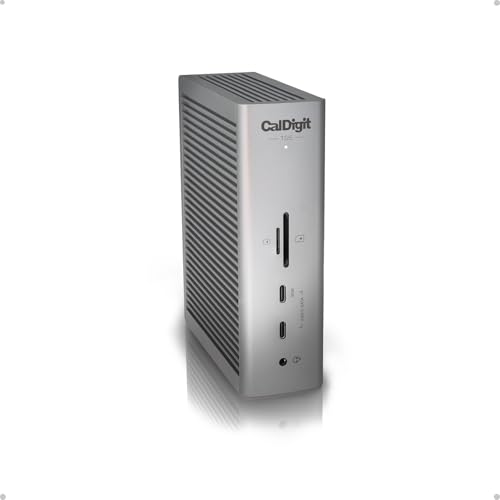
The CalDigit TS5 is the relevant next-generation comparison, but it solves a different port problem. CalDigit documents one host and three downstream Thunderbolt 5 ports, an 80Gbps link on qualifying Thunderbolt 5 or USB4 v2 hosts, and up to 140W host charging. It has 15 functional ports, including its host port and excluding its separate DC In connector.
The TS5 does not have native HDMI or DisplayPort. Displays use downstream Thunderbolt connections and suitable adapters. Its USB-A layout is also smaller than the TS4’s five-port group. The TS4 therefore remains the more direct choice for a desk built around DisplayPort and several USB-A devices.
Choose TS5 when at least one added capability changes the result:
- Your qualifying host and peripherals can use the 80Gbps connection.
- Your laptop benefits from more than 98W and supports the dock’s standards-based charging path.
- You need three downstream Thunderbolt ports.
- Your monitor topology already fits USB-C, Thunderbolt, or adapter-based video.
Choose TS4 when its 40Gbps link is sufficient and native DisplayPort, two downstream Thunderbolt ports, five USB-A ports, three USB-C data ports, and dual card readers fit better. The broad Thunderbolt 3, 4, and 5 comparison can help separate protocol capability from the dock’s actual interface mix.
The final price comparison should happen at checkout. Do not compare an old launch price, a temporary sale, or one retailer’s stale snippet. Compare the current listings side by side, confirm the exact ASIN and seller path, and decide whether the TS5 premium buys a capability your host can use.
Who should buy the CalDigit TS4
The TS4 is a strong candidate for:
- A Thunderbolt 4 laptop that needs a single-cable desk with up to 98W charging.
- A Thunderbolt 5 laptop whose owner values TS4’s port mix more than an 80Gbps dock link.
- A desk with a native DisplayPort monitor and a second USB-C or Thunderbolt display path.
- A user with several USB-A peripherals who does not want to add another hub.
- A photo or video workflow that regularly uses both SD and microSD media.
- A buyer who needs two downstream Thunderbolt ports for storage, a monitor, or another supported device.
If displays are the main purchase reason, compare the monitor inputs and host matrix with our Thunderbolt monitor guide before ordering adapters.
Who should skip it
Skip or reconsider the TS4 if:
- Your laptop needs more than 98W and cannot meet your workload on that negotiated ceiling.
- You are buying specifically for an 80Gbps Thunderbolt 5 storage path.
- You need three downstream Thunderbolt ports.
- You require native HDMI and do not want an active adapter.
- Your host has only ordinary USB-C and you need every advertised controller.
- You assume the dock will bypass a base M1 or M2 Mac’s external-display limit.
- You need a guaranteed triple-monitor or four-monitor result without first proving the host path.
- Your desk has few USB peripherals and would not use the TS4’s port density.
Three verified alternatives
CalDigit TS5 for a qualifying next-generation host
The TS5 is the most direct alternative when your host can use Thunderbolt 5 or USB4 v2. It raises the manufacturer-rated host link to 80Gbps, host charging to up to 140W, and downstream Thunderbolt count to three. It gives up native DisplayPort, so include adapters and the current display matrix in the decision.
Plugable TBT4-UDZ for native video on a Windows-heavy desk
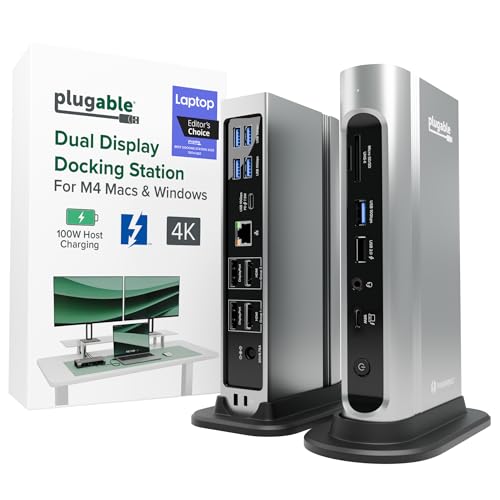
Plugable’s TBT4-UDZ has two HDMI and two DisplayPort connections, up to 98W charging, and 2.5GbE. It has no downstream Thunderbolt 4 port. Plugable’s four-display ceiling is limited to qualifying Windows Thunderbolt 4 or USB4 hosts through MST. Supported Macs and Thunderbolt 3 hosts have lower limits, and the detailed matrix gives base M1, M2, and M3 Macs one 4K60 display.
This is the alternative to examine when built-in video sockets matter more than a downstream Thunderbolt chain. It is not a universal four-monitor solution.
Satechi Thunderbolt 4 Slim Hub Pro for a slim Thunderbolt setup
Satechi lists a 135mm by 74mm by 17mm, 248g Thunderbolt 4 hub with one upstream port rated for up to 96W host charging, three downstream Thunderbolt 4 ports rated up to 40Gbps and 15W each, and one 10Gbps USB-A port. Its documented display ceiling is two 4K60 displays, one 8K30 display, or one 6K display on a Mac, subject to the host.
The package includes a 28-inch Thunderbolt 4 host cable, AC power adapter, and C5 power cable. Its slim hub is a different answer from a dock with built-in HDMI or a built-in power supply. Display ceilings still require the needed host streams, operating system support, cables, and topology.

For a wider category view, the current Thunderbolt docking-station roundup keeps the broad comparison separate from this exact TS4 decision.
Checkout checklist
Before placing the order:
- Confirm the listing is ASIN B09GK8LBWS and identifies model or part TS4-US 500971.
- Confirm it is TS4, not TS4 Plus, TS5, TS5 Plus, or TS3 Plus.
- Check whether your computer port is Thunderbolt 5, Thunderbolt 4, Thunderbolt 3, USB4 with the needed PCIe/display functions, or ordinary USB-C.
- Look up the exact laptop model, GPU or Apple chip, and operating-system display limit.
- Map each monitor to native DisplayPort or a downstream Thunderbolt path.
- Confirm any HDMI conversion is active where CalDigit requires it and supports your target mode.
- Decide whether up to 98W is enough for the laptop.
- Count your USB-A, USB-C, Thunderbolt, card, network, and audio needs.
- Compare the current checkout price with the three verified alternatives.
- Recheck the current return terms and manufacturer compatibility material.
Frequently asked questions
Is the CalDigit TS4 obsolete after Thunderbolt 5?
No. It remains a 40Gbps Thunderbolt 4 dock with a port mix that can be better for a DisplayPort and USB-heavy desk. It is a weaker choice when you specifically need an 80Gbps host link, more than 98W, or three downstream Thunderbolt ports.
Does the TS4 work with a Thunderbolt 5 laptop?
It can work through Thunderbolt backward compatibility, subject to the laptop and CalDigit requirements. The dock still operates as a Thunderbolt 4 device. It does not become an 80Gbps dock.
Can the TS4 run two monitors?
It can on supported hosts, but two monitors are not guaranteed by the dock alone. The exact computer, GPU or Apple chip, display streams, operating system, DP and DSC support, cables, adapters, monitors, resolution, refresh rate, and topology all matter.
Does the TS4 have HDMI?
No. It has native DisplayPort 1.4. HDMI requires a suitable active DisplayPort-to-HDMI path or a suitable adapter from a downstream Thunderbolt port.
Why does CalDigit call it an 18-port dock?
The count is three Thunderbolt ports, three USB-C ports, five USB-A ports, one DisplayPort, two card readers, one Ethernet port, and three audio connections. It includes the host Thunderbolt port. The separate DC In connector is excluded.
Is 230W delivered to the laptop?
No. CalDigit rates host charging at up to 98W. The 230W figure belongs to the external power supply for the whole dock and its connected-device power budget.
Can an ordinary USB-C laptop use every feature?
Do not assume so. CalDigit describes USB-C fallback as reduced. Display support depends on the host’s video implementation, and 2.5GbE requires Thunderbolt or USB4 with PCIe according to the current product page.
Is TS4 better than TS5?
Neither is universally better. TS4 has native DisplayPort and more USB-A ports. TS5 offers an 80Gbps link on qualifying hosts, up to 140W charging, and three downstream Thunderbolt ports. Choose by the capability your host and desk can use.
Evidence boundary
This is a document-based buyer review, not a hands-on test. Product specifications and compatibility limits come from CalDigit’s current product page, US shop page, TS4 manual, and current Mac display-support material. Alternative facts come from the named manufacturers’ own product documentation. The current Amazon listing was checked only to confirm exact identity and the presence of an active offer at the recorded research time.
No charging, network, storage, card, display, heat, noise, or power result here is an independent measurement. No reliability conclusion, rating claim, stock quantity, delivery estimate, or current product price is asserted.
Final recommendation
The CalDigit TS4 is still worth buying when its exact connections solve your desk better than a newer dock. Its most defensible buyer is using a qualified Thunderbolt or USB4 host, needs no more than 98W, wants native DisplayPort, and can make use of two downstream Thunderbolt ports plus eight 10Gbps USB ports.
Do not buy it from the 18-port headline alone. Prove the host’s display path, confirm the charging ceiling, and count the ports by role. Then compare the current checkout price with TS5 and the native-video alternatives. If TS4 wins that concrete comparison, Thunderbolt 5 has not made it the wrong dock.