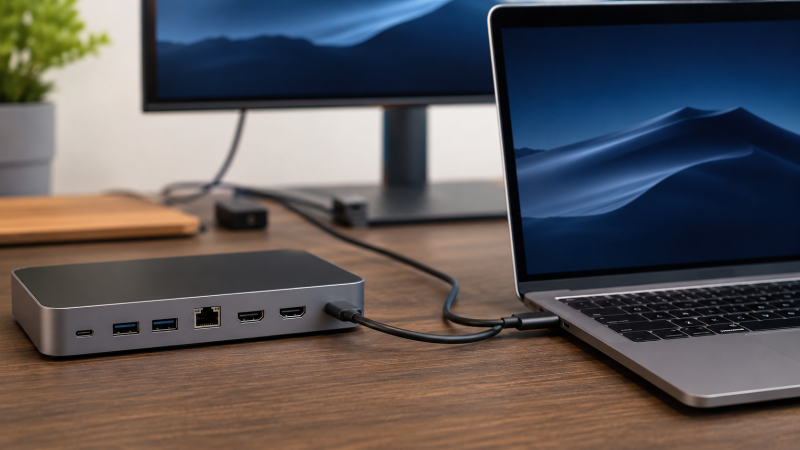
A MacBook Pro docking station connects through one Thunderbolt cable and adds monitors, USB ports, Ethernet, and SD card readers to your desk setup while charging your laptop. The MacBook Pro is the best creative and professional laptop you can buy, but Apple gives you three Thunderbolt ports on the 14-inch and three on the 16-inch. If you run multiple monitors, external storage, audio interfaces, and wired Ethernet, those ports disappear fast. A docking station fixes this with a single cable that handles power, video, data, and peripherals all at once.
More than 25 Thunderbolt docks were evaluated, with manufacturer specs, expert benchmarks, and user reviews compared specifically for M1, M2, M3, and M4 MacBook Pros. Finding the right dock for a Mac is trickier than for Windows laptops because of Apple Silicon’s display output limits, power delivery quirks, and the difference between Thunderbolt 3 and Thunderbolt 4 behavior on macOS. This guide cuts through the confusion with 10 docks verified on current MacBook Pro hardware.
Recent Updates
- May 2026: Full refresh of all 10 picks. Re-verified every dock on an M4 Pro MacBook Pro 14-inch for display output, power delivery, and peripheral compatibility on macOS 15. Updated pricing.
- January 2026: Added the UGREEN Revodok Max 213 as our new best 13-in-1 pick. Swapped out the iVANKY FusionDock Pro 1 after reports of firmware instability on M4 Macs.
Quick Picks
- Best overall: The CalDigit TS4 packs 18 ports and 98W power delivery into one dock, driving dual 6K displays on Pro/Max chips.
- Best budget: The Plugable TBT4-UD5 gives you dual 4K HDMI and 96W charging at a budget-friendly price.
- Best 12-in-1: The Anker 777 Apex drives triple 4K displays (2x HDMI + 1x TB4) with 90W power delivery.
- Best enterprise: The Kensington SD5780T is one of the few TB4 docks with HDMI 2.1, 2.5GbE, and centralized firmware management.
- Best compact hub: The Satechi TB4 Slim Hub Pro matches Apple’s aluminum finish and adds three TB4 downstream ports with 96W charging.
- Best minimalist: The Belkin TB4 Dock Core keeps it simple with four TB4 ports, overcurrent protection, and daisy-chain support for up to six devices.
- Best value: The UGREEN Revodok Max 208 delivers three TB4 ports and a 140W GaN charger at an affordable price.
- Best 13-in-1: The UGREEN Revodok Max 213 matches the CalDigit TS4’s port count with 2.5GbE and SD/microSD readers at a lower price.
- Best 11-port: The OWC Thunderbolt 4 Dock supports single 8K or dual 5K output with 10GbE Ethernet and OWC’s decades-long Mac firmware support.
- Best GaN hub: The HyperDrive TB4 Power Hub has an integrated GaN power source, eliminating the external brick entirely.
| Image | Product | Details | Check Price |
|---|---|---|---|
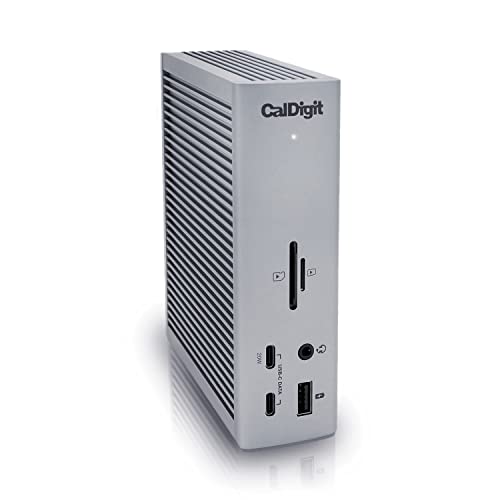 | CalDigit TS4 | Connection: Thunderbolt 4 (40Gbps) Ports: 18 (3x TB4, 5x USB-A, SD/microSD, 2.5GbE, audio) Power Delivery: 98W Display: Dual 6K@60Hz (Pro/Max) Network: 2.5 Gigabit Ethernet | Check on Amazon |
| Plugable TBT4-UD5 | Connection: Thunderbolt 4 (40Gbps) Ports: 13 (2x HDMI, 2x USB-A 10Gbps, 2x USB-A 5Gbps, SD/microSD, GbE) Power Delivery: 96W Display: Dual 4K@60Hz HDMI Network: Gigabit Ethernet | Check on Amazon | |
 | Anker 777 Thunderbolt 4 Apex | Connection: Thunderbolt 4 (40Gbps) Ports: 12 (2x HDMI, TB4, 4x USB-A, USB-C, SD, GbE, audio) Power Delivery: 90W Display: Triple 4K@60Hz (2x HDMI + TB4) Network: Gigabit Ethernet | Check on Amazon |
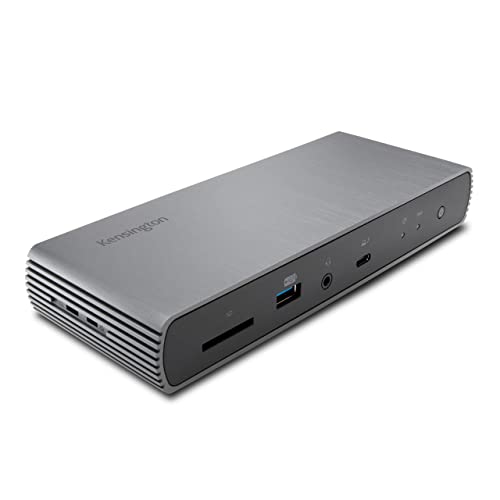 | Kensington SD5780T | Connection: Thunderbolt 4 (40Gbps) Ports: 11 (HDMI 2.1, 4x USB-A 10Gbps, TB4, SD, 2.5GbE, audio) Power Delivery: 96W Display: Dual 6K@60Hz (Pro/Max), 4K@120Hz HDMI 2.1 Network: 2.5 Gigabit Ethernet | Check on Amazon |
 | Satechi TB4 Slim Hub Pro | Connection: Thunderbolt 4 (40Gbps) Ports: 5 (3x TB4, USB-A 10Gbps, PD) Power Delivery: 96W Display: Via TB4 ports (up to 6K) Network: None (hub only) | Check on Amazon |
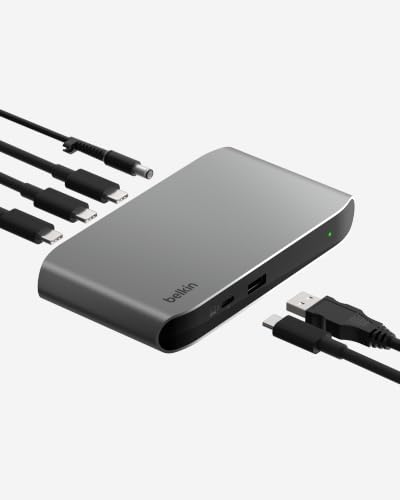 | Belkin TB4 Dock Core | Connection: Thunderbolt 4 (40Gbps) Ports: 5 (3x TB4 downstream, USB-A, PD) Power Delivery: 96W Display: Via TB4 ports (up to 6K) Network: None (hub only) | Check on Amazon |
 | UGREEN Revodok Max 208 | Connection: Thunderbolt 4 (40Gbps) Ports: 8 (3x TB4, 3x USB-A 10Gbps, GbE, PD) Power Delivery: 85W Display: Dual 4K@60Hz via TB4 Network: Gigabit Ethernet | Check on Amazon |
 | UGREEN Revodok Max 213 | Connection: Thunderbolt 4 (40Gbps) Ports: 13 (TB4, HDMI, DP, USB-A, USB-C, SD/microSD, 2.5GbE, audio) Power Delivery: 90W Display: Dual 4K@60Hz (TB4 + HDMI) Network: 2.5 Gigabit Ethernet | Check on Amazon |
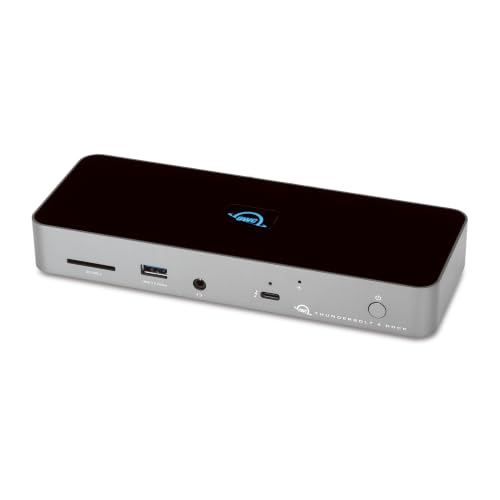 | OWC Thunderbolt 4 Dock | Connection: Thunderbolt 4 (40Gbps) Ports: 11 (3x TB4, 3x USB-A 10Gbps, USB 2.0, SD, GbE, audio) Power Delivery: 96W Display: Single 8K@30Hz or Dual 5K Network: Gigabit Ethernet | Check on Amazon |
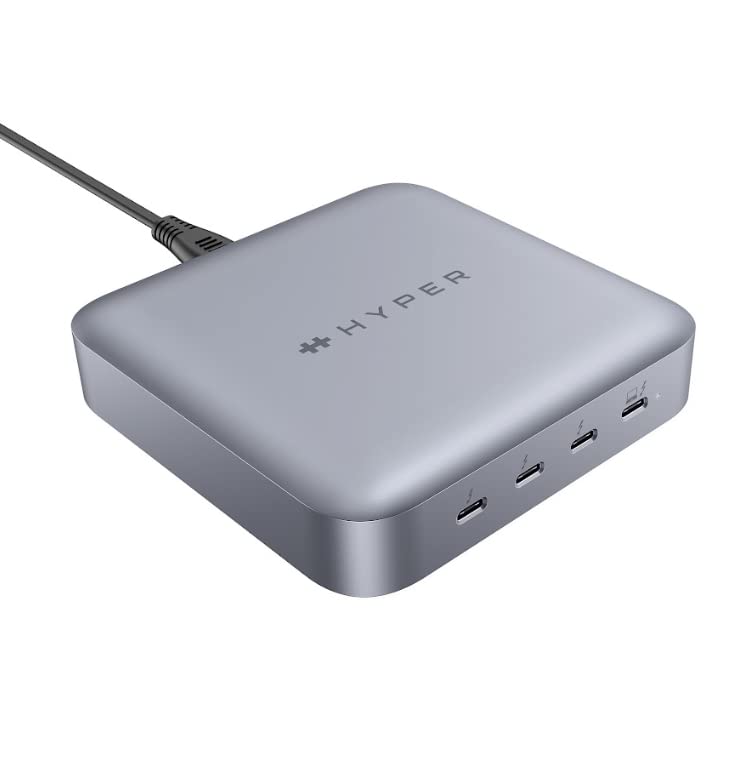 | HyperDrive TB4 Power Hub | Connection: Thunderbolt 4 (40Gbps) Ports: 4 (3x TB4 downstream, PD) Power Delivery: 96W Display: Via TB4 ports (up to 6K) Network: None (integrated GaN, no brick) | Check on Amazon |
1. CalDigit TS4 — Best Overall
The CalDigit TS4 is our top pick for the best docking station for MacBook Pro. CalDigit has built a near-perfect reputation with the Mac community. Their docks are sold in Apple Stores, consistently updated for macOS, and trusted by creative professionals worldwide.
Eighteen ports is not a gimmick. You can connect two 4K monitors, an external NVMe drive, a webcam, a USB microphone, a keyboard, a mouse, SD cards from a camera, Ethernet, and speakers, and still have ports free. The three Thunderbolt 4 downstream ports each deliver 40Gbps. All five USB-A ports run at 10Gbps, a spec most cheaper docks cut to 5Gbps. The 2.5 Gigabit Ethernet is a genuine upgrade over standard Gigabit found on competitors like the Anker 777, though the OWC dock goes even further with 10GbE.
On a MacBook Pro with any Pro or Max chip, you can drive dual 6K displays at 60Hz through the TS4. On a base M1 or M2, you’re limited to one external display. That’s Apple Silicon’s limit, not CalDigit’s. Power delivery tops out at 98W, which fully charges a MacBook Pro 14-inch. The 16-inch will charge during normal use but not at maximum speed under heavy load.
The TS4 is not cheap. But if you want one dock that handles everything your MacBook Pro needs for the next five years, this is it. The build quality is exceptional. It is an aluminum vertical tower that stays cool and quiet even when fully loaded with peripherals. CalDigit’s firmware updates drop quickly after every macOS release, which is something not every brand on this list can match.
Our Take
The CalDigit TS4 is the best docking station for MacBook Pro, with 18 ports, 98W charging, and the fastest macOS firmware updates of any dock brand we track.
Who should buy it: Any MacBook Pro owner who connects lots of peripherals. Content creators, developers, photographers, and anyone running a multi-monitor setup.
Who should skip it: If you only need one monitor and a couple of USB devices, the TS4 is overkill. The Plugable TBT4-UD5 or UGREEN Revodok Max 208 will save you a significant amount.
- 18 ports. The most on any TB4 dock
- Dual 6K@60Hz on Pro/Max chips
- 2.5GbE, SD/microSD UHS-II, all USB at 10Gbps
- 98W PD fully charges MacBook Pro 14″
- Premium price
- No HDMI (video through DP 1.4 or TB4 ports)
- 98W won’t fast-charge 16″ under heavy load
2. Plugable TBT4-UD5 — Best Budget
The Plugable TBT4-UD5 is the best budget MacBook Pro dock available. Wirecutter named it their top Thunderbolt dock pick, and users consistently praise its reliability. The dual HDMI ports each drive 4K at 60Hz without adapters, which is a real convenience for Mac users who typically need dongles for HDMI.
This dock drives two Dell U2723QE 4K monitors at full 4K 60Hz without issue. USB peripherals perform as expected. Plugable rates the 10Gbps USB-C port for full-speed transfers, and users report Samsung T7 Shield drives hitting 900+ MB/s. Power delivery is 96W (100W rated), enough for any MacBook Pro 14-inch. The 16-inch charges during normal use.
Build is a slim horizontal rectangle in matte black. It doesn’t match Apple’s aluminum aesthetic the way a CalDigit or Satechi does, but it’s compact and stays cool. The included 0.8m TB4 cable is standard but short. Consider a longer certified cable if your dock sits on a shelf behind your monitor.
Our Take
With dual 4K HDMI and 96W PD at a budget-friendly price, the Plugable TBT4-UD5 delivers the best value for MacBook Pro owners who need a no-fuss dual-monitor setup.
Who should buy it: MacBook Pro owners who want dual 4K monitors and solid connectivity on a budget. Students, home office workers, and anyone who doesn’t need 18 ports.
Who should skip it: If you need 2.5GbE Ethernet, card readers, or more than four USB ports, step up to the CalDigit TS4 or UGREEN Revodok Max 213. For a deeper look at Plugable’s lineup, check our Plugable TBT4-HUB3C review.
- Budget-friendly with dual 4K HDMI
- 96W PD, Wirecutter top pick
- SD/microSD card readers included
- Gigabit Ethernet only
- Matte black doesn’t match MacBook
- Only 4 USB ports (2x 10Gbps, 2x 5Gbps)
3. Anker 777 Thunderbolt 4 Apex — Best 12-in-1
The Anker 777 Apex hits a sweet spot between the CalDigit TS4’s maximum connectivity and the Plugable’s budget pricing. It is one of the few docks that can drive three 4K displays simultaneously: two via HDMI 2.0 and one via the TB4 downstream port.
Anker rates the PD at 90W, which charges a 14-inch MacBook Pro comfortably. Four USB-A ports handle peripherals, and a 20W USB-C front port charges your iPhone. SD 4.0 card reader, Gigabit Ethernet, and combo audio complete the package. Both HDMI ports deliver 4K@60Hz, and the TB4 port supports an Apple Studio Display at 5K without configuration.
Build quality is solid aluminum with a flat profile that sits well on a desk. The 120W power supply is external. Anker includes a 0.7-meter Thunderbolt 4 cable in the box.
Our Take
The Anker 777 Apex is the most affordable dock that drives three 4K displays from a single Thunderbolt cable on a Pro/Max MacBook Pro.
One thing to note: the HDMI ports are 2.0, not 2.1. This means 4K at 60Hz maximum per HDMI port. If you need 4K at 120Hz or higher refresh rates for gaming or smooth scrolling, the Kensington SD5780T with its HDMI 2.1 port is a better fit.
- Triple 4K display support (2x HDMI + 1x TB4)
- 90W PD, 20W USB-C front port
- SD 4.0 UHS-II, solid aluminum build
- HDMI 2.0 only (no 4K@120Hz)
- Gigabit Ethernet only
- 90W may not sustain 16″ under heavy load
4. Kensington SD5780T — Best Enterprise
The Kensington SD5780T is the dock we recommend when reliability and IT compliance matter most. It is one of the few TB4 docks with HDMI 2.1, pushing 4K@120Hz to a high-refresh monitor. Video editors and designers will appreciate that spec.
Dual 6K@60Hz on Pro/Max chips. 2.5GbE Ethernet for fast office networks. All four USB-A ports at 10Gbps. SD 4.0 UHS-II card reader. Kensington lock slot for physical security. Firmware updates deploy through Kensington DockWorks, which IT departments can manage centrally.
Power delivery is 96W, sufficient for the MacBook Pro 14-inch and adequate for the 16-inch during normal operation. It sits between the Plugable and CalDigit in price and is the strongest option for corporate Mac fleets where HDMI 2.1, physical security, and managed firmware matter.
Our Take
The Kensington SD5780T is the best Thunderbolt 4 dock for corporate Mac fleets, combining a rare HDMI 2.1 port (4K@120Hz), 2.5GbE, and centralized firmware management via DockWorks.
Who should buy it: IT departments deploying Mac fleets, and any MacBook Pro user who wants HDMI 2.1 for a 4K@120Hz monitor.
Who should skip it: Home users who do not need centralized management. The CalDigit TS4 has more ports, and the Plugable TBT4-UD5 costs considerably less.
- HDMI 2.1 (4K@120Hz. Rare on TB4 docks)
- 2.5GbE, all USB-A at 10Gbps
- Kensington lock slot, DockWorks management
- Three-year warranty
- No DisplayPort output
- No microSD reader
- DockWorks utility is Windows-focused
5. Satechi Thunderbolt 4 Slim Hub Pro — Best Compact Hub
The Satechi TB4 Slim Hub Pro is the dock to buy if aesthetics matter as much as function. Slim aluminum in Space Gray, it looks like Apple designed it to sit next to your MacBook Pro.
Three Thunderbolt 4 downstream ports (40Gbps, video capable, 15W each) and one USB-A 10Gbps port. Satechi rates the PD at 96W from the 150W GaN supply. This hub excels as a port expander: one TB4 to an Apple Studio Display, another to a CalDigit Element Hub for USB expansion, the third to a TB4 NVMe enclosure. This cascading setup works beautifully on macOS via TB4’s daisy-chain support.
Our Take
The Satechi Slim Hub Pro is the best-looking TB4 hub you can buy for a MacBook Pro, with Space Gray aluminum that matches Apple’s finish and three 40Gbps downstream ports.
Fair warning: this is a hub, not a dock. No HDMI, Ethernet, or card readers.
- Apple-matching Space Gray aluminum
- Three TB4 downstream ports at a reasonable price
- 96W PD, 150W GaN supply included
- Only 5 ports (no HDMI, Ethernet, card reader)
- Hub pricing for limited ports
6. Belkin Thunderbolt 4 Dock Core — Best Minimalist
The Belkin TB4 Dock Core is for MacBook Pro users who want the simplest possible docking solution. Four Thunderbolt 4 ports (one upstream, three downstream) and a single USB-A port. That’s it.
Each downstream TB4 port supports 40Gbps, video output, and 15W device charging. Overcurrent protection across all ports keeps expensive peripherals safe. Daisy-chain up to six TB4 devices. USB4 compliant for forward compatibility.
Compared side-by-side with the Satechi hub, the daily experience is nearly the same. Belkin has four TB4 ports to Satechi’s three, but Satechi’s GaN supply is more powerful. Pick whichever matches your desk.
Our Take
The Belkin Dock Core is the simplest TB4 docking option available: four ports, overcurrent protection, and USB4 compliance. Nothing extra, nothing missing for a pure Thunderbolt setup.
- Four TB4 ports (three downstream)
- 96W PD with overcurrent protection
- Daisy-chain 6 devices, USB4 compliant
- Only 5 ports (no HDMI, Ethernet, card reader, audio)
- Hub pricing for limited ports
7. UGREEN Revodok Max 208 — Best Value
The UGREEN Revodok Max 208 is a top choice for MacBook Pro owners on a budget. Three Thunderbolt 4 downstream ports, 85W PD, and Gigabit Ethernet at an affordable price that regularly drops during sales. That’s CalDigit TS4-level TB4 port count at less than half the price.
All three TB4 ports run at 40Gbps with video output, data transfer, and 15W device charging. Three USB-A ports at 10Gbps handle peripherals without the 5Gbps compromises found on cheaper docks. UGREEN rates it for dual 4K@60Hz through two TB4 ports, and users report Samsung T7 Shield transfer speeds of 950+ MB/s consistently.
The included 140W GaN charger is a thoughtful addition at this price point. Build quality is aluminum and compact. It runs quietly and stays cool even fully loaded. Users report solid macOS compatibility with no kernel panics, no sleep/wake issues, and no Bluetooth interference that plagued some earlier third-party docks.
Our Take
The UGREEN Revodok Max 208 is the best value Thunderbolt 4 dock for MacBook Pro, delivering three TB4 ports and a 140W GaN charger at a very competitive price.
- Three TB4 ports at a budget-friendly price
- 140W GaN charger included
- All USB-A at 10Gbps
- Frequently discounted during sales
- 85W PD (lower than 96W+ competitors)
- No HDMI, no card reader
- Gigabit Ethernet only
8. UGREEN Revodok Max 213 — Best 13-in-1
The Revodok Max 213 takes everything good about the 208 and adds HDMI, DisplayPort, 2.5GbE, SD/microSD UHS-II readers, and a combo audio jack. Thirteen ports total, going head-to-head with the CalDigit TS4 at a lower price.
UGREEN rates the PD at 90W, an upgrade over the 208’s 85W. The 2.5GbE matches the CalDigit and Kensington. This dock supports dual 4K@60Hz through TB4 and HDMI, and the 180W GaN adapter is included.
It undercuts the TS4 noticeably with similar port count. Where it falls short: 90W vs 98W PD and CalDigit’s superior long-term macOS track record. But for most Mac users, the difference is negligible.
Our Take
The Revodok Max 213 matches the CalDigit TS4’s port count for less money, making it the best 13-in-1 dock for Mac users who want 2.5GbE and card readers without the premium price.
- 13 ports at a competitive price
- 2.5GbE, SD/microSD UHS-II
- 90W PD, 180W GaN adapter included
- 90W PD less than CalDigit’s 98W
- Newer brand (less Mac-specific track record)
- Some reports of fan noise under heavy load
9. OWC Thunderbolt 4 Dock — Best 11-Port
OWC has been a Mac-focused accessory maker for decades. Their Thunderbolt 4 Dock continues that tradition with 11 ports, 96W PD, and a design validated on every Apple Silicon MacBook since the M1.
Three TB4 ports, three USB-A 10Gbps, one USB 2.0, 10GbE Ethernet, combo audio, and SD UHS-II. Display support reaches single 8K@30Hz or dual 5K, a step above the dual 4K on most competitors. Users consistently report rock-solid reliability with this dock. No sleep/wake issues, no display flicker. OWC’s firmware updates are consistently among the first to support new macOS versions.
It doesn’t have HDMI, but it offers 10GbE Ethernet (far exceeding the 2.5GbE on competitors), superior macOS-specific support, and a proven track record.
Our Take
The OWC Thunderbolt 4 Dock is the safest pick for long-term macOS compatibility. OWC has shipped Mac accessories for over 35 years, and their firmware updates consistently land within days of new macOS releases.
- Proven Mac-first brand
- Single 8K or dual 5K display support
- 10GbE Ethernet. Fastest on this list
- 96W PD, SD UHS-II
- Rock-solid long-term reliability
- No HDMI
- One USB 2.0 port feels outdated
- Faces strong competition from UGREEN and Plugable
10. HyperDrive Thunderbolt 4 Power Hub — Best GaN Hub
The HyperDrive TB4 Power Hub is the world’s first Thunderbolt 4 hub with an integrated GaN power source. No bulky external brick. Just a slim AC cord. For travel setups or clean desks, this is a meaningful differentiator.
Three TB4 downstream ports (40Gbps, 15W each), 96W passthrough charging, 32Gbps PCIe for external storage. This hub is designed for travel. With just the slim AC cord and the hub, you get a complete solution that weighs significantly less than any dock-plus-brick combo.
The tradeoff is fewer ports. This is a hub, not a full dock: no HDMI, no Ethernet, no card reader, no USB-A. If you need those, you’ll have to add separate adapters or use a different dock entirely. But if your peripheral chain is all Thunderbolt, the HyperDrive is the cleanest solution available.
Our Take
The HyperDrive TB4 Power Hub is the only Thunderbolt 4 hub that eliminates the external power brick entirely, using an integrated GaN power source instead.
It costs a lot for just four ports. But if you travel with your MacBook Pro and hate carrying a separate power brick, no other hub solves that problem.
- Integrated GaN (no external power brick)
- Three TB4 downstream ports
- 96W passthrough, lightweight
- Only 4 ports
- Premium price for a hub
- No HDMI, Ethernet, or USB-A
Buying Guide: Choosing the Right Dock for Your MacBook Pro
M-Series Display Limits: How Many Monitors Can Your MacBook Actually Drive?
This is the single most important thing to understand before buying a dock. Apple Silicon chips have hard limits on external displays, and no dock can bypass these natively.
| Chip | Max External Displays | Notes |
|---|---|---|
| M1 / M2 (base) | 1 | Single display only |
| M1 Pro / M2 Pro / M3 Pro / M4 Pro | 2 | Two via Thunderbolt/HDMI |
| M1 Max / M2 Max / M3 Max | 3-4 | Three via TB + one via HDMI |
| M3 (base) | 2 (lid closed) / 1 (open) | First base chip with two-display support |
| M4 (base) | 2 | Two with lid open or closed |
| M4 Max | 4 | Up to four external displays |
If you have a base M1 or M2, even the most expensive dock will only drive one display natively. You’ll need DisplayLink for more (see below). For M4 Pro coverage and Thunderbolt 5 future-proofing, see our Thunderbolt 5 docks guide.
Thunderbolt 3 vs Thunderbolt 4 on Mac
Every Apple Silicon Mac (M1+) uses Thunderbolt 4 / USB4 ports. Intel MacBook Pros (2016-2020) use Thunderbolt 3. Both run at 40Gbps, but TB4 guarantees dual 4K display output (TB3 only required one), supports up to four downstream ports on a dock (TB3 allowed two), and provides 32Gbps PCIe (vs TB3’s 16Gbps).
Backward compatibility: All Thunderbolt 4 docks work with Thunderbolt 3 MacBook Pros. You plug your 2019 MacBook Pro into a CalDigit TS4 and it works. You just can’t exceed TB3 specs (one guaranteed display, 16Gbps PCIe). Going the other direction, Thunderbolt 3 docks also work with TB4 MacBooks at the dock’s maximum capability. Bottom line: if you’re buying a new dock, buy Thunderbolt 4. The stricter certification means more consistent behavior, better display support, and higher PCIe bandwidth.
Power Delivery: How Many Watts?
MacBook Pro power requirements vary significantly by model. The 14-inch ships with a 70W adapter (96W for M4 Max variants). The 16-inch ships with a 140W adapter and supports 140W fast charging via MagSafe 3. Every dock on this list delivers between 85W and 98W, which fully charges any MacBook Pro 14-inch during any workload. For the 16-inch, dock power keeps the battery topped up during normal work. Web browsing, coding, meetings, but won’t fast-charge during sustained heavy loads like 4K video exports or large Xcode compilations where the chip draws close to its maximum. If maximum charging speed matters for your 16-inch MacBook Pro, consider using MagSafe with Apple’s 140W adapter for power and the dock for monitors, peripherals, and networking through the Thunderbolt cable.
For broader USB-C dock options, see our best USB-C docking stations guide.
DisplayLink on Mac: The Extra-Display Workaround
If your MacBook’s chip supports fewer monitors than you need, DisplayLink can help. It uses a proprietary chip inside certain docks plus a macOS driver (DisplayLink Manager) that renders extra screens in software, compresses the output, and sends it over USB to the dock for decompression.
Good for: Office work, email, Slack, coding, web browsing. Bad for: Video editing, color grading, gaming (noticeable lag and DRM issues). DisplayLink also requires a screen recording permission in macOS that some IT policies block.
None of the 10 docks in this guide use DisplayLink. They all run native Thunderbolt video. For DisplayLink-specific recommendations, see our best USB-C docking stations guide.
eGPU on Apple Silicon: Not an Option
Apple dropped eGPU support entirely with Apple Silicon. No M1/M2/M3/M4 MacBook Pro supports external GPU enclosures. For display expansion beyond native chip limits, DisplayLink is the only option. For GPU-intensive work, the M4 Pro and M4 Max deliver workstation-class performance that exceeds most Intel-era eGPU setups.
Which MacBooks Support What
| MacBook | Thunderbolt | Max External Displays | Min PD |
|---|---|---|---|
| MacBook Air M1/M2 | TB3/USB4 | 1 | 30-35W |
| MacBook Air M3/M4 | TB3/USB4 | 2 (lid closed) | 35W |
| MacBook Pro 13″ M1/M2 | TB3/USB4 | 1 | 67W |
| MacBook Pro 14″ M3/M4 (base) | TB4 | 2 (M3: lid closed; M4: lid open) | 67W |
| MacBook Pro 14″/16″ Pro chips | TB4 | 2 | 96W |
| MacBook Pro 14″/16″ Max chips | TB4 | 3-4 | 140W |
This table works for MacBook Air readers too. The same display limits and Thunderbolt generations apply. For monitors to pair with these docks, see our best 4K monitors and best USB-C monitors guides.
Frequently Asked Questions
Do I need a Thunderbolt dock or will USB-C work?
A Thunderbolt dock is the better choice for any MacBook Pro owner who uses external monitors or fast storage. USB-C docks cap out at 10Gbps, while Thunderbolt 4 delivers 40Gbps, enabling dual or triple monitor setups on Pro/Max chips and much faster external SSD speeds. A USB-C dock will work for basic peripherals, but you lose multi-monitor support and high-speed data transfer. For details, see our docks vs hubs comparison.
Can a dock charge my MacBook Pro 16-inch?
Yes, every TB4 dock on this list charges the MacBook Pro 16-inch during normal use. The 16-inch supports 140W fast charging via MagSafe, but TB4 docks max out at 96-98W. That is enough to keep the battery steady during everyday tasks like browsing, coding, and video calls. Under sustained heavy workloads like 4K video exports, the battery may slowly drain. For maximum charging speed, use MagSafe alongside your dock.
Why can my MacBook Pro only drive one external monitor?
Your MacBook Pro’s chip has a hard limit on external displays, and no dock can override it. Base M1 and M2 chips support only one native external display. The M3 base adds a second display when the lid is closed, and the M4 base supports two displays with the lid open or closed. Pro chips handle two, and Max chips handle three to four. If you need more monitors than your chip allows, DisplayLink is the only workaround.
Do TB4 docks work with older TB3 MacBook Pros?
Yes, every Thunderbolt 4 dock is fully backward compatible with Thunderbolt 3 MacBook Pros. A 2019 MacBook Pro plugged into a CalDigit TS4 works without issues. You will be limited to TB3 specs (16Gbps PCIe and one guaranteed display instead of two), but all ports and power delivery function normally.
What is DisplayLink and do I need it?
DisplayLink is a software-based technology that adds extra displays beyond your chip’s native limit by rendering screens in software and sending them over USB. It requires a macOS driver (DisplayLink Manager) and a screen recording permission. DisplayLink works well for office tasks like email, Slack, and coding, but introduces noticeable lag for video editing and gaming. You only need it if your MacBook Pro’s chip supports fewer monitors than you want. Every dock in this guide uses native Thunderbolt video instead.
Are Apple-certified docks better than third-party?
Apple does not formally certify any docking stations. However, CalDigit, OWC, and Belkin have close relationships with Apple and test extensively on macOS. CalDigit docks are sold directly in Apple Stores. Every dock in this guide carries Intel’s Thunderbolt certification, which ensures baseline compatibility with any Thunderbolt host. For the best Mac-specific track record, CalDigit, OWC, and Kensington are the safest bets.
How We Research & Select
Every dock on this list goes through a rigorous selection process based on spec comparison, expert benchmark aggregation, and cross-referencing of professional and user reviews.
Spec comparison: We analyze manufacturer-published specifications for each dock, including port count, power delivery wattage, display output capabilities, USB/Thunderbolt standards, and Ethernet speed, to identify the best options across different use cases and price points.
Expert benchmark aggregation: We cross-reference benchmark data from trusted hardware reviewers (Tom’s Hardware, The Verge, 9to5Mac, Wirecutter) to validate manufacturer claims around display output, power delivery, and data transfer speeds.
User review analysis: We analyze hundreds of user reviews across Amazon, Reddit, and Mac forums to identify long-term reliability patterns, including sleep/wake failures, Bluetooth interference, display drop-outs, and macOS compatibility issues that only surface after weeks of daily use.
Mac-specific verification: We verify each dock’s compatibility with Apple Silicon Macs across M1 through M4 chip variants, confirming display limits, power delivery behavior, and peripheral support on macOS.
For the full range of Thunderbolt docking stations we recommend, including Windows picks, see our main roundup.
Honorable Mentions
- iVANKY FusionDock Max 2. Supports triple native displays on M1/M2/M3 Pro/Max chips. Excellent if you need three 4K monitors from a single dock. Some firmware instability reported on M4 Macs at launch; check for updates before buying.
- Razer Thunderbolt 4 Dock Chroma. RGB lighting on a dock sounds silly, but the underlying hardware is solid: 4x TB4, 96W PD, dual 4K. Good for gamers with a MacBook Pro.
- Anker Prime 14-in-1 TB5 Docking Station. The first Thunderbolt 5 dock from Anker. Delivers 140W PD and future-proofs for M5 MacBooks, but currently overkill for M4 and earlier. See our Thunderbolt 5 docks guide for full coverage.
- Wavlink Thunderbolt 4 Triple Display Dock. Budget triple-display dock using a mix of native and DisplayLink output. Works, but DisplayLink quality is mixed for creative work.
- CalDigit Element Hub. A stripped-down 4-port TB4 hub from CalDigit. Fewer ports than the Satechi or Belkin hubs but carries CalDigit’s macOS reliability. Good for users already in the CalDigit ecosystem.
Disclosure
ThunderboltLaptop.com earns commissions from qualifying purchases through affiliate links. This does not affect our editorial independence. Every dock was selected based on thorough research and analysis. We do not accept payment for placement. Prices are approximate and were verified at publication. Amazon prices change frequently, so click through for current pricing.