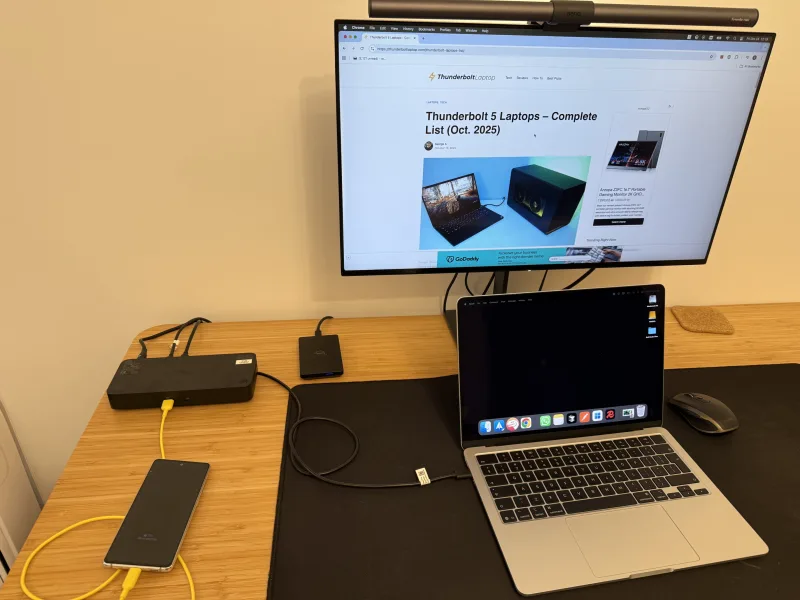
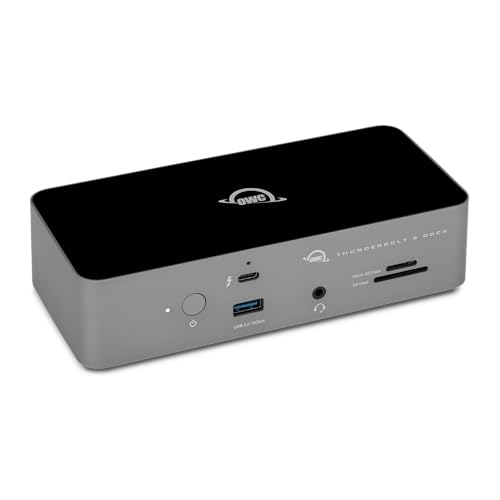
The OWC Thunderbolt 5 Dock is our best overall pick for most people. It works on Windows and Mac, charges the laptop at up to 140W, and gives you three downstream Thunderbolt 5 ports, 2.5GbE, and two card readers, which covers almost everything a working desk plugs in. Buy the Anker Prime instead if you want HDMI or DisplayPort built into the dock, the iVANKY FusionDock Max 2 if you have a supported Apple Silicon Mac, or the Dell SD25TB5 if an IT team has to manage the docks rather than one person owning one.
A Thunderbolt 5 label tells you nothing about how many monitors a laptop can drive. The dock only passes along display signals that the computer produces, so the GPU, the laptop port, the operating system, the dock layout, the cable or adapter, and the monitor all have to support the mode you want. Every display figure on this page is a ceiling for one exact combination of parts, and we say so each time one comes up.
Updated July 28, 2026. We rechecked all nine docks against the manufacturer’s current product or support page and confirmed that every model is still sold in the US. We have not used these docks ourselves, so nothing here is written as a test result, and we do not quote prices, ratings, or stock levels because all three change faster than the page does.
Table of Contents
The best Thunderbolt 5 docks at a glance
| What you need | Our pick | Why it fits |
|---|---|---|
| Best overall | OWC Thunderbolt 5 Dock | Balanced 11-port layout, 140W host charging, card readers, and 2.5GbE |
| Best for Windows | Anker Prime Thunderbolt 5 Docking Station | HDMI or DisplayPort choice, 140W host charging, and a clear Windows support floor |
| Best for Mac | iVANKY FusionDock Max 2 | Made for compatible Apple Silicon Macs with a native multi-display path |
| Best for gaming | Razer Thunderbolt 5 Dock Chroma | M.2 storage slot, Chroma lighting, and high refresh display modes on qualified laptops |
| Best for enterprise and IT | Dell Pro Thunderbolt 5 Smart Dock SD25TB5 | Remote management is the main reason to choose it |
| Best for a compact desk | Plugable TBT-UDT3 | Upright 11-in-1 layout with three downstream Thunderbolt ports |
| Maximum ports | iVANKY FusionDock Max 2 | 23 ports, but only for supported Apple Silicon Macs |



Last update on 2026-10-20 at 02:57 UTC / Affiliate links / Images from Amazon Product Advertising API / DetailsProduct prices and availability are accurate as of the date/time indicated and are subject to change. Any price and availability information displayed on [relevant Amazon Site(s), as applicable] at the time of purchase will apply to the purchase of this product.)
If you are not sure you need Thunderbolt 5 at all, start with our Thunderbolt 5 specifications guide. If your laptop is a few years old, read how Thunderbolt 4 and USB4 differ first, because no dock can give a computer bandwidth or display streams it does not already have.
How to read the display claims
Bandwidth and display support are two different things. A Thunderbolt 5 connection carries more data than Thunderbolt 4, but no dock adds display engines to a laptop. The computer’s GPU has to produce each display stream, the operating system has to allow the layout you want, and the dock ports you plug into have to carry those streams to the monitors.
So the biggest number on a product page describes one specific chain of parts. A Windows laptop and a Mac with the same Thunderbolt 5 port often have different display limits, and two Windows laptops can differ from each other as well. Before you buy for a high resolution or high refresh desk, check five things: the laptop model and its GPU, the operating system version, the manufacturer’s display matrix for that dock, the cable or adapter you will use, and the input on the monitor.
Our Thunderbolt laptop list is the quickest way to see which machines carry the port. If the monitors are the part you have not settled yet, compare our Thunderbolt monitor picks, because a screen with the right input takes the adapter question off the table.
1. OWC Thunderbolt 5 Dock, best overall
The OWC is the dock to buy when you want one that does not tie you to Windows or to Mac and you can live without a video connector on the dock itself. Its 11 ports cover fast storage, wired networking, card imports, audio, and older USB accessories. The three downstream Thunderbolt 5 ports are the more useful number, because a monitor, an external drive, and a second Thunderbolt device can each have their own connection instead of taking turns on one.
What you get: OWC lists three downstream Thunderbolt 5 ports, three USB-A ports, SD 4.0 UHS-II and microSD slots, audio, and 2.5GbE. Host charging is rated at up to 140W. Your laptop decides how much of that it will actually take, so check the USB Power Delivery input in its specifications before you leave the original charger at home.
Display limits: OWC advertises up to three 8K displays on Windows and two 6K displays on Mac. Both figures are ceilings. OWC says the host controls display support, and its compatibility text says Apple currently allows no more than two native displays per connected Mac Thunderbolt host port. The exact GPU, the operating system, the cable or adapter, and the monitor inputs all have to support the mode you choose.
Skip it if: your monitors take only HDMI or full size DisplayPort and you do not want adapters sitting behind the desk. Skip it as well if a smaller hub already covers your keyboard, your network, and one screen. Our best USB-C hubs take up less room and are enough for a lighter setup.
Our take
The OWC is the safest choice here when the desk is not built around one operating system or one video connector. It has a useful port mix, strong host charging, and display limits that OWC states in plain terms. The one real drawback is that every display has to go through a Thunderbolt port.
Pros
- Three downstream Thunderbolt 5 ports
- SD and microSD UHS-II readers
- Up to 140W host charging
- 2.5GbE instead of basic gigabit Ethernet
Cons
- No built-in HDMI or DisplayPort
- Display ceilings depend on the complete host and monitor chain
2. Anker Prime Thunderbolt 5 Docking Station, best for Windows
The Anker Prime is the Windows pick when you want the video connector on the dock rather than on an adapter. A monitor plugs straight into HDMI 2.1 or DisplayPort 2.1, and the upright body keeps the front USB ports and card slots within reach instead of hidden behind the laptop.
What you get: Anker lists one Thunderbolt 5 host port, two downstream Thunderbolt 5 ports, three 10Gbps USB-A ports, and two 10Gbps USB-C ports that share up to 45W between them. There is also 2.5Gbps Ethernet, an audio jack, and SD and TF UHS-I card readers. Host charging is rated at up to 140W.
The catch: you can use HDMI 2.1 or DisplayPort 2.1, but not both at the same time, so a desk that needs both connectors at once is out. Anker also says the dock does not support Thunderbolt 3 laptops or monitors, ChromeOS, or Linux. Its current page calls for Windows 23H2 and macOS 15 or later for the best compatibility, even though another specification line names an older macOS floor.
Display limits: Anker advertises modes up to two 8K displays. Treat that as the best case for one exact setup, because the laptop GPU, the operating system, the port wiring, the cable, and the monitors decide what you get. Check Anker’s current matrix against the Windows laptop and the connector path you plan to use, and do not buy on the headline alone.
Skip it if: you run Linux or ChromeOS, your laptop is Thunderbolt 3, or your setup needs HDMI and DisplayPort at the same time. If the dock has to move between mixed computers, the OWC or the CalDigit is the easier fit, because neither one leans on a single video connector.
Our take
Anker covers the current video connectors and a full set of USB ports, which is what most Windows desks actually need. The rule that HDMI and DisplayPort cannot run together is the detail that should decide the purchase.
Pros
- Built-in HDMI 2.1 or DisplayPort 2.1 output
- Two downstream Thunderbolt 5 ports
- 2.5Gbps Ethernet and up to 140W host charging
- Two USB-C ports with shared accessory charging
Cons
- HDMI and DisplayPort cannot run together
- No ChromeOS, Linux, or Thunderbolt 3 support
3. CalDigit TS5, best port mix
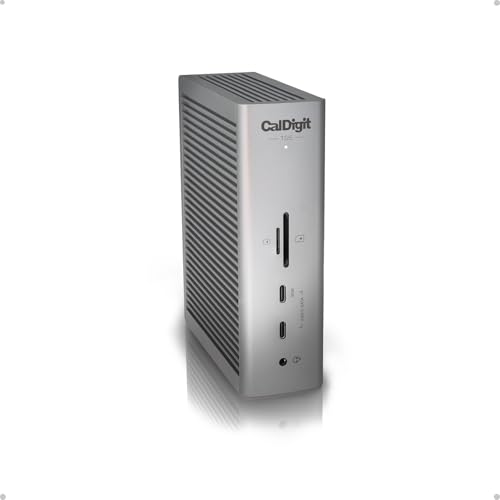
Buy the CalDigit TS5 when you care more about peripherals than about a video connector. CalDigit lists 15 ports that can be used together: three downstream Thunderbolt 5 ports, three 10Gbps USB-C ports, two USB-A ports, three audio connections, and two card readers. It is the dock for a desk that has run out of ports rather than one that has run out of screens.
What you get: the SD and microSD readers are both UHS-II and work at the same time, which saves a step when two cards come back from the same job. The host port supplies up to 140W, each downstream Thunderbolt port supplies 15W, and a front USB-C port supplies up to 20W. The 2.5GbE port works on a Thunderbolt host and on a USB4 host that exposes PCIe, and CalDigit tells USB4 buyers to confirm PCIe support with the computer maker.
Host and display limits: CalDigit lists macOS 15 or later and Windows 11 or later. The TS5 can also fall back to Thunderbolt 4, a Thunderbolt 3 Mac, USB4, USB4 v2, or plain USB-C, but CalDigit says full performance needs an 80Gbps Thunderbolt 5 or USB4 v2 host. Monitors connect through the spare Thunderbolt ports, and CalDigit publishes a matrix for each computer instead of one display ceiling, partly because operating system updates can change the answer. How many screens you get, and at what resolution, still depends on the GPU, the computer, the operating system, the cable or adapter, and the monitor.
Skip it if: you want HDMI or DisplayPort built into the dock, because a monitor with either connector needs a separate USB-C adapter here. Skip it as well if most of your gear is basic USB-A, since the Thunderbolt and USB-C expansion is what you would be paying for and it would sit unused.
Our take
The TS5 is the strongest pure expansion dock on this page. Fast storage, card readers, audio, and networking all have room to run at once, which is the point of buying it. The tradeoffs are the missing video connector and the desk space the external power supply takes up.
Pros
- 15 ports with three downstream Thunderbolt 5 ports
- Three 10Gbps USB-C ports
- Two UHS-II card readers that work together
- Up to 140W host charging and 2.5GbE
Cons
- No built-in HDMI or DisplayPort
- Full speed needs a Thunderbolt 5 or USB4 v2 host
4. Plugable TBT-UDT3, best for a compact desk
The Plugable TBT-UDT3 fits a desk that is short on space but still has several Thunderbolt devices on it. The upright 11-in-1 body takes up less width than a flat dock, and the three downstream Thunderbolt 5 ports mean a display, a drive, and one more compatible device do not have to share a single connection.
What you get: Plugable lists two 10Gbps USB ports, one 5Gbps USB port, SD and microSD readers, audio, 2.5Gbps Ethernet, and up to 140W host charging. Each downstream Thunderbolt port can supply 15W. Thunderbolt Share can link two supported Windows systems, so you can move files between them and control one from the other.
Display limits: Plugable publishes different limits for Windows and for specific Mac chips. Its current page runs from one 6K display on base M1, M2, and M3 Macs up to higher counts on selected Pro, Max, M4, and M5 systems, and its Windows page names high 8K modes that we are not repeating here, because those depend entirely on the exact laptop and monitor chain. Each of those figures belongs to one host, so confirm the GPU, the operating system, the cable, the adapter, and the monitors you own before you buy.
Skip it if: you need built-in HDMI or DisplayPort, because displays connect through the downstream Thunderbolt ports and an ordinary monitor may need an adapter. Skip it too if Thunderbolt Share was the reason you were interested and you use a Mac, because Plugable presents that feature for Windows systems.
Our take
The upright body and the three downstream Thunderbolt ports give the TBT-UDT3 a clear job on a crowded desk. Its limit is that both the display connections and the best display modes belong to the computer, and some monitors will need an adapter to get there.
Pros
- Upright 11-in-1 design
- Three downstream Thunderbolt 5 ports
- Up to 140W host charging and 2.5Gbps Ethernet
- Thunderbolt Share for supported Windows systems
Cons
- No dedicated HDMI or DisplayPort
- Mac display support changes sharply by chip
5. Razer Thunderbolt 5 Dock Chroma, best for gaming
The Razer dock makes sense if you want Thunderbolt expansion, an M.2 SSD, and Chroma lighting in one enclosure. The internal storage slot uses a PCIe Gen 4 x4 connection, so the drive lives inside the dock instead of adding another box and another cable to the desk.
What you get: Razer lists up to 140W USB Power Delivery and Gigabit Ethernet. The network port is the main hardware compromise, because most other docks on this page provide 2.5GbE. The detail that matters more for gaming is that Razer recommends using the laptop’s original power adapter while you play, so the CPU and GPU can reach their intended performance. Plan on two cables at the desk if you game on the laptop.
Display limits: Razer lists ceilings of up to three 4K displays at 144Hz or one 8K display at 60Hz, and says triple monitor support depends on the laptop’s Thunderbolt capabilities. The GPU, the operating system, the path through the dock, the cable, and the monitors all have to support the mode you pick, so the headline does not carry over to every Thunderbolt 5 laptop.
Skip it if: 2.5GbE is part of your desk plan, the M.2 bay and the lighting do nothing for you, or you expected one dock cable to replace a high power gaming adapter under load. Razer’s own support page and the Amazon listing also disagree about the total port count, so we do not treat the port total as a reason to pick it.
Our take
The M.2 slot is the reason to consider the Razer, more than the lighting is. Buy it for the storage and for how the desk looks, not on the idea that one 140W cable will carry every gaming session.
Pros
- Internal M.2 PCIe Gen 4 x4 storage slot
- Chroma lighting for a matched gaming desk
- Up to 140W host charging for everyday work
Cons
- Gigabit Ethernet instead of 2.5GbE
- Original laptop adapter is still recommended for gaming
6. Kensington SD5000T5 EQ, best for a high display ceiling
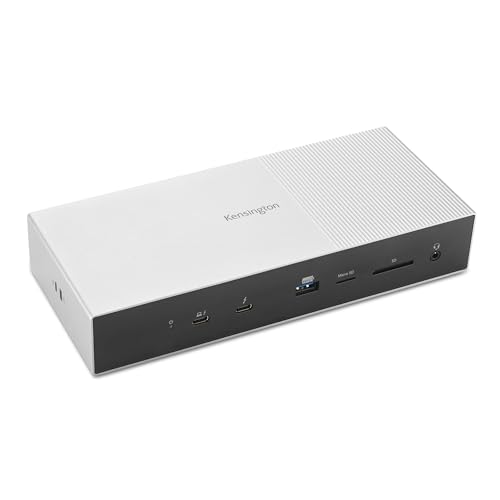
The Kensington SD5000T5 EQ makes sense once you have confirmed that your exact laptop can supply the display streams you want. Kensington advertises up to three 4K displays at 144Hz or two 8K displays at 60Hz, and it also warns that the laptop maker’s configuration controls the real display count. Buy it after that check, not because of the headline.
What you get: the 11-in-1 layout includes three downstream Thunderbolt 5 ports, three 10Gbps USB-A ports, SD and microSD readers, audio, and 2.5Gbps Ethernet, with host charging rated at up to 140W. There is no built-in HDMI or DisplayPort, so an ordinary monitor needs a compatible adapter on one of the downstream Thunderbolt ports.
Host and display limits: Kensington lists Windows 11 23H2 or later and macOS 14.5 or later. Its Mac notes differ by Apple chip, and the current page generally gives lower Mac ceilings than the Windows headline. Confirm the matrix for your exact Mac or PC, along with the GPU, the operating system, the adapter, the cable, and the monitor, before you treat any resolution or refresh rate as available.
Skip it if: your laptop maker cannot confirm the display layout you want, because Kensington hands that decision to them. Skip it as well if you want to run an HDMI or DisplayPort cable straight out of the dock, or if you need Linux, which Kensington’s current operating system list does not include.
Our take
The SD5000T5 EQ has a strong port mix and the largest advertised display ceiling in this group. It is only a sensible purchase after the host check, because Kensington puts the final display limit on the laptop configuration rather than on the dock.
Pros
- Three downstream Thunderbolt 5 ports
- Up to 140W host charging
- 2.5Gbps Ethernet and two card readers
- Windows 11 23H2 and macOS 14.5 are the stated floors
Cons
- No built-in HDMI or DisplayPort
- Advertised display ceilings do not apply to every host
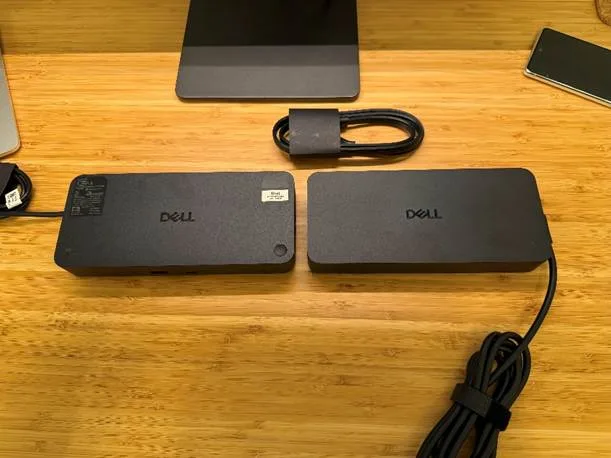
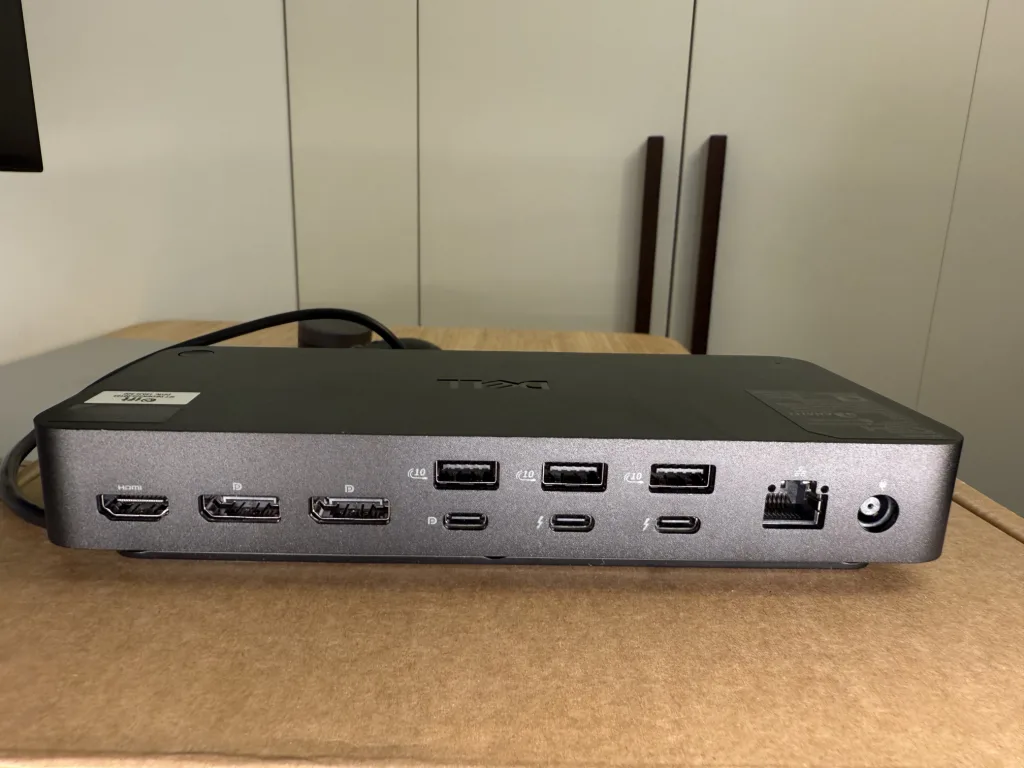
7. Dell Pro Thunderbolt 5 Smart Dock SD25TB5, best for enterprise and IT
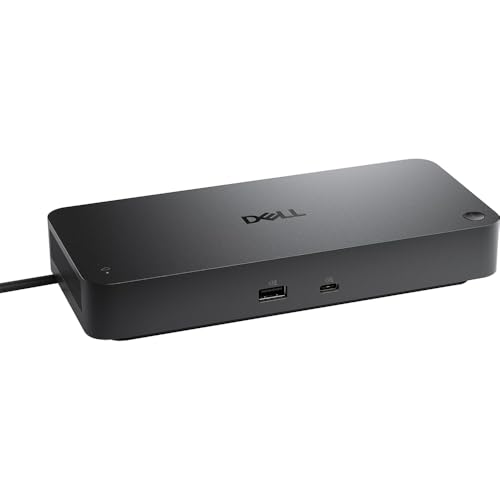
The Dell Pro Thunderbolt 5 Smart Dock SD25TB5 is the business pick, and remote management is the whole reason. Dell aims it at teams that have to deploy, update, and support docks across many desks, which does more for an IT department than any port count. For one person buying one dock, the management layer is the part you would pay for and never use.
Power: Dell’s current product listing uses the phrase “up to 300W of power.” Read that as the power the dock handles, not as 300W of USB-C charging for your laptop. Total dock or system power and the power delivered to the host are different figures. Confirm the table for your exact Dell laptop and adapter before you decide the dock can replace the computer’s charger.
What we could not confirm: Dell’s US support page would not return its English specification table when we checked, so we are not going to quote a host charging figure, a network speed, a port count, or a display ceiling that we could not read on Dell’s own page. Ask Dell for the table that matches your exact laptop model and keep a copy of it. The Thunderbolt 5 label answers none of those four questions, and neither does the product title on Amazon.
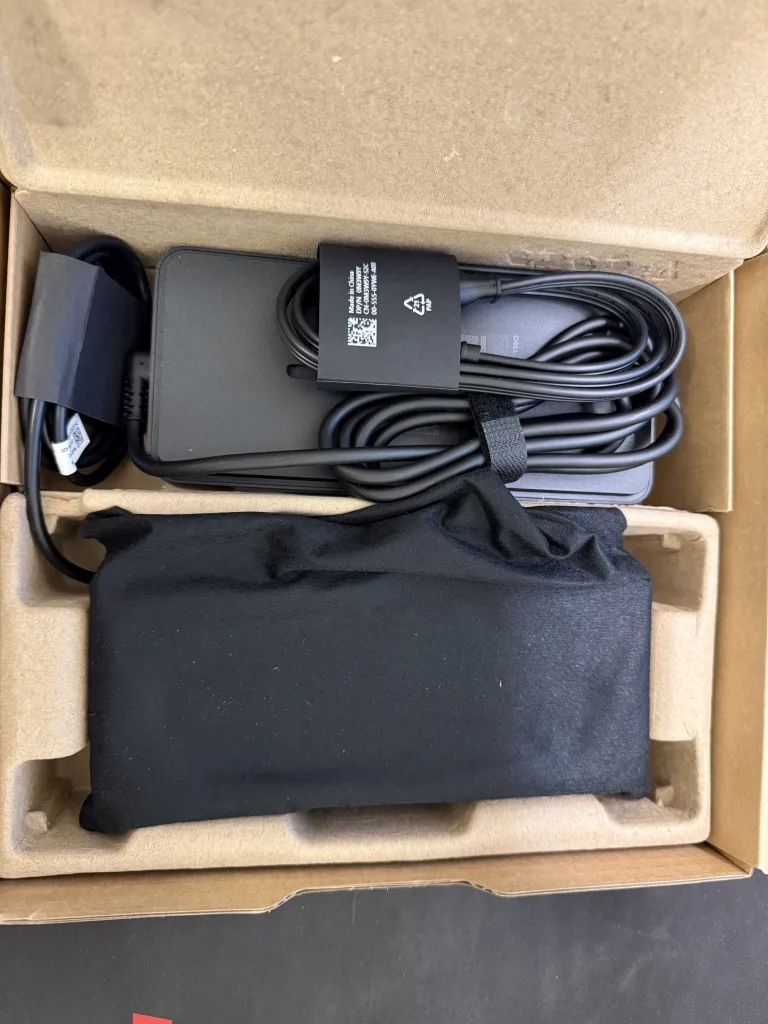
Skip it if: you are buying for a personal desk and cannot get the compatibility table for your model. The consumer docks on this page state their charging, network, port, and display limits far more openly. A smart dock earns its place when the management layer is part of the purchase, not when you only need more ports.
Our take
Remote management is the reason to choose the SD25TB5, and for a company it is a good one. Because Dell’s English specification table was out of reach when we checked, we left out several numbers the older version of this page used to quote. We would rather print less than print figures we could not read at the source.
Pros
- Built for desks that an IT team has to manage
- Remote management is the feature Dell builds it around
- Covered in more detail in our separate SD25TB5 review
Cons
- Dell’s 300W figure is dock power, not laptop charging
- Port, network, and display figures need a check with Dell for your model
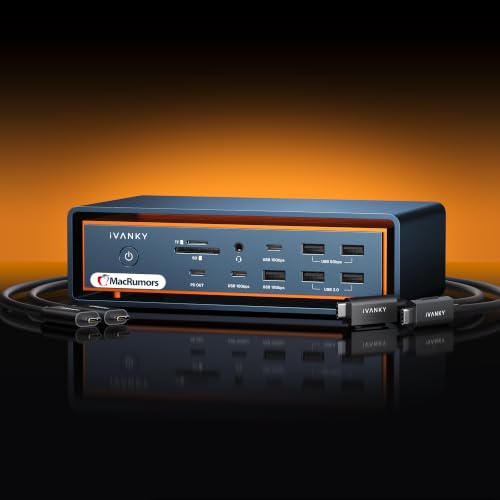
8. iVANKY FusionDock Max 2, best for Mac and maximum ports
The FusionDock Max 2 is a Mac dock and only a Mac dock. It is built for a supported Apple Silicon Mac that needs many ports and a native path to several displays, and iVANKY is explicit that it is not compatible with a PC or an Intel Mac. Buy it for a supported Apple Silicon Mac or do not buy it at all.
What you get: the 23-port layout combines Thunderbolt 5 with a DisplayPort Alt Mode chip. It includes 2.5G Ethernet, SD 4.0, optical audio, HDMI, a wide set of USB connections, and active cooling. iVANKY lists up to 140W host charging and up to 30W for a connected peripheral.
Display limits: on compatible Apple Silicon Macs, iVANKY lists two 6K displays through Thunderbolt and one 4K display through HDMI, plus up to four displays on compatible M5 Max MacBook Pro models. iVANKY also says the result varies by Mac model and chip, and that the dock does not bypass Apple’s display limits. Check your exact Mac first, because the chip sets the number and no dock raises it.
Skip it if: you use Windows or an Intel Mac, where it will not work at all. Skip it too if the desk has to stay quiet, because the fan is part of the thermal design and an actively cooled dock is never silent. The 23 ports only pay off if you own enough devices to fill them.
Our take
The FusionDock Max 2 is the clearest Mac specialist here and it wins on port count by a wide margin. The strict Apple Silicon requirement is exactly why it is the wrong dock for every other computer.
Pros
- 23 ports for a large Mac workstation
- Native multi-display design for supported Apple Silicon Macs
- 2.5G Ethernet, SD 4.0, and optical audio
- Up to 140W host charging
Cons
- Not compatible with Windows PCs or Intel Macs
- Active cooling adds a fan to the desk
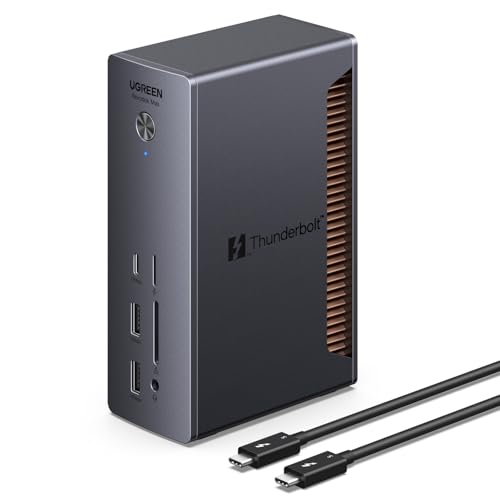
9. UGREEN Revodok Max 2131, best for mixed USB peripherals
The UGREEN Revodok Max 2131 suits a desk where newer USB-C storage sits next to a pile of older USB-A accessories. UGREEN’s support record lists a 13-in-1 design with one Thunderbolt 5 input, three Thunderbolt outputs, one 10Gbps USB-C port, two 10Gbps USB-A ports, and two 5Gbps USB-A ports, so the older gear gets its own ports instead of a second hub hanging off the side.
What you get: UGREEN lists up to 140W host charging, RJ45 networking up to 2.5Gbps, and SD and TF card slots up to 312MB/s. Its stated system floor is Windows 11 or later and macOS 15 or later. The public product page keeps much of its detail inside images, so the specifications here come from the text record in UGREEN’s own Support Center.
Display limits: UGREEN lists a single 8K display or two 6K displays at 60Hz. The support port map does not list built-in HDMI or DisplayPort, so displays run over the Thunderbolt path and may need adapters. As with every dock here, the laptop GPU, the operating system, the port implementation, the adapter, the cable, and the monitors all have to support the result you want.
Skip it if: you want to plug an HDMI or DisplayPort cable straight into the dock, you are staying on an older operating system, or you want a downstream Thunderbolt connector on the front. If one monitor and a handful of USB devices is the whole job, compare USB-C docking stations first, because the Thunderbolt connections are the main thing you would be paying for here.
Our take
The Revodok Max 2131 has the most useful USB mix on this page for a desk that runs old and new peripherals together. The missing video connector is the main thing holding it back.
Pros
- Three Thunderbolt outputs
- Five USB ports across 10Gbps and 5Gbps tiers
- Up to 140W host charging and 2.5Gbps networking
- Fast SD and TF card slots
Cons
- No built-in HDMI or DisplayPort in the support port map
- Windows 11 and macOS 15 are the stated system floors
What to check before buying
Start with your laptop, not the dock headline
Start with the computer, because nearly every limit on this page comes from the laptop and not from the dock. Write these down before you compare models:
- The exact laptop model and its processor or GPU
- The operating system and its version number
- Which port the laptop has, and whether it is Thunderbolt 5, Thunderbolt 4, or USB4
- How much power the laptop accepts over USB-C, and whether it needs its own adapter for full performance
- The input on each monitor you plan to connect, and the adapter that input would need
A Thunderbolt 5 port can move data quickly while the same laptop still limits how many displays it drives or how much charging it accepts. A USB4 or Thunderbolt 4 computer can usually connect to any of these docks, but it will only run as fast, and drive as many screens, as the computer allows. No dock setting changes that.
Our Thunderbolt 3 vs 4 vs 5 guide covers what actually changed between the generations. Our USB4 explainer covers why two computers that both say USB4 can support different optional features, which is the usual reason one dock behaves differently on two machines that look the same on paper.
Match every display path
Check the manufacturer’s display matrix for your exact computer and operating system, then follow the physical path from the dock port to the monitor input. A Thunderbolt to DisplayPort adapter, an HDMI connection, and a USB-C monitor can have different limits on the same dock, and the weakest part of the chain sets the result.
Mac buyers need a second check. Apple Silicon chips have external display limits that change with the chip, and macOS does not turn every Windows multi-stream layout into the same Mac layout. The iVANKY model uses a Mac-specific topology and still says it does not bypass the Mac’s display limit, which is the honest position for any dock.
If the display layout is the whole reason for the purchase, buy from a seller who will take the dock back. A layout the manufacturer lists for some hosts is not a promise about yours, and the only certain check is your own laptop with your own monitors on your own desk.
Separate laptop charging from dock power
A dock’s power supply feeds the dock itself, the laptop, and everything attached to it. The laptop receives only the USB Power Delivery level it negotiates with the dock, so a product page that names total dock power is not promising that number to the computer.
Check what the laptop accepts over USB-C and whether it needs its own adapter for full performance. Razer recommends the original adapter during gaming for exactly that reason. Dell’s 300W wording needs the same care, because the material we could read did not establish 300W as host charging for every laptop.
Choose ports for the devices you own
Count the connections you use every day, then look at how each dock spends its ports. The OWC, CalDigit, Plugable, Kensington, and UGREEN models all route displays through downstream Thunderbolt ports. The Anker gives you HDMI or DisplayPort, though only one at a time. The Razer trades faster 2.5GbE for an M.2 slot, and the iVANKY has the widest port set of the nine while tying you to a supported Apple Silicon Mac.
If Thunderbolt 5 speed is not part of the work you do, compare our Thunderbolt 4 dock guide. A Thunderbolt 4 or USB-C dock is often the better fit for a laptop that cannot use the newer display and data paths, and it leaves the budget for a monitor or a drive that would make more difference to the desk.
Thunderbolt 5 dock FAQ
Do I need a Thunderbolt 5 dock for a Thunderbolt 5 laptop?
No. Buy one when you need more downstream Thunderbolt connections, faster external storage, a supported high resolution display layout, or more host charging than your current dock provides. A keyboard, one monitor, a gigabit network, and a few basic USB devices do not need Thunderbolt 5 on their own, and a Thunderbolt 4 or USB-C dock will handle that desk.
Will a Thunderbolt 5 dock work with Thunderbolt 4 or USB4?
Often, but the answer belongs to the model rather than to the standard. OWC and CalDigit publish broad fallback support, while Anker excludes Thunderbolt 3, ChromeOS, and Linux. On any older or lower capability computer, expect the speed, the display count, the charging, the network features, and the device support to drop to whatever that computer allows. Read the manufacturer’s compatibility list for your exact laptop before you order.
Can a dock add more displays than my laptop supports?
Not over a native Thunderbolt display connection. The laptop GPU and the operating system produce the display streams, and the dock only routes them, so no dock can create a stream the computer does not have. Separate USB graphics technologies work in a different way, and a product page that leans on one of them is not describing a native Thunderbolt display path.
Can a 140W dock replace my laptop charger?
Only if the laptop accepts enough USB Power Delivery from that dock for the work you do. Some laptops accept less than 140W, and some need their own adapter before the processor and graphics will run at full speed. Check the computer’s charging specification and the dock’s host output, and ignore the size of the dock’s power supply, which also covers everything else plugged into it.
Which dock should a Mac owner choose?
Choose the iVANKY only for a supported Apple Silicon Mac, and only when its 23 ports or its native multi-display path solve a problem you actually have. The OWC is the simpler choice when the same dock also has to work with a PC, and the CalDigit is stronger for a stack of fast peripherals. In every case, match the dock’s current display matrix to your exact Mac chip before you order.
How we selected these docks
We kept the same nine docks as the previous version of this page and checked each one against the manufacturer’s current product or support page. A specification stayed here only if the manufacturer’s own page still states it. Where a page had changed, or would not open for us, we removed the claim instead of carrying an old number forward, which is why the Dell entry is shorter than the rest.
We also confirmed that all nine models are still listed for sale in the US, though a retail listing is never our source for a specification. Nobody on our team has plugged these docks into a laptop, so nothing on this page is written as a test result. What you are reading is a comparison of what each manufacturer commits to, and of the limits that decide whether a dock will do what you want on your computer.