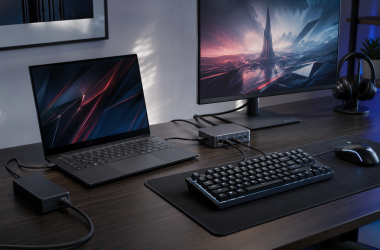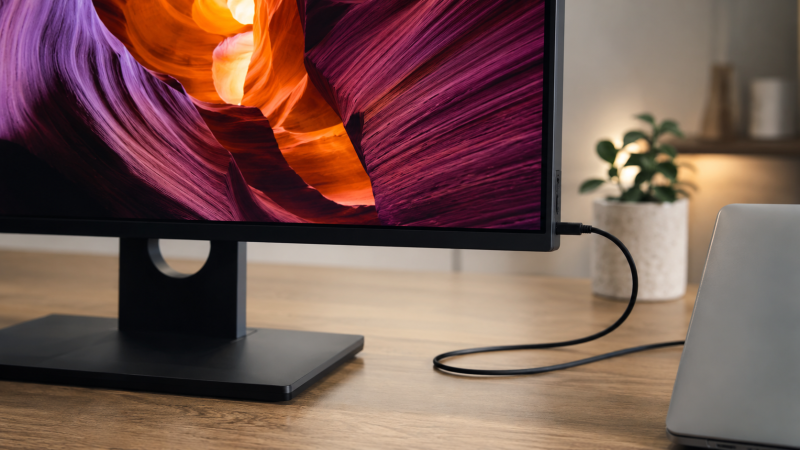
A 4K monitor displays at 3840×2160 resolution, four times the pixels of standard 1080p, delivering sharper text, more detailed images, and more workspace for multitasking. Over 40 monitors were evaluated, with manufacturer specs, expert benchmarks, and user reviews compared to find the best 4K displays available today.
The market is the best it’s ever been. QD-OLED panels have become affordable at 32 inches. Mini LED backlights deliver genuine HDR at mid-range prices. And budget 4K IPS panels with USB-C now cost less than a decent pair of headphones.
After comparing every major 4K monitor across gaming, productivity, creative work, and entertainment, we landed on the 10 best you can buy right now. Below you will find straight verdicts on which to buy, who each one is for, and where each falls short.
Recent Updates
- May 2026: Full refresh of all picks. Added the ASUS ROG Swift OLED PG27UCDM as best overall and the Samsung Odyssey OLED G8 G80SD as best 32-inch gaming pick. Pricing updated across all products.
- January 2026: Replaced two budget picks after new models launched at lower prices. Added the Dell S2725QC as best budget 4K monitor.
- November 2025: Initial publication with 10 product picks and full buying guide.
Quick Picks
- Best overall: The ASUS ROG Swift OLED PG27UCDM is the best 4K monitor you can buy, with a 27-inch 4K 240Hz QD-OLED panel, DP 2.1a for uncompressed output, and 90W USB-C charging.
- Best productivity: The Dell UltraSharp U2725QE replaces your dock with a 27-inch 4K 120Hz IPS Black display, Thunderbolt 4, and 140W power delivery.
- Best gaming: The Gigabyte G27U is a 27-inch 4K 160Hz SuperSpeed IPS gaming monitor with a Dual Mode that drops to FHD 320Hz for competitive shooters, plus 95% DCI-P3 color and an ergonomic stand.
- Best budget: The Dell S2725QC gives you 27-inch 4K at 120Hz with USB-C 65W charging at a budget-friendly price, the lowest for this spec combination.
- Best 32″: The ASUS ProArt PA32UCDM is a 32-inch 4K QD-OLED reference monitor with auto calibration, 240Hz, 0.1ms response, 99% DCI-P3, and Thunderbolt 4 connectivity.
- Best 32″ gaming: The Samsung Odyssey OLED G8 G80SD pairs a 32-inch 4K 240Hz QD-OLED panel with built-in Tizen smart TV streaming.
- Best USB-C hub: The Dell UltraSharp U3225QE is a 32-inch 4K IPS Black display with Thunderbolt 4 at 140W PD, RJ45, and enough ports to replace a standalone dock.
- Best 24″: The Dell P2425HE is a 24-inch FHD hub monitor with USB-C 90W PD, Ethernet, and daisy-chain support for compact desks.
- Best curved: The Dell S3225QC is a 32-inch curved 4K QD-OLED at 120Hz with a five-speaker array that frequently goes on sale at a very competitive price.
- Best Dough alternative: The Dough Spectrum 4K 144Hz is a 27-inch IPS with factory-calibrated Delta E 0.6 accuracy and USB-C 100W PD for single-cable laptop use.
| Image | Product | Details | Check Price |
|---|---|---|---|
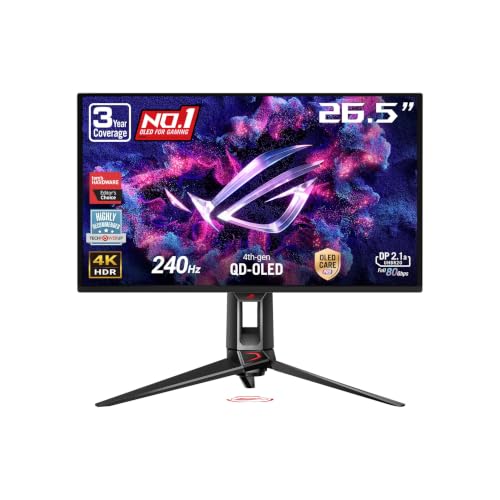 | ASUS ROG Swift OLED PG27UCDM | Panel/Size: 27" QD-OLED Resolution: 3840x2160 (4K UHD) Refresh Rate: 240Hz, 0.03ms Color Gamut: 99% DCI-P3, true 10-bit Connectivity: DP 2.1a UHBR20, HDMI 2.1, USB-C 90W PD | Check Price on Amazon |
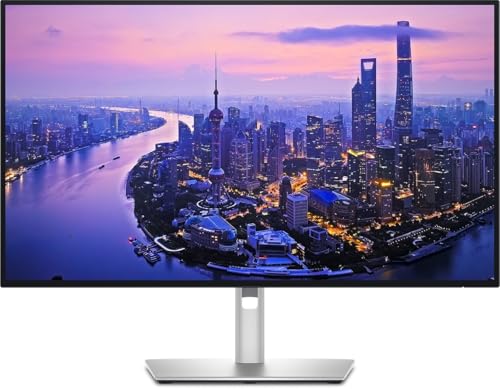 | Dell UltraSharp U2725QE | Panel/Size: 27" IPS Black Resolution: 3840x2160 (4K UHD) Refresh Rate: 120Hz, 5ms Color Gamut: 99% DCI-P3, DisplayHDR 600 Connectivity: Thunderbolt 4 140W PD, HDMI 2.1, DP 1.4, RJ45 | Check Price on Amazon |
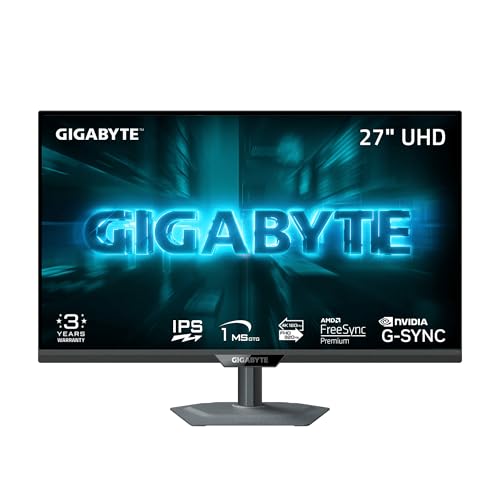 | Gigabyte G27U | Panel/Size: 27" SuperSpeed IPS Resolution: 3840x2160 (4K UHD) Refresh Rate: 160Hz, 1ms Color Gamut: 95% DCI-P3, DisplayHDR 400 Connectivity: HDMI 2.1, DP 1.4 | Check Price on Amazon |
 | Dell S2725QC | Panel/Size: 27" IPS Resolution: 3840x2160 (4K UHD) Refresh Rate: 120Hz, 8ms Color Gamut: 99% sRGB, 1500:1 contrast Connectivity: USB-C 65W PD, 2x HDMI 2.1 | Check Price on Amazon |
 | ASUS ProArt PA32UCDM | Panel/Size: 32" QD-OLED Resolution: 3840x2160 (4K UHD) Refresh Rate: 240Hz, 0.1ms Color Gamut: 99% DCI-P3, BT.2020, true 10-bit, Delta E < 1 Connectivity: Thunderbolt 4, DP, HDMI | Check Price on Amazon |
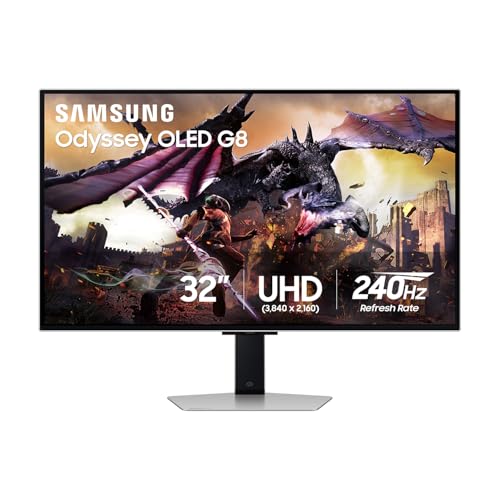 | Samsung Odyssey OLED G8 G80SD | Panel/Size: 32" QD-OLED Resolution: 3840x2160 (4K UHD) Refresh Rate: 240Hz, 0.03ms Color Gamut: 99% DCI-P3, true 10-bit Connectivity: DP 1.4 (DSC), 2x HDMI 2.1, USB 3.0 hub | Check Price on Amazon |
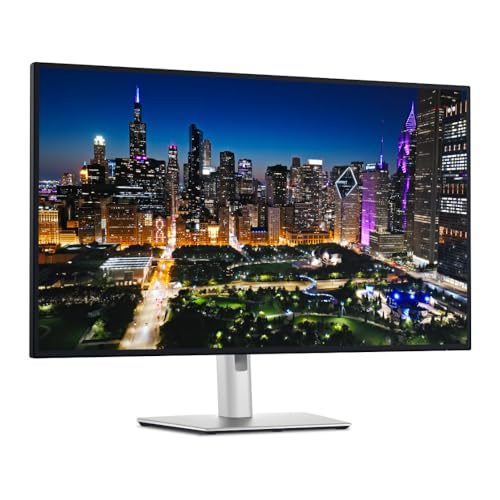 | Dell UltraSharp U3225QE | Panel/Size: 32" IPS Black Resolution: 3840x2160 (4K UHD) Refresh Rate: 120Hz, 5ms Color Gamut: 99% DCI-P3, DisplayHDR 600, 3000:1 Connectivity: TB4 140W PD, HDMI 2.1, DP 1.4, RJ45 2.5GbE | Check Price on Amazon |
 | Dell P2425HE | Panel/Size: 24" IPS Resolution: 1920x1080 (FHD) Refresh Rate: 100Hz, 5ms Color Gamut: 99% sRGB, 1500:1 contrast Connectivity: USB-C 90W PD, HDMI, DP, RJ45, USB hub | Check Price on Amazon |
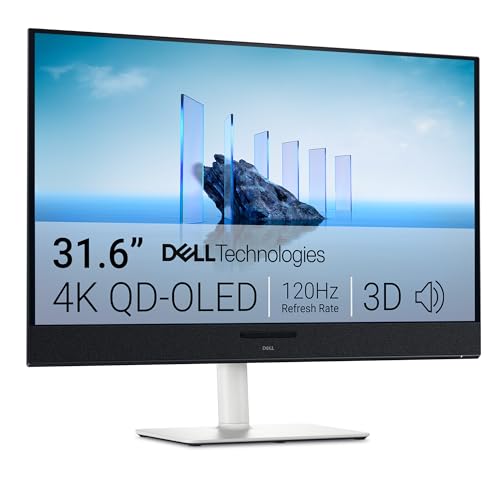 | Dell S3225QC | Panel/Size: 32" QD-OLED (curved) Resolution: 3840x2160 (4K UHD) Refresh Rate: 120Hz, 0.03ms Color Gamut: 99% DCI-P3, Dolby Vision, HDR True Black 400 Connectivity: USB-C 90W PD, HDMI | Check Price on Amazon |
 | Dough Spectrum 4K 144Hz | Panel/Size: 27" Nano IPS Resolution: 3840x2160 (4K UHD) Refresh Rate: 144Hz, 1ms Color Gamut: 98% DCI-P3, DisplayHDR 600, Delta E 0.6 Connectivity: USB-C 100W PD, DP 1.4, 2x HDMI 2.1 | Check Price on Amazon |
1. ASUS ROG Swift OLED PG27UCDM — Best Overall
The ASUS ROG Swift OLED PG27UCDM is the best 4K monitor you can buy. It’s the world’s first 27-inch 4K QD-OLED, combining a 3840×2160 resolution at 240Hz with a fourth-generation Samsung QD-OLED panel and connectivity that keeps up with modern hardware.
Our Take
The ASUS ROG Swift OLED PG27UCDM is the best 4K monitor at any price, combining a 27-inch QD-OLED panel at 240Hz with the only DP 2.1a UHBR20 connection in its class for uncompressed 4K output.
ASUS rates this panel at true 10-bit color with 99% DCI-P3 coverage. Per-pixel contrast makes LCD panels look like they have a gray film over them. Dark scenes in games have real depth because blacks are actually black, not dark gray. The 0.03ms response time means zero visible ghosting, something you will notice immediately coming from any IPS or VA panel.
What sets it apart is the DisplayPort 2.1a with UHBR20, delivering the full 80Gbps bandwidth for uncompressed 4K at 240Hz with no compression artifacts. You also get USB-C with 90W PD, HDMI 2.1 for consoles, a custom heatsink to extend OLED lifespan, and a Neo Proximity Sensor that blanks the screen when you walk away to protect against burn-in.
It costs more than twice what you would pay for a solid 4K IPS panel. That is a lot of money for a 27-inch display. But nothing else at this size matches its combination of OLED contrast, 240Hz speed, and DP 2.1a bandwidth. ASUS backs it with a three-year burn-in warranty.
- 4K QD-OLED with true 10-bit color and 99% DCI-P3
- 240Hz with 0.03ms response, zero ghosting
- DP 2.1a UHBR20 for full uncompressed 4K 240Hz
- USB-C 90W PD and custom heatsink
- Premium price is steep for 27 inches
- Needs a high-end GPU for 4K 240Hz
- Semi-glossy coating shows reflections in bright rooms
2. Dell UltraSharp U2725QE — Best Productivity
The Dell UltraSharp U2725QE is the best 27-inch 4K monitor for desk work. It replaces the U2723QE with upgrades across the board: 120Hz (up from 60Hz), 140W power delivery (up from 90W), and Thunderbolt 4 instead of USB-C.
Our Take
The Dell UltraSharp U2725QE replaces your docking station with a single Thunderbolt 4 cable that delivers 4K video, 140W charging, USB peripherals, and Ethernet all at once.
One cable from your laptop gives you 4K video, 140W charging, keyboard and mouse through the built-in USB hub, and wired Ethernet via RJ45. Your desk can have one visible cable. That is it.
Dell rates the IPS Black panel at 3,000:1 contrast, three times standard IPS, with 99% DCI-P3 and DisplayHDR 600 certification. Text looks crisp against dark backgrounds, and the 120Hz refresh rate makes scrolling noticeably smoother than the 60Hz panels Dell used to ship here. The KVM switch toggles between two computers with a button press, and a downstream Thunderbolt 4 port supports daisy-chaining a second display, which is rare at this price.
Where it falls short is entertainment. The 3,000:1 contrast cannot touch OLED, and HDR content looks decent but not dramatic. If you watch a lot of movies or play HDR games, you will want something from the OLED side of this list.
- Thunderbolt 4 with 140W PD, one cable for everything
- 3,000:1 IPS Black contrast, 120Hz refresh
- Built-in KVM, RJ45 Ethernet, daisy-chain support
- 99% DCI-P3 with DisplayHDR 600
- Can’t match OLED for contrast or HDR
- No speakers
- Premium price for 27-inch IPS
3. Gigabyte G27U — Best Gaming
The Gigabyte G27U is a 27-inch 4K gaming monitor built around a SuperSpeed IPS panel that Gigabyte rates at 160Hz with 1ms GTG response time. What makes it stand out from the crowded 4K gaming field is its Dual Mode feature: you can switch between native 4K at 160Hz for cinematic single-player games and FHD at 320Hz for competitive shooters, all on the same panel.
Our Take
The Gigabyte G27U gives you two monitors in one: a sharp 4K 160Hz display for immersive gaming and a fast FHD 320Hz mode for competitive play, at a price well below OLED alternatives.
Gigabyte rates the G27U at 95% DCI-P3 color coverage with 8-bit color depth and a 1000:1 contrast ratio, which means colors look vibrant and accurate without needing a dedicated creative monitor. The VESA DisplayHDR 400 certification adds a baseline level of HDR support. It is not the same league as OLED or Mini LED HDR, but it handles HDR content noticeably better than panels without any certification.
The 160Hz refresh rate at 4K is a practical sweet spot. Few GPUs sustain higher frame rates at native 4K in demanding titles, and both AMD FreeSync Premium and NVIDIA G-SYNC Compatible support ensure tear-free gameplay regardless of your GPU vendor. The Dual Mode is genuinely useful: flipping to FHD 320Hz for competitive titles like CS2, Valorant, or Overwatch 2 gives you a real edge without needing a second monitor.
Gigabyte includes a fully ergonomic stand with 130mm height adjustment, tilt, swivel, and pivot, plus gaming features like crosshairs, a timer, PIP/PBP, and Tactical Switch 2.0 for quick preset swapping. Connectivity covers HDMI and DisplayPort. The three-year warranty rounds it out.
- Dual Mode: 4K 160Hz and FHD 320Hz on one panel
- 95% DCI-P3 color coverage for vibrant, accurate gaming visuals
- Full ergonomic stand with height, tilt, swivel, and pivot
- FreeSync Premium and G-SYNC Compatible; 1ms GTG response
- Competitively priced with a 3-year Gigabyte warranty
- HDR 400 is entry-level HDR; no local dimming zones
- 1000:1 contrast ratio cannot match VA or OLED black levels
- No USB-C connectivity; HDMI and DisplayPort only
4. Dell S2725QC — Best Budget
The Dell S2725QC is the best budget 4K monitor you can buy. You get a 27-inch 4K IPS panel at 120Hz with USB-C that delivers 65W of power. Two years ago, this spec sheet cost significantly more.
Our Take
The Dell S2725QC is the cheapest way to get a 4K 120Hz panel with USB-C charging, and it undercuts most 1440p monitors with similar features.
The 4K resolution at 27 inches gives you 163 PPI, making text razor-sharp. That is a genuine upgrade from 1440p, especially for code and long documents. The 120Hz refresh rate makes scrolling and cursor movement feel smooth, a noticeable step up from 60Hz panels.
USB-C connectivity means one cable from your laptop handles video, data, and 65W charging. That is enough for most ultrabooks, though 16-inch MacBook Pros will drain slowly under heavy load since they want 90W+. Two HDMI 2.1 ports handle PS5 or Xbox at 4K 120Hz out of the box. There are integrated speakers that work in a pinch. For more options in this price range, see our best cheap USB-C monitors with power delivery roundup.
Dell rates the panel at 99% sRGB with a 1,500:1 contrast ratio. Colors look good for everyday work, but not reference-grade. The full ergonomic stand includes height, tilt, swivel, and pivot. The tradeoffs are predictable at this price: 8ms response time means motion blur in fast games, there is no DisplayPort input, and 65W PD is not enough for larger laptops.
- 4K 120Hz IPS at a budget-friendly price. Exceptional value
- USB-C 65W PD for single-cable laptop setup
- 163 PPI makes text incredibly sharp
- Full ergonomic stand; two HDMI 2.1 for console gaming
- 8ms response time isn’t for competitive gaming
- 65W PD may not charge larger laptops fully
- No DisplayPort; 99% sRGB only
5. ASUS ProArt PA32UCDM — Best 32-Inch
The ASUS ProArt PA32UCDM is a 32-inch 4K QD-OLED monitor that combines reference-grade color accuracy with a 240Hz refresh rate. Unlike previous ProArt displays that forced you to choose between color accuracy and smooth motion, the PA32UCDM does both. ASUS rates the panel at Delta E below 1 out of the box with auto calibration that maintains accuracy over time without any external hardware.
Our Take
The ASUS ProArt PA32UCDM is the most capable 32-inch 4K monitor available, pairing a QD-OLED panel with auto calibration, 240Hz, and Thunderbolt 4 in a single ultra-slim chassis.
ASUS rates the QD-OLED panel at 99% DCI-P3 and BT.2020 color gamut coverage with true 10-bit color depth, 1,000 nits peak brightness, and VESA DisplayHDR True Black 400 certification. The Quantum Dot layer delivers vivid, saturated colors while per-pixel OLED dimming produces infinite contrast with true blacks. The 0.1ms GTG response time eliminates motion blur entirely, making this one of the rare creative monitors that also handles fast-paced gaming flawlessly.
HDR support is comprehensive: Dolby Vision, HLG, and HDR10 are all covered. ASUS includes ProArt Hardware Calibration Technology that writes color profiles directly to the monitor, so accuracy stays consistent regardless of which machine you connect. The auto calibration system keeps Delta E below 1 without manual intervention, which is a major convenience over monitors that require an external colorimeter.
Connectivity is built for professional workflows: Thunderbolt 4 for single-cable laptop docking, plus the standard display inputs you expect from a creative monitor. The ultra-slim design keeps desk presence minimal. ASUS backs it with a three-year warranty and Calman Ready certification for studio-grade validation.
The primary concern with any OLED is burn-in risk from static UI elements. ASUS includes pixel-refresh routines and recommends using a screensaver for extended static content. The premium price reflects its positioning as a no-compromise creative and gaming display.
- QD-OLED with 99% DCI-P3, true 10-bit, Delta E < 1
- 240Hz and 0.1ms response time; handles both creative work and gaming
- Auto calibration maintains accuracy without external hardware
- Thunderbolt 4 for single-cable laptop docking
- Dolby Vision, HLG, and HDR10 with 1,000-nit peaks
- Premium price reflects its no-compromise positioning
- OLED burn-in risk with heavy static content over time
- Ultra-slim design limits built-in speaker options
6. Samsung Odyssey OLED G8 G80SD — Best 32-Inch Gaming
The Samsung Odyssey OLED G8 G80SD is the best 32-inch 4K gaming monitor. Samsung’s QD-OLED panel delivers 240Hz with 0.03ms response time and 99% DCI-P3 coverage in true 10-bit. If you want a bigger canvas than the 27-inch PG27UCDM without sacrificing gaming performance, this is the pick.
Our Take
The Samsung Odyssey OLED G8 G80SD is the best 32-inch 4K gaming monitor, pairing Samsung’s 240Hz QD-OLED panel with a built-in Tizen smart TV platform that turns the display into a standalone streaming device when your PC is off.
Samsung chose a matte anti-glare coating instead of the glossy finish common on other QD-OLEDs. That means reduced reflections at the cost of slightly dulled vibrancy. In rooms with overhead lights or windows behind your desk, this approach works well. Colors are still vivid; they just do not pop quite as aggressively as a glossy QD-OLED in a dark room.
The built-in Tizen platform runs Netflix, Disney+, YouTube, and more without needing a Chromecast or Fire Stick. The dual 5W speakers handle movie dialogue and game audio well enough for casual sessions without headphones. That is a meaningful feature gap compared to most gaming monitors, which ship with no speakers at all.
Samsung’s pulsating heat pipe cooling solution reduces burn-in risk by keeping the panel cooler during long sessions, and the three-year warranty covers burn-in if it happens anyway. Connectivity includes DP 1.4 with DSC, two HDMI 2.1 ports with CEC support, USB 3.0 hub, Wi-Fi, and Bluetooth. It competes directly with the ASUS PG32UCDM in the same price tier. ASUS wins on stand quality and OSD software; Samsung wins on smart features and speakers.
- 32-inch 4K QD-OLED at 240Hz with 0.03ms
- Built-in Tizen smart TV with streaming apps
- Matte coating reduces reflections
- Dual 5W speakers sound surprisingly good
- DP 1.4 with DSC only, no DP 2.1
- No USB-C power delivery
- Smart features add complexity some won’t want
7. Dell UltraSharp U3225QE — Best USB-C Hub
The Dell UltraSharp U3225QE is the best hub monitor you can buy. If you want a single cable to replace your entire docking station, this 32-inch 4K display does it all.
Our Take
The Dell UltraSharp U3225QE is a 32-inch 4K display with enough built-in ports to replace a standalone Thunderbolt dock, including 140W power delivery, RJ45 2.5Gbps Ethernet, and six USB-A 10Gbps connections.
Dell rates the Thunderbolt 4 upstream port at 140W, enough for a 16-inch MacBook Pro at full speed. Downstream you get Thunderbolt 4 for daisy-chaining, USB-C 10Gbps, six USB-A 10Gbps ports, RJ45 2.5Gbps Ethernet, DisplayPort 1.4, HDMI 2.1, and a 3.5mm audio jack. The port list matches a premium Thunderbolt dock, except it is built into your monitor.
The display uses LG’s IPS Black panel with 3,000:1 contrast at 31.5 inches and 4K, with 120Hz refresh for responsive scrolling. Dell factory-calibrates each unit to 99% DCI-P3 coverage with Delta E under 1.5 and VESA DisplayHDR 600 certification. The low-reflectance panel handles bright office environments better than most IPS monitors.
Consider that a comparable Thunderbolt 4 dock alone costs a significant fraction of this monitor’s price. The monitor effectively pays for itself by eliminating the dock and reducing cable clutter. If you are weighing a hub monitor against a separate dock, our docking stations vs monitors with built-in docks comparison breaks down the tradeoffs. For more Thunderbolt setups, see our best Thunderbolt monitors guide.
- TB4 with 140W PD replaces a separate dock
- 3,000:1 IPS Black contrast with 120Hz
- RJ45 2.5Gbps and multiple USB-A 10Gbps ports
- 99% DCI-P3, factory-calibrated
- Premium price for IPS
- Can’t match OLED contrast
- No speakers; 5ms response is adequate, not gaming-grade
8. Dell P2425HE — Best 24-Inch
The Dell P2425HE is the best 24-inch monitor for compact desk setups. It is a 24-inch FHD IPS panel with a built-in USB-C hub delivering 90W power, Ethernet, and multiple USB ports. Think of it as a mini docking station for anyone who needs a smaller display.
Our Take
The Dell P2425HE is the best hub monitor under 25 inches, delivering USB-C 90W power, Ethernet, and daisy-chain output in a compact 24-inch form factor that fits on any desk.
Why a 1080p monitor on a 4K list? Because true 4K at 24 inches is extremely rare and expensive, and the PPI at that size means you would run heavy scaling anyway. The P2425HE earns its spot by being the best sub-25-inch hub monitor available. Dell rates the USB-C port at 90W, enough for a MacBook Air or most Windows ultrabooks at full speed. RJ45 Ethernet, three USB-A 3.2 ports, HDMI, and DisplayPort round out the hub functionality. Daisy-chain support via DP out lets you add a second monitor without running cables back to your laptop.
Dell rates the 100Hz IPS panel at 99% sRGB with 1,500:1 contrast. It costs less than most 27-inch monitors while adding dock-like connectivity that you would otherwise need a separate hub for.
- USB-C 90W PD charges most laptops at full speed
- RJ45 Ethernet and USB hub replace a dock
- 100Hz is smoother than legacy 60Hz panels
- Excellent value for the feature set
- 1080p, not 4K
- 100Hz isn’t for gaming
- 250 nits brightness is modest
9. Dell S3225QC — Best Curved
The Dell S3225QC is a 32-inch 4K QD-OLED that pairs excellent picture quality with some of the best built-in speakers available on a monitor. It frequently goes on sale well below MSRP, giving you a 4K QD-OLED panel at 120Hz with 0.03ms response, Dolby Vision, and a five-speaker array with AI-enhanced 3D spatial audio.
Our Take
The Dell S3225QC is the best entertainment-focused monitor on this list, combining a 32-inch curved 4K QD-OLED panel with a five-speaker array that sounds good enough to skip the soundbar, all at a street price that frequently drops well below MSRP.
The speakers deliver clear dialogue, noticeable bass, and enough volume to fill a room. Users report watching entire movies without reaching for external audio. Dell rates the QD-OLED panel at over 99% DCI-P3 with infinite contrast, and HDR peaks at 1,000 nits in a 3% window. Dolby Vision support means compatible content gets proper tone mapping, which is still rare on desktop monitors.
At 120Hz with FreeSync Premium Pro, the S3225QC handles gaming well. It is not a 240Hz competitive display, but for single-player games and casual multiplayer, 120Hz at 4K with QD-OLED visuals is smooth. The 0.03ms response time keeps motion clean regardless of refresh rate.
Connectivity is where Dell kept costs down: USB-C with 90W PD and HDMI, but no DisplayPort, no Ethernet, and no USB hub. For a monitor positioned as an entertainment display rather than a productivity hub, those omissions are understandable.
- 4K QD-OLED frequently discounted well below MSRP
- Five-speaker array with 3D spatial audio sounds impressive
- Dolby Vision and HDR True Black 400
- 0.03ms response with 120Hz FreeSync Premium Pro
- No DisplayPort. USB-C and HDMI only
- No USB hub or Ethernet
- 120Hz max, not for competitive gaming
10. Dough Spectrum 4K 144Hz — Best Eve Spectrum Alternative
The Dough Spectrum 4K 144Hz is what the Eve Spectrum was supposed to be. Built by former community members who rebranded and shipped a real product, it’s a 27-inch Nano IPS panel at 3840×2160 with 144Hz, 1ms response, and factory calibration averaging Delta E 0.6.
Our Take
The Dough Spectrum 4K 144Hz is a 27-inch IPS monitor factory-calibrated to Delta E 0.6 with 98% DCI-P3 coverage, USB-C 100W power delivery, and an optional glossy panel that makes colors noticeably more vivid than standard matte coatings.
Dough rates color coverage at 98% DCI-P3 and 100% sRGB with 1.07 billion colors. VESA DisplayHDR 600 gives HDR content some punch, though it cannot match Mini LED or OLED. USB-C 3.2 Gen 2 delivers 100W PD for single-cable laptop use. Two HDMI 2.1 ports handle console gaming at 4K 120Hz. The USB hub includes two USB-A and one USB-C at 10Gbps.
The glossy panel option deserves special mention. Most IPS monitors ship with anti-glare matte coatings that reduce reflections but also dull colors. The Dough glossy variant looks noticeably more vivid, with deeper blacks and punchier colors. If you can control your room lighting, the glossy version is worth the premium.
It competes with Dell and LG monitors that have similar specs but less distinctive design. The crowd-developed heritage means Dough actually listens to its community. Firmware updates have addressed input lag, added features, and improved color accuracy since launch. For more on the Eve Spectrum lineage, see our Eve Spectrum 4K review.
- Factory-calibrated Delta E 0.6. Excellent accuracy
- 98% DCI-P3 with glossy panel option
- USB-C 100W PD for single-cable laptop docking
- Two HDMI 2.1 ports for 4K 120Hz consoles
- DisplayHDR 600 can’t compete with Mini LED or OLED
- Smaller brand, less local support
- Stand sold separately in some configs
Buying Guide: Everything You Need to Know About 4K Monitors
What’s the Best Size for a 4K Monitor?
27 inches is the sweet spot for most people. At a typical 24-28 inch desk distance, 163 PPI makes text crisp at 100% scaling. Both Windows and macOS handle 27-inch 4K well, and the footprint fits any standard desk.
32 inches gives you more screen real estate and a more immersive gaming experience. Pixel density drops to 140 PPI, which is still sharp but slightly less crisp for small text. If you sit 28+ inches from your screen, 32 inches is excellent.
24 inches at 4K delivers 184 PPI, which is extremely sharp. But the small physical size means you will need 150-200% scaling, negating much of the extra real estate. True 4K 24-inch monitors are also scarce. For most users, 1080p makes more sense at this size.
Our recommendation: 27 inches unless you have a specific reason to go bigger.
IPS vs OLED vs VA Panels — Which Is Best?
IPS delivers wide viewing angles, accurate colors, and fast response at reasonable prices. Standard IPS hits 1,000:1 contrast; newer IPS Black pushes 3,000:1. Best for productivity and the only option at budget price points.
OLED (QD-OLED, WOLED) provides infinite contrast, per-pixel dimming, and 0.03ms response times. Colors are more vivid, HDR looks dramatically better. Tradeoffs: burn-in risk, limited sustained brightness, higher prices. Best for gaming and media.
VA offers 3,000:1 to 5,000:1 contrast without burn-in risk. Tradeoffs: slower response times causing smearing, narrower viewing angles, less accurate colors. Best for entertainment users wanting deep blacks on a budget.
What Refresh Rate Do You Actually Need?
For office work and productivity, 60Hz technically works but 120Hz is noticeably smoother. Scrolling through documents, moving windows, and tracking your cursor all feel more responsive. We’d call 120Hz the new minimum for any 4K monitor.
For single-player gaming, 120-160Hz is the sweet spot since even high-end GPUs rarely sustain 160+ fps at 4K in demanding titles. The Gigabyte G27U’s 160Hz is more than enough for Cyberpunk 2077, Elden Ring, or Starfield, and its Dual Mode lets you drop to FHD 320Hz for competitive shooters.
For competitive gaming, 240Hz matters if you have the GPU horsepower. The PG27UCDM and G80SD both deliver essentially zero motion blur thanks to their OLED panels. For consoles, 120Hz is the PS5/Xbox Series X maximum at 4K, and most console games still target 60fps. Our best monitors for console gaming guide covers the best options for PS5 and Xbox.
How Much GPU Power Do You Need for 4K?
This is the question most people underestimate. Running a 4K monitor at native resolution for desktop work requires almost nothing because even integrated graphics handle 4K at 60Hz. But gaming at 4K is a different story entirely.
- 4K at 60fps (medium-high settings): NVIDIA RTX 4070 / AMD RX 7800 XT or equivalent. This is the minimum for playable 4K gaming.
- 4K at 120fps in demanding titles: RTX 5070 Ti / RX 9070 XT or equivalent. Frame generation (DLSS 4, FSR 4) can help hit these targets with lower-tier cards.
- 4K at 240fps: RTX 5080 or better. Only realistic in esports titles like CS2, Valorant, or Overwatch 2 with reduced settings.
If you’re buying a 4K monitor primarily for work and only game occasionally, don’t stress about GPU requirements. Any modern GPU handles 4K productivity. Save the GPU budget for when you actually want to game at native 4K.
HDR on 4K — What Actually Matters?
A monitor with “HDR10 support” and 300 nits doesn’t deliver real HDR. What matters:
Peak brightness matters most. Genuine HDR starts at around 600 nits for small highlights and really shines above 1,000 nits. The PA32UCDM’s QD-OLED reaches 1,000-nit peaks with true per-pixel dimming. These monitors produce HDR you can actually see. A budget IPS panel with 350 nits and “HDR10 compatible” printed on the box produces HDR that looks washed out and worse than SDR.
Local dimming is essential. OLED panels like the PA32UCDM dim per-pixel, which is ideal. Mini LED panels use hundreds of dimming zones to darken areas of the screen independently. Both approaches produce good HDR with dark blacks and bright highlights coexisting on screen. Edge-lit or direct-lit panels without local dimming cannot produce this effect because bright highlights raise the entire screen’s black level.
Certifications that actually mean something: VESA DisplayHDR 1000 or higher, DisplayHDR True Black 400 (for OLED). Certifications below these typically indicate minimal HDR capability.
What Cables Do You Need for 4K at High Refresh?
- 4K 60Hz: Any HDMI 2.0 or DP 1.2 cable
- 4K 120Hz: HDMI 2.1 (“Ultra High Speed”), DP 1.4, or USB-C DP Alt Mode
- 4K 144-160Hz: DP 1.4 with DSC or HDMI 2.1
- 4K 240Hz uncompressed: DP 2.1 UHBR20 only (PG27UCDM has this). See our DisplayPort 2.1 explainer for details on UHBR modes
- Thunderbolt 4: Handles 4K 120Hz. Thunderbolt 5 will support DP 2.1 bandwidth
Frequently Asked Questions
Is 4K worth it?
Yes, 4K is worth it for any monitor 27 inches or larger. The price gap between 1440p and 4K has narrowed to the point where a budget 4K 120Hz IPS panel with USB-C (like the Dell S2725QC) costs about the same as a decent 1440p monitor did two years ago. The resolution upgrade is most noticeable in text sharpness at 163 PPI on 27-inch displays, and frame generation technologies like DLSS 4 and FSR 4 now make 4K gaming accessible to mid-range GPUs like the RTX 4070.
27 inches or 32 inches for 4K?
27 inches is the better choice for most people because 4K at that size delivers 163 PPI, which makes text extremely crisp at 100% scaling. At 32 inches, PPI drops to 140 and you may want 125% scaling, but you gain significantly more screen real estate for multitasking. We recommend 27 inches if you sit closer than 28 inches to your screen and prioritize text clarity. Go 32 inches if you want more immersion or sit further back.
What GPU do I need for 4K gaming at 144Hz?
You need at least an NVIDIA RTX 5070 Ti or AMD RX 9070 XT for native 4K at 144Hz with high settings in AAA games, and an RTX 5080 is ideal. For esports titles like CS2 and Valorant, an RTX 4070 Ti is enough. Frame generation technologies like DLSS 4 and FSR 4 can roughly double frame rates with minimal visual impact, but they add slight input latency that competitive players may notice.
Can I use a 4K monitor for both work and gaming?
Yes, and a 4K 120Hz monitor with USB-C power delivery is the best compromise for people who split their time between work and gaming. The Dell U2725QE and U3225QE give you Thunderbolt hub functionality for work and 120Hz for casual gaming. The PG27UCDM delivers reference-grade color accuracy alongside 240Hz OLED gaming performance. If work comes first, prioritize USB-C connectivity and color accuracy. If gaming comes first, prioritize refresh rate and response time.
What’s the best budget 4K monitor?
The Dell S2725QC is the best value 4K monitor you can buy. If you can stretch your budget a bit further, the Gigabyte G27U adds 4K at 160Hz with 95% DCI-P3 color, a Dual Mode that drops to FHD 320Hz for competitive gaming, and a fully ergonomic stand, which is a significant upgrade for gaming and media.
Is 4K noticeable on a 27-inch monitor?
Yes, 4K is clearly noticeable on a 27-inch monitor, delivering 163 PPwe compared to 109 PPI for 1440p and 82 PPI for 1080p at the same size. The difference is most obvious in text rendering, where fonts look smoother and more defined at 4K. Fine details in photos and videos are clearer, and UI elements like icons and toolbars look crisper. The improvement over 1440p is less dramatic than the jump from 1080p, but it is consistently visible, especially if you read a lot of text.
How We Research & Select 4K Monitors
We evaluate every monitor through a combination of manufacturer spec analysis, expert benchmark aggregation, and user review cross-referencing before including it in a roundup. Here’s the process.
Color accuracy: We compare manufacturer-rated DCI-P3 and sRGB coverage against expert colorimeter measurements, cross-referencing factory calibration claims with independent Delta E testing from trusted review outlets.
Gaming performance: We aggregate benchmark results from expert reviewers who test with competitive titles (CS2, Valorant) and demanding games (Cyberpunk 2077, Alan Wake 2) at native 4K, evaluating motion clarity, verified refresh rates, and frame skipping data.
HDR quality: We cross-reference manufacturer brightness ratings with independent peak brightness measurements, and evaluate expert assessments of tone mapping and local dimming performance for blooming and haloing artifacts.
Connectivity: We verify manufacturer port specifications, cross-reference USB-C PD ratings with user reports across multiple laptop brands, and confirm advertised refresh rates and Thunderbolt daisy-chaining support through expert testing.
Real-world usability: We analyze user reviews and expert long-term evaluations covering productivity use (coding, writing, video calls, photo editing) alongside gaming, assessing stand quality, OSD responsiveness, and mixed-content scaling behavior.
Honorable Mentions
Alienware AW3225QF. A 32-inch 4K QD-OLED with a 240Hz refresh rate and gentle curve. Excellent gaming monitor that loses to the Samsung G80SD mainly on price. Worth grabbing if you find it at a discount.
LG UltraGear 32GS95UE. LG’s 32-inch 4K OLED competitor with dual-mode technology (4K 240Hz or FHD 480Hz). Worth considering if you play both competitive esports and visually demanding single-player games.
BenQ PD2725U. A 27-inch 4K monitor aimed at designers with Pantone validation, Thunderbolt 3, and a hotkey puck for Adobe workflows. Good creative features, but 60Hz and a premium price make the Dell U2725QE a better deal overall.
ASUS ROG Swift OLED PG32UCDM. The 32-inch version of our best overall pick. Same QD-OLED technology with USB-C 90W PD, frequently discounted. Full review in our best OLED monitor roundup.
This article contains affiliate links. When you purchase through links on this site, we may earn an affiliate commission at no additional cost to you. All opinions and recommendations are our own, based on thorough research and analysis.