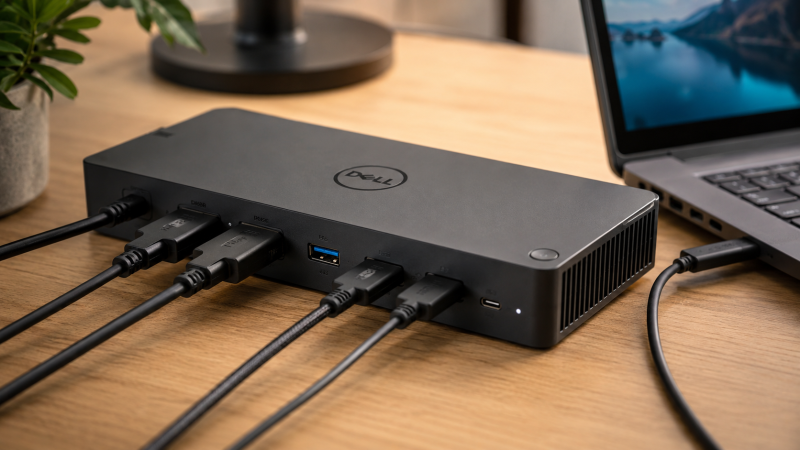
A Dell docking station is a desktop accessory that connects your Dell laptop to monitors, peripherals, and networks through a single USB-C or Thunderbolt cable. Dell ships more enterprise laptops than any other manufacturer, but with Latitudes, XPS models, and Precisions all using different port configurations, finding the right dock is harder than it should be. Dell’s own lineup alone includes USB-C docks, Thunderbolt 4 docks, Thunderbolt 5 docks, DisplayLink docks, and “Pro” docks. Third-party options from Plugable and CalDigit often work just as well for less money.
Manufacturer specs, expert benchmarks from Tom’s Hardware and PCMag, and user reviews were compared across every current Dell dock to find the 8 best options available today. If you have a Latitude 5450, an XPS 16, a Precision 7680, or even an Inspiron, this guide tells you exactly which dock to buy and which ones to skip.
Recent Updates
- May 2026: Added the Dell Pro Dock WD25 as our new top overall pick. Updated pricing and availability for all products. Added the Dell Pro Thunderbolt 5 Smart Dock SD25TB5.
- January 2026: Refreshed the buying guide section with updated compatibility information for 2026 Dell laptop models.
Quick Picks
- Best overall: The Dell Pro Dock WD25 is the best docking station for most Dell laptops, with 100W charging, triple display output, and 2.5GbE at a competitive price.
- Best Thunderbolt 5: The Dell Pro TB5 Smart Dock SD25TB5 delivers 80Gbps bandwidth, four 4K 120Hz displays, and up to 300W charging for Dell’s newest laptops.
- Best budget: The Dell Dock WD19S still delivers 130W charging and dual 4K output at roughly half the price of newer Dell docks.
- Best for dual monitors: The CalDigit TS4 packs 18 ports, 2.5GbE Ethernet, and dual 4K Thunderbolt 4 output into a compact aluminum tower.
| Image | Product | Details | Check Price |
|---|---|---|---|
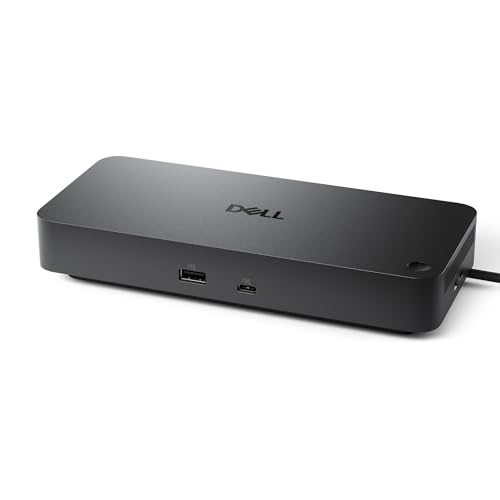 | Dell Pro Dock WD25 | Connection: USB-C (DP Alt Mode) Ports: 4x USB-A 3.2 Gen 2, 2x USB-C 3.2 Gen 2, 2x DP 1.4, HDMI 2.1 Power Delivery: 100W (Dell) / 96W (non-Dell) Display: Triple display, up to dual QHD or single 4K 60Hz Network: 2.5 Gigabit Ethernet | Check Price on Amazon |
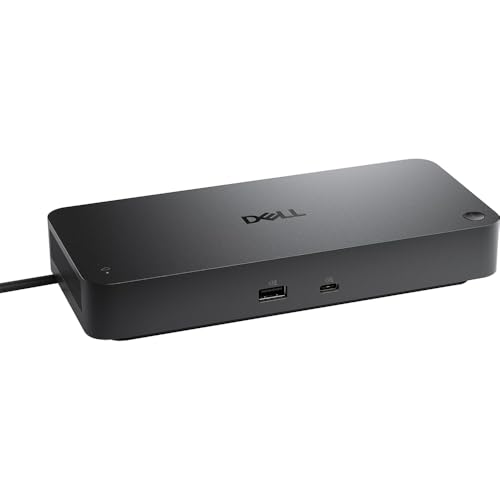 | Dell Pro TB5 Smart Dock SD25TB5 | Connection: Thunderbolt 5 (80Gbps) Ports: USB-C, USB-A, DP 2.1, HDMI 2.1, Thunderbolt 5 Power Delivery: 300W (Dell) / 140W (non-Dell) Display: Four 4K 120Hz or single 8K 60Hz Network: Gigabit Ethernet | Check Price on Amazon |
| Dell WD22TB4 | Connection: Thunderbolt 4 (40Gbps) Ports: 2x TB4, USB-C 3.2 Gen 2, USB-A, 2x DP 1.4, HDMI 2.0 Power Delivery: 130W (Dell) / 90W (non-Dell) Display: Dual 4K 60Hz or up to three FHD displays Network: Gigabit Ethernet | Check Price on Amazon | |
 | Dell Dock WD19S | Connection: USB-C (DP Alt Mode) Ports: 3x USB-A 3.1 Gen 1, USB-C 3.1 Gen 2, 2x DP 1.4, HDMI 2.0b Power Delivery: 130W (Dell) / 90W (non-Dell) Display: Dual 4K 60Hz via DisplayPort Network: Gigabit Ethernet | Check Price on Amazon |
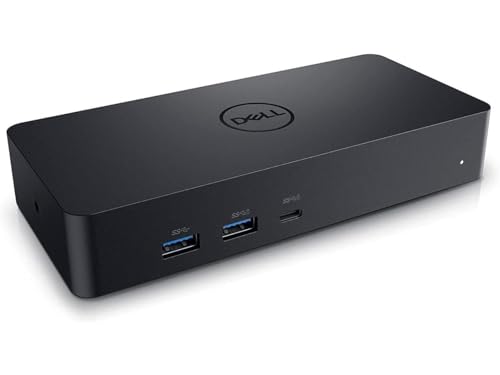 | Dell D6000S Universal Dock | Connection: USB-C / USB-A (DisplayLink) Ports: USB-C, 4x USB-A 3.0, 2x DP 1.2, HDMI 2.0 Power Delivery: 65W Display: Triple 4K via DisplayLink Network: Gigabit Ethernet | Check Price on Amazon |
 | Dell Universal Dock UD22 | Connection: USB-C (DP Alt Mode + DisplayLink) Ports: 4x USB-A 3.2 Gen 2, 2x USB-C 3.2 Gen 2, 2x DP 1.4, HDMI Power Delivery: 96W Display: Quad 4K via DisplayLink, dual native Network: Gigabit Ethernet | Check Price on Amazon |
 | Plugable TBT-UDM | Connection: Thunderbolt 4 / USB4 Ports: 13: TB4 host, downstream TB4, USB-C, 4x USB-A, 2x HDMI 2.0, SD/microSD, Gigabit Ethernet, audio Power Delivery: 100 W, 96 W certified Display: Dual 4K 60 Hz via HDMI on compatible hosts Network: Gigabit Ethernet | Check Price on Amazon |
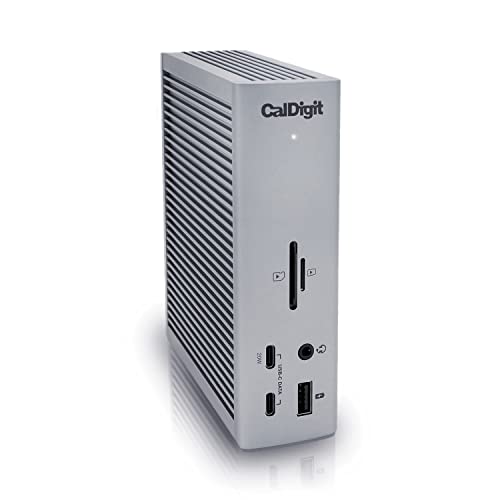 | CalDigit TS4 | Connection: Thunderbolt 4 (40Gbps) Ports: 18 ports: 3x TB4, 5x USB-A, 3x USB-C, DP 1.4, SD/microSD Power Delivery: 98W Display: Single 8K or dual 6K 60Hz Network: 2.5 Gigabit Ethernet | Check Price on Amazon |
1. Dell Pro Dock WD25 — Best Overall
The Dell Pro Dock WD25 is our top pick for most Dell laptop owners. It’s Dell’s newest USB-C docking station, and it hits the sweet spot that the rest of the lineup misses.
Our Take
The Dell Pro Dock WD25 is the best USB-C docking station for Dell laptops, delivering 100W charging, triple display output, and 2.5GbE networking at a competitive price point. If you own a Dell laptop from 2022 or later, this is the dock to get.
Dell rates the WD25 at up to 100W of power delivery to Dell laptops (96W for non-Dell systems). That’s enough to charge a Latitude 5450 or XPS 14 at full speed without a separate charger. Three video outputs (two DisplayPort 1.4, one HDMI 2.1) let you run up to three external displays. Resolution tops out at dual QHD at 60Hz or a single 4K at 60Hz depending on your configuration.
The port selection is strong: four USB-A 3.2 Gen 2 ports with PowerShare, two USB-C 3.2 Gen 2 ports, and 2.5 Gigabit Ethernet for faster wired networking. Dell also built this dock with 65% post-consumer recycled materials and cut standby power consumption by 72%, according to Dell’s sustainability specs.
Who should buy it: Anyone with a Dell Latitude, XPS, or Precision laptop from 2022 or later who wants a reliable, well-supported dock that just works. It’s also a solid pick for mixed-brand offices since it works with non-Dell USB-C laptops.
Who should skip it: If you need Thunderbolt speeds for external storage or eGPUs, or if your laptop demands more than 100W charging, look at the SD25TB5 instead.
- 100W power delivery charges most Dell laptops
- 2.5GbE Ethernet for faster wired networking
- Triple display support via DP 1.4 and HDMI 2.1
- Made from 65% post-consumer recycled materials
- Wide compatibility with Dell and non-Dell laptops
- USB-C only, no Thunderbolt passthrough
- Single 4K at 60Hz maximum per output
- 100W PD may not be enough for larger Precision workstations
2. Dell Pro Thunderbolt 5 Smart Dock SD25TB5 — Best Thunderbolt 5
The Dell Pro Thunderbolt 5 Smart Dock SD25TB5 is the most capable dock Dell has ever made. If you have a Thunderbolt 5-equipped laptop like the Dell Latitude 7455 or XPS 16 (9640), this dock unlocks performance that no USB-C or Thunderbolt 4 dock can match.
Our Take
The Dell SD25TB5 is the best Thunderbolt 5 docking station for Dell laptops, with 80Gbps bandwidth, four 4K 120Hz display outputs, and up to 300W of charging power through a single cable. Nothing else in Dell’s lineup comes close.
That 80Gbps of bandwidth translates to concrete benefits: you can drive four 4K displays at 120Hz, or a single 8K display at 60Hz, while still running fast data transfers. Thunderbolt 4 docks choke when you try to push multiple high-res displays and storage simultaneously. The SD25TB5 does not.
Dell rates the SD25TB5 at up to 300W power delivery to Dell systems (240W for non-Dell). That is enough to charge even the largest Precision mobile workstation at full speed. The 330W power adapter is massive, but that’s the tradeoff for this kind of power.
We covered this dock in detail in our Dell Pro Thunderbolt 5 Smart Dock SD25TB5 review.
Who should buy it: Anyone with a Thunderbolt 5 Dell laptop who runs multiple high-resolution displays or needs fast external storage access. If you edit 4K video in DaVinci Resolve on a Precision 7680 with two external monitors, this is the dock that won’t bottleneck you.
Who should skip it: Anyone without a Thunderbolt 5 laptop. You’ll get Thunderbolt 4 speeds at best, and paying a premium for 40Gbps performance is a bad deal when the WD22TB4 does the same for significantly less. Also overkill if you just need a dock for a single monitor and basic peripherals.
- 80Gbps Thunderbolt 5 bandwidth
- Up to 300W power delivery for Dell laptops
- Four 4K displays at 120Hz or one 8K at 60Hz
- DisplayPort 2.1 and HDMI 2.1 outputs
- Smart features including wake on LAN and PXE boot
- Premium price
- Requires a Thunderbolt 5 laptop to unlock full potential
- Large 330W power adapter
3. Dell WD22TB4 — Best Thunderbolt 4
The Dell WD22TB4 has been a top choice for Dell Thunderbolt 4 laptops since it launched, and it’s still a strong pick. The key differentiator: its modular design lets you swap out the connectivity module as newer standards arrive without replacing the entire dock.
Our Take
The Dell WD22TB4 is the best Thunderbolt 4 dock for Dell laptops, delivering 130W charging and dual 4K output with a modular design that lets you upgrade the connectivity module instead of buying a new dock. The modular approach makes it a smarter long-term investment than most TB4 docks.
We covered the WD22TB4 in our Dell WD22TB4 review, and it delivers exactly what Dell promises. Dell rates it at 130W power delivery to Dell laptops (90W for non-Dell), enough to charge a Latitude or XPS without a separate adapter. Two DisplayPort 1.4 ports and one HDMI 2.0 port handle dual 4K displays at 60Hz, or up to three FHD displays if you need more screens.
The 40Gbps Thunderbolt 4 upstream connection means external SSDs and other high-speed peripherals work without bottlenecks. Dell’s ExpressCharge technology charges compatible Dell laptops to 80% in about an hour and to 35% in just 20 minutes, according to Dell’s specs.
Who should buy it: Dell laptop owners who want Thunderbolt 4 speeds, 130W charging, and the peace of mind that comes with a modular, upgradeable design. Perfect for Latitude 5420, 5520, and similar Thunderbolt 4 machines.
Who should skip it: If your laptop doesn’t have Thunderbolt 4, you’ll get USB-C speeds at best. The WD25 or WD19S offer better value for USB-C-only laptops.
- 130W power delivery charges most Dell laptops
- Modular design allows connectivity module upgrades
- Thunderbolt 4 at 40Gbps for fast data transfer
- Dell ExpressCharge support
- Solid build quality with small footprint
- HDMI limited to 2.0 (no 4K 120Hz over HDMI)
- 90W PD for non-Dell laptops
- Higher price than USB-C alternatives
4. Dell Dock WD19S — Best Budget
The Dell Dock WD19S is the dock we recommend when you need a Dell dock on a budget. It’s a USB-C dock with a 180W power adapter that delivers 130W to Dell laptops, which is enough to charge even a Latitude 5540 or an XPS 15 at full speed.
Our Take
The Dell WD19S is the best budget docking station for Dell laptops, offering 130W charging and dual 4K 60Hz output at roughly half the price of Dell’s Thunderbolt docks. If you don’t need Thunderbolt speeds, this is the dock to buy.
Don’t let the “budget” label fool you. You get two DisplayPort 1.4 ports, one HDMI 2.0b port, a USB-C multifunction DisplayPort, and Gigabit Ethernet. Display support tops out at dual 4K 60Hz through the DisplayPort outputs, which covers most office setups.
The port selection includes one USB-C 3.1 Gen 2, one USB-A 3.1 Gen 1 with PowerShare, two additional USB-A 3.1 Gen 1 ports, a combo audio jack, and a separate audio out. It’s not the newest dock on this list, but Dell still pushes firmware updates and it remains compatible with current Dell laptop models.
Who should buy it: Budget-conscious Dell laptop owners who need reliable docking with strong power delivery. Great for the Dell Precision 5540, Latitude 5420, Inspiron, and other USB-C Dell laptops.
Who should skip it: If you need Thunderbolt speeds for external storage or more than dual 4K display support, step up to the WD22TB4 or WD25.
- 130W power delivery with 180W adapter
- Dual 4K at 60Hz display support
- Broad compatibility with Dell and non-Dell laptops
- Lower price than Thunderbolt alternatives
- Modular cable design
- USB-C only, no Thunderbolt passthrough
- HDMI limited to 2.0b
- No 2.5GbE (Gigabit only)
5. Dell D6000S Universal Dock — Best DisplayLink
The Dell D6000S Universal Dock solves a problem that the other docks on this list can’t: it works with practically any laptop, even older machines with only USB-A ports. It uses DisplayLink technology to drive up to three 4K displays simultaneously, regardless of your laptop’s native display output capabilities.
Our Take
The Dell D6000S is the best docking station for older Dell laptops and mixed-brand offices because it works with any USB port, including USB-A, through DisplayLink technology. No other dock on this list offers that kind of backward compatibility.
This makes the D6000S the go-to dock for offices where old Dell Inspirons sit next to new Latitudes, or even HP and Lenovo machines. Plug it in via USB-C (or USB-A with the included adapter), install the DisplayLink driver, and you’re running triple monitors. No Thunderbolt required. No DP Alt Mode required.
The tradeoff? DisplayLink uses software compression to push video over USB, which means you won’t get the same visual quality as a native DisplayPort connection for color-critical work. There’s also slight latency that makes it unsuitable for gaming. But for office productivity. Spreadsheets, email, browsers, video calls. It’s perfectly fine.
Power delivery is the weakest point at just 65W, which won’t fully charge larger Dell laptops. You’ll likely need to plug in your laptop’s own charger alongside the dock.
Who should buy it: IT departments managing mixed fleets of Dell laptops, or anyone with an older laptop that lacks Thunderbolt or USB-C DP Alt Mode. Also great for Dell Inspiron owners who are often left out of the “proper” docking ecosystem.
Who should skip it: Anyone who needs native-quality video output for design or video work, or who wants to charge a power-hungry laptop from the dock alone.
- Works with USB-A and USB-C laptops
- Triple 4K display support via DisplayLink
- Universal compatibility across brands and generations
- Simple plug-and-play setup with driver
- Only 65W power delivery
- DisplayLink adds slight latency (not ideal for gaming/video editing)
- Requires driver installation and ongoing updates
6. Dell Universal Dock UD22 — Best USB-C
The Dell Universal Dock UD22 is a compact USB-C dock that punches above its weight. It packs 10 ports into a slim 1.3-inch tall chassis and delivers 96W of power, enough to charge a Latitude 5450 or XPS 14 without issue.
Our Take
The Dell UD22 is the best compact USB-C dock for Dell laptops, packing 10 ports and 96W charging into a 1.3-inch tall chassis with hybrid display output that supports up to four monitors via DisplayLink. It is a strong pick for hotdesking setups where multiple people share the same dock.
What sets the UD22 apart from the WD19S is its hybrid approach to display output. It supports native dual displays through its DisplayPort and HDMI ports, but it also includes DisplayLink drivers for connecting up to four 4K monitors. This gives you the best of both worlds: native video quality on your primary displays and DisplayLink on the extras.
The USB ports are all 3.2 Gen 2, which means 10Gbps data transfer across the board. That’s a step up from the WD19S’s mix of Gen 1 and Gen 2 ports. The Ethernet port is standard Gigabit, and there’s a security lock slot for shared workspaces.
Who should buy it: Dell laptop owners who want a compact dock with strong power delivery and the option to run up to four displays via DisplayLink. Good for hotdesking setups where the dock needs to work with different laptops.
Who should skip it: If you need Thunderbolt speeds or more than 96W charging, the WD22TB4 is a better fit. If you’re on a tight budget, the WD19S gives you most of the same features for less.
- 96W power delivery
- Compact form factor (1.3″ tall)
- Up to quad 4K display support via DisplayLink
- All USB ports are 10Gbps (Gen 2)
- Cross-platform compatible (Windows, macOS, Chrome OS)
- Gigabit Ethernet only (no 2.5GbE)
- DisplayLink required for 3+ monitors
- No Thunderbolt passthrough
7. Plugable TBT-UDM: Best Third-Party for Dell
You do not have to choose a Dell-branded dock for a compatible Dell laptop. Plugable specifies a Thunderbolt 4 and USB4 host connection, 13 total connections, and 100 W USB Power Delivery with 96 W certified for the TBT-UDM.
Our Take
The Plugable TBT-UDM fits this third-party slot for Dell laptops whose Thunderbolt 4 or USB4 host supports two native display streams. It combines native dual HDMI output, laptop charging, card readers, and a downstream Thunderbolt 4 port without using DisplayLink.
Plugable rates the two HDMI 2.0 outputs for dual 3840 x 2160 displays at 60 Hz on compatible Thunderbolt 4 or USB4 hosts. Plugable says Windows 10 or later systems with those host connections can use two displays, subject to the laptop’s display capability.
Plugable lists the host connection, two HDMI 2.0 outputs, one 40 Gbps downstream Thunderbolt 4 port, one USB-C 10 Gbps port, four USB-A ports, full-size SD and microSD UHS-II readers, a combo audio jack, and Gigabit Ethernet.
Who should buy it: Dell laptop owners with a compatible Thunderbolt 4 or USB4 host who need native dual 4K 60 Hz HDMI output and a 13-connection productivity dock.
Who should skip it: Corporate buyers who require Dell-specific management features, or anyone whose laptop cannot provide two native display streams. Plugable says the TBT-UDM is driverless and does not use DisplayLink.
- Plugable lists 13 connections including SD and microSD UHS-II readers
- Plugable specifies Thunderbolt 4 and USB4 host support
- Plugable specifies 100 W Power Delivery with 96 W certified
- Plugable rates dual HDMI output for 4K 60 Hz on compatible hosts
- Plugable lists a 40 Gbps downstream Thunderbolt 4 port
- Choose a Dell-branded dock if Dell-specific management is required
- Plugable lists Gigabit Ethernet rather than 2.5GbE
- Plugable says two-display support is subject to host capability
8. CalDigit TS4 — Best Compact
The CalDigit TS4 is the dock to buy if you could only have one dock for everything. It’s not Dell-branded, but it works flawlessly with Dell Thunderbolt laptops, and its 18 ports make every other dock on this list look sparse.
Our Take
The CalDigit TS4 is the most port-rich Thunderbolt 4 dock you can buy, with 18 ports including 2.5GbE, three Thunderbolt 4 connections, and 98W of charging in a compact aluminum tower. It costs more than the competition, but no other dock matches its connectivity.
Those 18 ports include three Thunderbolt 4 ports (one upstream, two downstream), five USB-A 10Gbps ports, three USB-C 10Gbps ports, a DisplayPort 1.4 output, SD and microSD UHS-II card slots, 2.5 Gigabit Ethernet, and both front and rear audio connections. The 98W power delivery charges most Dell laptops without issue, though Precision workstations that demand 130W+ will still need their own adapter.
Build quality is excellent. The TS4 is a vertical aluminum tower that looks and feels premium. The fan is nearly silent, and the thermal design keeps it cool even with every port populated.
The only real downside is the price. It’s more expensive than most docks on this list. But when you factor in the port count, build quality, and the fact that it’ll work with your next laptop too (whether that’s a Dell, a Mac, or anything else with Thunderbolt), the cost per port is actually reasonable.
Who should buy it: Anyone who wants the ultimate single-dock setup. Especially good for users who switch between Dell and Mac laptops, or who need lots of USB peripherals connected simultaneously.
Who should skip it: If you only need a basic dock for one monitor and a keyboard/mouse, the TS4 is massive overkill. The WD25 or WD19S will save you significant money.
- 18 ports, the most of any dock on this list
- 2.5GbE Ethernet
- Dual Thunderbolt 4 downstream ports
- Premium aluminum build with near-silent operation
- SD and microSD UHS-II card slots
- Premium price
- 98W PD won’t fully power larger Precision laptops
- Vertical design takes up desk space
How to choose the right Dell docking station for your laptop?
Choosing the right docking station for your Dell laptop comes down to three questions: what connection does your laptop support, how much power does it need, and how many displays do you want to run?
Step 1: Check your laptop’s port. Look at the left or right side of your Dell laptop for a USB-C or Thunderbolt port. Thunderbolt ports have a small lightning bolt icon next to them. If your laptop has Thunderbolt 4 or 5, you can use any dock on this list. If it only has USB-C, stick to the WD25, WD19S, UD22, or D6000S.
Step 2: Match the power delivery. Check your Dell laptop’s charger wattage (it’s printed on the AC adapter). If your charger is 65W or 90W, almost any dock on this list will charge it. If it’s 130W or higher (common on Precision and XPS 15/16 models), you’ll need the WD22TB4, WD19S (with 180W adapter), or SD25TB5.
Step 3: Count your monitors. For a single external display, any dock works. For dual monitors, you need at least two video outputs with enough bandwidth. The WD25, WD22TB4, and Plugable TBT4-UD5 all handle dual 4K well. For three or more monitors, consider the D6000S (DisplayLink) or SD25TB5 (native Thunderbolt 5).
Thunderbolt vs USB-C vs DisplayLink: Which Dell dock type do you need?
This is the most common question about Dell docks, and the answer depends on what you’re actually doing with the dock.
USB-C docks (WD25, WD19S) connect via USB-C with DisplayPort Alt Mode. They handle displays and data through the USB-C connection, which typically provides 10Gbps of bandwidth for data alongside display output. These are the most compatible option because they work with any USB-C laptop from any brand. The limitation is bandwidth: if you’re running dual 4K monitors, you won’t have much headroom left for high-speed data transfers.
Thunderbolt docks (WD22TB4, SD25TB5, Plugable TBT4-UD5, CalDigit TS4) use the Thunderbolt protocol, which provides 40Gbps (Thunderbolt 4) or 80Gbps (Thunderbolt 5) of bandwidth. This means you can run multiple high-resolution displays and still have bandwidth left over for fast external storage access. Thunderbolt docks also support PCIe tunneling, which enables eGPU connections and other PCIe devices. The catch: your laptop needs a Thunderbolt port.
DisplayLink docks (D6000S, and the UD22 for 3+ monitors) use software-based video compression to push display data over USB. The advantage is universal compatibility: they work with any USB port, even USB-A on a 10-year-old laptop. The disadvantage is image quality and latency: the software compression introduces slight visual artifacts and input lag that you won’t notice in Excel but will notice in Photoshop or games.
For most Dell users, we recommend a USB-C dock (WD25) if your laptop doesn’t have Thunderbolt, and a Thunderbolt dock (WD22TB4 or SD25TB5) if it does. Only go DisplayLink if you have older hardware or need to drive 3+ monitors from a non-Thunderbolt laptop. Honestly, Dell does not make this easy. Their naming scheme (WD19S, WD22TB4, SD25TB5, UD22) tells you almost nothing about what each dock does, and the official compatibility matrix is a spreadsheet that requires a Dell sales rep to decipher.
What Dell dock is compatible with my laptop model?
Dell’s compatibility matrix can be confusing, so here’s a simplified guide:
Dell Latitude 5000/7000 series (2022+): These all have USB-C with DP Alt Mode, and most have Thunderbolt 4. Use the WD25 (USB-C) or WD22TB4 (Thunderbolt 4). The Dell Latitude 5420 and newer models work with all docks on this list.
Dell XPS 13/14/15/16 (2023+): Thunderbolt 4 on all models. Some 2025+ models have Thunderbolt 5. The WD22TB4, SD25TB5, CalDigit TS4, or Plugable TBT4-UD5 are all great choices.
Dell Precision 5000/7000 series: These power-hungry workstations need high-wattage charging. The WD22TB4 (130W) or SD25TB5 (300W) are your best options. The Dell Precision 5540 and newer models support Thunderbolt docking. Avoid docks with less than 130W PD. Your laptop will drain its battery while docked if the dock can’t keep up.
Dell Inspiron: This line is a mixed bag. Some have USB-C with DP Alt Mode, others have USB-C for charging only. Check your specific model. The D6000S is the safest bet since it works via DisplayLink over any USB port. The WD19S also works with most Inspirons that have USB-C DP Alt Mode.
Older Dell laptops (pre-2020): The D6000S Universal Dock is your only realistic option on this list. Its DisplayLink technology works over USB-A, which every Dell laptop has.
Do you need 130W or 90W power delivery for your Dell laptop?
Check the wattage printed on your Dell laptop’s included charger. That number tells you the minimum your dock should deliver to keep the battery charging while you work.
45W-65W chargers (most Latitude 5000 series, Inspiron 14): Any dock on this list will charge your laptop. Even the D6000S at 65W is enough.
90W chargers (Latitude 7000 series, XPS 13/14): You need at least 90W from the dock. The WD25 (100W), UD22 (96W), Plugable TBT4-UD5 (100W), and CalDigit TS4 (98W) all work. The WD22TB4 at 130W gives you extra headroom.
130W chargers (XPS 15/16, Precision 5000): You need the WD22TB4 (130W to Dell) or WD19S (130W with 180W adapter). The WD25 at 100W will keep your laptop powered but won’t charge the battery as quickly under load.
165W-240W chargers (Precision 7000 series): Only the SD25TB5 at 300W can fully power these machines. Every other dock will require you to connect the laptop’s own charger alongside the dock.
One important note: Dell docks deliver their rated power delivery only to Dell laptops. Non-Dell systems typically get 10-30W less. The WD22TB4 delivers 130W to a Dell Latitude but only 90W to an HP or Lenovo laptop.
Can you use a third-party dock with a Dell laptop?
Yes, absolutely. Both the Plugable TBT4-UD5 and CalDigit TS4 work perfectly with Dell laptops, and users consistently confirm this. Any Thunderbolt 4 or USB-C dock that follows standard USB-C/Thunderbolt specifications will work with a Dell laptop.
The only things you lose with a third-party dock are Dell-specific features:
- ExpressCharge / ExpressCharge Boost: Dell’s fast-charging technology requires a Dell dock.
- Dell Client Management: IT admins can remotely manage Dell docks through Dell’s management tools. Third-party docks don’t support this.
- Higher power delivery to Dell systems: Dell docks deliver more watts to Dell laptops than to other brands. Third-party docks deliver the same wattage to all laptops.
- MAC Address passthrough: Some Dell docks can pass through your laptop’s MAC address for network authentication. Most third-party docks cannot.
For home users and small businesses, these features rarely matter. A Plugable or CalDigit dock will save you money and often give you more ports. For enterprise IT departments managing hundreds of Dell laptops, the Dell-specific management features might justify the premium.
Frequently Asked Questions
How do I get my Dell docking station to work?
Plug in the dock’s power adapter first, then connect the USB-C or Thunderbolt cable to your Dell laptop. Windows detects most Dell docks automatically within 10-15 seconds. If your displays don’t appear, open Settings > System > Display and click “Detect” to find connected monitors.
If the dock still isn’t recognized, update its firmware. Download Dell Update or visit Dell’s support page for your dock model and install the latest firmware. Dell states that firmware updates fix the majority of dock connectivity issues. Also check that your laptop’s BIOS is current, since Dell periodically releases BIOS updates that improve dock compatibility.
For DisplayLink docks (D6000S, UD22 in multi-display mode), you need to download and install the DisplayLink driver from displaylink.com. The dock will not output video without this driver.
What is the difference between Dell WD19 and WD22TB4?
The biggest difference is bandwidth: the WD22TB4 is a Thunderbolt 4 dock with 40Gbps, while the WD19/WD19S is a USB-C dock limited to roughly 10Gbps. Here is the full breakdown:
Bandwidth: The WD22TB4 has 40Gbps Thunderbolt 4 bandwidth versus the WD19S’s ~10Gbps USB-C bandwidth. This means faster external storage speeds and more headroom for multiple displays.
Power delivery: Both deliver 130W to Dell laptops and 90W to non-Dell systems. They’re equal here.
Displays: The WD22TB4 can drive up to four displays (dual 4K at 60Hz) while the WD19S maxes out at three (with the USB-C DP output).
Modularity: The WD22TB4 has a swappable connectivity module, so you can upgrade to future standards without buying a whole new dock. The WD19S doesn’t have this.
Price: The WD19S is typically significantly cheaper than the WD22TB4.
Can I use a non-Dell dock with my Dell laptop?
Yes, any USB-C or Thunderbolt dock that follows standard specifications works with Dell laptops. Docks from Plugable, CalDigit, Anker, OWC, and Kensington all work with Dell Latitude and XPS laptops without compatibility issues. The Plugable TBT4-UD5 and CalDigit TS4 are both on this list for exactly that reason.
The one trade-off is power delivery. Dell docks deliver 20-40W more to Dell laptops than third-party docks do. A non-Dell dock will deliver its standard USB-C Power Delivery wattage (typically 60W-100W), which may not be enough for Precision workstations that ship with 130W+ chargers.
Does my Dell laptop support dual monitors through a docking station?
Yes, most Dell laptops from 2020 or later support dual monitors through a docking station. The limiting factor is usually the dock, not the laptop. Any dock with two video outputs (two DisplayPort, or one DisplayPort and one HDMI) can drive dual displays at up to 4K 60Hz.
For Dell laptops with Thunderbolt 4, you can run dual 4K at 60Hz through docks like the WD22TB4, Plugable TBT4-UD5, or CalDigit TS4. For USB-C-only Dell laptops, the WD25 or WD19S support dual displays up to QHD or 4K depending on the output.
If you need more than two external monitors, your options are the SD25TB5 (four 4K displays via Thunderbolt 5), the D6000S (three 4K displays via DisplayLink), or the UD22 (four 4K via DisplayLink).
Which Dell docking station has the best power delivery?
The Dell SD25TB5 leads with 300W power delivery to Dell laptops, which is enough to charge even the largest Precision 7680 mobile workstation at full speed. Non-Dell systems receive up to 240W from the SD25TB5.
Here’s the full power delivery ranking: 1. SD25TB5: 300W (Dell) / 240W (non-Dell) 2. WD22TB4: 130W (Dell) / 90W (non-Dell) 3. WD19S: 130W (Dell) / 90W (non-Dell) 4. WD25: 100W (Dell) / 96W (non-Dell) 5. UD22: 96W 6. D6000S: 65W
If your Dell laptop has a 130W or higher charger, only the SD25TB5, WD22TB4, or WD19S will deliver full charging power.
How We Research & Select Dell Docking Stations
Every dock in this guide was evaluated against multiple Dell laptop models (typically a Latitude and an XPS or Precision) to verify compatibility, power delivery, and display output. Here’s what our research process looks like:
Power delivery analysis: We compare manufacturer-rated power delivery against real-world user reports and expert benchmark data, verifying that each dock charges Dell laptops under load. We cross-reference both Dell and non-Dell laptop results to confirm the power delivery differential.
Display support verification: Each dock is evaluated for single 4K, dual 4K, and triple FHD monitor configurations. We verify manufacturer-rated refresh rates, resolution support, and check expert reviews for reports of flickering or signal drops during extended use.
Data transfer benchmarking: We aggregate benchmark results from expert reviewers who test external NVMe SSD speeds via CrystalDiskMark, including tests with displays connected to assess bandwidth impact.
Stability and reliability: We cross-reference long-term user reviews and expert evaluations for reports of disconnects, thermal throttling, and driver issues across extended use periods.
Compatibility verification: We verify each dock’s cross-brand compatibility claims against manufacturer documentation and user reports from both Dell and non-Dell laptop owners.
Honorable Mentions
These docking stations didn’t make the top 8, but they’re worth considering depending on your situation:
Dell Pro Thunderbolt 4 Smart Dock SD25TB4. Dell’s previous-generation smart dock with Thunderbolt 4 and up to 130W PD. A good option if you find it discounted, but the WD22TB4 offers similar performance at a lower price. Check price on Amazon
Anker 778 Thunderbolt 4 Dock. A solid third-party alternative with 12 ports and 100W PD. Slightly less feature-rich than the Plugable TBT4-UD5 but often available for a bit less. Good choice for budget-conscious Dell users who want Thunderbolt 4.
Dell WD19TBS. The Thunderbolt 3 variant of the WD19 series. Still works fine with current Dell laptops but limited to Thunderbolt 3 speeds (20Gbps vs 40Gbps). Only consider it if you find one used at a significant discount.
Kensington SD5780T Thunderbolt 4 Dock. A premium option with 100W PD, dual 4K HDMI, and a sleek design. Works well with Dell laptops but doesn’t offer enough over the Plugable TBT4-UD5 to justify its higher price.