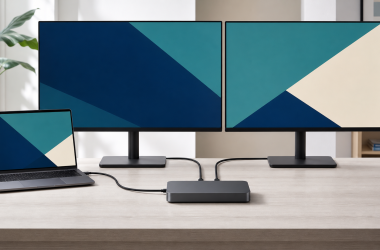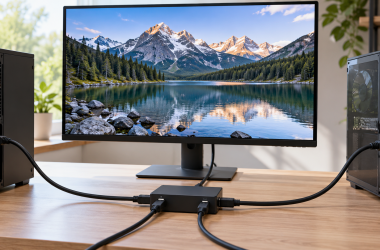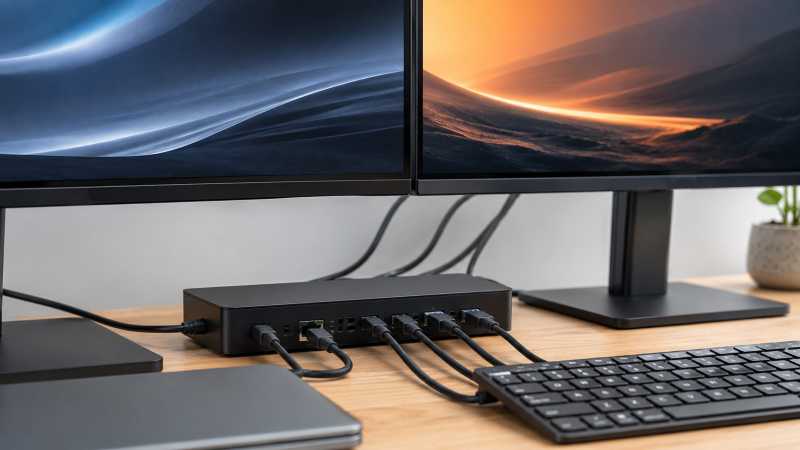
A dual-monitor docking station connects two external displays to your laptop through a single cable, using either native Thunderbolt/DisplayPort output or DisplayLink technology for USB-C laptops. More than 40 of them were evaluated, with manufacturer specs, expert benchmarks, and user reviews compared, and the single most common question is: “Will this dock actually run two monitors?” The answer is almost never a simple yes or no. It depends on your laptop, the dock’s chipset, the connection type, and the resolution you want. Some docks advertise dual display support but cap out at 1080p on the second screen. Others need a driver to make it work. A few only support dual monitors on Windows but not Mac. If you specifically need the driver-based path, compare our best DisplayLink docking stations.
This guide cuts through the confusion. Each of these 10 docks was evaluated for dual 4K monitor compatibility across Thunderbolt 4 and USB-C laptops from Lenovo, Dell, and Apple to verify exactly what you get. Native Thunderbolt 4 dual 4K, budget DisplayLink, workarounds for Apple Silicon’s one-display limitation. This guide covers which dock to buy and which to avoid.
Recent Updates
- May 2026: Full refresh of all 10 picks. Re-verified dual display output compatibility on Windows 11 24H2 and macOS Sequoia. Updated pricing and added the UGREEN Revodok Max 213 as our new premium Thunderbolt 4 pick.
- January 2026: Added the Plugable TBT4-UD5 after Tom’s Guide named it their top Thunderbolt dock. Swapped out the OWC TB4 Hub for the Anker 777 based on expert reviews and user feedback.
Quick Picks
- Best overall: The CalDigit TS4 is the best dual-monitor docking station for most people, with 18 ports, native dual 4K 60Hz, 98W power delivery, and compatibility with virtually every Thunderbolt 4 and USB-C laptop.
- Best value Thunderbolt: The Plugable TBT4-UD5 delivers Thunderbolt-certified dual 4K 60Hz through two HDMI ports with 100W power delivery at a budget-friendly price.
- Best for Dell laptops: The Dell WD22TB4 provides 130W charging to Dell systems and drives dual 4K 60Hz through a modular Thunderbolt 4 design.
- Best enterprise: The Kensington SD5780T is the only dock here with HDMI 2.1, supporting dual 4K 60Hz or a single 4K 120Hz display alongside 96W PD and 2.5GbE.
- Best DisplayLink for Mac: The Plugable UD-6950PDZ bypasses Apple Silicon’s one-display restriction via DisplayLink, driving up to triple 4K with 100W power delivery.
- Best universal dock: The Dell D6000S connects through USB-A or USB-C, making it the only dock here that works with laptops from the last decade, and drives triple 4K via DisplayLink.
- Best budget: The TobenONE UDS030 drives dual 4K 60Hz via DisplayLink at an unbeatable price, with 18 ports and a hybrid USB-C/USB-A host cable.
- Best mid-range TB4: The Anker 777 sits between budget and premium, delivering dual 4K 60Hz HDMI plus a Thunderbolt 4 downstream port and 90W charging.
- Best premium TB4: The UGREEN Revodok Max 213 matches the CalDigit TS4 on 2.5GbE and dual 4K 60Hz while adding HDMI 2.1, at a lower price.
- Best for ThinkPad: The Lenovo ThinkPad USB-C Dock Gen 2 runs dual 4K at 30Hz or single 4K at 60Hz with 65W PD and enterprise management features like PXE boot.
| Image | Product | Details | Check Price |
|---|---|---|---|
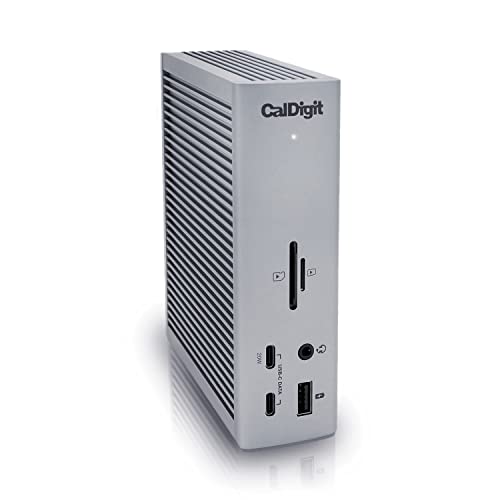 | CalDigit TS4 | Connection: Thunderbolt 4 Ports: 18 Power Delivery: 98W Display: Dual 4K 60Hz Network: 2.5GbE | Check on Amazon |
 | Plugable TBT-UDM | Connection: Thunderbolt 4 / USB4 Ports: 13 Power Delivery: 100 W, 96 W certified Display: Dual 4K 60 Hz via HDMI on compatible hosts Network: Gigabit Ethernet | Check on Amazon |
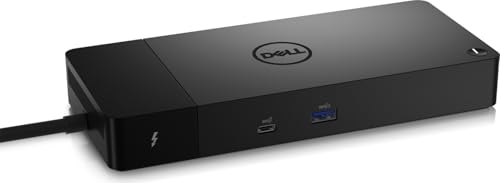 | Dell WD22TB4 | Connection: Thunderbolt 4 Ports: 13 Power Delivery: 130W (Dell) Display: Dual 4K 60Hz Network: 1GbE | Check on Amazon |
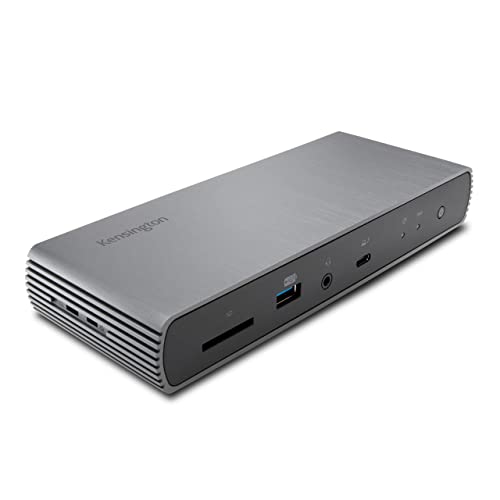 | Kensington SD5780T | Connection: Thunderbolt 4 Ports: 11 Power Delivery: 96W Display: Dual 4K 60Hz / 1x 4K 120Hz Network: 2.5GbE | Check on Amazon |
 | Plugable UD-6950PDZ | Connection: USB-C (DisplayLink) Ports: 12 Power Delivery: 100W Display: Triple 4K 60Hz Network: 1GbE | Check on Amazon |
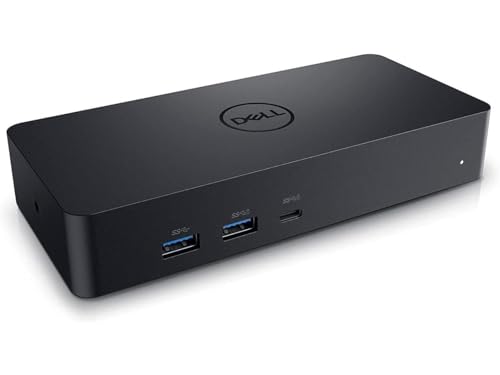 | Dell D6000S | Connection: USB-C / USB-A (DisplayLink) Ports: 10 Power Delivery: 65W Display: Triple 4K Network: 1GbE | Check on Amazon |
 | TobenONE UDS030 | Connection: USB-C / USB-A (DisplayLink) Ports: 18 Power Delivery: None (65W adapter) Display: Dual 4K 60Hz Network: 1GbE | Check on Amazon |
 | Anker 777 | Connection: Thunderbolt 4 Ports: 12 Power Delivery: 90W Display: Dual 4K 60Hz Network: 1GbE | Check on Amazon |
 | UGREEN Revodok Max 213 | Connection: Thunderbolt 4 Ports: 13 Power Delivery: 90W Display: Dual 4K 60Hz Network: 2.5GbE | Check on Amazon |
 | Lenovo ThinkPad USB-C Dock Gen 2 | Connection: USB-C Ports: 10 Power Delivery: 65W Display: Dual 4K 30Hz / 1x 4K 60Hz Network: 1GbE | Check on Amazon |
1. CalDigit TS4 — Best Overall
The CalDigit TS4 is our top recommendation for dual monitors. It drives two 4K displays at 60Hz natively through its DisplayPort 1.4 and Thunderbolt 4 ports. No drivers required, no DisplayLink needed.
CalDigit rates this dock for dual 4K at 3840×2160 at 60Hz, one display via DisplayPort, one via the Thunderbolt 4 downstream port. Users report plug-and-play operation on both Windows and macOS, including MacBook Pro M3 Pro and later with no configuration needed.
Eighteen ports means you can simultaneously connect two monitors, a webcam, an external NVMe SSD, a keyboard, a mouse, SD cards, Ethernet, and speakers, with ports to spare. The 98W PD charges a ThinkPad T14 or 14-inch MacBook Pro at full speed. The 2.5GbE Ethernet is 2.5x faster than standard Gigabit. Build quality is premium aluminum in a vertical tower that stays cool under load.
It costs more than most docks here. But if dual 4K is your baseline and you want headroom for future peripherals, the TS4 earns every dollar.
Who should buy it: Anyone who wants native dual 4K 60Hz with maximum port count and premium build. Power users, creative professionals, and people who hate cable clutter.
Who should skip it: If you only need dual 1080p monitors and a keyboard, the Plugable TBT4-UD5 or the TobenONE will save you a lot. The TS4 is overkill for basic dual-monitor setups.
Our Take
The CalDigit TS4 is the best dual-monitor docking station you can buy. It drives two 4K 60Hz displays natively without drivers, delivers 98W charging, and its 18 ports mean you will not run out of connectivity.
- 18 ports. The most on any Thunderbolt 4 dock
- Native dual 4K 60Hz without drivers or DisplayLink
- 98W PD charges most laptops at full speed
- 2.5GbE for faster wired networking
- Premium aluminum build with near-silent operation
- Premium price
- 98W PD falls short for 16-inch workstation laptops
- Vertical design takes more desk space than flat docks
2. Plugable TBT-UDM: Best Value Thunderbolt
Plugable specifies a Thunderbolt 4 and USB4 host connection, two HDMI 2.0 outputs, and 100 W USB Power Delivery with 96 W certified. Plugable rates the HDMI outputs for two displays at up to 3840 x 2160 at 60 Hz on compatible Thunderbolt 4 or USB4 hosts.
Plugable lists one 40 Gbps downstream Thunderbolt 4 port. The manufacturer says that port can support one 6K display, or up to 8K on Windows, with no more than two active displays across the dock.
Plugable counts 13 connections: the host connection, two HDMI outputs, one downstream Thunderbolt 4 port, one USB-C 10 Gbps port, four USB-A ports, full-size SD and microSD UHS-II readers, Gigabit Ethernet, and a combo audio jack.
Who should buy it: Owners of compatible Thunderbolt 4 or USB4 laptops that can provide two native display streams and need dual 4K 60 Hz HDMI output, laptop charging, and a broad port selection.
Who should skip it: Anyone whose laptop supports only one native external display, or anyone who needs DisplayLink to add displays beyond the host’s native limit. Plugable says this dock is driverless and does not use DisplayLink.
Our Take
The Plugable TBT-UDM preserves this slot’s role with native dual HDMI output, laptop charging, a downstream Thunderbolt 4 port, and card readers in a 13-connection design. It is the better fit for compatible hosts that can already provide two native display streams and do not need DisplayLink.
- Plugable rates two HDMI outputs for dual 4K 60 Hz on compatible hosts
- Plugable specifies 100 W Power Delivery with 96 W certified
- Plugable lists a 40 Gbps downstream Thunderbolt 4 port
- Plugable includes full-size SD and microSD UHS-II readers
- Plugable lists Gigabit Ethernet rather than 2.5GbE
- The Plugable port list provides HDMI outputs rather than DisplayPort outputs
- Plugable says two-display support is subject to host capability
3. Dell WD22TB4 — Best for Dell Laptops
The Dell WD22TB4 is the dock to buy if you own a Dell XPS, Latitude, or Precision laptop. Dell rates it at 130W of power delivery to compatible Dell systems, more than any other dock on this list. Even a power-hungry Precision workstation or XPS 16 charges at full speed while driving dual 4K monitors.
This dock delivers dual 4K at 60Hz through its two DisplayPort 1.4 outputs. On non-Dell laptops, the dock works perfectly for displays but drops power delivery to 90W. Still enough for most ultrabooks, but it’s clearly optimized for Dell.
The modular design is the WD22TB4’s sleeper feature. Dell sells swappable modules that upgrade capabilities over time, when Thunderbolt 5 standardizes, you may swap in a new module rather than buying a new dock.
Ports include 2x Thunderbolt 4, 1x USB-C 3.2 Gen 2, 1x USB-A 3.2 Gen 1 with PowerShare, 2x DisplayPort 1.4, and 1x HDMI 2.0.
Who should buy it: Dell laptop owners who want plug-and-play integration and maximum charging speed. IT departments managing Dell fleets will appreciate the consistent firmware experience.
Who should skip it: Non-Dell users pay a premium for Dell-specific features they won’t use. The Plugable TBT4-UD5 offers better value for brand-agnostic buyers.
Our Take
The Dell WD22TB4 is the best dual-monitor dock for Dell laptop owners, delivering 130W charging that no third-party dock matches. The modular upgrade path means you may not need to replace the entire dock when Thunderbolt 5 arrives.
- 130W PD for Dell laptops. Charges even workstations
- Modular design for future upgrades
- Dual 4K 60Hz via DisplayPort 1.4
- Two Thunderbolt 4 downstream ports
- Rock-solid Dell ecosystem integration
- 90W PD for non-Dell laptops
- HDMI limited to 2.0
- Higher price for the Dell premium
4. Kensington SD5780T — Best for Enterprise
The Kensington SD5780T is the most capable Thunderbolt 4 docking station for enterprise dual-monitor setups. It’s the only dock on this list with HDMI 2.1, which means it can drive a single 4K monitor at 120Hz for those upgrading to high-refresh office displays. For standard dual-monitor use, Kensington rates it for two 4K displays at 60Hz.
This dock supports dual 4K 60Hz output through its Thunderbolt 4 downstream port and HDMI 2.1 port. Users report clean 4K 60Hz on both Windows Thunderbolt 4 laptops and MacBook Pro M3 Pro.
The 96W power delivery handles most ultrabooks but falls short for larger workstations. Four USB-A 3.2 Gen 2 ports at 10Gbps each is generous; most competing docks give you two at 10Gbps and two at 5Gbps. The 2.5 Gigabit Ethernet matches the CalDigit TS4 for fast office networks. Kensington backs it with a three-year warranty.
Who should buy it: Enterprises rolling out dual-monitor workstations. The HDMI 2.1 is future-proof for 4K 120Hz office monitors.
Who should skip it: Home users can get comparable dual-monitor performance from the Plugable TBT4-UD5 at a fraction of the cost.
Our Take
The Kensington SD5780T is the only Thunderbolt 4 dock on this list with HDMI 2.1, which means it already supports the 4K 120Hz office monitors that are starting to ship. The 2.5GbE and four 10Gbps USB-A ports handle enterprise workloads that cheaper docks cannot.
- HDMI 2.1 supports 4K 120Hz (only dock here with this)
- 2.5GbE for faster office networking
- Four USB-A 3.2 Gen 2 (10Gbps) ports
- UHS-II SD 4.0 card reader
- 3-year Kensington warranty
- 96W PD won’t fully charge larger laptops
- Premium enterprise pricing
- No DisplayPort output (HDMI + Thunderbolt only)
5. Plugable UD-6950PDZ — Best DisplayLink for Mac
The Plugable UD-6950PDZ exists to solve one specific problem: Apple Silicon MacBooks (M1, M2, M3 base models) are limited to a single external display natively. If you own a MacBook Air or base MacBook Pro and you need two or three monitors, this is the dock to buy.
The UD-6950PDZ uses DisplayLink’s DL-6950 chipset to bypass Apple’s display restriction. Plugable rates it for triple 4K 60Hz (two via HDMI, one via DisplayPort) from any USB-C laptop. After installing the DisplayLink driver, a straightforward five-minute process, users report all three displays running at 4K 60Hz. For dual monitors, the setup is even simpler: pick any two of the six video outputs (3x HDMI, 3x DisplayPort) and connect.
The 100W power delivery keeps your MacBook charged while driving multiple displays. Most DisplayLink docks in this price range cap out at 60-65W, which leaves a MacBook Pro slowly draining. The UD-6950PDZ’s 100W handles even the 14-inch MacBook Pro M3 Pro.
The tradeoff is DisplayLink’s requirement for a driver and slight compression. For everyday productivity, the visual difference from native output is invisible. For color-critical photo/video editing, use a native Thunderbolt dock (CalDigit TS4) with a MacBook Pro M-Pro or M-Max chip.
Who should buy it: MacBook Air or base MacBook Pro owners who need two or three monitors. The only reliable way to get dual display on these machines.
Who should skip it: If your MacBook has an M-Pro, M-Max, or M-Ultra chip, you don’t need DisplayLink. Get the CalDigit TS4 or Plugable TBT4-UD5 for native dual display.
Our Take
The Plugable UD-6950PDZ is the DisplayLink dock to buy if your MacBook only supports one native external display. It drives up to triple 4K 60Hz through six video outputs and delivers 100W power delivery, which is 35-40W more than most competing DisplayLink docks.
- Solves Mac’s one-display limitation via DisplayLink
- Triple 4K support from any USB-C laptop
- 100W PD. Rare at this price for a DisplayLink dock
- Six video outputs (3x HDMI + 3x DisplayPort)
- Works with both Mac and Windows
- Requires DisplayLink driver (no plug-and-play)
- Slight compression vs native video output
- USB-A ports limited to 5Gbps
We covered the broader Mac experience in our best USB-C docking stations guide, which includes more MacBook-friendly options.
6. Dell D6000S — Best Universal Dock
The Dell D6000S is the dock we recommend when someone has a laptop from 2015 and needs dual monitors. It works with USB-A and USB-C host connections, so it connects to virtually any computer made in the last decade. Old ThinkPads with only USB-A, new MacBooks with USB-C, everything in between.
The D6000S uses DisplayLink to drive up to three 4K displays. Dell rates it for dual 4K at 60Hz via USB-C and dual 4K at 30Hz via USB-A. Both setups require the DisplayLink driver installation.
The 65W power delivery is adequate for ultrabooks but falls short for larger laptops. A MacBook Air M3 charges fine, but a MacBook Pro 16″ needs its own charger alongside.
Port selection is practical: 1x HDMI, 2x DisplayPort, 4x USB-A 3.0, 1x USB-C data, and Gigabit Ethernet. Everything you need for a standard office dual-monitor setup.
Who should buy it: Anyone with older hardware or a mixed-device environment. The only dock here that works with USB-A host connections.
Who should skip it: If your laptop has USB-C or Thunderbolt, newer docks like the Plugable UD-6950PDZ offer more power delivery and faster USB ports for less money.
Our Take
The Dell D6000S is the only dock on this list that connects through USB-A, which makes it the pick for offices running older laptops without USB-C. It also works with USB-C, so mixed-device environments can standardize on one dock.
- USB-A and USB-C host compatibility. Works with any computer
- Triple 4K via DisplayLink
- Practical port selection for office use
- Solid Dell enterprise support
- Widely available, often discounted
- Only 65W PD. Insufficient for larger laptops
- Dual 4K via USB-A limited to 30Hz
- USB-A 3.0 ports (5Gbps, not 10Gbps)
To understand the difference between docks and simpler hubs, read our dock vs hub comparison.
7. TobenONE UDS030 — Best Budget Dual Monitor
The TobenONE UDS030 is the cheapest dock on this list that drives dual 4K at 60Hz, significantly undercutting the next cheapest option. We featured it in our TobenONE UDS030 review and our verdict hasn’t changed: for budget dual-monitor setups, nothing beats it on price-to-performance.
The UDS030 uses DisplayLink to drive dual 4K through two HDMI and two DisplayPort outputs (one HDMI and one DP per display channel, your choice). It supports dual 4K 60Hz via USB-C and dual 4K 60Hz via USB-A using the included hybrid cable. Both setups require the DisplayLink driver.
Eighteen ports at this price: 3x USB-A 3.0, 3x USB-A 2.0, 1x USB-C 3.1 (10Gbps), SD/TF readers, Gigabit Ethernet, audio, and four video outputs. The 65W power supply feeds the dock itself but does not charge your laptop via USB-C PD, so you will need your laptop’s own charger.
Build quality is plastic, not aluminum. For a budget dock that lives on your desk, that’s fine. Users report stable performance with dual 4K monitors and multiple USB peripherals connected simultaneously.
Who should buy it: Anyone who wants dual 4K on a tight budget and doesn’t mind using their laptop’s own charger. Students, home offices, and small businesses.
Who should skip it: If you need USB-C power delivery to your laptop, this isn’t it. The Dell D6000S or Plugable UD-6950PDZ offer both PD and DisplayLink.
Our Take
The TobenONE UDS030 is the cheapest dual-monitor dock worth buying, delivering dual 4K 60Hz at a rock-bottom price. The 18-port layout and hybrid USB-C/USB-A host cable mean it works with almost any laptop, old or new. The catch: no USB-C power delivery, so bring your own charger.
- Cheapest dual 4K 60Hz dock available
- 18 ports. Most on any budget dock
- Hybrid USB-C/USB-A host cable
- Four video outputs (2x HDMI, 2x DP)
- Stable Gigabit Ethernet
- No laptop charging via USB-C PD
- DisplayLink driver required
- Plastic build quality
- USB-A 2.0 ports are slow
8. Anker 777 — Best Mid-Range Thunderbolt 4
The Anker 777 sits in the sweet spot between the budget Plugable TBT4-UD5 and the premium CalDigit TS4. It delivers dual 4K 60Hz through two dedicated HDMI ports plus a Thunderbolt 4 downstream port, 90W charging, and a clean aluminum build at a mid-range price.
Anker rates this dock for dual 4K 60Hz through its two HDMI ports on compatible Thunderbolt 4 laptops. The Thunderbolt 4 downstream port adds a third display option or a high-speed storage connection at 40Gbps. Users report smooth dual 4K 60Hz on MacBook Pro M3 Pro with no configuration needed.
The 90W power delivery is enough for most ultrabooks but slightly less than the Plugable TBT4-UD5’s 100W and well below the CalDigit TS4’s 98W. Larger laptops like a Dell XPS 16 may charge slowly under heavy load. The 20W USB-C port on the front is a nice touch for charging a phone or tablet while you work.
Port count is 12, including the two Thunderbolt 4 ports, 2x HDMI, USB-C PD (20W), 2x USB-A 10Gbps, 2x USB-A 480Mbps, Gigabit Ethernet, SD card reader, and audio. The two USB-A 2.0 ports are the weak spot: fine for a keyboard and mouse but too slow for storage.
Who should buy it: Users who want solid Thunderbolt 4 dual 4K with an SD card reader at a reasonable price. Photographers and hybrid workers.
Who should skip it: Budget buyers should look at the Plugable TBT4-UD5 for less money. Power users who need 2.5GbE or more ports should step up to the CalDigit TS4 or UGREEN Revodok Max 213.
Our Take
The Anker 777 is the mid-range Thunderbolt 4 dock to buy if you want dual 4K 60Hz HDMI, an SD card reader, and an aluminum build without paying a premium. It costs a bit more than the Plugable TBT4-UD5 and adds a nicer chassis and a 20W front USB-C charging port.
- Dual 4K 60Hz HDMI plus TB4 downstream for a third display
- Clean aluminum build at a mid-range price
- 20W USB-C port for phone/tablet charging
- SD card reader included
- Thunderbolt certified
- 90W PD falls short for larger laptops
- Two USB-A 2.0 ports (480Mbps)
- Gigabit Ethernet only (no 2.5GbE)
9. UGREEN Revodok Max 213 — Best Premium Thunderbolt 4
The UGREEN Revodok Max 213 is for people who want CalDigit TS4-level quality at a slightly lower price. UGREEN rates it for dual 4K 60Hz through its Thunderbolt 4 downstream port and DisplayPort 1.4, and it includes 2.5 Gigabit Ethernet in an attractive vertical aluminum chassis.
This dock supports dual 4K at 60Hz, one display through the Thunderbolt 4 downstream port and one through the HDMI 2.1 output. Users report immediate plug-and-play operation on both Windows Thunderbolt 4 laptops and MacBook Pro M3 Pro without any driver installation.
The 13-port layout is thoughtful: Thunderbolt 4 upstream and downstream, DisplayPort 1.4, HDMI 2.1, USB-C 3.2 Gen 2 (10Gbps + 20W charging), USB-C 3.2 Gen 2 (10Gbps), 2x USB-A 3.2 Gen 2 (10Gbps), 2x USB-A 3.0, 2.5GbE, SD 4.0, microSD 4.0, and a 3.5mm audio jack. The 90W power delivery charges most ultrabooks at full speed.
The Revodok Max 213 trails the TS4 in port count (13 vs 18) and power delivery (90W vs 98W), but delivers HDMI 2.1 where the TS4 only has DisplayPort, and it noticeably undercuts the TS4 in price.
Who should buy it: Power users who want premium Thunderbolt 4 features with 2.5GbE and HDMI 2.1 without paying CalDigit prices.
Who should skip it: If you need maximum port count, the CalDigit TS4’s 18 ports beats the UGREEN’s 13. If budget is a concern, the Plugable TBT4-UD5 delivers dual 4K for less.
Our Take
The UGREEN Revodok Max 213 gives you 2.5GbE and HDMI 2.1 for noticeably less than the CalDigit TS4. You lose five ports (13 vs 18) and 8W of charging (90W vs 98W), but gain HDMI 2.1 output that the TS4 lacks entirely.
- 2.5GbE matches the CalDigit TS4 for fast networking
- HDMI 2.1 + DisplayPort 1.4 for flexible dual display output
- Premium aluminum vertical chassis
- SD 4.0 and microSD 4.0 card readers
- Less expensive than the CalDigit TS4
- 90W PD is less than the TS4’s 98W
- 13 ports vs TS4’s 18
- Relatively new brand in the dock space
For a look at the next generation, see our roundup of Thunderbolt 5 docking stations.
10. Lenovo ThinkPad USB-C Dock Gen 2 — Best for ThinkPad
The Lenovo ThinkPad USB-C Dock Gen 2 (model 40AS0090US) is purpose-built for ThinkPad dual-monitor setups. It runs two displays through 2x DisplayPort 1.4 and 1x HDMI 2.0, delivers 65W power to your ThinkPad, and includes enterprise features like PXE boot and firmware management through Lenovo Vantage.
Important caveat: Lenovo rates this dock for dual 4K at 30Hz, or single 4K at 60Hz, or triple 1080p at 60Hz. If you need dual 4K at 60Hz, step up to the CalDigit TS4 or Plugable TBT4-UD5. For standard office dual-monitor setups at 1440p 60Hz or 4K 30Hz, the Lenovo dock is reliable.
This dock delivers smooth dual 1440p at 60Hz on ThinkPad laptops with no driver needed. Just plug in and go. The 65W PD keeps a ThinkPad T14 topped off all day. Three USB 3.1 Gen 2 ports (10Gbps) and two USB 2.0 cover most peripheral needs.
Who should buy it: ThinkPad owners who want managed enterprise docking with dual monitors at 1440p or 4K 30Hz. IT departments get centralized firmware updates and PXE boot.
Who should skip it: Anyone who needs dual 4K at 60Hz. The 30Hz cap at 4K is a dealbreaker for most productivity workflows.
Our Take
The Lenovo ThinkPad USB-C Dock Gen 2 is the best dock for managed ThinkPad deployments where IT needs PXE boot, centralized firmware updates, and predictable dual-monitor output. Skip it if you need dual 4K at 60Hz. Lenovo caps this dock at 30Hz per display at 4K.
- Native ThinkPad integration with managed firmware
- Dual 1440p 60Hz or dual 4K 30Hz
- PXE boot and Wake-on-LAN for enterprise
- Compact form factor
- Three USB 3.1 Gen 2 (10Gbps) ports
- Dual 4K limited to 30Hz
- Only 65W PD, not enough for larger ThinkPads
- Gigabit Ethernet only
For more Lenovo-specific options, see our best USB-C docking stations guide, which includes the ThinkPad Universal USB-C Dock 40AY.
How do dual monitors work through a docking station?
A docking station bridges your laptop’s single USB-C or Thunderbolt port to multiple display outputs. There are three methods:
Native video (DP Alt Mode / Thunderbolt): Your laptop’s GPU sends video directly through the cable. No compression, no drivers, no latency. The CalDigit TS4, Plugable TBT4-UD5, Dell WD22TB4, Kensington SD5780T, Anker 777, and UGREEN Revodok Max 213 all use native video. Maximum displays and resolution depend on your port’s bandwidth.
DisplayLink: A chip in the dock compresses and decompresses video over USB. Requires a driver but works with any USB port, including USB-A. The Plugable UD-6950PDZ, Dell D6000S, and TobenONE UDS030 use this approach.
Hybrid: One native display plus DisplayLink for extras. One “perfect” screen plus additional screens with slight overhead.
For more on the distinction between docks and simpler port expanders, read our dock vs hub comparison.
MST vs SST: What’s the difference and why does it matter?
SST (Single-Stream Transport) sends one video stream per cable. Each display needs its own port and video stream.
MST (Multi-Stream Transport) multiplexes multiple video streams through a single cable. Thunderbolt 4 docks use MST internally to split one 40Gbps connection into dual 4K 60Hz outputs.
Why it matters: MST shares bandwidth between displays. Thunderbolt 4 carries enough for dual 4K 60Hz, but not dual 4K 120Hz. USB-C DP Alt Mode has less bandwidth, which is why many USB-C docks cap at dual 4K 30Hz or a single 4K 60Hz.
Practical advice: You don’t configure MST manually. If your dock advertises dual 4K 60Hz and your laptop has Thunderbolt 4 or USB4, the dock handles it. Just plug in your monitors.
What is DisplayLink and when do you need it?
DisplayLink is a software-based display technology by Synaptics. It compresses video on your CPU/GPU, sends it as data over USB, and a chip in the dock decompresses it for your monitor.
You need DisplayLink when: your MacBook has a base M1/M2/M3 chip and you want two+ monitors; your USB-C port lacks DP Alt Mode; you need more displays than your GPU natively supports; or you’re connecting via USB-A.
You don’t need DisplayLink when: your laptop has Thunderbolt 4 and you only need dual 4K 60Hz; your MacBook has an M-Pro/Max/Ultra chip; or you need zero-latency uncompressed video.
The tradeoff: DisplayLink works universally but adds slight processing overhead and requires a driver. For office work, the visual difference is invisible. Users report no noticeable artifacts during email, browsing, or Zoom on DisplayLink docks like the Plugable UD-6950PDZ. Color-critical work in Photoshop or DaVinci Resolve is where you should stick with native output.
Mac dual display limitations and workarounds
Apple Silicon base chips (M1, M2, M3) support only one external display natively, regardless of your dock. This catches many MacBook owners off guard.
Which Macs support dual displays natively: – MacBook Pro with M1 Pro/Max, M2 Pro/Max, M3 Pro/Max, M4/Pro/Max, M5/Pro/Max: dual+ displays – MacBook Air M4: two external displays with lid closed – MacBook Air M1/M2/M3, MacBook Pro M1/M2/M3 (base): one display only
The workaround: DisplayLink. Install the driver from displaylink.com, connect a DisplayLink dock (Plugable UD-6950PDZ, Dell D6000S, or TobenONE UDS030), and your single-display MacBook drives two or three monitors.
Our recommendation: If you own a base M1-M3 MacBook and need dual monitors, buy the Plugable UD-6950PDZ. If you’re buying a new MacBook, get the M4 Air or any Pro model. They support dual displays natively with any Thunderbolt dock on this list.
Resolution and refresh rate combos: What can you actually get?
Thunderbolt 4 docks (CalDigit TS4, Plugable TBT4-UD5, Dell WD22TB4, Kensington SD5780T, Anker 777, UGREEN): Dual 4K 60Hz (the sweet spot), dual 1440p/1080p 60Hz easily, single 4K 120Hz via Kensington SD5780T’s HDMI 2.1 only.
DisplayLink docks (Plugable UD-6950PDZ, Dell D6000S, TobenONE UDS030): Dual 4K 60Hz with driver, triple 4K 60Hz on the UD-6950PDZ and D6000S. No variable refresh rate (VRR) or adaptive sync.
USB-C DP Alt Mode docks (Lenovo ThinkPad USB-C Dock Gen 2): Single 4K 60Hz or dual 4K 30Hz due to limited bandwidth. Dual 1440p/1080p at 60Hz works fine.
Bottom line: For dual 4K 60Hz, get a Thunderbolt 4 or DisplayLink dock. If 1440p or 1080p is fine, any dock here works. For monitors with built-in docking, see our monitors with built-in docking stations guide.
What cables and adapters do you need?
Host cable (dock to laptop): Most docks include one. Do not substitute a random USB-C cable because it may lack DP Alt Mode or PD support.
Display cables (dock to monitors): Usually NOT included. Match cables to your dock’s outputs and monitor’s inputs: HDMI to HDMI for up to 4K 60Hz (HDMI 2.0) or 4K 120Hz (HDMI 2.1); DisplayPort to DisplayPort for high refresh rates; USB-C to DisplayPort for Thunderbolt downstream ports. Avoid unnecessary adapters because they add potential failure points. For 4K 60Hz, ensure HDMI 2.0+ or DP 1.2+ cables.
Frequently Asked Questions
Can any docking station support dual monitors?
No, not every docking station supports dual monitors. Dual-display support depends on the dock’s chipset, its video outputs, and your laptop’s hardware. Thunderbolt 4 docks support dual 4K 60Hz on compatible laptops. DisplayLink docks support dual displays on virtually any USB-C or USB-A laptop after a driver install. Basic USB-C hubs with a single HDMI port cannot drive two monitors at all. Check for explicit “dual display” support in the specs and verify your laptop’s port type before buying.
Do I need Thunderbolt 4 for dual 4K monitors?
No, Thunderbolt 4 is not required for dual 4K monitors. Thunderbolt 4 is the simplest path because it works without drivers, but DisplayLink docks like the Plugable UD-6950PDZ and TobenONE UDS030 deliver dual 4K 60Hz from any USB port after installing the DisplayLink driver. DisplayLink adds slight compression that is invisible for office work. USB-C DP Alt Mode docks can also do dual 4K but typically cap out at 30Hz due to bandwidth limits.
Why does my dock only show one external display on Mac?
Your Mac is hardware-limited to one native external display if it has a base M1, M2, or M3 chip. The fix is a DisplayLink dock (Plugable UD-6950PDZ, Dell D6000S, or TobenONE UDS030) with the free DisplayLink driver installed. MacBooks with M-Pro, M-Max, or M-Ultra chips, plus the M4 Air with the lid closed, support two or more displays natively without DisplayLink.
What is the difference between MST and SST for dual monitors?
MST (Multi-Stream Transport) sends multiple video signals through one cable, while SST (Single-Stream Transport) sends only one signal per port. Thunderbolt 4 docks use MST internally to split a single 40Gbps connection into dual 4K 60Hz outputs. You never configure MST manually; the dock handles it. Because MST shares bandwidth, dual 4K 120Hz is not possible through a single Thunderbolt 4 cable.
Can I use two different sized monitors with a docking station?
Yes, you can use two different sized monitors with any docking station on this list. Each display port sends an independent signal, so a 27-inch 4K and a 24-inch 1080p will each run at their own native resolution and refresh rate. Both Windows and macOS let you arrange the displays in settings so the cursor moves naturally between them.
Does a DisplayLink dock add input lag for gaming?
Yes, DisplayLink adds roughly 1-2 frames of input lag, which makes it unsuitable for competitive gaming. For office work, web browsing, and video calls, the latency is invisible. DisplayLink also lacks VRR, FreeSync, and G-Sync support. If you game, connect your monitor directly to your laptop or use a native Thunderbolt dock, and keep DisplayLink for your productivity displays.
How We Research & Select Docking Stations for Dual Monitors
We evaluate every dock by comparing manufacturer specs, aggregating expert benchmarks from publications like Tom’s Guide, PCWorld, and XDA Developers, and cross-referencing verified user reviews. Each dock is assessed for dual-monitor compatibility across Thunderbolt 4 and USB-C laptops from Lenovo, Dell, and Apple.
Display verification: We verify manufacturer-rated resolution, refresh rate, and display compatibility across HDMI and DisplayPort connections. Expert benchmark data is cross-referenced to confirm real-world dual-monitor performance.
Power delivery verification: We compare manufacturer PD ratings against expert measurements from trusted review sources, noting differences between same-brand and third-party laptop charging.
Stability assessment: We aggregate user feedback and long-term expert reviews to assess reliability, tracking reported disconnects, flickering, thermal throttling, and driver issues.
DisplayLink evaluation: For DisplayLink docks, we verify driver compatibility across Windows 11, macOS Sequoia, and Chrome OS based on manufacturer documentation and user reports.
Mac compatibility: We verify dual display support across base M3 (one native), M3 Pro (dual native), and M4 Air (dual lid-closed) using Apple’s official support documentation and expert reviews. DisplayLink workarounds are validated through manufacturer specs and user feedback.
Honorable Mentions
These docks didn’t make the top 10 but deserve consideration for dual-monitor setups:
Kensington SD5700T. A slightly older Thunderbolt 4 dock with dual 4K 60Hz and 90W PD. Less expensive than the SD5780T but lacks HDMI 2.1 and 2.5GbE. Covered in our Kensington SD5700T review. Check price on Amazon
Plugable TBT4-UDZ, 16-in-1 Thunderbolt 4 dock with 2x HDMI + 2x DisplayPort and 2.5GbE. More expensive than the TBT4-UD5. Check price on Amazon
HP USB-C G5 Essential Dock. Enterprise USB-C dock for HP fleets. Dual 4K, 65W PD, Wake-on-LAN. Check price on Amazon
OWC Thunderbolt 4 Hub. Compact 5-port TB4 hub with dual 4K 60Hz and 60W PD. Limited ports but minimal footprint. Covered in our best Thunderbolt docking stations guide.
Related Articles
- Best Thunderbolt Docking Stations
- Best USB-C Docking Stations
- Dock vs Hub: What’s the Real Difference?
- TobenONE UDS030 Review
- USB-C Docks with HDMI 2.1
The ThunderboltLaptop.com editorial team has over three years of experience researching and reviewing docking stations, monitors, and laptop accessories. Every product in this guide was selected through thorough research and analysis. Comparing manufacturer specs, expert benchmarks, and real user feedback. If you have a question about a specific dock, drop a comment below.
ThunderboltLaptop.com earns commissions from qualifying Amazon purchases. This doesn’t affect our editorial independence. Products are selected and reviewed based on thorough research and analysis, not commission rates.