A physical numeric keypad is a small feature until your day has invoices, forecasts, stock counts, or long spreadsheet columns. The right laptop also needs a documented high-speed port for a dock, external drive, or display.
The six Windows laptops here pair a built-in number pad with a stated Thunderbolt 4 or USB4 connection. The key choice is whether your desk needs one high-speed port or two, then whether seller-added memory and storage justify the trade.
A physical number pad helps at the keyboard, while a documented Thunderbolt or USB4 port gives a desk setup a clearer starting point.Laptops With a Numeric Keypad and Thunderbolt or USB4 Compared
| Image | Product | Details | Check Price |
|---|---|---|---|
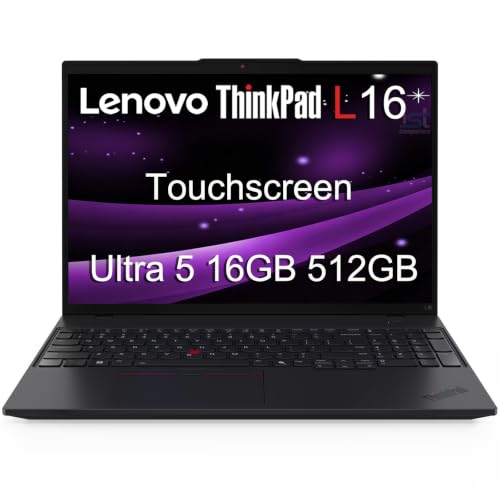 | Lenovo ThinkPad L16 Gen 2 (Intel) | Best fit: Two-port office desk Numeric keypad: Maker-stated High-speed ports: 2x Thunderbolt 4 / USB4 40Gbps Display support: 3 external monitors plus native display | Check Price on Amazon |
 | Lenovo ThinkPad E16 Gen 3 (Intel) | Best fit: Value-focused office desk Numeric keypad: Maker-stated High-speed ports: 1x Thunderbolt 4 / USB4 40Gbps Display support: 3 external monitors plus native display | Check Price on Amazon |
 | Dell Latitude 5550 | Best fit: 15.6-inch Dell business buyer Numeric keypad: Exact Amazon configuration High-speed ports: 2x Thunderbolt 4 Display support: Check exact dock topology | Check Price on Amazon |
 | HP EliteBook 6 G1a 16 | Best fit: HP business ecosystem Numeric keypad: Maker-stated High-speed ports: 2x Thunderbolt 4 Display support: Check exact dock topology | Check Price on Amazon |
 | Dell Pro 16 PC16250 | Best fit: Current Dell Pro buyer Numeric keypad: Exact Amazon configuration High-speed ports: Thunderbolt 4 listed Display support: Check exact dock topology | Check Price on Amazon |
 | ASUS ExpertBook B3 B3604 | Best fit: ASUS business alternative Numeric keypad: Maker-stated High-speed ports: 2x Thunderbolt 4 / USB4 Display support: Up to three 4K displays | Check Price on Amazon |
1. Lenovo ThinkPad L16 Gen 2 (Intel) — Best Overall Two-Port Business Pick
The ThinkPad L16 Gen 2 is the clearest all-round starting point when a full keyboard and a permanent desk are both needed. Lenovo states a six-row keyboard with a numeric keypad, and it gives this family two USB-C ports labelled Thunderbolt 4 / USB4 40Gbps. That second port is useful when a dock stays connected while a fast drive, a display, or another accessory needs a direct connection.
Lenovo also states that the L16 can run its own panel plus three external monitors through HDMI and Thunderbolt. That is a laptop capability, not a promise for every dock, cable, and monitor combination. The Amazon configuration identifies 16GB of memory and a 512GB SSD, so treat those figures as this seller’s configuration rather than the specification for every L16 Gen 2.
Our Take Buy the L16 Gen 2 for a keyboard-first office laptop that will spend most of its time on a docked desk. Choose the E16 instead if one documented high-speed port is enough and you want a simpler ThinkPad route.
- Two Thunderbolt 4 / USB4 40Gbps ports keep a dock connected while another high-speed accessory stays available.
- Lenovo states a physical numeric keypad, so number entry does not depend on a compact key overlay.
- Maker documentation describes three external displays in addition to the built-in panel for a desk that grows later.
- The exact seller configuration identifies 16GB memory and a 512GB SSD for buyers who want a concrete starting configuration.
- A 16-inch business chassis takes more desk and bag space than a compact laptop with an external keypad.
- The monitor count depends on the chosen dock, cables, displays, and operating system rather than the laptop alone.
- Memory and storage in the Amazon configuration are not a promise for every L16 Gen 2 sold elsewhere.
2. Lenovo ThinkPad E16 Gen 3 (Intel) — Best Value One-Port ThinkPad
The ThinkPad E16 Gen 3 makes sense when the desk plan is one dock, one cable, and a keyboard that keeps number entry built in. Lenovo documents the same numeric keypad layout idea as the L16, but its high-speed allocation is different: one USB-C port is named Thunderbolt 4 / USB4 40Gbps, while another USB-C port has a separate lower-speed description. The difference is relevant if the dock will occupy the fastest connection most of the time.
The family sheet also describes a native display plus three external monitors through HDMI, USB-C, and Thunderbolt. This Amazon configuration says 32GB memory and 1TB storage, but the seller says it resealed the machine to upgrade memory and SSD, which makes those configuration-specific figures.
One documented 40Gbps port is enough for a straightforward docked desk, but it gives you less freedom for a direct high-speed drive than the L16.Our Take Choose the E16 Gen 3 for spreadsheet work and a straightforward single-dock setup. Move to the L16 if you expect a dock and a second high-bandwidth connection to be part of the same daily routine.
- Lenovo documents a numeric keypad and a Thunderbolt 4 / USB4 40Gbps port in the same family specification.
- The manufacturer describes support for three external displays alongside the laptop panel, subject to the rest of the chain.
- The exact configuration identifies 32GB memory and 1TB storage for buyers who need a larger seller-configured setup.
- Only one port is labelled Thunderbolt 4 / USB4 40Gbps, so a connected dock occupies the obvious high-speed path.
- The 32GB and 1TB figures came from a resealed seller configuration rather than Lenovo’s family sheet.
3. Dell Latitude 5550 — Best 15.6-Inch Latitude
The Latitude 5550 is the Dell choice for someone who wants the familiar 15.6-inch format instead of a 16-inch 16:10 business notebook. Dell’s owner manual calls out two Thunderbolt 4 ports with Power Delivery and DisplayPort. The exact Amazon configuration also identifies a numeric keypad, so the combination is stated for the computer a buyer is considering rather than inferred from its screen size.
The seller names a Core Ultra 5 125U, 16GB DDR5 memory, and a 512GB SSD. Those details describe this Amazon configuration, not every Latitude 5550. The two-port layout lets a desk reserve one high-speed port for a dock and another for a direct device.
The Latitude’s two Thunderbolt 4 ports solve the laptop-side connection question, but the dock’s own manual settles resolution, refresh rate, charging, and monitor count.Our Take Pick the Latitude 5550 if Dell’s 15.6-inch business format fits your work and you want two maker-documented Thunderbolt 4 ports. Pick the L16 when Lenovo’s maker-stated keypad and external-display guidance are more useful to your planning.
- Dell documents two Thunderbolt 4 ports with Power Delivery and DisplayPort for a dock plus direct-device desk.
- The exact configuration says Numeric Keypad, removing the need to assume one from the 15.6-inch chassis.
- Its 15.6-inch format is a familiar option for buyers replacing an older Latitude rather than changing laptop shape.
- The seller identifies 16GB memory and a 512GB SSD for this specific purchase option.
- Dell’s owner manual does not settle a particular dock-and-monitor arrangement, so confirm that with the dock’s own documentation.
- The exact 16GB and 512GB specification belongs to the seller configuration rather than every Latitude 5550.
- A 15.6-inch FHD configuration gives less vertical workspace than a 16-inch 1920-by-1200 configuration when both are used away from monitors.
4. HP EliteBook 6 G1a 16 — Best HP Alternative
The EliteBook 6 G1a 16 is the right branch when the office already prefers HP’s business range. HP’s specification names two Thunderbolt 4 USB-C ports and an HP Standard Keyboard with numeric keypad. HP names the keypad itself, so you don’t have to assume a big chassis has a full number block.
This exact Amazon computer has 64GB of memory and a 2TB SSD, but the seller says it opened the computer to upgrade memory and storage. Those figures can be useful when comparing the purchase in front of you, yet they should not be repeated as fixed EliteBook family specifications. The family-level connection facts are the two Thunderbolt ports and keypad that HP states.
Our Take Buy the EliteBook 6 G1a 16 if you prefer an HP business laptop with a maker-stated numpad and two Thunderbolt 4 ports. Skip it if the seller upgrade is not the configuration you actually need.
- HP states both a numeric keypad and two Thunderbolt 4 USB-C ports in the family specification.
- Two high-speed ports give a docked desk more connection flexibility than the single-port ThinkPad E16 route.
- The exact seller configuration has 64GB memory and 2TB storage for a buyer who needs that capacity now.
- The listed 64GB and 2TB are seller upgrades, so they cannot stand in for every EliteBook 6 G1a configuration.
- HP’s family sheet includes configuration choices, which makes the exact checkout page important for display and port details.
5. Dell Pro 16 PC16250 — Best Newer Dell Pro Option
The Dell Pro 16 PC16250 is a Dell business route. The exact Amazon configuration calls out Thunderbolt 4 and a numeric keypad, alongside Ethernet, HDMI, and USB-A.
Dell’s PC16250 product page names the family, and no detailed port table for this configuration was located there. The number pad and Thunderbolt statement therefore rest on the Amazon listing for this exact configuration. Its 16GB memory and 512GB SSD are also the seller’s configuration details, not a blanket claim about every Dell Pro 16.
Our Take Choose the Dell Pro 16 if this exact Dell configuration suits your desk and you want its stated numpad, Thunderbolt 4, Ethernet, HDMI, and USB-A mix. Choose the Latitude when Dell’s published two-port Thunderbolt statement is more important to you.
- The exact configuration states Thunderbolt 4 and a physical numeric keypad.
- Ethernet, HDMI, and USB-A keep simpler accessories off the high-speed connection.
- The 16-inch FHD+ configuration gives more vertical space than a conventional 15.6-inch FHD screen.
- The seller identifies 16GB memory and 512GB storage for the computer being sold.
- Dell’s PC16250 page names the family, but no detailed port table for this configuration was located there.
- The listed memory and SSD are seller details, so buyers wanting more capacity should confirm the checkout configuration.
- The exact display chain is a dock-level question rather than a conclusion from the Thunderbolt label alone.
6. ASUS ExpertBook B3 B3604 — Best ASUS Business Alternative
The ExpertBook B3 B3604 is the ASUS alternative when the workday needs both a number pad and a more capable desk connection. ASUS states a full-sized numeric keypad and says its Thunderbolt 4 connection supports the next-generation USB4 interface at 40Gbps. The same maker material says it can drive up to three 4K displays, making it the most explicit ASUS display claim in this group.
The Amazon configuration says Core Ultra 5 225H, 32GB memory, and 1TB storage. ASUS’s B3604 material is the authority for the base family’s keyboard and port capability, while those capacity figures belong to this seller configuration. Keeping the two apart helps if a different reseller offers the same ExpertBook name with less memory or storage.
Our Take Pick the ExpertBook B3 when you want an ASUS business laptop whose maker directly states the numpad and its Thunderbolt 4 / USB4 capability. Check the offered configuration carefully, because the large memory and storage figures are seller-specific.
- ASUS states a full-sized numeric keypad for data entry rather than leaving the keyboard layout to guesswork.
- Thunderbolt 4, USB4 support, and 40Gbps transfer are named together in the manufacturer material.
- ASUS states support for up to three 4K displays, a useful starting point for a multi-monitor plan.
- ASUS’s support for up to three 4K displays covers the B3604 family, so check this configuration before planning a three-screen desk.
- Its listed 32GB memory and 1TB SSD are seller configuration details, not a specification for every B3604.
Buying Guide
1. Confirm that the keypad is physical
A large display does not automatically mean a laptop has a usable 10-key area. The L16, E16, EliteBook, and ExpertBook are clearer choices because their makers explicitly name a numeric keypad in the keyboard specification. Both Dell listings name a numeric keypad in their titles, so read the checkout title rather than assume a similar Dell model shares the same layout.
The choice is about repeated work, not a novelty feature. A physical right-side keypad gives numbers their own position under your hand for data entry, accounting, shortcuts, or inventory work. If you travel with a smaller laptop most days, an external keypad may be the better compromise, but it is not the same as a built-in layout you can use away from the desk.
2. Plan the dock before the display count
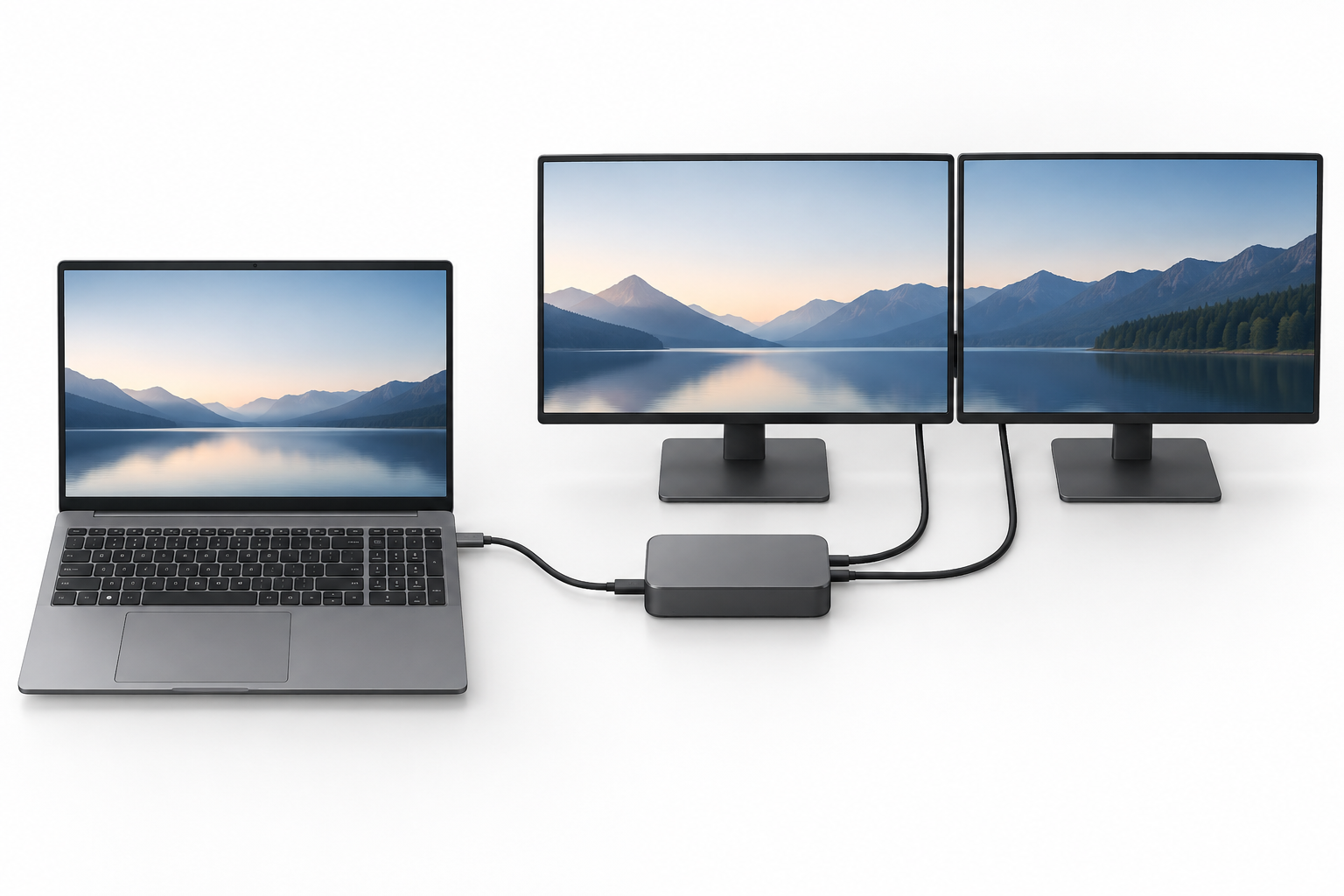
Start with the laptop’s documented high-speed port and then inspect the dock that will live on the desk. Lenovo says the L16 has two Thunderbolt 4 / USB4 40Gbps ports, while the E16 has one. Dell documents two Thunderbolt 4 ports for the Latitude 5550, and HP documents two on the EliteBook. That makes one cable to a dock a sensible plan, not proof that any dock will run any number of displays.
The dock’s own video outputs, host charging, operating-system support, cables, and monitor modes decide the finished layout. Check the exact requirements in the Thunderbolt 4 docking-station guide, the USB4 hubs and docks guide, the USB-C docking-station guide, and this guide to identifying a laptop Thunderbolt port. Treat the laptop port as the starting point, then match the dock and monitors to it. 
3. Decide whether you need a second high-speed port
Two high-speed ports do not automatically make a laptop better, but they change the desk’s options. On the L16, Latitude 5550, and EliteBook, two documented Thunderbolt 4 paths let a dock take one connection while a direct drive or another compatible accessory uses the other. That is helpful for people who regularly move large project folders or have more than one demanding desktop device.
One port is not a failure. The E16 can be a strong fit for a desk built around one dock, and its separate HDMI, USB-C, USB-A, and Ethernet connections can handle simpler devices. If you only connect the dock and occasionally use a USB drive through it, the single high-speed port is usually simpler than paying for a second one you will not use.
4. Separate family facts from seller configuration
Laptop manufacturers commonly publish a range of processors, panels, memory amounts, and storage options under one family name. The HP configuration here says 64GB and 2TB, while the E16 listing says 32GB and 1TB; both sellers state that the machines were opened for upgrades. Those can be useful numbers for the computer in your cart, but they are not base-family promises.
Use the maker’s sheet for the physical keyboard and port arrangement, then use the seller page for CPU, display, memory, and storage. This also protects you when comparing a similar model number from another seller. The broader Thunderbolt laptop list and USB4 laptop guide can narrow the category, but the exact configuration in the cart settles the purchase.
5. Build around the desk you actually use
For a mostly fixed office desk, the L16, Latitude, EliteBook, and ExpertBook give you two stated high-speed ports, while the ExpertBook also has ASUS’s explicit three-4K-display statement. A 16-inch 1920-by-1200 panel can show more vertical rows than the 15.6-inch 1920-by-1080 Latitude configuration.
For a simpler work-from-home setup, the E16 can keep the decision focused: built-in numpad, one Thunderbolt 4 / USB4 40Gbps path, and a dock chosen for the actual screens. Read the ThinkPad docking-station guide if Lenovo compatibility is central, or the HP laptop docking-station guide for the EliteBook. Choose the laptop for the keyboard and port facts you will use daily, not for the longest possible accessory list.
FAQ
Do all 16-inch laptops have a numeric keypad?
No. A 16-inch screen gives a maker room for a number pad, but it does not require one. Lenovo explicitly states numeric keypads for the L16 and E16 here, HP states one for the EliteBook 6 G1a, and ASUS states a full-sized number pad for the ExpertBook B3.
The Dell listings in this guide also name Numeric Keypad, which is why they qualify. Check the exact configuration rather than assuming that the same screen size or product family always has the same keyboard layout.
Is a Thunderbolt 4 port better than USB4 for a dock?
Neither label answers every dock question by itself. A maker-labelled Thunderbolt 4 or USB4 port gives you a better basis for matching a dock than an unnamed USB-C port, but the dock’s own supported display, charging, cable, and operating-system requirements apply.
The ThinkPads use the combined Thunderbolt 4 / USB4 40Gbps wording, and ASUS connects Thunderbolt 4 to USB4 support. Use the exact host and dock documents together rather than treating either label as a universal compatibility guarantee.
Can one Thunderbolt or USB4 port run two monitors?
It can be part of a two-monitor desk, but the finished answer depends on the laptop, dock, monitor inputs, cables, and operating system. Lenovo states the L16 and E16 can support their internal panel plus three external displays through their documented connections, while ASUS states up to three 4K displays for the ExpertBook family.
Those statements do not replace a dock check. Compare the dock’s published display modes before buying, especially if you need a particular resolution or refresh rate on both monitors.
Why does the Amazon computer have more RAM or storage than the maker page?
Some sellers open a new computer and install more memory or storage before resale. The E16 and EliteBook configurations here say their sellers upgraded those components, which is why their larger capacity figures belong to the exact purchase option rather than the maker’s standard family description.
That can be a good fit when the capacity is what you need. It also means you should compare the seller warranty and the exact configuration details before deciding that a different listing of the same laptop includes the same upgrades.
Which pick is best for a dock and a lot of spreadsheet work?
The ThinkPad L16 Gen 2 is the strongest first choice because Lenovo documents its physical numeric keypad and two Thunderbolt 4 / USB4 40Gbps ports. That pairing suits a desk where a dock stays connected and another high-speed accessory may be useful.
Choose the ThinkPad E16 Gen 3 when one high-speed dock connection is enough, or the HP EliteBook 6 G1a 16 when the HP business ecosystem is the better fit. In each case, make the dock and monitor plan from the exact product documentation before purchasing.
Bottom Line
For a laptop with a physical numpad and a serious desk connection, start with the ThinkPad L16 Gen 2. Its maker-stated numeric keypad and two Thunderbolt 4 / USB4 40Gbps ports give it the best balance for a dock, spreadsheet work, and a direct accessory. The ThinkPad E16 Gen 3 is the simpler one-port route, while the Latitude, EliteBook, Dell Pro, and ExpertBook give Dell, HP, and ASUS buyers credible alternatives.