USB4 docks are far harder to compare than their identical USB-C plugs suggest. One model takes a 40Gbps USB4 connection from the laptop and splits it among ordinary 10Gbps USB ports. Another hands you three downstream USB4 ports that can each negotiate a 40Gbps link of their own. A compact hub may run off the laptop’s battery, while a desktop dock arrives with a large power supply and charges the computer instead. Every box says USB4. They are not the same tool.
Eight listed products have maker documentation that identifies the exact model as USB4, and each Amazon ASIN identifies the matching product. The Razer USB 4 Dock takes the best overall desktop spot, because it pairs a 40Gbps host link with HDMI 2.1, DisplayPort 1.4, fast card readers, Ethernet, broad USB coverage, and up to 96W of sustained laptop charging. The Plugable USB4-HUB3A is the better buy when downstream USB4 expansion is more important than a long conventional port list.
For travel, the Kensington MD120U4 can run from the laptop’s battery and carries two HDMI 2.1 outputs. The j5create JCD403 aims lower, with a single HDMI output, and it offers 2.5GbE and up to 95W of charging pass-through once you connect a suitable charger.
Every display mode, charging figure, and port rate below comes from the maker of the exact model. Read a maximum such as 8K60 as a ceiling, not as a promise that any USB4 laptop can produce it. The host’s GPU, its USB4 implementation, the operating system, the DisplayPort version, and DSC support all still decide what reaches the screen.
Recent Updates
July 14, 2026: First edition. Each pick has an exact model and Amazon ASIN. Host-link bandwidth, downstream-port bandwidth, power-supply limits, display limits, and operating-system limits are stated separately.
Quick Picks
Powered desktop docks and hubs
- Best overall desktop dock: Razer USB 4 Dock. A 40Gbps host link feeds 14 ports, including HDMI 2.1, DisplayPort 1.4, UHS-II card readers, Gigabit Ethernet, and 10Gbps USB. Its included 180W adapter supports up to 96W sustained host charging.
- Best compact Windows dock: Microsoft Surface USB4 Dock. Two downstream USB4 Gen 3 and Thunderbolt 4-compatible ports, HDMI 2.1, Gigabit Ethernet, and 65W host charging, all in a small unit built around Surface and Windows management.
- Best downstream USB4 hub: Plugable USB4-HUB3A. Three downstream USB4 and Thunderbolt 4 ports, each able to negotiate up to 40Gbps, with 15W of device power per port. You pay for that with a short conventional port list.
- Best for high-refresh monitors: StarTech 208N-USB4-DOCK. StarTech documents dual 4K144 or one 8K60 on supported hosts, two DisplayPort outputs, 2.5GbE, and up to 100W host charging.
- Best business dock: Lenovo ThinkPad USB4 Dock 5000. Lenovo lists up to four displays, familiar HDMI and DisplayPort outputs, an integrated host cable, and three-year coverage. The included configuration supplies 65W to the laptop.
- Best mixed USB4 and legacy desk: D-Link DUF-901. One downstream 40Gbps USB4 port sits alongside two DisplayPort outputs, 2.5GbE, several 10Gbps USB ports, and 100W host charging.
Portable hubs and docks
- Best portable USB4 dock: Kensington MD120U4. Two HDMI 2.1 outputs, 2.5GbE, three 10Gbps USB ports, and up to 100W of pass-through power fit a travel kit.
- Best compact hub with 2.5GbE: j5create JCD403. One HDMI output, three 10Gbps peripheral ports, 2.5GbE, and up to 95W pass-through. No charger in the box.
Check the Label Before You Buy
The word USB4 on its own tells you almost nothing. Check these six fields for the exact model and regional configuration:
- Product identity: The manufacturer should call the product USB4, not merely say it is compatible with a USB4 laptop. A Thunderbolt 4 dock can be an excellent purchase, and it belongs in our Thunderbolt 4 docking station guide unless the maker also gives it a documented USB4 identity.
- Host-link rate: All eight ranked products have documented 40Gbps host links. The JCD401 honorable mention is 20Gbps, and Sabrent leaves its rate unstated.
- Downstream high-speed ports: A 40Gbps upstream link does not guarantee even one 40Gbps downstream port. Razer, StarTech, Lenovo, Kensington, and j5create top out at 10Gbps on their peripheral USB-C ports. Plugable has three downstream USB4/TB4 ports, Microsoft has two, and D-Link has one.
- Power arrangement: A powered dock includes an adapter and can supply stable laptop and peripheral power. A pass-through hub needs your USB-C charger. A bus-powered hub draws from the laptop and normally cannot charge that same laptop without an external input.
- Display conditions: Treat the largest resolution as a ceiling. Match the number of screens, the resolution, the refresh rate, the host GPU, the DisplayPort generation, DSC support, and the operating system. Read the Mac notes separately.
- Exact ASIN: Similar product names often cover several generations or port layouts. Every affiliate link here points to the ASIN for the stated exact model.
The most revealing USB4 dock specification is often the downstream-port map, not the 40Gbps number printed beside the host cable.
In This Guide
- The eight best USB4 hubs and docks
- Portable hub versus powered desktop dock
- Host-link bandwidth versus downstream capability
- USB4 versus Thunderbolt 4 certification
- Display and charging limits
- USB4 dock questions and answers
| Image | Product | Details | Check Price |
|---|---|---|---|
 | Razer USB 4 Dock Mercury | Type: Powered desktop dock Host link: USB4, up to 40Gbps Downstream USB4/TB: None; USB-C data up to 10Gbps Host charging: Up to 100W peak / 96W sustained Display support: HDMI 2.1 and DP 1.4; primary up to 4K120 Best for: Broad desktop port selection | Check Price on Amazon |
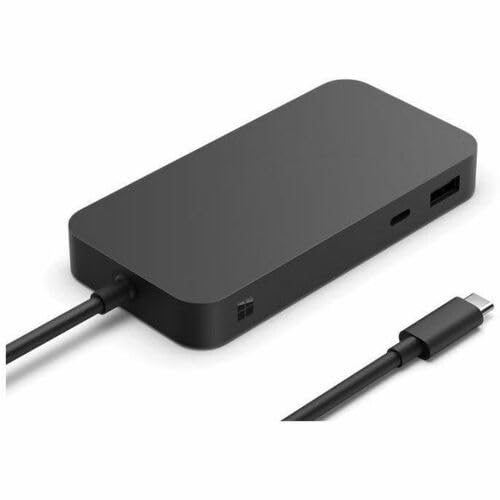 | Microsoft Surface USB4 Dock | Type: Powered compact dock Host link: USB4, up to 40Gbps Downstream USB4/TB: Two USB4 Gen 3 / TB4-compatible USB-C Host charging: Up to 65W Display support: Dual 4K60 or single 8K30 on capable USB4/TB4 hosts Best for: Surface and Windows desks | Check Price on Amazon |
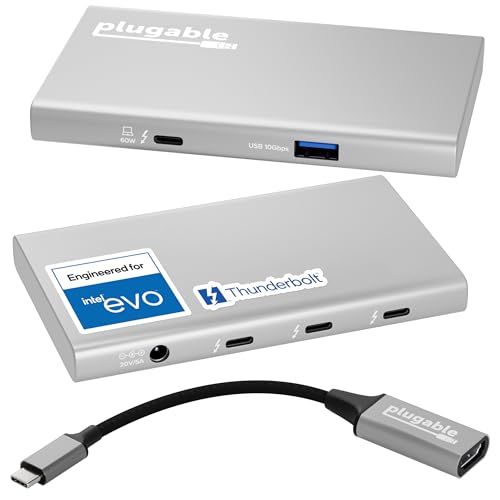 | Plugable USB4-HUB3A | Type: Powered expansion hub Host link: USB4 / Thunderbolt 4, up to 40Gbps Downstream USB4/TB: Three USB4 / TB4 ports, up to 40Gbps each Host charging: Up to 60W Display support: Up to dual 4K60 or single 8K on supported hosts Best for: Multiple USB4 or Thunderbolt devices | Check Price on Amazon |
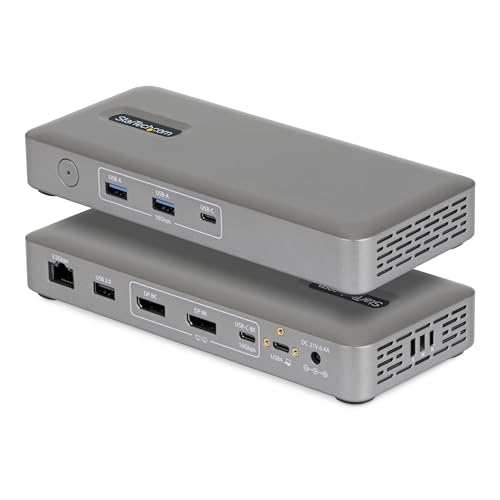 | StarTech 208N-USB4-DOCK | Type: Powered desktop dock Host link: USB4, 40Gbps Downstream USB4/TB: None; two USB-C ports up to 10Gbps Host charging: Up to 100W Display support: Up to dual 4K144 or single 8K60 on supported hosts Best for: High-refresh dual monitors | Check Price on Amazon |
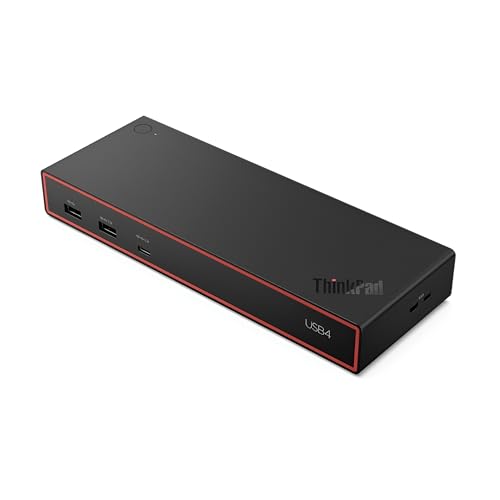 | Lenovo ThinkPad USB4 Dock 5000 | Type: Powered business dock Host link: USB4, up to 40Gbps Downstream USB4/TB: None; full-function USB-C up to 10Gbps Host charging: 65W included; up to 100W with optional adapter Display support: Up to 8K60, two 4K144, or four 4K60; host-dependent Best for: ThinkPad fleets and four displays | Check Price on Amazon |
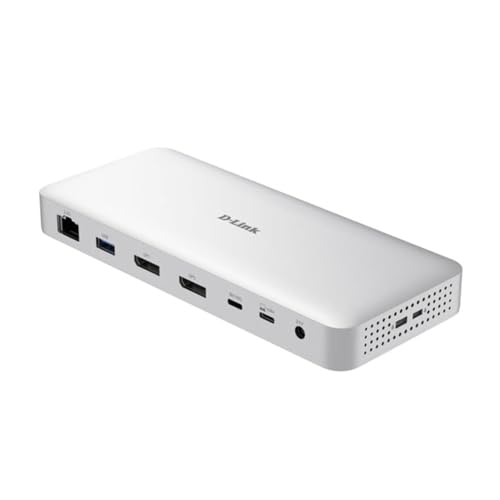 | D-Link DUF-901 | Type: Powered desktop dock Host link: USB4 Gen 3x2, 40Gbps Downstream USB4/TB: One USB4 port, 40Gbps / 7.5W Host charging: Up to 100W Display support: Up to dual displays; 8K30 / 4K144 modes are host-dependent Best for: A downstream USB4 port plus 2.5GbE | Check Price on Amazon |
 | Kensington MD120U4 | Type: Portable USB4 dock Host link: USB4, up to 40Gbps Downstream USB4/TB: None; USB-C data up to 10Gbps Host charging: Up to 100W USB-C PD pass-through Display support: Two HDMI 2.1; up to dual 4K120 with DSC or single 8K60 Best for: Travel with dual HDMI and 2.5GbE | Check Price on Amazon |
 | j5create JCD403 | Type: Portable pass-through hub Host link: USB4, up to 40Gbps Downstream USB4/TB: None; USB-C data up to 10Gbps Host charging: Up to 95W pass-through; charger not included Display support: One HDMI up to 8K60 / 4K144 with DSC; Mac up to 4K60 Best for: Compact 2.5GbE and one display | Check Price on Amazon |
Which USB4 Hub or Dock Should You Buy?
Choose the Razer when one cable has to connect a laptop to a broad desk, with two display connector types, cards, Ethernet, audio, and a pile of mixed USB devices. Choose the Plugable instead when your important peripherals are USB4 or Thunderbolt devices, and three high-speed downstream Type-C ports matter more than built-in video, networking, or card readers.
Microsoft and D-Link land between those extremes. The Surface USB4 Dock gives a Windows desk two downstream USB4 ports plus HDMI and Ethernet. The D-Link gives you one downstream USB4 port, two DisplayPort outputs, 2.5GbE, and more conventional USB. StarTech is the display-first pick, and Lenovo suits an office standardizing on ThinkPad support and several monitors.
For a travel bag, buy the Kensington when two HDMI display connections and 2.5GbE are what you need, and the j5create when one HDMI display is enough and you want its 4K144 ceiling on a supported host. If none of those roles fits, compare the wider but usually slower selection in our USB-C hub guide and USB-C docking station guide.
1. Razer USB 4 Dock Mercury — Best Overall USB4 Dock
The Razer USB 4 Dock wins the overall spot by covering the most common desk jobs, and by not pretending that every Type-C port on it is USB4. Razer specifies a 40Gbps USB4 upstream connection and 14 ports in total. The display side gets HDMI 2.1 and DisplayPort 1.4. Storage and accessory users get UHS-II SD and microSD readers, Gigabit Ethernet, audio, and a mix of USB-A and USB-C.
The downstream USB-C port is a 10Gbps data port with up to 20W of device charging. One USB-A port also reaches 10Gbps, two more run at 5Gbps, and the remaining low-speed connections are there for input devices and a wireless dongle. This is a dock for many ordinary peripherals, not a hub for growing more 40Gbps USB4 branches. That is precisely why the Plugable ranks separately.
Razer supplies a 180W adapter and rates laptop delivery at up to 100W peak or 96W sustained. On paper that covers a wide range of work laptops, though a computer that expects a proprietary high-power adapter may still charge slowly. Razer lists a primary display up to 4K120 and supports a secondary display. The exact pair depends on the host, so check the laptop’s display matrix before you order this for a dual-screen desk.
The Mercury finish and the wide port mix make it a strong central dock for a mixed PC and Mac workspace. It is a weak fit when three USB4 SSDs or a downstream Thunderbolt monitor have to plug straight into the dock.
Our Take
Buy the Razer for one tidy desk connection and a broad range of conventional ports. Its limitation is downstream speed, and Razer is honest about it. The host link is USB4 at 40Gbps, while the fastest peripheral USB ports stop at 10Gbps.
- Wide mix of display, network, card, audio, and USB ports
- Strong sustained laptop-charging rating
- Separate HDMI and DisplayPort connections
- Fast UHS-II SD and microSD readers
- No downstream USB4 or Thunderbolt port
- Secondary display mode depends on the host
2. Microsoft Surface USB4 Dock — Best Compact Windows Dock
Microsoft’s dock is the cleanest small desktop option for a Surface or a managed Windows fleet. Microsoft documents a USB4 host connection up to 40Gbps, two downstream USB-C ports using USB4 Gen 3 and compatible with Thunderbolt 4, one 10Gbps USB-A port, HDMI 2.1, and Gigabit Ethernet. At 206g it moves easily, though the included 100W power supply puts it in the powered-dock category rather than the travel-hub one.
Those two downstream Type-C ports are the reason to take it over a dock whose USB-C ports stop at 10Gbps. They carry data and video, so they can drive modern Type-C displays or feed high-speed devices. The dock still shares one upstream transport, so two busy devices do not each get 40Gbps back to the laptop.
On a capable USB4 or Thunderbolt 4 host, Microsoft lists dual 4K60 through USB-C and HDMI, or one 8K30 display through USB-C. A host offering ordinary USB-C with DisplayPort Alt Mode instead of USB4 drops to one 4K60 display. Publishing that fallback is genuinely useful, because the same connector fits laptops with wildly different capabilities.
The included supply sends up to 65W to the computer. That suits many Surface devices and thin Windows laptops, and it sits below the Razer, the StarTech, the D-Link, and an upgraded Lenovo setup. Microsoft also gives Windows administrators management options that mean little on a personal Mac desk.
Our Take
The Surface USB4 Dock is small without behaving like a stripped-down travel adapter. Pick it for two real downstream USB4 ports and Microsoft fleet support, as long as 65W is enough for your laptop.
- Two downstream USB4 Gen 3 ports
- Clear display limits for USB4 and plain USB-C hosts
- Compact body with external power included
- Useful Windows and Surface management support
- Only one USB-A port
- Host charging tops out at 65W
3. Plugable USB4-HUB3A — Best Downstream USB4 Hub
The Plugable USB4-HUB3A is the specialist here. Plugable identifies it as both a USB4 and a Thunderbolt 4 hub, specifies a 40Gbps connection to the host, and gives it three downstream USB4/TB4 ports. Each of those can negotiate up to 40Gbps and deliver up to 15W to whatever is plugged into it. A fourth peripheral port is USB-A at 10Gbps.
That layout is exactly right for adding several modern Type-C devices while keeping one cable to the laptop. It is not a traditional docking station, so there is no Ethernet, no card slot, no audio, and no dedicated HDMI or DisplayPort socket. Plugable does include a USB-C-to-HDMI adapter, so one downstream port can become a display output. What the other ports do, whether storage, another display adapter, or a compatible downstream dock, is up to you.
Plugable documents up to two 4K60 displays or one 8K display on supported hosts. Mac display behavior follows the Apple processor’s own external-display rules, and Plugable lists one display up to 6K for the relevant single-display Apple silicon configurations. Read both the laptop and the hub compatibility notes before planning a two-screen Mac setup.
External power is mandatory. The box holds a 100W adapter and a 0.8m Thunderbolt 4 cable, and host charging tops out at 60W. That is modest for a workstation and reasonable for a compact laptop. Plugable also lists two-year coverage and lifetime technical support.
Our Take
Choose the Plugable when your problem is too few USB4 or Thunderbolt ports. Choose a conventional dock when the real shopping list is Ethernet, card readers, audio, and several USB-A devices.
- Three downstream USB4 and Thunderbolt 4 ports
- Up to 15W device power on each downstream Type-C port
- Power adapter, host cable, and HDMI adapter included
- Works as a focused high-speed expansion hub
- No built-in Ethernet, card reader, or audio
- Only 60W charging to the host
4. StarTech 208N-USB4-DOCK — Best for High-Refresh Monitors
StarTech’s 208N is the display-first desktop pick. Its official data sheet lists a 40Gbps USB4 host connection, two DisplayPort outputs, and a video-capable 10Gbps USB-C port. On a supported computer, StarTech documents up to two 4K displays at 144Hz, or one 8K display at 60Hz. Those are ceilings, and the host still has to bring the required DisplayPort and DSC capability.
The data side is practical, and it is not USB4 downstream. You get two USB-C 10Gbps ports, two USB-A 10Gbps ports, one USB-A 2.0 port, and 2.5GbE. Park a keyboard or a receiver on the low-speed USB-A port and the 10Gbps connections stay free for storage. There is no downstream 40Gbps port for a USB4 SSD or a Thunderbolt chain.
StarTech publishes a proper Apple processor matrix rather than one vague macOS claim. Standard M1 and M2 systems support one external display through this dock. Later base chips and the Pro or Max variants have different two-display conditions, some requiring a closed lid. Buy it for a Mac only after matching the exact chip, not the name on the lid. Windows, Ubuntu, and ChromeOS are also listed.
The included adapter supplies up to 100W to the laptop, and StarTech backs the dock with a three-year warranty. It has none of the Razer’s card readers or audio, and its faster Ethernet and high-refresh display matrix serve a different desk entirely.
Our Take
The 208N makes sense when monitor outputs and refresh rates are driving the purchase. StarTech documents its ambitious display modes and its Mac exceptions clearly, while the downstream USB ports remain ordinary 10Gbps connections.
- Two dedicated DisplayPort outputs
- High-refresh dual-display modes on supported hosts
- Up to 100W host charging
- 2.5GbE and three-year warranty
- No downstream USB4 port
- Base M1 and M2 Macs support one external display
5. Lenovo ThinkPad USB4 Dock 5000 — Best USB4 Business Dock
The ThinkPad USB4 Dock 5000 is built for offices that want familiar video ports, an attached host cable, and a long support window. Lenovo identifies its docking interface as USB4, and the matching PSREF material states up to 40Gbps to the system. The US configuration here is 40BF0100US, matching Amazon ASIN B0GDB5J3VP.
Monitor connections run to two DisplayPort 1.4 outputs, HDMI 2.1, and a full-function USB-C 10Gbps port with DisplayPort 1.4. Lenovo publishes maximum arrangements of one 8K60 display, two 4K144 displays, or four 4K60 displays. Those are supported upper configurations, and not what every ThinkPad, Mac, or USB-C laptop can actually drive. Match your computer against Lenovo’s display and compatibility information before you plan four screens.
The dock adds no downstream USB4 or Thunderbolt port. Its full-function Type-C and other high-speed USB connections run at up to 10Gbps, which is plenty for mainstream peripherals and is not a continuation of the 40Gbps bus. Gigabit Ethernet covers office networking, and the integrated 1m USB4 cable spares you a separate host cable.
The listed configuration includes a 100W charger and provides up to 65W to the laptop. Lenovo says an optional 135W adapter raises host delivery to as much as 100W. Keep those two numbers apart, because the brick’s input budget and the power the laptop receives are different figures. Lenovo lists a three-year warranty and support for Windows 10 or later plus named recent macOS releases.
Our Take
Buy the Lenovo for a managed ThinkPad desk and several conventional monitors, and not for downstream USB4 expansion. Work out whether 65W is enough before deciding whether the optional higher-power adapter belongs in the order.
- Four physical video-capable outputs
- Integrated one-meter USB4 host cable
- Three-year manufacturer warranty
- Optional adapter can raise host power to 100W
- Included configuration supplies only 65W to the host
- No downstream 40Gbps port
6. D-Link DUF-901 — Best with Downstream USB4 and 2.5GbE
D-Link gives the DUF-901 a rare middle-ground layout. The manufacturer page specifies USB4 Gen 3×2 at 40Gbps to the host, and one downstream multifunction USB4 port at 40Gbps. That downstream port carries DisplayPort 1.4 as well, and provides 7.5W to its device. It cannot expand like the three-port Plugable, and it keeps one genuine high-speed branch while giving you a fuller desktop port set.
Two DisplayPort 1.4 sockets take your monitors directly. D-Link also lists one USB-C 10Gbps port, two USB-A 10Gbps ports, one USB-A 2.0 port, and 2.5GbE. The combination suits a desk with one USB4 storage device, several ordinary peripherals, and fast wired networking. D-Link’s port list does not support the microSD wording in the Amazon title, so no card reader is counted here.
D-Link documents single and dual display modes up to 8K30 or 4K144 under stated host conditions. Its macOS notes say the listed 8K30 mode is not available on Mac, and that the number of screens depends on the Apple computer. Treat those tables as required reading if the dock is going behind a Mac.
A 149.1W adapter and a 50cm USB-C cable come in the box, and the dock supplies up to 100W to the host. That short host cable is fine beside a laptop and may not stretch under a desk.
Our Take
The DUF-901 is the balanced pick for one downstream USB4 device plus a set of conventional desktop connections. D-Link documents the important Mac and display exceptions, and the included host cable is short.
- One downstream 40Gbps USB4 port
- Two DisplayPort outputs and 2.5GbE
- Up to 100W host charging
- Several 10Gbps USB connections
- Mac display support has important limits
- Included host cable is only 50cm
7. Kensington MD120U4 — Best Portable USB4 Dock
The Kensington MD120U4 is a portable USB4 dock for travel and hybrid work. Kensington specifies a USB4 connection with up to 40Gbps upstream speed, two HDMI 2.1 ports, and 2.5GbE. Cable storage clips stow the 9.8-inch USB4 cable during transport.
Kensington lists up to one 8K60 display or two 4K120 displays with DSC enabled. MacBook use is limited to one 4K60 monitor by Kensington’s own note, while iPads and Samsung DeX devices have a 2K60 ceiling. The host GPU, DisplayPort path, operating system, and display support decide what reaches the screen.
Peripheral connectivity includes one USB-C 3.2 Gen 2 port and two USB-A 3.2 Gen 2 ports, each at up to 10Gbps, plus 2.5GbE. None of those ports is downstream USB4. Buyers who need a 40Gbps downstream storage connection should choose a high-speed expansion hub instead.
Kensington lists up to 100W of USB-C PD 3.0 pass-through charging and says to plug in a laptop USB-C power adapter of 80W or greater. The MD120U4 can also run from the laptop’s battery while traveling, and Kensington sells an optional 100W adapter separately.
Our Take
Choose the Kensington for travel with two HDMI displays on a host that supports them, 2.5GbE, and three 10Gbps peripheral ports. Bring a USB-C power adapter of 80W or greater when the laptop or attached devices need pass-through power.
- Kensington lists up to 40Gbps USB4 upstream speed and two HDMI 2.1 ports
- Two HDMI outputs support up to one 8K60 or two 4K120 displays with DSC
- One USB-C and two USB-A ports each support up to 10Gbps
- Cable storage clips stow the 9.8-inch USB4 cable during travel
- The dock has HDMI outputs rather than a DisplayPort output
- None of the peripheral ports is downstream USB4
8. j5create JCD403 — Best Compact USB4 Hub with 2.5GbE
The j5create JCD403 is a focused portable hub for one display and fast networking. j5create specifies a USB4 controller and a USB4 Type-C host connector at up to 40Gbps. Its 2.5GbE port matches the Kensington, the StarTech, and the D-Link, as long as your local network can also carry the higher rate.
The hub has a single HDMI output. With a DisplayPort 1.4 host and DSC, j5create lists up to 8K60 or 4K144. Without DSC, those ceilings fall to 8K30 or 4K120. Macs are capped at 4K60 by j5create’s own note. The gap between those numbers shows why an HDMI version number or an 8K badge cannot describe a whole display path.
Data ports are one USB-C 10Gbps and two USB-A 10Gbps. There is no downstream USB4 port, despite the 40Gbps host controller. A separate USB-C PD input accepts up to 100W, and j5create says up to 95W can reach the laptop after the hub takes its share. You supply the charger, and the host has to support USB-C power input for pass-through charging to work.
Do not buy it for two physical monitor cables, memory cards, or audio. Buy it for a small kit that needs one capable HDMI path, three fast USB ports, and 2.5GbE. j5create provides a two-year warranty.
Our Take
The JCD403 trades port count for a clear travel role. It shines where 2.5GbE and one high-spec HDMI output are the priorities, and neither its downstream USB-C port nor its USB-A ports exceeds 10Gbps.
- Portable design with 2.5GbE
- Three 10Gbps peripheral USB ports
- Up to 95W host power pass-through
- High-refresh HDMI modes on supported hosts
- Only one display output
- Charger not included and no downstream USB4
Buying Guide: How to Read a USB4 Dock Specification
Portable hub versus powered desktop dock
A portable hub is light, it leans on bus power or charging pass-through, and it normally uses an attached or short host cable. It is good for adding video, Ethernet, and a few USB ports while you are away from the desk. Bus power is convenient, and every attached device draws from the computer, so high-draw storage, phones, and other accessories can make a charger worth carrying even when the hub runs without one.
A powered desktop dock brings its own AC adapter. Part of that power charges the laptop, part runs the dock, and part is held back for downstream devices. The large wattage printed on the adapter is not the host-charging figure. Razer’s 180W adapter supports up to 96W of sustained host power, because the dock and its peripherals need the rest.
Buy the portable hub when the ports must travel; buy the powered dock when one cable must run a desk all day. Our fuller dock-versus-hub comparison covers the physical and power differences.
Host-link speed is a shared ceiling
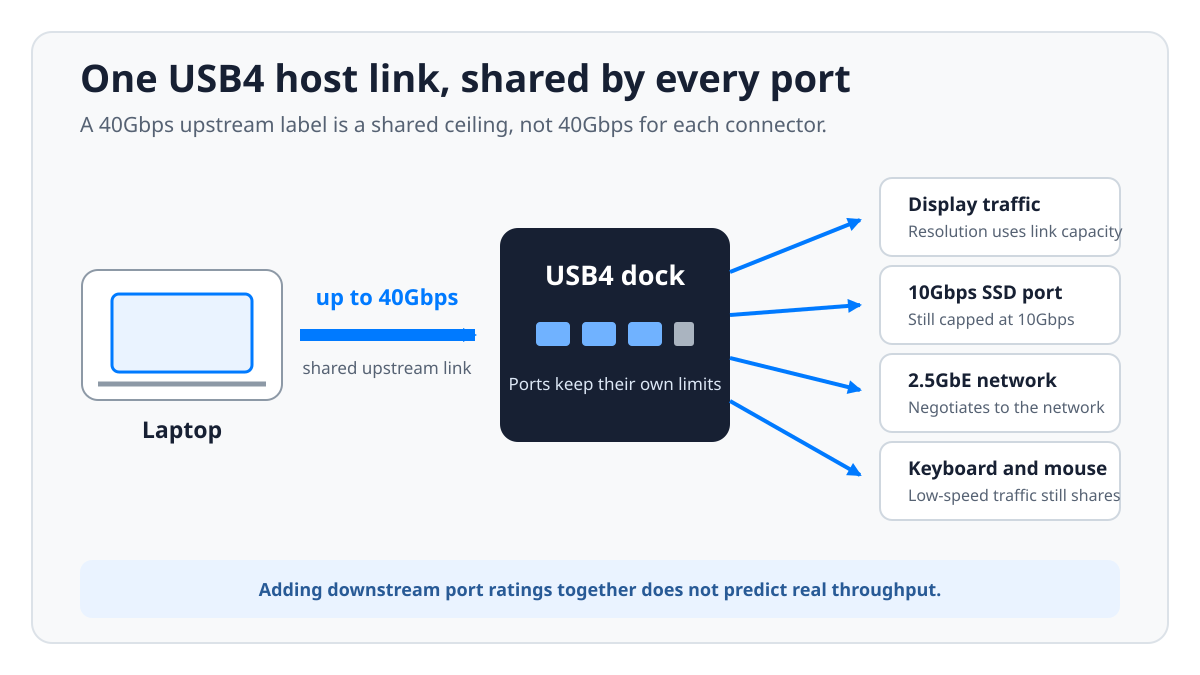
The upstream link connects the whole hub or dock to the laptop. A 40Gbps label describes the maximum signaling class of that one link. It is not a guaranteed file-transfer rate, and it is not 40Gbps for every socket at once. Display traffic, protocol overhead, network data, and attached storage all draw on the same transport.
Downstream ports negotiate their own connections. A 10Gbps USB-C SSD attached to the Razer stays a 10Gbps device, even though the Razer connects upstream at 40Gbps. Three 40Gbps-capable devices on the Plugable can each establish that link class, and they still share the one connection back to the host. Adding up downstream port rates is not a throughput estimate.
For storage-heavy use, check the drive and the cable as carefully as the dock. Our portable SSD guide separates 10Gbps, 20Gbps, USB4, and Thunderbolt models.
Downstream USB4 changes what the product can expand
A downstream USB4 port can connect another USB4 device, and it may carry display traffic where the manufacturer documents that behavior. Plugable offers three such ports, Microsoft offers two, and D-Link offers one. Their power limits differ, and the shared upstream bandwidth still applies.
A downstream USB-C 10Gbps port is useful for ordinary storage, phones, capture devices, and adapters, and it is not an extension of the 40Gbps fabric. The connector shape will never tell you which one you have. Read the port diagram for the exact model, and look for a rate beside every Type-C port.
Do not read PCIe tunneling or external-GPU support into a USB4 logo. USB4 defines a framework of optional and conditional features, and an exact host, dock, cable, and device chain may each implement a different subset. If an eGPU is the goal, start with our USB4 eGPU compatibility guide, then demand support from every product maker in the chain.
Display maxima need a complete host path
Dock pages lead with the largest supported mode, whether 8K60 or dual 4K144. That figure becomes possible only when the laptop’s GPU, its USB4 controller, the DisplayPort link, the operating system, the cable, and the display all support the required path. Some high-resolution and high-refresh modes also require DSC. No dock can add a GPU feature the host lacks.
Count displays separately from resolution. A laptop that can output one 8K screen does not automatically drive two 4K extended screens through every dock. Standard M1 and M2 Macs are the classic example, and several manufacturers here explicitly limit those systems to one native external display. Later Apple chips have their own rules, sometimes only with the lid closed.
If two monitors are the whole reason you are buying, write down the connector, the resolution, the refresh rate, and whether each screen has to be extended rather than mirrored. Then look for that exact combination in the dock and laptop documentation.
Charging numbers describe different points in the power path
One dock can advertise three different power figures, which are the AC adapter rating, the dock’s USB-C power input, and the output delivered to the laptop. Only the last one tells you how quickly the computer charges. A pass-through hub may accept 100W and send 95W onward, because it keeps 5W for itself. A desktop dock may carry a much larger adapter so it can power the host and several peripherals at once.
USB Power Delivery is negotiated, not imposed. A 100W-capable dock cannot force 100W into a laptop, and the computer accepts only a mode both ends support. Some mobile workstations still need their proprietary adapter to reach their highest performance state, in which case the dock handles data and displays while the original charger plugs in alongside it.
For the Kensington and the j5create, budget for a suitable USB-C charger because neither includes one. Kensington lists up to 100W of pass-through and says to use an adapter of 80W or greater, while the Lenovo’s included configuration supplies 65W to the laptop and an optional adapter can raise that to 100W.
Network, card, audio, and cable details decide daily use
The headline link rate only matters if the rest of the port map fits your desk. Gigabit Ethernet is enough for most home and office networks. The 2.5GbE on the Kensington, the StarTech, the D-Link, and the j5create helps with faster local servers and internet service, provided the router, the switch, and the cable keep up. A 2.5GbE dock simply negotiates down on a Gigabit network.
Photographers may want Razer’s UHS-II SD and microSD slots more than a faster network port. Headset users need the audio connection on the Razer or an adapter that takes another USB port. A fixed short cable saves space in a travel kit and gets awkward with a laptop stand. Kensington’s clips stow its 9.8-inch USB4 cable for transport. A replaceable host cable is easier to route and replace when it is rated for the data and power you need.
Take stock of the whole desk first, which means displays, storage, keyboard, mouse, headset, network, card format, charging requirement, and any device that wants more than basic USB power.
USB4 vs Thunderbolt 4 for a Dock
USB4 and Thunderbolt 4 overlap, and the names are not interchangeable. USB4 covers more than one performance class and permits product implementations with different optional features. Thunderbolt certification sets a defined minimum capability and a validation program. Intel’s Thunderbolt overview explains the certified platform requirements, and our USB4 versus Thunderbolt 4 guide compares them for buyers.
None of that makes every Thunderbolt dock the better purchase. It means the product label makes a different promise. The Plugable USB4-HUB3A is explicitly both, which is why it can appear honestly in a USB4 guide. A CalDigit TS4 or an OWC Thunderbolt 4 Dock may work perfectly well with a USB4 host, and each remains a Thunderbolt 4 product that belongs in a Thunderbolt roundup.
Backward compatibility does not erase bottlenecks either. A USB4 dock connected to a plain USB-C DisplayPort Alt Mode host can fall back to lower data rates, fewer displays, or less charging. Microsoft publishes the clearest example. Its dock supports dual 4K60 on a capable USB4/TB4 host, and one 4K60 display on a plain USB-C host.
For a wider generational view, see Thunderbolt 3 vs 4 vs 5.
Frequently Asked Questions
Is every USB4 hub or dock 40Gbps?
No. USB4 has supported more than one data-rate class, and a product can be USB4 without offering the highest rate the name suggests. All eight ranked products here have a manufacturer-stated 40Gbps host link. The j5create JCD401 honorable mention uses a USB4 controller and is rated at up to 20Gbps. Insist on a number beside the exact host connection, rather than filling it in from the word USB4.
Does a 40Gbps host link mean every USB-C port is 40Gbps?
No. The host link and the downstream ports are separate specifications. The Razer has a 40Gbps USB4 upstream link and a downstream USB-C data port capped at 10Gbps. Plugable’s three downstream USB4/TB4 ports can each negotiate up to 40Gbps, and they share the single upstream path when they move data to the computer.
Can a USB4 dock run two 4K monitors?
Some can, with the right host. Microsoft documents dual 4K60 on supported systems, Kensington documents dual 4K120 with DSC, and StarTech lists higher refresh ceilings for its 208N. Your laptop has to support the required number of native displays and the necessary DisplayPort path. Base Apple silicon models can impose a one-display limit even when the dock has two outputs.
Will a USB4 dock work with a Thunderbolt laptop?
Often, though verify both product pages. The exact host and the exact dock decide which data, video, power, and tunneling modes are available. Plugable explicitly supports Thunderbolt and USB4 on the USB4-HUB3A, and Microsoft describes its downstream ports as Thunderbolt 4 compatible. A generic assumption is always weaker than a model-specific compatibility statement.
Can a USB4 dock charge any laptop?
Only if the laptop accepts USB-C Power Delivery, and the charging speed is capped by the lowest supported power mode in the chain. The dock, the cable, the computer, and any pass-through charger all get a say. Gaming laptops and mobile workstations may still need their original high-power adapter, even while a USB4 dock handles data and displays.
Do bus-powered USB4 hubs reduce laptop battery life?
Yes, because the hub and everything attached to it take power from the host when no external supply is connected. How much depends on the devices. The Kensington can run from the laptop battery and accepts up to 100W of pass-through power. Connect a charger when you are running power-hungry storage or several peripherals for a long session.
Is a USB4 dock worth buying for 10Gbps devices?
It can be. The value usually comes from routing displays, power, Ethernet, cards, and several peripherals through one host cable, not from making a single SSD faster. If all you need is a keyboard, a mouse, Gigabit Ethernet, and one 4K60 display, a good USB-C dock may do the same job. Buy USB4 when its link, its downstream ports, or its display arrangement solves a need you can name.
How We Research and Select USB4 Hubs and Docks
Search results and manufacturer catalogs are the starting point, and everything described only as USB4-compatible is left out. The maker has to identify the exact model as USB4 and publish enough to separate the upstream host connection from the downstream ports. We record the host-link rate, the downstream Type-C behavior, the power arrangement, the host charging, the display outputs, the operating-system notes, and the warranty wherever it is stated.
We do not turn theoretical USB4 features into product claims. A display maximum appears only when the exact manufacturer documents it, and the host conditions stay attached to the number. We claim no PCIe tunneling, daisy chaining, or eGPU support for a model unless the maker states it. Missing information stays missing rather than getting borrowed from a similar dock.
Each recommended Amazon ASIN identifies the intended exact model and title. Plugable UD-4VPD and Anker 568 are not included because they could not be matched to an exact Amazon listing; a Cable Matters model is not included because its exact maker page could not be matched.
The guide is specification-led, not a benchmark report. Actual transfer rates and display behavior depend on the complete host, cable, peripheral, and operating-system chain.
Honorable Mentions
StarTech 155NA-USB4-DOCK, ASIN B0D94J56ZS
The 155NA is a 40Gbps USB4 desktop dock with dual HDMI, 2.5GbE, six USB ports, an included 180W adapter, and up to 100W host charging. StarTech’s data sheet documents dual 4K60 at 4:4:4, dual 4K120 at 4:2:2, or one 8K60 at 4:2:2. It supports Windows and ChromeOS but not macOS, which keeps it behind the newer 208N on a mixed-platform list like this one.
j5create JCD401, ASIN B0BGSZJD9L
The j5create JCD401 uses a USB4 controller and has a stated host data ceiling of 20Gbps. Its HDMI, DisplayPort, and USB-C video options are genuinely useful, and it supports up to 85W pass-through, but the JCD403 is the clearer 40Gbps travel pick. Base M1 and M2 Macs remain limited to one native external display.
Sabrent HB-U4HP, ASIN B0CCCJWZGK
Sabrent calls the HB-U4HP a USB4 Travel Hub and lists two USB-C 10Gbps ports, one USB-A 10Gbps port, HDMI, 2.5GbE, and up to 85W of power pass-through. Its official page never states the upstream host-link rate. We will not guess whether that is 20Gbps or 40Gbps, and we will not rank it beside products that publish a number.