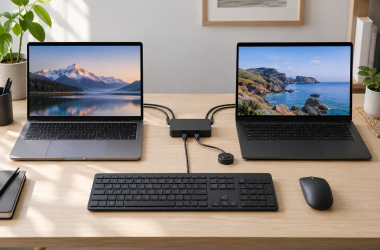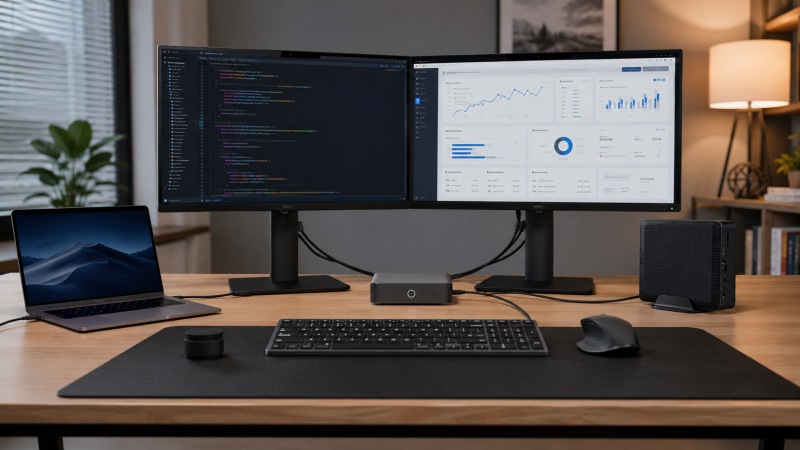
This guide covers more than 30 USB-C KVM switches, comparing manufacturer specifications, compatibility documentation, and expert user reports to find the best options for dual-monitor setups in 2026. The dual-monitor KVM category is full of products that look similar on Amazon but behave very differently. Some require drivers to work with your Mac, some won’t charge your laptop at all, and a few aren’t true KVMs despite the name.
The core confusion in this category comes down to two technologies: MST (Multi-Stream Transport) and DisplayLink. Most USB-C KVM switches use MST to push two monitors from a single USB-C connection. MST is fast, native, and driver-free on Windows. On macOS with M1, M2, or base M3 chips, MST gives you mirrored displays, not extended. That’s not a bug. It’s Apple’s hardware limitation. Understanding this split is the difference between a purchase you’re happy with and one you return three days later.
This guide explains which switches actually work for dual extended displays on every Mac, which are best for mixing laptops and desktops at one desk, and which category (full KVM docking stations, hybrid switches, or minimalist pass-through boxes) fits your workflow.
Recent Updates
- May 2026: Initial publication. 10 picks covering full USB-C KVM docking stations, hybrid laptop+desktop switches, and minimalist USB-C pass-through switches. Includes verified ASIN data and Mac compatibility notes for every product.
Quick Picks
- Best overall: AV Access iDock C20. 2x USB-C inputs, dual 4K@60Hz, 60W PD per laptop, 12-in-1 with EDID emulation
- Best for Thunderbolt 4: Cable Matters Dual 4K 60Hz USB-C KVM. RF wireless remote, TB4/USB4 native, HDMI + DP outputs
- Best budget: TobenONE TKM001. TobenONE specifies dual HDMI up to 4K@60Hz, five USB ports, EDID retention, and a wired remote
- Best enterprise / Best for all Macs: StarTech.com 129N-USBC-KVM-DOCK. The only pick here that supports dual extended displays on M1/M2 Macs via DisplayLink
- Best for 100W Power Delivery: AV Access KD-E20. 2x USB-C MST inputs, dual 4K@60Hz HDMI, 100W PD, EDID emulation, GbE
- Best for Mac + desktop: AV Access MacBook KVM (B0F6MPW2JX). Plug-and-play dual extended on M3 Pro/M4, no DisplayLink needed
- Most adaptable inputs: KCEVE USB-C + DP + HDMI KVM. Takes any input type, perfect for mixed setups
- Best budget mixed setup: Minisopuru KVM Dual Monitor. Most affordable option, EDID, TB5/4/3 compatible
- Best minimalist switch: Cable Matters 20Gbps USB-C Switch. 140W PD passthrough, tiny, shares one dock between two laptops
- Best for future-proofing: Club 3D CSV-2511 Bi-Directional. 8K@60Hz, 4K@120Hz, bi-directional video routing
Not sure which KVM switch you need?
Step 1 of 3
What computers are you switching between?
Do you need dual extended displays on a Mac (M1/M2)?
What input does your desktop use?
What matters most to you?
Cable Matters 20Gbps USB-C Switch
A simple pass-through switch that lets two computers share your existing dock, hub, or monitor. No extras — just clean, fast switching at a fraction of the cost.
StarTech.com 129N-USBC-KVM-DOCK
The only KVM dock in this roundup with DisplayLink, which bypasses Apple’s M1/M2 limitation of one external display. True dual extended monitors without mirroring.
Purpose-built for laptop + desktop sharing over USB-C, with Mac-friendly firmware.
Three input types (USB-C, DP, HDMI) so you can mix and match whatever your desktop has.
Accepts HDMI + DisplayPort + USB-C on different ports — ideal when your machines have different outputs.
Budget-friendly with HDMI + USB-C inputs. Good enough for a basic desktop + laptop setup.
AV Access MacBook KVM
Designed for Mac + desktop combos. Handles the Mac’s display quirks and delivers reliable dual-monitor switching with USB-C on both sides.
AV Access KD-E20
Delivers 100W USB-C Power Delivery — the highest in this roundup. Keeps even power-hungry 16″ laptops fully charged while docked.
TobenONE TKM001
TobenONE specifies dual HDMI up to 4K@60Hz, five USB ports, EDID retention, and a wired remote for a USB-C laptop plus HDMI desktop setup.
Cable Matters Dual 4K 60Hz USB-C KVM
Comes with a wireless remote for one-button switching from anywhere at your desk. No reaching behind the dock or pressing tiny buttons.
AV Access iDock C20
Supports dual 4K at 60Hz on both monitors, and can push a single display to 144Hz — the only KVM dock here that handles high refresh rates for gaming.
| Image | Product | Details | Check Price |
|---|---|---|---|
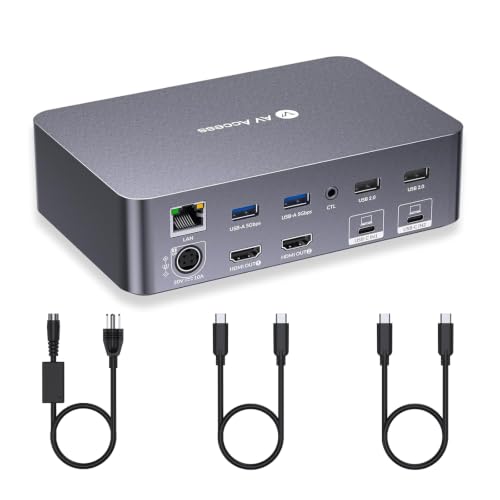 | AV Access iDock C20 | Type: 2 Laptops → 2 Monitors Outputs: 2x HDMI Resolution: 4K@60Hz / 2K@144Hz PD: 60W per laptop Ports: 12-in-1 EDID: Yes Mac Dual Extended: No (mirror only) | Check Price on Amazon |
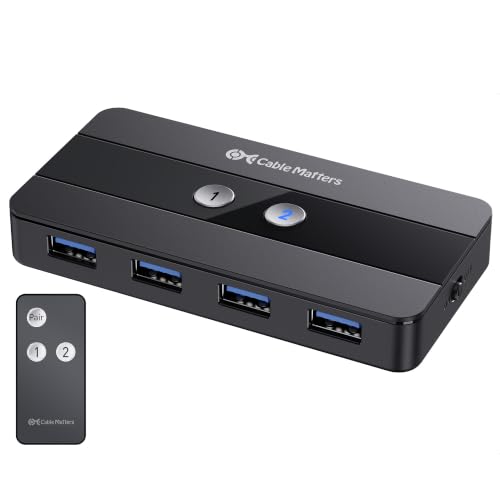 | Cable Matters Dual 4K USB-C KVM | Type: 2 Laptops → 2 Monitors Outputs: 1x HDMI + 1x DP Resolution: Dual 4K@60Hz PD: None Ports: 4x USB 3.0 Remote: RF Wireless Mac Dual Extended: No (mirror only) | Check Price on Amazon |
 | TobenONE TKM001 Dual-HDMI KVM Docking Station | Type: USB-C Laptop + HDMI Desktop Outputs: 2x HDMI Resolution: Up to Dual 4K@60Hz PD: Up to 100W Passthrough USB Ports: 5 EDID: Yes Mac Dual Extended: No, second display mirrors | Check Price on Amazon |
 | StarTech.com 129N-USBC-KVM-DOCK | Type: 2 Laptops → 2 Monitors Outputs: 2x DisplayPort 1.4 Resolution: Dual 4K@60Hz PD: 90W + 45W standby USB Speed: 10Gbps USB 3.2 Mac Dual Extended: Yes (DisplayLink) TAA: Compliant | Check Price on Amazon |
| AV Access KD-E20 | Type: 2 Laptops → 2 Monitors Outputs: 2x HDMI Resolution: Dual 4K@60Hz PD: 100W Ports: 11-in-1 w/ GbE EDID: Yes Mac Dual Extended: No (mirror only) | Check Price on Amazon | |
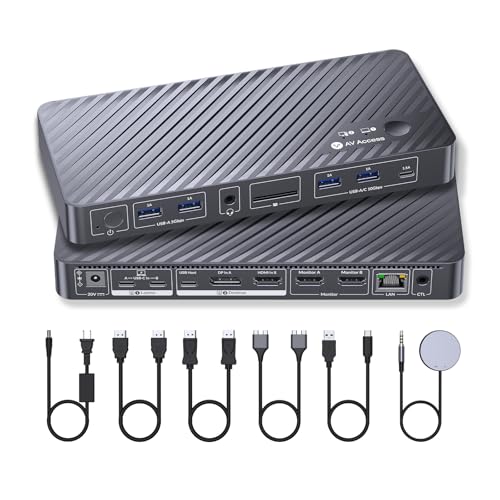 | AV Access MacBook KVM | Type: Laptop + Desktop → 2 Monitors Outputs: 2x HDMI Resolution: Dual 4K PD: 100W Ports: 10-in-1 w/ GbE EDID: Yes Mac Dual Extended: M3 Pro/M4 only | Check Price on Amazon |
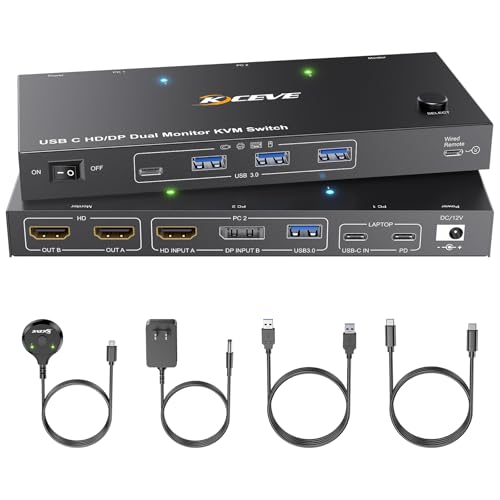 | KCEVE USB-C + DP + HDMI KVM | Type: Laptop + Desktop → 2 Monitors Outputs: 2x HDMI Resolution: Dual 4K@60Hz PD: 60-100W Inputs: USB-C + DP + HDMI Mac Dual Extended: No (mirror only) | Check Price on Amazon |
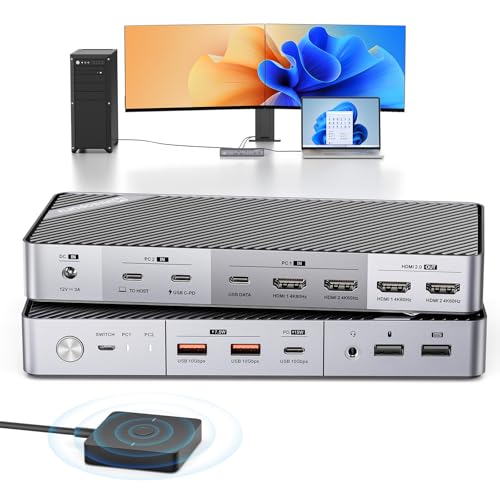 | Minisopuru KVM Dual Monitor | Type: Laptop + Desktop → 2 Monitors Outputs: 2x HDMI Resolution: Dual 4K@60Hz PD: 15W EDID: Yes Mac Support: No (Windows only) | Check Price on Amazon |
 | Cable Matters 20Gbps USB-C Switch | Type: USB-C Pass-through Switch Outputs: Via existing dock Resolution: Up to 8K@30Hz PD: 140W passthrough Speed: 20Gbps USB4 Remote: RF Wireless | Check Price on Amazon |
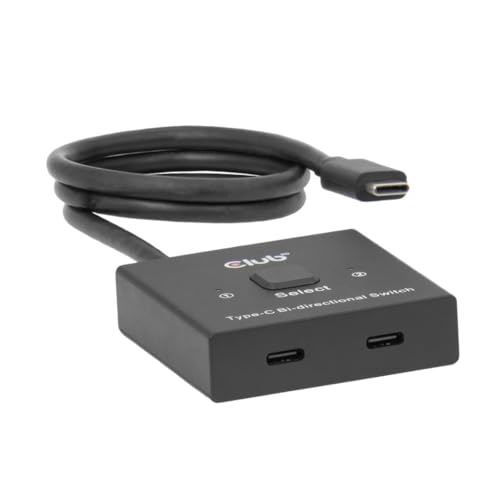 | Club 3D CSV-2511 | Type: Bi-Directional Video Switch Mode: 2→1 or 1→2 Resolution: 8K@60Hz / 4K@120Hz PD: 100W passthrough Speed: 10Gbps Note: No USB ports (video only) | Check Price on Amazon |
1. AV Access iDock C20 — Best Overall
The iDock C20 is the cleanest dual-laptop KVM docking station available at a non-enterprise price. AV Access rates it for dual 4K@60Hz output via two HDMI ports, with two USB-C MST host inputs supporting simultaneous laptop switching. Each laptop receives up to 60W of power delivery, and the 12-in-1 port layout includes USB-C 20Gbps data ports, GbE, and EDID emulation.
What sets the iDock C20 apart from cheaper options is the resolution flexibility. AV Access specifies support for 2K@144Hz and 1080P@240Hz, so if you plug in gaming monitors, you’re not locked to the 4K@60Hz ceiling. That makes this switch useful beyond the standard work setup.
EDID emulation is a genuine feature here, not a checkbox. It maintains a persistent display profile so your monitors don’t rearrange and your apps don’t reflow every time you toggle between laptops. On Windows with multiple open windows across two screens, that matters every time you switch.
The one limitation to know upfront: macOS M1, M2, and base M3 chips get mirrored output only via MST. AV Access explicitly states Mac users receive mirror mode. For Mac+Mac dual-laptop setups where extended displays are required, look at the StarTech.com option instead.
Our Take
The iDock C20 is the best all-around dual-laptop KVM docking station for Windows users. It covers dual 4K@60Hz, gaming refresh rates, 60W PD per laptop, and EDID emulation at a competitive price. Nothing else at this tier matches its combination of features.
- Dual 4K@60Hz plus 2K@144Hz and 1080p@240Hz support
- 60W PD delivered to each connected laptop
- EDID emulation prevents monitor rearrangement on switch
- USB-C 20Gbps data ports for fast storage
- 12-in-1 port count with GbE included
- Mac users get mirrored output only (MST limitation)
- 60W PD may not fully charge 16-inch workstation laptops
Single Monitor USB-C KVM Switches — Full Roundup
2. Cable Matters Dual 4K 60Hz USB-C KVM — Best for Thunderbolt 4
This is the KVM switch to buy if you’re running Thunderbolt 4 or USB4 laptops and want RF wireless switching without a button on your desk. Cable Matters specifies TB4/USB4 compatibility, dual 4K@60Hz output via one HDMI and one DisplayPort, and an included RF remote that changes hosts from across the room.
The output combination is practical. Having one HDMI and one DisplayPort means you can accommodate two monitors with different inputs without adapters. Most competing switches use two HDMI outputs and leave DP monitor owners searching for converters.
There is one significant limitation that Cable Matters states clearly: this KVM provides no power delivery to connected laptops whatsoever. If you switch away from a laptop and it loses its charger, you’ll need a separate charging cable. For most setups this means an additional USB-C or barrel charger per laptop. It’s a real cost and cable management headache.
The other limit: Cable Matters specifies this product as laptop-only. No desktop PCs, no Chromebooks. USB-A desktops cannot host through this switch. Four USB 3.0 ports handle peripherals for keyboard, mouse, and accessories. Mac users get mirrored content on both displays, not extended.
Our Take
The Cable Matters KVM is the best choice for a pure TB4/USB4 laptop pairing where wireless remote control matters and you’re fine adding separate laptop chargers. The no-PD limitation is a real annoyance, but nothing else at this price hits this combination of TB4 support and RF remote.
- RF wireless remote — switch hosts without touching the KVM
- Thunderbolt 4 and USB4 native support
- HDMI + DisplayPort outputs (accommodates mixed monitor setups)
- 4x USB 3.0 peripheral ports
- Zero power delivery; both laptops need separate chargers
- Laptop-only (no desktop PCs or Chromebooks)
- Mac: dual displays show mirrored content, not extended
3. TobenONE TKM001 Dual-HDMI KVM Docking Station: Best Budget
TobenONE specifies two computer inputs, two HDMI outputs up to 4K@60Hz, five USB peripheral ports, up to 100W Power Delivery 3.0 passthrough, EDID retention, a front switching control, and a wired remote.
The connection layout is important. The Amazon listing describes this model for one USB-C laptop plus one HDMI desktop, not for two USB-C laptops or two desktops. Choose a different KVM if both hosts need the same input type.
TobenONE lists EDID retention to help preserve display state while switching. The unit also provides a wired remote, allowing the KVM to remain away from the front edge of the desk.
Mac display behavior has a documented limitation. The Amazon listing states that one external display can extend while the second mirrors on macOS, so this is not the correct pick for two independent extended Mac displays.
Our Take
The TobenONE TKM001 fills the budget slot for a mixed laptop-and-desktop desk. Its dual HDMI outputs, five USB ports, EDID retention, and remote are useful, but its host layout and Mac display limit must match the intended setup.
- TobenONE specifies dual HDMI output up to 4K@60Hz
- Five USB peripheral ports
- Up to 100W Power Delivery 3.0 passthrough
- TobenONE lists EDID retention and a wired remote
- Designed for one USB-C laptop plus one HDMI desktop
- Not suitable for two laptops or two desktops
- On macOS, the second external display mirrors
Best Thunderbolt Docking Stations — If a dock suits you better
4. StarTech.com 129N-USBC-KVM-DOCK — Best Enterprise / Best for Mac
This is the only dual-laptop KVM switch on this list that supports dual extended displays on every Mac, including M1, M2, and base M3. StarTech.com accomplishes this via DisplayLink technology, a software driver that treats the second display as a virtual GPU. Every other KVM here uses MST, which locks base Apple Silicon to mirror mode. If you run two MacBooks at one desk and need two extended monitors, this is the switch to buy.
StarTech.com specifies a 180W external power adapter that delivers 90W to whichever laptop is active and 45W to the standby laptop. Both stay charged regardless of which host is in use. Two DisplayPort 1.4 outputs drive dual 4K@60Hz. Data connectivity includes 10Gbps USB 3.2 Gen 2 ports, dedicated HID ports for keyboard and mouse, and a K-slot for physical security. The unit is TAA compliant for US government purchasing.
The trade-offs are real. DisplayLink requires driver installation on each connected computer, and it blocks DRM-protected content. Netflix, Disney+, and other streaming services won’t play on DisplayLink-connected monitors. It also makes this the most expensive switch on this list. For an enterprise Mac+Mac setup where extended dual display is non-negotiable, the cost is justified.
Our Take
The StarTech.com 129N-USBC-KVM-DOCK is the only right answer for organizations running two MacBooks at a shared desk with dual extended displays. Nothing else here solves Apple Silicon’s MST limitation. For Windows-only deployments, the iDock C20 is a better value. This product’s premium is entirely about Mac compatibility and enterprise certification.
- Dual extended displays on ALL Macs including M1/M2 (via DisplayLink)
- 180W adapter: 90W active + 45W standby, both laptops stay charged
- 10Gbps USB 3.2 Gen 2 data ports
- TAA compliant for government/enterprise purchasing
- Dedicated HID ports and K-slot physical security
- Requires DisplayLink driver install on each computer
- Blocks DRM content (Netflix, Disney+ won’t play on connected monitors)
- Most expensive option on this list by a significant margin
Thunderbolt 3 vs 4 vs 5 — Understanding the differences
5. AV Access KD-E20 — Best for 100W Power Delivery
The KD-E20 is AV Access’s dual-laptop KVM for users who need the highest charging wattage alongside true dual-monitor output. It accepts two USB-C MST host inputs (for two laptops), drives two HDMI 2.0b outputs at dual 4K@60Hz, and delivers 100W of power to the active laptop. That 100W figure covers virtually every consumer laptop, including 16-inch MacBook Pros and Dell XPS 15/17 models that drain battery on lower-wattage KVMs.
AV Access includes EDID emulation, which keeps monitor profiles stable when switching between laptops. Gigabit Ethernet is built in, reducing the cable count on your desk. The combination of 100W PD, dual 4K@60Hz, EDID, and GbE makes this a competitive alternative to the iDock C20 for users whose top priority is charging power rather than port variety.
The MST limitation applies here as with most switches on this list: macOS M1, M2, and base M3 chips receive mirrored output only. AV Access documents this in their compatibility notes. For Mac users needing dual extended displays, the StarTech.com DisplayLink option (product #4) remains the only path, or the AV Access MacBook KVM (product #6) for M3 Pro/Max and M4 chips.
Our Take
The KD-E20 is the right pick when 60W per laptop is not enough. The 100W PD output handles workstation-class laptops that drain battery on lesser KVMs, and you still get dual 4K@60Hz, EDID emulation, and GbE. If charging power is your deciding factor between KVM switches, this is the one to buy.
- 100W PD to the active laptop, enough for 16-inch workstations
- True dual 4K@60Hz via two HDMI 2.0b outputs
- EDID emulation for stable display profiles on switch
- GbE included
- 2x USB-C MST inputs for two laptops
- Mac M1/M2/base M3: mirror mode only (MST limitation)
- 100W delivered to active laptop only, not both simultaneously
- HDMI outputs only, no DisplayPort
6. AV Access MacBook KVM — Best for Mac + Desktop
AV Access built this switch specifically for the MacBook + Windows desktop pairing, and the engineering shows. It provides two HDMI outputs for dual 4K displays and is rated for dual extended display operation on M3 Pro, M3 Max, and M4 MacBooks without a DisplayLink driver or additional configuration. That’s the key differentiator. Note that M3-based MacBooks may require the laptop lid to be closed for dual display operation to engage properly.
AV Access rates the power delivery at 100W to the connected MacBook. The 10-in-1 layout includes GbE. EDID emulation is included, which is essential for Mac setups where display arrangement resets are particularly disruptive to workflow.
The compatibility caveat is significant and worth repeating: M1 and M2 MacBooks only support one external monitor natively. If you connect an M1 MacBook Air to this switch, you’ll get one active display, not two. AV Access’s documentation is clear about this. For M1/M2 users, the StarTech.com DisplayLink option (product #4) is the only path to dual extended displays.
For everyone running M3 Pro, M3 Max, M4, or a Windows desktop as the Mac-side partner: this switch removes the complexity entirely. Plug in, switch, done.
Our Take
The AV Access MacBook KVM is the cleanest solution for pairing an M3 Pro/Max or M4 MacBook with a Windows desktop at a dual-monitor desk. It delivers dual extended displays on modern Apple Silicon without drivers, at 100W charging, in a plug-and-play package. Skip it if you’re on M1 or M2.
- Dual extended displays on M3 Pro/Max and M4 with no drivers
- 100W PD to the MacBook
- Two HDMI outputs for two monitors
- EDID emulation for stable Mac display arrangements
- 10-in-1 with GbE included
- M1 and M2 MacBooks: one external monitor only
- HDMI only outputs (no DisplayPort)
Best Thunderbolt Monitors — Pair with your new KVM
7. KCEVE USB-C + DP + HDMI KVM — Most Adaptable Inputs
Most KVM switches on this list accept only USB-C inputs. The KCEVE B0GFWNRSB6 accepts USB-C, DisplayPort, and HDMI as source inputs, meaning it can handle virtually any computer you throw at it: USB-C laptops, Thunderbolt machines, desktop GPUs with DP outputs, and older systems with HDMI video output. KCEVE rates it for dual 4K@60Hz via two HDMI outputs.
KCEVE lists PD support up to 100W in the product title, though feature specifications indicate 60W charging to the laptop. Verify the actual PD output with your specific laptop’s requirements. Four USB 3.0 ports handle keyboard, mouse, and accessories. A wired remote handles switching. The MST architecture applies here as with other KVMs in this category, so Mac users get mirrored output.
This is the right pick for mixed setups where you can’t guarantee every device has USB-C video output. An older gaming desktop with a dedicated GPU connects via its HDMI or DP port. A newer Thunderbolt laptop connects via USB-C. No adapters, no compromises.
The two-HDMI output arrangement limits monitor pairing to HDMI-capable displays. If you’re running a DisplayPort-only 4K 144Hz gaming monitor, you’ll need an active DP-to-HDMI adapter on the output side.
Our Take
The KCEVE triple-input KVM is the most flexible option on this list for hardware diversity. If your setup involves anything other than two identical USB-C laptops, the ability to connect via USB-C, DP, or HDMI is worth the slightly higher investment versus basic two-laptop switches.
- Three input types: USB-C, DisplayPort, HDMI. Works with any computer
- MST dual 4K@60Hz output
- PD charging for USB-C laptops (up to 100W listed)
- 4x USB 3.0 peripheral ports with wired remote
- HDMI outputs only, no DP output option
- Mac: mirrored output only via MST
- PD wattage ambiguous (100W in title, 60W in specs); verify with your laptop
8. Minisopuru KVM Dual Monitor — Best Budget Mixed Setup
The Minisopuru is the cheapest laptop+desktop dual-monitor KVM switch on this list. It accepts one USB-C laptop input and one HDMI desktop input, outputting to two HDMI monitors at dual 4K@60Hz. Minisopuru specifies EDID emulation, Thunderbolt 5/4/3 compatibility, and 15W device charging.
The 15W charging is significantly limited compared to everything else here. Minisopuru’s 15W will trickle-charge an ultrabook at idle but actively drain battery during any real workload. Factor in a dedicated charger for your laptop.
For a Windows laptop + Windows desktop setup where cost is the priority, the Minisopuru delivers the core functionality (two monitors, dual input, EDID) at the lowest price in this category. The EDID emulation is a welcome inclusion at this price tier and prevents the monitor rearrangement headache that plagues budget KVMs.
Our Take
The Minisopuru is a solid budget pick for Windows-only mixed setups where you’re connecting a laptop and a desktop to two monitors. The low charging wattage means you’ll need a separate laptop charger, but for the price, the dual-HDMI output and EDID emulation make it the best value in the laptop+desktop category.
- Cheapest laptop+desktop dual-monitor KVM on this list
- EDID emulation at a budget price
- Thunderbolt 5/4/3 compatible
- Dual 4K@60Hz via two HDMI outputs
- Does not support MacBook, Windows only
- 15W charging only; active laptop workloads will drain battery
Best Docking Stations for Dual Monitors — An alternative approach
9. Cable Matters 20Gbps USB-C Switch — Best Minimalist Switch
This is a fundamentally different product from everything else on this list. The Cable Matters 20Gbps USB-C Switch is not a KVM docking station. It’s a 2-in/1-out USB-C pass-through switch that lets two laptops share a single dock or monitor. If you already own a good USB-C dock, this lets you plug two computers into it and toggle between them with an RF remote.
Cable Matters rates it for USB4 20Gbps data, 8K@30Hz output on Windows, 4K@60Hz on macOS, and 140W PD passthrough. Cable Matters rates the unit as pocket-sized. The included RF remote handles switching.
The critical operating rule: you must use the included cables only. Cable Matters explicitly states that substituting third-party cables breaks functionality. If you lose the cables, you’ll need a replacement set directly from Cable Matters.
The value proposition is specific: if you’re running two Thunderbolt laptops at the same desk and you already have a high-quality dock, this switch adds KVM-like functionality for a fraction of the cost of replacing the dock with a full KVM. It doesn’t add ports; it adds toggling. Your keyboard, mouse, and monitors stay connected to the dock, and the switch decides which laptop the dock sees. Cable Matters notes that 20Gbps bandwidth may limit display resolution, refresh rate, or number of monitors compared to a direct connection.
Our Take
The Cable Matters 20Gbps switch is the most cost-efficient way to share an existing dock or monitor between two Thunderbolt laptops. Don’t buy it expecting a full KVM; it doesn’t add ports. Buy it if you already have a dock and want a clean toggle between two laptops without buying a second full KVM setup.
- 140W PD passthrough, charges any laptop at full speed
- USB4 20Gbps bandwidth for dock connectivity
- Pocket-sized with RF remote included
- 8K@30Hz (Windows) / 4K@60Hz (macOS) output
- Not a full KVM; shares one upstream connection only, no added ports
- Must use included cables, no substitutes
- Requires an existing dock or monitor to be useful
What Is USB4? — The technology behind this switch
10. Club 3D CSV-2511 Bi-Directional — Best for Future-Proofing
The Club 3D CSV-2511 is included here not as a traditional KVM but as a video routing upgrade add-on that belongs in the toolkit of anyone pushing high-resolution displays. Club 3D specifies bi-directional operation: two PCs can share one monitor (standard KVM-style), or one PC can drive two displays simultaneously. Resolution support is rated at 8K@60Hz, 4K@120Hz, and 100W PD passthrough, the highest specs on this list.
At 45 grams, it’s the smallest device here. The passthrough architecture means near-zero latency, no protocol conversion overhead, and no driver requirements.
The 8K@60Hz and 4K@120Hz ratings make this useful for users who are currently on 4K@60Hz monitors but plan to upgrade to high-refresh 4K or 8K displays. Buying a switch that supports those resolutions now avoids replacing the switch when you upgrade the monitor.
Our Take
The Club 3D CSV-2511 is a specialist tool: exceptional video specs and bi-directional flexibility at a compact size. Buy it to share a high-end monitor between two PCs, or to extend one PC to two displays. Don’t buy it expecting keyboard and mouse switching; that requires a separate solution. Paired with an existing dock and a USB peripheral switch, it rounds out a powerful desk setup.
- 8K@60Hz and 4K@120Hz, highest video specs on this list
- Bi-directional: 2→1 or 1→2 display routing
- 100W PD passthrough
- 45g, pocket-sized, no drivers required
- No USB ports; keyboard/mouse switching requires a separate device
- Not a standalone KVM solution
Buying Guide
MST vs DisplayLink: Which Dual Monitor Technology Do You Need?
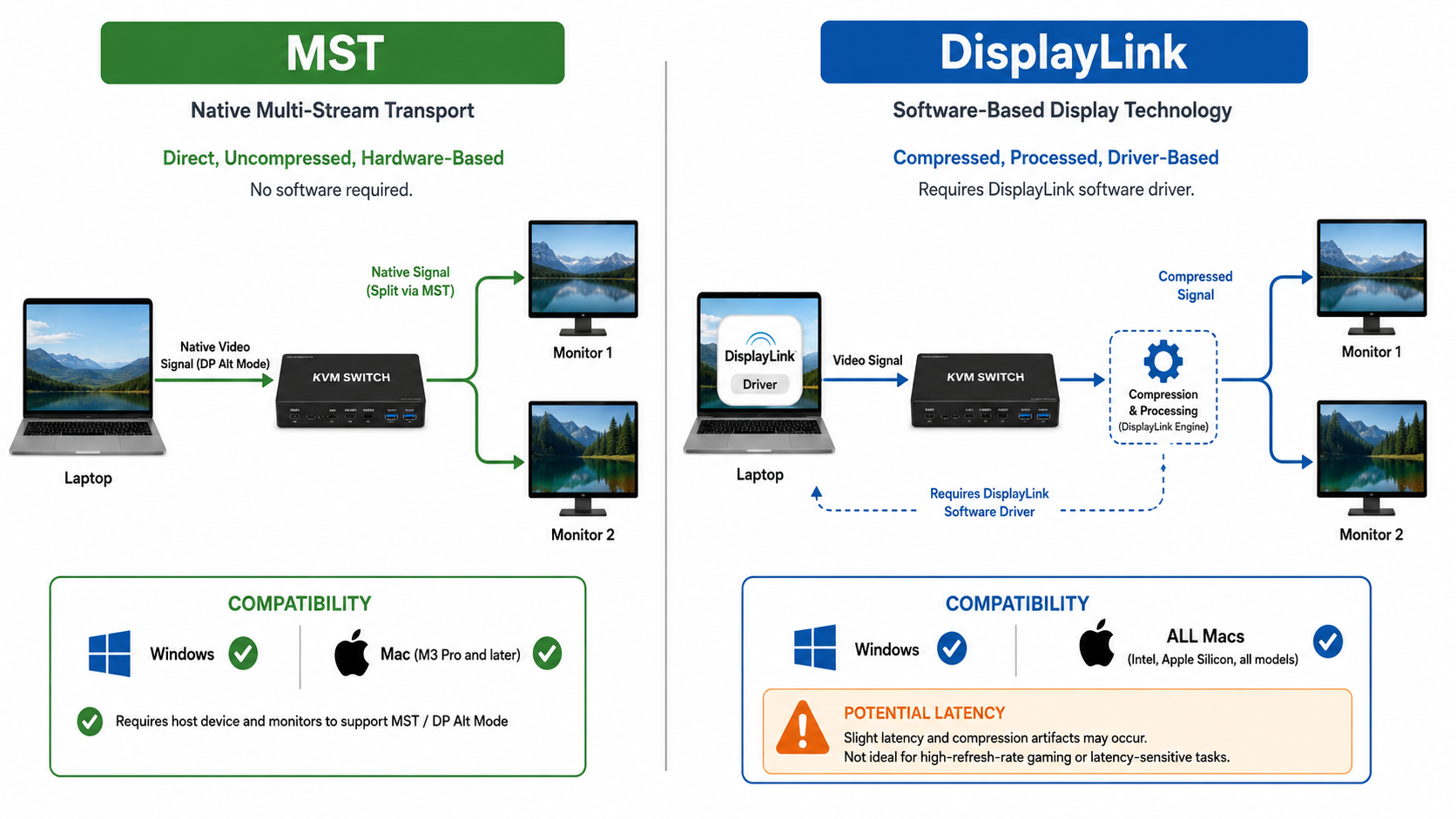
Every dual-monitor KVM on this list uses one of two technologies to push two 4K signals from a single USB-C connection. Understanding the difference saves you from a return.
MST (Multi-Stream Transport) is the native approach. It uses DisplayPort’s built-in protocol to multiplex two display streams over one cable. No drivers. No CPU overhead. Full refresh rate performance. You plug in, Windows sees two monitors, you work. For gaming, video editing, or color-critical work, MST is the right technology. The catch is macOS: Apple’s M1, M2, and base M3 chips do not support MST for dual extended displays. They will mirror both outputs instead of extending them. Only M3 Pro, M3 Max, M4, M4 Pro, and M4 Max support native dual extended via MST.
DisplayLink adds a software layer. A driver on your computer presents the second display as a virtual GPU. The display signal is compressed, sent over USB, and decoded at the DisplayLink chip in the dock. This approach works on every Mac, including M1 and M2. The trade-offs include driver install required, CPU overhead during operation, latency that makes it unsuitable for gaming or fast video editing, and DRM content blocking on connected displays (Netflix, Disney+, Prime Video won’t play on DisplayLink-connected monitors).
For Windows-only setups: always choose MST. For Mac setups running M3 Pro/Max or M4: choose MST. For M1/M2 Mac setups where dual extended is required: DisplayLink is your only option. See the StarTech.com 129N-USBC-KVM-DOCK.
Will a USB-C KVM Switch Work with Your Mac?
The honest answer depends entirely on which Mac chip you have. Here’s the compatibility breakdown for every option on this list:
M1 MacBook Air/Pro, M2 MacBook Air/Pro, base M3 MacBook Air/Pro: All MST-based KVMs (products 1, 2, 3, 5, 7, 8) deliver mirrored output only. You’ll see the same image on both monitors. The StarTech.com 129N-USBC-KVM-DOCK (product 4) is the only switch here that delivers dual extended via DisplayLink. The AV Access MacBook KVM (product 6) works for single extended display on these chips.
M3 Pro, M3 Max, M4, M4 Pro, M4 Max: Full dual extended display support on MST-based KVMs, no drivers required. Products 1 and 6 are confirmed to work. Product 3 remains limited to one extended and one mirrored external display on macOS. Verify your specific product’s Mac compatibility documentation before purchasing products 2, 5, 7.
Mac + Windows desktop users: The AV Access MacBook KVM (product 6) was designed for exactly this pairing on M3 Pro/M4 chips. No drivers, no complexity.
For a full overview of your MacBook’s display capabilities, see our guide to best USB-C monitors, which covers the external display port count for each chip generation in detail.
How Much Power Delivery Do You Actually Need?
The KVM switches on this list range from 0W to 90W of power delivery. That’s a wide range, and the number matters for keeping your laptops charged while you work.
0W (Cable Matters B0DHT32R56): You must provide a separate charger for each laptop. Not a deal-breaker if you have spare chargers, but it’s additional cable clutter and cost.
15W (Minisopuru): Trickle charges an idle ultrabook. Under any real CPU workload, your battery will drain. Plan for a supplemental charger.
Up to 100W passthrough (TobenONE TKM001): TobenONE specifies Power Delivery 3.0 passthrough up to 100W for the connected USB-C laptop. Delivered power depends on the attached charger and host support.
60W per laptop (iDock C20): Handles most 14-inch and 15-inch laptops under normal workloads. Apple specifies 67W for 14-inch MacBook Pro and 96W for 16-inch. At 60W, the 14-inch charges at a reduced rate (slower charging, stable battery).
90W active / 45W standby (StarTech.com): Proper enterprise specification. StarTech.com rates 90W for the active laptop, which is enough for a 16-inch MacBook Pro under moderate workload.
100W (AV Access KD-E20, MacBook KVM): The highest per-laptop figure on this list. Covers virtually every consumer laptop including 16-inch MacBook Pro and Dell XPS 15/17. For the best docking stations with similar power specs, see our best docking stations for dual monitors roundup.
EDID Emulation: Why Your Windows Rearrange When You Switch
If you’ve used a cheap KVM switch and watched all your application windows pile onto one monitor every time you toggle hosts, you’ve experienced the EDID problem.
EDID (Extended Display Identification Data) is the handshake your computer uses to detect what monitors are connected. When you switch KVM hosts, the outgoing computer loses its display connection and, without EDID emulation, treats this as the monitors being physically unplugged. Windows responds by moving every open window to the “safe” primary display. When you switch back, your workspace is a pile of overlapping windows on one screen.
EDID emulation solves this by storing the monitor’s EDID data in the KVM switch itself and continuously presenting it to the connected laptop even when that laptop isn’t the active host. The laptop always thinks its monitors are connected, so nothing rearranges.
Products on this list that include EDID emulation: AV Access iDock C20, AV Access KD-E20, AV Access MacBook KVM, Minisopuru, and TobenONE TKM001. If the product listing does not mention EDID emulation explicitly, assume it is absent. The Cable Matters products and the KCEVE USB-C + DP + HDMI KVM do not list EDID emulation in their specifications.
For professional workflows where window layout represents significant productivity investment (complex multi-window development environments, design tool panels, multi-application trading setups), EDID emulation should be non-negotiable.
2 Laptops vs Laptop + Desktop: Different KVM Architectures
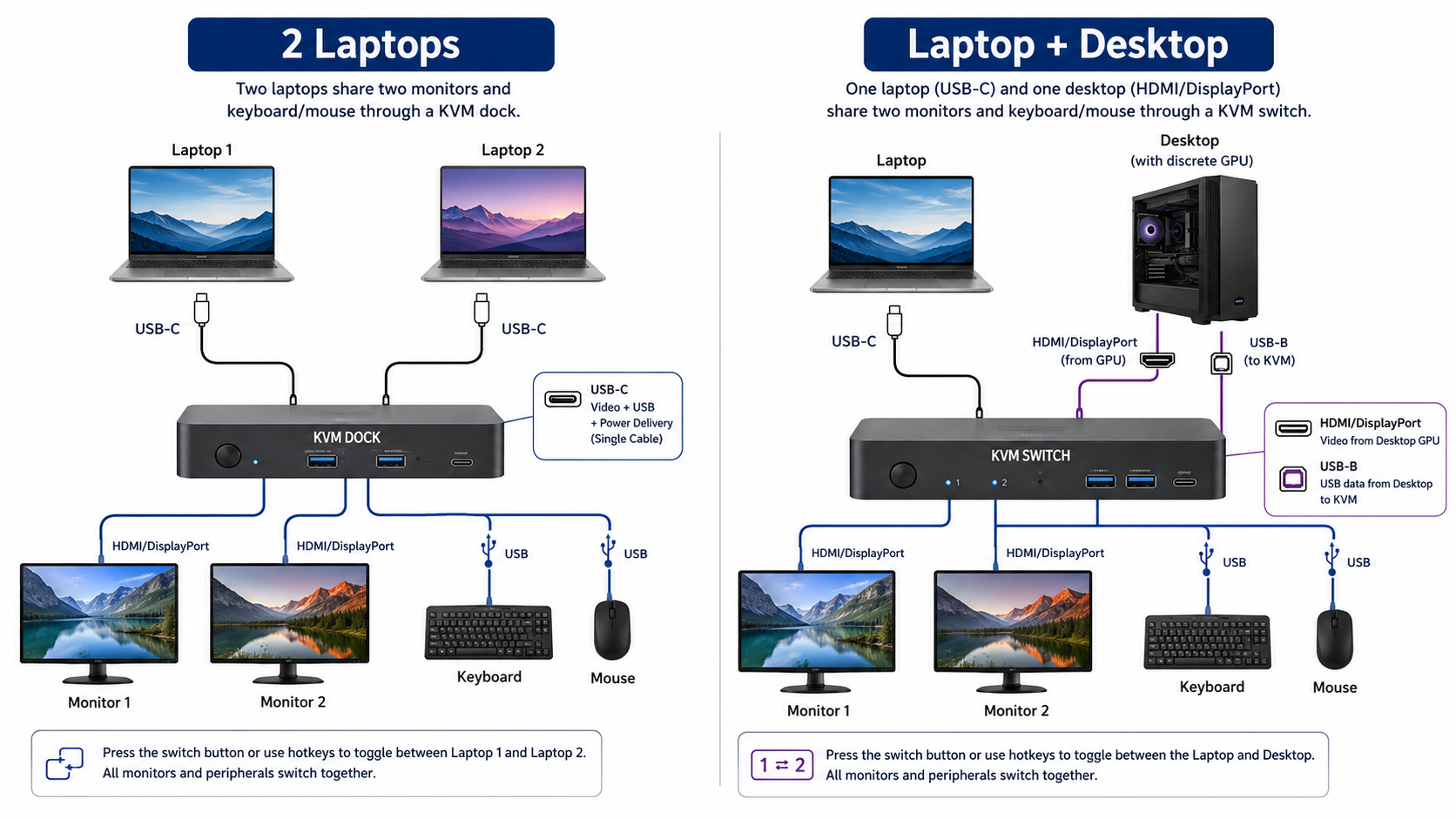
The products on this list divide into two fundamental architectures, and choosing the wrong one means returning it.
2-laptop KVM docking stations (Category A: products 1, 2, 4, and 5) accept two USB-C or Thunderbolt inputs. Both hosts connect via USB-C. These are the right choice when both machines are laptops with modern USB-C ports. They typically include hub functionality (GbE, USB-A ports, card readers), making them a dock replacement for both machines.
Laptop + desktop hybrid switches (Category B: products 3 and 6-8) accept a USB-C input for the laptop and a separate video output (HDMI, DP, or USB-A) from the desktop. These map to the more common home office scenario: a work laptop that docks when home, plus a personal desktop that’s always connected. The laptop gets PD charging; the desktop connects via its native GPU output. The caveat: if your desktop only has USB-A, product 7 accommodates it. Product 8 requires the desktop to have HDMI output.
USB-C pass-through switches (Category C: products 9-10) are for users who already own a dock. They add toggling between two upstream computers without replacing the dock’s port structure. If you’ve invested in a premium Thunderbolt 4 dock and just want to switch which laptop connects to it, these cost far less than a full KVM replacement.
For more context on how KVM docks compare to traditional docking stations, see our docks vs hubs comparison and our guide to docking stations vs monitors with built-in docks.
Frequently Asked Questions
Can I use a dual monitor KVM switch with a MacBook?
Yes, but the answer depends heavily on which MacBook you have and which switch you buy. MacBooks with M1, M2, or base M3 chips have a hardware limitation that prevents MST-based dual extended displays. Every USB-C KVM switch on this list that uses MST will deliver mirrored output on these chips — both monitors show the same content. The only exception is the StarTech.com 129N-USBC-KVM-DOCK, which uses DisplayLink technology and supports dual extended on all Apple Silicon chips after installing a driver.
MacBooks with M3 Pro, M3 Max, M4, M4 Pro, or M4 Max support native dual extended displays and work with MST-based KVMs without additional software. The AV Access MacBook KVM (product 6) is designed specifically for this pairing with a Windows desktop. If you’re unsure which chip your MacBook has, check Apple Menu → About This Mac → chip identifier.
What is EDID emulation and do I need it?
EDID emulation stores your monitor’s identification data inside the KVM switch and continuously presents it to each connected computer, even the one that’s not currently active. Without it, every time you switch KVM hosts, the inactive computer loses its display connection and Windows moves all open application windows to the primary screen. When you switch back, your carefully arranged multi-window workspace is collapsed onto one monitor and needs manual rearrangement.
If you use a single application full-screen, EDID emulation matters little. If you run complex multi-window layouts (multiple browser windows, code editors, terminals, design tools) across two monitors, EDID emulation is a quality-of-life feature you’ll miss the moment a cheaper switch lacks it. Of the products on this list, AV Access (products 1, 5, 6) and Minisopuru (product 8) explicitly include EDID emulation. Factor this in if your workflow depends on stable window placement.
Do USB-C KVM switches work with Thunderbolt laptops?
Yes. Thunderbolt 3, 4, and 5 are fully backward compatible with USB-C KVM switches. All Thunderbolt laptops have USB-C ports that work with any USB-C KVM. The benefit of using a Thunderbolt-specific switch like the Cable Matters B0DHT32R56 (rated TB4/USB4 native) is confirmed bandwidth and compatibility with the highest-speed peripherals. Standard USB-C KVM switches work fine with Thunderbolt laptops but may not pass through the full Thunderbolt protocol for daisy-chaining or maximum storage speeds. For most dual-monitor KVM use cases (video output, keyboard/mouse, Ethernet, USB peripherals), any USB-C KVM switch works with any Thunderbolt laptop.
The exception is maximum PD charging: Thunderbolt 4 laptops like the MacBook Pro can accept up to 140W via USB Power Delivery 3.1. Most KVM switches cap PD at 60-100W. For the 16-inch MacBook Pro, this means charging at below-full-speed rates while connected to most KVMs on this list. Check our Thunderbolt to HDMI guide for related adapter and cable considerations.
Can I game through a KVM switch?
Technically yes, practically depends on the switch and monitor combination. MST-based KVM switches (products 1, 2, 5, 7, 8, 9) pass through signal natively with near-zero added latency. The AV Access iDock C20 (product 1) explicitly supports 2K@144Hz and 1080p@240Hz for gaming — those refresh rates pass through cleanly for connected gaming monitors. DisplayLink-based switches (StarTech.com, product 4) add software processing latency that makes them unsuitable for competitive gaming or fast-paced titles.
The bigger limiting factor for gaming through a KVM is typically the KVM’s resolution and refresh rate ceiling. Most switches on this list are spec’d for 4K@60Hz maximum. For 1440p@165Hz or 4K@120Hz gaming, verify the switch’s maximum refresh rate before purchasing. The Cable Matters 20Gbps switch (product 9) and Club 3D CSV-2511 (product 10) support 4K@120Hz. For monitors rated above those specs, see our USB-C monitor roundup.
What’s the difference between a KVM switch and a KVM docking station?
A traditional KVM switch is a pure signal router. It sits between your computers and your monitors/keyboard/mouse and directs which computer gets control of the shared peripherals. It doesn’t charge your laptop, it doesn’t add USB ports, and it has no hub functionality. Connect two PCs, connect your peripherals to the KVM, press a button to switch which PC is in control.
A KVM docking station (most of the products on this list) combines the switching function with a full USB-C docking station hub. You get PD charging, USB-A peripheral ports, Ethernet, card readers, and display outputs, all of which switch together with one button press. One host connection replaces multiple cables, and the switch routes the entire dock to whichever computer you select.
The minimalist USB-C pass-through switches (products 9 and 10) sit in between: they add toggling to an existing dock without the dock’s hub functionality. If you already own a good Thunderbolt 4 dock and need to share it between two laptops, a pass-through switch is cheaper than replacing the dock. For full coverage of docking options without the KVM, see our Thunderbolt docking station roundup.
How We Research & Select
The dual monitor KVM switch category is unusually prone to misleading product listings. Manufacturers use “4K@60Hz dual monitor” in the title even when that spec only applies under specific conditions: certain cable configurations, specific Windows builds, or only when paired with host hardware the manufacturer tested internally. The products on this list were selected by cross-referencing manufacturer specs, compatibility documentation, and user reports for every pick.
For each product evaluated, the process included: reviewing the manufacturer’s official compatibility documentation and product specification sheets for accurate port counts, PD ratings, and resolution support; checking manufacturer-provided compatibility tables for specific Mac chip compatibility (M1, M2, M3 base, M3 Pro/Max, M4 series); reading structured user feedback patterns across verified purchaser reviews to identify failure modes, compatibility surprises, and real-world performance gaps not captured in spec sheets; and reviewing documentation from YouTube channel reviewers who provide screen recordings of actual two-monitor output and Mac compatibility results.
Particular attention was paid to Mac compatibility claims, which are frequently overstated. Several products were excluded from this list because their Mac dual extended display claims did not hold up across multiple user reports — they worked only in specific configurations not representative of typical use.
Products were grouped by use case architecture (two-laptop, laptop+desktop, minimalist switch) because purchasing the wrong architecture, not just the wrong brand, is the most common mistake buyers make in this category. A two-laptop KVM bought by someone with one laptop and a desktop is the wrong product regardless of its spec rating.
ASIN validation via Amazon Product Advertising API confirmed all 10 products are currently available with active listings.
Honorable Mentions
TESmart 8K DP KVM (B0F5M8MMBM): A strong dual-monitor KVM for desktop-only setups. TESmart specifies DisplayPort inputs and 8K resolution support, making it well-suited for dual-desktop workstations. The limitation: no USB-C input. If both your computers are USB-C laptops, this is the wrong product. For users running two DisplayPort-equipped desktops or towers, it’s worth investigating. Check current price on Amazon.
SABRENT KVM Switch (B0BR4JMMGZ): Solid USB-C KVM with reliable switching and good build quality. Sabrent specifies USB-C compatibility with standard KVM peripheral switching. The key limitation: single-monitor output only. If dual monitors are required, this switch won’t meet the spec. Good option for single-monitor setups or as a lower-cost starting point if dual display isn’t yet needed.
Plugable TBT-UDM (B0FGFW5FVD): Plugable describes this as a 13-port Thunderbolt 4 dock with two HDMI 2.0 outputs for up to dual 4K@60Hz on supported hosts, a 40Gbps downstream Thunderbolt port with up to 8K video, and 100W host charging with 96W certified delivery. It is driverless and supports Thunderbolt 4 and USB4 systems. This remains an honorable mention because it is a single-host dock, not a KVM, so it cannot switch between two computers. See our dual monitor docking station roundup for full coverage.