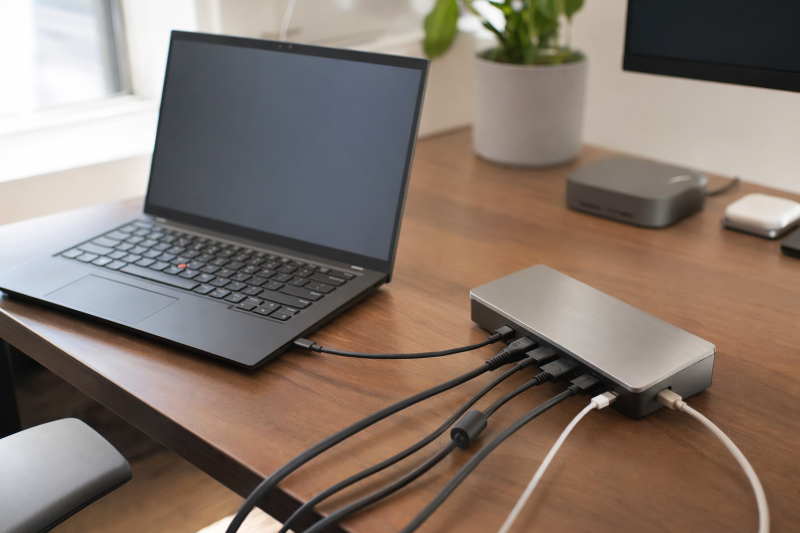
Most people who shop for a ThinkPad dock are looking for the ThinkPad Universal USB-C Dock, so here is the short answer first. That dock has no live Amazon listing, and Lenovo’s own documentation names the ThinkPad USB4 Dock 5000 as its successor. If that is what brought you here, the USB4 Dock 5000 is the dock to buy.
The second thing to settle is the laptop, not the dock. A ThinkPad’s USB-C port does not tell you what a dock can do once it is plugged in. Two ThinkPads with the same connector can drive different numbers of monitors and accept different charging rates, so the dock has to match your machine. Every specification below comes from Lenovo’s documentation, the manufacturer pages for the third-party docks, and the Amazon records for the listings we link.
Recent Updates
- July 2026: First edition. Built from manufacturer specifications and matching Amazon records. Covers the ThinkPad Universal USB-C Dock naming change and the choice between native display output and DisplayLink.
Quick Picks
- Best overall: Lenovo ThinkPad USB4 Smart Dock 5500. Our pick for a managed office desk, on the strength of the management features Lenovo documents for it.
- Best ThinkPad Universal USB-C Dock successor: Lenovo ThinkPad USB4 Dock 5000. Lenovo names it the successor, which settles the question.
- Best official Thunderbolt dock: Lenovo ThinkPad Thunderbolt 5 Smart Dock 7500. For a TB5 ThinkPad, or an office about to roll out TB5 laptops.
- Best for P-series workstations: Lenovo ThinkPad Thunderbolt 4 Workstation Dock. Check first that Lenovo lists your workstation for its split-cable charging path.
- Third-party Thunderbolt 4 option: Plugable TBT-UDM. Driverless dual-monitor docking, plus a downstream Thunderbolt port you will use.
- Best premium port selection: CalDigit TS4. For a TB4 or USB4 ThinkPad that needs card readers, fast Ethernet, and a lot of USB.
- Best value dual-monitor dock: Plugable UD-MSTH2. For a Windows ThinkPad that Lenovo specifies with DisplayPort Alt Mode.
- Best triple-monitor dock: Anker Prime DL7400. Three screens, by way of DisplayLink.
- Best portable dock: Lenovo USB-C Slim Travel Dock. One external display and the ports you need away from your desk.
| Image | Product | Details | Check Price |
|---|---|---|---|
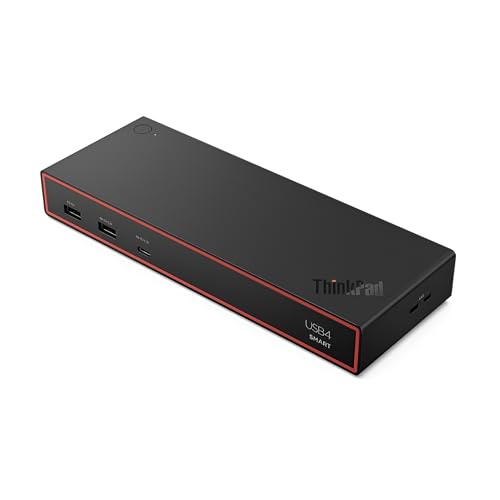 | Lenovo ThinkPad USB4 Smart Dock 5500 | Host Link: USB4 up to 40Gbps (Lenovo) Displays: Up to four external monitors (Lenovo) Video Ports: HDMI 2.1, two DP 1.4, full-function USB-C (Lenovo) Laptop Charging: Up to 100W with this configuration (Lenovo) | Check Price on Amazon |
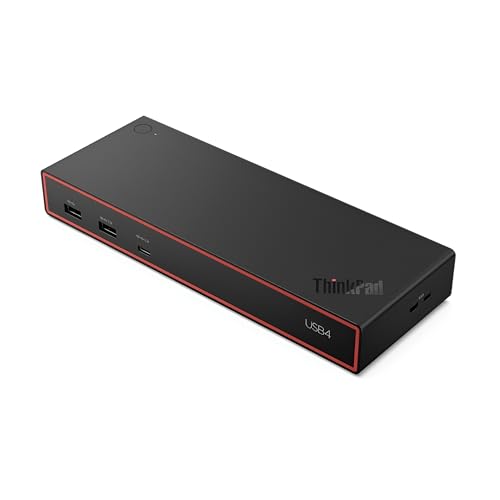 | Lenovo ThinkPad USB4 Dock 5000 | Role: Universal USB-C Dock successor (Lenovo) Displays: Host-dependent; verify Lenovo display matrix Video Ports: HDMI 2.1, two DP 1.4, full-function USB-C (Lenovo) Laptop Charging: 65W included; up to 100W with optional 135W adapter (Lenovo) | Check Price on Amazon |
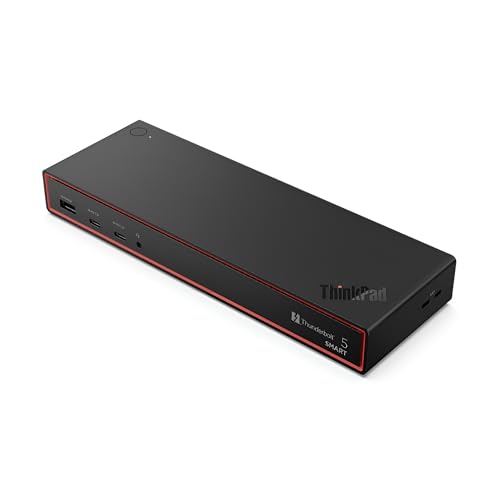 | Lenovo ThinkPad Thunderbolt 5 Smart Dock 7500 | Host Link: Thunderbolt 5 (Lenovo) Displays: Up to four monitors (Lenovo) Video Ports: Two DP 2.1, HDMI 2.1, two full-function TB5 (Lenovo) Laptop Charging: Up to 180W PD 3.1 (Lenovo) | Check Price on Amazon |
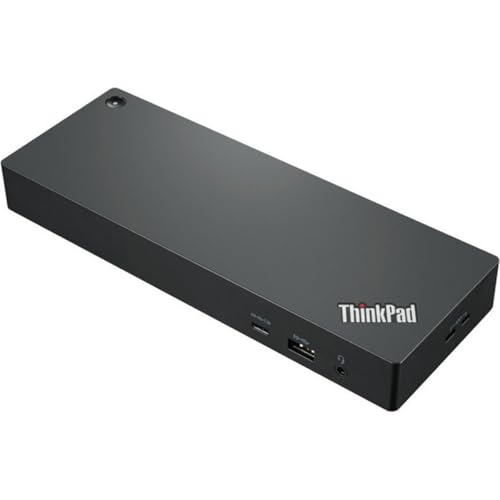 | Lenovo ThinkPad Thunderbolt 4 Workstation Dock | Host Link: Thunderbolt 4 plus proprietary split cable (Lenovo) Displays: One 8K30 or up to four 4K60 (Lenovo) Video Ports: Two DP 1.4 and HDMI 2.1 (Lenovo) Laptop Charging: Up to 230W on compatible workstations (Lenovo) | Check Price on Amazon |
 | Plugable TBT-UDM | Host Link: Thunderbolt 4 or USB4 (Plugable) Ports: 13 connections (Plugable) Displays: Dual 4K60 on supported hosts (Plugable) Laptop Charging: 100W host charging (Plugable) | Check Price on Amazon |
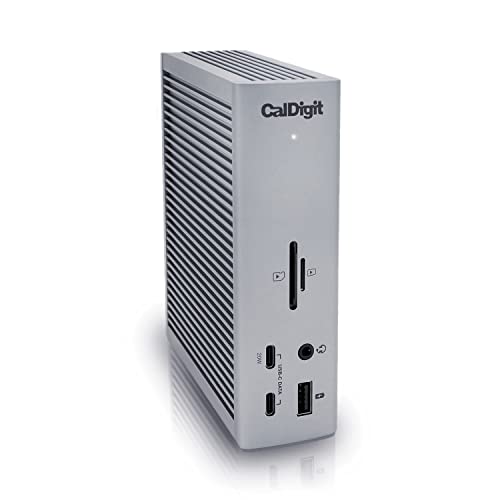 | CalDigit TS4 | Host Link: Thunderbolt 4 or USB4 preferred (CalDigit) Ports: 18 ports (CalDigit) Displays: Single 8K30; Windows dual 4K60; supported Mac dual 6K60 (CalDigit) Laptop Charging: 98W sustained (CalDigit) | Check Price on Amazon |
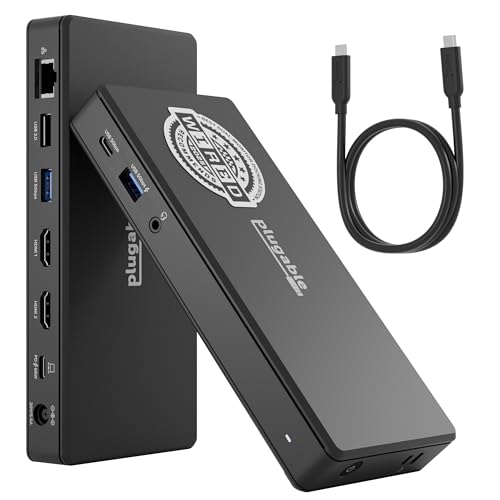 | Plugable UD-MSTH2 | Host Link: USB-C DP Alt Mode with MST (Plugable) Displays: Dual 4K60 on a capable host (Plugable) USB Data: One USB-C, two 5Gbps USB-A, one 480Mbps USB-A (Plugable) Laptop Charging: 65W (Plugable) | Check Price on Amazon |
| Anker Prime DL7400 | Display Method: DisplayLink driver required (Anker) Ports: 14 ports (Anker) Displays: Triple-display support (Anker) Laptop Charging: Up to 140W under stated conditions (Anker) | Check Price on Amazon | |
 | Lenovo USB-C Slim Travel Dock | Host Link: USB-C with video output (Lenovo) Displays: One external display up to 4K60 (Lenovo) Ports: HDMI, two USB-A, three USB-C, one power-only (Lenovo) Laptop Charging: Up to 65W pass-through (Lenovo) | Check Price on Amazon |
Which ThinkPad Dock Should You Buy?
| Choose this dock | If you need |
|---|---|
| Lenovo USB4 Smart Dock 5500 | Lenovo management features and one official desk standard |
| Lenovo USB4 Dock 5000 | Lenovo’s named successor to the Universal USB-C Dock |
| Lenovo Thunderbolt 5 Smart Dock 7500 | An official dock for a TB5 ThinkPad |
| Lenovo Thunderbolt 4 Workstation Dock | Lenovo’s proprietary high-power path for a supported P-series model |
| Plugable TBT-UDM | A driverless third-party TB4 dock with dual HDMI |
| CalDigit TS4 | The widest selection of everyday ports |
| Plugable UD-MSTH2 | Native dual-display output from a Windows USB-C host |
| Anker Prime DL7400 | Three displays through a required DisplayLink driver |
| Lenovo USB-C Slim Travel Dock | A single-monitor adapter for commuting |
Let the documentation pick the dock class for you. According to Lenovo, a ThinkPad specified with USB-C DisplayPort Alt Mode should use a USB-C dock whose display design matches that host, and any dock you buy should be one its maker lists for the laptop’s documented USB4, Thunderbolt 4, or Thunderbolt 5 host class. Lenovo’s official dock documentation and the support page for your exact model are where you confirm both.
1. Lenovo ThinkPad USB4 Smart Dock 5500, 40BC0135US — Best Overall
The USB4 Smart Dock 5500 is our top pick because it is the dock an office can standardize on. It puts Lenovo’s management features, a USB4 host link, and a wide set of display outputs on one desk, with enough charging for mainstream ThinkPads. If you are buying for a floor of T-series, X-series, or mobile workstation machines, start here.
Lenovo specifies a USB4 upstream link rated up to 40Gbps, one HDMI 2.1 port, two DisplayPort 1.4 connections, one full-function USB-C video port, six USB data ports, Gigabit Ethernet, and support for up to four external monitors on a capable host. For the 135W-adapter configuration represented here, Lenovo states that laptop charging can reach 100W.
Read those numbers as ceilings, not promises. A plain USB-C ThinkPad will connect, but its display lanes and its bandwidth will cut the monitor count or the resolution. Check Lenovo’s PSREF entry for your machine type before you plan a four-screen desk around this dock.
What separates the 5500 from the third-party docks is its role in a fleet. Lenovo documents management functions for supported ThinkPads, and the USB4 connection leaves a capable host more room for monitors, storage, networking, and peripherals than a basic USB-C dock gives it. If you are still choosing the laptop, our Thunderbolt laptop list shows which models carry the connection you need.
Our Take
Buy the USB4 Smart Dock 5500 when you want one official Lenovo desk standard for USB4 ThinkPads and would rather not think about it again. Skip it if your laptop has only basic USB-C video, or if a small single-monitor adapter already covers what you do.
- Lenovo documents USB4 bandwidth and broad host support
- Four separate video-capable outputs provide flexible desk layouts
- Lenovo specifies up to 100W charging for this configuration
- Official management features suit supported ThinkPad fleets
- Maximum display support depends on the exact ThinkPad host
- Plain USB-C systems cannot expose every USB4 capability
2. Lenovo ThinkPad USB4 Dock 5000, 40BF0100US — Best ThinkPad Universal USB-C Dock Successor
If your search started with the words ThinkPad Universal USB-C Dock, this is the dock you were looking for. Lenovo identifies the ThinkPad USB4 Dock 5000 as the successor. Hold onto that while you shop, because Amazon results mix the 40BF model with 40AY and 40AS docks whose similar names cover different hardware.
According to Lenovo, the dock has one HDMI 2.1 connection, two DisplayPort 1.4 connections, one full-function USB-C video port, six USB data ports, and Gigabit Ethernet. Lenovo notes that the monitor layout you can actually run depends on the connected laptop, its graphics hardware, the operating system, and the display chain. Confirm the layout you want in Lenovo’s matrix for your exact ThinkPad.
The charging needs one sentence of care. According to Lenovo’s specifications for 40BF0100US, the included 100W power adapter supplies 65W to the laptop, and Lenovo documents up to 100W laptop charging when the dock uses its optional 135W adapter. That is why Amazon’s title says 65W while a feature bullet says up to 100W. Both are true. Check which adapter is in the box before you count on the higher figure.
According to Lenovo, the dock connects to USB-C and Thunderbolt systems, but USB4 is what its full data and display design was built for. Lenovo’s compatibility notes say a USB-C-only ThinkPad stays limited by the host: fewer monitors, and less bandwidth for storage and networking while the displays are running.
Our ThinkPad Universal USB-C Dock v2 review fills in the background on how Lenovo names these docks.
Our Take
This is the dock we point people to when they ask what replaced the ThinkPad Universal USB-C Dock, because Lenovo made that call, not us. Before you order, check your ThinkPad, its operating system, and the monitor layout you want against Lenovo’s compatibility matrix.
- Lenovo designates it as the Universal USB-C Dock successor
- According to Lenovo, the dock has three dedicated outputs plus USB-C video
- According to Lenovo’s specifications, the dock supports USB-C and Thunderbolt hosts
- Exact 40BF model avoids older universal-dock confusion
- Lenovo ties display ceilings to the host configuration
- Similar Lenovo dock names make model checks essential
3. Lenovo ThinkPad Thunderbolt 5 Smart Dock 7500, 40BA0265US — Best Official Thunderbolt Dock
The Thunderbolt 5 Smart Dock 7500 is Lenovo’s flagship, and it is the right buy in two situations: you own a TB5 ThinkPad, or you are buying docks now for TB5 laptops that arrive later. TB4 and USB4 machines can plug into it and it will work. What it will not do is turn an older laptop into a TB5 laptop, so do not pay for bandwidth your machine cannot reach.
According to Lenovo’s specifications, the dock has two DisplayPort 2.1 outputs, one HDMI 2.1 output, two full-function Thunderbolt 5 connections, 2.5GbE, and support for up to four monitors. Lenovo’s technical table rates it for display configurations reaching up to 8K60, and notes that the more demanding multi-screen layouts depend on the whole chain: host, cable, display, and graphics. Lenovo rates the dock to provide Power Delivery 3.1 output up to 180W with the included 265W power adapter.
That 180W ceiling suits a powerful mobile system, and the laptop still decides what it accepts. Display bandwidth works the same way: a TB4 ThinkPad negotiates at its own generation and does not borrow TB5’s higher-bandwidth modes from the dock.
Thunderbolt 5 Docks — Where TB5 earns its keep and where TB4 is still enough
Our Take
We would buy the Smart Dock 7500 for a real TB5 ThinkPad, for demanding displays, or for a Lenovo-managed deployment heading toward TB5. For any laptop that cannot use the extra link capability, a TB4 or USB4 dock does the same job.
- Lenovo specifications list two full-function Thunderbolt 5 connections
- 2.5GbE supports faster wired office networks
- Lenovo rates charging up to 180W on supported hosts
- Official smart features fit managed Lenovo deployments
- Older hosts cannot unlock Thunderbolt 5 modes
- Large power adapter occupies more desk space
4. Lenovo ThinkPad Thunderbolt 4 Workstation Dock, 40B00300US — Best for P-Series Workstations
The Thunderbolt 4 Workstation Dock does one thing that no other dock here does. It feeds a compatible high-performance ThinkPad through Lenovo’s proprietary split-cable design, which carries more power than ordinary USB-C charging can. That makes it the official answer for supported P-series machines, and only for those.
Lenovo specifies one host Thunderbolt 4 connection, one downstream Thunderbolt 4 port, two DisplayPort 1.4 outputs, one HDMI 2.1 output, four USB-A ports, one USB-C port, and Gigabit Ethernet. According to Lenovo’s specifications, a supported configuration can drive a single display up to 8K30, or as many as four 4K60 displays. Lenovo rates the charging at up to 230W through the proprietary Thunderbolt and power split cable, using the included 300W adapter.
The split cable is the check that matters. Look the dock up in Lenovo’s accessory compatibility matrix under your exact machine type before you buy, particularly for a P1, a P16, or another mobile workstation.
Watch the seller too. Amazon marketplace offers for this model can come from third-party merchants rather than from Amazon or Lenovo, so check who is selling it, whether the split cable and the adapter are in the box, and what the warranty terms say.
Our Take
We recommend this dock for one reader: the owner of a supported P-series workstation who needs Lenovo’s high-power split-cable path. Everyone else gets a simpler life from a USB4 or Thunderbolt dock that charges over a single cable.
- Lenovo supports high-power charging on compatible workstations
- Three dedicated display outputs cover complex desk setups
- Downstream Thunderbolt supports another high-speed device
- Official Lenovo design targets supported P-series systems
- Full charging requires Lenovo’s proprietary split cable
- Marketplace availability may come from third-party merchants
- Ordinary ThinkPads cannot assume Lenovo-rated 230W charging
5. Plugable TBT-UDM — Best Third-Party Thunderbolt 4 Dock
The Plugable TBT-UDM is our third-party TB4 pick because it covers a working desk without asking you to care about Lenovo fleet features. You get the display outputs, the downstream Thunderbolt port, the card readers, and the charging. It is also driverless, which makes it the cleaner choice over DisplayLink whenever your ThinkPad supports the native display paths it needs.
According to Plugable’s specification, the dock has thirteen connections. Plugable rates its two HDMI 2.0 outputs for up to dual 4K60 displays on supported hosts. Plugable also lists a downstream Thunderbolt connection, SD and microSD UHS-II readers, Ethernet, audio, USB-A, and USB-C connectivity, and rates host charging at 100W.
Plugable lists Windows systems with Thunderbolt 4 or USB4 among the compatible hosts. That makes the TBT-UDM a good partner for an Intel ThinkPad with a documented TB4 or USB4 port, and a poor one for an older laptop that only has a USB-C-shaped connector.
If your real problem is that your ThinkPad cannot drive as many monitors as you want, skip ahead to the DisplayLink-based Anker, which was built for that.
Best Thunderbolt Docking Stations — The wider field, beyond ThinkPad compatibility
Our Take
The TBT-UDM is what we would put on a TB4 or USB4 ThinkPad that does not need a Lenovo dock. It mixes native displays with high-speed connections, and on a compatible Windows setup it does that without a display driver.
- Wide port selection covers data, media, and networking
- Driverless dual-display design suits supported Windows ThinkPads
- Downstream Thunderbolt supports displays or fast peripherals
- Plugable rates host charging at 100W
- Requires Thunderbolt 4 or USB4 for intended operation
- Dual-display ceiling still depends on the laptop
6. CalDigit TS4 — Best Premium Port Selection
The CalDigit TS4 is the dock you buy when you keep running out of ports. It suits photographers, audio creators, developers, and anyone whose desk has storage, wired networking, card media, audio gear, and displays connected at once. Lenovo’s smart docks win on central management. The TS4 wins on how much you can plug in.
CalDigit specifies eighteen ports, including three Thunderbolt 4 or USB4 connections, three USB-C ports, five USB-A ports, DisplayPort 1.4, 2.5GbE, SD and microSD readers, and audio connections. CalDigit rates sustained laptop charging at 98W. CalDigit’s product data lists one display up to 8K30, dual Windows displays up to 4K60, and dual displays up to 6K60 on the supported Mac configurations it names.
CalDigit is unusually open about the limits, and ThinkPad buyers should read them. The company states that a plain Windows USB-C host gets one external display through the TS4. CalDigit also says its 2.5GbE needs PCIe connectivity, which comes from Thunderbolt or USB4, so a basic USB-C host can lose the fast Ethernet as well.
Those two disclosures decide the buy. Pair the TS4 with a ThinkPad whose Lenovo specification lists TB4 or USB4. On a USB-C-only ThinkPad, a purpose-built USB-C dock will get more out of the laptop. If you are still picking the laptop, our guide to the best laptops with a TrackPoint shortlists the Lenovo models.
Our Take
Choose the TS4 when ports matter more to you than Lenovo’s management tools. Just do not buy it by connector shape. On the wrong ThinkPad you would be paying for capability the laptop cannot reach.
- CalDigit specifies eighteen ports across data, media, and audio
- 2.5GbE suits faster local network connections
- CalDigit rates sustained laptop charging at 98W
- Card readers suit photo and video workflows
- Plain Windows USB-C hosts get one external display
- 2.5GbE needs Thunderbolt or USB4 PCIe connectivity
7. Plugable UD-MSTH2 — Best Budget Dual-Monitor Dock
The Plugable UD-MSTH2 is the plain dual-monitor answer for a Windows ThinkPad that Lenovo lists with USB-C DisplayPort Alt Mode. It takes the DisplayPort signal the laptop already produces and splits it with Multi-Stream Transport, known as MST, instead of pushing compressed display data through a DisplayLink driver. What you get is a focused office dock: two monitors, Ethernet, USB devices, audio, and charging.
According to Plugable’s specifications, the dock has two HDMI outputs and supports up to dual 4K60 when the host provides the DisplayPort resources for it. According to Plugable, the dock provides 65W laptop charging, Gigabit Ethernet, one 5Gbps USB-C data port, two 5Gbps USB-A ports, one 480Mbps USB-A port, and audio support. Plugable describes the dock as driverless on supported Windows and ChromeOS systems.
Supported host is the phrase to hold onto. Plugable requires DisplayPort Alt Mode from the laptop’s USB-C connection, and says the dual 4K60 ceiling also depends on the ThinkPad’s DisplayPort version, its Display Stream Compression support, its graphics resources, and how loaded the displays already are. Lenovo’s PSREF page for your exact machine type is where you check all four. Plugable also states that macOS gets only one external display through this MST design, which costs the dock nothing in a ThinkPad guide.
Docking Stations for Dual Monitors — The wider native dual-screen field
Our Take
Buy the UD-MSTH2 when your Windows ThinkPad supports DP Alt Mode and all you want is a dual-HDMI desk with no driver in the way. Skip it if the laptop cannot produce two native display streams, or if you need a third screen.
- Plugable rates dual 4K60 output for supported hosts
- Plugable documents driverless operation on supported Windows systems
- Plugable rates charging at 65W, which suits mainstream ThinkPads
- Plugable’s dual HDMI design simplifies office monitor setups
- Host must support USB-C DisplayPort Alt Mode
- Plugable limits macOS to one external display
- Maximum resolution depends on host display resources
8. Anker Prime DL7400, A83B3 — Best Triple-Monitor Dock
The Anker Prime DL7400 is our pick for the ThinkPad owner who needs three external monitors and will accept a software driver to get them. A native MST dock passes the signal the GPU makes. The DL7400 sends compressed display data over USB instead, under the control of DisplayLink software. That is how it gets past a laptop’s native monitor limit, and it is also why it gives up ground on motion, latency, and color-sensitive work.
Anker specifies fourteen ports, including two HDMI outputs, one DisplayPort output, 2.5GbE, USB-C, USB-A, audio, SD, and microSD. Anker rates the dock for up to three external displays at 4K60, and rates the charging output up to 140W when the host supports USB Power Delivery 3.1 and no more than one front USB-C device is connected.
The driver decides what the DL7400 is good at. Spreadsheets, dashboards, messaging, and ordinary office work run fine across three screens. Competitive gaming and color-critical editing do not. And if your desk really holds two computers rather than one laptop and three displays, a dock is solving the wrong problem.
Best Dual-Monitor KVM Switches — Share monitors and peripherals between two systems
Our Take
Choose the DL7400 when the third screen is worth more than a native video path and your ThinkPad environment allows DisplayLink. Choose MST or Thunderbolt if you game, do color work, or want nothing installed.
- Anker rates three external displays at up to 4K60
- DisplayLink can bypass native monitor-count limits
- 2.5GbE and card readers suit busy office desks
- Anker rates charging up to 140W under stated host conditions
- Display output requires the DisplayLink driver
- Software video is weaker for gaming and color work
- Anker conditions maximum charging on host and port use
9. Lenovo USB-C Slim Travel Dock, 4X11N40213 — Best Portable Dock
The Lenovo USB-C Slim Travel Dock is for the reader who cares more about what fits in a bag than about a permanent desk. The cable is built in and the port set is small, so there is less to pack and less to forget. Pass-through power means one charger can feed the dock and a compatible ThinkPad at once.
According to Lenovo’s specifications, the dock has one HDMI connection, two USB-A ports, and three USB-C connections. Lenovo specifies that two USB-C connections carry 10Gbps data and identifies the third as power-only for pass-through charging. Lenovo lists one external display up to 4K60, rates USB-C power pass-through up to 65W, and states that the dock is driver-free. Lenovo also states that the host USB-C port must provide 5V/3A when the dock runs without an AC adapter.
Lenovo sells this as a single-display accessory, and that is how you should buy it. Your ThinkPad’s USB-C port has to support video output, and the host still sets the resolution and the refresh rate you get. The built-in cable is the trade: one less thing to pack, and one thing you cannot swap out when it fails.
The Travel Dock suits a light ThinkPad that moves between home, the office, and client sites. If you are working out whether your next machine has the port a future dock will need, our roundup of the best Thunderbolt laptops is the place to check.
Our Take
Take the Slim Travel Dock for one monitor, a few wired accessories, and charging on the road. Buy a full desk dock the moment you need several displays, faster networking, or a downstream Thunderbolt device.
- Lenovo documents driver-free USB-C operation
- Integrated cable reduces travel setup pieces
- Two 10Gbps USB-C ports support modern accessories
- Lenovo rates power pass-through up to 65W
- Lenovo limits display output to one external monitor
- Host USB-C port must support video output
- Integrated cable is not easily replaceable
Buying Guide: How to Match a Dock to Your ThinkPad
Start with the exact machine type, not the connector shape
“USB-C” names a connector. It does not name a feature set. A ThinkPad can have a USB-C port that moves data and charges the battery but sends no monitor signal at all. It can have a port with DisplayPort Alt Mode, a USB4 port, or a certified Thunderbolt port. The plug looks the same in every case, so one dock can behave very differently on two ThinkPad generations.
Open Lenovo’s PSREF or support page for the exact machine type printed on your laptop, and look for whether Lenovo names DisplayPort Alt Mode, USB Power Delivery, USB4, Thunderbolt 4, or Thunderbolt 5. Then put that specification next to the dock maker’s compatibility page. Do not shop by family name. T14, X1 Carbon, and P16 all changed ports between generations, and sometimes between processor variants of the same generation.
Once you know the host, the shortlist writes itself. An older ThinkPad that Lenovo documents only with USB-C DisplayPort Alt Mode belongs with a native USB-C dock such as the Plugable UD-MSTH2 or the Lenovo Travel Dock. A generation with USB4 or Thunderbolt 4 will get more out of the Lenovo USB4 docks, the Plugable TBT-UDM, or the CalDigit TS4. Only a machine Lenovo actually equips with Thunderbolt 5 belongs with the Smart Dock 7500. Do not infer TB5 from a new processor or a USB-C-shaped port.
USB-C versus Thunderbolt 4 versus USB4 on a ThinkPad
A USB-C DP Alt Mode dock works with the display resources the laptop hands it. That is enough for ordinary USB accessories, wired networking, charging, and one or two monitors inside the host’s documented limits. The Plugable UD-MSTH2 takes this approach at full size, and the Lenovo Travel Dock shrinks it to one external screen you can carry.
Thunderbolt 4 and USB4 docks earn their price when the ThinkPad has to run displays, fast storage, network traffic, and downstream high-speed devices at the same time. Plugable lists the TBT-UDM for TB4 and USB4 hosts. CalDigit documents which TS4 features fall away on plain USB-C. Both makers are telling you the same thing: a premium dock is not automatically a better dock on an older laptop.
USB4 is also Lenovo’s named way out of the old Universal USB-C Dock family. The USB4 Dock 5000 is the successor, and the USB4 Smart Dock 5500 adds the managed-office features on top.
Thunderbolt 5 is for a ThinkPad whose Lenovo documentation names TB5, or for an organization stocking docks ahead of those machines. A TB5 dock negotiates backward with older compatible hosts, and the laptop stays the ceiling. For the large installed base of TB4 ThinkPads, our guide to Thunderbolt 4 docking stations is the more useful comparison.
Match the charging path before counting ports
Start with the wattage Lenovo specifies for your ThinkPad’s own charger, then find out what the laptop accepts over its documented USB-C or Thunderbolt port. A big power adapter on a dock does not mean all of that power reaches the laptop. The dock keeps some for itself and for the devices you attach, and the computer negotiates its own input limit anyway.
The published figures vary. Lenovo says the USB4 Dock 5000’s charging ceiling depends on the adapter and the connected laptop. Lenovo rates the USB4 Smart Dock 5500 configuration here up to 100W. Plugable rates TBT-UDM host charging at 100W. CalDigit rates the TS4 at 98W sustained. Anker puts the DL7400 at up to 140W, conditioned on host PD support and on how many front ports you are using. Every one of those is a manufacturer ceiling, and none is a promise about your ThinkPad.
The Workstation Dock plays by different rules. Lenovo’s up-to-230W path runs through the proprietary split cable and a compatible workstation. If Lenovo does not list your machine for that arrangement, do not expect the dock to replace its high-power charger.
Choose native MST or DisplayLink for multiple monitors
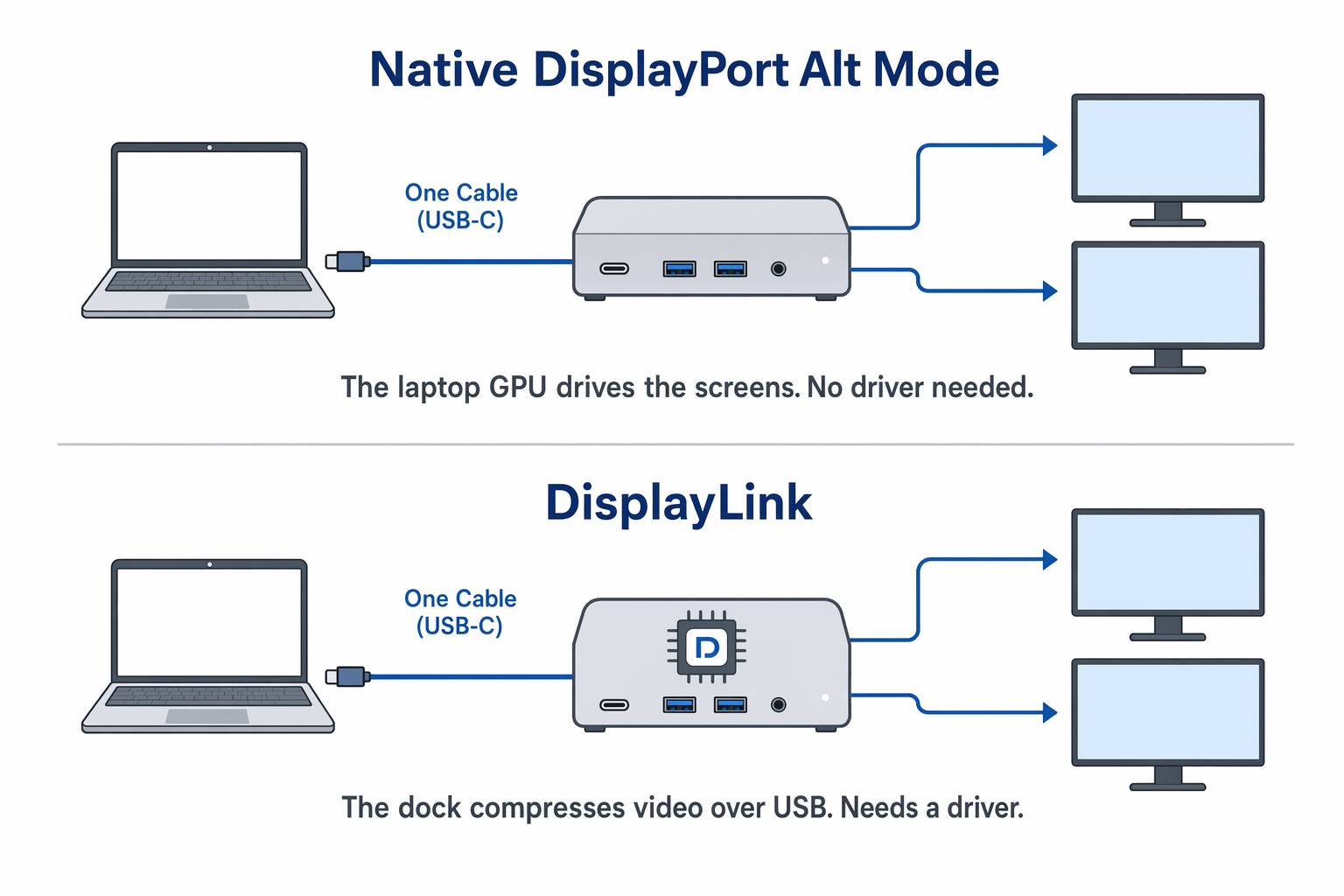
Native display output carries a signal the laptop’s GPU produced, through USB-C, USB4, or Thunderbolt. MST is the part that lets a compatible Windows host split one DisplayPort stream across several screens. Plugable builds the UD-MSTH2 that way and says macOS gets only one external display from it. On a Windows ThinkPad with enough DisplayPort resources, native MST gets you multiple monitors and no driver.
DisplayLink goes the other way. The Anker DL7400 uses software and a USB data connection to manufacture display outputs the laptop could not produce on its own. That is genuinely useful when the native monitor count is your obstacle, and it costs you the driver and the compression. For low-latency play, protected content, and color-critical production, stay on native Thunderbolt or MST.
Counting monitors is not enough either. Check the resolution, the refresh rate, Display Stream Compression support, what the cable can carry, and whether the internal panel is already eating part of the graphics engine’s limit. For laptops that do not need Thunderbolt, our USB-C docking station guide goes deeper.
Decide whether Lenovo management features matter
An official Lenovo smart dock earns its place when an IT team needs the functions Lenovo documents for supported systems, or wants one vendor answering for both the dock firmware and the laptop. The USB4 Smart Dock 5500 and the Thunderbolt 5 Smart Dock 7500 are the two that fit.
A home office or a small team usually gets more out of a third-party dock. Plugable sells driverless operation, CalDigit sells port density, and Anker solves one problem, the third display, with DisplayLink. None of those roles beats Lenovo’s on principle. The right answer depends on which constraint is actually binding on your desk: management, downstream devices, the display method, or charging.
Check the seller, model code, cables, and power adapter
Amazon titles blend product families, accessories, and reseller bundles together. Match the manufacturer’s model code and not just the dock name. Lenovo’s Universal USB-C products are the worst offenders, because 40AY, 40AS, 40B7, and 40BF are four different pieces of hardware with four similar names.
Then check the box. Confirm the listing includes the power adapter and host cable the maker specifies, and for the Workstation Dock confirm the proprietary split cable. Last, look at who is selling it, and read the return and warranty terms. A correct ASIN can still change hands to a different seller.
Frequently Asked Questions
What replaced the ThinkPad Universal USB-C Dock?
The ThinkPad USB4 Dock 5000. Lenovo identifies it as the successor to the Universal USB-C Dock, its model is 40BF0100US, and the Amazon ASIN we verified for this guide is B0GDB5J3VP. Lenovo specifies that it connects to supported USB-C and Thunderbolt systems, and that USB4 hosts are the ones that reach its intended higher-bandwidth operation.
Do not confuse it with the ThinkPad Universal USB-C Dock v2, model 40B70090US, or with the 40AY and 40AS docks. We searched Amazon by exact model and found no matching 40B7 ASIN, so rather than attach that name to some other product, we left it off the list.
Can any USB-C docking station work with any ThinkPad?
No. The plug can fit perfectly while the video, the charging, or the downstream features do nothing. For native monitor output, the ThinkPad’s port has to expose the display capability the dock needs, which usually means DisplayPort Alt Mode, USB4, or Thunderbolt. Charging depends separately on USB Power Delivery support and on the input the laptop accepts.
Check Lenovo’s PSREF page for your exact machine type against the dock maker’s host requirements, and do it even inside a single ThinkPad family, because generations carry different port specifications.
Do I need Thunderbolt 4 or USB4 for a ThinkPad dock?
Only if your work needs something a basic USB-C dock cannot give you: downstream Thunderbolt devices, several high-bandwidth peripherals at once, or the display arrangements those host classes document. A desk with one monitor, Ethernet, a keyboard, and charging runs well on ordinary USB-C DP Alt Mode.
Buy for the host you have, not the host you wish you had. CalDigit states that a plain Windows USB-C connection limits the TS4 to one external display, and can take 2.5GbE away as well, because that feature needs PCIe connectivity. Your laptop’s port generation matters more than the dock’s headline specification.
Can a ThinkPad docking station run three or four monitors?
Some can. Read the number on a dock page as a maximum configuration, not as a result you are owed. Lenovo lists up to four monitors for several docks in this guide, and Anker lists three displays for the DL7400 through DisplayLink. What you actually get depends on the ThinkPad GPU, the host port, DisplayPort and DSC support, the operating system, the resolutions, the refresh rates, the cables, and whether the internal panel is still switched on.
Read the dock maker’s display matrix and Lenovo’s specification for your ThinkPad together. If the native resources fall short, a DisplayLink dock can add screens in software, at the cost of a driver. If you want native output, bring the monitor count down until it fits what the host documents.
Will the ThinkPad Workstation Dock charge every laptop at 230W?
No. Lenovo rates the Thunderbolt 4 Workstation Dock up to 230W only through its proprietary split cable, and only with a compatible high-power Lenovo workstation. A standard USB-C or Thunderbolt cable does not turn 230W into a number that applies to every laptop.
Confirm two things before you buy: that Lenovo lists your exact machine type for the workstation charging arrangement, and that the Amazon package includes the split cable and the specified adapter. An ordinary ThinkPad on its standard USB-C or Thunderbolt port negotiates whatever power its own input supports, which can land far below Lenovo’s workstation ceiling.
Should I use MST or DisplayLink for a multi-monitor ThinkPad desk?
Choose MST when your Windows ThinkPad has the native DisplayPort resources for the monitors you want and you would rather install nothing. The Plugable UD-MSTH2 uses MST, and Plugable says the ThinkPad host must support DisplayPort Alt Mode.
Choose DisplayLink when the native monitor limit is the thing standing between you and the screens you need, and installing the driver is acceptable where you work. Anker’s DL7400 uses DisplayLink for its display function, which serves documents, messaging, dashboards, and browser work well. Stay with native MST or Thunderbolt for gaming, low-latency video, and color-sensitive creative work.
How We Research and Select ThinkPad Docks
We build this guide on Lenovo’s official dock and laptop documentation, because with ThinkPad docks compatibility decides everything and a long feature list decides nothing. For each Lenovo dock, we match the family name to its model code, compare the supported host classes, and record what Lenovo states for displays, ports, and charging. For the third-party docks, those numbers come from the manufacturer’s own specification page.
Then we search Amazon by exact product and model, and check the ASIN and its New-offer state item by item. A dock does not make the main list if its Amazon record maps to different hardware, if it has no buyable New offer, or if the product name is hiding the wrong model underneath. That rule is why we never paired the 40B7 name with an older 40AY or 40AS ASIN.
We select by role, not by score. Native video against DisplayLink. Official management against third-party port selection. Ordinary USB-C charging against the proprietary workstation path. Desk docks against something you can carry. We attribute every specification to Lenovo, Plugable, CalDigit, or Anker, and we treat every display figure as a manufacturer ceiling that your ThinkPad still has to reach.
Honorable Mentions
Lenovo ThinkPad Thunderbolt 4 Smart Dock Gen 2 7500
The official dock to watch if your fleet is standardizing on TB4. Lenovo documents 100W Power Delivery, 2.5GbE, two DisplayPort 1.4 outputs, HDMI 2.1, and support for up to four displays on capable systems. We left it out of the main list for one reason: Amazon categorizes the exact ASIN as AVAILABLE_DATE rather than in stock, and we will not tell you to buy something Amazon says you cannot buy.
Kensington SD5780T
Kensington’s product sheet documents Thunderbolt 4, dual-display support, and 96W Power Delivery. Kensington also marks the model discontinued, and third-party offers do not change that. A discontinued dock is weaker advice than the supported products above.
Anker Prime Thunderbolt 5 Dock and CalDigit TS5
Both have matching Amazon product records and manufacturer documentation, and both are credible for a TB5 desk. In a ThinkPad guide we gave that slot to Lenovo’s official TB5 dock, and gave the CalDigit role to the TS4, which serves the larger installed base of TB4 and USB4 ThinkPads.