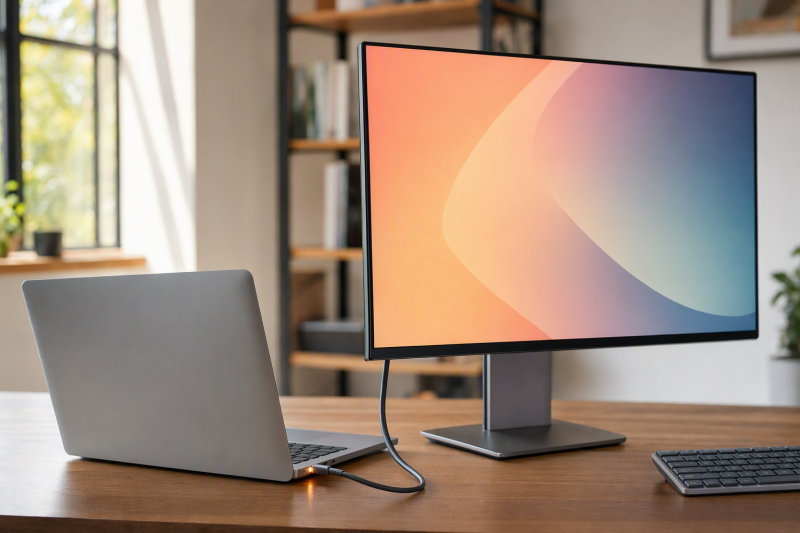
Our best USB-C monitor with 65W laptop charging is the Philips 27E1N5900R/27, which puts a 27-inch 4K panel behind a documented USB-C DisplayPort Alt Mode/data path, two downstream USB ports, and USB Power Delivery up to 65W. Dell S2725QC adds up to 120Hz, ASUS PA279CV adds a 27-inch 4K ProArt panel and USB hub, Dell S2725DC adds QHD, three downstream USB ports, and integrated speakers, and BenQ GW2786TC adds 100Hz plus DisplayPort MST output. Our broad USB-C monitor guide covers other power classes and display sizes.
The monitor offers up to 65W; the laptop decides what it accepts through USB Power Delivery negotiation. A 65W ceiling covers many thin laptops comfortably and runs short for a performance workstation under load. Panel resolution, refresh, USB-C video input, hub bandwidth, downstream display support, color claims, and charging should be checked for the exact model. None of the specifications below is a test result from this site.
Quick picks
- Philips 27E1N5900R/27: Best overall 27-inch 4K 65W USB-C monitor.
- Dell S2725QC: Best 4K option with an up-to-120Hz ceiling.
- ASUS ProArt PA279CV: Best 4K creator-oriented hub monitor.
- Dell S2725DC: Best QHD option with three downstream USB ports and integrated speakers.
- BenQ GW2786TC: Best FHD 100Hz option with MST output.
Compare USB-C monitors with 65W charging
| Image | Product | Details | Check Price |
|---|---|---|---|
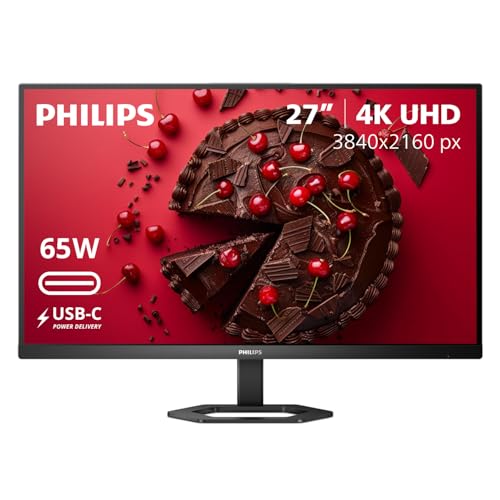 | Philips 27E1N5900R/27 | Panel: 27-inch 3840 x 2160 IPS-class USB-C path: DP Alt Mode and data PD ceiling: Up to 65W Decision feature: HDMI, DisplayPort and 2 downstream USB ports Buyer check: Laptop accepted draw and cable still control | Check Price on Amazon |
 | Dell S2725QC | Panel: 27-inch 3840 x 2160; up to 120Hz USB-C path: Manufacturer-documented display path PD ceiling: Up to 65W Decision feature: Integrated speakers Buyer check: Do not transfer one gaming mode to every host | Check Price on Amazon |
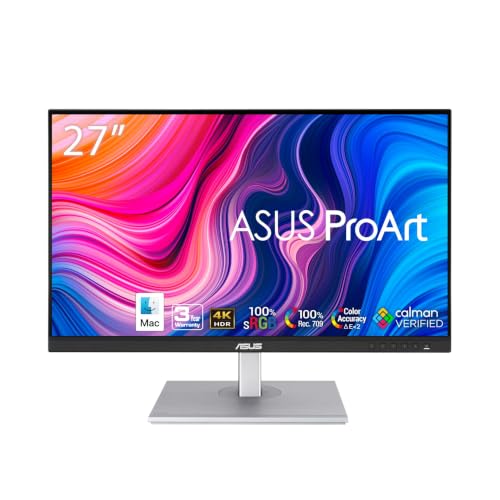 | ASUS ProArt PA279CV | Panel: 27-inch 3840 x 2160 IPS USB-C path: DisplayPort over USB-C and data PD ceiling: 65W Decision feature: DisplayPort, HDMI, and USB hub Buyer check: Color/calibration figures are ASUS claims | Check Price on Amazon |
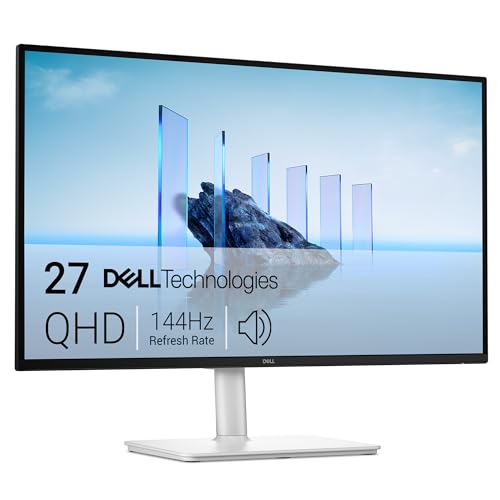 | Dell S2725DC | Panel: 27-inch 2560 x 1440; 144Hz USB-C path: DisplayPort 1.4 Alt Mode upstream PD ceiling: Up to 65W Decision feature: 2 x 3W speakers and 3 downstream USB ports Buyer check: Input path controls supported refresh | Check Price on Amazon |
 | BenQ GW2786TC | Panel: 27-inch 1920 x 1080 IPS; 100Hz USB-C path: DP Alt Mode and data PD ceiling: Up to 65W Decision feature: DP MST out and 2 downstream USB-A ports Buyer check: 99% sRGB remains a BenQ-stated figure | Check Price on Amazon |
1. Philips 27E1N5900R/27 — best overall 27-inch 4K option

Philips documents a 27-inch 3840 x 2160 IPS-class display, USB-C with DisplayPort Alt Mode and data, and USB Power Delivery up to 65W. HDMI and DisplayPort inputs open the panel to a desktop or second source, while two downstream USB ports turn the USB-C connection into a small peripheral hub for the laptop.
Keep the 4K panel and the 65W path as separate jobs. The host must support DisplayPort Alt Mode to send video, the cable must carry the required data and video lanes, and the laptop must accept the negotiated power profile. Philips’ ceiling proves nothing about constant 65W at the battery.
Our Take
Choose the Philips when 27-inch 4K workspace and a small USB hub both matter and 65W covers the laptop. In this power class it is the cleanest all-round exact fit.
- 27-inch 4K panel
- USB-C video, data, and up to 65W
- HDMI, DisplayPort, and two downstream USB ports
- 65W may not cover a high-power workstation
- Refresh and multi-display needs require separate product checks
2. Dell S2725QC — best 4K option with up to 120Hz

Dell documents a 27-inch 3840 x 2160 panel, an up-to-120Hz ceiling, a USB-C display route with up to 65W, and integrated speakers. For anyone who wants smoother supported desktop motion without giving up 4K resolution or the one-cable laptop route, it is the stronger pick.
“Up to 120Hz” is a monitor ceiling rather than a universal USB-C result. The laptop GPU, exact USB-C output, operating system, cable, selected input, and monitor mode all have to support it. Do not carry a gaming-path claim, adaptive-sync behavior, HDR mode, color format, or response result across to every host. Dell’s 65W output stays a separate negotiated charging ceiling.
Our Take
Pick S2725QC when supported 4K high refresh outweighs the broader hub features of the other models. Buying for 120Hz means confirming the exact host path first.
- 27-inch 4K panel
- Dell-stated ceiling up to 120Hz
- USB-C up to 65W and integrated speakers
- 120Hz depends on the exact input chain
- Gaming behavior is not universal across hosts
3. ASUS ProArt PA279CV — best 4K creator-oriented hub
ASUS lists a 27-inch 3840 x 2160 IPS panel, DisplayPort over USB-C with data and 65W Power Delivery, DisplayPort, HDMI, and a USB hub. A single USB-C connection carries the specified display, data, and charging functions for a compatible laptop.
ASUS lists factory calibration, Calman Verified status, 100% sRGB, 100% Rec. 709, and Delta E below 2 for PA279CV. The Amazon listing has one bullet that describes a 23.8-inch Full HD panel, which is a different size; confirm the PA279CV model on the listing. ASUS identifies PA279CV as a 27-inch 4K model.
Our Take
Choose PA279CV for a 27-inch 4K ProArt desk with USB-C Power Delivery and a USB hub. Let the connectivity decision drive the purchase, never an unqualified color promise.
- ASUS PA279CV uses a 27-inch 4K IPS panel.
- ASUS PA279CV supports USB-C DisplayPort, data, and 65W Power Delivery.
- ASUS PA279CV includes DisplayPort, HDMI, and a USB hub.
- ASUS lists 65W of USB-C Power Delivery, so a laptop that needs more than 65W needs its own charger.
- ASUS lists Adaptive-Sync from 40 to 60Hz.
4. Dell S2725DC — best QHD option with extra USB ports and speakers
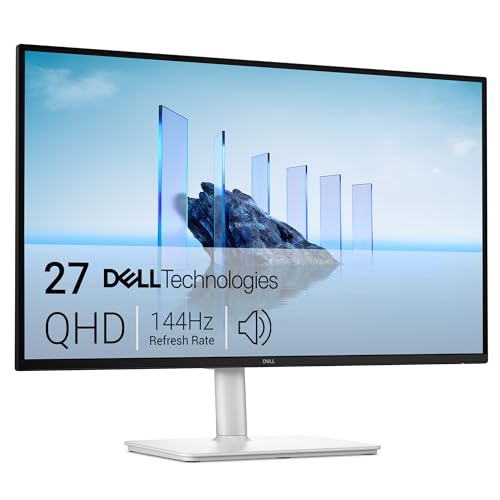
Dell lists a 27-inch 2560 x 1440 panel with a 144Hz refresh rate, an upstream USB-C port with DisplayPort 1.4 Alt Mode and Power Delivery up to 65W, and two 3W speakers. Dell lists three downstream USB ports for peripherals.
The listed upstream USB-C port carries DisplayPort 1.4 Alt Mode and Power Delivery up to 65W; the stated 144Hz mode needs a compatible input path.
Our Take
Choose S2725DC when QHD, a 144Hz refresh rate, speakers, and three downstream USB ports suit the desk better than either FHD or 4K. Check the laptop and selected input before counting on the stated refresh mode.
- Dell specifies a 27-inch QHD panel and a 144Hz refresh rate.
- Dell lists an upstream USB-C port with DisplayPort 1.4 Alt Mode and Power Delivery up to 65W.
- Dell includes two 3W speakers and three downstream USB ports.
- Dell’s 144Hz mode needs a compatible input path.
- Dell lists USB-C Power Delivery up to 65W, so a laptop that needs more than 65W needs its own charger.
5. BenQ GW2786TC — best FHD 100Hz option with MST

BenQ documents a 27-inch 1920 x 1080 IPS panel with a 100Hz ceiling, USB-C DisplayPort Alt Mode/data and up to 65W, DisplayPort MST output, and two downstream USB-A ports. Where readable native-size interface elements, smoother supported desktop motion, and a second-display route outrank high pixel density, it is the practical fit.
BenQ states 99% sRGB for this exact model. Read that as a manufacturer specification, not measured coverage or color accuracy. The 100Hz and MST paths also lean on the host, output capabilities, cable, lane allocation, and downstream display. A second display needs a compatible host, operating system, cable, and available bandwidth.
Our Take
Pick GW2786TC for an FHD 100Hz office desk with two USB-A ports and a documented MST output. Where text density comes first, take a 4K model instead.
- 100Hz manufacturer ceiling
- USB-C video, data, and up to 65W
- DP MST out and two USB-A ports
- FHD is less sharp than QHD or 4K at 27 inches
- Color figure is manufacturer-stated
How to choose a 65W USB-C monitor
Start with the laptop’s normal power demand
Start by checking what the laptop accepts through USB-C and how much it draws during the intended workload. A thin office laptop may run and charge comfortably within 65W. A performance laptop can charge slowly, hold its level, or drain under load. No monitor forces 65W into a host, and none exceeds its own published ceiling.
Separate offered power from accepted draw
The monitor offers a USB PD profile, the cable carries a supported power class, and the laptop accepts a negotiated amount. Battery state, system load, and vendor charging logic can all shift what you actually see. Keep the original laptop charger within reach where 65W does not cover peak demand.
Confirm USB-C carries video
The connector on its own proves no DisplayPort Alt Mode. The selected laptop port has to support video output, the cable has to be full featured, and the monitor input has to be selected correctly. Our USB-C cable guide explains why a working charging connection can still lack the required display wiring.
Pick panel resolution before hub extras
Philips, S2725QC, and PA279CV are 4K; S2725DC is QHD; BenQ is FHD. Resolution moves workspace, scaling, GPU load, and text density, and it moves nothing about the 65W charging decision. Choose the panel for viewing distance and software first, then compare downstream USB, speakers, and display output.
Qualify refresh on the exact path
Dell states up to 120Hz for S2725QC and BenQ states 100Hz for GW2786TC. Neither maximum proves the same result through every USB-C host. Check resolution, refresh, input, GPU, cable, OS, and any bandwidth-sharing USB mode as one set. No gaming-performance result is claimed.
Treat MST as topology, not a promise
BenQ documents DisplayPort MST output for this model. What the chain finally does depends on the host GPU, operating system, cable, bandwidth, first monitor, and second monitor. A downstream socket guarantees no two screens at their panel maxima. Our guide to monitors with built-in docking covers this broader desk design.
Is 65W enough for a laptop?
It is enough when the laptop accepts USB-C PD at or below that ceiling and the workload stays inside the resulting power budget. It replaces no 90W, 100W, 140W, or proprietary charger universally. Check the laptop’s USB-C charging specification, and keep its original adapter for workloads that outrun the monitor path.
Final recommendation
Philips 27E1N5900R/27 is the best overall 65W USB-C monitor for a desk that wants 27-inch 4K resolution and a small hub. After that, one requirement picks each alternative: Dell S2725QC for a supported 120Hz path, ASUS PA279CV for a 27-inch 4K ProArt USB-C hub, Dell S2725DC for QHD with extra USB ports and speakers, BenQ for FHD 100Hz plus MST. Whichever you choose, qualify the panel, input, cable, accepted laptop draw, USB hub, refresh, and display topology separately.