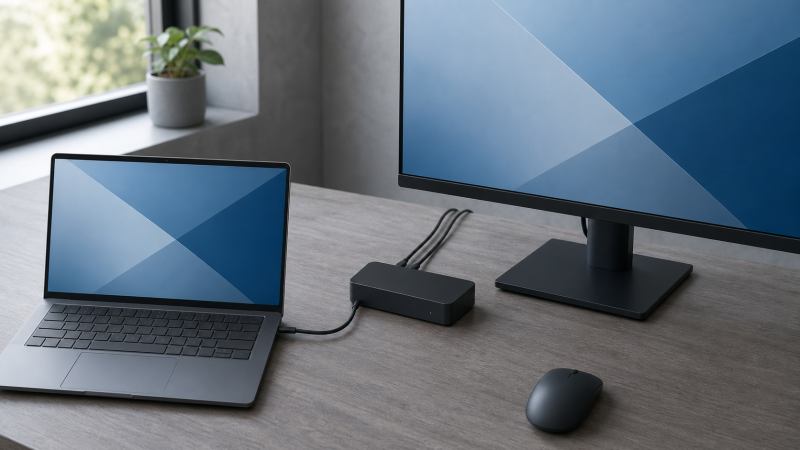
The best docking station for an HP laptop depends on the port in that specific laptop. The HP Thunderbolt 4 100W TAA G6 Dock is the broadest choice for a compatible EliteBook or other business notebook, while the HP USB-C Dock G5 suits a video-capable USB-C notebook that does not need Thunderbolt bandwidth.
HP does not give every laptop family one identical connection set. A Spectre x360 14-eu0000 and an EliteBook 1040 G10, for example, have Thunderbolt 4 ports with USB4, Power Delivery, and DisplayPort support in HP’s specifications. A ZBook Studio 16 G9 has two Thunderbolt 4 ports and a separate USB-C port with DisplayPort 1.4 and Power Delivery. Other configurations can have USB-C without Thunderbolt, so check the exact product number before selecting a dock.
Match the dock to the HP laptop’s documented video path and charging requirement before comparing port counts.HP Laptop Docking Stations Compared
| Image | Product | Details | Check Price |
|---|---|---|---|
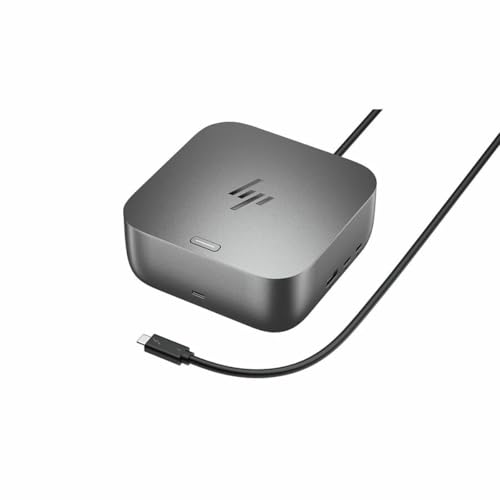 | HP Thunderbolt 4 100W TAA G6 Dock | Pick: Best HP business dock Connection: Thunderbolt 4 or USB-C Alt Mode Displays: Up to four external displays, host dependent Laptop charging: Up to 100W Ports: 2 DisplayPort 1.4, HDMI 2.1, Thunderbolt 4, 2.5Gb Ethernet, USB | Check Price on Amazon |
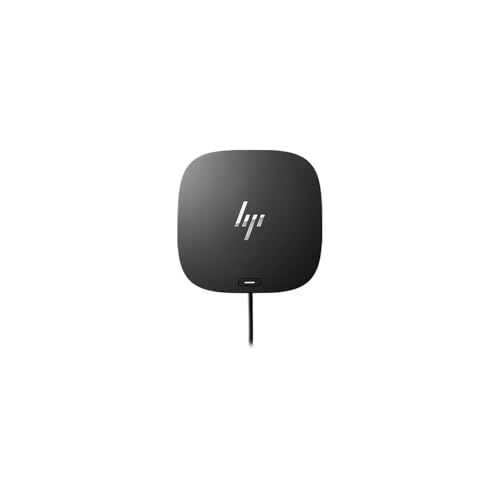 | HP USB-C Dock G5 | Pick: Best USB-C desk dock Connection: USB-C with DisplayPort Alt Mode and Power Delivery Displays: Up to three, host dependent Laptop charging: Up to 100W Ports: 2 DisplayPort, HDMI 2.0, Gigabit Ethernet, USB-C, 4 USB-A | Check Price on Amazon |
 | HP Thunderbolt 4 Ultra 280W G6 Dock | Pick: Best high-power HP dock Connection: Thunderbolt 4 Displays: Not listed Laptop charging: Up to 280W Ports: Not listed | Check Price on Amazon |
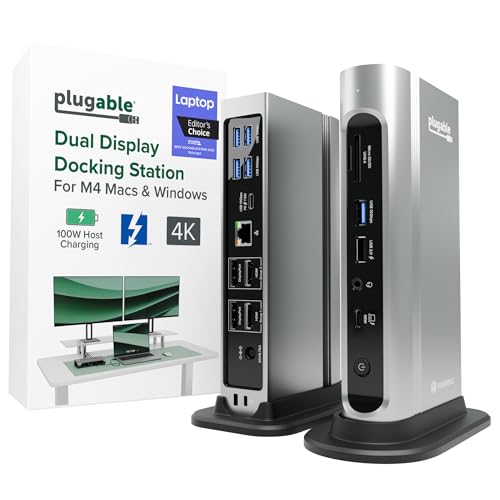 | Plugable TBT4-UDZ | Pick: Best for two 4K displays on Thunderbolt Connection: Thunderbolt 4, USB4, or USB-C DisplayPort Alt Mode Displays: Up to four 4K60 on qualifying Windows hosts Laptop charging: Up to 100W Ports: 2 HDMI, 2 DisplayPort, 2.5Gb Ethernet, card readers, USB | Check Price on Amazon |
 | Plugable UD-6950PDH | Pick: Best DisplayLink option for office displays Connection: USB-C with Power Delivery and DisplayLink Displays: Two 4K60 through DisplayLink Laptop charging: Up to 100W Ports: 2 HDMI or 2 DisplayPort, Gigabit Ethernet, card readers, USB | Check Price on Amazon |
 | Targus USB-C Universal DV4K Docking Station | Pick: Best universal dual-display dock Connection: USB-C or supported USB-A host with DisplayLink Displays: Dual 4K Laptop charging: Up to 100W Ports: 2 HDMI, 2 DisplayPort, USB-C, 4 USB-A, audio | Check Price on Amazon |
 | Dell Pro 4-in-1 USB-C Travel Hub DA225 | Pick: Best travel hub Connection: USB-C Displays: One HDMI 2.0b display at 4K60 Laptop charging: Not listed Ports: 2 USB-C and USB-A at 10Gbps, HDMI 2.0b | Check Price on Amazon |
1. HP Thunderbolt 4 100W TAA G6 Dock — Best HP Business Dock
The HP Thunderbolt 4 100W TAA G6 Dock is the first choice for a compatible EliteBook office because HP pairs its docking hardware with commercial management features. HP lists two DisplayPort 1.4 outputs, HDMI 2.1, a downstream Thunderbolt 4 port, 2.5Gb Ethernet, USB-C, and USB-A connections. It supplies up to 100W through USB-C when the included Thunderbolt 4 cable is used, which fits many business notebooks but not every high-power workstation.
HP describes the TAA G6 as compatible with Thunderbolt systems and USB-C Alt Mode systems that provide data, power, and video. Its four-external-display figure is a ceiling tied to the host’s display capability, so a notebook with fewer display streams can stop below that number. HP lists Client Management Software Library and WMI Provider support for the TAA model, while Poly Lens is not available for that configuration.
Use the TAA G6 when the exact HP notebook supports the display and Power Delivery path that the desk needs.Our Take Choose this dock for a compatible EliteBook or ProBook desk where Ethernet, native displays, and HP administration are more useful than a large number of specialist ports.
- HP lists Client Management Software Library and WMI Provider support for the TAA model, which can simplify a supported commercial deployment.
- HP lists two DisplayPort outputs, HDMI, Thunderbolt, and 2.5Gb Ethernet for a permanent office desk.
- HP lists a 100W host ceiling through USB-C that can replace the charger for many compatible HP notebooks.
- HP’s four-display maximum depends on the notebook, display path, cables, and selected modes, so a buyer should not expect four displays from every notebook.
- HP states that Wake-on-LAN and MAC address pass-through do not apply to non-HP PCs.
2. HP USB-C Dock G5 — Best USB-C Desk Dock
The HP USB-C Dock G5 is the sensible HP-branded choice for a notebook with USB-C DisplayPort Alt Mode and USB Power Delivery but no need for Thunderbolt throughput. HP specifies two DisplayPort outputs, HDMI 2.0, four USB-A ports, a front USB-C port, Gigabit Ethernet, audio, and up to 100W to the system. It supports up to three displays, with the laptop and display configuration deciding the result.
This dock does not turn a data-only USB-C port into a video connection. HP names USB-C Power Delivery and DisplayPort Alt Mode as its minimum requirement, and says Thunderbolt-enabled notebooks operate at USB-C speeds. The G5 is therefore a better fit than a Thunderbolt dock for a compatible Pavilion, Envy, ProBook, or EliteBook that needs a normal office desk rather than high-bandwidth storage or a Thunderbolt daisy chain.
Our Take Choose the G5 for a USB-C HP laptop that needs two display connectors, Ethernet, and charging through one dock, after confirming Alt Mode and the laptop’s power requirement.
- HP names USB-C Power Delivery and DisplayPort Alt Mode as this dock’s minimum requirement, so it suits HP laptops that have Alt Mode without Thunderbolt.
- HP lists support for up to three displays, which gives a dual-monitor office several connection options.
- HP says this dock does not turn a data-only USB-C port into a video connection, so native monitor output and host charging need more than a USB-C-shaped socket.
3. HP Thunderbolt 4 Ultra 280W G6 Dock — Best High-Power HP Dock
The HP Thunderbolt 4 Ultra 280W G6 Dock is the high-power HP option for a compatible commercial desk. HP states up to 280W of power delivery and 40Gbps data transfer through Thunderbolt 4, giving it a different role from the 100W TAA G6 above.
HP also describes Poly Lens cloud manageability, automatic firmware updates, HP Wolf Security, HP Sure Start, and Zero Trust Framework support. The product page does not name individual ZBook models, so check HP’s compatibility lookup and the laptop’s factory power requirement before treating the 280W figure as the power available to a specific notebook.
The 280W figure is HP’s stated maximum, not a compatibility guarantee for every HP laptop.Our Take Choose this dock for a compatible HP commercial setup that needs more charging headroom than the 100W TAA G6. Choose the G5 for an ordinary USB-C desk.
- HP states up to 280W of power delivery, which gives compatible commercial laptops more charging headroom than the 100W TAA G6.
- HP states 40Gbps data transfer through Thunderbolt 4, which suits a desk that uses high-bandwidth peripherals.
- HP describes Poly Lens cloud management and automatic firmware updates for this dock.
- HP does not name individual ZBook models on the product page, so a buyer must verify the exact notebook before buying.
- HP presents 280W as an up-to figure, so a buyer should not assume every compatible laptop receives that amount.
4. Plugable TBT4-UDZ — Best for Two 4K Displays on Thunderbolt
The Plugable TBT4-UDZ is the stronger choice for a Spectre x360, Envy, EliteBook, or ZBook that has Thunderbolt or USB4 and needs a conventional multi-display desk. Plugable describes a 16-in-1 Thunderbolt 4 dock with dual HDMI 2.0 and dual DisplayPort 1.2 outputs, 2.5Gb Ethernet, card readers, audio, USB ports, and up to 100W host charging.
Its display matrix is more useful than simply counting sockets. Plugable says a qualifying Windows Thunderbolt 4 or USB4 system with DisplayPort 1.4 HBR3 and DSC can reach up to four 4K 60Hz displays, while Thunderbolt 3 Windows systems with dual DisplayPort streams can reach two 4K 60Hz displays. For an HP laptop driving two 4K monitors, confirm the notebook’s Thunderbolt or USB4 display capabilities before expecting the larger configuration.
Our Take Choose the TBT4-UDZ for a compatible Thunderbolt HP laptop with two 4K displays and many wired peripherals, not for a data-only USB-C port.
- Plugable lists dual HDMI and dual DisplayPort outputs, which allow several connector combinations for a supported multi-monitor desk.
- Plugable lists 2.5Gb Ethernet, card readers, and USB ports that reduce the need for extra desktop adapters.
- Plugable says the highest display modes require a qualifying Windows host with DisplayPort 1.4 HBR3 and DSC support.
- Plugable’s larger display configuration depends on the notebook’s Thunderbolt or USB4 display capabilities, so a USB-C-only HP laptop can have a different display ceiling.
5. Plugable UD-6950PDH — Best DisplayLink Option for Office Displays
The Plugable UD-6950PDH fills a different role from the native-video docks. It uses DisplayLink to provide two 4K 60Hz displays through HDMI, DisplayPort, or one of each, and Plugable lists 100W USB-C host charging. Its USB-C host connection runs at 5Gbps and the dock includes Gigabit Ethernet, card readers, audio, USB-C, and USB-A connections.
DisplayLink can help an HP office notebook when its native display path is limited, but the driver is part of the setup. Plugable lists Windows 10 or 11, macOS 11 or later, and ChromeOS 100 or later for supported hosts, and says full functionality needs driver installation. It also says DisplayLink is not suited to games, hardware-accelerated 2D or 3D applications, or HDCP-protected playback, so it belongs on a documents, browser, communications, and dashboard desk.
Our Take Choose this dock for supported office work where dual displays are more important than a native graphics route and the user can install the required driver.
- Plugable says DisplayLink can provide two external 4K displays through a supported USB data connection.
- Plugable lists a 100W host ceiling and Gigabit Ethernet, which support a full office desk from one dock.
- Plugable lists HDMI and DisplayPort outputs, which give flexibility when monitors use different inputs.
- Plugable lists supported operating systems and says full functionality needs driver installation, so both are mandatory parts of the display setup.
- Plugable says DisplayLink is not suited to games, hardware-accelerated graphics applications, or HDCP-protected playback, so it belongs on a documents, browser, communications, and dashboard desk.
6. Targus USB-C Universal DV4K Docking Station — Best Universal Dual-Display Dock
The Targus USB-C Universal DV4K Docking Station is a broad two-monitor alternative when a compatible HP office laptop shares a desk with other brands. Targus specifies two DisplayPort 1.2a outputs, two HDMI 2.0 outputs, dual 4K video, a USB-C device port, four USB 3.0 ports, audio, and up to 100W Power Delivery. It includes a USB-C to USB-A adapter, which is useful for a supported older data host.
The dock’s DisplayLink software is part of the buyer decision. Targus provides DisplayLink downloads for Windows and macOS, and its hardware page describes dual display support rather than a universal gaming or graphics-workstation solution. For an HP laptop with native Thunderbolt or DP Alt Mode, a native dock such as the TAA G6, G5, or TBT4-UDZ can be simpler; choose the Targus when broad host support and two office displays are the priority.
Our Take Choose the Targus for a supported office desk that needs two 4K monitors across USB-C or USB-A hosts and accepts DisplayLink software.
- Targus specifies two HDMI and two DisplayPort outputs, so a desk can use HDMI monitors, DisplayPort monitors or one of each.
- Targus includes a USB-C to USB-A adapter that is useful for a supported older data host.
- Targus’s two 4K displays depend on the supported host, its DisplayLink driver, the operating system, and the monitor setup.
7. Dell Pro 4-in-1 USB-C Travel Hub DA225 — Best Travel Hub
The Dell Pro 4-in-1 USB-C Travel Hub DA225 is for an HP laptop that needs a bag companion rather than a permanent desk dock. Dell lists two USB-C 3.2 Gen 2 data ports, one USB-A 3.2 Gen 2 data port, and HDMI 2.0b, which covers a travel monitor and a few accessories without adding a desk dock to a bag. All three data ports are specified at 10Gbps.
Dell rates the HDMI output at 3840 x 2160 at 60Hz. The DA225 is suitable for a hotel display, presentation screen, small keyboard, mouse, and portable storage, but not a replacement for a full dock with Ethernet, many ports, or several external monitors. The difference between docks and hubs is useful when deciding whether portability or desktop expansion comes first.
Pack the HP charger with the DA225: Dell specifies display and data connections, not a laptop-charging ceiling.Our Take Choose the DA225 for an HP travel setup with one 4K display and three fast USB connections, rather than for a fixed multi-monitor workstation.
- Dell specifies one HDMI 2.0b connection at 4K 60Hz for a travel monitor.
- Dell specifies two USB-C and one USB-A data port, each at 10Gbps.
- Dell does not state a laptop-charging figure for the DA225, so it does not replace the HP charger.
- Dell designs this hub around one external display and gives it no Ethernet connection.
Buying Guide
1. Identify the HP port before choosing the dock
Start with the laptop’s full HP product number and open its product specifications, not a retailer category or the family name printed on the lid. Thunderbolt 4 with USB4 is documented on examples such as the Spectre x360 14-eu0000 and EliteBook 1040 G10, while the ZBook Studio 16 G9 shows that a single laptop can contain Thunderbolt ports and a separate USB-C port with a different capability set.
For a USB-C-only port, find the words DisplayPort Alt Mode and USB Power Delivery in the HP documentation. Alt Mode carries native video to docks such as the G5 and Dell DA225, while Power Delivery determines whether the dock can charge the notebook. A data connection alone can run accessories but does not establish native monitor output.
2. Plan the displays as a complete path
Write down the number of monitors, their resolution, refresh rate, and available inputs before buying. The host sets the ceiling because a dock cannot create display streams that the HP GPU and port do not expose. The 100W TAA G6, Ultra 280W G6, and TBT4-UDZ offer several physical video connections, but their largest display configurations have host and bandwidth conditions.
A native Thunderbolt or DisplayPort Alt Mode route is the first choice for fast graphics, video work, games, and protected playback. DisplayLink is an office-display route for work that fits its supported driver and operating-system requirements. The Plugable and Targus docks can be helpful for documents and communications screens, but the software path has different workload boundaries from a native dock. Compare more native choices in our guide to the best Thunderbolt 4 docking stations and more USB-C options in the best USB-C docking stations.
3. Compare the host charging limit with the HP adapter
The figure that counts is the power sent to the laptop, not only the rating on the dock’s power supply. Up to 100W host charging is listed for the TAA G6, G5, TBT4-UDZ, UD-6950PDH, and Targus DV4K. Dell lists the DA225 for display and data connections without a laptop-charging figure. Those figures do not establish that every HP laptop accepts that amount through its port.
For a high-power HP laptop, begin with the factory adapter requirement and then check HP’s compatibility lookup for the Ultra 280W G6. HP states up to 280W for this dock, not a promise that every notebook receives 280W. If the dock’s output is below the laptop’s documented need, keep the original charger available for the workload.
FAQ
Do all HP laptops use the same docking station?
No. HP laptops can have Thunderbolt, USB4, USB-C with DisplayPort Alt Mode, USB-C with Power Delivery, or a USB data connection with a different feature set. The connector shape does not identify its video bandwidth, charging support, or external-display ceiling.
Check the exact HP product number and the exact port description. A compatible Thunderbolt notebook can fit the TAA G6 or TBT4-UDZ, while an Alt Mode notebook can fit the G5 or Dell DA225. A supported DisplayLink dock can add office displays through USB data, but it requires its driver.
Is the HP USB-C Dock G5 a good option for two 4K monitors?
It can be, if the HP laptop’s USB-C port supports DisplayPort Alt Mode and the laptop’s GPU and display configuration support the selected modes. HP lists two DisplayPort outputs, HDMI 2.0, and up to three displays for the G5, but the port and host determine the usable arrangement.
The G5 is a good fit for a stable USB-C office desk with Ethernet, peripherals, and charging. If the laptop has Thunderbolt and needs more high-speed expansion, compare it with a Thunderbolt option such as the TAA G6 or the best Dell docking stations guide when the desk also serves another work laptop.
Can a dock charge an HP ZBook?
Some docks can charge some ZBooks, but the exact workstation and charging method decide the result. A 65W, 100W, or 280W figure is a dock ceiling under stated conditions, not an instruction to replace every HP power adapter.
For a compatible HP workstation, the Ultra 280W G6 can provide up to 280W. HP does not name ZBook models on its product page, so use the factory adapter requirement and HP’s compatibility lookup as the baseline before selecting the dock for displays and peripherals.
Bottom Line
Choose the HP Thunderbolt 4 100W TAA G6 Dock for a compatible HP business notebook, the HP USB-C Dock G5 for a video-capable USB-C desk, and the HP Thunderbolt 4 Ultra 280W G6 Dock for a compatible high-power HP setup. The Plugable TBT4-UDZ suits a Thunderbolt two-4K desk, while the Plugable and Targus DisplayLink models suit supported office-display workflows.