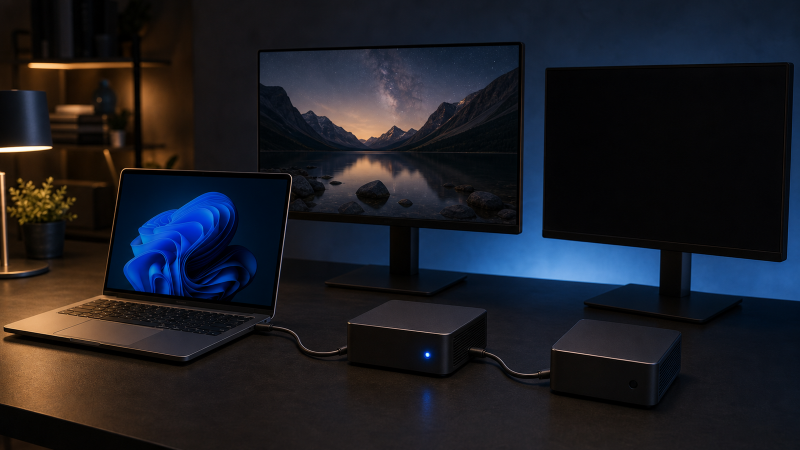
If the first Thunderbolt device works but the next device is missing, do not start with Windows drivers. Build the shortest possible chain: host, first device, its documented downstream Thunderbolt port, one second cable, and the missing device. Check each port, cable, power input, and Windows device state in that order.
A USB-C socket on the first device may be its host connection, an ordinary USB data port, a charging port, or a real downstream Thunderbolt port. The connector shape does not tell you which role it has.
A working first Thunderbolt device proves only the first link. It does not prove the first device’s downstream port, the second cable, or the second device.
This guide starts after Windows detects or uses the first Thunderbolt device. If the first device is also absent, use the Thunderbolt not detected in Windows 11 guide instead.
Start with the state you actually have
| What you observe | What it proves | Next check |
|---|---|---|
| Neither Thunderbolt device appears | The host-to-first-device path is not established | Stop and diagnose whole-device detection |
| First device works, second device is absent | The failure begins after the first node | Downstream port, second cable, second power path |
| Second device works directly at the host | The host can enumerate that device on the direct route | Rebuild the first-device segment |
| Second device also fails directly at the host | The daisy chain is not yet the leading problem | Exact second-device support, cable, and power |
| Downstream storage works, but a monitor is absent | At least one downstream data path works | Display support, output route, and Windows display detection |
| One branch on a Thunderbolt hub works and another does not | The host and hub are partly working | Isolate only the failed branch |
| Second device appears with a Windows warning | Enumeration occurred, but Windows reports a device state | Record the exact status before changing anything |
Keep these states separate. An absent device, a device reporting an error, and a missing display each need a different path.
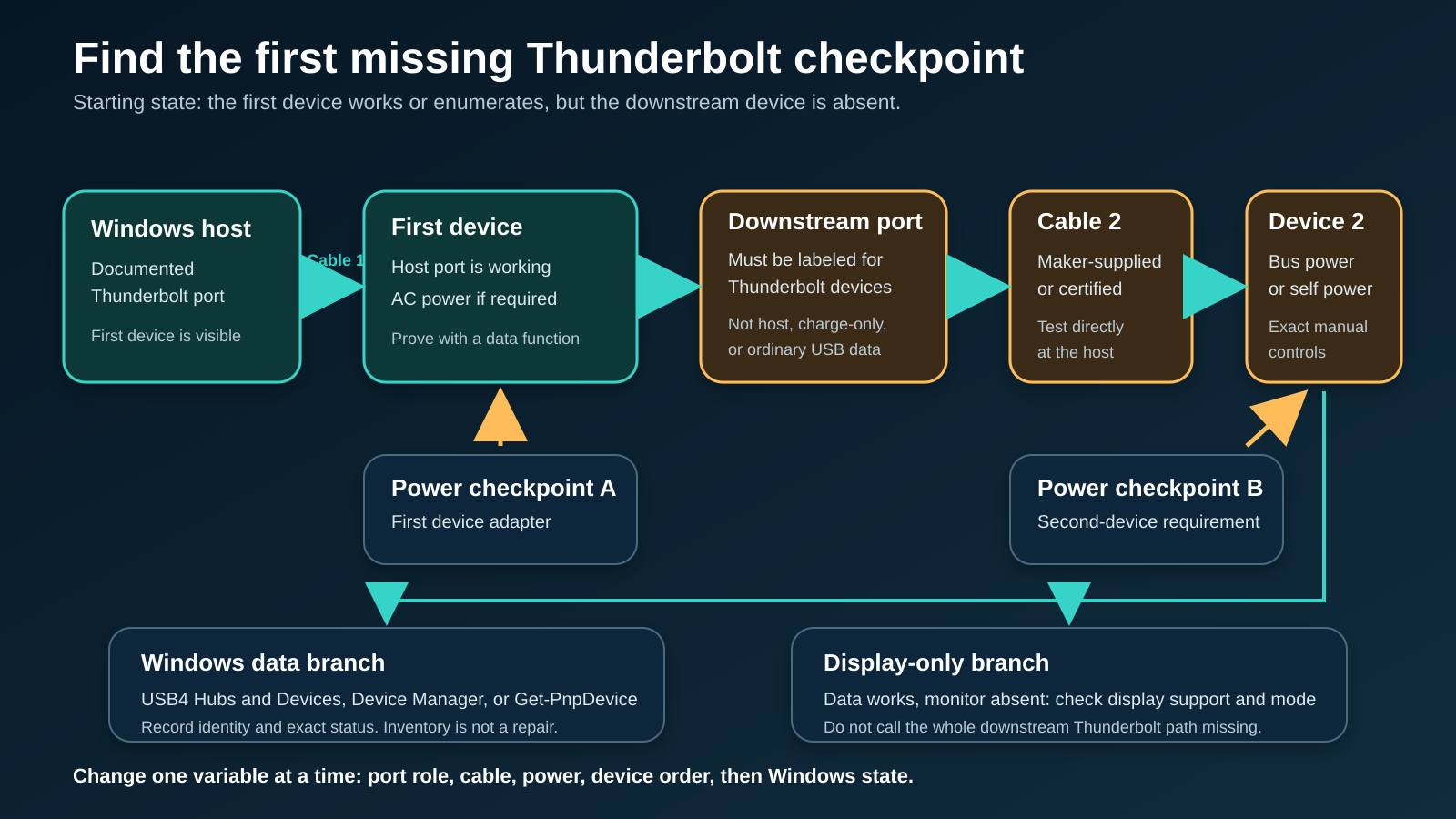
The shortest safe sequence
Use this order before installing anything:
- Record the host, both devices, both cables, port labels, and power supplies.
- Prove that the first device works through a direct host connection.
- Identify the first device’s documented downstream Thunderbolt port.
- Connect only the second device through that port.
- Give each device the power its own manual requires.
- Test the second cable and second device directly at the host.
- Rebuild the two-device chain with the known working pieces.
- Record what Windows shows for the second device.
- Change device order only if both manuals permit the new roles.
- Separate a display-only failure from a missing Thunderbolt device.
Change one item at a time. Replacing the cable, moving the host connection, reversing the devices, and updating software together hides the cause.
Step 1: write down the complete chain
Record the exact model of:
- the Windows computer;
- the host Thunderbolt port;
- the first device;
- the host-to-first-device cable;
- the port used on the first device;
- the second cable;
- the second device;
- the AC adapter used by each powered device;
- any monitor or adapter attached to either device.
Also record whether each device appears in Windows before and after you attach the second node.
This inventory prevents you from diagnosing a USB-C connection as a Thunderbolt chain. Intel’s current Thunderbolt overview distinguishes Thunderbolt from the shared USB-C connector shape, and our Thunderbolt 3, 4, and 5 comparison explains the generation labels. The device manuals still control the ports in front of you.
Intel says data and video can flow from the computer through a chain of up to five Thunderbolt accessories. Treat that number as a ceiling for the technology, not a promise. A host may have stricter display limits. A device may have no downstream Thunderbolt port. A bus-powered item may have an exact placement requirement.
For the basic difference between a chain and a hub branch, read what daisy chaining means for computer components.
Step 2: prove the first node before testing the second
Disconnect the second device and every nonessential peripheral from the first device. Leave only:
Windows host -> first Thunderbolt cable -> first device
Connect the first device to the exact host port documented for Thunderbolt. Give the first device its required AC power. Confirm a function that requires data, not only charging. Depending on the device, that could be:
- a named dock or hub in Windows;
- a storage volume;
- an Ethernet controller;
- an audio endpoint;
- another USB peripheral connected through the first device.
Charging is weak evidence, because power delivery and Thunderbolt data are different functions. A laptop can charge on an unsupported route, the wrong port, or the wrong cable.
If the first device disappears in this minimal setup, stop. The starting condition for this article is no longer true. Do not add the second node until the host-to-first-device route is stable.
If the first device is a dock and replacement later becomes necessary, the Thunderbolt docking-station guide owns that decision, after the diagnosis.
Step 3: identify the real downstream Thunderbolt port
Read the first device’s manual and inspect its labels. You need a port explicitly documented for a downstream Thunderbolt device.
The CalDigit TS4 manual shows why labels matter. It reserves one Thunderbolt port labeled Computer for the host and identifies another Thunderbolt port for downstream devices. Its other USB-C ports are described as data-only. That exact layout belongs to the TS4, but the method applies to any first device:
- Find the port map for the exact model and revision.
- Locate the host or upstream port.
- Locate each downstream Thunderbolt port.
- Exclude charging-only, data-only, and display-only sockets.
- Check whether the manual limits what may be connected downstream.
Do not reverse host and downstream roles because the plugs fit. Do not assume two identical-looking ports are interchangeable.
Some devices have only one Thunderbolt port. They can be the last node but cannot pass Thunderbolt onward, so if the manual shows that, the chain is not broken and the first device simply lacks the downstream role.
A Thunderbolt hub deliberately changes the layout. For example, OWC documents one host connection and three independent downstream branches on its current Thunderbolt Hub. That branch topology is not the same as adding another serial node to a device with one downstream port.
Step 4: isolate the second cable
The second cable carries the path from the first device to the missing device. The first cable can work perfectly while the second cable is unsuitable or damaged.
Start with the cable supplied for the second device when its maker requires one. Otherwise, use a cable whose manufacturer documents the needed Thunderbolt generation and length. Microsoft recommends a device-maker-supplied or certified cable for USB4 and Thunderbolt functionality.
Use a direct comparison:
- Keep the Windows host, host port, second device, and second-device power fixed.
- Disconnect the first device.
- Connect the second device directly to the host with the second cable.
- Wait for Windows to settle.
- Record whether the second device appears and works.
If it fails directly, do not blame the first device’s downstream port yet. The second cable, second device, its power, or direct host compatibility remains unresolved.
If it works directly, the second device and cable can function in that comparison. Reinsert the first device without changing the cable or second-device power. A new failure points to the first device’s downstream role, its power, the combined topology, or a compatibility limit.
Do not infer a cable’s full capability from one light-load result, because carrying one device or one display mode does not prove every later mode. If controlled substitution isolates it, the Thunderbolt 5 cable guide and USB-C cable guide are the commercial handoffs. Choose according to the exact protocol, not connector shape.
Step 5: check power at both nodes
Power can fail in two places:
- the first device may require its AC adapter before its downstream controller or port is active;
- the second device may require self power or more bus power than the first device supplies.
Use the adapter supplied or specified by each device maker. Do not swap barrel adapters because the connector fits. Voltage, current, polarity, and control behavior can differ.
The CalDigit TS4 manual says the dock requires its AC adapter to operate. OWC separately documents bus-powered devices on the named Thunderbolt Hub’s branch ports. Those examples do not create a universal rule. Read the exact second-device manual to learn whether it is:
- self-powered through its own AC adapter;
- bus-powered through Thunderbolt;
- optionally powered in two different modes;
- restricted to the final position in a serial chain.
Power both self-powered devices before reconnecting, then connect host, first device, and second device in the order used earlier.
Do not use a charging LED as proof of enumeration. It proves only that some power reached the device.
Step 6: rebuild only two Thunderbolt nodes
Use this minimal path:
Host Thunderbolt port -> first device host port -> first device downstream Thunderbolt port -> second cable -> second device
Remove:
- USB-C extensions;
- couplers;
- KVMs;
- adapters that are not required;
- extra displays;
- extra storage;
- another hub;
- every third Thunderbolt node.
Power the first device as its manual requires. Power the second device if it is self-powered. Connect the first device to the host, wait for it to appear, and only then attach the second device.
Record the result without changing anything else:
- Does the first device stay present?
- Does a connection sound occur?
- Does the second device appear under its normal class?
- Does Windows show a notification about limited Thunderbolt or USB4 functionality?
- Does the first device’s manual define an indicator for its downstream connection?
Do not assign universal meanings to LED colors. Use an indicator only as the exact manual defines it.
If this two-node chain works, add one removed item at a time. The first addition that recreates the failure identifies the next boundary to investigate.
Step 7: record Windows enumeration
On a Windows 11 system with a detected USB4 host router, Microsoft exposes:
Settings > Bluetooth & devices > USB > USB4 Hubs and Devices
Use that page when it exists and record the listed hub, device, and capability entries. Its absence is not a fault by itself, because Microsoft says it appears only when Windows detects a USB4 host router.
Open Device Manager and compare the list with the second device disconnected and connected. Check the class that matches the device, such as storage, network adapters, display adapters, sound, USB devices, or system devices.
If an entry has a warning:
- Open Properties.
- Copy the exact Device status text.
- Record its hardware identity.
- Follow the device maker’s support path for that exact status.
Do not uninstall every controller. Do not use a third-party driver scanner. Enumeration evidence should narrow the path before any software change.
Microsoft’s documented PowerShell command lists present Plug and Play devices:
Get-PnpDevice -PresentOnlyRun it before and after connecting the second device, then compare the relevant entries. The command is an inventory tool. It does not repair the chain.
Step 8: change device order only with evidence
Moving devices helps when both support the required port roles and power plan, and it can also create an invalid chain.
Before reversing the order, confirm:
- the proposed first device has a host port and a downstream Thunderbolt port;
- the proposed second device can operate in the final position;
- both cables meet the exact device requirements;
- both devices receive required power;
- the host supports the combined devices;
- the new display route stays within the host’s display limits.
Then test:
Host -> device B -> device A
If the reversed chain works, do not conclude that device A is defective. Its downstream port, power behavior, or supported topology may differ from device B. Compare the two manuals and preserve the working order.
Intel’s five-accessory ceiling does not mean every order is valid. The chain is constrained by every node, not only the host.
Serial chain or branch hub?
A serial chain has one device after another. Removing a middle device breaks the route to everything behind it.
A modern Thunderbolt hub can create independent branches. OWC says its Thunderbolt Hub exposes three separate branch chains, so removing a device on one branch leaves the others connected.
That distinction changes diagnosis:
| Topology | Failure pattern | Best isolation |
|---|---|---|
| Serial chain | A failed middle link removes every later device | Test the first missing node and the cable before it |
| Branch hub | One branch can fail while another remains active | Move one known working device between documented downstream branches |
| Full dock | Dedicated USB, display, Ethernet, and Thunderbolt outputs may be separate | Identify the exact failed controller or output role |
Do not buy a hub to hide a bad cable or unsupported device. A branch hub helps only when its documented topology matches your setup.
Separate display-only failures
If a downstream storage or network device works but only a monitor is absent, the Thunderbolt chain carries at least one downstream function. Shift to the display branch.
In Windows, open Settings > System > Display > Multiple displays and use Detect once. Then check:
- whether the first device’s downstream port carries display output;
- whether the host supports the requested number of displays;
- whether the monitor is connected to the correct input;
- whether the chain uses Thunderbolt display transport or DisplayPort MST;
- whether resolution and refresh rate exceed the documented route.
The USB-C monitor daisy-chain guide owns monitor shopping and capability. The Thunderbolt monitor guide is a commercial route only after you prove the current display cannot support the needed chain.
Do not call the second Thunderbolt node absent because a display is missing. Check Windows enumeration separately.
Escalation matrix
| Result after controlled tests | Evidence you have | Escalate to |
|---|---|---|
| First device fails alone | Starting boundary is invalid | Host and first-device support |
| Second device fails directly at host | Chain segment is not isolated | Second-device maker with cable, power, and status record |
| Both devices work directly, but second fails behind first | Downstream segment is isolated | First-device maker with exact port, cable, and power details |
| One downstream branch works, another fails with same device and cable | Branch-specific failure is isolated | Hub maker for that exact model |
| Second device appears with an exact Windows status | Enumeration succeeded with a reported problem | Device maker or Microsoft path for that exact status |
| Data works but only display is missing | Whole chain is not absent | Host, first-device, and display capability support |
| Minimal chain works, full chain fails | An added node or accessory recreates the fault | Owner of the first failing addition |
Send support a compact record: models and revisions, Windows build, port labels, cables, power supplies, the direct-test result, and the exact Windows status.
When replacement is justified
Replace a part only after the tests isolate it:
- replace the second cable when the same second device works through another documented cable and the rest of the route stays fixed;
- replace or service the first device when its documented downstream port fails with multiple known-compatible devices and cables while the first device remains present;
- replace or service the second device when it fails directly on a supported host with its required cable and power;
- change topology when the existing first device has no downstream Thunderbolt port or the manuals rule out the intended order.
Do not replace a dock because a display-only mode exceeds the host limit. Do not replace a cable because Windows lacks the USB4 Settings page. Match the purchase to the failed layer.
Frequently asked questions
Why does the first Thunderbolt device work but the second one does not?
The first link can succeed while the first device’s downstream port, second cable, downstream power, topology, or second device fails. Build a two-node chain and test the second device directly at the host.
Can any USB-C port continue a Thunderbolt chain?
No. USB-C describes the connector. The first device must document a downstream Thunderbolt port. A host port, charging port, ordinary USB data port, or display-only port is not interchangeable.
Does device order matter?
It can. A device needs the correct upstream and downstream roles and enough power for its position. Reverse the order only when both manuals support the new topology.
How many Thunderbolt devices can I daisy-chain?
Intel’s current overview says data and video can flow through up to five Thunderbolt accessories. Treat that as a technology ceiling. Exact hosts, devices, displays, cables, and power plans can impose lower limits.
Why does a downstream drive work but the monitor does not?
That result shows that at least one downstream function works. The remaining problem can be display support, GPU limits, output selection, conversion, or requested mode rather than whole-chain enumeration.
Should I update every driver and firmware package?
No. Record the exact Windows state and use the exact host or device maker’s support instructions. Do not apply generic scanners or blanket updates to a stable first node.
Sources and methodology
This article uses current primary documentation checked on July 28, 2026: Microsoft’s USB4 Settings documentation, Microsoft’s Get-PnpDevice reference, Microsoft USB-C troubleshooting, Intel’s Thunderbolt overview, the CalDigit TS4 user guide, the OWC Thunderbolt Hub page, and USB-IF connector-language guidance.
No physical hardware was tested for this draft. Exact product examples establish port and topology methods rather than universal layouts, and the reader’s host and device manuals control. The sequence changes one variable at a time and promises no repair.