Windows 11 does not expose one universal, trustworthy live USB Power Delivery wattage reading for every laptop, charger, cable, and dock combination. Windows can tell you that a charger is slow, that the PC is not charging, and how the battery changed over time. Those clues are useful, but they are not the negotiated USB PD contract.
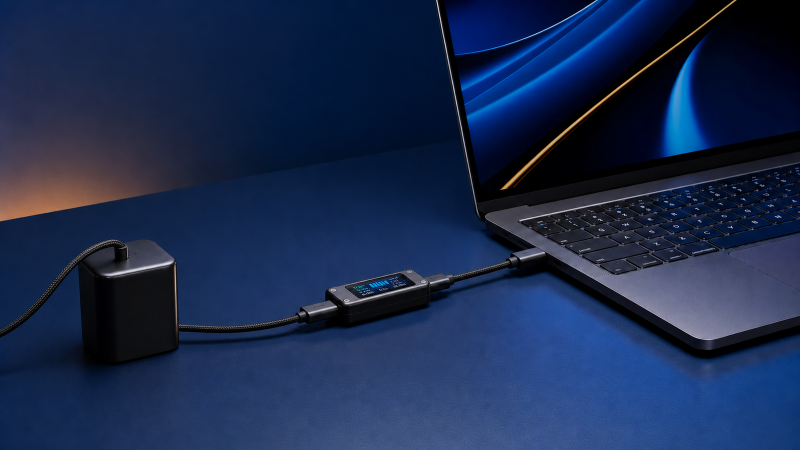
For a live electrical reading, you normally need an inline USB-C power meter that is explicitly rated for the voltage, current, and data path you are using. Even then, the number is power at one point in the chain. It is not automatically the charger’s maximum, the cable’s rating, the laptop’s maximum input, the battery’s charge rate, or the power drawn at the wall.
Seven Wattage Numbers That Are Easy to Confuse
The word “wattage” can refer to seven different quantities. Record the name of the quantity with the number.
| Quantity | What it means | Where it comes from | What it does not prove |
|---|---|---|---|
| Charger advertised maximum | The highest output the charger claims under specified conditions | Charger label, manual, or per-port allocation table | What one laptop receives right now |
| Cable power rating | The highest power class the cable is designed and identified to support | Cable marking, packaging, certification record, or maker specification | That the source and laptop will negotiate that amount |
| Laptop requested power | What the laptop asks for under its current state and supported profiles | Laptop power controller and firmware | The charger’s full advertised ceiling |
| Negotiated USB PD contract | The voltage and current arrangement agreed by the compatible source, sink, and cable | USB Power Delivery communication | Battery charge rate or wall input |
| Inline-meter voltage and current | Electrical values at the meter’s insertion point | A compatible inline meter | The cable’s certified maximum or the battery’s net intake |
| Battery charge rate | The rate at which energy is added to the battery after the system takes what it needs | Battery controller and battery telemetry | USB-C input power before system load and conversion |
| Charger wall input | AC power entering the charger before conversion | A suitable wall power meter | DC power delivered over the USB-C cable |
USB-IF says USB PD 3.1 can provide up to 240 W over the required full-featured USB-C cable and connector. “Up to” is the important phrase. USB-IF also says devices take only the power they require. A 240 W charger, a 240 W cable, and a laptop that requests less power can produce a completely normal reading far below 240 W.
USB-C is the connector. It is not automatically USB Power Delivery, USB4, a particular cable speed, or a power rating. The plugs can fit while the supported power and data paths differ.
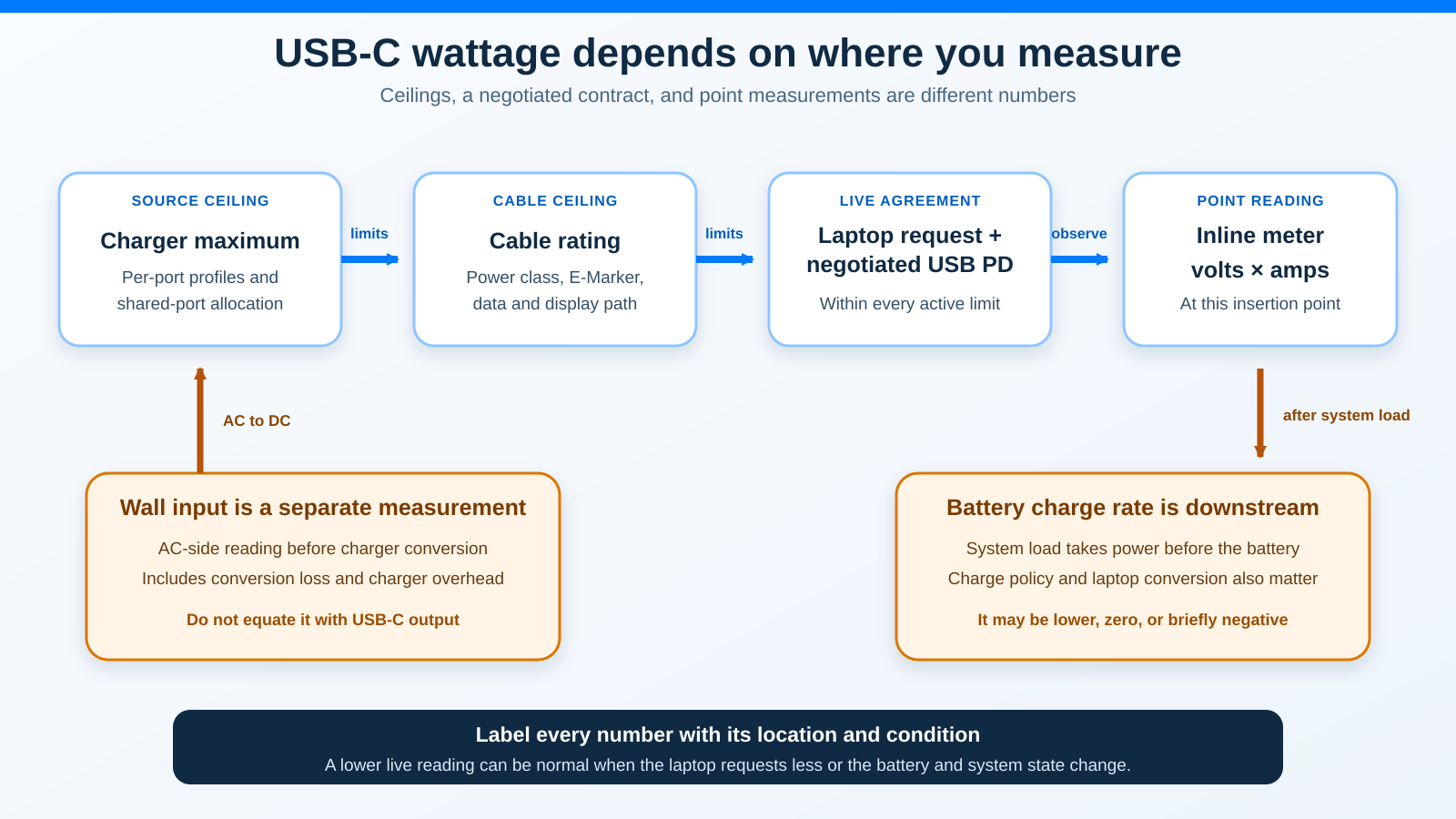
The diagram is a sequence of limits and decisions, not an equation saying every box should show the same number.
What Windows 11 Can Tell You
Windows gives you state and history. Use them as context for a measurement.
Settings and charging notifications
Microsoft documents separate Slow charger and PC isn't charging conditions. Possible causes include an incompatible or underpowered charger, the wrong charging port, a cable that cannot meet the power requirement, debris that prevents a proper connection, or a charger connected through an external hub or dock.
That warning proves Windows detected a charging problem or limitation. It does not tell you the live negotiated voltage and current. It also does not identify the failed part by itself.
Before inserting a meter, record:
- The exact notification text
- Whether the battery icon says plugged in or charging
- The battery percentage
- Whether the percentage rises, stays level, or falls during a defined period
- Whether the laptop is idle or under a known workload
- Whether a dock, monitor, or multiport charger is in the path
- Whether the laptop has a Smart charging or OEM charge ceiling enabled
Do not hunt for a hidden generic wattage field in Settings or Device Manager. Microsoft does not document one for this purpose.
What powercfg /batteryreport proves
Open Terminal or Command Prompt as an administrator and run:
powercfg /batteryreportWindows saves an HTML report and prints its location. Microsoft describes it as a report of battery usage characteristics. Its useful sections include the installed battery, recent usage, battery usage, and capacity history.
The report can help answer questions such as:
- Did the battery level rise during a charging session?
- Is the battery’s current full-charge capacity much lower than its design capacity?
- Did the machine switch between AC and battery states?
- Does the history support a repeatable charging or battery-health problem?
It cannot tell you:
- The current USB PD voltage and current contract
- The charger’s active per-port allocation
- The cable’s certified power ceiling
- Power at a point between the charger and laptop
- Charger input at the wall
- How much incoming power the running system consumed before the battery received the remainder
A battery report showing a rising percentage confirms energy reached the battery over time. It does not turn that percentage change into a reliable USB-C watt reading. Battery capacity estimates, system activity, charging policy, and conversion inside the laptop all sit between those two quantities.
When an OEM Screen Can Help
Some manufacturers expose an adapter class, recognized wattage, charge mode, or diagnostic result for supported models. Use the exact laptop’s manual and support page because the menu, field name, and meaning can change between families.
Dell is one documented example. Dell’s current AC-adapter guide tells owners of supported Dell laptops to check the BIOS Overview section for an AC Adapter listing. Dell says Unknown or the wrong wattage can accompany an incompatible charger, a faulty charger, or a charging-port connection issue. Dell also warns that BIOS options vary by model.
That Dell field is evidence about Dell firmware recognition. It is not a Windows USB PD meter, and it is not a procedure for HP, Lenovo, ASUS, Acer, Microsoft Surface, or another brand.
For any other laptop:
- Find the exact model or product number on the chassis or in the maker’s support utility.
- Open that model’s current manual and charging specifications.
- Look for a maker-documented adapter, input-power, battery, or diagnostic screen.
- Record the exact label and value without translating it into a different quantity.
- If the maker documents no such field, do not substitute an invented PowerShell or WMI command.
An OEM screen can also reveal a deliberate charge ceiling. A laptop configured to stop near 80 percent can show low input or no battery charging at that target without indicating a failed charger.
A Safe Inline USB-C Meter Method
An inline meter sits inside the power path, so compatibility comes before measurement. Connector fit is not enough.
Plugable’s USBC-VAMETER3 is one current example of the documentation you should expect. Plugable’s direct product feed describes inline placement, real-time voltage and amperage, bidirectional current indication, full USB data passthrough, and a 240 W EPR rating. That does not make it a universal answer. It shows that a meter maker should state the insertion point and electrical ceiling clearly.
Use the following sequence with the exact instructions for your meter.
1. Identify the laptop’s input
Confirm that the selected USB-C port accepts charging input. Record the laptop maker’s required or recommended input and any supported USB PD profile information. Do not assume every USB-C port on the same laptop has the same role.
If the laptop does not charge at all through a documented charging port, switch to the dedicated guide for a USB-C port that is not charging the laptop after the safe checks here. That owner covers fault isolation rather than measurement.
2. Read the charger’s exact output table
Use the label or manual for the exact charger. Record:
- The output profiles for the specific USB-C port
- The maximum for one-port use
- The allocation when two or more ports are active
- Whether reconnecting another device causes power to be renegotiated
- Whether the needed higher-power mode requires a particular port
A charger sold with a large total wattage may reserve less for the laptop port when a phone, tablet, or second laptop is connected. If the current hardware cannot meet the requirement, compare the exact profiles in the USB-C charger guide or the desktop charging-station guide only after identifying the gap.
3. Verify the cable
Check the cable maker’s exact power rating and whether an E-Marker is required for the intended current or EPR mode. Also confirm the data or display path you need. A charging cable can be unsuitable for USB4, Thunderbolt, or video even when it safely carries its stated power.
Use the USB-C cable guide when you need a replacement with a documented combination of power and data capability. Do not infer those capabilities from thickness, connector color, or a USB-C logo alone.
4. Verify the meter
Before connection, confirm all of these in the meter maker’s documentation:
- Maximum supported voltage
- Maximum supported current
- Maximum supported power
- USB PD 3.1 and EPR support if the setup uses more than 100 W
- Required connector direction
- Whether the meter reads bidirectionally
- Data passthrough level
- Video, USB4, or Thunderbolt passthrough if those functions must remain active
- Any prohibited loads, adapters, extension cables, or modes
Do not insert an unknown or under-rated meter into a 100 W, 140 W, 180 W, or 240 W setup. If a meter is rated only for charging and USB data, remove displays, storage, and other functions that its maker does not explicitly support, or choose a documented measurement method that preserves the required path.
The older USB-C power-meter guide is a product handoff, not permission to use any listed meter on any modern EPR setup. Recheck the exact current manufacturer specifications before use.
5. Create a repeatable starting state
Write down:
- Battery percentage
- Smart charging or OEM charge-limit setting
- Laptop power mode
- Whether the machine is awake, asleep, or shut down
- Approximate workload
- Whether the battery or chassis is unusually warm
- Every device attached to the charger, dock, or powered monitor
For an interpretation test, start with the laptop in a stable state and change one condition at a time. A measurement taken during a game, a firmware update, and a nearly full battery cannot be compared cleanly with one taken at an idle desktop and 30 percent charge.
6. Insert the meter at the documented point
Power down or disconnect equipment if the meter instructions require it. Connect the charger, meter, cable, and laptop in the exact order and direction the meter maker specifies. Do not add an unapproved adapter.
Allow the devices to establish a contract. Record voltage and current together. If the meter displays watts, record that too. If it shows only volts and amps, power at that point is approximately:
watts = volts x ampsFor example, 20 V and 3 A at the meter is about 60 W at that point. It does not say the charger is a 60 W model, the cable’s ceiling is 60 W, or all 60 W enters the battery.
7. Change one condition
Useful controlled comparisons include:
- Same laptop and battery state, direct charger versus documented dock output
- Same charger port, one connected device versus multiple devices
- Same source and laptop, known-compatible cable A versus cable B
- Same path, idle workload versus a defined workload
- Same hardware, below the charge ceiling versus at the charge ceiling
Stop if a connector becomes loose, discolored, damaged, or abnormally hot. Do not keep repeating a negotiation cycle to force a larger number.
How to Interpret the Result
Use the result as a clue tied to a measurement point.
| Result | Plausible interpretation | Next safe check |
|---|---|---|
| Expected voltage and current for the documented profile | The live path reached that approximate point power | Compare system state and battery behavior without assuming all power reaches the battery |
| Lower current near a configured charge ceiling | Battery demand or charge policy may be lower | Confirm Smart charging or the exact OEM limit |
| Correct voltage but lower current under one cable | Cable identity, charger allocation, laptop request, or contact quality may differ | Recheck exact cable rating and repeat with one known-compatible cable |
| Lower reading only through a dock or monitor | The peripheral may consume power or cap host output | Read the exact host-output specification, not the dock adapter input |
| Reading changes when another charger port is used | The charger may have reallocated its shared output | Use the exact simultaneous-port table |
| Battery falls while inline power is present | System demand may exceed what remains for the battery | Reduce to a defined workload and compare with the laptop’s requirement |
Windows warns Slow charger while the meter shows power |
Power is present but may not meet the PC’s requirement | Compare requested profile, cable, port, and any dock |
| No stable reading or repeated connect-disconnect behavior | The path is not establishing a stable supported connection | Stop changing variables and verify every component’s exact support |
A low number is not automatically bad. USB-IF’s design allows a device to request only what it needs. A nearly full battery or enabled charge ceiling can reduce battery demand. A hot system may apply manufacturer-controlled protection. A busy CPU, GPU, display, storage device, or dock can consume incoming power before the battery receives the remainder.
The opposite mistake is also common. A high point reading is not proof that the battery is charging quickly. The running system may be using much of it.
Docks and Powered Monitors Add Another Budget
A dock has its own input, internal load, peripheral outputs, and host-output ceiling. Keep those numbers separate.
Dell’s current support article gives a specific Dell example: a powered dock or hub and its attached devices use some adapter output, then the remainder is available to a compatible Dell laptop. Dell says its numerical examples apply to the named Dell scope. They are not a universal subtraction formula.
For any dock or monitor, record:
- Power-adapter input rating
- Dock or monitor’s documented host-output ceiling
- Whether attached devices share the same budget
- The laptop’s required input
- The reading location
If the dock’s host output is the limitation, compare exact powered models in the USB-C docking-station guide or USB4 hub and dock guide. If your concern is battery health rather than measurement, read the separate explanation of whether charging through a dock damages the battery.
Do not compare a dock’s 180 W adapter label directly with a laptop’s 100 W USB-C input. The dock must power itself and may power displays, storage, Ethernet, and downstream USB devices.
Why Wall Input Is Different
A wall power meter measures AC input before the charger converts household current to the DC output used by USB-C. The U.S. Department of Energy defines an external power supply as a circuit that converts household current into DC or lower-voltage AC and subjects such supplies to efficiency standards.
That conversion is not a perfect one-to-one path. Wall input can include conversion loss and charger overhead. The USB-C output can then be divided among the laptop system, battery, dock, and peripherals.
This is why these readings can all be valid at the same moment:
- Wall input: one value
- Inline USB-C input at the laptop: a lower value
- Net battery charge rate: lower again, zero, or temporarily negative under a heavy workload
Do not calculate one universal efficiency percentage. Use measurements from the same stable setup and label each point.
Frequently Asked Questions
Can Windows 11 show USB-C charging watts in Settings?
Not as one universal live field that works across every laptop and USB PD setup. Microsoft documents charging state and warnings such as Slow charger and PC isn't charging. Those are useful diagnoses, not a negotiated-watt display.
Does powercfg /batteryreport show charger wattage?
No. Microsoft describes it as a battery-usage report. It can show battery history, capacity, and recent usage, but it does not report the live USB PD contract or cable power.
Can I calculate watts from volts and amps?
Yes, volts multiplied by amps gives approximate electrical power at the point being measured. Keep the point in the label. It does not tell you wall input or net battery charge rate.
Why does a 100 W charger show only 60 W?
Possible normal reasons include the laptop requesting less, the battery approaching its configured target, a shared-port allocation, a cable limit, a dock host-output limit, or changing system demand. Compare the exact source, cable, laptop, and state before calling it a fault.
Why does the wattage change while I am not touching anything?
Laptop workload, battery state, charging policy, temperature, background activity, and charger allocation can change. USB PD is a managed power path, not a fixed resistor that always draws the label maximum.
Can an inline meter break USB4, Thunderbolt, or video?
It can become an unsupported link if the maker does not document the needed data or display passthrough. A claim of “full USB data passthrough” is not automatically a claim of every USB4, Thunderbolt, or display mode. Verify the exact meter.
Is a higher-wattage USB PD charger dangerous to a lower-power laptop?
USB-IF describes a negotiated system in which a compatible device takes only the power it requires. Safety still depends on standards compliance, correct profiles, a suitable cable, undamaged hardware, and the laptop maker’s compatibility requirements.
Should I measure through the dock or directly?
Use both only as a controlled comparison and only if the meter supports each path. A direct measurement characterizes the charger-cable-laptop path. A measurement through a dock also includes the dock’s host-output limit and allocation.
When should I stop measuring and troubleshoot charging?
Switch to fault isolation when the exact charging-capable port will not charge with known-compatible equipment, Windows reports a persistent charging error, the connection repeatedly drops, or firmware does not recognize the adapter. Stop immediately for physical danger.
Sources and Methodology
This guide uses current first-party documentation retrieved on July 23, 2026. Microsoft controls the claims about Windows USB-C notifications, powercfg /batteryreport, Smart charging, battery history, and battery-temperature cautions. USB-IF controls USB Power Delivery and USB-C capability language. Dell controls the named Dell BIOS and powered-dock examples. Plugable controls the exact USBC-VAMETER3 specification. The U.S. Department of Energy supplies the external-power-conversion boundary.
No personal test, hidden Windows field, generic WMI property, meter transparency claim, battery taper curve, fixed charger-loss percentage, price, ASIN, or affiliate link was used. The measurement advice is deliberately conditional: exact laptop, charger, cable, meter, dock, workload, and battery state control the result.