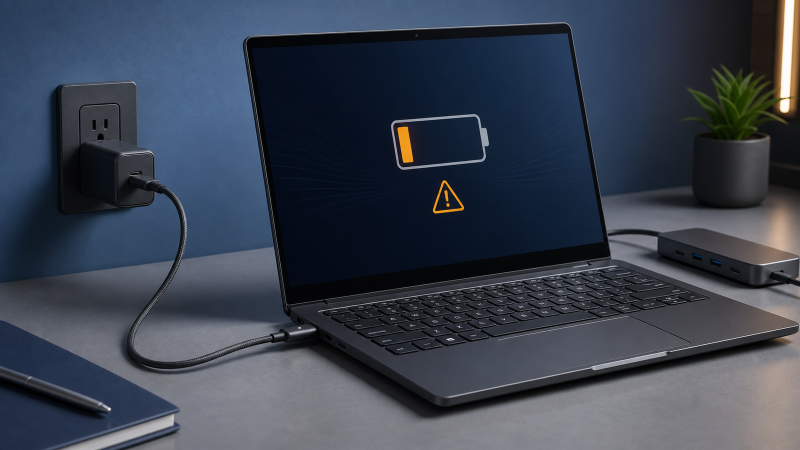
A USB-C port that will not charge your laptop often points to a mismatch somewhere in the power path, not a dead machine. Start with three safe checks.
First, stop if anything looks or feels wrong. Scorching, melted plastic, a swollen battery, liquid exposure, sparking, an odd smell, exposed wires, or a part too hot to hold is a service issue. Disconnect it and go to the manufacturer.
Second, confirm the exact port accepts charging input. USB-C names the connector, not its charging features. Your manual and port diagram decide whether that socket accepts USB Power Delivery.
Third, plug the original charger and cable straight into that port and a known-working outlet. Take docks, hubs, monitors, extension leads, and other loads on a multi-port charger out of the path.
The nine checks below isolate one variable at a time without asking you to open anything.
Match Your Symptom First
Charging problems are not one problem. Find your row before changing hardware.
| What you see | What it usually points at | Go to |
|---|---|---|
| No charging icon, no lights, no power at all | Port role, charger or cable failure, outlet, or a damaged power path | Checks 1, 2 and 6 |
| A “Slow charger” warning or a battery icon with an exclamation mark | The charger, the cable, or the port cannot meet what your laptop asks for | Checks 3 and 5 |
| Battery drains while the charger is connected | Input is lower than what the system is drawing under load | Checks 3, 4 and 8 |
| Charging stops at 80, 90 or 95 percent | An intentional charge ceiling, not a fault | Checks 5 and 8 |
| The charger works directly but not through a dock or monitor | Pass-through overhead and the peripheral’s host-output ceiling | Check 4 |
| One USB-C port charges and another does not | The ports have different roles | Check 1 |
Stop Immediately If You See Any of These
Some conditions end the troubleshooting session. Stop testing and do not try to repair the part yourself.
- A swollen or expanded battery. Microsoft says to stop using a device whose battery has expanded beyond its enclosure. Do not press or puncture it.
- Visible damage to the charger, cable, or connector. Stop for cracks, melted plastic, burn marks, a bent or broken tip, fraying, exposed wires, kinks, or discoloration. HP says not to use a damaged adapter, and ASUS directs damaged adapters or cables to service.
- Liquid exposure, sparking, an odd smell, or abnormal heat. These go to the manufacturer’s service channel.
- A part that got hot and stopped working. HP says an adapter may cut its output after overcurrent, overtemperature, or a short circuit. If it has no damage or abnormal heat, disconnect it from the notebook for five minutes before one retest. This is not permission to reuse a scorched or overheating adapter.
Two boundaries hold throughout. Never open a charger, power supply, laptop, or battery. Never put metal tools or liquid into a USB-C port.
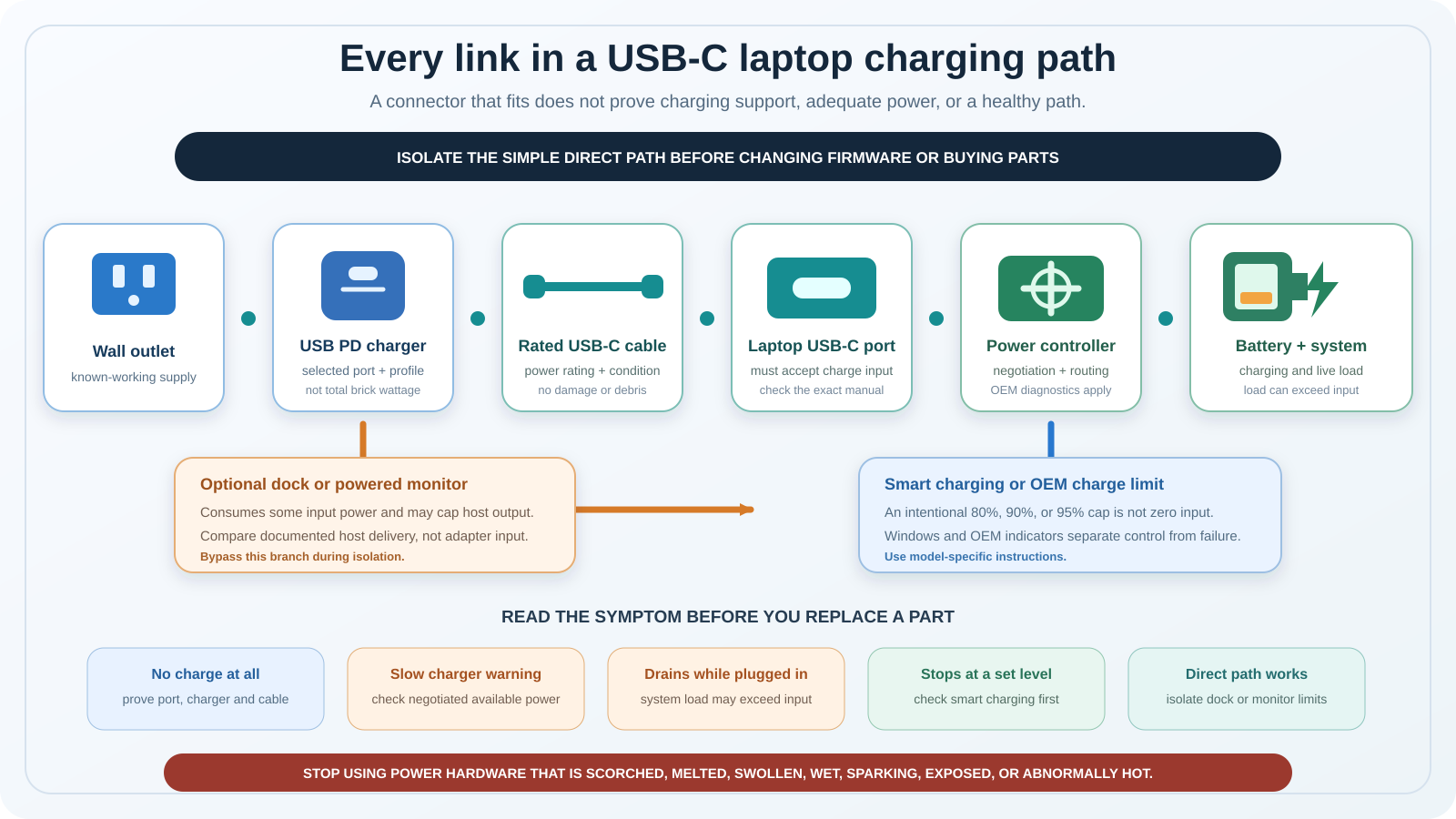
The fault can sit at any checkpoint shown there. System load also matters because a busy laptop can consume most of the power that arrives.
Check 1: Confirm That Port Accepts Charging Input
A USB-C port can carry data, video, power out to accessories, power in to the laptop, or some combination. USB-IF says USB Type-C names the connector and does not require USB Power Delivery, USB4, or USB 3.2. ASUS likewise tells you to confirm charging support in the device manual. Microsoft lists using a non-charging port as a cause of both charging notifications.
What to do:
- Find your manual by exact model, not family name. Ports differ between configurations of the same range.
- Read the port diagram and the label beside each USB-C port. Charging input may be marked separately from data and video.
- Try each port the manual identifies as charging-capable.
- If the laptop also has a barrel or proprietary connector, note whether the manual treats USB-C charging as primary or secondary.
A charging symbol beside one port is useful only when the manual defines it for that exact model. Do not infer charging input from a USB-C, Thunderbolt, battery, or lightning-style mark seen on another brand. If only one documented charging-capable port fails, keep that result for Check 9. If none of the laptop’s USB-C ports accepts input according to the manual, the behavior is not a USB-C charging fault.
A Thunderbolt port powering an accessory proves only that it can send power out. It does not prove that it accepts power in. Our USB Power Delivery explainer covers the separate negotiation process.
Check 2: Put the Original Charger and Cable Directly Into That Port
Once you know which port should work, give it the simplest possible power source.
Microsoft’s first remedy for both “Slow charger” and “PC isn’t charging” is the PC’s supplied charger and cable in its charging port. ASUS also warns against mixing cords and adapters between ASUS products because their output specifications differ. Use the exact model’s manual if the original equipment is missing.
For this test, connect the charger to a confirmed working outlet and its cable directly to the laptop. Remove hubs, docks, monitors, extensions, other charger loads, and laptop peripherals.
Observe the battery icon and any warning both while the laptop is running and after it is fully shut down. A machine that charges only while off is receiving some power, but not enough to cover its active load or it is following model-specific behavior. That differs from a correct port showing no power input in either state. Also note whether a direct connection fixes the problem immediately, because that result moves the investigation to the removed dock, monitor, shared charger, or extension rather than the laptop.
Model-specific behavior matters. ASUS says the Zenbook A16 (UX3607OA) uses a proprietary charging protocol and recommends its bundled charger. A substitute that fits may still lack what a particular laptop expects.
Check 3: Match the Laptop, the Charger Port, and the Cable
If the direct connection charges slowly or not at all, compare what three separate components can do.
The PC, charger, and cable must support the required standard and power level. Microsoft’s 12V and 3A versus 5V and 3A example only shows that voltage and current matter together. It is not a universal laptop requirement. USB PD 3.1 can reach 240W with compatible equipment, but that specification ceiling says nothing about the devices on your desk.
Work through three ratings:
- The laptop. Find its required or recommended USB-C charging wattage in the manual.
- The selected charger port. Read its output alone and while other ports are busy. Do not treat the charger’s total rating as one-port output.
- The cable. Check its power rating separately from its data speed. Microsoft lists an under-capable cable as a cause of both charging notifications.
USB Power Delivery lets compatible equipment agree on an available profile. It does not make an unsupported charger profile, cable, or laptop input work, and it does not guarantee the headline maximum. A compatible higher-capacity source does not simply force its full rating into the laptop. The laptop requests power within the path both sides support. Use the maker’s compatibility guidance instead of assuming that either a very small source or the largest available source must work.
On ASUS products with both DC-IN and USB-C charging, “Slow Charger” can appear even when the USB-C source meets the model’s USB-C rating if that is below its recommended AC adapter wattage. ASUS calls this normal behavior.
Our guide to Thunderbolt 4 power delivery limits covers why a port’s published maximum and a charger’s published maximum are two different promises.
Check 4: Take the Dock, Hub, or Monitor Out of the Path
If direct charging works but charging through a dock, hub, or monitor does not, the middle device or its power supply is now the likely limit. That does not automatically mean it is broken.
Microsoft lists an external hub or dock as a possible cause of both charging notifications. Dell explains that its docks must power themselves and attached devices before passing the remainder to a Dell laptop. In Dell’s example, a 130 W input leaves 90 W for the host.
Dell’s DA310 table makes the boundary concrete: 130 W in yields 90 W out, 90 W in yields 75 W out, and 65 W in yields 50 W out. These are DA310 figures, not a formula for another dock or brand.
The general lesson is that dock input and host output are different ratings. Read the documented host output, not only the wattage on its adapter.
Two more failure shapes:
- Silent failure. Dell says a dock or hub with no charging function may leave the laptop uncharged without a warning.
- Charging that pauses under load. HP says an underpowered dock or monitor may run the notebook while charging slows or pauses during heavy use. HP also recommends the adapter supplied with the dock.
A multi-port charger can also reallocate output when another device is connected. Unplug everything else and retest.
For a dock or monitor, compare two controlled results: direct charging with the known-good laptop charger, then charging through the peripheral with its required power supply and no unnecessary devices attached. If the first works and the second does not, read the peripheral manual for charging support and host output. Do not assume its power-input rating is available to the laptop. If both fail, return to the charger, cable, supported port, and outlet tests before replacing the middle device.
If your dock cannot cover your laptop’s stated requirement, host output is the specification to compare, and our roundup of USB4 hubs and docks lists it per device.
Check 5: Read What Windows and Your Laptop Maker Are Telling You
Record the exact warning and battery-icon state. Similar-looking messages do not mean the same thing.
Windows. Microsoft separates “Slow charger” from “PC isn’t charging.” A battery icon with a warning can mean a slow charger is connected while the battery is discharging. In Windows 11, search usb, open USB settings, and confirm Connection notifications are enabled.
ASUS. An exclamation mark or “Slow Charger” warning can mean the charging equipment is insufficient, with reduced performance or continued drain under use. ASUS sends a persistent warning with the original charger to service.
HP. “Power output too low” does not by itself mean the adapter is defective. “Reduced performance” means available power can run the computer but not at expected performance. “AC adapter is not genuine” means HP does not recognize it as authentic. HP’s example wattages apply only to its named platforms.
Dell. Dell’s lower-wattage and undersized-adapter warnings report that available power may reduce performance or prevent charging. Dell describes the laptop as reporting a shortfall, not necessarily a fault.
Then check Smart charging. A heart on the Windows battery icon and “Fully Smart charged” can mean the device is deliberately holding below 100 percent. Microsoft says each manufacturer implements this differently, so use your exact model’s instructions to change it.
Keep the categories separate in your notes. “PC isn’t charging” or no input in any power state is the zero-charge case. “Slow charger,” continued drain under load, or charging only while off means some input may be present but insufficient for current use. A stable 80, 90, or 95 percent ceiling with the expected battery-health indicator points toward an intentional control. Do not use a charge-limit setting to explain a machine that receives no power at all.
Check 6: Inspect and Cross-Test One Variable at a Time
Change one thing per test and record what happened.
Inspect without causing damage. Look for debris, bent or missing pins, and looseness at each connection. Microsoft suggests compressed air for a USB-C port. Follow the laptop maker’s cleaning guidance. Do not put a metal tool or liquid into the port.
Test the outlet. HP’s method is to plug a small lamp or other known-working device into the same outlet. A dead outlet makes everything downstream look broken.
Swap one component at a time:
- Same charger, same port, different known-compatible cable.
- Same cable, same port, different known-compatible charger meeting the laptop’s stated requirement.
- Same charger and cable, different USB-C port the manual identifies as charging-capable.
- Same charger and cable on a different compatible device.
- The laptop fully powered down, then charged, to remove system load.
Return to the same known-good baseline after each swap. Changing the cable, charger, port, and dock together may restore charging, but it does not identify which part was responsible.
Read indicator lights only through your manual. Dell publishes one set of meanings, while HP says some HP notebook lights do not indicate power state at all. Colors are not a cross-brand code.
On HP notebooks, HP says a charging icon shows that the adapter is powering the machine, while a battery meter without the charging bolt points to the adapter path. That interpretation applies only to HP notebooks.
If step 4 shows the same cable failing across two compatible devices while another works, the cable is your answer, and our USB-C cable guide covers the power and data ratings to check on a replacement.
Check 7: Use Your Exact Model’s Update and Diagnostic Path
Software and firmware come after the physical checks, and they come from your laptop’s maker rather than a generic list.
Use only the sequence for your maker and exact model:
- ASUS documents its own BIOS, Windows, and driver update paths, a MyASUS battery diagnosis, battery-driver reinstallation, and a separate ASUS-specific embedded controller, real-time clock, and hard reset procedure.
- HP provides a UEFI path through Component Tests, Power, and AC Adapter Test. It can produce a failure ID for HP Support. HP conditionally recommends an exact-model BIOS update when an HP adapter warning appears with the supplied adapter.
- Dell documents checking BIOS Overview for the AC Adapter entry. “Unknown” or the wrong wattage can point to an incompatible or faulty charger or a port connection issue. Dell also has model-specific power-plan and Intel driver steps.
These are three vendor procedures, not one universal menu. Do not apply an ASUS reset to a Dell or assume every Dell exposes the same BIOS options.
A firmware update or driver reinstall cannot repair a cracked connector, scorched adapter, or damaged port. If Check 6 found physical damage, stop there.
Check 8: Separate a Charge Ceiling From an Input Failure
A fixed charge ceiling, slow charging, and zero power input are different symptoms.
Intentional ceilings. Three vendors document them three ways:
- Microsoft says Smart charging can hold below 100 percent and show “Fully Smart charged” with a heart icon.
- ASUS documents model-dependent Battery Care settings with 100, 80, and 60 percent targets.
- Dell documents model-dependent BIOS charge modes, including a 50 to 80 percent Primarily AC Use range and custom thresholds.
Normal battery protection. ASUS says some of its systems do not restart charging until the battery falls below 95 percent. A reading around 94 to 97 percent can therefore be normal on those models. Do not transfer that threshold to another brand.
Draining while plugged in. This is a power shortfall, not a charge ceiling. ASUS says insufficient charging power can allow continued drain. HP says charging on its Business Notebooks may pause under heavy use when the adapter is below the requirement. If the battery recovers while idle, return to Checks 3 and 4.
Battery decline. Microsoft documents powercfg /batteryreport from an administrator Command Prompt as a read-only report of usage and estimated capacity. Dell’s own replacement indicators include Fair or Poor health, runtime below half the original, repeated diagnostic errors, unexpected shutdowns, swelling, or damage.
An intentional ceiling should still leave evidence that external power is present, such as the exact model’s charging state or a stable battery-health message. Zero response with known-good correct-power equipment is not a conservation threshold. A battery that runs the computer for much less time than before can be worn while the USB-C input path still works. These results can coexist, so isolate input power before deciding the battery itself needs service.
Battery-health advice does not repair a failed power path, but it explains intentional limits. Our explainer on charging through a docking station and battery health covers that distinction.
Check 9: Decide What to Escalate, and to Whom
Use the isolated result to choose the next step.
Contact the laptop manufacturer when:
- A known-good charger and cable meeting your laptop’s stated requirement fail on a port the manual identifies as charging-capable.
- Firmware or the vendor diagnostic does not recognize the adapter. Dell’s “Unknown” or wrong-wattage entry and HP’s UEFI failure ID are brand-specific examples.
- The port is physically damaged, loose, or holding debris you cannot clear with compressed air.
- The warning persists with the original bundled charger. ASUS names this as its own trigger for a service center visit.
- The battery shows swelling or the replacement indicators above.
Replace the component when it alone fails across compatible devices. Match any replacement to the laptop’s stated requirement and use a reputable, supported channel. Certification, output profiles, cable support, and laptop compatibility matter. A third-party charger is not automatically unsafe, but it is not automatically compatible. Our USB-C charger guide covers what to check.
Replace or reconfigure the peripheral when the dock is the ceiling. If direct charging works and documented host output is too low, use a larger adapter only if the dock maker supports it, or choose a dock rated for the laptop. Our USB-C docking station guide lists power delivery per model.
Before contacting support, record the exact warning, each model number, the port used, and the result of every swap.
Frequently Asked Questions
Can every USB-C port charge a laptop?
No. USB-C names the connector, while charging input is optional. Confirm support in the exact laptop manual because ports on the same laptop may have different roles.
Why does my laptop say “slow charger”?
Microsoft lists an incompatible or underpowered charger, the wrong port, an under-capable cable, debris, or a hub or dock as possible causes. Treat it as a power shortfall report, not proof of a failed part.
Why does the battery drain while the USB-C charger is connected?
The laptop may be drawing more than reaches it. ASUS links insufficient charging power with continued drain, and HP says charging on its Business Notebooks can pause under heavy load when the source is below the requirement. Check the direct path, per-port output, cable, and system load.
Does a 100W charger always send 100W?
No. A compatible source, cable, and laptop negotiate power. The 100W label may describe total charger output, and one port’s output may change when another port is used. Check the per-port table and cable rating. Our 100W USB-C charger guide explains those limits.
Can a USB-C cable stop a laptop from charging?
Yes. Microsoft lists a cable below the charger’s or PC’s power requirement as a cause of both charging notifications. Data speed and power rating are separate, so a cable can transfer files yet still be wrong for laptop charging.
Why does charging work directly but not through a dock or monitor?
The peripheral has its own power use and host-output ceiling. Dell’s published examples show input and host output differing, while HP says an underpowered dock or monitor may slow or pause charging under load. Compare host output with the laptop requirement. Our guide to a USB-C monitor with power delivery explains the relevant rating.
Why does the battery stop charging at 80 percent?
It is often intentional. Windows Smart charging and model-specific ASUS or Dell battery-care modes can impose fixed limits. Check the battery icon and exact-model settings before treating a repeatable ceiling as a fault.
Can a phone charger charge a laptop?
Sometimes, if the selected port and cable support what the laptop requests. A small source may work slowly or lose ground under load. For a shared charger, read per-port output rather than its total. Our USB-C desktop charging station guide lists that detail.
Should I reset the BIOS or uninstall battery drivers?
Only when your laptop maker documents the step for your exact model. ASUS, Dell, and HP publish different procedures that are not interchangeable. None repairs physical damage. Complete the safe physical isolation first.
When is the USB-C port likely damaged?
Suspect the port when known-good correct-power equipment fails there but works on another compatible device. A loose connector, visible damage, bent or missing pins, or a failed exact-model diagnostic adds evidence. Stop for service instead of attempting a port repair.
How We Researched This Guide
This guide uses eleven manufacturer and standards-body sources retrieved on July 21, 2026: three Microsoft articles, two USB-IF documents, three Dell knowledge-base articles, two ASUS support articles, and HP’s adapter guide. It contains no personal test or measurement claim.
Vendor examples apply only to the named hardware. The exact laptop manual controls port roles and power requirements, while brand-specific wattages, thresholds, diagnostics, resets, and firmware paths are not transferred to other hardware. No source supports one universal minimum wattage or reset sequence.
July 2026: Reviewed against the current versions of all eleven sources, including Dell articles revised in April, May and July 2026 and ASUS articles updated in March and April 2026.