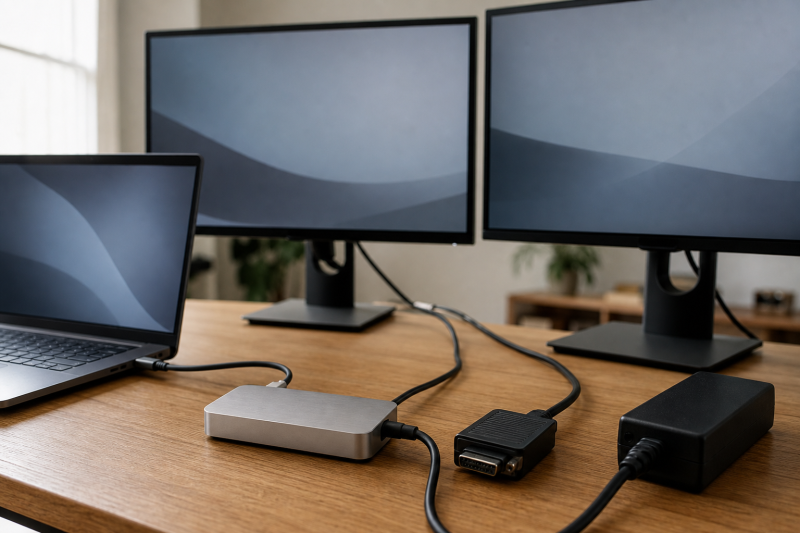
The Plugable TBT-UDT3 makes one laptop port far more useful, but it asks you to plan the display side yourself. Its three downstream Thunderbolt 5 ports can handle monitors, storage, and other Thunderbolt devices. The dock does not have an HDMI or DisplayPort socket, so a monitor with either input needs a separate USB-C video cable or adapter.
Your computer also decides far more than the Thunderbolt 5 label suggests. Plugable publishes different display limits for Thunderbolt 5 and Thunderbolt 4 Windows PCs, then separates Macs by Apple chip generation. Charging has a similar split. A host with USB Power Delivery 3.1 can receive up to 140W, while PD 3.0 stops at 100W.
This Plugable TBT-UDT3 review is based on Plugable’s product and support material plus named independent reviews. ThunderboltLaptop did not test the dock or reproduce those reviewers’ benchmarks.
Quick verdict
Buy the TBT-UDT3 if your computer has a supported Thunderbolt 5, Thunderbolt 4, or qualifying USB4 port and you want three downstream Thunderbolt branches. It suits a desk built around USB-C or Thunderbolt monitors, fast external storage, card readers, 2.5Gb Ethernet, and a mix of USB-A devices. Plugable supports Windows 11 or later and macOS 11 or later.
Skip it if the computer has Thunderbolt 3, if you need HDMI or DisplayPort built into the dock, or if you want an internal M.2 SSD slot. A gaming laptop may also need its original charger during demanding work, even though the dock can supply up to 140W to a compatible PD 3.1 host.

Our Take
Choose the TBT-UDT3 when three downstream Thunderbolt ports are the main reason you are buying a dock. Choose another layout when the desk needs many built-in connector types. Extra adapters and cable clutter are part of the purchase.
- Three downstream Thunderbolt 5 ports
- Up to 140W host charging through PD 3.1
- 2.5Gb Ethernet and two UHS-II card readers
- Published host-generation display matrix
- No native HDMI or DisplayPort
- No Thunderbolt 3 support
- No internal M.2 slot or included SSD
- Generic and host-specific display copy disagree
Check these four things before buying
The fastest way to decide is to ignore the port count for a moment. Start with the computer and the monitors that will connect to it.
1. Confirm the host port and operating system
Plugable requires a built-in Thunderbolt 5, Thunderbolt 4, or qualifying USB4 port. It lists Windows 11 or later and macOS 11 or later. For the stated Windows Thunderbolt 4 path, Plugable calls for an Intel 12th Gen or newer processor.
Thunderbolt 3 is not supported. A plain USB-C label is also insufficient because USB-C describes the connector, not every protocol running through it. Check the computer maker’s specification for the port. Our Thunderbolt 3, 4, and 5 comparison explains the generation labels, and the Thunderbolt laptop list can help you start the host check.
2. Write down every monitor input
A USB-C or Thunderbolt monitor can connect to a downstream Thunderbolt port. An HDMI monitor needs a compatible USB-C-to-HDMI route. A DisplayPort monitor needs a compatible USB-C-to-DisplayPort route. Plugable sells those video cables and adapters separately, and neither type is in the listed package.
Do not buy a cable from the connector name alone. The cable or adapter must support the resolution and refresh rate you plan to use. Our USB-C to DisplayPort cable and adapter guide covers that route. If the computer’s USB-C video ability is unclear, use the DisplayPort Alt Mode check before ordering.
3. Match the display count to the host generation
Plugable does not publish one display rule for every computer. Its Windows limits split by Thunderbolt generation, and its Mac limits split by Apple chip. A base M1 Mac, a base M3 Mac, and an M5 Max Mac do not belong in the same row.
Use Plugable’s detailed matrix for the host check. The generic comparison widget says “Up to 2x,” while the M5 Pro and M5 Max branch allows three displays. The disagreement is explained below rather than treating either line as universal.
4. Separate dock power from laptop power
Plugable rates the power supply at 180W, but the laptop does not receive all 180W. Plugable rates the host output at up to 140W through PD 3.1 at 28V and 5A. Plugable limits a PD 3.0 host to 100W.
Look up the laptop’s USB-C charging support and the rating of its original adapter. If the laptop maker requires a higher-output or proprietary adapter for full CPU and GPU performance, keep that adapter connected when needed.
Once those four checks pass, ask whether three downstream Thunderbolt ports solve a problem you actually have. The layout is useful when you want direct branches for a monitor, external storage, and another Thunderbolt device. It is less useful when your buying list starts with two native video outputs, several extra USB ports, or internal storage. A port-heavy dock can reduce adapters even if it offers fewer Thunderbolt branches. A simpler hub can also make more sense when Ethernet, card readers, and audio are already covered elsewhere. The correct category depends on the missing connections at your desk, not on which product advertises the newest protocol.
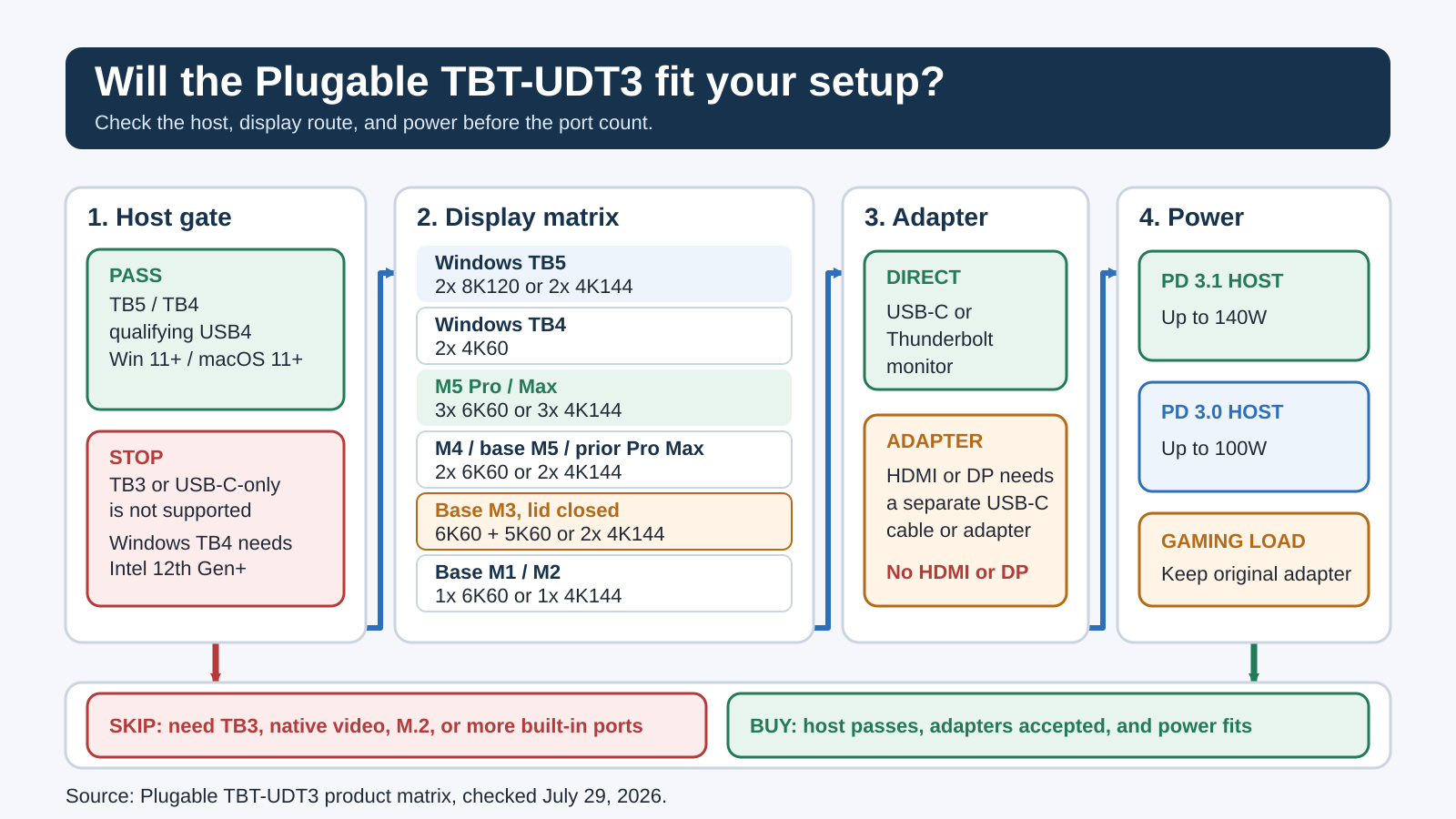
Use the decision map from left to right. A failed host check ends the decision. A passed host check still needs a monitor cable plan and a power check before the three downstream ports become useful.
What the 11-in-1 count includes
Plugable identifies the reviewed model and part as TBT-UDT3, paired with US Amazon ASIN B0F96ZVSKM. Plugable describes it as an 11-in-1 dock. The advertised count includes the upstream port that connects to the computer.
| Connection | Location | Purpose |
|---|---|---|
| 1 upstream Thunderbolt 5 | Rear | Connects the host and carries host charging |
| 2 downstream Thunderbolt 5 | Rear | Displays, storage, and Thunderbolt devices |
| 1 downstream Thunderbolt 5 | Front | Displays, storage, and Thunderbolt devices |
| 1 USB-A 10Gbps | Front | USB data |
| 1 USB-A 10Gbps | Rear | USB data |
| 1 USB-A 5Gbps | Rear | USB data and device charging |
| 1 2.5Gb Ethernet | Rear | Wired network |
| 1 full-size SD UHS-II reader | Front | Memory cards |
| 1 microSD UHS-II reader | Front | Memory cards |
| 1 3.5mm TRRS jack | Front | Headset audio |
The power inlet, power button, and lock slots are not counted as data or media ports. After the computer occupies the upstream connection, ten listed connections remain for devices and media.
The three downstream Thunderbolt ports are the defining feature. They let you keep a compatible monitor, fast external drive, and another Thunderbolt device on separate physical branches. The branches still share the host link. Three sockets do not create three independent host bandwidth allowances.
Plugable describes Thunderbolt 5 Bandwidth Boost operation up to 120Gbps in the display-heavy direction. The ordinary Thunderbolt 5 path and the asymmetric boost are not the same thing. Our Thunderbolt 5 specification guide explains the link modes. The practical point is that displays and fast storage can still compete for shared bandwidth when they are active together.
The USB ports handle ordinary peripherals without consuming a Thunderbolt branch. The front and rear 10Gbps USB-A ports suit faster USB devices. The rear 5Gbps port trades some data speed for a higher published charging allowance.
Both card readers use a UHS-II bus rated at 312MB/s. Plugable lists 312MB/s as a bus rating, not a guaranteed file-transfer result. The readers are separate physical slots, but the page does not establish that both can sustain the bus limit at the same time.
The built-in connections cover many common desk tasks without turning the dock into an all-purpose port bank. Ethernet, cards, and headset audio are present. Native video, internal storage, and USB-C data ports that are separate from Thunderbolt are not. Count the devices that can use each available socket. A dock can have enough ports in total and still have the wrong types for your keyboard, webcam, drives, and displays.
There is no internal M.2 slot and no SSD in the dock. You can attach an external Thunderbolt or USB drive, but the drive remains a separate device with its own cable, power needs, and thermal behavior. Buyers who mainly want extra high-speed branches may also want to compare the simpler products in our Thunderbolt hub guide.
Package, size, and placement
Plugable lists the dock, a vertical stand, a one-meter 80Gbps Thunderbolt 5 cable, a quick-start guide, a power supply, and a power cable. It does not list an HDMI adapter or DisplayPort adapter.
Plugable lists the dock at 17.6 x 4.15 x 7.75 cm and 692 g. The stand lets you place it vertically to reduce desk area or lay it horizontally. Cable direction still decides where it fits. The host port, two downstream Thunderbolt ports, Ethernet, two rear USB-A ports, and power input face the rear. One downstream Thunderbolt port, one USB-A port, both card readers, audio, and the power button face the front.
Start with the supplied host cable. If you need a different length, confirm data rate and power support instead of assuming every USB-C cable preserves the same link. Our Thunderbolt 5 cable guide covers the checks.
Display support depends on the host
Plugable’s display limits apply to named host paths. They are not independent test results or promises for every GPU, monitor, cable, or adapter.
Thunderbolt 5 Windows
Plugable states up to two 8K 120Hz displays or two 4K 144Hz displays for a Thunderbolt 5 Windows system. The computer’s GPU must expose the required display streams, and the chosen monitors, cables, and adapters must support the target modes.
The two-display wording is important because the dock has three downstream Thunderbolt sockets. Three physical outputs do not mean Plugable promises three displays on a Windows Thunderbolt 5 laptop. The third branch may be more useful for storage or another peripheral.
Thunderbolt 4 Windows
For an Intel 12th Gen or newer Windows computer using the stated Thunderbolt 4 path, Plugable gives a limit of two 4K displays at 60Hz. A Thunderbolt 4 host does not gain Thunderbolt 5 link speed by connecting this dock.
If that is the computer you plan to keep, compare the built-in connectors and charging of the products in our Thunderbolt 4 dock guide. The TBT-UDT3 can still fit, but paying for its Thunderbolt 5 branch layout only makes sense when the rest of the port mix is useful now or the dock will move to a newer host later.
M5 Pro and M5 Max
Plugable’s detailed Mac matrix gives M5 Pro and M5 Max a specific three-display branch. It states up to three 6K 60Hz displays or three 4K 144Hz displays for those chips.
The M5 Pro and M5 Max row is the only branch on the current page that should be described as triple-display support. The statement must not be shortened to “Mac supports three displays.” The specific chip, the Mac’s external-display support, the operating system, and the full cable and monitor chain still apply.
M4, base M5, and prior Pro or Max chips
Plugable groups any M4 chip, the base M5, and prior Pro or Max chips into a two-display branch. It states up to two 6K 60Hz displays or two 4K 144Hz displays.
The “prior Pro or Max” language does not include every base Apple chip. Keep the computer’s full chip name in front of you when using this row. A Mac listed only as “M3” is not the same as an M3 Pro or M3 Max.
Base M3 in clamshell mode
Plugable gives the base M3 a dual-display route only with the laptop lid closed. The listed combinations are one 6K 60Hz display plus one 5K 60Hz display, or two 4K 144Hz displays.
Clamshell mode is part of the requirement. A buyer who needs the built-in laptop display active at the same time should not count this branch as two external displays plus the laptop screen.
Base M1 and base M2
For base M1 and base M2 Macs, Plugable lists one 6K 60Hz display or one 4K 144Hz display. The three downstream ports do not remove the host’s one-display limit.
An extra port can still handle storage or another non-display device. It cannot create a second native display stream that the Mac does not expose.
Why Plugable’s page can look contradictory
Plugable’s generic product comparison says “Up to 2x.” Another description of the downstream ports also says they can connect up to two displays. On the same page, the detailed host matrix and product copy give M5 Pro and M5 Max a three-display path.
The detailed host row applies to the named M5 Pro and M5 Max systems because that row identifies the chips and modes. It does not apply to another Mac, and the generic two-display line does not replace it for those named chips. The safest checkout step is to compare your full Mac model and operating system with Plugable’s latest matrix.
Charging and device power
The 180W supply has to power the dock, the host path, and attached devices. Plugable allocates up to 140W to a PD 3.1 host and up to 100W to a PD 3.0 host. Charging is negotiated, so the laptop accepts only a mode that both sides support.
| Output | Plugable’s published limit | What it means |
|---|---|---|
| Host through PD 3.1 | Up to 140W, 28V at 5A | Requires a compatible host |
| Host through PD 3.0 | Up to 100W | Does not rise to 140W |
| Each downstream Thunderbolt 5 port | Up to 15W | For attached devices |
| Rear USB-A 5Gbps port | Up to 7.5W | Higher USB-A charging output |
| Each USB-A 10Gbps port | Up to 4.5W | Data peripherals and light charging |
A gaming laptop can accept USB PD for normal work yet still require its original adapter for full performance. Compare the original charger’s rating and the laptop maker’s instructions. If the laptop uses a higher-output or proprietary connection during gaming or rendering, the dock’s 140W path is an office convenience, not a guaranteed replacement.
Device power also needs planning. A bus-powered external SSD can draw from a 15W downstream Thunderbolt port. Phones, tablets, and other devices may charge more slowly than they do from their own charger. The published port limits are separate, but the dock still operates inside the total power budget of its supply.
Setup, software, firmware, and support
Plugable says normal operation is driverless on supported Windows and macOS computers. Connect the 180W supply first, use the included Thunderbolt 5 cable between the rear host port and computer, then approve the device if Windows or macOS asks.
The optional software has a narrower role. Intel Thunderbolt Share can let supported Windows PCs share files, control, and migration workflows through licensed hardware. Plugable positions the TBT-UDT3 as a licensed accessory. The application must be installed on the participating supported systems. It is not a macOS feature.
Plugable also lists an optional Realtek Ethernet driver for cases where Windows Update does not provide suitable network behavior. Its Windows 11 driver record dated March 27, 2026 lists version 1152.22.20.113.
The product page listed optional software and Ethernet drivers but no TBT-UDT3 dock firmware package or firmware version. A later product-page update may add one.
Plugable states a 2-year warranty, a 30-day money-back policy, and lifetime technical support from its North American team. The terms do not establish reliability. They give you a named place to ask about an uncertain host or display route before ordering.
What independent reviewers found
Independent results show how much the host and workload matter. They do not create a result for a computer that the reviewer did not use.
PCWorld tested with a Thunderbolt 5 Razer Blade 18 and an OWC Envoy Ultra. In PCMark’s storage test, PCWorld reported 469MB/s and a score of 3,202 with the drive connected directly. Through a downstream port on the TBT-UDT3, PCWorld reported 437MB/s and a score of 2,920, which the review described as a 7 percent drop.
Creative Bloq used a Thunderbolt 5 Mac Studio and a LaCie Rugged drive. Creative Bloq reported 6,956.33MB/s read and 5,272.78MB/s write when connected directly, then 6,723.53MB/s read and 4,617.44MB/s write through the dock.
The numbers use different hosts, drives, and test methods, so they should not be compared with each other. Both reviews show that a dock sits inside the storage path and can add overhead. Neither result predicts speed while your displays, Ethernet, and other devices are busy.
Three alternatives for a different port plan
The alternatives solve different checkout problems. Our Thunderbolt 5 dock roundup owns the broader multi-product comparison.
CalDigit TS5 for more built-in connections
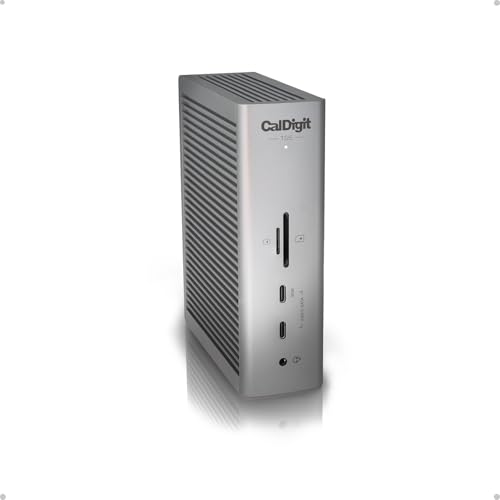
Choose the CalDigit TS5 when a larger 15-port layout is more useful than Plugable’s compact 11-port mix. It is the role-based alternative for a desk that needs more built-in general connectivity and wants to reduce separate adapters. Its host, display, power, and port limits still need their own model-specific check.
Anker Prime A83B5 for a different 14-in-1 mix

Choose the Anker Prime A83B5 when you prefer the 14-in-1 port mix Anker publishes. It targets a buyer who values a broader set of built-in connections and does not need Plugable’s three-branch layout. Do not borrow Plugable’s display matrix or power allocations for the Anker.
OWC Thunderbolt 5 Dock for broader host labels
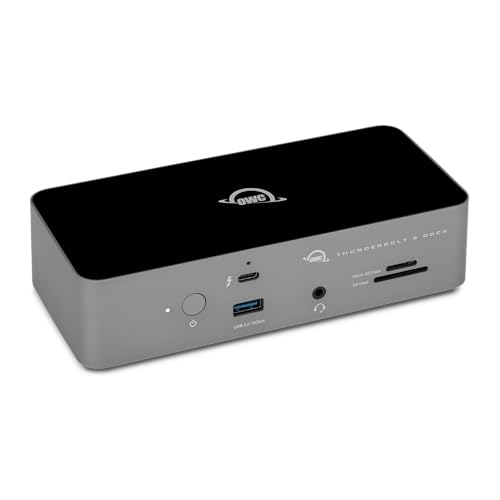
Choose the OWC Thunderbolt 5 Dock when backward compatibility is the deciding issue. OWC advertises Thunderbolt 3, USB4, and USB-C machine compatibility for its dock, while Plugable explicitly excludes Thunderbolt 3 for the TBT-UDT3. The OWC still needs a check for the features and display behavior of your host.
Final buy or skip decision
Buy the TBT-UDT3 when all four statements are true:
- the computer has a supported built-in port and operating system;
- the monitor cable or adapter plan is complete;
- Plugable’s row for your host provides the display count you need;
- the negotiated charging limit and three-downstream-port layout fit the desk.
Skip it or compare another dock if you need Thunderbolt 3 support, native HDMI or DisplayPort, an internal M.2 slot, more built-in ports, or a charger that replaces a higher-output gaming adapter under load.
The TBT-UDT3 solves a narrow port problem. It turns one suitable host port into three Thunderbolt branches plus Ethernet, card readers, USB-A, and audio. It cannot fix an unsupported host, missing video adapter, or laptop power requirement. Check those three details before the port count influences the decision.
Frequently asked questions
Does the Plugable TBT-UDT3 work with Thunderbolt 4?
Yes, on the host paths Plugable lists. It supports Thunderbolt 4 Macs and Windows PCs, with Intel 12th Gen or newer specified for the Windows Thunderbolt 4 path. A Thunderbolt 4 host keeps its own bandwidth and display limits. Plugable lists up to two 4K 60Hz displays for the stated Windows TB4 path.
Does it work with Thunderbolt 3?
No. Plugable explicitly says Thunderbolt 3 systems are not supported by the TBT-UDT3. Do not treat it as a slower fallback. Choose a dock whose maker supports your Thunderbolt 3 computer.
Does it have HDMI or DisplayPort?
No. The dock has no native HDMI or DisplayPort socket. USB-C and Thunderbolt monitors can connect to downstream Thunderbolt ports. HDMI and DisplayPort monitors need compatible USB-C video cables or adapters, sold separately.
Can it run three displays?
Plugable lists a three-display branch only for Macs with M5 Pro or M5 Max. The branch allows up to three 6K 60Hz or three 4K 144Hz displays under the stated conditions. Other Macs and Windows systems use different rows. Plugable’s generic comparison still says up to two, so verify the latest host-specific matrix before buying.
Does it have an M.2 SSD slot?
No. The TBT-UDT3 has no internal M.2 slot and no included SSD. You can connect external Thunderbolt or USB storage to a downstream port.
Can its 140W output replace a gaming laptop charger?
Sometimes for lighter work, but it is not a universal replacement. The laptop must support PD 3.1 at the required mode to receive up to 140W. Many gaming laptops need their original higher-output or proprietary adapter for full CPU and GPU performance.
Does it work with USB4?
Plugable lists qualifying built-in USB4 ports alongside Thunderbolt 5 and Thunderbolt 4. USB4 implementations vary, so check the computer maker’s data, display, and charging specifications. Our guide to what USB4 means explains why the label does not guarantee every Thunderbolt feature.
What is included in the box?
Plugable lists the TBT-UDT3 dock, vertical stand, one-meter 80Gbps Thunderbolt 5 cable, quick-start guide, power supply, and power cable. It does not list an HDMI or DisplayPort adapter.
Does Thunderbolt Share work on Mac?
No. Plugable describes Thunderbolt Share as optional Windows software for supported systems. Normal dock operation on a supported Mac does not require it, but a Mac does not receive the Windows-only Thunderbolt Share feature.
Who should buy the TBT-UDT3 instead of a port-heavy dock?
Buy it when three downstream Thunderbolt ports help more than extra built-in connector types. It fits when your monitors already use USB-C or Thunderbolt, or you accept separate video adapters, and you want several direct branches for displays and fast external devices.