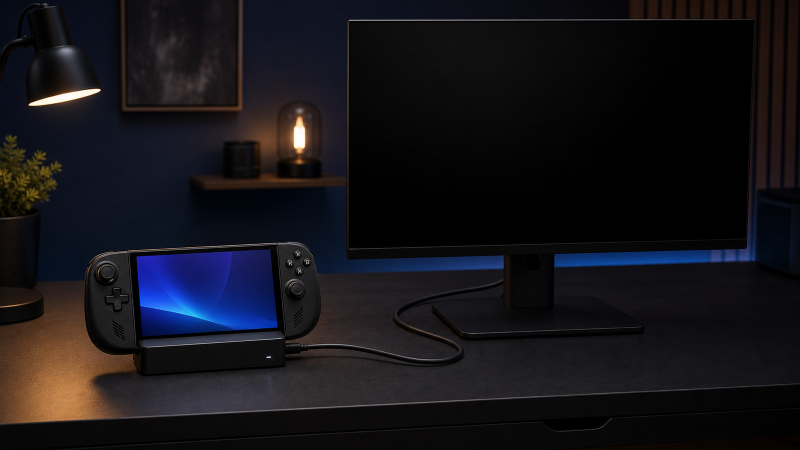
If a monitor or TV shows no signal from your Steam Deck dock, check its selected input first. Then watch the Deck screen as you connect the display. If the Deck screen stays on, SteamOS may not have accepted an external display route. If it goes black in Gaming Mode, the Deck reacted, but the external screen may not accept the cable, conversion, or requested mode.
Use Valve’s External display safe mode before any system-level recovery step. It makes SteamOS try a low resolution and refresh rate. Do not install a Windows graphics driver, reimage SteamOS, enter developer mode, or copy a community reset ritual.
Deck screen still on and Deck screen black are different no-signal states.
This guide is for a Steam Deck running SteamOS with a dock or USB-C hub already owned.
Start with the exact display state
| What you see | What it suggests | Next check |
|---|---|---|
| Deck screen stays on, external display says no signal | SteamOS may not have accepted an external display connection | Input, cable, dock output, and External Display Safe Mode |
| Deck screen goes black, external display stays blank | Gaming Mode reacted to a display connection | Correct input, conversion, cable, and lower mode |
| External display appears at a lower resolution or refresh rate | The route can carry a reduced mode | Keep the working mode and check exact component limits |
| Display works through one dock output but not the other | Deck and display can work through the dock | Isolate that output, cable, and any conversion |
| Display works from another display-capable source | Display and tested cable can work in that comparison | Keep them fixed and isolate the dock or Deck |
| Another dock works with the same Deck, cable, and display | Original dock path is isolated | Exact dock service or replacement |
| No display and no USB peripheral works | Failure is broader than the display branch | Dock power, Deck connection, and whole-dock support |
Record the state before unplugging anything, because the Deck screen behavior decides the next branch.
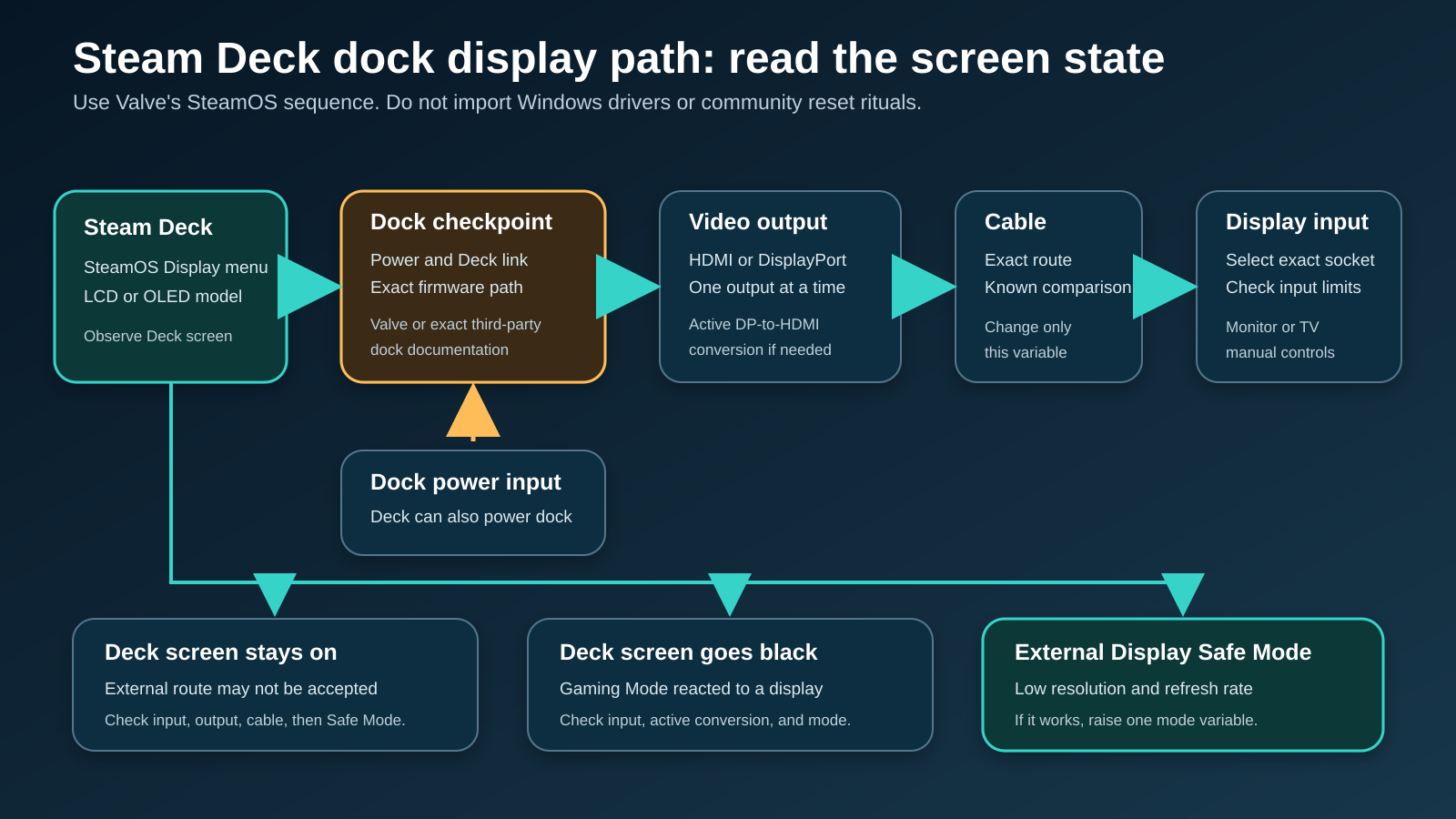
The shortest safe SteamOS sequence
- Select the monitor or TV input that matches the connected cable.
- Remove unnecessary adapters, switches, receivers, and capture devices.
- Connect one display to one dock output with one cable.
- Observe whether the Deck screen stays on or turns black in Gaming Mode.
- Enable External display safe mode, then reconnect the Deck.
- If an image appears, test a lower resolution or refresh rate under Steam > Display.
- Test one other cable or one other input while everything else stays fixed.
- Power-isolate the Valve Docking Station using Valve’s exact sequence.
- Apply Valve’s exact Docking Station firmware sequence if you own that dock.
- Substitute one display-capable source or dock to identify the failed layer.
Change only one of the cable, input, dock, display mode, or SteamOS state at a time. Record each result.
Step 1: record the route before changing it
Write down:
- Steam Deck LCD or OLED;
- SteamOS version;
- Valve Docking Station or exact third-party dock model;
- dock power supply;
- dock output used, HDMI or DisplayPort;
- cable and any adapter;
- monitor or TV model;
- selected input;
- requested resolution and refresh rate, if known;
- what the Deck screen does at connection.
Valve’s current Docking Station specifications list one DisplayPort 1.4 output and one HDMI 2.0 output. Valve lists up to 4K at 60 Hz or 1440p at 120 Hz, plus MST and FreeSync support. Those are dock specifications, not a guarantee for every display, cable, color setting, game, or third-party dock.
If you are using another dock, do not copy the Valve port map onto it. Read that dock’s exact documentation.
Step 2: select the correct display input
Valve’s support sequence starts with the TV or monitor input. The selected input must match the physical socket:
- choose the exact HDMI input used by the cable;
- choose DisplayPort if the cable enters DisplayPort;
- do not assume a TV changes inputs automatically;
- check whether the display manual gives different limits to different inputs.
Many TVs have several HDMI sockets. Select each one deliberately, then leave the matching input selected for the next test.
If an input accepts a lower mode but another does not, preserve that result. Do not call the dock defective until the display’s exact input limits are known.
The 4K monitor guide is a buying route only after the current display’s documented input or mode is the confirmed boundary.
Step 3: reduce the route to one cable
Connect:
Steam Deck -> dock -> one HDMI or DisplayPort cable -> one display
Temporarily remove:
- AV receivers;
- capture devices;
- KVMs;
- HDMI switches;
- cable extenders;
- conversion adapters that are not required;
- a second display;
- nonessential dock peripherals.
If direct HDMI or DisplayPort works after removing an intermediate device, that removed layer owns the next test.
Keep the dock’s power supply connected when its manual requires power. For the Valve Docking Station, use the documented power input and Deck connection. A dock can receive some power from the Deck even when its own power supply is disconnected, which is why Valve’s later power-isolation sequence disconnects both.
Step 4: handle DisplayPort-to-HDMI conversion correctly
Valve says passive DisplayPort-to-HDMI adapters are not supported for this Docking Station route and may cause problems. Use an active cable or adapter when converting the dock’s DisplayPort output to HDMI.
Check the labels and documentation:
- Dock HDMI to display HDMI: no DisplayPort conversion.
- Dock DisplayPort to display DisplayPort: no HDMI conversion.
- Dock DisplayPort to display HDMI: use the active conversion Valve requires.
- USB-C dock output to HDMI: follow the exact third-party dock and adapter documentation.
Do not infer direction from plug shape. Many conversion products work only from one source type to one display type.
If controlled comparison isolates an existing conversion adapter, the Thunderbolt-to-HDMI guide owns adapter shopping. The USB-C to DisplayPort cable and adapter guide is relevant only when that is the required physical route.
Step 5: read the Deck screen behavior
Connect the display while Steam Deck is in Gaming Mode.
Valve says the Deck screen normally goes black when an external display is plugged in. Use that as a branch:
Deck screen stays on
SteamOS may not have accepted a display connection. Keep the correct display input selected. Then:
- Disconnect and reconnect the display cable once.
- Try another output on the same dock if the display supports it.
- Try another known compatible cable.
- Enable External Display Safe Mode before reconnecting the Deck.
Deck screen goes black
SteamOS reacted to a display connection, but the external display may not show a usable image. Focus on:
- selected monitor input;
- conversion direction and active adapter requirement;
- cable;
- requested display mode;
- exact input capability.
A black Deck screen is not proof that the monitor received a valid mode.
Valve’s current guidance says Desktop Mode is the route for using both internal and external displays at the same time. If you expected mirroring in Gaming Mode, switch to Desktop Mode rather than diagnosing the black Deck screen as a fault.
Step 6: use External Display Safe Mode
Valve documents a specific low-mode recovery:
- Unplug the Deck from the dock or hub.
- Open the SteamOS Display menu.
- Turn External display safe mode on.
- Reconnect the Deck to the dock.
Safe Mode makes the Deck choose a low resolution and refresh rate to improve the chance that the display lights.
Record the result:
- If the display appears, keep the low mode and continue to Step 7.
- If the Deck screen goes black but the external display remains blank, keep checking input, cable, and conversion.
- If the Deck screen stays on, compare another display-capable source or dock.
Safe Mode is a diagnostic state that reduces signal demand, not a performance setting.
Step 7: raise one display variable at a time
If Safe Mode produces an image, open Steam > Display and check resolution and refresh rate.
Start with the working values. Raise only one setting:
- Keep refresh rate fixed and change resolution once.
- Return to the working resolution if the image disappears.
- Keep resolution fixed and change refresh rate once.
- Preserve the highest mode that remains stable.
Valve explains that cable data requirements can change with resolution, refresh rate, color depth, HDR, compression, and other display settings. A cable that works in one setup may not support a higher requested mode in another.
Do not invent a universal expected bandwidth from the connector label. Check:
- the Valve or third-party dock output;
- cable documentation;
- adapter documentation;
- the exact monitor input;
- the selected mode.
If a lower mode works, the display path exists. The remaining problem is a mode or component limit, not complete dock absence.
Step 8: isolate the cable and display input
Use one-variable comparisons:
Compare one cable
Keep the Steam Deck, dock output, monitor, input, and working or Safe Mode fixed. Replace only the cable with another cable documented for that route.
Compare one display input
Keep the Deck, dock, and cable fixed. Move to another compatible input on the same display and select it in the display menu.
Compare another display-capable source
Keep the cable and display input fixed. Connect a laptop, desktop, phone, or tablet whose manual confirms display output.
Valve recommends this kind of source and dock substitution. A successful second source proves only that the display and cable work in that comparison.
If the cable is isolated, use the USB-C cable guide only when USB-C is the exact route. An HDMI or DisplayPort cable needs its own exact specification and display documentation.
Step 9: power-isolate the Valve Docking Station
Use this only for the Valve Docking Station. Valve says that disconnecting only its power supply is not a full power isolation because the Docking Station can still receive power from Steam Deck.
- Shut down or leave the Deck in a stable state.
- Unplug the Deck from the Docking Station.
- Unplug the Docking Station power supply.
- Unplug the display cables from the Docking Station.
- Reconnect the display cable, Docking Station power, and Deck.
- Retest the same input and Safe Mode state.
This is a device-specific power isolation, not a factory reset. It does not erase SteamOS or games.
Do not use battery storage mode, BIOS menus, or a SteamOS reimage for this display-only sequence.
Step 10: use Valve’s exact firmware sequence
Valve documents Docking Station firmware through the connected Deck and power supply. For the Valve Docking Station:
- Connect the Docking Station power supply and Steam Deck.
- Restart the Deck.
- Fully unplug the Deck and power supply from the Docking Station.
- Wait 10 seconds.
- Reconnect the power supply and Deck.
Valve says this should start the firmware update. If it does not, Valve also documents connecting Deck and power supply to the Docking Station, then unplugging the Docking Station power supply to help start the update.
Follow only the current Valve page and on-screen prompts. Do not install a generic dock firmware package.
For a third-party dock, use its exact Steam Deck or Linux instructions. Valve says most USB-C-compliant hubs and docks may work, while Thunderbolt and DisplayLink docks may work but are not officially supported. That is a compatibility warning, not a promise.
If exact compatibility is missing and controlled substitution isolates the dock, the USB-C docking-station guide or gaming-laptop docking-station guide can be a commercial handoff. Verify Steam Deck support on the exact product.
Official Valve dock versus third-party dock
| Path | What controls it | Safe action |
|---|---|---|
| Valve Docking Station | Valve support and technical pages | Use Valve input, Safe Mode, power-isolation, and firmware steps |
| USB-C third-party dock | Exact dock manual plus Valve’s compatibility note | Confirm display output, power, cable, and Steam Deck or Linux support |
| Thunderbolt dock | Exact dock and host fallback behavior | Do not assume official Valve support |
| DisplayLink dock | Exact DisplayLink and SteamOS support | Do not install Windows DisplayLink instructions |
| Passive DP-to-HDMI conversion | Valve says this route is unsupported | Use active conversion or a native output |
The USB-C DisplayPort Alt Mode check explains the display function on general USB-C hardware. Steam Deck support remains controlled by Valve and the exact dock.
Escalation matrix
| Result | What you have isolated | Escalate to |
|---|---|---|
| Correct input, Safe Mode, and known cable still produce no Deck reaction | Deck-to-dock display route | Valve or exact dock maker |
| Deck screen goes black but two displays reject the signal | Dock output, conversion, or Deck mode | Valve with exact state and components |
| Lower mode works | Requested mode or a component limit | Dock, cable, adapter, or display maker |
| One dock output works, another does not | Output-specific path | Dock maker |
| Another display-capable source works with same cable and input | Cable and display can work in that comparison | Keep them fixed and isolate Deck or dock |
| Another dock works with same Deck and display route | Original dock is isolated | Original dock maker |
| Valve firmware sequence changes the result | Valve Docking Station software state mattered | Record SteamOS and dock firmware state |
| Display works, game performance is poor | Display detection is solved | Game settings and workload, not this owner |
Send support the Deck model, SteamOS version, dock model, power supply, output, cable, adapter, display model, selected input, Safe Mode result, Deck-screen behavior, and direct-source comparison.
Replacement boundary
Replace a cable when the same Deck, dock output, input, and display work with another documented cable.
Replace an adapter when the current path uses unsupported passive DisplayPort-to-HDMI conversion or another active adapter works with everything else fixed.
Service or replace the dock when:
- the same Deck, cable, and display work through another supported dock;
- the original dock’s output fails after its exact power and firmware sequence;
- its manual rules out the required Steam Deck or display mode.
Replace a monitor only when its exact input or mode is the isolated boundary. If you truly need two external displays, use the dual-monitor docking-station guide after verifying Steam Deck and SteamOS support.
Do not replace the Steam Deck because one cable or passive adapter failed.
Frequently asked questions
Why does my Steam Deck screen go black but the monitor says no signal?
In Gaming Mode, Valve says the Deck screen normally goes black when an external display connects. SteamOS reacted, but the monitor may not accept the selected input, cable, conversion, or requested mode. Use External Display Safe Mode.
Why does the Deck screen stay on when I connect the dock?
SteamOS may not have accepted an external display route. Check the selected input, direct cable path, dock output, power, and Safe Mode. Then compare another display-capable source or dock.
Should I use a passive DisplayPort-to-HDMI adapter?
Valve says passive DisplayPort-to-HDMI adapters are not supported for its documented Docking Station route. Use an active cable or adapter when that conversion is required.
Where is External Display Safe Mode?
Disconnect the Deck from the dock, open the SteamOS Display menu, enable External display safe mode, and reconnect the Deck. Valve says it selects a low resolution and refresh rate.
Can I use the Deck screen and external monitor together?
Valve’s current guidance says Gaming Mode disables the Deck display when an external display is in use. Use Desktop Mode when you need both displays.
Does the Valve Docking Station guarantee 4K at 60 Hz?
Valve lists up to 4K 60 Hz or 1440p 120 Hz for the Docking Station. These are ceilings. The display input, cable, adapter, selected mode, and workload still matter.
Should I reimage SteamOS?
No. This display-only procedure does not require a reimage, developer mode, BIOS work, or battery storage mode. Isolate input, cable, conversion, mode, dock power, and exact firmware first.
Sources and methodology
This article uses Valve primary sources checked on July 28, 2026: Docking the Steam Deck, the Steam Deck Dock technical specifications, and Valve’s current Docking Station product page.
No Steam Deck, dock, cable, adapter, or display was physically tested for this draft. Valve’s listed modes are hardware ceilings, not guaranteed outcomes. Third-party dock and display manuals remain controlling. The sequence changes one variable at a time and excludes community-only fixes, system-level recovery, and destructive actions.