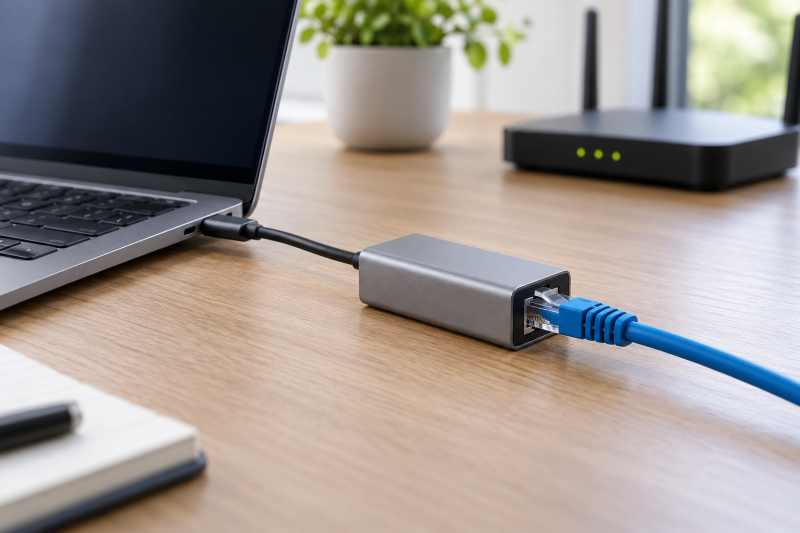
When a laptop has no built-in Ethernet port, a small USB-C adapter adds a wired RJ45 connection without turning the purchase into a multiport dock decision. Every adapter below is plain Gigabit Ethernet, not 2.5GbE, 5GbE, or 10GbE. A faster adapter is not a better fit when the router, switch, cable, and network service are all gigabit.
Amazon lists each of the six adapters below with 10/100/1000Mbps or up to 1Gbps wired speeds. The figures are listing claims, not speed-test results. The laptop’s USB-C port, the Ethernet cable, the switch or router, and the device at the other end all affect the link that is established.
Choose a gigabit adapter for the network you have, then confirm the host port, cable, operating system, and wired-network hardware at the other end.USB-C Gigabit Ethernet Adapters Compared
| Image | Product | Details | Check Price |
|---|---|---|---|
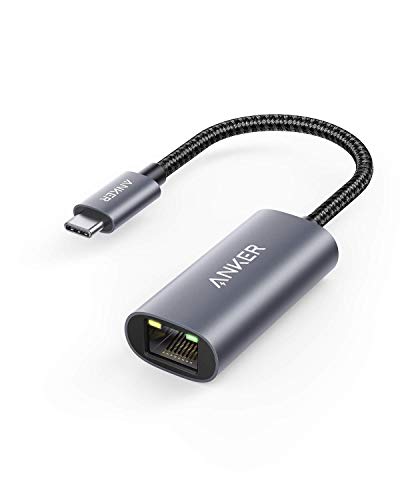 | Anker USB-C to Ethernet Adapter | Best fit: Small basic adapter Ethernet: 10/100/1000Mbps Host: USB-C 3.0 Build: Aluminum with braided-nylon cable Driver note: Not stated | Check Price on Amazon |
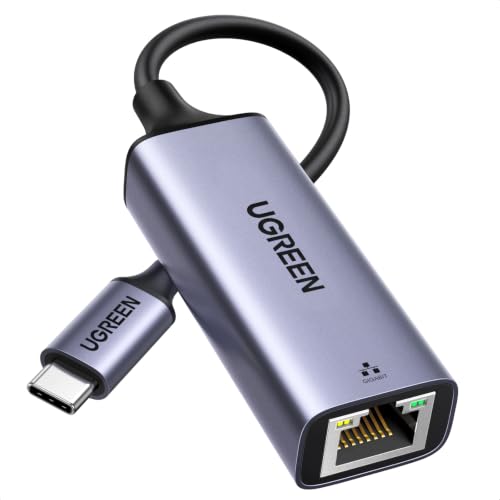 | UGREEN USB-C to Ethernet Adapter | Best fit: Steam Deck and Switch compatibility stated Ethernet: Up to 1000Mbps, 100/10Mbps fallback Host: USB-C, Thunderbolt 4/3 compatible Build: Aluminum case with LED indicator Driver note: Driver-free for Windows 11/10/8.1/8, macOS, ChromeOS, Android; Linux needs a driver | Check Price on Amazon |
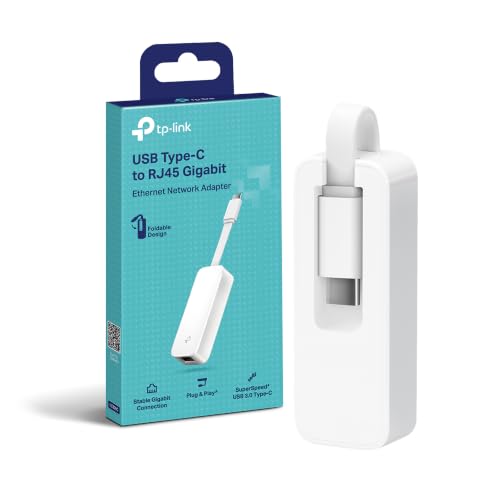 | TP-Link UE300C | Best fit: Ubuntu support stated Ethernet: 10/100/1000Mbps Host: USB-C 3.0, Thunderbolt 3/4 compatible Build: 2.8 x 1.0 x 0.6 inches Driver note: No driver for Windows 11/10/8.1/8/7, macOS, ChromeOS, Ubuntu | Check Price on Amazon |
 | uni USB-C to Ethernet Adapter | Best fit: Crowded USB-C ports Ethernet: Up to 1Gbps, 100/10Mbps fallback Host: USB-C, Thunderbolt 3/4 compatible Build: Aluminum case with braided nylon cable Driver note: Driver Free in title; not for Nintendo Switch | Check Price on Amazon |
 | Amazon Basics USB-C to RJ45 Gigabit Ethernet Adapter | Best fit: Simple compact RJ45 adapter Ethernet: 10M/100M/1000M Host: USB-C Build: Aluminum, 2.07 x 0.81 x 0.6 inches Driver note: Not stated | Check Price on Amazon |
 | Acer USB-C to Ethernet Adapter | Best fit: Two status indicators Ethernet: 1Gbps, 100/10Mbps fallback Host: USB-C, Thunderbolt 3/4 compatible Build: Aluminum with RTL8153B chip Driver note: No download driver needed | Check Price on Amazon |
1. Anker USB-C to Ethernet Adapter — Best Small Basic Adapter
The Anker adapter is the straightforward choice when the job is adding a wired port to a USB-C laptop. Anker’s Amazon listing states 10/100/1000Mbps, speeds of up to 1 Gbps, and a USB-C 3.0 connection. It describes an aluminum exterior with a braided-nylon cable, a body just over half an inch thick, and a weight about the same as an AA battery.
Anker’s listing says the adapter works with virtually any USB-C 3.0 device. A USB-C connector alone does not tell you a port’s data capability, so check the laptop’s documentation when the port is unclear. The negotiated speed also depends on the cable, the router or switch, and the device at the far end.
Our Take Choose the Anker when a light, aluminum USB-C 3.0 to RJ45 adapter is all you need. It adds Ethernet without adding display or charging ports you would not use.
- Anker states 10/100/1000Mbps support for standard gigabit wired networks.
- Anker names USB-C 3.0 as the connection to check against a laptop’s ports.
- Anker describes an aluminum exterior and braided-nylon cable in a body just over half an inch thick.
- Anker’s 1Gbps adapter does not make a slower router, switch, cable, or Internet plan gigabit.
- Anker names USB-C 3.0 hosts, and the laptop manual is where to confirm a port’s data capability.
2. UGREEN USB-C to Ethernet Adapter — Best With Steam Deck Compatibility Stated
UGREEN’s Amazon listing states speeds up to 1000Mbps with 100Mbps and 10Mbps backward compatibility. It says the adapter is driver-free for Windows 11, 10, 8.1 and 8, macOS, ChromeOS, and Android, and that Windows XP, 7, Vista, and Linux need drivers installed from UGREEN’s instructions. It also lists compatibility with most laptops, tablets, smartphones, the Nintendo Switch, and the Steam Deck through a USB-C or Thunderbolt 4/3 port.
The Thunderbolt 4/3 wording is a host-connection statement, not an upgrade to a multi-gig network. UGREEN lists an LED indicator that shows status at a glance, but the Ethernet equipment at both ends sets the link speed. A Linux user should read UGREEN’s driver instructions before buying.
Our Take Pick the UGREEN adapter when a Steam Deck or Switch needs a wired connection, since UGREEN names both. A Linux laptop needs the UGREEN driver instructions first.
- UGREEN states up to 1000Mbps with 100Mbps and 10Mbps backward compatibility.
- UGREEN lists compatibility with the Nintendo Switch, the Steam Deck, and Thunderbolt 4/3 ports.
- UGREEN lists the operating systems that need no driver and the ones that do.
- UGREEN lists an LED indicator for a quick link-status check.
- UGREEN says Linux needs a driver, installed from its instructions.
- UGREEN describes compatibility with most laptops, tablets, and smartphones, so each device needs its own check.
- UGREEN’s LED shows connection status, not the transfer rate across the whole network.
3. TP-Link UE300C — Best With Ubuntu Support Stated
TP-Link’s Amazon listing states a 10/100/1000 Mbps RJ45 port and a USB-C 3.0 connection, and the title names Thunderbolt 3/4 compatibility. TP-Link says no driver is required for Windows 11, 10, 8.1, 8, and 7, macOS, ChromeOS, and Linux (Ubuntu). It gives the size as 2.8 x 1.0 x 0.6 inches and says the adapter fits a laptop bag or pocket.
TP-Link says a CAT6 or higher cable is needed to reach 1Gbps. A CAT6 cable does not turn a 100Mbps switch port into gigabit. The UE300C is a dedicated Ethernet adapter, so a buyer who also needs USB, HDMI, or power-delivery ports needs a hub instead.
Our Take Choose the UE300C when you want TP-Link’s stated no-driver Ubuntu support in a pocket-size adapter. Confirm the cable category and the Ethernet speed of the router or switch before expecting a 1Gbps link.
- TP-Link states no driver is required for Windows, macOS, ChromeOS, and Linux (Ubuntu).
- TP-Link gives the UE300C’s size as 2.8 x 1.0 x 0.6 inches.
- TP-Link states a 10/100/1000 Mbps RJ45 port over USB-C 3.0, with Thunderbolt 3/4 compatibility named in the title.
- TP-Link’s CAT6-or-higher condition does not override a slower network port elsewhere in the chain.
- TP-Link’s Linux statement names only Ubuntu.
- The UE300C is a dedicated Ethernet adapter, not a multiport dock with display or charging ports.
4. uni USB-C to Ethernet Adapter — Best for Crowded USB-C Ports
The uni adapter is the option to compare when other USB-C plugs sit close by. uni’s Amazon listing states speeds up to 1Gbps with 100Mbps and 10Mbps backward compatibility, and its title says Driver Free and Thunderbolt 3/4. It describes an aluminum casing, a braided nylon cable for extra durability, and a design that connects USB peripherals without blocking adjacent USB-C ports. It also says a CAT6 or higher Ethernet cable is needed to reach 1Gbps.
The adjacent-port wording is the listing’s claim about the adapter’s shape, not a measured spacing, so check the laptop’s port layout if another plug will sit beside it. Anker‘s listing also describes an aluminum exterior and braided-nylon cable, so the cable alone does not separate the two. uni’s listing says the adapter is not compatible with the Nintendo Switch.
Our Take Pick the uni adapter when a second USB-C plug will sit next to the adapter, the case uni’s listing describes. Skip it for a Nintendo Switch, which uni’s listing says is not compatible.
- uni states up to 1Gbps with 100Mbps and 10Mbps backward compatibility.
- uni describes an aluminum casing and a braided nylon cable.
- uni describes a design that does not block adjacent USB-C ports.
- uni states that a CAT6 or higher cable is needed to reach 1Gbps.
- uni’s listing says the adapter is not compatible with the Nintendo Switch.
- uni describes the braided cable as extra durability but gives no measured durability result.
5. Amazon Basics USB-C to RJ45 Gigabit Ethernet Adapter — Best Simple Compact RJ45 Adapter
Amazon Basics’ listing states an integrated Ethernet port with 10M/100M/1000M bandwidth and a reversible USB-C input. It gives the size as 2.07 x 0.81 x 0.6 inches, describes a lightweight aluminum housing, and says no external power adapter is needed. It also lists compatibility with the Nintendo Switch.
The adapter converts a Type-C port to a Gigabit RJ45 port and does nothing else, so it adds no HDMI, USB-A, storage, or power delivery. Before choosing it, confirm the device has a USB-C data connection and that the network equipment presents a gigabit link.
Our Take Choose the Amazon Basics adapter when a dedicated RJ45 connection of 2.07 x 0.81 x 0.6 inches fits your bag or desk. Look at a hub when you need display, charging, or extra USB ports.
- Amazon Basics states 10M, 100M, and 1000M Ethernet bandwidth.
- Amazon Basics gives the size as 2.07 x 0.81 x 0.6 inches.
- Amazon Basics says no external power adapter is needed.
- The Amazon Basics adapter adds no display, USB peripheral, or charging ports.
- Amazon Basics’ listing names no operating-system list.
6. Acer USB-C to Ethernet Adapter — Best With Two Status Indicators
Acer’s Amazon listing states an RTL8153B chip, a 1Gbps link with 100Mbps and 10Mbps backward compatibility, an aluminum housing, and Thunderbolt 3/4 compatibility in the title. It describes two indicators for status display and quick connection diagnosis. It says CAT6 or above is required for 1Gbps and that no download driver is needed.
The chip name and indicators are troubleshooting details, and they do not replace checking host support or network hardware. Acer describes the aluminum body as heat-dissipating, but the listing makes no temperature or sustained-transfer claim.
Our Take Pick the Acer adapter when the RTL8153B chip name and two status indicators help your comparison and a dedicated 1Gbps port is enough. It does not replace a multi-gig adapter where the network has faster equipment.
- Acer names an RTL8153B chip and a 1Gbps Ethernet link.
- Acer states 100Mbps and 10Mbps backward compatibility for slower wired networks.
- Acer lists two indicators for status display and connection diagnosis.
- Acer states that no download driver is needed.
- Acer’s listing gives no dimensions or weight.
- Acer’s CAT6-or-above condition is one part of the full gigabit path.
Buying Guide
1. Buy gigabit when the network is gigabit
Every adapter here states 10/100/1000Mbps or up to 1Gbps. Gigabit is the right class for a laptop connecting to a router, switch, NAS, or Internet service that is itself limited to gigabit Ethernet. A 2.5GbE, 5GbE, or 10GbE adapter is not a value upgrade if all the other ports in the path run at 1Gbps.
Start with the slowest link in the chain. A gigabit adapter can negotiate only as fast as the laptop host, Ethernet cable, switch or router port, and remote device allow. For faster-network options, see the 2.5GbE adapter guide once the network equipment has moved beyond gigabit.
2. Check the host port, not just its shape
All six products connect to USB-C, and the UGREEN, TP-Link, uni, and Acer listings also mention Thunderbolt 3 or Thunderbolt 4 compatibility. The wording is useful for a laptop with a marked Thunderbolt port. A USB-C connector can have different data capabilities depending on the device, so the host manual is the compatibility check.
The guide to identifying a Thunderbolt port can help identify a marked port, although plain gigabit Ethernet does not require a Thunderbolt-specific adapter. Check for a USB-C data port and the operating system that will use the adapter.
3. Use the cable and switch as part of the specification
TP-Link, uni, and Acer state a CAT6-or-higher cable condition for a 1Gbps link. Cable category is a decision point, but it is not the only one. A damaged cable, a 100Mbps switch port, or a remote device with a slower Ethernet interface can lower the negotiated link even when the adapter supports gigabit.
Check the label or management interface on the switch, router, and wired device. A link indicator can show a connection but not prove a particular file-transfer rate or Internet result. For a desk with a dock in the middle, also confirm whether the dock’s Ethernet port is gigabit.
4. Keep driver claims specific to the operating system
TP-Link says no driver is required for Windows 11, 10, 8.1, 8, and 7, macOS, ChromeOS, and Linux (Ubuntu). UGREEN lists driver-free operation for Windows 11, 10, 8.1 and 8, macOS, ChromeOS, and Android, and says Windows XP, 7, Vista and Linux need drivers. uni‘s title says Driver Free and Acer says no download driver is needed, while Anker and Amazon Basics name no driver or operating-system list. Operating-system detail differs by adapter, so read it for the system that will use the adapter.
Read the maker’s support instructions for the exact model, especially on Linux, older Windows, managed work computers, tablets, and phones. A physical RJ45 socket is not a complete software compatibility statement. Test the adapter before relying on it for a critical remote-work link.
5. Choose dedicated adapter versus hub from the ports you need
Anker, UGREEN, TP-Link, uni, Amazon Basics, and Acer are dedicated Ethernet adapters. They avoid turning a simple wired-network requirement into a larger hub purchase. A dedicated adapter is usually the cleaner choice when the laptop already has enough charging, display, and USB ports.
Choose a hub or dock when it solves more than Ethernet. The USB4 hubs and docks guide covers broader expansion categories. A dock adds host, power, display, and network conditions, so buy it for the whole desk setup rather than as an oversized Ethernet adapter.
FAQ
Will a USB-C gigabit adapter make my Internet faster?
Only if the laptop’s existing network connection is the limiting point and the rest of the connection can support gigabit Ethernet. An adapter with 10/100/1000Mbps support can create a wired 1Gbps link to compatible gear, but it cannot raise the speed of the broadband plan, router, switch, cable, or remote server.
The Anker, UGREEN, TP-Link, uni, Amazon Basics, and Acer listings all state gigabit capability. Treat that number as the adapter’s link class, not a guaranteed download or file-transfer result. Check the entire network path when performance is the reason for buying.
Do I need CAT6 for a 1Gbps Ethernet adapter?
The TP-Link, uni, and Acer listings say CAT6 or higher is needed to reach 1Gbps. CAT6 is therefore a sensible choice for the intended link. Cable condition, length, switch port speed, and the Ethernet interface on the other device also determine what link is negotiated.
Do not replace a cable blindly if a router or switch port is only 100Mbps. Check the port labels and link status at both ends first, then use an appropriate Ethernet cable for the network hardware. A gigabit adapter cannot correct a slower port elsewhere.
Is Thunderbolt required for a USB-C Ethernet adapter?
No. Anker‘s listing names USB-C 3.0 and Amazon Basics‘ listing names a USB-C input, and neither mentions Thunderbolt. UGREEN, TP-Link, uni, and Acer also state compatibility with Thunderbolt 3 or Thunderbolt 4. Thunderbolt compatibility can be helpful for certain laptop ports, but a basic gigabit Ethernet adapter does not need it.
A supported USB-C data host and operating system are the requirements. Check the laptop or tablet documentation for the particular USB-C port, especially when the device has several similarly shaped ports with different capabilities.
Is a small adapter better than a USB-C hub with Ethernet?
A small adapter is better when Ethernet is the only missing port. Amazon Basics and TP-Link give dimensions in their listings, and Anker describes a body just over half an inch thick. A dedicated adapter keeps the desk or bag simpler and avoids paying for ports that will not be used.
A hub may be better when a laptop also needs a display output, charging pass-through, card reader, or additional USB ports. Choose the accessory from the complete connection job, then verify the hub’s own Ethernet speed and host requirements before expecting the same behavior as a dedicated adapter.
Can I use these adapters with Linux?
Possibly, and the listings differ. TP-Link says no driver is required for Linux (Ubuntu), and UGREEN says Linux needs a driver, installed from its instructions. The Anker, uni, Amazon Basics, and Acer listings do not name Linux.
If Linux is critical, look for the maker’s model-specific instructions and test the adapter on the target distribution. Do not infer Linux support from a Windows, macOS, Android, or Thunderbolt compatibility statement. The driver is part of the purchase decision.
Bottom Line
The Anker USB-C to Ethernet Adapter is the simple, light choice for a stated 10/100/1000Mbps wired link. Choose the TP-Link UE300C for stated driver-free Ubuntu support, the UGREEN for a Steam Deck or Switch, or the Acer for its RTL8153B chip and two status indicators.