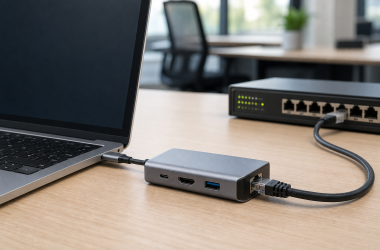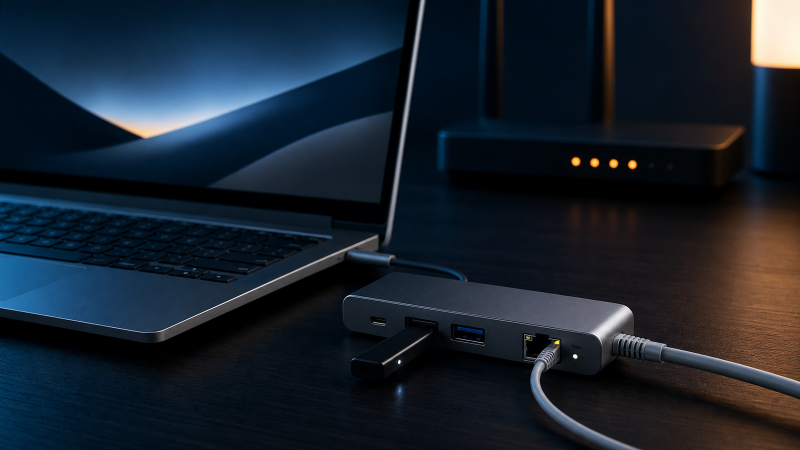
If your Chromebook sees the dock but Ethernet does not work, start with the wired link before replacing the dock. Confirm that another dock function works, connect a known workable Ethernet cable, and check whether ChromeOS says Connected to Ethernet. Then test the same router or switch port with another computer.
The first checks separate three different problems. ChromeOS may have no Ethernet device, it may show Ethernet without network access, or the cable and network port may have no working link. Each state needs a different next step.
No Ethernet entry and Ethernet without internet are different failures.
The procedure starts when the dock is present or another dock function works. If you are still choosing hardware, use the Chromebook docking-station guide. A Windows dock with dead Ethernet belongs to the separate Windows Ethernet troubleshooting owner.
Start here: match the ChromeOS state
| What you see | What the state suggests | Next check |
|---|---|---|
| No dock function works | The problem is broader than Ethernet | Check Chromebook port support, upstream cable, dock power, and the whole dock |
| Another dock function works, but ChromeOS has no Ethernet status | The Ethernet controller or link is not usable in ChromeOS | Check cable, link indicators, exact ChromeOS support, and a controlled dock test |
ChromeOS says Connected to Ethernet, but sites do not load |
The Ethernet device and local connection exist | Test the network, policy, proxy, authentication, and service path |
| The same router port fails with another computer | The fault is upstream of the Chromebook | Check the cable, switch, router, or network service |
| Another computer works on the same cable and port | The Chromebook, dock, controller, or policy remains | Check exact documentation, updates, and administrator settings |
| Ethernet works through a direct adapter but not through the dock | The dock’s Ethernet path is isolated | Check dock support and seek exact dock service |
Do not combine the states. A missing Ethernet entry is not a DNS problem. A visible Ethernet connection with no internet is not proof that the dock controller is absent.
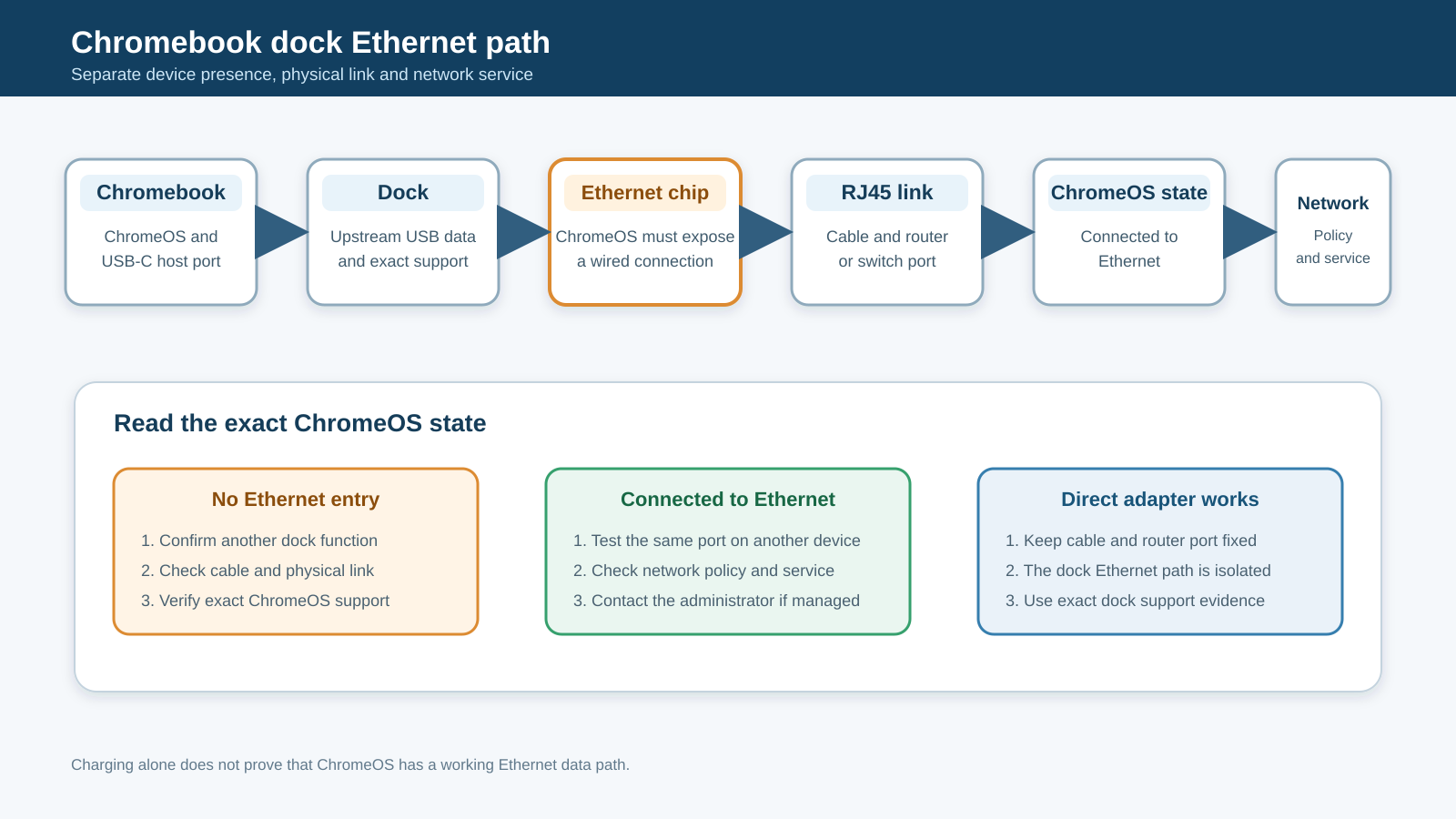
The safe order for a dead dock Ethernet port
Work down this order. Each result decides whether the next layer is worth testing.
- Prove that another dock function works, so the fault really is Ethernet-only.
- Check the physical link with a workable cable and a known-good router or switch port.
- Check what ChromeOS reports under the wired connection.
- Finish any supported ChromeOS update and retest the same route.
- Read the exact Chromebook and dock documentation.
- Separate a local link problem from a network or internet problem.
- Isolate the dock with a supported direct adapter while the network stays fixed.
Alongside the ChromeOS boundary above, do not reset a shared router, edit or recreate managed certificates and proxy settings, or work around organization policy. A managed network may serve other people, and the administrator owns those controls.
Step 1: prove the failure is Ethernet-only
Check one other dock function that the exact dock supports. A USB keyboard, mouse, storage device, or monitor can show that the Chromebook reaches part of the dock. Charging alone is weaker evidence because power and data use different functions.
If no data or display function works, stop the Ethernet sequence. Read the Chromebook port specification, dock host requirement, upstream cable requirement, and dock power instructions. A USB-C connector does not prove every function. USB-IF requires vendors to describe supported USB-C functions separately.
The USB Power Delivery explainer explains why charging does not prove that Ethernet data is available. If the upstream cable is removable, verify the maker’s required cable before using the current USB-C cable guide as a replacement route.
Write down:
- Chromebook model and ChromeOS version;
- dock brand and exact model;
- upstream cable used;
- whether the dock has its required power supply;
- which other dock function works;
- Ethernet cable and router or switch port;
- any Ethernet link or activity light;
- whether the Chromebook is managed by work or school.
The record keeps later tests comparable.
Step 2: check the physical Ethernet link
Google’s current Chromebook connection guide starts with a workable Ethernet cable or USB adapter. Use a cable and network port that already work when possible.
Connect the dock directly to the Chromebook. Remove any USB-C extension, coupler, KVM, or second hub. Connect the Ethernet cable directly from the dock to the router or switch.
Look at the Ethernet jack and the network port. If the dock manual defines link and activity indicators, compare the actual lights with that manual. Do not assume every color has the same meaning across products.
Some docks do not expose a useful Ethernet light, and some manuals describe only the dock’s power indicator. If the exact manual does not define an Ethernet light, do not infer a link state from its color or absence. Use the ChromeOS connection status and the second-computer test instead.
Now change one physical item at a time:
- Keep the dock and Chromebook fixed, then change the Ethernet cable.
- Keep the new cable fixed, then change the router or switch port.
- Put the original cable back only after recording the result.
- Test the same cable and network port with another computer.
Google specifically tells Chromebook users to try the router connection with a different computer. If the second computer also fails, the Chromebook dock is no longer the leading suspect.
Do not reset a router because one dock link is missing. A shared or managed network may serve other people and may require an administrator.
Step 3: check what ChromeOS reports
Select the time at the bottom right of the Chromebook screen. Google says a successful wired connection shows Connected to Ethernet.
Record one of these states:
- no Ethernet entry appears;
- Ethernet appears as connected;
- Ethernet appears but reports a limited or unusable connection;
- the connection appears and disappears when the dock moves or reconnects.
If no Ethernet entry appears while another dock function works, focus on the dock’s Ethernet controller, exact ChromeOS support, cable link, and upstream connection. Do not begin with browser settings because ChromeOS has not exposed a usable wired connection.
If ChromeOS says Connected to Ethernet, the controller and local connection are present. Test a normal site. Then compare the same network with another device. A failure across devices points to the network path. A failure on only the managed Chromebook can involve organization policy, authentication, proxy, or certificates.
If the Ethernet state changes when the upstream cable moves, stop using a visibly damaged or loose cable. Do not keep flexing a connector to make the link return.
Step 4: finish the supported ChromeOS update
Open Settings, select About ChromeOS, and record the version. Select Check for updates if ChromeOS offers the action. Google says a downloaded ChromeOS update may require a restart to finish.
Test Ethernet again after the supported restart. Keep the cable, router port, dock, and Chromebook fixed.
An update is a maintenance step, not a compatibility promise. It cannot make an unsupported Ethernet controller work. It can update ChromeOS and, for some certified accessories, the accessory path the maker documents.
StarTech’s DK31C3MNCR datasheet is one exact example. It lists ChromeOS-only compatibility, a Gigabit Ethernet port, Works With Chromebook certification, and automatic firmware updates through ChromeOS. The listed compatibility applies only to the named dock. It does not prove that an unlisted dock receives automatic firmware or supports ChromeOS Ethernet.
If the Chromebook says updates are managed by an administrator, do not try to bypass that state. Send the exact ChromeOS version, dock model, and Ethernet result to the administrator.
Step 5: read the exact Chromebook and dock documents
Check the Chromebook’s port specification and the dock’s system requirements. Look for:
- ChromeOS or Chromebook compatibility;
- Ethernet or RJ45 support;
- Works With Chromebook certification;
- host USB-C requirements;
- included or required upstream cable;
- required dock power;
- automatic firmware behavior;
- any managed-device limitation;
- supported Ethernet controller or link class when stated.
A generic “universal dock” label is not exact support evidence. Neither is one working HDMI or USB port.
Works With Chromebook is useful because it ties compatibility to a named accessory. It does not promise that every enterprise certificate, proxy, router, or requested network feature will work. Treat the exact dock datasheet and the network environment as separate evidence.
If the dock manual lists only Windows and macOS, do not install those drivers on ChromeOS. Ask the maker whether the Ethernet controller has current ChromeOS support.
The best USB-C docking stations, USB4 docks and hubs, and Thunderbolt docking stations are shopping owners. Their category labels do not replace the Chromebook support matrix.
Step 6: separate local Ethernet from internet access
When ChromeOS says Connected to Ethernet, the next question is whether the local link or the wider network is failing.
Use the same cable and router port with another computer:
- If both devices fail, check the router, switch, upstream service, or administrator.
- If the other device works, the ChromeOS network state or dock path remains.
- If ordinary sites fail only behind a work or school network, ask the administrator about Ethernet policy, authentication, certificates, captive portal, or proxy requirements.
Google’s Chrome Enterprise documentation says administrators can configure Ethernet, certificates, proxy behavior, static-address permissions, and captive-portal behavior on managed ChromeOS devices. Do not copy settings from another network or disable protection to make a test pass.
Avoid treating Wi-Fi as proof that wired Ethernet is configured correctly. Wi-Fi and Ethernet can use different authentication and policy.
Step 7: isolate the dock without changing the network
If possible, use a supported direct USB-C Ethernet adapter on the same Chromebook, cable, and network port. Keep every other variable fixed.
- Direct adapter works, dock Ethernet fails: the dock controller, dock support, or upstream dock path is isolated.
- Both direct adapter and dock fail: Chromebook policy, network, cable, or broader ChromeOS support remains.
- Dock works on another supported Chromebook: the original Chromebook model, port, ChromeOS state, or policy becomes the leading branch.
- Dock fails on two supported Chromebooks with the same known-working network: seek exact dock support.
A direct adapter test is useful only if the adapter itself has current ChromeOS support. If the isolated need is a standalone adapter, the Thunderbolt and USB4 Ethernet adapter guide is the commercial handoff.
Do not buy a faster adapter to repair a network that has no link. The 2.5GbE hub and dock guide is relevant only after the reader proves compatibility and actually needs that class.
Escalation matrix
| Evidence | Escalate to | Include |
|---|---|---|
| No dock function works | Chromebook or dock maker | Chromebook model, port specification, dock model, power, upstream cable |
| Other dock functions work, but no Ethernet entry appears | Dock maker | ChromeOS version, exact dock, link-light state, cable and router tests |
| Ethernet works on another Chromebook | Chromebook maker or administrator | Both Chromebook models, versions, ports, and unchanged dock path |
| Ethernet fails on every device on the same port | Network owner | Cable, switch or router port, affected devices, time of failure |
| Managed Chromebook connects elsewhere but not on the organization network | Administrator | Network name, Ethernet state, certificate or proxy prompt, ChromeOS version |
| Supported direct adapter works but dock Ethernet fails | Dock maker | Direct-adapter comparison and exact dock support page |
Keep the escalation request factual. “Ethernet is broken” is less useful than “ChromeOS 26.x shows no Ethernet entry, another dock USB port works, and the same cable and switch port work on a second computer.”
When replacement is justified
Replace hardware only after exact evidence identifies the dock or adapter.
Use the Chromebook dock guide if the current dock lacks current ChromeOS support or fails controlled comparison on supported Chromebooks. Use the USB-C hub guide only when a smaller supported hub meets the actual port needs.
Do not replace the dock when another computer also fails on the same Ethernet port. Do not replace it to solve organization certificate or proxy policy. Do not select a dock from a Windows driver list and assume ChromeOS support.
Frequently asked questions
Why does my Chromebook charge through the dock but Ethernet is missing?
Power and Ethernet data are separate functions. Charging proves that a power path exists, not that ChromeOS supports the dock’s Ethernet controller or that the upstream cable carries the required data. Confirm another data function and read the exact dock support page.
Where should Ethernet appear in ChromeOS?
Select the time at the bottom right. Google’s current help says a successful wired connection shows Connected to Ethernet. If the entry is absent, check the physical link, exact dock support, and controlled hardware comparisons before investigating browser settings.
Do Chromebooks need an Ethernet driver?
Follow ChromeOS and the exact accessory maker’s instructions. Do not install a Windows driver package. Some Works With Chromebook docks receive supported firmware through ChromeOS, but that behavior belongs to the named product documentation.
Should I Powerwash the Chromebook?
No. A Powerwash is a destructive reset and is not a proportionate Ethernet isolation step. Cable, network port, another computer, exact dock support, ChromeOS update state, and managed policy can all be checked first.
Can a school or work policy block wired Ethernet?
An administrator can configure Ethernet, certificates, proxy behavior, and other network controls on managed ChromeOS devices. If settings are managed, send the administrator the exact Chromebook, dock, ChromeOS version, and connection state instead of bypassing policy.
Sources and methodology
Google Chromebook Help controls the wired-network and ChromeOS update sequence. Google Chrome Enterprise documentation controls managed Ethernet and proxy or certificate scope. USB-IF controls USB-C terminology. StarTech’s current DK31C3MNCR datasheet provides one exact Works With Chromebook Ethernet example.
The accompanying source ledger maps each material claim and procedure to those sources. No Chromebook, dock, cable, or network was tested. Forums and generic Windows repair pages were not used as factual authority.