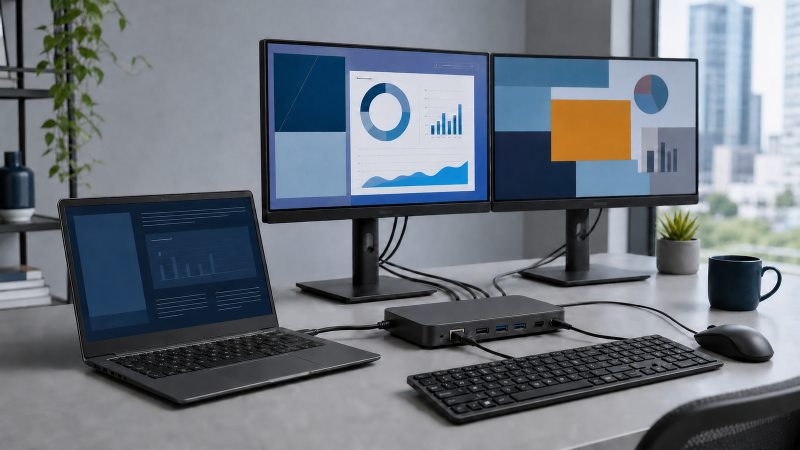
The Plugable USB-C Dual HDMI Display Docking Station (UD-MSTH2) is the best docking station for most Chromebooks that support DisplayPort Alt Mode and MST: two external displays, its own power supply included, and up to 65W to the host. Before buying, check the Chromebook itself for ChromeOS 100 or later, USB-C DisplayPort Alt Mode and Power Delivery, MST support, and the host’s DisplayPort version. Plugable publishes dual 4K 60 Hz for DP 1.4 with DSC, but dual 1080p 60 Hz in its DP 1.2 matrix.
The StarTech DK31C3MNCR is the stronger certified choice when a verified DP 1.4 HBR3 Chromebook needs three screens. Belkin is the 2.5GbE option, Acer fits managed Chromebook fleets, Targus is the portable choice, HP suits a carefully verified business desk, and Kensington offers a DisplayLink path for USB-A fallback. Those last five are not interchangeable. Compatible does not mean Works With Chromebook certified, and DisplayLink or Silicon Motion graphics does not behave like native DP Alt Mode.
What changed in this update
This guide was researched against official manufacturer pages and manuals through July 21, 2026. We kept each manufacturer’s ChromeOS wording attached to its pick, separated certification from compatibility, and treated display and charging figures as conditional ceilings rather than guarantees. We checked Amazon listings and availability on July 21. Check the listing again before you buy.
Quick picks
- Best overall: Plugable UD-MSTH2. A driverless two-monitor pick for a Chromebook with DP Alt Mode and MST. Plugable includes a 110W supply and publishes separate limits for DP 1.4 with DSC and DP 1.2.
- Best certified triple-display option: StarTech DK31C3MNCR. It publishes up to three 4K 30 Hz screens with DP 1.4 HBR3, but its lane switch forces a display-versus-USB-speed tradeoff.
- Best for 2.5GbE and Silicon Motion: Belkin INC014. It adds fast Ethernet and mixed native/USB graphics, though Belkin does not publish a Chromebook-specific three-screen topology.
- Best for Acer and education deployments: Acer D501. Its certified manual documents ChromeOS firmware handling and display ceilings from dual 1080p on DP 1.2 to triple 1080p on DP 1.4.
- Best portable dual-display dock: Targus DOCK423TT. It supports native MST for two independent ChromeOS screens and travels easily, but you must supply the USB-C charger.
- Best for a carefully verified business desk: HP USB-C Dock G5. It has useful desk ports and up to 75W for non-HP hosts, but HP’s published ChromeOS scope is narrow and dated.
- Best DisplayLink and USB-A fallback: Kensington SD4750P. Kensington’s general ceiling is one or two 4K 60 Hz screens, but it publishes no ChromeOS-specific ceiling or installation path.
| Image | Product | Details | Check Price |
|---|---|---|---|
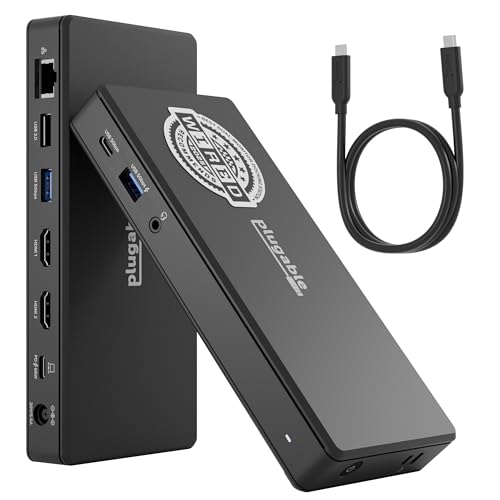 | Plugable USB-C Docking Station, Dual 4K 60Hz HDMI for Windows and ChromeOS (UD-MSTH2) | Chromebook status: ChromeOS 100 or later; Plugable does not call it Works With Chromebook certified Display technology: Native DisplayPort MST through two HDMI 2.0 outputs Official ChromeOS display ceiling/conditions: Up to dual 4K 60 Hz with DP 1.4 and DSC; DP 1.2 supports dual 1080p 60 Hz; host needs DP Alt Mode and MST Host charging: Up to 65W Ethernet: Gigabit Ethernet Key ports: 2 HDMI 2.0, 1 USB-C 5Gbps, 2 USB-A 5Gbps, 1 USB-A 480Mbps, 3.5mm audio Charger included/pass-through: 110W power supply and 1m USB-C host cable included Best for: Driverless dual-HDMI Chromebook desks with documented MST support | Check Price on Amazon |
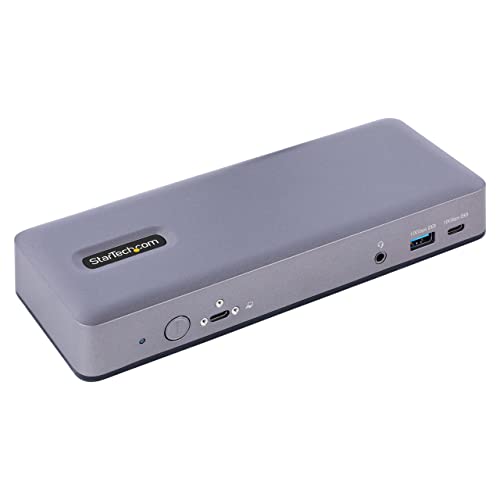 | StarTech Chromebook Certified Triple/Dual Monitor Dock (DK31C3MNCR) | Chromebook status: Works With Chromebook certified Display technology: Native MST with Synaptics VMM5320; switchable two-lane or four-lane mode Official ChromeOS display ceiling/conditions: With DP 1.4 HBR3: single 5K 60 Hz, dual 4K 60 Hz, or triple 4K 30 Hz; four video lanes reduce USB to 480Mbps Host charging: Up to 60W Ethernet: Gigabit Ethernet Key ports: 2 DisplayPort, 2 HDMI, USB-C and USB-A data, 3.5mm audio, security slots Charger included/pass-through: 135W power adapter included Best for: Verified DP 1.4 HBR3 Chromebooks needing three displays | Check Price on Amazon |
 | Belkin Connect Universal USB-C 11-in-1 Pro Dock (INC014btSGY) | Chromebook status: Compatible; Belkin names Chromebook devices and PixelBook Go; not Works With Chromebook certified Display technology: Hybrid native DP Alt Mode and Silicon Motion USB graphics Official ChromeOS display ceiling/conditions: Belkin generally lists native HDMI up to 4K 60 Hz, Silicon Motion HDMI up to 4K 30 Hz, and VGA up to 1080p; no Chromebook-specific extended-display topology or combined ceiling is published Host charging: Up to 85W after the dock reserves 15W from a 100W input Ethernet: 2.5Gb Ethernet Key ports: 2 HDMI, VGA, 2 USB-A 10Gbps, USB-C data, SD, microSD, audio Charger included/pass-through: Power supply not included; power connection required Best for: 2.5GbE and a deliberately verified hybrid display setup | Check Price on Amazon |
 | Acer USB Type-C Dock D501 (GP.DCK11.00E US configuration) | Chromebook status: Works With Chromebook certified D501/ADK020 family; ChromeOS R91 or later Display technology: Native DP Alt Mode multi-display topology; MST is not named in the cited manual Official ChromeOS display ceiling/conditions: DP 1.4: up to triple 1080p 60 Hz; DP 1.2: up to dual 1080p 60 Hz; one HDMI and DisplayPort position is shared Host charging: Up to 60W Ethernet: Gigabit Ethernet Key ports: HDMI and DisplayPort outputs, multiple USB-A ports, USB-C data, audio, security lock Charger included/pass-through: 110W AC adapter and power cord listed in package Best for: Acer and managed education deployments | Check Price on Amazon |
 | Targus Dual HDMI 4K Dock with PD Pass-Through (DOCK423TT) | Chromebook status: ChromeOS compatible; not Works With Chromebook certified Display technology: Native USB-C DP Alt Mode with MST for two independent ChromeOS screens Official ChromeOS display ceiling/conditions: Dock ceiling up to dual 4K 60 Hz; host must supply sufficient DP Alt Mode resources Host charging: Up to 100W pass-through; actual delivery depends on supply, cable, dock overhead, and host Ethernet: Gigabit Ethernet Key ports: 2 HDMI 2.0, 2 USB-A 5Gbps, USB-C pass-through/data, SD, microSD Charger included/pass-through: USB-C power adapter not included Best for: Portable native dual-display Chromebook setups | Check Price on Amazon |
 | HP USB-C Dock G5 (26D32AA#ABL) | Chromebook status: Compatible only within HP's stated ChromeOS 92 and HP-notebook scope; not certified Display technology: Native USB-C DisplayPort Alt Mode; matrix depends on DP version and DSC Official ChromeOS display ceiling/conditions: HP describes three displays including the notebook screen; no claim of three external Chromebook displays Host charging: Up to 100W for supported HP systems; up to 75W for non-HP hosts Ethernet: Gigabit Ethernet Key ports: 2 DisplayPort 1.4, HDMI 2.0, 4 USB-A 5Gbps, USB-C data, audio, lock slot Charger included/pass-through: AC-powered; exact 26D32AA#ABL in-box adapter not confirmed by cited pages Best for: Carefully verified HP Chromebook business desks | Check Price on Amazon |
 | Kensington SD4750P USB-C and USB-A Dual 4K Hybrid Docking Station (K39105NA) | Chromebook status: Chrome OS 44 or later listed as compatible; not Works With Chromebook certified Display technology: DisplayLink over USB-C or USB-A; official page says driver installation is required Official ChromeOS display ceiling/conditions: Kensington generally lists one or two 4K 60 Hz monitors; no ChromeOS-specific driver path or ChromeOS-specific display ceiling is published Host charging: Up to 85W over USB-C; normal Power Delivery unavailable over USB-A Ethernet: Gigabit Ethernet Key ports: 2 DisplayPort 1.2++, 2 HDMI 2.0, 5 USB-A, USB-C device port, separate audio jacks Charger included/pass-through: External adapter required; exact listing's in-box adapter not confirmed by cited page Best for: A specifically verified DisplayLink or USB-A fallback | Check Price on Amazon |
If your needs are simpler, weigh these full docks against the smaller options in our guide to the best USB-C hubs. A hub is often the better answer when you want one display, a few peripherals, and easy travel rather than a permanent powered desk.
1. Plugable USB-C Dual HDMI Display Docking Station, UD-MSTH2 — Best Overall
Plugable’s UD-MSTH2 earns the top spot by giving Chromebook buyers clear conditions for MST on ChromeOS. Plugable lists ChromeOS 100 or later and requires a full-function USB-C port with DisplayPort Alt Mode and MST. Plugable says the dock is driverless, and it does not call this model Works With Chromebook certified.
The dock has two rear HDMI 2.0 outputs, and Plugable describes MST as its display method. Plugable lists up to two 4K 60 Hz screens when the Chromebook exposes DP 1.4 with DSC, while its DP 1.2 matrix lists two 1080p 60 Hz screens. That gap is why the Chromebook model, its DisplayPort version, and DSC support count for more than the connector shape.
Plugable specifies Gigabit Ethernet, one USB-C and two USB-A ports at 5Gbps, one USB-A port at 480Mbps, and combination audio. The 110W supply and one-meter host cable are included, and the dock can send up to 65W to the Chromebook.
Our Take
Choose the Plugable once you have confirmed DP Alt Mode, Power Delivery, MST, ChromeOS 100 or later, and a display ceiling that fits your monitors. It is our most straightforward driverless two-screen desk recommendation, not a workaround for a data-only USB-C port. For broader cross-platform alternatives, see our roundup of the best USB-C docking stations.
- Plugable lists the UD-MSTH2 as driverless for ChromeOS 100 or later.
- Plugable publishes separate display limits for DP 1.4 with DSC and DP 1.2 hosts.
- Plugable includes a 110W power supply and a one-meter host cable.
- Plugable lists two rear HDMI 2.0 outputs for the dual-display setup.
- Plugable does not call this model Works With Chromebook certified.
- Plugable’s DP 1.2 matrix lists dual 1080p at 60 Hz.
Key facts: DisplayPort MST; two HDMI outputs; up to dual 4K 60 Hz with DP 1.4 and DSC; up to dual 1080p 60 Hz with DP 1.2; 65W host charging; Gigabit Ethernet; 110W supply included.
2. StarTech DK31C3MNCR — Best Certified Triple-Display Option
The StarTech DK31C3MNCR is the pick for a Chromebook workstation that genuinely needs three external screens and can meet the published conditions. StarTech calls it Works With Chromebook certified and says firmware updates can arrive automatically through ChromeOS. Its Synaptics VMM5320 controller uses native MST, so the display path differs from the USB graphics used by Belkin and Kensington.
With a DP 1.4 HBR3 host, StarTech publishes one 5K 60 Hz display, two 4K 60 Hz displays, or three 4K 30 Hz displays. The host still needs DisplayPort Alt Mode and Power Delivery. Then comes the lane switch: four-video-lane mode preserves high-resolution display bandwidth but reduces USB to 480Mbps, while two-video-lane mode permits USB up to 10Gbps but limits displays to 1080p.
That tradeoff is easy to miss if you only count ports. The dock carries two DisplayPort and two HDMI connectors, yet StarTech documents a three-display ceiling and groups the video outputs. It also includes several 10Gbps and 480Mbps USB ports, Gigabit Ethernet, audio, two types of security slot, and PXE support. The 135W adapter is included, and host charging is rated at 60W.
Our Take
Choose StarTech when the Chromebook’s official specifications confirm DP 1.4 HBR3 and three-screen support, and when the lane-mode compromise is clear to you. It is the most capable certified display pick here, and the one that demands the most careful host verification. Our guide to a docking station for three monitors explains why connector count and supported screen count are not the same thing.
- Certified for Chromebook deployments
- Official triple-display DP 1.4 ceiling
- Automatic ChromeOS firmware path
- Included 135W power adapter
- Lane mode trades USB speed for display bandwidth
- Highest modes require DP 1.4 HBR3
Key facts: Works With Chromebook certified; native MST; up to triple 4K 30 Hz with DP 1.4 HBR3; 60W host charging; 135W included supply; Gigabit Ethernet; three-year warranty.
3. Belkin Connect Universal USB-C 11-in-1 Pro Dock — Best 2.5GbE and Silicon Motion Pick
Belkin’s INC014 is the networking-first choice in this group. Its 2.5Gb Ethernet port suits a Chromebook on a faster local network, and the 11-port layout adds SD and microSD readers, USB-A, USB-C data, audio, VGA, and two HDMI outputs. Belkin names Chromebook and Chrome devices as compatible and specifically includes Google PixelBook Go in its compatibility material. It does not call the dock Works With Chromebook certified.
The display design is hybrid. One HDMI output uses native DP Alt Mode up to 4K 60 Hz, a second uses Silicon Motion USB graphics up to 4K 30 Hz, and VGA reaches 1080p. Belkin says the dock can make three monitor connections generally, but publishes no Chromebook-specific extended topology or three-display resolution combination. Do not assume a particular Chromebook will extend across all three.
Power needs the same care. The dock accepts up to 100W input, reserves 15W for itself, and publishes a maximum of 85W for the host. With Belkin’s recommended minimum 65W supply, the company says up to 50W can reach the host while other dock functions are in use. No charger is included, and the current FAQ says a power supply must be connected for use.
Our Take
Choose the Belkin for 2.5GbE and a broad port mix, once the exact Chromebook and monitor plan are settled. Its Silicon Motion path may solve a problem that native DP Alt Mode alone cannot, but it also adds a different graphics layer and thinner Chromebook-specific display documentation. If the screens are the priority, compare current USB-C monitors before committing to a hybrid dock topology.
- Fast 2.5Gb Ethernet
- Native and Silicon Motion display paths
- SD and microSD readers
- Up to 85W published host power
- No power supply included
- No Chromebook-specific triple-display topology
Key facts: Chromebook compatible, not Works With Chromebook certified; DP Alt Mode plus Silicon Motion; 4K 60 Hz native HDMI and 4K 30 Hz Silicon Motion HDMI ceilings; 2.5GbE; up to 85W host power after dock reserve; two-year warranty.
4. Acer USB Type-C Dock D501 — Best Acer and Education Deployment Pick
Acer’s D501 is the deployment-friendly option, because its official manual says Works With Chromebook and documents how ChromeOS participates in maintenance. Acer specifies ChromeOS R91 or later and says ChromeOS may automatically update dock firmware for compatibility. In an education or managed-device fleet, skipping a separate desktop updater is real support work avoided.
The manual includes a practical display matrix. DP 1.2 supports one 4K 30 Hz or 1440p 60 Hz display, or two 1080p 60 Hz displays. DP 1.4 raises that to one 4K 60 Hz, two 4K 30 Hz or 1440p 60 Hz displays, or three 1080p 60 Hz displays. One HDMI and DisplayPort position is shared. Acer documents native DP Alt Mode but does not name MST, so neither do we.
The Chromebook needs a full-function USB-C port carrying data, DisplayPort output, and Power Delivery at the same time. Acer rates host charging at up to 60W. The package list covers the dock, USB-C cable, 110W AC adapter and power cord, plus documentation, and the dock provides Gigabit Ethernet, multiple USB-A connections, a USB-C data port, audio, and a security lock.
Our Take
Choose the D501 when certification and ChromeOS-managed firmware behavior matter more than maximum charging power. The exact US power-cord configuration here is GP.DCK11.00E, while the cited manual identifies the D501/ADK020 family. Verify that suffix on the listing, and verify the Chromebook’s DP version, before planning the monitors.
- Works With Chromebook certified
- ChromeOS firmware update path
- Detailed DP 1.2 and DP 1.4 matrix
- 110W adapter listed in package
- Host charging limited to 60W
- Exact retail suffix requires listing verification
Key facts: certified D501/ADK020 family; ChromeOS R91 or later; up to triple 1080p 60 Hz with DP 1.4; up to dual 1080p 60 Hz with DP 1.2; 60W host charging; 110W included adapter; Gigabit Ethernet.
5. Targus Dual HDMI 4K Dock with PD Pass-Through — Best Portable Dual-Display Pick
The Targus DOCK423TT is the compact pick for two native external displays with no desktop power brick. Targus lists ChromeOS compatibility and says MST supports two independent screens without added software. It is compatible, not certified, and it still needs DisplayPort Alt Mode.
Targus rates both HDMI 2.0 outputs up to 4K 60 Hz. Treat that as a product ceiling the host has to be able to feed, not proof that every Chromebook can drive two screens at that mode. The attached seven-inch host cable keeps the dock self-contained and limits where it can sit. Alongside the HDMI outputs, Targus includes two 5Gbps USB-A ports, a USB-C pass-through/data connection, Gigabit Ethernet, and separate SD and microSD slots. There is no audio jack or security slot in the documented layout.
Charging is pass-through. Targus publishes up to 100W Power Delivery and includes no USB-C power adapter. The power that actually reaches a Chromebook depends on the charger, the cable, dock overhead, and the host’s accepted profile. The dock is therefore most attractive when you already own a suitable charger and want one compact unit for display, network, cards, and peripherals.
Our Take
Choose Targus for a portable dual-HDMI desk after confirming native dual-display support on the Chromebook. If travel size matters more than a second full-size monitor, a USB-C portable monitor may reduce the number of power and video connections you need.
- Compact dual-HDMI design
- Native MST support on ChromeOS
- SD and microSD card slots
- Up to 100W power pass-through
- USB-C power adapter not included
- Short attached host cable
Key facts: ChromeOS compatible; native DP Alt Mode and MST; up to dual 4K 60 Hz as the official dock ceiling; up to 100W pass-through; Gigabit Ethernet; card readers; three-year warranty.
6. HP USB-C Dock G5 — Best Carefully Verified Business-Desk Pick
The HP USB-C Dock G5 has the shape of a practical business desk dock: two DisplayPort outputs, HDMI, four USB-A ports, a front USB-C data and charging port, Gigabit Ethernet, audio, and a lock slot. The exact retail model number here is 26D32AA#ABL. HP’s current family datasheet supplies the technical detail, but it prints different G5 family part numbers, so the family document and the exact store model number are not the same piece of evidence.
HP lists ChromeOS compatibility only within a narrow scope: ChromeOS 92.0.4515.157 and ChromeOS M92/M93 on HP notebooks. That supports a compatible label, not a Works With Chromebook label and not a broad current-generation promise. HP’s display matrix also depends on DP version and Display Stream Compression, and a footnote describes three supported displays including the notebook screen. We would not convert that table into a claim of three external Chromebook monitors.
HP rates host power up to 100W for supported HP systems and up to 75W for non-HP systems. The cited sources do not clearly confirm the exact in-box AC adapter for 26D32AA#ABL, so read the actual listing contents rather than assume the family package. HP’s business management and firmware features also carry Windows-specific footnotes, and they should not be counted as a ChromeOS deployment advantage.
Our Take
Choose the G5 only when an HP Chromebook and ChromeOS version match HP’s published scope, or when an administrator has confirmed the exact configuration separately. It is a capable port replicator, but for a new non-HP Chromebook the compatibility document is far less reassuring than the certified StarTech or Acer evidence. Pairing it with one of the best 4K monitors requires a host-side resolution and refresh-rate check.
- Strong business port selection
- Up to 75W for non-HP hosts
- Three physical display outputs
- Compact powered desktop format
- Narrow dated ChromeOS scope
- Exact package contents need confirmation
Key facts: ChromeOS compatible only within HP’s stated scope; native DP Alt Mode; three displays described as including the notebook screen; up to 75W for non-HP hosts; Gigabit Ethernet; exact adapter contents unresolved in cited sources.
7. Kensington SD4750P — Best DisplayLink and USB-A Fallback Pick
Kensington’s SD4750P is the outlier here, because it does not rely on the Chromebook’s native DP Alt Mode for its display data. It uses DisplayLink over USB-C or USB-A, which helps when a host needs a USB graphics path or when a legacy USB-A connection is part of the plan. Kensington separately lists Chrome OS 44 or later compatibility and a general product ceiling of one or two monitors at up to 3840 x 2160 60 Hz. It does not publish a ChromeOS-specific display ceiling.
There are two DisplayPort 1.2++ and two HDMI 2.0 connectors, yet Kensington’s general product specification lists two additional screen outputs, not four. Read the connectors as choices within that general two-screen ceiling. The dock also provides five USB-A ports, one front USB-C device-charging port, Gigabit Ethernet, separate microphone and headphone jacks, and a Kensington Security Slot.
The caution is in the software wording. Kensington marks the dock as not driverless and says DisplayLink driver installation is required. Its support page offers macOS and Windows download links but no ChromeOS-specific installation path, even while listing ChromeOS compatibility. Confirm the current ChromeOS DisplayLink path and policy for the exact Chromebook before purchase, especially in a managed fleet.
USB-C hosts can receive up to 85W Power Delivery if they support it. A USB-A host does not receive normal Power Delivery at all unless Kensington’s optional 60W splitter is used. The cited support page confirms an external power adapter is part of the dock’s operation, but does not clearly state the exact in-box adapter for this listing, so check the package contents.
Our Take
Choose Kensington when the USB-A option or DisplayLink route solves a specific compatibility problem. It is not our first choice for a straightforward full-function USB-C Chromebook because the certified native-display docks have clearer ChromeOS maintenance paths. The fallback has value, but only after the software and fleet-policy questions are answered.
- USB-C and USB-A host options
- General one-or-two 4K 60 Hz ceiling
- Five USB-A peripheral ports
- Up to 85W over USB-C
- ChromeOS-specific driver path not documented
- USB-A does not provide normal host charging
Key facts: ChromeOS 44 or later listed; DisplayLink over USB-C or USB-A; general manufacturer ceiling of one or two 4K 60 Hz monitors; no ChromeOS-specific ceiling or installation path published; 85W USB-C PD; Gigabit Ethernet; three-year warranty.
How to choose a Chromebook docking station
Certified versus compatible: what is the practical difference?
Works With Chromebook is the stronger label in this guide, because the manufacturer says the product passed Google’s compatibility program requirements. StarTech and Acer use that wording for these exact dock families, and their documentation adds ChromeOS-specific detail such as automatic firmware handling or a minimum ChromeOS version.
Compatible is still meaningful when it is specific. Belkin names Chromebook devices and PixelBook Go. Targus names ChromeOS and documents two independent MST screens on it. HP prints a ChromeOS scope, although that scope is narrow and dated. Kensington lists Chrome OS 44 or later. None of those statements should be rewritten as certification.
Certification reduces uncertainty, but it does not add hardware features to the Chromebook. A certified MST dock still needs native DisplayPort output. It cannot make a data-only USB-C port emit video, and it cannot turn a DP 1.2 host into DP 1.4.
Which ChromeOS display path do you need?
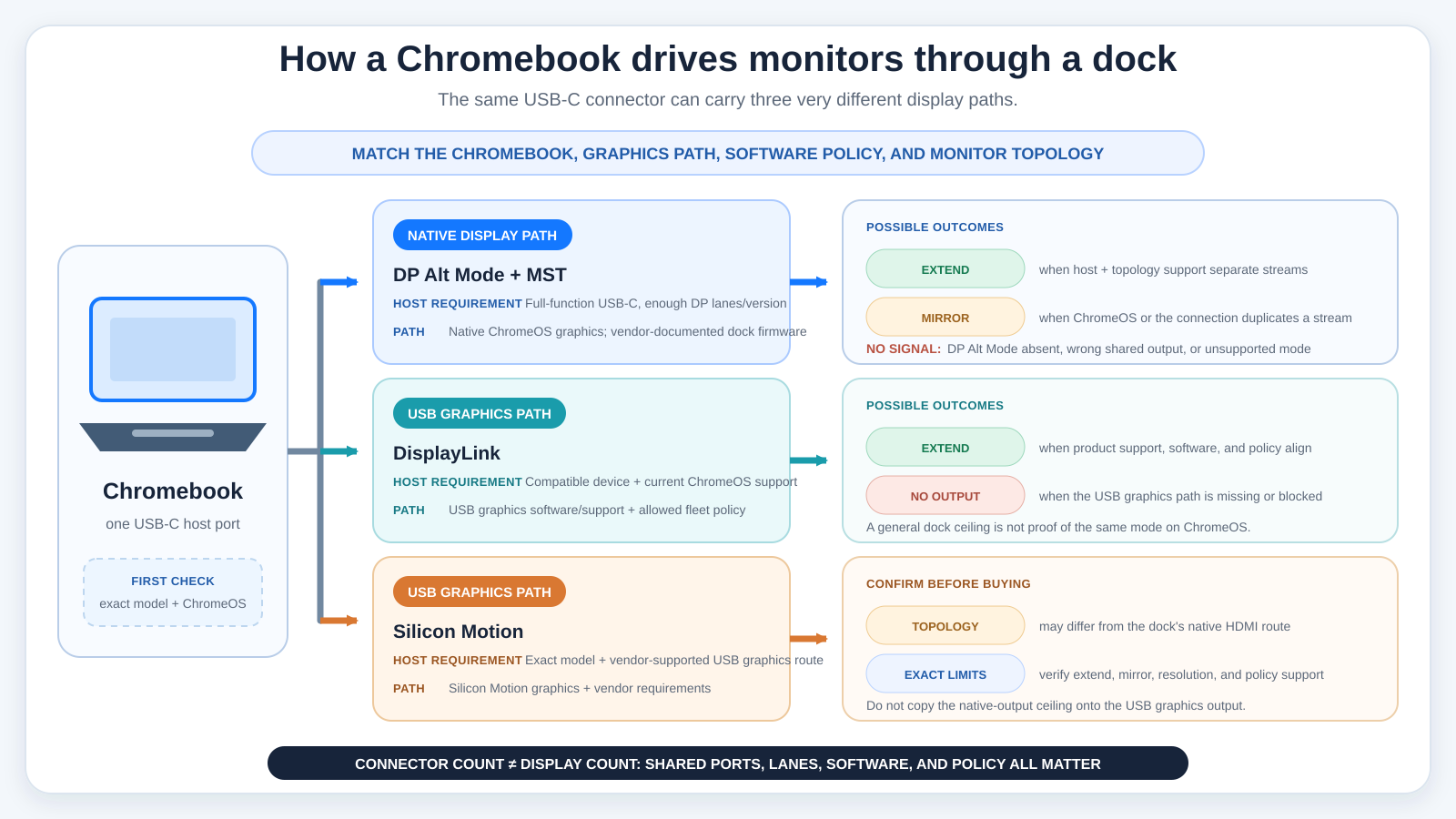
Native DP Alt Mode carries a DisplayPort signal through USB-C, and MST divides that signal among multiple screens. Plugable, StarTech, Targus, and the Acer topology all use the host’s native display resources, so their maximum modes depend heavily on DP version, lane allocation, and the Chromebook’s graphics limits. This route is usually the clearest when your Chromebook fully documents external-monitor support.
DisplayLink sends compressed display data as USB traffic and reconstructs it inside the dock. Kensington uses this path and can connect through USB-C or USB-A. That flexibility comes with software and policy questions: Kensington says a driver is required but does not publish a ChromeOS-specific installation link on the cited page, so managed Chromebook buyers should close that gap before ordering.
Silicon Motion is another USB graphics path. Belkin pairs it with a native DP Alt Mode HDMI output, so the two connectors carry different ceilings and dependencies. Do not assume that because one HDMI port works at 4K 60 Hz, the Silicon Motion port will behave identically.
How do DP version and lane mode change the monitor limit?
Start with the exact Chromebook model’s technical specifications, not the processor family. Look for DisplayPort over USB-C, DP Alt Mode, or a published external-display limit. If the manufacturer states DP 1.2, use the dock’s DP 1.2 row. If it states DP 1.4, check whether the dock also requires HBR3 or Display Stream Compression.
StarTech shows why lane allocation matters. Its higher-resolution mode uses four video lanes and reduces USB to 480Mbps; its faster-data mode keeps two lanes for USB and limits display resolution to 1080p. No dock can deliver maximum display bandwidth and maximum USB bandwidth at once when both share the same finite USB-C link.
Monitor cables and inputs also matter. Use a cable rated for the intended resolution and refresh rate, select the correct monitor input, and avoid an extra adapter unless its specification covers the complete mode. Our USB-C cable guide can help separate charge-only cables from full-featured connections.
How much charging power will reach the Chromebook?
Three numbers need separating: the charger’s output, the dock’s input or pass-through ceiling, and the power the dock can deliver to the host. Belkin accepts up to 100W but reserves 15W and publishes up to 85W to the laptop. Targus advertises up to 100W pass-through but does not include the supply. Plugable and StarTech each deliver up to 60W from their included desktop adapters, and Acer also publishes 60W host charging from an included 110W adapter. HP distinguishes supported HP systems from non-HP hosts, while Kensington provides up to 85W only through USB-C.
Then compare the dock figure with the Chromebook’s normal charger. A low-power Chromebook may be comfortable at 45W or 60W. A performance model may charge slowly under load if the dock supplies less than its preferred input. ChromeOS can show that it is charging without proving it is charging at the maximum rate.
For a deeper explanation of profiles, negotiation, and cable limits, read what USB Power Delivery means. A 100W label is a ceiling in a defined path, not a promise that 100W reaches every host.
What matters for managed education and business deployments?
For a fleet, start with certification, the documented minimum ChromeOS version, and firmware delivery. StarTech describes automatic ChromeOS firmware updates, and Acer says ChromeOS may automatically update the D501. That is more operationally useful than a generic compatibility badge, because it tells administrators how dock maintenance can actually happen.
Check Google Admin policy implications for USB graphics before selecting DisplayLink or Silicon Motion. Confirm whether the required components are built into the fleet’s ChromeOS channel, permitted by policy, and supported on the specific device. Then standardize the host cable, monitor cable, charger, and ChromeOS channel. A desk that mixes cable types creates failures that look exactly like dock incompatibility.
Security features may matter in shared rooms. StarTech, Acer, HP, and Kensington document lock options. PXE or pre-boot network features should be treated as platform-specific unless the manufacturer explicitly covers the Chromebook deployment workflow you need.
Which ports deserve priority?
Ethernet speed should match the network, not the largest number on the box. Belkin is the only 2.5GbE pick here; the other six publish Gigabit Ethernet. A 2.5GbE dock offers little benefit behind a 1Gb switch, and real throughput also depends on the Chromebook, USB path, cabling, and storage workload.
Count USB ports by speed and type. A keyboard and mouse do not need 10Gbps; fast external storage might. Card readers make Belkin and Targus attractive for camera work. Audio matters if the monitor lacks speakers or a headset jack, and a lock slot helps in classrooms, hoteling desks, and public areas. If your display already supplies USB-C power and peripherals, a USB-C display may replace the dock outright rather than duplicate it.
Powered desktop dock or portable pass-through dock?
A powered desktop dock is better when the desk has to work from one host cable every day. Plugable, StarTech, Acer, HP, and Kensington are all designed around an external adapter, so they offer stable peripheral power and do not depend on a separately packed charger, though the exact HP and Kensington listing contents need confirmation.
Targus and Belkin are easier to carry, but both depend on a connected USB-C supply. Belkin’s current FAQ says power is required for operation. Targus is a pass-through design, so leaving the charger at home removes host charging as well and may break the intended workflow. For a desktop built around newer USB bandwidth rather than ChromeOS certification, our guide to USB4 hubs and docks explains the next tier of connectivity.
When is a simple hub enough?
Choose a hub when you need one external display, occasional Ethernet, a card reader, or a few USB devices and can tolerate using the Chromebook’s own charger separately. A dock becomes worthwhile when the desk needs multiple screens, a persistent wired network, higher peripheral power, audio, security, or a repeatable one-cable setup.
Do not buy a larger dock simply because it has more ports. Unused display controllers can add complexity, especially when the host lacks the required native display resources or the fleet restricts USB graphics. A simple hub matched to one supported monitor can be more reliable than an ambitious three-screen design.
Chromebook pre-purchase checklist
- Identify the exact model and board, not just the brand. Open ChromeOS Settings, choose About ChromeOS, and record the model details and current ChromeOS version. The
Diagnosticsapp can also help confirm the device identity. Compare that exact model with the manufacturer’s support page. - Inspect the USB-C port markings and official specification. Look for display or charging symbols, then confirm in the Chromebook technical manual that the port supports DisplayPort Alt Mode and USB Power Delivery. A plain USB symbol is not enough.
- Find the native external-display limit. Check the Chromebook’s official resolution, refresh-rate, and number-of-display claims. If the DP version is not published, ask the manufacturer rather than assuming DP 1.4 from the age of the device.
- Choose the graphics route deliberately. Select native DP Alt Mode/MST, DisplayLink, or Silicon Motion based on a documented need. For USB graphics, confirm the current ChromeOS support path and any Google Admin policy before buying for a fleet.
- Match every monitor connection. Record each monitor’s input, maximum resolution and refresh rate, and cable rating. If you are buying screens too, compare their inputs and modes carefully, but remember that the Chromebook remains the ceiling.
- Calculate charging from end to end. Compare the Chromebook’s original charger with the dock’s host-delivery figure. For pass-through docks, add a suitable charger and full-featured cable to the purchase plan.
- Check shared ports and lane modes. Plugable uses two selectable connector groups, Acer shares one HDMI/DisplayPort position, and StarTech changes USB speed with its display-lane switch. Draw the planned cabling before ordering.
- Verify Ethernet and peripheral needs. Decide whether Gigabit Ethernet is enough, which USB devices need higher speed, and whether card slots, audio, or a lock are actually required.
- Confirm the exact retail package. Match model, regional suffix, host cable, power adapter, and power cord. This is especially important for the Acer US configuration and the unresolved exact HP and Kensington adapter contents.
- Plan a reversible first setup. Update ChromeOS, connect the dock’s power first when required, attach one monitor, then add the second monitor and peripherals one at a time. This isolates a cable, port, or bandwidth problem without assuming the dock is defective.
Frequently asked questions
Can any USB-C dock work with a Chromebook?
No. The connector shape establishes none of the required features. A native display dock needs a Chromebook USB-C port with DisplayPort Alt Mode, and a charging dock needs the host to accept USB Power Delivery. Multiple screens add a further constraint, because the Chromebook must expose enough display bandwidth and support the intended number of outputs.
USB graphics docks can take a different route, but they still need current ChromeOS support and may be affected by managed-device policy. Start with the exact Chromebook specification, then match it to the dock’s official ChromeOS statement and display matrix. Certification reduces uncertainty, but it does not override missing host hardware.
What does Works With Chromebook mean?
It means the manufacturer says the accessory has been certified under Google’s Works With Chromebook program. In this guide, StarTech DK31C3MNCR and Acer D501 carry that explicit manufacturer wording. We reserve certified for those models.
The label does not mean every possible display mode works on every Chromebook. Plugable separates DP 1.4 with DSC and DP 1.2 ceilings. StarTech requires DP 1.4 HBR3 for its highest modes and has a lane switch. Acer requires a full-function USB-C port. Treat certification as stronger compatibility evidence, then apply the published host conditions.
Can a Chromebook run two or three external monitors?
Some can, but the result depends on the Chromebook and the graphics path. Plugable documents two external screens, with the resolution tied to DP version. StarTech publishes up to three 4K 30 Hz screens with a DP 1.4 HBR3 host. Acer publishes triple 1080p 60 Hz with DP 1.4. Targus says MST supports two independent screens on ChromeOS.
Belkin and Kensington use USB graphics for some or all displays, which changes the requirements. HP’s datasheet uses a conservative three-display total that includes the notebook screen. Never infer the result from the number of HDMI or DisplayPort sockets alone.
Does a Chromebook support DisplayLink?
ChromeOS can be listed as compatible with a DisplayLink dock, but support must be checked for the exact product, Chromebook, and current software policy. Kensington lists Chrome OS 44 or later for the SD4750P and says DisplayLink driver installation is required. However, its cited support page provides macOS and Windows download links without a ChromeOS-specific installation path.
That gap matters. Before buying, ask Kensington or the Chromebook administrator to confirm the current ChromeOS route. DisplayLink can be valuable when native DP Alt Mode is absent or insufficient, but it should be a deliberate choice rather than an assumed plug-in replacement.
Will the dock charge the Chromebook?
Only if the Chromebook accepts USB-C Power Delivery and the complete power chain provides a supported profile. Plugable publishes up to 65W host charging, while StarTech and Acer publish up to 60W. Belkin publishes up to 85W after reserving 15W for the dock. HP publishes up to 75W for non-HP hosts. Kensington publishes up to 85W through USB-C. Targus lists up to 100W pass-through.
Check whether the adapter is included. Belkin and Targus require you to provide it. Do not equate a dock’s input or pass-through maximum with guaranteed host delivery. ChromeOS may show a slow-charger message if the negotiated power is below the computer’s preferred level.
Can a Thunderbolt dock work with a Chromebook?
Sometimes. A Thunderbolt dock may fall back to USB-C or USB4 functions that the Chromebook supports, but the exact fallback behavior varies. The dock must expose its display, USB, Ethernet, and charging functions in a mode the host understands. A Thunderbolt logo on the dock does not prove full function on a USB-C-only Chromebook.
Check both sides: the Chromebook’s USB-C, USB4, or Thunderbolt specification and the dock’s published fallback mode. Our Thunderbolt docking station guide is useful when the host actually provides Thunderbolt; otherwise, prioritize the documented USB-C behavior.
Why does a display mirror instead of extend?
Mirroring can happen when the dock’s topology, the ChromeOS display setting, or the host’s supported stream count does not match the intended setup. First open Settings > Device > Displays, select the external screen, and check whether mirroring is enabled. Then confirm that the two cables use separate supported output groups rather than shared connectors.
If the setup uses MST, verify that the Chromebook supports the required number of native streams and the correct DP version. If it uses DisplayLink or Silicon Motion, confirm the current ChromeOS software path. Update ChromeOS and dock firmware through the manufacturer’s documented method, then reconnect one monitor at a time.
How we research and select
We started with seven exact docks, then matched each exact model or documented family to the manufacturer’s own pages. We reviewed product pages, support articles, and official PDF manuals through July 21, 2026, comparing ChromeOS wording, certification status, display technology, resolution conditions, host charging, included power, Ethernet, ports, firmware path, and warranty.
We performed no personal performance measurements, and we did not borrow unverified specifications from marketplace titles.
Selections favor clear Chromebook evidence over the longest port list. Conflicts stay conservative: Plugable’s detailed DP 1.2 matrix takes precedence over broader marketing copy, Belkin’s general three-monitor statement is not turned into a Chromebook-specific promise, Acer’s manual is not made to say MST, HP’s narrow ChromeOS scope stays attached, and Kensington’s general display ceiling is not presented as a ChromeOS-specific verified mode or path.
Honorable mentions and exclusions
The list holds seven docks, one per brand. Another dock would need its ChromeOS status, Amazon listing and display limits confirmed by its maker first.
Other USB-C docking stations may suit mixed Windows and macOS desks, while USB4 hubs and docks can offer more bandwidth on a Chromebook that explicitly supports USB4. Neither category is an automatic substitute for a Chromebook-certified dock. They still need the same host-port, display-path, charging, and ChromeOS checks.
For this list, the choice is simple once the host is known: Plugable for a driverless two-screen desk with a documented MST matrix, StarTech for a verified certified three-screen host, Acer for a certified managed fleet, Targus for portable native dual displays, Belkin for 2.5GbE and hybrid graphics, HP for a narrowly verified business deployment, and Kensington when DisplayLink or USB-A fallback is the actual requirement.