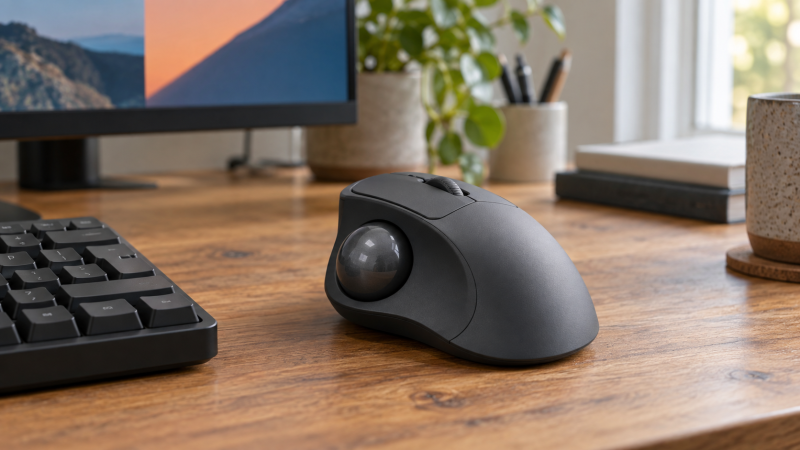
A thumb-operated trackball moves the pointer while its body stays beside the keyboard. The fixed body removes the sweep area a conventional mouse needs, but it does not make every trackball physically small. The shell, hand position and nearby cables still have to fit your desk. None of these five models was independently tested here for comfort, tracking accuracy or health outcomes.
For a compact workstation, start with the connection and controls you will actually use. The Logitech ERGO M575S is a straightforward battery-powered choice. The ProtoArc EM04 offers three listed host connections at a simpler control level. The Kensington TB550 adds a fixed tilt and horizontal scrolling, the MX Ergo S adds customizable buttons, and the Kensington TB675 takes the most upright listed position.
Measure the space beside your keyboard and check the ball, wheel and thumb-button reach before comparing advertised sensitivity settings.Thumb-Operated Trackballs Compared
| Image | Product | Details | Check Price |
|---|---|---|---|
 | Kensington TB550 | Shape: Fixed 45-degree tilt, listing-stated Connection: Bluetooth LE or 2.4 GHz receiver Power: USB-C rechargeable Controls: 34 mm thumb ball, four-direction wheel | Check Price on Amazon |
 | Logitech MX Ergo S | Shape: 20-degree tilt position, listing-stated Connection: Bluetooth or Logi Bolt receiver Power: USB-C rechargeable; cable not included Controls: Six customizable buttons, listing-stated | Check Price on Amazon |
 | ProtoArc EM04 | Shape: Right-hand thumb ball Connection: Bluetooth and 2.4 GHz; three device slots Power: Rechargeable, seller-stated Controls: Six nonprogrammable buttons | Check Price on Amazon |
 | Logitech ERGO M575S | Shape: Right-hand thumb ball Connection: Bluetooth or Logi Bolt receiver Power: Included AA battery Controls: Three customizable buttons, listing-stated | Check Price on Amazon |
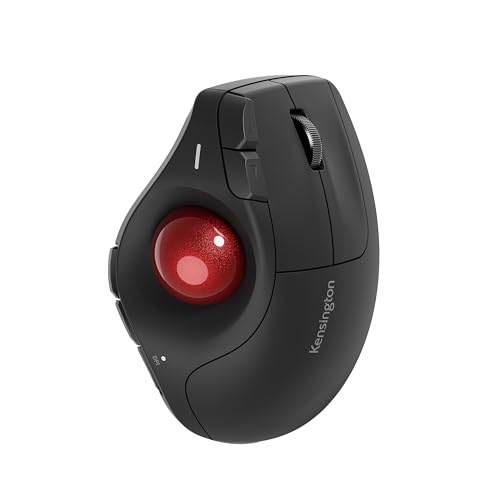 | Kensington TB675 | Shape: 60-degree vertical body, listing-stated Connection: Bluetooth, receiver or wired USB-C Power: Rechargeable, listing-stated Controls: Four-direction wheel, nine programmable buttons | Check Price on Amazon |
1. Kensington TB550 — Best Tilted Rechargeable Pick
Kensington’s TB550 listing describes a fixed 45-degree tilted body, a 34 mm thumb ball and a four-direction scroll wheel. Bluetooth LE and a 2.4 GHz receiver give two wireless paths, while USB-C recharges the battery. The listing also names a ball-ejection button for cleaning. This combination suits a desk where the pointer stays in one spot but wide documents or timelines make horizontal scrolling useful.
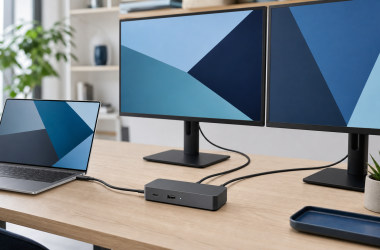
The tilt is not adjustable on this listed model, so treat the angle as a fit question rather than a guaranteed comfort improvement. Place your hand where the TB550 would sit and check whether its higher right side would crowd the keyboard or desk edge. Compared with the MX Ergo S, its strongest documented distinction is the fixed 45-degree shape and four-direction wheel, not a proven accuracy gain. A compact USB-C dock can help plan the receiver port separately from the pointing-device choice.
Our Take Choose the TB550 if its fixed hand angle fits your desk and you will use horizontal scrolling. Its rechargeable battery removes AA changes, but verify the body position with your own keyboard before buying for a comfort claim.
- The listing provides both Bluetooth LE and a receiver path.
- The four-direction wheel can scroll sideways without a separate pointer gesture.
- The ball-ejection control gives a documented cleaning route.
- The fixed 45-degree tilt cannot be tuned to a different angle.
- A tilted shell may need more clearance next to a low keyboard shelf than a flat pointer.
2. Logitech MX Ergo S — Best for Shortcut Controls
The MX Ergo S listing emphasizes control customization: six customizable buttons through Logi Options+, a precision-mode control and a 20-degree tilt position. It connects through Bluetooth or the included Logi Bolt receiver. USB-C charging is another listed feature, but the listing says a charging cable is not included. The setup details count more at a small editing desk than a headline about muscle strain that was not independently verified here.
This model is the pick for someone who already knows which repeat commands belong near the pointer. Map one harmless action first, then confirm it works in the exact app and operating system before moving more shortcuts. The ERGO M575S has fewer listed customizable buttons and uses an AA cell instead. Neither listing supplies a measured footprint comparison, so do not assume the premium model is the smaller one. Our editing-monitor guide covers the separate screen-space choice at the same station.
Customizable buttons are useful only when the host software supports the shortcut and the command survives an ordinary work session.Our Take Pick the MX Ergo S for a stable desk where you can use its button mapping and two wireless paths. Start with a host-compatibility check. The listed angle and ergonomic language are not proof that it will suit every hand.
- Six listed customizable buttons leave room for a few tested app commands.
- Bluetooth and a Logi Bolt receiver provide two connection choices.
- USB-C charging avoids disposable batteries.
- Its button advantage depends on working Logi Options+ support on your host.
- The exact listing says the USB-C charging cable is not included.
3. ProtoArc EM04 — Best for Three Host Connections
ProtoArc’s EM04 listing describes a thumb ball, rechargeable battery and three device connections through Bluetooth and 2.4 GHz wireless modes. It lists five pointer-sensitivity steps and quiet clicks. The seller frames it as usable on cramped surfaces, but the framing is a statement about the stationary control method, not a measured desk footprint or an independent comfort test.
The important limitation sits in the same listing. Its six buttons are not programmable, and the back and forward buttons are not compatible with macOS. The limitation makes the EM04 a reasonable pointer to consider for a desk with several hosts, but not a substitute for the MX Ergo S‘s software-driven shortcut plan. If you dock a laptop to swap workstations, verify which host owns each Bluetooth or receiver slot before you rely on quick switching. Our hot-desk dock guide covers the larger connection setup.
Our Take The EM04 earns a place for a stationary thumb-ball pointer that can alternate among listed hosts. Treat its nonprogrammable buttons and Mac back/forward limitation as firm boundaries, not small print to discover after setup.
- Three listed host slots can reduce pointer swapping at a shared desk.
- The rechargeable battery avoids AA replacement.
- The seller lists quiet clicks for a room where microphone noise is a concern.
- Its buttons are expressly nonprogrammable in the listing.
- Back and forward buttons are listed as incompatible with macOS.
4. Logitech ERGO M575S — Best Simple Wireless Choice
The ERGO M575S is a simpler place to start if the goal is moving the pointer without sweeping a mouse. Its exact listing names thumb control, quiet clicks, Bluetooth, an included Logi Bolt receiver and an included AA battery. Three buttons are listed as customizable with Logi Options+. Logitech claims up to 18 months of battery life, a maker estimate rather than a runtime we measured.
It keeps the familiar right-hand thumb-ball arrangement without asking you to plan a charging cable. The trade is replacing an AA cell later. Compared with the MX Ergo S, it has fewer listed mapping positions and no USB-C charging in this exact listing. If you only need pointer movement, ordinary clicking and occasional shortcut changes, that may be enough. Check the receiver port and hand clearance beside the keyboard rather than assuming every fixed pointer is physically compact.
Our Take Start with the M575S when you want a stationary thumb pointer with simple wireless choices. It makes the most sense when advanced button mapping is not the purchase reason and replacing an AA cell is acceptable.
- Bluetooth and the included receiver offer two listed connection paths.
- The included AA cell can power the pointer without charging setup.
- Three customizable buttons are enough for a small number of confirmed shortcuts.
- AA replacement is part of long-term ownership.
- It offers fewer listed programmable controls than the MX Ergo S.
5. Kensington TB675 — Best More-Upright Layout
The TB675 listing describes a 60-degree vertical body and 34 mm thumb ball. It names Bluetooth, a 2.4 GHz receiver and wired USB-C as connection routes, alongside a four-direction wheel and nine programmable buttons through Kensington Konnect software. A more upright body may interest someone comparing hand positions, but the seller’s ergonomic language is not evidence of a health benefit or a guarantee of comfort.
This model creates the clearest shape contrast with the TB550‘s fixed 45-degree body. The TB675 adds a wired path and more listed controls, yet its taller posture needs its own clearance beside a monitor stand or keyboard tray. Before counting nine shortcuts, confirm Konnect support for the actual host and app. If you mostly need pointer movement, the simpler M575S may require less setup. The desk’s docking-station layout is a separate port decision.
A more vertical shell changes the hand position, not the amount of desk space measured for you.Our Take Consider the TB675 when you specifically want to try a more upright thumb-ball position and have a use for its wired fallback or extra controls. Check physical fit and software support before treating either as a practical advantage.
- Three listed connection routes include wired USB-C.
- The four-direction wheel can navigate wide documents without another gesture.
- Nine listed programmable buttons offer many control positions if host software supports them.
- The tall 60-degree body needs a physical clearance check on a cramped desk.
- The button count is less useful if Kensington Konnect does not support your host or app.
Buying Guide
Measure the fixed position, not just the missing mouse sweep
A trackball stays put, but your hand and forearm still need a comfortable route to its ball and buttons. Measure the keyboard-to-desk-edge gap, the height beneath any monitor shelf, and the space your wrist occupies. The TB675’s upright shape and the TB550’s fixed tilt ask different clearance questions from the lower M575S. Product photos cannot substitute for dimensions and a quick cardboard outline at your own desk.
Also check whether the right-hand thumb position fits the intended user. These five models are thumb-ball choices built around a right-hand layout. A shared station that alternates hands may need a finger-operated design instead. Our finger-trackball guide covers that separate branch. Do not buy a device on a promise that stationary pointing alone will remove discomfort.
Pick the connection you can troubleshoot
Bluetooth keeps a receiver port free, while a 2.4 GHz dongle may be easier to pair with one fixed machine. Choose the primary connection before checkout and confirm the host has it. The TB550, MX Ergo S and M575S each list Bluetooth plus a receiver. The EM04 can alternate among three hosts, and the TB675 also lists wired USB-C. The modes above are connection options, not evidence that every host switches instantly.
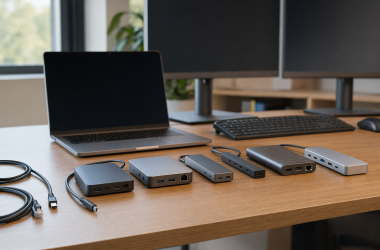
For a docked laptop, test the receiver after the dock wakes from sleep. If the cursor fails, check mode selection, battery state, receiver location and host pairing before replacing the device. The TB675’s wired route is useful only if the desk has a practical cable path. A receiver also needs a port even though the trackball itself does not move. Our USB-C dock guide covers the wider port plan.
Match controls to actual work
A four-direction wheel on the Kensington models can move across wide content, but verify the gesture in your own software. Timeline scrolling, document panning and zooming are not interchangeable. The MX Ergo S lists six customizable buttons, the M575S three, and the TB675 nine. The EM04 expressly says its buttons are nonprogrammable. A larger number does not make an untested shortcut map useful.
Map one low-risk action and keep the keyboard fallback for the first week. Confirm the mapping software supports the operating system and application before counting buttons in a comparison. The EM04’s stated Mac back/forward limitation is a good reminder that pointer compatibility does not prove every extra control works. Do not shift a critical edit command solely onto a new pointing device on day one.
Treat DPI and comfort claims carefully
DPI levels adjust pointer movement for a given ball movement. Start at a moderate setting and test small targets before ranking devices by their highest number. The TB550 lists four levels and the EM04 five. The levels are controls you can adjust, not a measured precision comparison. A clean ball and stable desk connection may count more in ordinary use than the top listed setting.
Likewise, seller ergonomic percentages and battery estimates are claims, not our tests. We did not measure forearm strain, long-session comfort or runtime. Try the device in the actual hand position and take ordinary breaks. If pain persists, seek appropriate professional advice rather than expecting a tilted shell or stationary pointer to treat it.
FAQ
Is a thumb trackball automatically smaller than a regular mouse?
No. It removes the motion area needed to sweep a mouse, but the shell itself may be as large or taller. A more upright thumb trackball can also need space above the desk, not just alongside the keyboard. None of these five listings supplies a comparable measured footprint test.
Measure the usable surface next to the keyboard and consider where the hand rests. A cardboard template based on the exact model’s dimensions is more reliable than a product photo. If several people use the station, check that each can reach the ball and wheel without crowding the typing position.
Can I use one thumb trackball with multiple computers?
Some of these models list more than one wireless path. The EM04 seller describes three device slots. The TB675 names Bluetooth, receiver and wired modes. The connection modes make multi-host use possible on paper, but the switching gesture and button behavior should be tested on the exact computers involved.
The receiver belongs to one USB path at a time, and Bluetooth pairing depends on the host. Label the active mode if a shared desk makes it easy to forget. Do not infer that a control customized on one computer automatically follows the trackball to another.
Will a thumb trackball make my wrist pain go away?
No product on this list can promise that. Stationary operation changes how the pointer is moved, while fit, reach, keyboard placement, duration and individual conditions remain relevant. Seller descriptions of posture or reduced strain were not independently verified here.
Choose a shape you can place comfortably without reaching around other equipment, then try ordinary work before remapping everything. If discomfort continues, change the setup or consult an appropriate clinician instead of buying another model on a medical-sounding slogan.
Bottom Line
Start with the M575S for simple wireless thumb control. Choose the TB550 when its fixed tilt and horizontal wheel solve your desk layout. The MX Ergo S makes sense for tested shortcuts, the EM04 for switching among hosts without programming buttons, and the TB675 when a more upright shape plus wired fallback justify the setup. Measure the desk and verify the host controls before choosing among them.