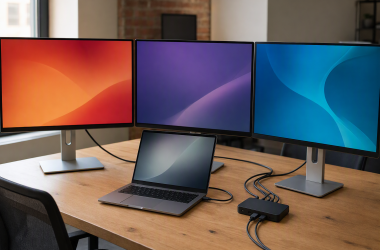
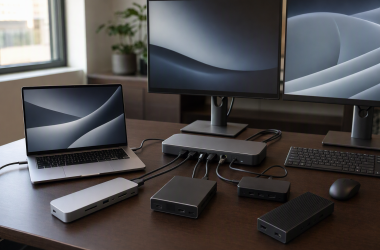
The best DisplayLink dock for an office hot desk is the one that gives the arriving laptop a predictable display, power, network, and peripheral setup without forcing employees to rebuild the desk every morning. Start with the computers you actually support, the exact monitor layout at each desk, and whether driver readiness is acceptable in your deployment process. A dock with a long feature list is only useful when its stated display and port plan fits the host machine and the desk it will serve.
This guide covers five current New, in-stock listings from the prepared product packet. The evidence supports the product identities and the stated connection, display, port, and power details below. It does not provide independent testing, universal operating-system behavior, driver deployment validation, refresh-rate testing beyond the listed figures, warranty coverage, or an assurance that every laptop will receive the same result. Treat the stated capabilities as a hot-desk pilot checklist, not a substitute for testing your own laptops and monitors.
Key Takeaway: A shared desk works best when its monitor layout, host connection, charging expectation, and any required software are tested together on the actual laptop models employees bring to it.
1. Kensington SD4780P DisplayLink Dock
ASIN: B08H4QR5QK
The Kensington SD4780P is the flexible mixed-host hot-desk pick. Its listing identifies a DisplayLink USB-C dock for Windows, MacBooks, and Surface systems with dual 4K video and 100W Power Delivery. The prepared exact-model support evidence also identifies USB-C, USB-A, 10Gbps, and selectable HDMI or DP++ outputs. That combination is useful for an office that cannot assume every visitor arrives with the same host connector or the same monitor cable arrangement.
The strongest buyer reason is not simply the dual-display claim. It is the ability to plan one desk around both USB-C and USB-A host connections while keeping a named 100W power figure on the checklist. A hot-desk owner should still test the exact operating system and monitor pair before treating the dual-4K statement as a universal deployment result.
Pros
- The listing names Windows, MacBooks, and Surface systems. That broad stated host range makes it a sensible starting point for offices where employees rotate between different laptop families.
- Dual 4K video and 100W Power Delivery are listed. Those are clear targets for a desk that needs two higher-resolution displays and a defined charging expectation for compatible laptops.
- The exact-model evidence includes USB-C and USB-A plus selectable HDMI or DP++ outputs. That can reduce connection ambiguity at shared desks with a mixed monitor and laptop estate.
Cons
- The packet does not prove the same dual-4K result for every operating system and host. Validate the intended laptop, display inputs, and cable arrangement before buying in volume.
- 100W is a dock-side figure, not a guarantee that every laptop will charge identically. Compare it with the requirements of the machines that will use the desk.
Our take: Choose the SD4780P when a hot desk must accommodate mixed USB-C and USB-A host connections and you can pilot its dual-display plan before standardizing.
2. Plugable UD-3900 Universal Laptop Dock
ASIN: B00ECDM78E
The Plugable UD-3900 is the practical universal-dock option for an office that values connection variety over the newest host interface. Its listing specifies Windows and Mac support, driver required, USB 3.0 or USB-C host connection, two HDMI outputs, Gigabit Ethernet, audio, and six USB ports. Those details make it especially relevant for a shared desk with standard dual-HDMI monitors and a need for wired networking and several everyday peripherals.
The driver requirement is the central purchasing condition. A dock can be useful for hot desks only when the organization can install, update, and support the necessary software on the computers that use it. If driver deployment is outside your IT model, treat that line in the listing as a reason to choose a different dock category rather than a minor setup detail.
Pros
- The listing explicitly supports USB 3.0 or USB-C. That can help an office support more than one generation of laptop connection at a shared desk.
- Two HDMI outputs, Gigabit Ethernet, audio, and six USB ports are named. The stated mix covers common desk attachments without requiring a chain of separate adapters.
- The driver requirement is clear in the title. A transparent software condition is better than discovering an unsupported setup after the desk is already deployed.
Cons
- Driver required is a real operational dependency. Confirm that your IT team can deploy and maintain the needed software for every compatible laptop user.
- The listing does not state a charging-power figure. Do not assume this dock will meet the laptop-charging requirement of a hot desk without checking the exact deployment need.
Our take: Pick the UD-3900 when you need dual HDMI, wired networking, and several USB ports across USB 3.0 or USB-C hosts, and your office can support the stated driver requirement.
3. Plugable Triple Display USB-C Dock
ASIN: B08DDH5CPW
The Plugable triple-display dock is for a more structured multi-monitor hot desk. Its listing names 100W Power Delivery, three HDMI ports, one 4K at 30Hz output, two 1080p at 60Hz outputs, six USB ports at 5Gbps, and compatibility with Windows, macOS, and ChromeOS. This is the most explicit display-layout description in the group, which is valuable when the office wants to document the monitor role at the desk rather than tell each user to “try the screens.”
The crucial point is that the three displays do not carry the same stated specification. The listing separates one 4K 30Hz output from two 1080p 60Hz outputs. That makes it a better candidate for a desk where those exact monitor classes match the work, not for a buyer who assumes any three displays will run at the same resolution and refresh rate.
Pros
- The listing specifies 100W Power Delivery. That provides a defined charging target to compare against compatible laptop requirements at the hot desk.
- Three HDMI outputs are listed with exact stated display roles. One 4K at 30Hz and two 1080p at 60Hz give facilities and IT teams a concrete layout to pilot.
- Windows, macOS, and ChromeOS are named. That stated operating-system coverage can be useful when a shared workspace receives several laptop platform types.
Cons
- The three HDMI outputs have different listed capabilities. Do not plan a three-screen desk as though all displays are interchangeable without matching the monitor roles to the stated outputs.
- The packet does not establish every host-specific outcome. Verify the actual laptop, drivers, display cables, and monitor inputs before offering the desk as a standard triple-display station.
Our take: Choose this Plugable when the office can intentionally use one 4K 30Hz display plus two 1080p 60Hz displays and wants a stated 100W charging target.
4. WAVLINK DisplayLink Dual 4K 60Hz Dock
ASIN: B07DCLK55V
The WAVLINK dock is the clean dual-display choice for a desk whose central requirement is two listed 4K at 60Hz monitors. Its product title identifies a DisplayLink docking station for dual 4K at 60Hz on Mac and Windows. That is a more focused proposition than a large port-count claim: a compatible user arrives, connects to the desk, and the desk is designed around a named dual-screen target.
The evidence packet is intentionally limited here. It confirms the product identity and the stated Mac, Windows, and dual-4K-60Hz positioning, but does not enumerate port count, charging, cable requirements, driver behavior, or a detailed monitor topology. That makes it a valid candidate for a dual-monitor pilot, not a reason to assume the rest of the desk infrastructure is covered.
Pros
- The listing explicitly names dual 4K at 60Hz. That is a strong stated target for an office where two matching higher-refresh 4K monitors are the main hot-desk requirement.
- Mac and Windows are both named. A mixed-platform office can include it in a pilot rather than choosing a dock positioned for only one operating system.
- Its narrow display focus is easy to evaluate. Teams can test the exact two-monitor outcome first instead of trying to infer the desk’s purpose from a broad accessory bundle.
Cons
- The packet does not list charging power, port count, or a driver condition. Confirm every required peripheral and power need separately before relying on it as a complete dock solution.
- Dual 4K at 60Hz remains a stated listing capability. Test the actual host, displays, cables, and operating system rather than assuming the same result for every employee.
Our take: The WAVLINK is for a hot desk built primarily around a tested two-monitor 4K 60Hz plan, with the remaining ports and charging needs confirmed before rollout.
5. Anker Prime DL7400 DisplayLink Dock
ASIN: B0DTSZC5Y7
The Anker Prime DL7400 is the port-count-forward alternative. The listing identifies it as a 14-in-1 docking station with triple display and DisplayLink. That gives an office a clear reason to consider it when the desk needs more than the bare essentials and a three-display layout is part of the planned workspace.
The product title does not provide the detailed per-display resolution, refresh, charging, or port breakdown that the Plugable triple-display listing does. For that reason, treat it as a high-capacity candidate to validate during a hot-desk pilot, not a substitute for a written desk specification. It is best when you need the listed 14-in-1 and triple-display direction and can verify the exact monitor and laptop outcome yourself.
Pros
- The listing names a 14-in-1 design. That makes it a strong candidate for a desk with many peripherals to consolidate through one docking-station category.
- Triple display and DisplayLink are explicitly listed. Buyers who need a three-screen desk have a clearly stated reason to include it in a controlled deployment test.
- Its broad stated role can reduce accessory sprawl. A hot desk with many regular connections may be easier to standardize around one higher-capacity dock than multiple small adapters.
Cons
- The prepared evidence does not provide per-display resolution or refresh details. Confirm the exact monitor arrangement before deciding that “triple display” meets the desk’s visual requirements.
- It does not list a charging figure in the packet. Do not infer laptop-power behavior from the 14-in-1 count or the DisplayLink label.
Our take: Choose the Anker Prime DL7400 when a hot desk needs a stated 14-in-1, triple-display category and you can document the exact display and charging result before purchase.
Buying guide: choosing a DisplayLink dock for office hot desks
1. Define the desk by its monitor outcomes
Start with the exact display target. A hot desk should have a written monitor plan such as two 4K 60Hz screens, one 4K 30Hz plus two 1080p 60Hz screens, or a standard dual-HDMI layout. The WAVLINK DisplayLink Dual is listed for dual 4K at 60Hz, while the Plugable Triple Display USB-C Dock separates one 4K 30Hz output from two 1080p 60Hz outputs.
- Two-screen threshold: Use a dedicated dual-4K plan when every desk has the same pair of compatible displays.
- Three-screen threshold: Use a three-screen plan only when the listed output roles match the exact monitors at the workstation.
- Resolution rule: Treat 4K 30Hz and 4K 60Hz as different buying requirements, not interchangeable wording.
Key Takeaway: Monitor resolution and refresh rate are desk specifications. Choose the dock only after the intended displays are written into the hot-desk standard.
2. Make driver readiness an explicit deployment test
Do not hide the software condition. The Plugable UD-3900 Universal Laptop listing explicitly says driver required, so the desk must be tested with the installation, permissions, update process, and support path your office actually permits. The prepared packet does not establish the driver behavior of every other dock, so do not infer it from the DisplayLink name alone.
- Managed-device check: Confirm whether users can install the required software or whether IT must deploy it.
- Guest-device check: Test an unmanaged or visitor laptop only if it is part of the office policy.
- Recovery check: Document the action staff should take when a connected display does not appear as expected.
Key Takeaway: A driver requirement is an operational requirement. A dock is not hot-desk ready until the software path is as repeatable as the cable path.
3. Match host connection and charging expectations
Separate host compatibility from power delivery. The Kensington SD4780P DisplayLink Dock is documented with USB-C and USB-A host flexibility and a stated 100W figure, while the Plugable Triple Display USB-C Dock also lists 100W PD. The Plugable UD-3900 Universal Laptop lists USB 3.0 or USB-C but does not state a charging figure in the prepared packet.
- Connection rule: Match USB-C or USB-A host support to the laptops that will arrive at the desk.
- Power rule: Compare a listed 100W figure with the laptop’s documented power need instead of assuming every laptop charges the same way.
- Cable rule: Test the host cable and monitor cables used at the actual desk, not only a short bench setup.
Key Takeaway: Host connection and charging are separate checks. A laptop may connect successfully while still needing a different power plan.
4. Count peripheral needs before buying for port count
Use the number of real desk accessories as the threshold. The Anker Prime DL7400 DisplayLink is listed as 14-in-1, while the Plugable UD-3900 Universal Laptop names 6 USB ports, Gigabit Ethernet, audio, and two HDMI outputs. Count the keyboard, mouse receiver, wired network, headset, webcam, storage, and display connections that the desk truly needs before treating a larger number as automatically better.
- Basic desk: Two displays, wired network, and a few USB accessories can favor a simpler stated port mix.
- Shared production desk: A larger 14-in-1 category can be useful when the desk regularly hosts more devices.
- Unknown-port warning: When a title does not enumerate a port, verify it before adding that device to the deployment standard.
Key Takeaway: Port count is useful only when each port has a planned job. Do not purchase capacity that the desk cannot use or support.
5. Pilot one complete desk before purchasing in volume
Run a repeatable acceptance test. Connect the intended laptop, the exact monitors, wired network, USB accessories, and power source, then record the outcome. Include at least one Windows host and one Mac host when the office supports both, because the product titles identify different platform coverage but do not prove identical behavior across every machine.
- Display check: Verify the stated resolution and refresh target on each monitor.
- Power check: Confirm the laptop sees the expected charging behavior during normal work.
- Support check: Reconnect the cable after sleep or a user change and document the recovery procedure if anything differs.
Key Takeaway: One passing bench test is not a fleet standard. A hot-desk dock becomes deployable when the complete desk test is repeatable across the laptops the office supports.
Frequently asked questions
What makes a dock suitable for an office hot desk?
Answer: predictable connections matter more than a long feature list. A usable shared desk has a documented monitor layout, host connection, charging expectation, peripheral plan, and support path. The prepared listings help define candidates, but the office should validate the exact laptop and display combination before standardizing.
Do all DisplayLink docks need the same driver setup?
Answer: do not assume that. The Plugable UD-3900 Universal Laptop listing explicitly says driver required. The packet does not establish identical driver behavior for every other dock, so each deployment should verify the required software process.
Which option is best for three monitors?
Answer: start with the stated three-display layouts. The Plugable Triple Display USB-C Dock provides the most detailed listed arrangement: one 4K 30Hz plus two 1080p 60Hz outputs. The Anker Prime DL7400 DisplayLink is listed as 14-in-1 triple display, but its per-display specifications are not in the prepared packet.
Can one dock work for Windows, Mac, and ChromeOS users?
Answer: only test the platforms the listing actually names. The Plugable Triple Display USB-C Dock lists Windows, macOS, and ChromeOS, while the Kensington SD4780P DisplayLink Dock and WAVLINK DisplayLink Dual name Windows and Mac-related support. Verify each laptop model and monitor plan rather than relying on broad platform labels.
Do these docks all provide laptop charging?
Answer: no single assumption is safe. The Kensington SD4780P DisplayLink Dock and Plugable Triple Display USB-C Dock list 100W power figures. The prepared packet does not state a charging figure for every product, so compare the exact dock and laptop before using charging as a requirement.
Are the five products currently available new?
Answer: the prepared packet recorded all five as New and in stock. Availability is a point-in-time result and can change, so check the current listing before a purchase order or individual order is placed.
Final word
For mixed USB-C and USB-A host desks, start with the Kensington SD4780P DisplayLink Dock. Choose the Plugable UD-3900 Universal Laptop only when its stated driver condition fits your IT model, and use the Plugable Triple Display USB-C Dock when its specific 4K and 1080p layout matches the monitors. The WAVLINK DisplayLink Dual is the focused dual-4K candidate, while the Anker Prime DL7400 DisplayLink is the high-capacity triple-display direction. Pilot the whole desk before rollout so the dock, software, power, and displays work together.