Finger drumming feels different when a pad is large and responsive enough to play repeatedly. A laptop keyboard can enter notes, but a dedicated MIDI pad controller gives you a more deliberate surface for kicks, snares, chops and sample triggers. The first decision is eight pads versus sixteen. The next is whether you need knobs, faders or note repeat beside them. More lights do not make a pad easier to play.
These six active New options are pad controllers, not piano keyboards or computer shortcut pads. They send MIDI to software or connected equipment and do not make drum sounds on their own unless the exact offer includes a separate sound engine, which none of the listings establishes here. Choose the pad layout and host connection that suit the DAW you actually use.
Before buying, decide how many sounds you play at once, whether you switch banks mid-performance, and which laptop port or wireless path will carry MIDI. Check the pad response in your own software and map a simple kit before building a complex template.MIDI Pad Controllers Compared
| Image | Product | Details | Check Price |
|---|---|---|---|
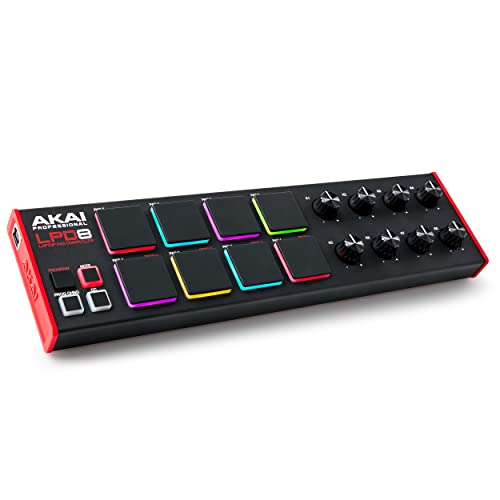 | Akai LPD8 | Pads: 8 RGB Knobs: 8 assignable USB: USB powered Best fit: Portable basic beats | Check Price on Amazon |
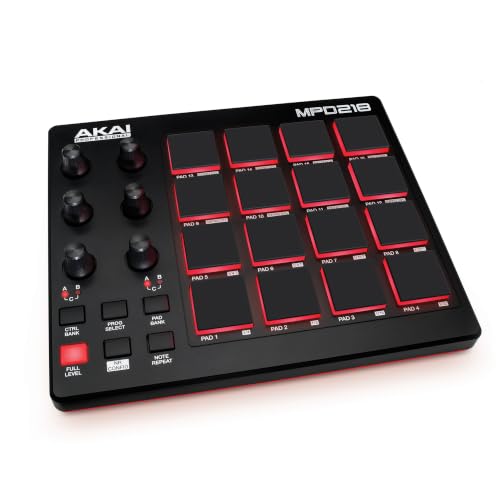 | Akai MPD218 | Pads: 16, three banks Knobs: 18 mappings across banks Extra: Note Repeat Best fit: MPC-style pad practice | Check Price on Amazon |
 | Donner STARRYPAD | Pads: 16, three banks Controls: 2 faders + 2 knobs USB: USB-C listed Best fit: Pads plus simple faders | Check Price on Amazon |
 | Korg nanoPAD2 | Pads: 16 velocity-sensitive Controls: X-Y touchpad Shape: Low profile Best fit: Thin laptop-bag setup | Check Price on Amazon |
 | PreSonus ATOM | Pads: 16 pressure-sensitive Controls: 4 encoders + buttons Extra: Note Repeat Best fit: Studio One-centered control | Check Price on Amazon |
 | HXW EMP16 | Pads: 16, four banks Controls: 4 faders + 4 knobs Connection: USB MIDI or Bluetooth Best fit: Optional wireless pad setup | Check Price on Amazon |
1. Akai LPD8 — Best Small Eight-Pad Workflow
The LPD8 is the small Akai option with eight RGB-lit MPC pads and eight assignable Q-Link knobs. Akai lists four programmable preset slots and describes it as about 13 inches wide. Eight pads may be enough for a basic kit, especially if you prefer large targets instead of a crowded grid. The knobs can map to instrument or mixer parameters if your software supports the assignments.
It is USB powered and listed for Mac or PC without a separate supply. Check the actual connector and laptop port. “USB” alone does not establish USB-C on this exact model. Four presets help when different projects need different pad notes, but you must create and manage mappings on the computer. If you want to trigger sixteen sounds without changing banks, the LPD8’s physical pad count is a constraint.
Our Take Pick LPD8 for a portable eight-pad beat surface with plenty of knobs. It is a focused controller, not a sixteen-pad drum grid in a smaller box.
- Eight pads and eight knobs.
- Four preset slots listed.
- USB-powered portable body.
- Only eight physical pads.
- Host USB connector needs checking.
2. Akai MPD218 — Best MPC-Style Pad Practice
Akai’s MPD218 lists sixteen thick MPC pads and three pad banks, giving 48 assignable pad positions across banks rather than 48 physical pads. It also lists 18 assignable knob mappings through three banks. Note Repeat and Full Level are dedicated performance tools. For a laptop producer building patterns by hand, the larger grid can reduce bank switching compared with an eight-pad controller.
The unit is USB powered and the listing describes software including MPC Beats, Ableton Live Lite and Drum Synth 500. Verify license and host requirements before relying on a bundle. The seller says iOS use requires a separate Camera Connection Kit, so a tablet connection is not the same as a direct laptop cable. Banked controls are useful only if you remember which sounds and parameter values live on each bank.
Our Take Choose MPD218 when sixteen physical pads and repeat/level tools are more important than a tiny footprint. Treat the bank totals as mappings, not extra pads.
- Sixteen physical pads.
- Note Repeat and Full Level listed.
- Three pad and knob banks.
- Bank mapping adds setup work.
- Tablet connection needs extra hardware.
3. Donner STARRYPAD — Best Pads with Simple Faders
Donner’s STARRYPAD lists sixteen soft silicone pads, three banks, two assignable faders and two knobs. The pad colors can group sounds visually, which can help when a kit mixes drums, effects and samples. The listing names selectable velocity curves, tap tempo and Note Repeat. Its USB-C data/power port is explicit, unlike products whose listing just says USB.
Donner describes optional MIDI input/output and a cable for connecting other MIDI gear. Confirm the connector and setup before planning a hardware chain. The seller says the editor configures the pads but does not record or arrange music, and that the controller needs a DAW to make sound. Software and lesson codes may require a separate redemption step. Buy for the pads and faders, not an assumption that it is a standalone drum machine.
Our Take Pick STARRYPAD when two faders and a sixteen-pad grid are useful at a USB-C laptop desk. Keep the software and MIDI-port details in the setup check.
- Sixteen pads with three banks.
- Two faders and two knobs.
- USB-C data port listed.
- No standalone sound engine.
- Software redemption may take extra steps.
4. Korg nanoPAD2 — Best Slim Controller with X-Y Control
Korg’s nanoPAD2 uses a low-profile body with sixteen velocity-sensitive trigger pads. It also includes an X-Y touchpad for controlling MIDI parameters. The touchpad makes it physically different from a pad controller built around knobs. A finger movement across the touch surface can be mapped to changing values while a beat runs, provided the software accepts the MIDI messages you assign.
Its thin shape suits a laptop-bag setup or desk with little vertical clearance. Check the exact USB cable and connection before purchase, since the listing does not establish USB-C. A slim pad can be convenient for entering drum hits, but pad feel is personal. The product text does not compare its sensitivity with the thicker MPD218 pads. The X-Y control also needs deliberate mapping or it becomes unused decoration.
Our Take Choose nanoPAD2 for sixteen pads in a shallow body, especially if an X-Y gesture has a job in your software. It is not a substitute for rotary knobs if you prefer those controls.
- Slim low-profile shape.
- Sixteen velocity-sensitive pads.
- X-Y touch control.
- USB-C is not established here.
- Touchpad utility depends on mapping.
5. PreSonus ATOM — Best Studio One-Centered Control
The ATOM listing names sixteen full-size velocity- and pressure-sensitive RGB pads, four endless encoders and twenty assignable buttons. It also describes selectable velocity curves and pressure thresholds. Those options can help a player tune the pad response to their hands, but the actual feel still needs personal testing. The listing highlights integration with Studio One and includes software information for Ableton Live Lite.
Its eight pad banks expand mappings, not the number of physical pads. Note Repeat, Full Velocity and a keyboard mode are listed with an application-dependence caveat. Confirm that the specific DAW version and plugin you use expose those controls before choosing ATOM over a simpler pad. Bundled software versions and plugins may differ from older marketing copy. A controller with this many controls takes time to learn but can reduce mouse work when its mapping is right.
Our Take Pick ATOM if Studio One integration and adjustable pad response are priorities. For a bare sixteen-pad surface, its extra buttons may be more setup than you need.
- Full-size pressure-sensitive pads.
- Velocity curves and thresholds listed.
- Encoders and many assignable buttons.
- Some modes depend on the application.
- Control setup can take time.
6. HXW EMP16 — Best Optional Wireless Setup
HXW lists sixteen RGB pads, four banks, four faders and four endless knobs for the EMP16. It also describes three selectable velocity curves, threshold adjustment, Note Repeat and an OLED display. The extra controls make it a pad controller for a producer who wants to adjust levels and parameters without reaching for a separate surface. Four banks mean more mappings, not sixty-four simultaneous physical pads.
The listing describes both USB MIDI and optional Bluetooth 5.0, with two AA batteries required for wireless power and not included. Check that your exact laptop and DAW support the intended Bluetooth MIDI path. Wired USB is the simpler starting point for practice where timing counts. No latency comparison is established here. Standard MIDI input/output and an adapter cable are also listed, but verify port configuration before building a hardware route.
Our Take Choose EMP16 if wireless placement and faders solve a desk problem. Test wired first, then confirm your host’s Bluetooth MIDI behavior rather than assuming every DAW connects the same way.
- Sixteen pads plus faders and knobs.
- USB MIDI and optional Bluetooth listed.
- Velocity and threshold settings described.
- Wireless needs two AA batteries.
- Host Bluetooth MIDI support needs checking.
Buying Guide: Match the Pad to the Beat-Making Job
Start with physical pad count and playing feel
An eight-pad grid can handle a simple kit, while sixteen physical pads let you keep more drums and samples under your fingers at once. Bank counts are useful, but switching a bank mid-take is different from reaching another pad in the same grid. Choose from the way you perform, not the largest advertised assignable-pad total. Pad size, resistance and placement also count. Listing descriptions do not replace trying the surface if hand feel is central.
Look for velocity response that matches the part. Some products list selectable curves or thresholds. ATOM and HXW do, and Donner names adjustable curves. These settings may help avoid missed or accidental hits, but the software instrument also has its own sensitivity. Test a basic kick/snare/hat kit at a fixed tempo, then change one setting at a time. Do not judge a controller only by how bright its lights are.
Choose controls you will actually map
Note Repeat is listed on Akai MPD218, Donner STARRYPAD, PreSonus ATOM and HXW EMP16. It is useful only when its timing behavior matches your DAW and music. Knobs, faders and an X-Y touchpad can control effects or mix parameters, but they do nothing until mapped. Build a small template with a few reliable assignments before assuming every bank and button will be part of daily use.
If you need to enter melodies on physical keys, a compact MIDI keyboard is a different purchase. A pad controller should be chosen for finger drumming and samples, not because it can imitate a full keyboard through a special mode. If laptop ports are the constraint, our USB-C dock guide for music production covers host expansion. The laptop’s audio output remains a separate signal path.
Check connection, DAW and hardware routes
For a laptop, USB MIDI is the simplest starting connection. Confirm the actual controller port, cable and laptop host. USB-A versus USB-C makes a difference if the desk has only one free port. HXW adds optional Bluetooth, but the seller’s feature list does not prove identical latency or setup across every host. Start wired when you need predictable first-time configuration, then test wireless with the actual DAW if you need to move the controller around.
Some controllers list MIDI ports for external synths or drum machines. A multiport USB MIDI interface guide covers routing several hardware devices, a distinct job from playing one pad surface. Verify the controller’s exact port wiring and the gear’s MIDI channel plan before buying adapters. A pad controller sends note and control data. It does not automatically route audio back to the laptop.
Frequently Asked Questions
Will a MIDI pad controller make sound without a computer?
These six products are sold as MIDI controllers, not standalone drum samplers. They send note and control messages to software or other MIDI-capable hardware. The instrument receiving those messages generates the sound. A controller can light its pads or run on batteries and still have no built-in audio engine.
Load a drum instrument or sampler in the DAW, select the pad as a MIDI input and assign the notes to sounds. Then check the computer’s audio output. If the pad sends MIDI but no sound comes out, the problem may be the instrument track or audio routing rather than the pads.
Are banked pads the same as more physical pads?
No. Three banks of sixteen pads mean different assignments can be recalled on the same sixteen surfaces. Banks can expose more sounds over a session, but the player cannot hit two sounds on different banks at the same instant without changing the mapping or recording passes. Read bank totals as workflow flexibility, not extra rubber pads.
If you frequently alternate between many sounds within one take, a sixteen-pad surface may be easier than eight pads with presets. If your kit is simple, eight well-spaced pads may be more comfortable. Practice with the layout you intend to use, not only the headline assignment count.
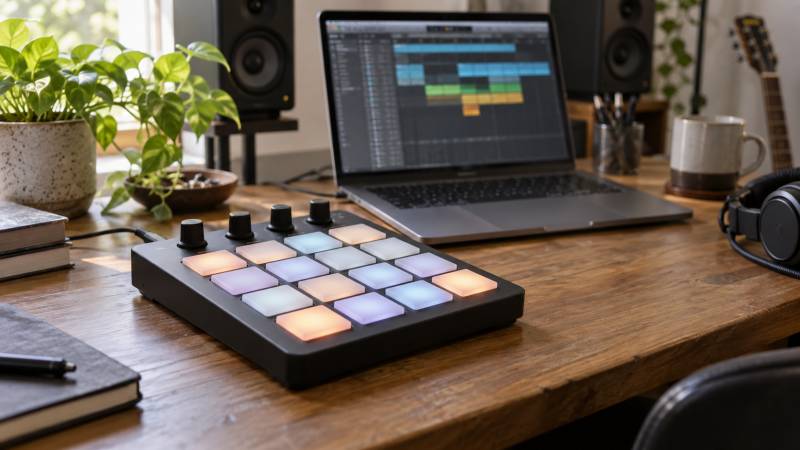
Source boundary: Product identities, pad counts, controls and connection options come from six exact Amazon US listings checked for active New offers. DAW integration, software bundles and Bluetooth support are seller statements to verify. The featured image is illustrative, not a listed model. Confirm current host requirements before buying.