If another dock function works but the external monitor does not appear in Ubuntu, identify the dock’s video path before installing software. Test the monitor directly from the laptop first. Then check whether the failed dock output uses native DisplayPort Alt Mode or MST, Thunderbolt video, or a confirmed DisplayLink USB graphics chip.
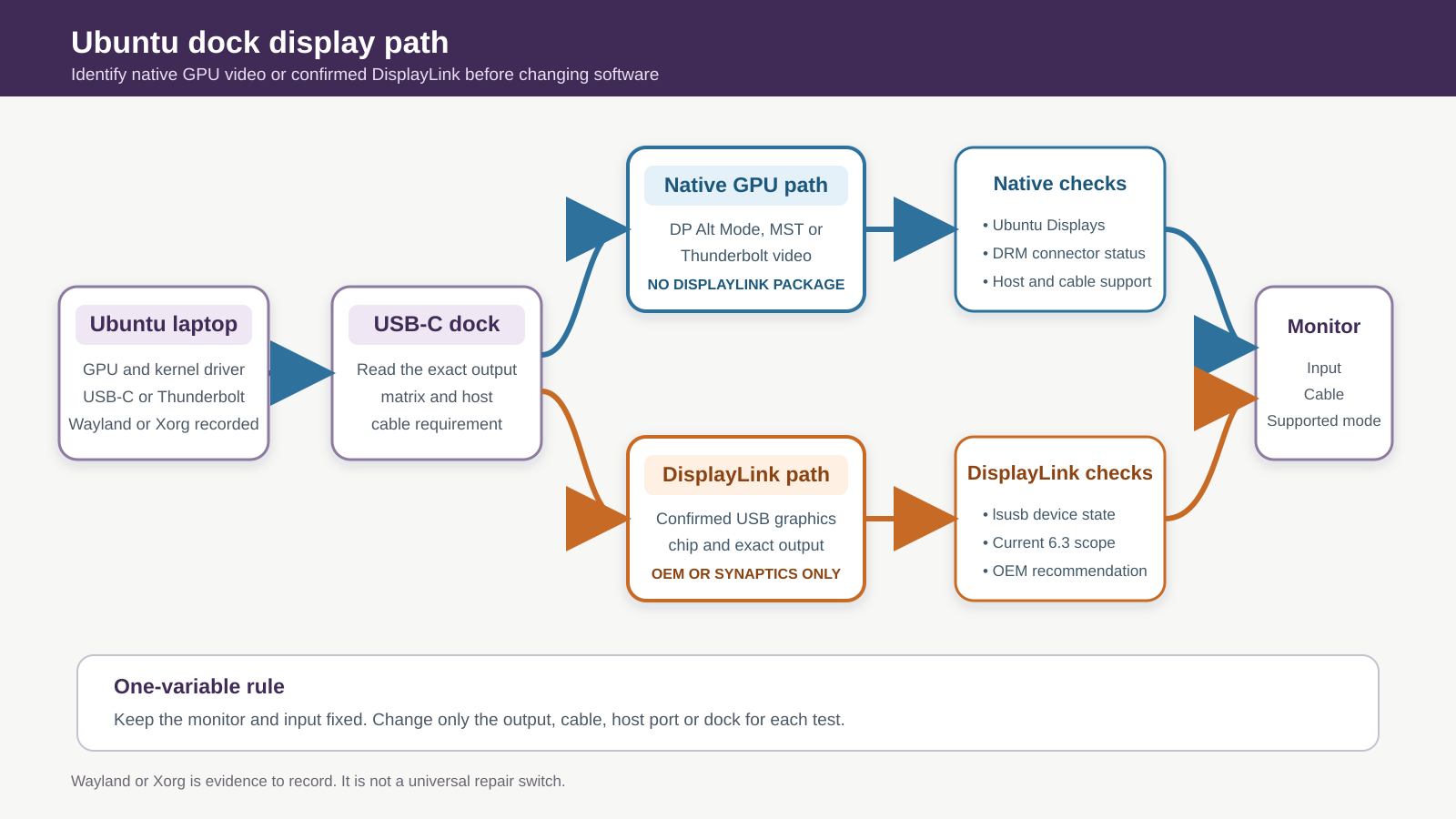
Native GPU video and DisplayLink use different software paths. A DisplayLink package cannot add DisplayPort Alt Mode to a host port, and a GPU-driver change is not a general repair for a confirmed DisplayLink output.
Native GPU video and DisplayLink are different paths with different software.
The procedure starts when Ubuntu sees the dock or another dock function works. Linux dock shopping stays with the Linux Thunderbolt dock guide. Broad Thunderbolt authorization stays with the Thunderbolt on Linux guide.
Start here: match the symptom to the display layer
| Observed state | What it suggests | Next check |
|---|---|---|
| No dock function works | The failure is broader than video | Check dock power, upstream link, exact host support, and Thunderbolt authorization when applicable |
| USB or Ethernet works, but the direct monitor connection also fails | The host video, monitor, input, or cable remains unresolved | Repair the direct display path before the dock |
| Direct monitor works, but every dock video output fails | The dock upstream requirement, video protocol, cable, or support matrix remains | Identify the dock topology and host requirement |
| One dock output works and another fails | The outputs may use different chips or protocols | Read the exact output matrix |
| Ubuntu Displays lists the monitor but it is disabled or uses a bad mode | Ubuntu recognized the display | Enable it or choose a supported mode in Displays |
| The kernel connector stays disconnected | The kernel does not report a connected sink on that connector | Recheck the physical route, output, cable, and support |
| Confirmed DisplayLink output is absent | The USB graphics branch is isolated | Check exact OEM and current Synaptics support |
The last row applies only when the dock maker identifies the output as DisplayLink. Do not label every USB dock with multiple video ports as DisplayLink.
The safe order for a blank dock monitor
Every step below reads state. None of them installs a package, changes a session, or writes to the system.
- Record the Ubuntu release, kernel, GPU and driver, session, host, dock, output, and cable.
- Prove the monitor and the direct host output, with no dock in the path.
- Prove the dock and its upstream connection with one working data function.
- Read the exact dock output matrix and identify each output’s technology.
- Read the kernel connector state through the direct route and through the dock.
- Follow the native GPU branch, or the confirmed DisplayLink branch, but not both.
- Rebuild the route one variable at a time.
Step 4 is what makes the rest of the sequence work. Until the dock maker tells you whether the failed output is native DisplayPort Alt Mode, MST, Thunderbolt video, or DisplayLink, any software change is a guess, and the two branches need opposite actions.
Step 1: record the route before changing it
Write down:
- Ubuntu release and desktop;
- kernel version;
- GPU model and active kernel driver;
- Wayland or Xorg session;
- laptop model and exact USB-C or Thunderbolt port;
- dock brand, model, and firmware version when the maker exposes it;
- exact dock output used;
- upstream and monitor cables;
- monitor model and selected input;
- another dock function that works.
Run the following read-only commands:
lsb_release -ds
uname -r
lspci -k
lsusb
lsusb -t
printf '%s\n' "$XDG_SESSION_TYPE"
Ubuntu’s Noble lspci manual says lspci -k shows the kernel driver handling each PCI device. Use the output to record the GPU and driver. Do not treat the driver name as proof that it is wrong.
Ubuntu’s lsusb manual says the command lists USB devices and lsusb -t shows their hierarchy. A dock or DisplayLink USB device in that list proves USB enumeration. It does not prove that a native GPU display signal reached the monitor.
Save only the lines needed for support. Avoid publishing serial numbers, full device identifiers, or other unique system details.
Step 2: prove the monitor and direct host output
Select the monitor’s input manually. Match HDMI to the used HDMI port or DisplayPort to the used DisplayPort port. Disconnect other video inputs during the test when doing so is practical.
Use a direct cable or a simple adapter path that the laptop maker documents for the same host port. Keep the monitor and input fixed.
- Direct connection fails: stop. The dock is not isolated.
- Direct connection works: the laptop, GPU, monitor, input, and direct cable can produce an image in that mode. Continue with the dock.
Open Settings, then Displays. Ubuntu’s current 26.04 Desktop Guide says a recognized monitor appears in the Displays panel, where you can select its orientation, resolution, scale, refresh rate, and joined or mirrored mode. Ubuntu also applies a changed setting for 20 seconds before reverting if you do not keep it.
If the monitor appears but is disabled, enable the exact monitor and choose a mode that both the monitor and current route support. Do not force a refresh rate or resolution from a forum command.
If you are diagnosing a monitor on Windows instead, use the Windows USB-C monitor owner. Windows procedures do not control this Ubuntu article.
Step 3: prove the dock and upstream connection
Reconnect the dock directly to the laptop. Remove USB-C extensions, couplers, KVMs, and extra hubs. Use the dock’s supplied or officially specified host cable.
Confirm one data function, such as a USB keyboard, storage device, or Ethernet connection. Charging alone proves only power.
If the dock is Thunderbolt, run:
boltctl listUbuntu documents boltctl as the command-line interface to boltd, which manages Thunderbolt devices. boltctl list reports connected and stored devices. The command is relevant only to a Thunderbolt path. An ordinary USB-C DP Alt Mode dock will not become a Thunderbolt device because you run it.
Do not share a full Thunderbolt UUID in a public support post. Ubuntu’s own man page warns that full UUIDs are sensitive and recommends a short or alias form when sharing output.
If authorization is the problem, follow the exact Linux Thunderbolt authorization guide. Do not authorize an unknown peripheral.
For a USB dock, use lsusb and lsusb -t to record whether the dock’s USB functions appear. Do not infer native video support from a listed USB hub.
Step 4: read the exact dock output matrix
Find the dock model on the maker’s site. Identify each video output separately.
Look for:
- native DisplayPort Alt Mode;
- MST;
- Thunderbolt downstream video;
- DisplayLink and its exact chipset;
- output-specific resolution and monitor limits;
- host DP Alt Mode or Thunderbolt requirement;
- supported Ubuntu versions;
- required upstream cable;
- dock power requirement.
One dock can contain more than one video technology. StarTech’s current 116E-USBC-DOCK datasheet is an exact example. It documents two outputs driven by a DisplayLink DL-6950 controller and a third HDMI output driven by the host’s DP Alt Mode. It also lists Ubuntu support and a DP Alt Mode host requirement for full function.
The documented split explains why one output can work while another fails. It does not prove that your dock uses the same chips or port order.
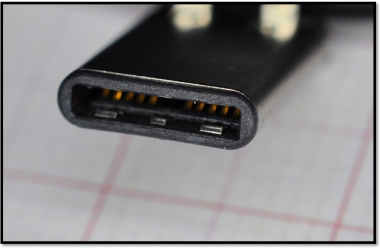
USB-IF treats USB Type-C as connector terminology. The connector alone does not prove DP Alt Mode, MST, Thunderbolt, DisplayLink, or the required cable. If you need help checking the host, use the USB-C DisplayPort Alt Mode guide, then confirm the laptop manual.
Step 5: read the kernel connector state
Linux’s DRM subsystem reports display connectors and hotplug changes. You can read the current connector states without changing them:
for status in /sys/class/drm/*/status; do
  printf '%s: ' "$status"
  cat "$status"
done
Run the command once with the direct monitor connection and once through the dock. Keep the monitor input fixed.
Interpret the result carefully:
- A connector changes to
connected: the kernel sees a sink on that connector. - The expected connector remains
disconnected: the native route has not produced a detected sink at that layer. - No obvious connector matches a confirmed DisplayLink path: use the DisplayLink and OEM evidence rather than forcing a native connector conclusion.
Kernel connector state is one observation. It does not prove the cable, dock, GPU, or monitor is defective.
Do not write to /sys/class/drm. Do not use force-probe commands or custom kernel parameters from an unrelated machine.
Step 6: follow the native GPU path
Use the native branch when the dock maker identifies the failed output as native DP Alt Mode, MST, or Thunderbolt-carried GPU video.
Keep the dock and monitor fixed. Test in the following order:
- Use the dock’s specified upstream cable.
- Use the exact laptop port that the maker documents for display output.
- Test one monitor on one dock output.
- Select the monitor input manually.
- Open Ubuntu Displays and record whether the monitor appears.
- Read the DRM connector states.
- Test another maker-supported output on the same dock.
- Test the same monitor directly from the laptop again.
If the direct path works but no native dock output produces a connected kernel connector, compare the host DP Alt Mode or Thunderbolt support and the dock’s exact upstream requirement. If one dock output works, compare the maker’s port map because MST and native single-output routes can differ.
Do not install DisplayLink software for the native branch. DisplayLink does not add native DP Alt Mode to the host.
If exact evidence shows that the current host and dock cannot provide the required native route, the USB-C dock guide, USB4 dock guide, or Thunderbolt dock guide can help after the failed layer is known.
Step 7: follow the confirmed DisplayLink path
Use the DisplayLink branch only when the exact dock or adapter documentation names DisplayLink.
First record the DisplayLink chipset when the maker lists it. Check whether lsusb shows a corresponding USB device. Then compare the Ubuntu release, kernel, architecture, and desktop session with the current OEM and Synaptics support pages.
Synaptics’ current Ubuntu page lists DisplayLink release 6.3 dated April 30, 2026. It supports named Ubuntu releases and offers a Synaptics APT route plus a standalone installer. Synaptics also tells users to check the original equipment maker because the reference driver may not be the maker’s recommended package.
The 6.3 release notes state the supported Ubuntu and kernel scope, minimum Xorg and Mutter versions, supported device families, and known limitations. The notes mention both Wayland and X11. Record your session with:
printf '%s\n' "$XDG_SESSION_TYPE"Do not switch sessions merely because one is listed. Check whether the exact release notes describe your Ubuntu, kernel, GPU, chipset, and symptom. If not, collect the evidence for the dock maker or Synaptics.
If the OEM directs you to the current Synaptics APT package, follow the current Synaptics page exactly. Do not add an unverified repository or install a package copied from a forum.
The DisplayLink dock guide is a shopping handoff after you prove that USB graphics is the intended solution. It is not a generic repair link for a native dock.
Step 8: rebuild the route one variable at a time
Start from the smallest route that works.
- One laptop port.
- The dock’s specified upstream cable.
- A powered dock when its manual requires power.
- One documented video output.
- One known-working monitor cable.
- One monitor with its input selected manually.
- A mode supported by the exact route.
After each connection, record Ubuntu Displays, the relevant lsusb or boltctl state, and the DRM connector state.
Then change one item:
- another supported dock output;
- another specified host cable;
- another documented laptop video port;
- another known-working monitor cable;
- another supported monitor;
- another Ubuntu-supported host.
Do not change the kernel, GPU driver, session, cable, and dock output together. A successful result would not tell you which change helped.
If the old OWC Thunderbolt 4 hub Linux setup matches your exact hardware, use it only for the named OWC product. Do not transfer its steps to an unrelated USB-C dock.
Escalation matrix
| Evidence | Best support owner | Include |
|---|---|---|
| No dock function appears | Laptop or dock maker, or Linux Thunderbolt support | Ubuntu release, kernel, host port, dock model, cable, lsusb or boltctl state |
| Direct display fails too | Laptop, GPU, or monitor maker | Direct cable, monitor input, Ubuntu Displays, GPU and driver from lspci -k |
| Direct display works, native dock output stays disconnected | Dock or laptop maker | Exact output matrix, DRM states, host DP Alt Mode evidence, unchanged monitor |
| One hybrid-dock output works and another fails | Dock maker | Port names, native or DisplayLink mapping, cable, Ubuntu and kernel |
| Confirmed DisplayLink USB device appears but no display | OEM or Synaptics | Dock and chipset, Ubuntu, kernel, session, current package source, lsusb |
| Managed workstation blocks packages or authorization | System administrator | Policy state, approved hardware, dock identifier, exact requested action |
Do not paste full Thunderbolt UUIDs or a complete system log into a public post. Share the smallest evidence set that shows the failed branch.
When replacement is justified
Replace the dock only after the host and direct monitor path work, the cable and output meet the exact requirements, and controlled testing isolates the dock or an unsupported topology.
Use the Linux dock guide when current first-party documentation excludes the existing dock or when the dock fails on supported Ubuntu hosts. Use the USB-C monitor guide only when the reader decides to simplify the route with a monitor whose documented input matches the host.
Do not replace a native dock because a DisplayLink package is missing. Do not buy a DisplayLink dock because the laptop lacks an approved Linux package for a different problem. The required workload and exact Linux support should set the product class.
Frequently asked questions
Why do USB ports work while the dock monitor stays blank?
USB data and display output can use different paths. A dock may expose a USB hub while the monitor depends on host DP Alt Mode, MST, Thunderbolt video, or a DisplayLink chip. Read the exact dock output matrix before changing Ubuntu software.
Should I install DisplayLink on Ubuntu?
Only when the exact dock or output documentation confirms DisplayLink. Use the current OEM recommendation or Synaptics’ current Ubuntu page. DisplayLink software is not a fix for a native DP Alt Mode output.
Does lsusb prove that Ubuntu sees the monitor path?
No. lsusb proves that Ubuntu lists a USB device. A native GPU display path may not appear as a DisplayLink USB device. Use Ubuntu Displays, the exact dock topology, and DRM connector state for the display branch.
Should I switch from Wayland to Xorg?
Not as a generic first step. Record the current session and compare your confirmed DisplayLink hardware, Ubuntu release, kernel, and symptom with the current Synaptics release notes. Native display failures need native-path evidence instead.
Can any USB-C cable carry dock video?
No universal claim follows from the connector shape. Use the cable supplied or specified by the dock maker and verify the host requirement. A charging result does not prove the required display or data function.
Sources and methodology
Ubuntu’s current Desktop Guide controls monitor settings. Ubuntu Noble man pages control lsusb, lspci -k, and boltctl. Linux kernel documentation controls the DRM connector observation. Synaptics’ current Ubuntu page and 6.3 release notes control confirmed DisplayLink scope. USB-IF controls connector terminology. StarTech’s 116E-USBC-DOCK datasheet supplies one exact hybrid-output example with Ubuntu support.
The accompanying source ledger maps every material claim and procedure to the listed sources. No Ubuntu system, dock, GPU, cable, or monitor was tested. Community pages were used only as search-opportunity evidence.

![[All Fixes] Discord Push to Talk not Working](https://thunderboltlaptop.com/wp-content/uploads/2020/12/All-Fixes-Discord-Push-to-Talk-not-Working-380x250.png)