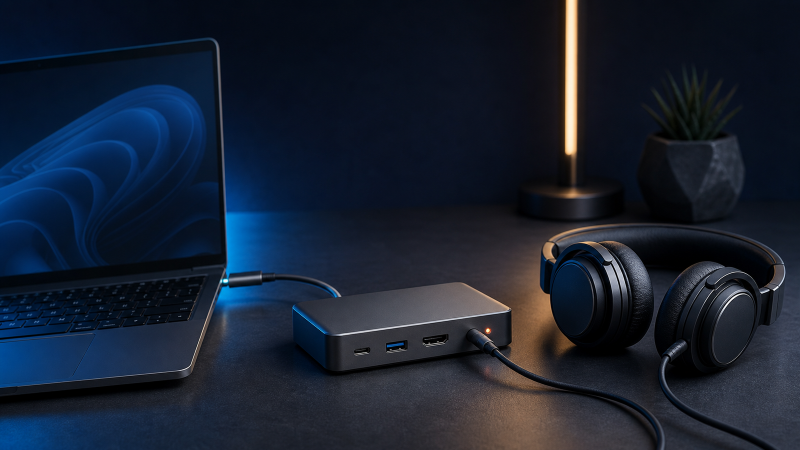
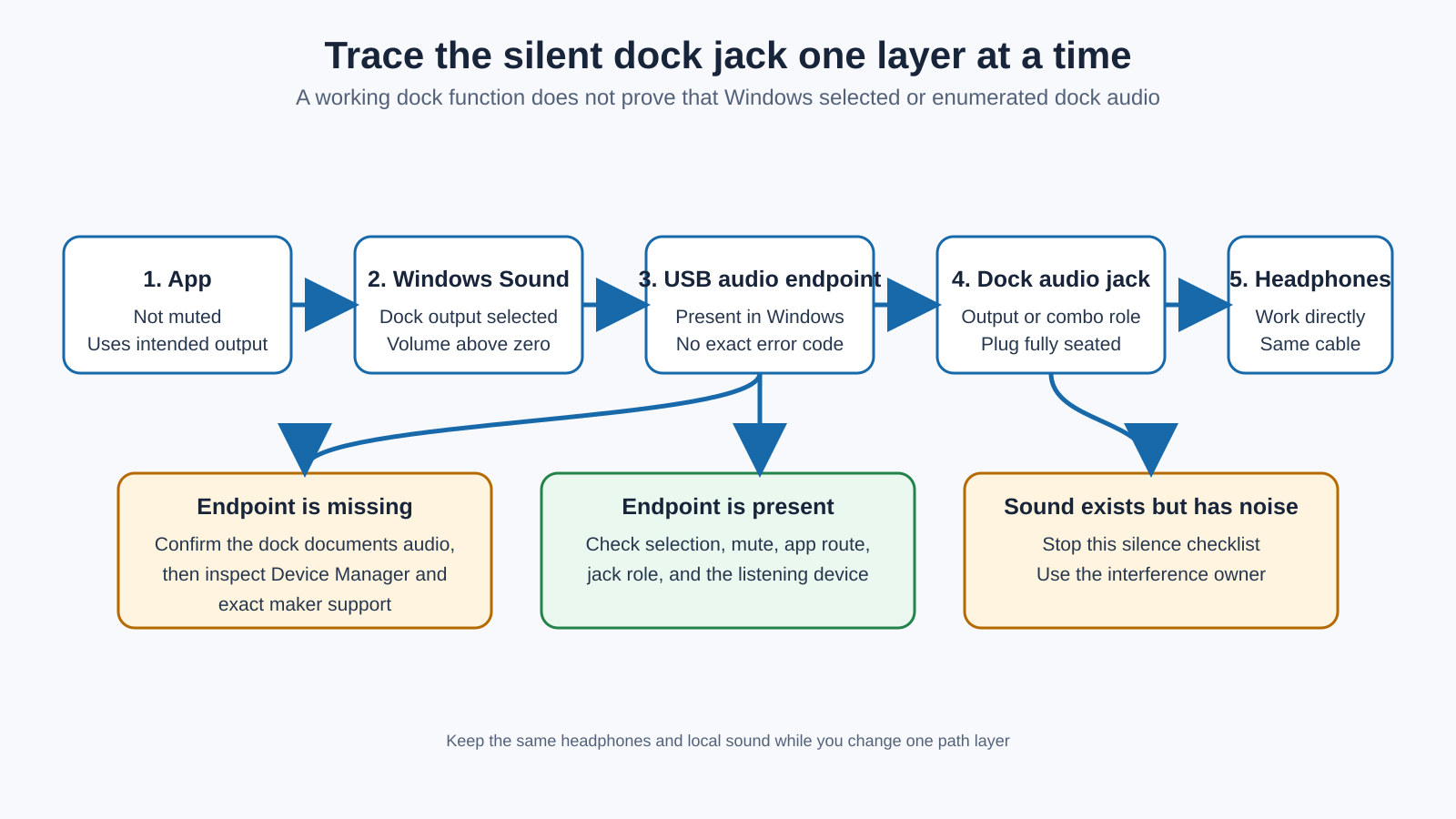
Start with sound already playing. Put on a track or leave a Windows sound looping, then open Settings > System > Sound and look at the Output list for anything that names your dock, a USB audio device, or a codec. Select it, and watch the little level meter next to it move as the audio plays. That one action tells you which of two very different problems you have. If the dock’s output is there and you can pick it, this is a routing problem, and Windows has just been playing to the wrong place. If nothing in that list looks like the dock, the endpoint is missing, and the questions become whether the dock even has an analog output, whether it is enumerating, and what its maker says about it.
Silence usually means Windows is sending the sound somewhere else. Keep silence apart from hum, buzz, or crackle, because noise only starts once an audio path already exists. A buzzing or crackling jack belongs in the dock audio interference guide, and if the whole dock is missing from Windows, the Thunderbolt detection checklist comes before anything here.
First, rule out the headphones or speakers
Whichever state you are in, clear the listening device before touching a driver. Unplug the headphones or speakers from the dock and connect them to another compatible output you already know works. For passive headphones, confirm both channels play a local Windows sound. For powered speakers, confirm they have their approved power, the correct input selected, and their own volume above zero. Keep that same listening device and cable for the rest of the test. If they fail on the direct output too, the dock is not the cause, so use the headphone or speaker maker’s help path.
While the headphones are in hand, note the plug and jack type. A four-pole headset plug can carry headphones and a microphone when the jack supports a combined headset role, and a three-pole plug normally carries stereo output, but the dock manual decides whether its jack is output-only, input-only, or combined. A dock’s 3.5 mm jack is a consumer output, not a Thunderbolt audio interface for recording, balanced connections, or low-latency work. Do not force a plug, stack unknown adapters, or expect a microphone from a jack documented only for output. If a later test isolates the listening device as the fault, compare current USB-C headphones or wired USB-C earbuds, but do not replace them because Windows selected the wrong output. Do not restart audio services, remove unrelated audio, USB, or Thunderbolt devices, install a codec package borrowed from another dock, or change BIOS audio settings copied from another computer, since several of those can silence an output that currently works.
When the dock endpoint is present but silent
Open Settings > System > Sound. Under Output, select the device that represents the dock’s audio output. Read the name rather than picking by position, since it may show the dock maker, a USB audio device, a codec name, or another model-specific label. Windows 11 also lists every known output, including disabled or disconnected ones, under Sound > All sound devices, so look there when the dock output does not appear in the main Output list at all. Plugable documents USB Audio CODEC for a scoped group of its docks, but that name is not universal. Play a short local Windows sound with the output page open and watch the level meter, keeping streaming services, browser tabs, remote desktops, and conference software out of the first test because they can add their own device selection. If sound moves to the dock jack after you select it, Windows had simply been routing audio elsewhere, and the dock needed no firmware flash or controller reinstall. If the output you are hunting for actually belongs to a monitor with a built-in dock rather than a standalone dock, the dock versus monitor-dock guide tells the two parent devices apart.
Check mute, volume, and app routing
If the dock output is already selected and still silent, confirm three values separately:
- the selected Windows output is the dock;
- the dock output volume is above zero;
- the app is not muted or assigned to another output in Volume mixer.
Each value fails silently on its own, and Windows shows no error for any of them, so check all three rather than assuming the first one is the problem. Some apps remember an output chosen in an earlier session, so close and reopen the app after selecting the dock, using one local Windows sound as the control before returning to the app. For powered speakers, check their input selection and local volume, because a power light shows power only and does not show that the speaker cable carries audio from the dock. Raise the level gradually rather than jumping to maximum, and remove a passive splitter or extension for the first test. Microsoft also provides the Windows 11 audio troubleshooter through Get Help; run it after you have selected the intended output and checked mute, and record what it says rather than assuming every suggested change applies to the dock.
Compare direct and dock audio
Using the same headphones, the same local sound, and a moderate volume, play through the computer’s direct output first, then select the dock endpoint and move only the plug to the dock’s documented audio output. The result narrows it further. If direct audio works and dock audio is silent, keep the headphones fixed and focus on the dock endpoint, jack, and support package. If both are silent, return to the listening device, Windows mute, and the app route. If a second known-good headset plays on the dock, look at the original plug, adapter, or headset compatibility. If the dock plays on a second supported computer, look at the original computer’s endpoint state and model-specific support. If the endpoint is selected and active yet two known-good headphones stay silent on that output, that one is the dock maker’s to answer, with the output selection, volume state, direct comparison, and jack role. Change one item at a time, replay the same sound, and record the result. When the mismatch is the dock’s own endpoint hardware or host protocol rather than the jack, compare a USB-C docking station by its documented port roles, and a Thunderbolt docking station when the host runs Thunderbolt.
When the dock endpoint is missing
If Windows shows no dock audio output at all, the question is whether the dock even provides one and whether it is enumerating. Write down the exact dock model and revision and open its port map and user guide. Confirm the 3.5 mm jack’s documented role, whether the dock uses an analog output, a combined headset jack, or no audio jack at all, the approved power supply, the host-facing port and cable, the supported Windows versions, and any audio package named for that dock. A 3.5 mm opening is not enough to assign a role: some products expose output only, some combine output and microphone input, and some use a jack for another function, so the maker’s diagram controls the answer. Make sure the dock uses its documented power adapter when required and its host cable is in the host-facing port, and confirm another dock function works, such as a USB device or display. That confirms part of the dock is present; it does not confirm the audio endpoint. If no dock function appears at all, stop here, because a silent jack cannot be repaired before the parent device connects. The dock and hub comparison and the USB-C hub guide help when a product sold as a hub lacks the dedicated analog jack you expected, though neither changes your dock’s exact port map.
With the dock documented to have an output, open Device Manager, expand Sound, video and game controllers and Audio inputs and outputs, and watch which entries appear as you connect and disconnect the dock. A healthy dock audio device shows up in one of those groups the moment the dock connects and disappears when you unplug it, which is the change you are looking for. If an endpoint appears with a warning icon, open its Properties and copy the complete Device status and error code, because Microsoft provides different resolutions for different codes and “reinstall audio” is not one of them. If no endpoint appears, compare Device Manager with the dock connected directly to the computer on its approved power and host cable, keeping a working dock function attached as a control. If USB or video stays stable while only audio is absent, give that exact partial state to the dock maker with the dock model, host cable and port, Windows build, and the Device Manager comparison. If the whole dock disappears, return to the whole-device detection guide. Removing every audio endpoint, USB controller, display adapter, or hidden device can silence a working laptop output and erase the before-and-after tree, so leave that alone.
Save updates for after the path and endpoint state are written down. Run Windows Update, then open the exact computer and dock support pages, match the model, revision, Windows version, and any named audio or dock package, and read prerequisites and release notes first. If the maker documents a firmware update for the exact dock and symptom, follow that page with stable power. Firmware is not an opening experiment.
When sound fails only after reconnect or resume
Some docks play fine until the computer sleeps or the dock is unplugged and reconnected. That is a state problem rather than a wiring problem, so the exact trigger matters as much as the silence itself. Keep the dock, host cable, headphones, and selected output unchanged, and note whether the dock endpoint stays listed after you reconnect the dock or resume the computer. If the endpoint remains but Windows selects another output, select the dock again and record the change. If the endpoint disappears while other dock functions stay available, capture Device Manager and Sound before reconnecting. If the whole dock disappears, leave this checklist for the whole-device guide. Check Windows Update and the exact computer and dock support pages once you can repeat the state change, and do not disable every USB or audio power setting because one reconnect or resume failed.
A present endpoint that stays silent, or no jack at all
Not every one of these ends in a fix, because a dock headphone jack is a modest feature. Two settled states are left. In the first, the endpoint appears, you select it, the meter moves, and two known-good headphones still stay silent on the jack. In the second, the dock has no analog output at all. Either way the gap is between what Windows exposes and what the jack can actually drive, and no further routing or driver step closes it.
Frequently asked questions
Why does Windows keep sending sound to my monitor?
Windows can select an HDMI or DisplayPort monitor as the output. Open Sound settings and choose the dock’s audio endpoint. If the monitor has no speakers, selecting it can produce silence even while the level meter moves.
Why is the dock audio device missing?
The exact dock may lack an audio output, the dock may be partly enumerated, or the audio endpoint may have an error. Confirm the port map, another working dock function, and the Device Manager change when the dock connects.
Is USB Audio CODEC always my dock?
No. Plugable uses that name for a scoped dock example. Your dock may show its maker, controller, or another USB audio name. Match the endpoint through the exact manual and connect or disconnect observation.
Should I restart Windows Audio services first?
No. Select the intended output, check mute and app routing, prove the headphones, and inspect the endpoint first. Use Microsoft’s later service steps only when the evidence still points to Windows audio generally.
Does a working USB port prove the audio jack should work?
No. It confirms one dock function. USB data ports, display outputs, Ethernet, charging, and a USB audio endpoint are separate components.
Is a buzzing dock jack covered here?
No. Buzzing shows that an audio signal path exists. Use the interference guide and keep that symptom separate from a silent or missing endpoint.
Sources
The name a dock’s audio output shows in Sound settings is not fixed, because Plugable documents USB Audio CODEC for only a scoped group of its docks while another dock may read as its maker or a controller. Selecting that endpoint and watching its meter is Microsoft’s sound and audio troubleshooting; a warning endpoint is its Device Manager error-code guidance; the connector is USB-C troubleshooting; and drivers follow the supported driver-update path. Your dock’s own manual names its jack role and any audio package it needs.