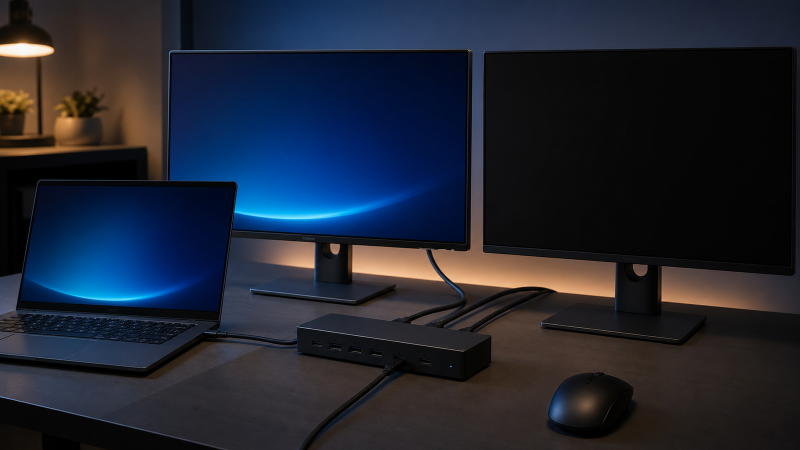
If Windows does not detect a monitor on your Dell dock, read the dock label before changing any setting. A WD22TB4 and a Dell Pro Thunderbolt 4 Smart Dock SD25TB4 use different display maps. Dell’s USB-C and DisplayLink docks need different checks again.
For a WD22TB4 or SD25TB4, use this order: confirm the printed model, prove the laptop is using the dock’s intended upstream connection, reduce the setup to one monitor on one native output, select the monitor’s correct input, then check Windows. Rebuild a multi-monitor arrangement only after one known path works.
Power or working USB ports prove that part of the dock is alive. They do not prove that the host exposed a usable display path.
This guide owns a Dell-specific state. If the dock model is unknown, start with the generic USB-C monitor troubleshooting guide. If the entire dock is absent from Windows, use the Thunderbolt and USB4 detection guide.
Start with the dock label, not the connector
Read the label on the bottom of the dock and record the complete model. Also record the laptop model, the laptop port used, each monitor model, the resolution and refresh rate you want, and the exact display cables or adapters.
| Printed model or state | Display path to diagnose | Do not assume |
|---|---|---|
| Dell Thunderbolt Dock WD22TB4 | Thunderbolt upstream, then the WD22TB4’s documented output map | A USB-C-shaped laptop port necessarily provides the expected Thunderbolt display path |
| Dell Pro Thunderbolt 4 Smart Dock SD25TB4 | Thunderbolt 4 upstream, then DP, HDMI, multifunction USB-C, or downstream Thunderbolt output | Every physical output can be populated at every resolution |
| D6000 or D6000S | DisplayLink software display path | The WD22TB4 procedure applies |
| UD22 | Hybrid dock path that needs its exact guide | Native DisplayPort Alt Mode is the only display engine |
| First monitor works, second is absent | Multi-display topology and bandwidth | The single-monitor path is broken |
| No part of the dock appears | Whole-device connection | The failure begins at the monitor |
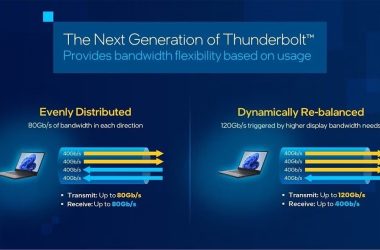
Dell’s current Pro Docks family brochure lists two DisplayPort outputs, one HDMI output, one multifunction USB-C DisplayPort output, and two Thunderbolt 4 ports on the SD25TB4. The same brochure publishes different display ceilings for hosts with and without Display Stream Compression. Treat those figures as ceilings, not promises. The laptop graphics path and each selected timing still matter.
The WD22TB4 has its own display-bandwidth section and output combinations. Use the exact Dell table for your laptop rather than copying the SD25TB4 ceiling. If you are still choosing hardware, the Dell docking-station guide is the shopping owner. This article starts after you already own the dock.
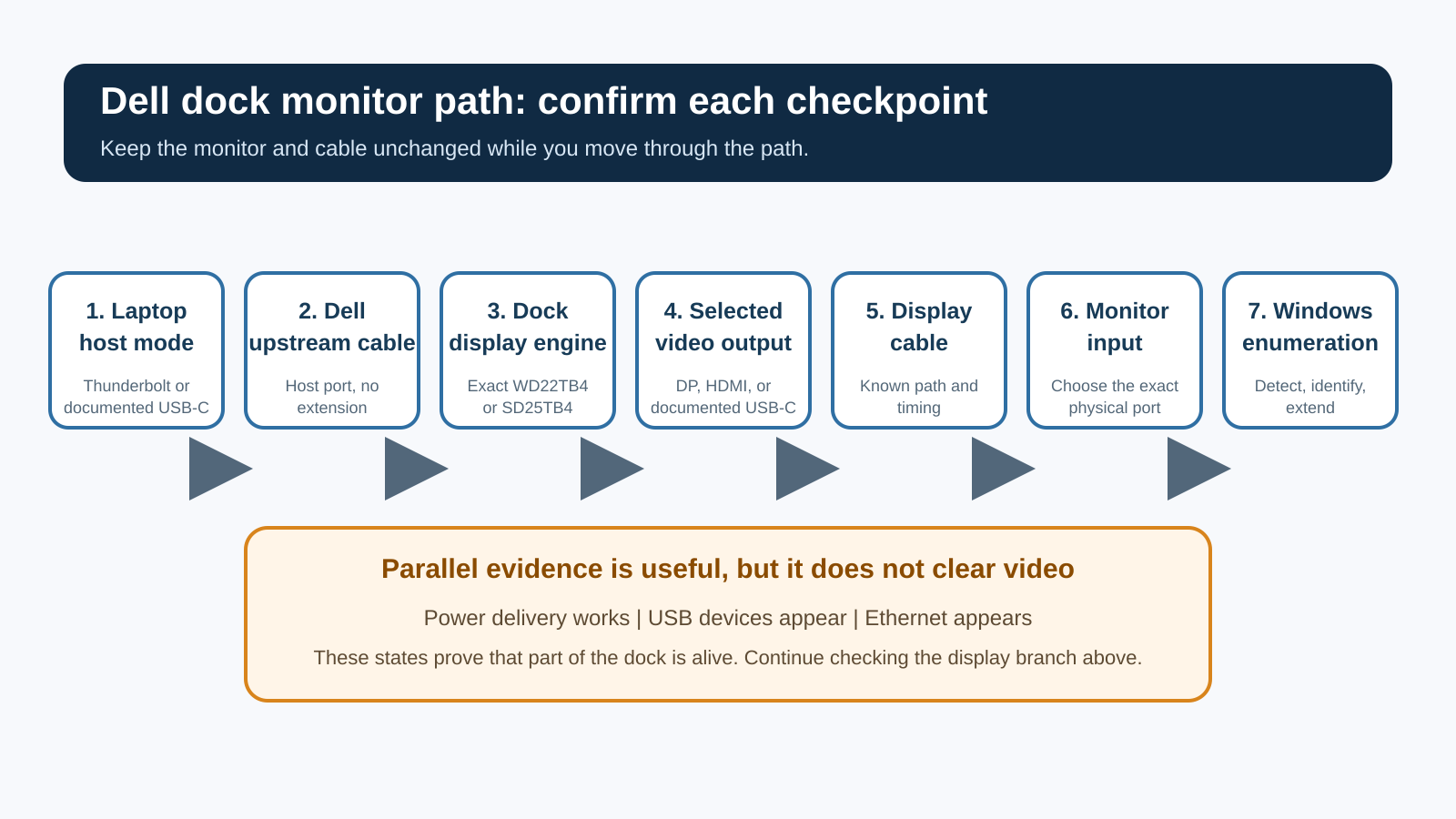
The shortest safe diagnostic sequence
Change one variable at a time:
- Record the Dell dock model and full laptop model.
- Confirm the dock power supply and intended upstream cable are connected.
- Connect one monitor directly to one documented dock display output.
- Select that physical input on the monitor.
- Test the same monitor and cable on another known video source, if available.
- Check Windows projection and Display settings.
- Try one other documented output with the same known-good monitor and cable.
- Only then check the exact Dell host support page and exact dock firmware.
- Add the other displays one at a time and compare the final arrangement with Dell’s matrix.
Avoid replacing several cables, changing display settings, and installing packages in the same pass. A picture that returns after several changes does not identify the failed layer.
Step 1: prove the dock has its intended upstream path
Connect the Dell power adapter specified for the dock. Then connect the dock’s captive or supplied upstream cable to the laptop port intended for docking.
Do not use charging as the only test. USB Power Delivery, downstream USB data, Ethernet, and video are related through the dock but are separate diagnostic branches. A laptop can charge while the display path remains unavailable.
For the SD25TB4, Dell identifies the docking interface as Thunderbolt 4. For the WD22TB4, the Thunderbolt module and host path are central to the documented display combinations. A plain USB-C connection may provide a different set of functions on some hardware, or none of the expected display topology.
Check the laptop’s exact specifications. Look for Thunderbolt or the required DisplayPort capability on that port. The DisplayPort Alt Mode check explains why connector shape alone is not enough, and VESA’s DisplayPort over USB-C overview describes the underlying transport.
Use the dock’s intended upstream cable. Do not add an extension, monitor adapter, KVM, or second dock during the first test. If the upstream cable is detachable on the exact model, verify that it is connected to the dock’s host port, not a downstream port.
A useful upstream comparison
Disconnect the dock, wait for Windows to settle, then reconnect it once. Watch whether a dock USB device or Ethernet adapter appears in Device Manager. This confirms only that Windows reached some part of the dock. It does not clear the display branch, but it distinguishes a completely absent dock from a dock with a narrower display fault.
If nothing changes anywhere in Windows, stop here, because a dock that Windows never reaches belongs to whole-device detection rather than this article.
Step 2: reduce the display path to one monitor
Disconnect every external display from the dock. Remove KVMs, splitters, MST hubs, and video adapters. Leave one monitor connected through one direct cable.
Choose one native output documented for your dock:
- On an SD25TB4, start with one DisplayPort or HDMI output and a matching direct cable.
- On a WD22TB4, choose one output in its exact user-guide map.
- Do not use a downstream Thunderbolt port with a chain of adapters for the first proof.
Set the monitor to a conservative timing it supports if its on-screen menu permits that without a picture from the laptop. A high refresh rate, unusual color mode, or maximum resolution adds variables. You are not proving the maximum yet. You are proving that one display can enumerate.
If one monitor works in this reduced state, the generic no-image path is healthy. The original fault is more likely a display-combination, timing, adapter, or second-output problem. Do not continue treating the dock as wholly defective.
Step 3: prove the monitor input and display cable
Use the monitor’s physical controls to select the exact port you connected. Auto input selection can remain on another active device.
Inspect both plugs. Reseat them at the dock and monitor. Avoid an adapter for this pass. A USB-C cable used for charging or ordinary data is not automatically a video-capable cable, and a DisplayPort or HDMI adapter adds its own conversion boundary.
Test the monitor and the same cable on another known video output when practical. The comparison answers a narrow question:
- If the monitor and cable also fail on the other source, keep the Dell dock out of the diagnosis for now.
- If they work on the other source, return them unchanged to the dock and test a second documented dock output.
- If one dock output works and another does not with the same monitor and cable, record the exact ports. That is useful evidence for Dell support.
For a cable replacement, choose one that explicitly supports the connector, resolution, and refresh rate you need. The USB-C cable guide covers selection after a cable boundary is proved. It is not a reason to buy a cable before the comparison.
Step 4: read the Windows display state
With one monitor connected, press Windows + P and choose Extend or Duplicate. Do not leave the system on PC screen only.
Then open Settings > System > Display. Expand Multiple displays and select Detect. Microsoft’s multiple-monitor guidance uses the same controls to identify, detect, and arrange screens, and its external-monitor troubleshooting covers the physical checks alongside them.
Record what Windows shows:
| Windows state | What it means | Next move |
|---|---|---|
| External monitor appears and can be enabled | The hardware path reached Windows | Choose the intended projection mode and supported timing |
| Monitor appears, but the picture is black | Enumeration exists, but the active timing, input, cable, or monitor state still fails | Lower one timing variable and recheck the physical input |
| Monitor never appears | Windows has no usable display endpoint on that path | Test one other native dock output with the same monitor and cable |
| Monitor appears only after reconnecting | The path can enumerate but is not stable | Record the exact reconnect sequence and continue to exact Dell support |
| One monitor works, another does not | The article’s single-path fault is narrowed | Compare the two monitors and exact output combination |
Microsoft documents a keyboard shortcut to restart the graphics driver, but it should not replace the hardware isolation above. If you use Windows + Ctrl + Shift + B, change nothing else during that observation. A brief beep or screen flash only shows Windows accepted the shortcut.
Do not install a generic display-driver package from a download site. Windows Update and the exact Dell laptop support page are the appropriate sources once the hardware path is identified.
Step 5: test a second Dell output without changing the rest
Keep the known monitor, cable, upstream connection, and Windows settings unchanged. Move only the display cable to one other documented output.
Moving one cable separates an output-specific state from a dock-wide display state:
- Same monitor works on output B but not output A: record both output labels.
- Same monitor fails on both outputs: return to upstream mode, host support, and exact dock firmware.
- A different direct monitor works on the original output: compare the first monitor’s input and timing support.
Do not infer that a physical port is defective merely because one unsupported combination fails. The SD25TB4 brochure explicitly separates ceilings with and without DSC. The WD22TB4 also ties display bandwidth to the host path. Your exact resolution, refresh rate, graphics capability, and number of active displays decide whether the requested arrangement fits.
The dual-monitor dock guide explains shopping constraints, while the Thunderbolt 4 dock guide covers product choice. Neither replaces the model matrix for hardware you already own.
Step 6: rebuild the intended display combination
Once one monitor works, reconnect the second display. Keep the working monitor on its proven output. Add only one new cable and display.
Compare the result with the exact Dell guide:
- laptop model and graphics capability;
- upstream connection mode;
- whether the host supports DSC;
- dock model;
- output combination;
- resolution and refresh rate of every active screen;
- whether the laptop’s internal display remains active.
If the first display stays working and only the second is absent, stop using a generic no-video sequence. That is the missing-second-monitor state. It needs a topology and bandwidth check.
If adding the second display causes both to disappear, return to one working display and lower one requested timing at a time. Do not lower several resolutions together. The first changed setting that restores the topology identifies the constraint more clearly.
If you use a monitor daisy chain, the chain introduces another topology. The USB-C daisy-chain monitor guide explains that route. First prove both direct dock outputs before blaming MST.
Step 7: use Dell’s exact support path
After the physical and Windows checks, open Dell Support for the complete laptop Service Tag and the printed dock model.
Record current versions before installing anything:
- Windows build;
- laptop graphics driver;
- laptop BIOS version;
- Thunderbolt or USB4 components exposed by the exact host;
- dock firmware version;
- monitor firmware only if the monitor maker documents it as relevant.
Use only packages listed for that exact host or dock. Dell’s WD22TB4 and SD25TB4 troubleshooting pages place host and dock updates inside a broader model-specific sequence. They do not establish that every no-video fault is firmware.
Apply one approved change, restart only when the official installer requires it, and repeat the same one-monitor test. Do not use a blanket BIOS reset, remove security controls, or flash firmware for a similar dock.
Dell has also published exact laptop-and-dock incident pages for some combinations. Apply one only when the laptop, dock, port, and symptom match. A workaround for one XPS model is not a general WD22TB4 repair.
Escalation matrix
| Evidence you have | Best owner | What to provide |
|---|---|---|
| Dock absent from Windows on every port | Laptop or dock support | Service Tag, dock model, upstream cable, ports tried, power state |
| USB or Ethernet works, but no display on two direct native outputs | Dell dock support | Dock label, host model, one-monitor test, outputs, cable and monitor models |
| One output fails but another works with the same monitor and cable | Dell dock support | Exact output labels and repeated comparison |
| Monitor and cable fail on another video source | Monitor or cable maker | Monitor model, selected input, source comparison |
| One display works, second does not | Display-topology owner | Exact resolutions, refresh rates, outputs, DSC and host capability |
| Display returns only after an exact Dell update | Dell support if it recurs | Package version, before state, after state, reconnect sequence |
Keep the test notes short and reproducible. “Dock does not work” is less useful than “WD22TB4 USB works, but the same monitor and DP cable are absent on both DP outputs; monitor and cable work directly from another source.”
Replacement boundary
Do not replace the dock because Windows was set to PC screen only, the monitor was on the wrong input, or the requested display combination exceeded the documented path.
A replacement boundary becomes reasonable when:
- the exact dock is within its supported host and display combination;
- one known-good monitor and cable fail on multiple documented native outputs;
- the same host port works with another supported display path;
- exact Dell firmware and host support are current;
- Dell’s own diagnostics or support confirms a hardware fault.
Replace the cable only when the controlled cable comparison changes the state. Replace or service the monitor when it fails on another known source. Reconsider the dock model when its documented topology cannot support the display arrangement you need.
For that final shopping decision, use the Dell dock comparison or the WD22TB4 review. Keep the purchase decision separate from the diagnosis.
Frequently asked questions
Why does my Dell dock charge the laptop but not detect the monitor?
Charging and display use different negotiated functions. Confirm the exact dock model, intended upstream port, and one direct display path. Charging alone does not prove the host exposed video to the dock.
Does every USB-C port on an SD25TB4 drive a monitor?
No. Dell assigns specific roles to its ports. Use the model diagram and connect the monitor only to an output Dell identifies as video-capable.
Should I update the dock firmware first?
No. First identify the model and prove the simple one-monitor path. Then use Dell’s exact dock and laptop support pages. This avoids changing software when the cause is an input, cable, output, or unsupported combination.
Why did one monitor work until I connected another?
The single path works, so compare the complete display combination with Dell’s host and dock matrix. Resolution, refresh rate, output choice, DSC support, and the internal screen can affect the final topology.
Is a D6000 diagnosed like a WD22TB4?
No. D6000-family docks use a DisplayLink path. Follow the exact D6000 and DisplayLink documentation instead of the native WD22TB4 procedure.
Can Windows Detect fix a missing hardware path?
Windows Detect can request enumeration of an available display endpoint. It cannot add Thunderbolt, DisplayPort capability, bandwidth, or a working cable to a path that lacks them.
Sources and methodology
This guide uses Dell’s current Pro Docks family brochure, the exact WD22TB4 and SD25TB4 manual sections, Microsoft’s multiple-monitor and external-monitor troubleshooting guidance, and VESA’s DisplayPort over USB-C overview. Dell’s manual HTML was bot-defended to plain command-line retrieval on July 28, 2026, so direct PDF evidence controls the retained SD25TB4 port facts and the article avoids unsupported WD22TB4 matrix numbers.
No dock, laptop, monitor, or cable was physically tested for this article. The procedure is a one-variable state tree. Exact Dell documentation for your Service Tag, dock label, monitor, and cable remains controlling.