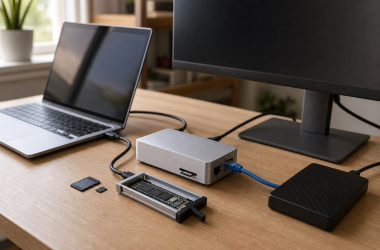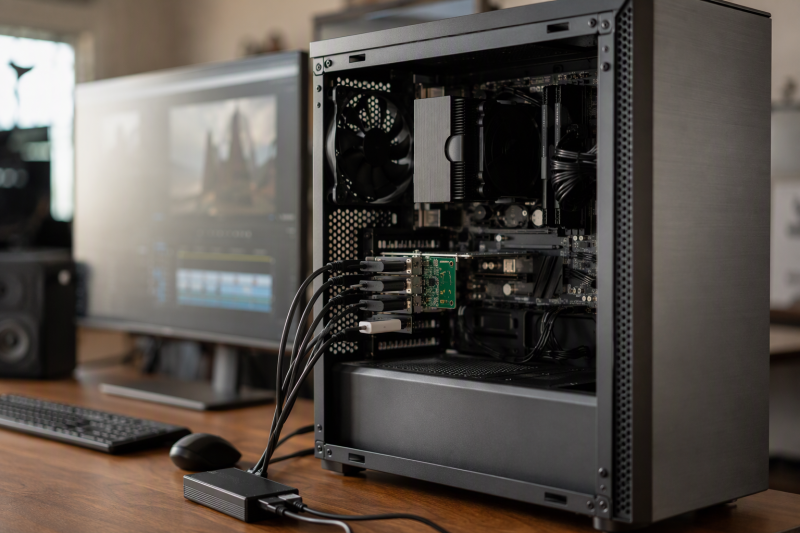
A desktop can run out of rear USB-A ports long before it runs out of useful life. Audio interfaces, printers, scanners, webcams, control surfaces, license dongles, card readers, and external drives still rely on USB-A, and an external hub adds another cable and shared connection. A PCIe expansion card places additional ports directly in the case and gives them a dedicated host-controller path.
The right card depends on slot availability, case height, operating system, shared bandwidth, and power delivery. Port count alone can mislead: seven devices may share one 5Gbps controller, while another card divides traffic across two 10Gbps groups. Some cards draw all power through the motherboard; one can accept supplemental SATA power. Check the desktop before buying.
[blueblock]Installing a PCIe card requires opening the computer. Shut the system down, disconnect wall power, follow the computer maker’s service procedure, and use proper static precautions. Never cut chassis metal to make an incompatible card fit.[/blueblock]Quick Picks
- Best mixed USB-A and USB-C value: YEELIYA UP-7200 adds five USB-A and two USB-C ports over a rated 5Gbps connection.
- Best seven-port USB-A card: MZHOU PCE7USB-R05 provides seven Type-A ports, four stated channels, UASP support, over-current protection, and a heatsink according to MZHOU.
- Best power-focused seven-port card: ELUTENG 7-Port uses dual NEC controllers and individual capacitors for seven USB-A ports as specified by ELUTENG.
- Best five-port flexible-power pick: LinksTek PCIE-U305A can draw from the slot or accept SATA power on an older board.
- Best high-bandwidth mixed-port card: FANBLACK 20Gbps 7-Port splits four USB-A and three USB-C ports across two 10Gbps bandwidth groups.
- Best four-port Windows and Linux pick: FebSmart FS-U4-Pro supplies four USB-A ports from a Renesas controller with per-port electrical protection according to FebSmart.
- Best compact cross-platform pick: FebSmart FS-U2S-Pro adds two USB-A ports, supports Windows, Linux, and macOS, and includes a low-profile bracket as documented by FebSmart.
PCIe USB-A Expansion Card Comparison
| Image | Product | Details | Check Price |
|---|---|---|---|
 | YEELIYA UP-7200 | Ports: 5 USB-A and 2 USB-C Bandwidth: Up to 5Gbps Slot: PCIe x1; fits x1/x4/x8/x16 Power: Motherboard powered OS: Windows and macOS support stated | Check Price on Amazon |
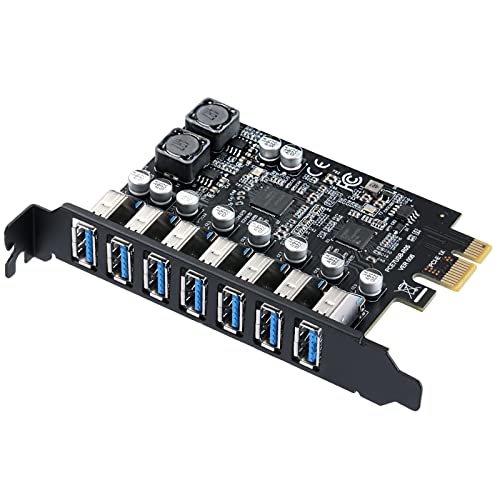 | MZHOU PCE7USB-R05 | Ports: 7 USB-A Bandwidth: Up to 5Gbps Channels: 4 dedicated channels stated Features: UASP, over-current protection, heatsink OS: Windows and Linux support stated | Check Price on Amazon |
 | ELUTENG 7-Port PCIe USB Card | Ports: 7 USB-A Bandwidth: Up to 5Gbps Controller: NEC UPD720201 and UPD720210 Power: Up to 5V/2A per port stated Case: Standard-size PC only | Check Price on Amazon |
 | LinksTek PCIE-U305A | Ports: 5 USB-A Bandwidth: 5Gbps total Controller: ASMedia ASM1042 and ASM1074 Power: Slot power or optional SATA power OS: Windows and Windows Server | Check Price on Amazon |
 | FANBLACK 20Gbps 7-Port | Ports: 4 USB-A and 3 USB-C Bandwidth: Two 10Gbps groups; 20Gbps total stated USB-C limits: No PD, video, or Thunderbolt Power: Motherboard powered; up to 5V/12A total stated OS: Windows, macOS, and Linux support stated | Check Price on Amazon |
 | FebSmart FS-U4-Pro | Ports: 4 USB-A Bandwidth: 5Gbps total Controller: Renesas UPD720201 Power: Up to 5V/8A total stated Case: Full-height standard PC | Check Price on Amazon |
 | FebSmart FS-U2S-Pro | Ports: 2 USB-A Bandwidth: 5Gbps total Controller: ASMedia ASM1042 Power: Up to 5V/4A total stated Case: Full-height and low-profile support | Check Price on Amazon |
1. YEELIYA UP-7200 — Best Mixed USB-A and USB-C Value
The YEELIYA UP-7200 is a practical upgrade when legacy USB-A devices still dominate but a couple of Type-C ports would be useful. It adds five USB-A and two USB-C ports, all based on USB 3.0 with a stated maximum transfer rate of 5Gbps. Keyboards, mice, printers, scanners, optical drives, cameras, and external storage are among the listed uses.
That 5Gbps figure should be treated as the controller’s available path, not a promise that every port transfers at 5Gbps simultaneously. Low-bandwidth peripherals can coexist comfortably, but multiple SSDs or capture devices will compete. For a desk full of control and office gear with occasional storage transfers, the port mix is more valuable than aggregate benchmark speed.
The PCIe edge fits x1, x4, x8, or x16 slots and is described as compatible with PCIe 2.0 and 3.0 motherboards. It is a PCI Express card, not an older PCI card. Confirm that the chosen slot is physically open and does not become disabled when an M.2 socket or another expansion slot is populated.
Windows 10 and macOS 10.8.2 or newer are described as driver-free, while Windows XP, Vista, 7, and Server versions require a driver. The package includes a driver CD, screws, and instructions. No low-profile bracket or supplemental power arrangement is stated, so this is safest for a standard tower with modestly powered peripherals.
- Five USB-A and two USB-C ports
- Fits several PCIe slot lengths
- Broad stated peripheral support
- Windows and macOS support stated
- 5Gbps is shared across active devices
- No low-profile bracket stated
- Older Windows versions need drivers
2. MZHOU PCE7USB-R05 — Best Seven-Port USB-A Card
MZHOU dedicates all seven external ports to USB 3.0 Type-A, making it the most direct answer for a tower surrounded by legacy desk gear. The card states four dedicated channels plus UASP support, a combination intended to improve throughput and reduce host processing overhead compared with routing every device through one simple external hub.
The overall interface is still rated at up to 5Gbps. Four channels can help concurrent behavior, but they do not turn the card into seven separate 5Gbps links. Use the card for a mix of low-bandwidth devices and one or two storage devices rather than assuming seven external SSDs can all run at full speed.
Over-current protection and an aluminum heatsink cover two common concerns with expansion cards, which are electrical faults at the ports and controller heat under sustained use. No auxiliary-power connector or per-port current figure is supplied, so high-draw bus-powered disks should be added gradually and tested under simultaneous load.
Windows 11, 10, 8, 7, XP, Vista, and Linux support is stated, although some older systems may require drivers. macOS support is not stated. The card fits best in a standard desktop where seven rear-facing USB-A cables can be routed without pressing against a wall or blocking adjacent connectors.
- Seven external USB-A ports
- Four dedicated channels stated
- UASP support
- Over-current protection and heatsink
- Overall connection remains 5Gbps
- No macOS support stated
- No explicit power budget stated
3. ELUTENG 7-Port — Best Power-Focused Seven-Port Card
The ELUTENG card also adds seven USB-A ports, but its emphasis is power conditioning. It uses NEC UPD720201 and UPD720210 controllers, a two-phase power module, and one solid capacitor for every port. ELUTENG describes each interface as capable of supplying up to 5V/2A, without an external auxiliary-power cable.
Those figures deserve a system-level check. Seven ports at their individual maximums would represent more power than many slots and motherboard designs can comfortably provide at once. Treat 5V/2A as a per-port ceiling, not a guaranteed simultaneous budget. Bus-powered hard drives, VR devices, and charging loads should be stress-tested together before relying on the setup.
USB 3.0 is rated for a theoretical transfer speed of 5Gbps and is backward-compatible with USB 2.0 and 1.1. The PCIe x1 edge can use x1, x4, x8, or x16 slots. Windows 8 through 11 are described as driver-free, while XP and Windows 7 need the provided driver. Linux support is stated, but macOS is explicitly unsupported.
The card is not intended for mini or small cases. No low-profile bracket is provided, so measure case height and rear-slot clearance before purchase. It also does not support older PCI slots or PlayStation systems. For a full-size Windows or Linux tower, its controller and power-component detail make it the most power-conscious seven-port option.
- Seven USB-A ports
- Dual NEC controller design
- Per-port solid capacitors
- Windows and Linux support stated
- Not compatible with macOS
- Not suitable for slim or mini cases
- Shared 5Gbps bandwidth
4. LinksTek PCIE-U305A — Best Five-Port Flexible-Power Pick
LinksTek’s PCIE-U305A adds five USB-A ports through an ASMedia ASM1042 host controller and ASM1074 hub. LinksTek states all five share 5Gbps total bandwidth, a clear specification that makes planning easier. It suits a mixed desk where most peripherals are low bandwidth and one external storage device occasionally needs USB 3.0 speed.
Its standout feature is dual-mode power. A newer motherboard can power the card directly, while an older or weaker system can use a SATA power connection from the PSU. LinksTek describes each port as supporting up to 5V/2A, but total simultaneous capability still depends on the selected power path and power-supply capacity.
Windows 8 through 11 and Server 2012 through 2022 are plug-and-play. Windows XP, Vista, 7, and older Server releases require drivers. macOS and Linux support are not stated, so this is primarily a Windows card. The PCIe x1 interface can be installed in larger PCIe slots.
The product details conflict on case support. Both low-profile and full-height brackets are said to be included, yet another note says standard-size PCs only and rejects slim PCs. Treat slim-case compatibility as unconfirmed until bracket dimensions and board height are checked. Do not rely on the included-bracket claim alone.
- Five USB-A ports
- Optional SATA auxiliary power
- ASMedia controller and hub identified
- Broad Windows and Server support
- Conflicting low-profile compatibility details
- No macOS or Linux support stated
- Five ports share 5Gbps
5. FANBLACK 20Gbps 7-Port — Best High-Bandwidth Mixed-Port Card
FANBLACK offers the fastest architecture in this group. Four USB-A and three USB-C ports are divided into two 10Gbps bandwidth groups, for up to 20Gbps total. One Type-C and three Type-A ports share the first group, while the remaining three ports share the second. A single port can reach up to 10Gbps when used alone within its group.
That layout is useful when a desk mixes legacy USB-A gear with faster SSDs or capture peripherals. Put the two heaviest data devices in different groups and keep keyboards, mice, and dongles alongside them. The USB-C ports carry data only, with no Power Delivery, video output, or Thunderbolt protocol supported.
The card draws power from the PCIe slot; FANBLACK claims up to 5V/12A total without an external cable. It does not support BC 1.2 charging or USB Power Delivery. Treat it as a data expansion card rather than a charging station, and verify stability with the actual combination of bus-powered devices.
Windows 7 through 11 and macOS 10.8.2 or newer are listed, with Linux described as driver-free. Installation guidance suggests cutting a chassis crossbar when rear clearance is narrow. Do not modify the chassis to fit this card; cutting metal can create sharp edges, debris, structural damage, and warranty problems. Choose a compatible slot, case, or card instead.
- Two 10Gbps bandwidth groups
- Four USB-A and three USB-C ports
- Windows, macOS, and Linux support stated
- No auxiliary power cable required
- No USB-C video, Thunderbolt, or PD
- Vertical connectors need rear clearance
- Ignore unsafe case-cutting guidance
6. FebSmart FS-U4-Pro — Best Four-Port Windows and Linux Pick
The FS-U4-Pro is a conservative design. Four USB-A ports share one Renesas UPD720201 5Gbps controller, which is enough for keyboards, mice, printers, audio gear, flash drives, and occasional storage. The card avoids the dense cabling of seven-port cards and leaves more physical room around each connector.
FebSmart’s self-powered design draws from the motherboard without an additional PSU cable. Each port is stated to supply up to 5V/2A, with 5V/8A total across the card. Four electronic fuses, capacitors, and inductors provide per-port electrical protection. The motherboard still has to supply that power, so verify system limits before attaching four demanding devices.
Windows 8 through 11 and current Server releases are plug-and-play, while Windows 7 and older systems need drivers. Most Linux kernels are supported. macOS is explicitly unsupported. The PCIe 2.0 x1 interface works in larger PCIe slots and is backward-compatible with other PCIe generations.
Only a full-height bracket is included, so the card is for a standard-size case, not a slim desktop. It is a good choice when four well-spaced ports are enough and you need Linux support. All four share the same 5Gbps path, so distribute high-throughput storage across other controllers when possible.
- Renesas controller identified
- Four USB-A ports with per-port protection
- Windows and Linux support
- No auxiliary power cable
- No macOS support
- No low-profile bracket
- Four ports share 5Gbps
7. FebSmart FS-U2S-Pro — Best Compact Cross-Platform Pick
The FS-U2S-Pro is the smallest upgrade here, adding two USB-A ports through an ASMedia ASM1042 5Gbps controller. Fewer ports are an advantage when the goal is to isolate a pair of important peripherals or avoid an overcrowded rear panel. Each connector has more room for wide plugs and receiver dongles.
FebSmart specifies self-powered circuitry that converts the slot’s 12V supply to a rated 5V/4A total, with up to 5V/2A per port. Electronic fuses, capacitors, inductors, and voltage transformers are identified. It is not a fast-charging card, but the available power is intended for devices such as VR systems, external drive enclosures, video adapters, and docks.
Windows 8 through 11 and recent Server versions are plug-and-play, while Windows 7 and earlier require drivers. Most Linux kernels and most macOS versions are also described as plug-and-play. That broad platform coverage makes this the best fit for an older Mac Pro or a cross-platform workstation needing only two additional ports.
Both full-height and low-profile brackets are supported, making it the clearest slim-PC choice. The PCIe x1 edge can use larger PCIe slots but not legacy PCI. Two active high-speed devices still share 5Gbps, so this card is about compatibility and clean expansion, not aggregate performance.
- Windows, Linux, and macOS support stated
- Includes low-profile support
- ASMedia controller identified
- Detailed onboard power protection
- Only two ports
- 5Gbps shared bandwidth
- Not intended for fast charging
Buying Guide: Choosing a PCIe USB-A Expansion Card
Confirm PCIe slot availability and lane sharing
These cards use a PCIe x1 edge and can normally fit an open x1, x4, x8, or x16 slot. They do not fit an older parallel PCI slot. Check the motherboard manual and inspect the case before ordering. A graphics card cooler may cover the only suitable connector.
Some motherboards disable slots when particular M.2 sockets or SATA ports are used. Confirm the lane-sharing rules and available electrical bandwidth. A physically open x16-size slot may operate with fewer lanes, which is fine for an x1 USB card but may affect another installed device depending on the board layout.
Match full-height and low-profile brackets
Standard towers usually accept a full-height bracket, while small-form-factor business desktops often require low-profile hardware. Card height, bracket type, and the location of ports all affect fit. A low-profile bracket does not help if the circuit board itself is too tall.
The FebSmart FS-U2S-Pro explicitly supports both case types, while FS-U4-Pro and ELUTENG reject slim cases. LinksTek provides conflicting statements, so verify dimensions before purchase. Never bend a bracket or cut the chassis to force an incompatible card into place.
Understand shared controller bandwidth
A label such as “seven 5Gbps ports” rarely means 35Gbps of simultaneous bandwidth. MZHOU, ELUTENG, LinksTek, and the FebSmart cards ultimately offer 5Gbps total controller bandwidth or shared paths. Low-speed peripherals leave plenty of room, but concurrent SSD transfers can saturate the connection.
FANBLACK divides its ports across two 10Gbps groups, making it better for simultaneous fast storage. Even then, devices within each group compete. Plan which ports will carry SSDs, capture hardware, or high-resolution cameras and place demanding devices on separate controller groups when possible.
Calculate power demand, not just port count
USB devices draw power even when their data rates are low. Keyboards and receivers are modest, but bus-powered HDDs, SSDs, VR hardware, and video devices can draw much more. A claimed 5V/2A per port does not necessarily mean every port can supply that amount simultaneously.
Motherboard-powered cards simplify wiring but rely on slot and board capacity. LinksTek can accept supplemental SATA power, which may help on an older system. Use a proper PSU cable directly from the power supply. Avoid questionable splitters, and never connect or disconnect internal power while the computer is energized.
Check operating-system and driver support
Modern Windows versions are plug-and-play for most choices, while Windows 7, Vista, and XP often require a vendor driver. Save the correct installer before opening the case, particularly if the included optical disc cannot be read. Match 32-bit or 64-bit drivers to the installed system.
macOS support varies sharply. YEELIYA, FANBLACK, and FebSmart FS-U2S-Pro state Mac compatibility; ELUTENG and FS-U4-Pro explicitly do not. Linux support is stated for MZHOU, ELUTENG, FANBLACK, and both FebSmart models. Verify the exact kernel and controller if the workstation is mission critical.
Separate data ports from charging and video features
USB-C describes a connector, not a capability set. FANBLACK explicitly excludes Power Delivery, video conversion, and Thunderbolt. Its Type-C ports transfer USB data only. YEELIYA also presents its Type-C connectors as USB 3.0 data expansion rather than display outputs.
Do not buy one of these cards to charge a laptop or drive a monitor. Even USB-A current claims are intended to support attached devices, not replace a dedicated charging controller. Choose a card for desktop I/O and data, then use certified chargers or display adapters for those separate jobs.
Install and test the card safely
Shut down the PC, switch off and disconnect power, and follow the manufacturer’s service guide. Use an antistatic strap or grounding method, hold the card by its edges, seat it evenly, and secure the correct bracket. Do not work inside an energized computer.
After startup, install any required driver and check Device Manager or the OS equivalent. Test every port first with a simple device, then add the actual peripherals. Run simultaneous transfers and watch for disconnects, controller warnings, or excessive heat before trusting the card in a production workflow.
Decide when a PCIe card is better than a hub
A PCIe card avoids one external upstream cable and can provide a separate controller path from the motherboard’s existing USB ports. It is a good fit for a permanent desktop with an available internal slot and many rear-connected peripherals.
An external powered hub is easier to move, does not require opening the PC, and may place ports within reach. It is better for laptops or frequently swapped desk devices. A card and hub can coexist, but chaining demanding storage through another shared connection will not create additional bandwidth.
Frequently Asked Questions
Can a PCIe x1 USB card use a longer PCIe slot?
Usually yes. An x1 card can normally fit a physical x4, x8, or x16 connector, and all seven products state compatibility with larger PCIe slot sizes. The slot must be enabled and physically accessible.
Check the motherboard manual for lane-sharing rules. Installing the card may disable another connector or change lane allocation on some boards.
Will seven USB ports each run at 5Gbps?
Not at the same time on a card with 5Gbps total bandwidth. Each port may negotiate a USB 3.0 link, but active devices share the controller’s upstream capacity.
FANBLACK provides two 10Gbps groups and therefore more aggregate headroom. Devices within each group still share that group’s bandwidth.
Do these cards charge phones or laptops?
They can provide bus power within their stated limits, but they are not substitutes for modern fast chargers. FANBLACK explicitly excludes USB Power Delivery and BC 1.2 charging.
Use the ports primarily for peripherals and data. Charge high-power phones, tablets, and laptops from a dedicated certified charger.
Do I need an internal power cable?
Most cards here draw power only through the PCIe slot. LinksTek PCIE-U305A can also accept SATA power when the motherboard cannot provide enough current.
Power demand depends on the attached devices. Even without an auxiliary connector, test several bus-powered drives together before relying on them for long transfers.
Can these cards be installed in a slim desktop?
Only when both the board and bracket fit. FebSmart FS-U2S-Pro includes low-profile support; several other models are intended only for standard towers.
LinksTek’s supplied descriptions conflict about slim-PC compatibility. Measure the case and verify the exact bracket before ordering rather than assuming any x1 card will fit.
Related Workstation and Connectivity Guides
- Wi-Fi 7 PCIe cards for desktop workstations
- SFP+ network cards for small 10GbE studios
- Managed 2.5GbE switches for editing networks
- USB-C port locks for shared laptop fleets
- Encrypted USB drives for client transfers
- Five-bay DAS enclosures for video archives
- Ethernet patch panels for creator studio wiring
- Fiber media converters for desk network extensions
Bottom Line
The MZHOU PCE7USB-R05 is the most direct seven-port upgrade for legacy USB-A equipment, while the FANBLACK 20Gbps 7-Port is the better performance choice for mixed USB-A and USB-C data devices. The FebSmart FS-U2S-Pro is the safest compact pick when you need low-profile installation and broad OS support.