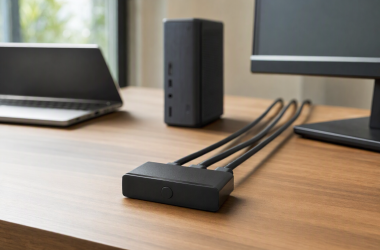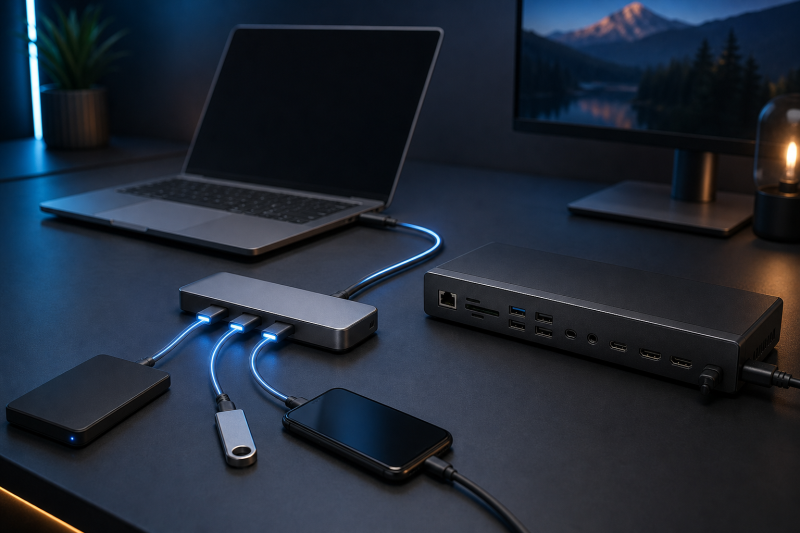
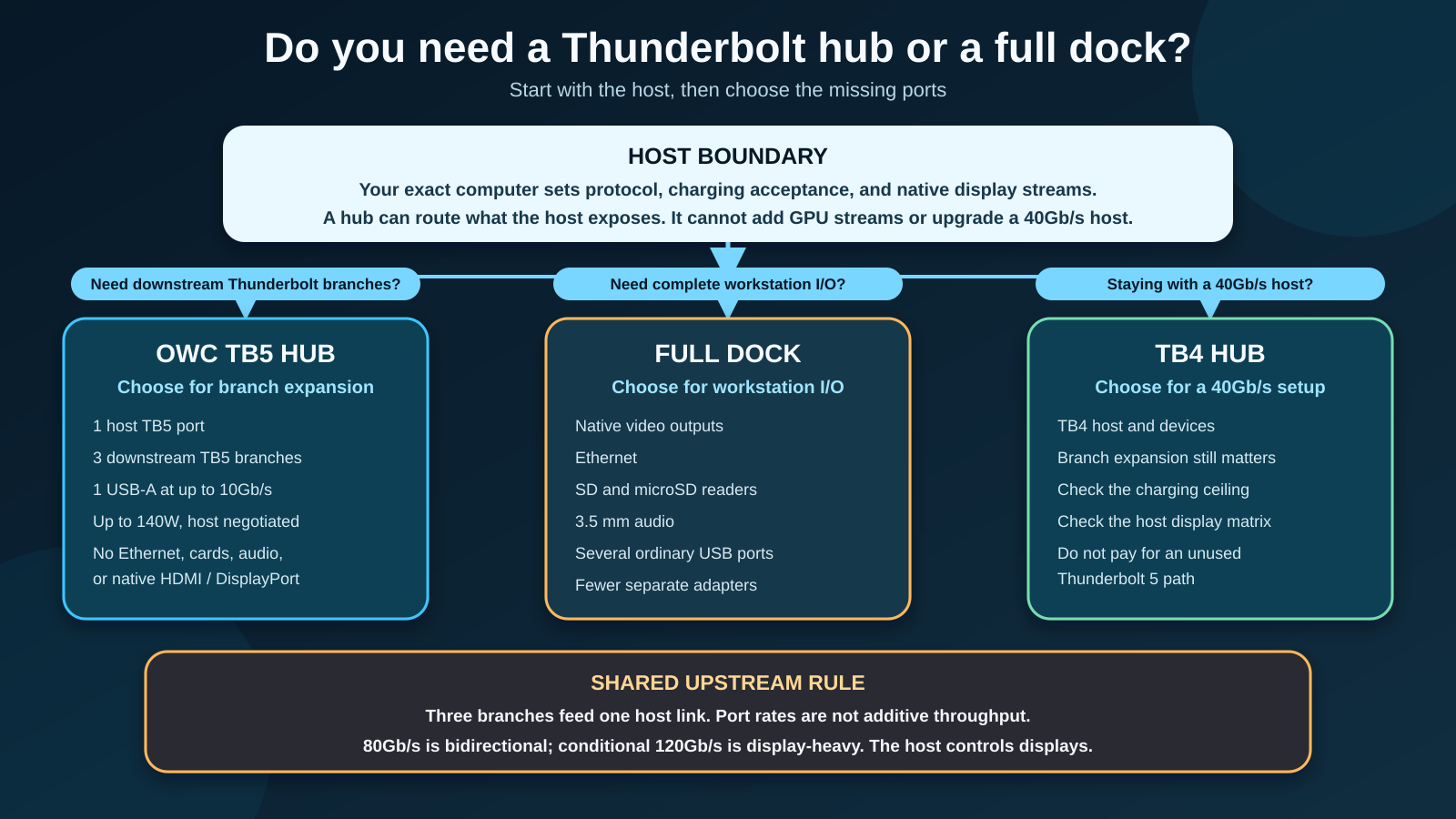
The OWC Thunderbolt 5 Hub is a strong fit when your computer has one fast Thunderbolt connection but your setup needs three separate downstream Thunderbolt branches. It is a much narrower product than a full docking station. That focus is its advantage if you already have networking, card readers, audio, and display adapters. It is the wrong choice if you expect one box to provide all of those functions.
The exact product reviewed here is the OWC Thunderbolt 5 Hub, model OWCTB5HUB5P, ASIN B0DPKL911T. It has five functional data and host ports: one Thunderbolt 5 host port, three downstream Thunderbolt 5 ports, and one USB-A 10Gb/s port. The 21V DC input is separate from that count.
Quick verdict
Buy the OWC Thunderbolt 5 Hub if your main problem is a shortage of downstream Thunderbolt ports and your exact host can use the charging, display, and bandwidth paths you expect. Skip it for a full dock if you need built-in Ethernet, SD or microSD readers, 3.5 mm audio, native HDMI or DisplayPort, or several ordinary USB ports.
The hub does not create display streams that your GPU and operating system do not expose. Its three downstream branches also share one upstream host link. OWC’s stated 80Gb/s bidirectional mode and conditional 120Gb/s display-heavy mode are link ceilings, not three independent performance allowances and not measured results from this review.

The decision in one table
| What you need | Better direction | Why |
|---|---|---|
| Three downstream Thunderbolt branches and one USB-A port | OWC Thunderbolt 5 Hub | It concentrates on branch expansion and host charging |
| Ethernet, card readers, audio, native video, and more ordinary USB | Full dock | Those functions are absent from this five-port hub |
| A 40Gb/s host with no planned TB5 upgrade | Thunderbolt 4 hub | The host cannot expose the OWC hub’s full TB5 path |
| A TB5 hub with more ordinary USB | CalDigit Element 5 Hub | It adds three USB-A and two USB-C data ports |
| A promised display count without checking the host | Do not buy yet | The exact host, GPU, OS, monitor, cable, adapter, and DSC path control the result |
If you are still deciding between product types, our guide to the difference between a dock and a hub explains the broad category boundary. The published best Thunderbolt hubs roundup keeps the wider category comparison. This review answers the narrower OWCTB5HUB5P checkout question.
What the five-port count actually includes
Port counts are only useful when host and downstream roles are separated. OWC’s current product page says one connection to the computer becomes three Thunderbolt 5 ports and one USB-A port. The current support manual makes the complete topology clear:
- One rear Thunderbolt 5 host port connects to the computer.
- One front Thunderbolt 5 port is downstream.
- Two rear Thunderbolt 5 ports are downstream.
- One front USB-A port supports USB 3.2 Gen 2 at up to 10Gb/s.
That is five functional ports when the host connection is included. The rear 21V DC input powers the hub but is not a data port. The power button, status LEDs, security slot, and cable-stabilizer mounts are not ports in the advertised functional count either.
This layout is different from the usual dock formula. There is no native HDMI or DisplayPort connector. There is no Ethernet jack, card slot, audio jack, or group of ordinary USB-C data ports. A compatible USB-C display adapter can use a downstream Thunderbolt port, but that consumes one branch and does not make the hub a native-video dock.
The exact topology is why this can be useful in a storage or production chain. Three downstream Thunderbolt ports allow three physical branches. Removing a device from one branch need not break devices on another branch. OWC also says a Thunderbolt chain supports up to six Thunderbolt devices and that five additional devices can be chained through the hub in total. That does not mean five devices can be placed on each of the three outputs.
Check your host before comparing specifications
The host is the first buying filter. A Thunderbolt 5 label on the hub cannot upgrade the controller in your laptop or desktop.
OWC’s current product material lists Thunderbolt 5, Thunderbolt 4, Thunderbolt 3, USB4, and USB-C paths. Each falls to the capability of the host and connected device:
- A compatible Thunderbolt 5 path can expose the highest advertised link modes.
- Thunderbolt 4 and Thunderbolt 3 paths are limited to their 40Gb/s class.
- OWC lists USB4 at up to 40Gb/s for USB4 hosts and up to 80Gb/s for USB4 v2 hosts.
- The ordinary USB-C path is listed at up to 10Gb/s.
- OWC currently limits Thunderbolt 3 compatibility to Macs and says Thunderbolt 3 PCs are not compatible.
The support manual adds operating-system boundaries. It lists macOS 14 or later for Mac use, macOS 15.3 or later for the Thunderbolt 5 path, and macOS 15 or later for Thunderbolt 3. It lists Windows 11 or later for Windows. Those are current OWC requirements, so older instructions or a generic USB-C logo should not override them.
If these terms are easy to blur together, compare Thunderbolt 3, Thunderbolt 4, and Thunderbolt 5 and review what USB4 means before ordering. Connector shape alone is not a compatibility guarantee.
A practical host checklist
Before adding the hub to your setup, record:
- the exact computer model and processor or GPU;
- the protocol supported by the specific port you will use;
- the current operating system and driver requirements;
- how much charging the computer accepts over that port;
- the number of native display streams the host exposes through one port;
- the resolutions and refresh rates of the displays;
- whether the monitor path requires DSC or an adapter;
- which devices must share the upstream connection.
That check prevents the most expensive misunderstanding: buying a TB5 hub for a feature the host cannot provide.
80Gb/s and 120Gb/s are not four pools of bandwidth
OWC markets up to 80Gb/s of bidirectional data bandwidth on a compatible Thunderbolt 5 path. It also markets Bandwidth Boost at up to 120Gb/s for display-heavy traffic. Those figures describe possible link behavior. They are not a promise that every connected device will transfer at its interface maximum, and they do not add together across the downstream ports.
The three branches all feed one shared connection to the computer. Separate branches improve topology. They can help you avoid placing every device in one long daisy chain. They do not create three independent upstream links.
Actual device speed also depends on the host controller, peripheral controller, storage media, protocol overhead, cable, workload, and traffic from other devices. This review does not claim a benchmark because no independent performance test was performed.
The same caution applies to Bandwidth Boost. The 120Gb/s figure is a conditional display-heavy direction, not 120Gb/s of simultaneous bidirectional general data. It also is not added to the 80Gb/s figure. Our Thunderbolt 5 specification guide explains why asymmetric display allocation and normal bidirectional bandwidth are different operating conditions.
The display answer depends on the exact host
Display support is the area where a simple maximum is least trustworthy.
OWC’s current product page says Thunderbolt 5 can support up to three displays from one host port when the host is capable. It gives examples as high as three 6K or lower displays, three 8K displays at 60Hz, or two 8K displays at 120Hz. Those are manufacturer ceilings, not a universal result.
The current OWC support manual is internally inconsistent. One sentence says Thunderbolt 5 is capable of supporting up to two external displays from one host port. The following examples list three 8K displays at 60Hz or three 4K displays at 144Hz. OWC’s current product page uses the up-to-three framing, but the manual conflict means a buyer should not treat either number as a guarantee.
The safe rule is that the host vendor’s current matrix controls. OWC’s own Apple silicon display-support page varies by exact Mac. For example, its current table lists two external displays for M4 Pro MacBook Pro and shows a two-display path per Thunderbolt 5 port. It lists more total displays for M4 Max systems, while still separating what one Thunderbolt port can carry. Older base Apple silicon MacBooks can have much lower external-display limits, and some laptop paths require a closed lid for the second display.
Windows buyers need the same model-level check. The GPU, Thunderbolt controller, system firmware, operating system, drivers, monitor inputs, adapter, cable, resolution, refresh rate, and DSC support can all change the result.
The hub has no native video connector
The three downstream Thunderbolt 5 ports can carry compatible display signals. HDMI and DisplayPort monitors need an appropriate USB-C video adapter or a compatible dock in the chain. A Thunderbolt or USB-C monitor can connect directly when the complete host and monitor path supports it.
OWC’s support manual says higher refresh rates may require Display Stream Compression and says DSC is required for 6K and 8K resolutions in its documented path. It also lists Apple Pro Display XDR as unsupported through this hub. Those exceptions are more important than a large headline resolution.
If displays are the main purchase reason, start with the exact monitor and host rather than the hub. Our Thunderbolt monitor guide can help identify connection types, but the final compatibility check still belongs to the exact host and display documentation.
Charging, power supply, and cable boundaries
OWC includes a 180W power supply and lists a 21V DC input on the hub. The current product page says the included Thunderbolt 5 cable is certified and 0.8 m long.
The host port can provide up to 140W, but the support manual adds two qualifications:
- Host delivery can vary from 100W to 140W based on power used by devices connected downstream.
- Some computers limit accepted power to 100W even when the hub can offer more.
That makes the charging question a negotiation, not a fixed input. A laptop that ships with a higher-wattage adapter may charge more slowly or change battery behavior under sustained load. A desktop accepts no practical benefit from host charging. A smaller laptop may request much less than the hub can provide.
OWC’s current hub documentation does not state a fixed wattage for each downstream Thunderbolt branch, so this review does not assign one. OWC documents only that downstream power use can reduce host delivery within its 100W to 140W range.
Cable choice also affects the result. Use the included cable first. If you need another length, choose a cable certified for the protocol and power path you expect. See our guides to Thunderbolt 4 cables and USB-C cables for the labels and limits to check. A USB-C connector does not prove TB5 bandwidth or 140W delivery.
What is missing compared with a full dock
The OWC Thunderbolt 5 Hub is compact because it does not duplicate a full workstation’s I/O. Its five-port topology omits:
- native HDMI;
- native DisplayPort;
- Ethernet;
- SD and microSD readers;
- 3.5 mm audio;
- multiple ordinary USB-A ports;
- ordinary USB-C data ports that do not consume Thunderbolt branches.
These are not minor omissions if you need them every day. Adding separate adapters can consume ports, cables, desk space, and budget. A full dock may then be the cleaner purchase even if the hub itself is capable.
The hub makes more sense when those functions already exist elsewhere. A monitor might provide USB and network access. An audio interface might connect over Thunderbolt. A dedicated card reader might be faster or easier to replace. A wired network adapter may already be part of the setup. In that case, paying for duplicate dock functions is less useful than gaining three downstream branches.
For broader workstation choices, compare the current Thunderbolt 5 docks and Thunderbolt 4 docking stations. The right category is more important than the newest protocol label.
Who should buy the OWC Thunderbolt 5 Hub
Buy it for downstream Thunderbolt expansion
This is the clearest use case. You have a compatible host and several Thunderbolt devices that would otherwise compete for one port or sit in one long chain. The three branch layout gives you more physical flexibility while preserving one-cable host connection.
Buy it when one USB-A port is enough
A keyboard receiver, control surface, or occasional legacy peripheral can use the 10Gb/s USB-A port. If that is your only ordinary USB need, a larger dock may add little value.
Buy it when your laptop fits the charging range
The hub can make a one-cable desk practical when the laptop accepts the offered USB Power Delivery and your downstream load leaves enough power for the host. Verify the exact laptop input rather than assuming 140W.
Buy it when you already own the missing dock functions
The value is strongest when networking, audio, card reading, and display conversion are already handled. The hub then solves a precise shortage instead of duplicating a complete dock.
Who should skip it
Skip it if you need a complete desk dock
If your shopping list begins with Ethernet, native video, memory cards, audio, and several ordinary USB ports, choose a dock. Building those functions around this hub defeats its focused design.
Skip it if the host is the bottleneck
A Thunderbolt 4, USB4, or ordinary USB-C host may connect, but it cannot become Thunderbolt 5. Buy for the host you actually own, not for the largest number on the hub.
Skip it if your display plan is unverified
Do not order it on the assumption that three downstream ports equal three displays. Confirm the exact host stream count and complete signal path first.
Skip it if you need independent measured performance
This review evaluates current manufacturer specifications, compatibility guidance, and product identity. It does not provide storage benchmarks, display stress tests, thermal measurements, acoustic measurements, or long-term reliability data.
Three verified alternatives
CalDigit Element 5 Hub: more ordinary USB
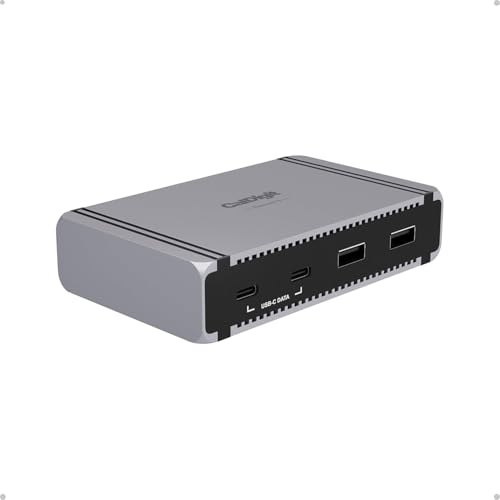
The CalDigit Element 5 Hub keeps the same broad idea of one host connection and three downstream Thunderbolt 5 branches, then adds three USB-A 10Gb/s ports and two USB-C 10Gb/s ports. CalDigit currently lists up to 90W host charging, 15W on each downstream Thunderbolt 5 or USB4 v2 port, and an included 180W supply.
Choose it when you need branch expansion plus a larger ordinary USB bank. It is still a hub rather than a full dock, so it does not replace Ethernet, card readers, audio, or native video outputs.
At the July 28 check, ASIN B0DX8FS8KC had two active offer listings under an exact CalDigit E5 and Element 5 Hub title, with CalDigit identified as both brand and manufacturer. The listing’s optional model and part-number fields were left blank, so confirm the ASIN, product name, port layout, and seller details at checkout instead of relying on those fields.
Sabrent HB-TBT4: a Thunderbolt 4 branch hub
The Sabrent HB-TBT4 is the simpler alternative for a 40Gb/s-class setup. Sabrent lists three downstream Thunderbolt 4 ports, one Thunderbolt 4 host port, one USB-A 10Gbps port, and up to 60W host charging. A certified Thunderbolt 4 cable and power supply are included.
Choose it when your host and devices are Thunderbolt 4 class and 60W charging is enough. Its documented display outputs still depend on the host exposing the necessary DisplayPort path.

OWC Thunderbolt 5 Dock: full-dock functions
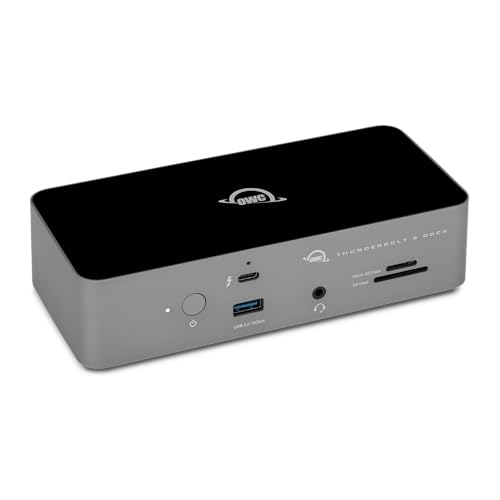
The OWC Thunderbolt 5 Dock is the relevant alternative when the hub is too sparse. OWC’s current page lists three downstream Thunderbolt 5 ports, three USB-A ports, 2.5Gb Ethernet, SD 4.0 UHS-II and microSD slots, 3.5 mm audio, and up to 140W host charging.
Choose the dock when those built-in functions reduce the adapters and cables on your desk. Its display results remain host dependent, so moving from hub to dock does not remove the need for a host check.
Checkout checklist
Confirm every item before ordering:
- The listing ASIN is B0DPKL911T.
- The product is OWC Thunderbolt 5 Hub.
- The manufacturer model is OWCTB5HUB5P.
- You want one host port, three downstream Thunderbolt 5 ports, and one USB-A 10Gb/s port.
- You understand that the DC input is separate from the five functional ports.
- Your exact host supports the protocol and operating-system path you plan to use.
- Your host accepts the charging level you need.
- Your display count, resolution, refresh rate, adapter, cable, and DSC path are verified.
- You do not need built-in Ethernet, card readers, audio, native HDMI or DisplayPort, or several ordinary USB ports.
- The final checkout terms make sense compared with the three verified alternatives.
Frequently asked questions
Is the OWC Thunderbolt 5 Hub a docking station?
It can anchor a desk, but its port mix is a branch hub rather than a full dock. It provides one host port, three downstream Thunderbolt 5 ports, and one USB-A port. It does not provide built-in Ethernet, card readers, audio, or native HDMI or DisplayPort.
Why is it called a five-port hub?
The five functional ports include the Thunderbolt 5 host connection, three downstream Thunderbolt 5 ports, and one USB-A 10Gb/s port. The 21V DC input is separate.
Can all three downstream ports run at 80Gb/s at the same time?
Do not treat them as three independent 80Gb/s upstream links. They are three branches sharing one host connection. Actual traffic depends on the host, devices, workloads, and other traffic using that link.
Does 120Gb/s add to 80Gb/s?
No. OWC describes 80Gb/s as bidirectional data bandwidth and up to 120Gb/s as a conditional display-heavy Bandwidth Boost direction. They are different link allocations, not additive throughput.
Can it run three displays from a Mac?
Not as a universal rule. OWC’s current product page uses host-qualified up-to-three marketing, while its support manual contains a conflicting up-to-two sentence and three-display examples. OWC’s Apple silicon table varies by exact Mac. Verify the exact model, chip, port, operating system, monitor, adapter, cable, resolution, refresh rate, and DSC path.
Does it have HDMI or DisplayPort?
No native HDMI or DisplayPort connector is part of the five-port topology. A compatible display can use a downstream Thunderbolt port directly or through an appropriate USB-C video adapter, subject to host support.
Will it work with Thunderbolt 4?
OWC lists a Thunderbolt 4 compatibility path, but the connection operates within the host’s 40Gb/s-class limit. A Thunderbolt 4 host does not become Thunderbolt 5.
Will it work with a Thunderbolt 3 PC?
OWC’s current product page and support manual limit Thunderbolt 3 compatibility to Mac and say Thunderbolt 3 PCs are not compatible.
Does it always charge a laptop at 140W?
No. OWC says host power delivery can vary between 100W and 140W depending on power used downstream, and some computers cap accepted charging at 100W. The laptop negotiates what it accepts.
Is the power supply included?
Yes. The current OWC support manual lists an included 180W power supply and power cable. The current product page also states that a certified 0.8 m Thunderbolt 5 cable is included.
Evidence boundary
This review uses current OWC product and support material, current manufacturer pages for the three alternatives, and current Amazon product identity and offer information. It does not claim hands-on testing.
No independent throughput, display-load, charging, thermal, acoustic, wake, or reliability measurements were performed. Manufacturer performance figures are presented as qualified ceilings. Compatibility claims remain bounded by the exact host, operating system, drivers, devices, cables, adapters, displays, and firmware involved.
Final recommendation
The OWC Thunderbolt 5 Hub is worth buying when downstream Thunderbolt expansion is the job. Its three branches, one USB-A port, included cable, and host-charging path make sense for a compatible computer surrounded by Thunderbolt devices.
Choose a full dock when the job is broader workstation consolidation. Choose a Thunderbolt 4 hub when your host and device plan remains in the 40Gb/s class. Verify the host before paying for the hub. OWCTB5HUB5P can expose a capable connection cleanly, but it cannot create bandwidth, charging acceptance, or display streams that the computer does not provide.