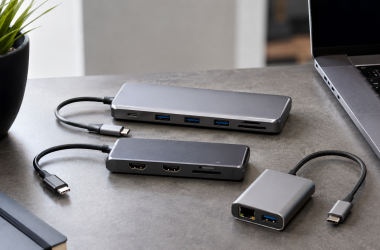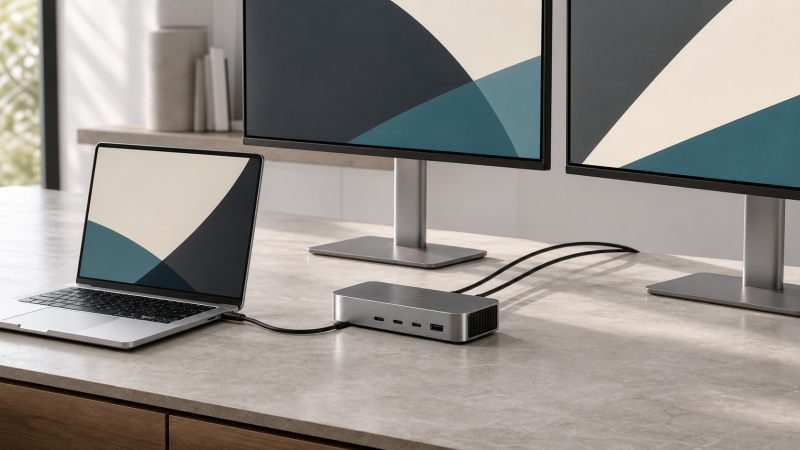
The StarTech 208N-USB4-DOCK is our top USB4 dock for MacBook Pro, and the reason is that StarTech publishes an Apple-generation display matrix instead of treating every Mac as the same host. For one HDMI and one DisplayPort connection, Razer’s USB 4 Dock is the better conventional choice, while Plugable’s USB4-HUB3A wins when you want downstream USB4 branches. Whichever you pick, start with your exact MacBook Pro year, processor and Apple-documented external-display limit. A dock can route native displays that the Mac supports, but extra sockets and MST cannot create another extended desktop beyond that topology. This guide stays with native USB4 display paths and excludes DisplayLink. Our broader USB4 hubs and docks roundup covers Windows-first and portable alternatives too.
Quick picks
- StarTech 208N-USB4-DOCK: best overall when you want an explicit Apple-generation matrix.
- Razer USB 4 Dock Mercury: best for direct HDMI and DisplayPort connections.
- Plugable USB4-HUB3A: best for three downstream USB4/TB4 branches.
- Lenovo ThinkPad USB4 Dock 5000: best full-size peripheral and display-port selection.
- D-Link DUF-901: best combination of downstream USB4 and 2.5GbE.
| Image | Product | Details | Check Price |
|---|---|---|---|
 | StarTech 208N-USB4-DOCK | Mac processor boundary: Use StarTech Apple-generation matrix Native display path: Two DP plus video-capable USB-C Downstream USB4: No manufacturer USB4/TB downstream claim Charging: StarTech rates up to 100W Best for: Documented Apple-specific planning | Check Price on Amazon |
 | Razer USB 4 Dock Mercury | Mac processor boundary: Secondary display depends on exact Mac Native display path: HDMI 2.1 plus DP 1.4 Downstream USB4: No; Razer rates USB-C at 10Gbps Charging: Up to 100W peak, 96W sustained Best for: Direct HDMI and DisplayPort | Check Price on Amazon |
 | Plugable USB4-HUB3A | Mac processor boundary: Plugable applies Apple processor limits Native display path: Three USB4/TB4 branches; HDMI adapter included Downstream USB4: Three Plugable-rated USB4/TB4 ports Charging: Plugable rates up to 60W Best for: Flexible downstream branches | Check Price on Amazon |
 | Lenovo ThinkPad USB4 Dock 5000 | Mac processor boundary: Apple native-display limit controls Native display path: Two DP, HDMI and full-function USB-C Downstream USB4: No manufacturer USB4/TB downstream claim Charging: 65W bundled; 100W with optional supply Best for: Full-size port selection | Check Price on Amazon |
 | D-Link DUF-901 | Mac processor boundary: D-Link says count varies by Mac model Native display path: Two DP plus downstream USB4/DP 1.4 Downstream USB4: One D-Link-rated 40Gbps branch Charging: D-Link rates up to 100W Best for: 2.5GbE and USB4 expansion | Check Price on Amazon |
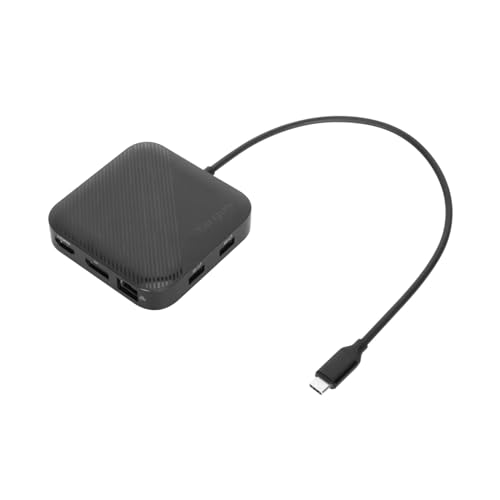 | Targus DOCK425GLZ | Mac processor boundary: No universal dual-extended-display claim Native display path: DP 1.4 plus HDMI 2.1 Downstream USB4: No; Targus rates USB-C at 10Gbps Charging: Up to 85W pass-through; charger excluded Best for: Portable mixed-output setup | Check Price on Amazon |
 | j5create JCD403 | Mac processor boundary: j5create caps Mac output at 4K60 Native display path: One HDMI output Downstream USB4: No manufacturer USB4/TB downstream claim Charging: Up to 95W pass-through; charger excluded Best for: Compact single-display Mac setup | Check Price on Amazon |
1. StarTech 208N-USB4-DOCK — Best overall Apple-generation matrix
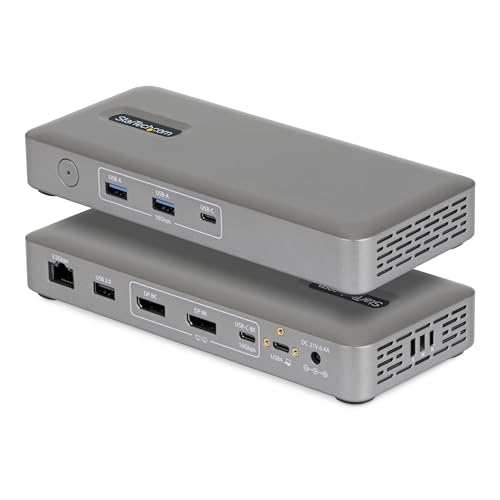
Mac buyers get something here that most of this category withholds: an official compatibility matrix that separates Apple processor generations rather than making one dual-display promise. StarTech specifies a 40Gbps USB4 host connection, two DisplayPort outputs and a 10Gbps USB-C port with DisplayPort Alt Mode. Its matrix includes one external display for standard M1 and M2 systems and different dual-display conditions for later processors.
The overall StarTech ceiling reaches dual 4K144 or one 8K60 on a qualified host, though those figures have to be read through the Apple row for your exact MacBook Pro. The maker also specifies 2.5GbE and up to 100W host charging. No downstream USB4 or Thunderbolt claim covers its USB-C ports.
Our Take Two dedicated DP connections plus a first-party matrix you can hold against Apple’s own limit: that is the case for the 208N. Do not carry a Windows display ceiling into the Mac row, and do not count the video-capable USB-C port as an extra guaranteed desktop.
- StarTech publishes Apple-generation display conditions
- Maker specifies up to 100W host charging and 2.5GbE
- Standard M1/M2 paths remain single-display in StarTech’s matrix
- No downstream USB4 or Thunderbolt port
2. Razer USB 4 Dock Mercury — Best direct HDMI and DisplayPort choice

One display gets a stated ceiling here, the other does not. Razer lists macOS support and specifies a 40Gbps USB4 upstream connection, HDMI 2.1 and DisplayPort 1.4, giving the primary display a ceiling up to 4K120 while leaving the secondary-display mode to the exact host. On a MacBook Pro, Apple’s processor-specific native display limit remains the first constraint.
This dock earns its place when your monitors already have different conventional inputs and you want to avoid a USB-C display adapter. Razer rates charging at up to 100W peak and 96W sustained using its included 180W adapter. The downstream USB-C port is rated at 10Gbps and up to 20W, so it should not be described as another USB4 or Thunderbolt branch.
Our Take For a clean HDMI-plus-DP desk with strong cited host power, the Razer is the pick. It does not remove a MacBook Pro’s native screen ceiling, and Razer does not publish one universal second-display mode.
- Razer explicitly lists Windows and macOS support
- Maker documents both HDMI 2.1 and DP 1.4
- Secondary display is controlled by the exact host
- Downstream USB-C is 10Gbps rather than USB4
3. Plugable USB4-HUB3A — Best downstream USB4 branch hub
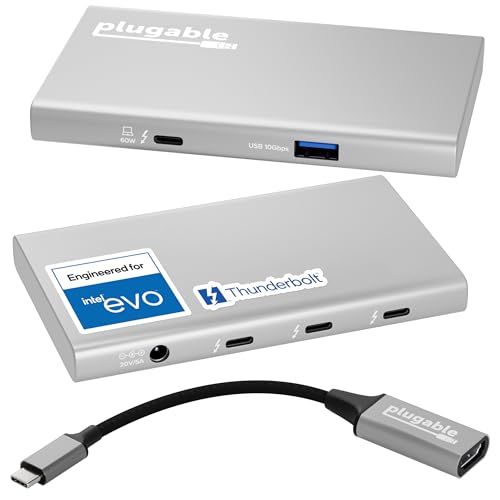
Freedom to choose what hangs off each port is the trade here, measured against a dock with fixed HDMI and DP sockets. Plugable calls this exact model both a Thunderbolt 4 and USB4 hub and specifies a 40Gbps host link. Its three downstream USB4/TB4 ports can each carry data and video through the right device or adapter. Plugable includes one USB-C-to-HDMI adapter.
The manufacturer documents up to dual 4K60 or one 8K on capable hosts, then applies Apple-processor limits separately. For relevant single-display Mac configurations, Plugable documents one display up to 6K. No hub turns a Mac that supports one native external screen into a two-screen extended desktop. Plugable includes a 100W supply and rates host charging at up to 60W.
Our Take Where downstream flexibility outranks integrated Ethernet, card readers and higher laptop charging, the Plugable is right. It is especially easy to overbuy for a single-display Mac, so confirm the processor limit first.
- Plugable specifies three downstream USB4/TB4 ports
- Included adapter supplies one HDMI route
- Maker caps host charging at 60W
- No manufacturer-listed Ethernet or card reader
4. Lenovo ThinkPad USB4 Dock 5000 — Best full-size port selection
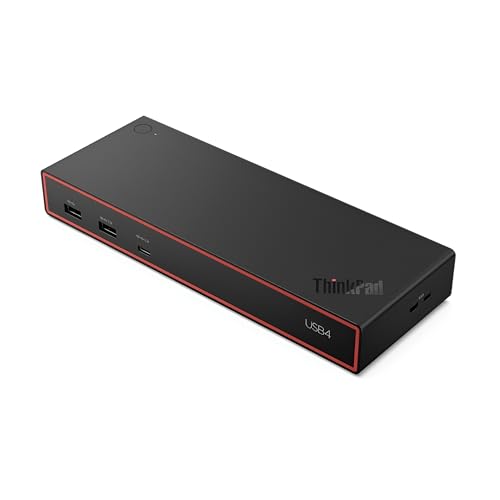
The socket count is the temptation, and Apple’s native-display rules override it. Lenovo identifies this as a USB4 dock and lists a host connection up to 40Gbps, with video-capable outputs that include two DP 1.4, HDMI 2.1 and a full-function 10Gbps USB-C port with DP 1.4. Lenovo lists macOS support, but its broad multi-display ceilings remain subject to the host.
The 40BF0100US configuration includes a 100W supply and, according to Lenovo, delivers up to 65W to the laptop. An optional 135W supply raises the maker’s host-delivery ceiling to 100W. Check the wattage accepted by the exact MacBook Pro, and note that the downstream USB-C ports are not documented as USB4/TB.
Our Take As a peripheral-rich desk anchor for a MacBook Pro whose native display plan is already settled, the Lenovo works well. Do not buy it for four screens merely because Lenovo cites a four-4K60 ceiling on qualified hosts.
- Lenovo lists macOS and four video-capable routes
- Optional power supply supports up to 100W host delivery
- Apple’s native display ceiling still controls the result
- Bundled configuration supplies up to 65W to host
5. D-Link DUF-901 — Best 2.5GbE and downstream USB4 route
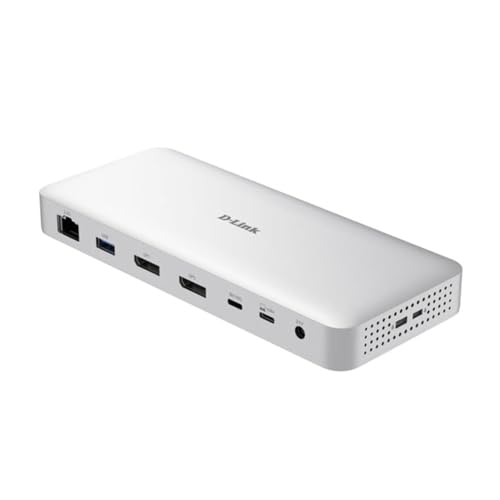
Wired networking plus one reusable USB4 branch is a narrow requirement, and this is the dock that meets it. D-Link specifies USB4 Gen 3×2 at 40Gbps upstream, one downstream 40Gbps USB4 connection with DP 1.4 capability, two DP 1.4 outputs and 2.5GbE.
D-Link publishes display modes reaching up to 8K30 or 4K144 under stated host conditions, then says macOS does not support the listed 8K30 mode and that display count varies by Mac model. Those Mac notes matter more than the headline ceiling. D-Link rates the charging path at up to 100W. Our sources do not establish a bundled power adapter, so confirm current box contents and plan for a suitable USB-C PD supply if needed.
Our Take Buy the DUF-901 for the connection mix, not for its largest display number. It is one of the few picks here with both a documented downstream USB4 branch and 2.5GbE, though the exact Mac still determines screens and modes.
- D-Link documents downstream 40Gbps USB4 and 2.5GbE
- Maker rates the charging path at up to 100W
- D-Link excludes the listed 8K30 mode on macOS
- Display count varies by exact Mac model
6. Targus DOCK425GLZ — Best portable dual-output choice
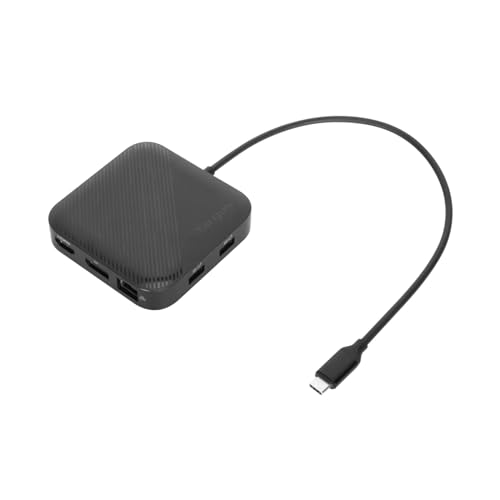
Compact, with both video connectors already on board, is the Targus proposition. Targus specifies a 40Gbps USB4 connection, DisplayPort 1.4 and HDMI 2.1 in that compact dock, and lists up to one 8K30 display or two 4K60 displays, subject to the host and operating system. It does not promise dual extended desktops across every Mac, so Apple processor support remains decisive.
Targus says the dock can run from bus power or accept a separate USB-C charger for up to a rated 85W pass-through. Targus does not include that charger, and overhead means the Mac receives less than the supply label. Targus lists the downstream USB-C data connection at 10Gbps rather than USB4.
Our Take When portability and direct DP-plus-HDMI outputs matter, the Targus answers. It is less attractive if you need an included power supply or if your Mac’s one-display limit leaves the second socket unused.
- Targus documents HDMI 2.1 and DP 1.4
- Bus-powered operation suits lighter travel setups
- USB-C charger is not included
- Two sockets do not guarantee two extended Mac displays
7. j5create JCD403 — Best compact single-display choice

The Mac ceiling here is stated plainly. j5create specifies a 40Gbps USB4 host link and one HDMI output, and although the maker cites higher ceilings on supported Windows DP 1.4 paths, it caps the JCD403 at 4K60 on Mac. That makes this the straightforward compact option for one screen, not a route to high-refresh 4K on a MacBook Pro.
j5create states the JCD403 adds 2.5GbE and accepts up to 100W at its USB-C PD input. j5create rates up to 95W to the host after the hub’s needs, and j5create does not include the charger. Its downstream USB-C data port is 10Gbps rather than USB4.
Our Take One HDMI route with a maker-stated 4K60 Mac ceiling makes the JCD403 easy to understand as a one-monitor Mac travel kit. Look elsewhere if you need two native display routes or included power.
- j5create states a clear 4K60 ceiling for Mac
- Maker specifies 2.5GbE and up to 95W pass-through
- Only one HDMI display output
- Power supply is sold separately
Choose by processor topology before ports
Open Apple’s technical specifications for the exact MacBook Pro year and processor, then note the number and modes of supported external displays, and do it before comparing docks. A base processor, Pro-class processor and Max-class processor can expose different native topologies even when the computers share the same connector shape.
Next, map that supported topology onto the dock. Dedicated DP or HDMI sockets are convenient, while downstream USB4/TB4 ports let you choose an adapter or a USB-C-input monitor. MST can distribute a Windows desktop across outputs, but it does not grant macOS another independent extended desktop. DisplayLink is deliberately absent from this page so that every recommendation stays within Apple’s native path.
Power is a separate decision. Compare the maker’s wattage delivered to the host rather than the adapter label. A dock rated for 60W or 65W can connect and charge a MacBook Pro while still being slower than the computer’s preferred adapter under load. Pass-through hubs also consume part of the input and may exclude the charger.
For a wider Mac-specific product mix, including non-USB4 routes, see our MacBook Pro docking-station guide. Use a cable appropriate to the documented USB4 path, and our USB4 cable guide covers that piece without implying that a better cable can raise the Mac’s display limit.
Frequently asked questions
Can a USB4 dock add a second native display to a one-display MacBook Pro?
No. A native USB4 dock routes the display capability the Mac supplies, and it does not bypass Apple’s processor-specific external-display ceiling.
Do two display sockets always mirror on macOS?
Not always. The result depends on the exact Mac and dock topology, though two sockets alone never prove two extended desktops. Compare Apple’s external-display specification against the dock maker’s Apple matrix.