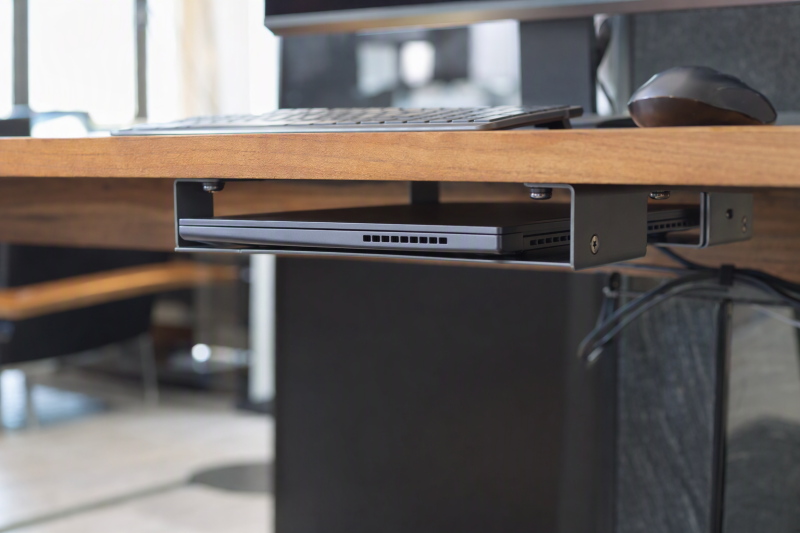
An under-desk holder can clear the surface when a laptop runs with its lid closed and an external screen. It is storage hardware, not a docking station. It does not deliver video, power or a wake button. The right bracket must fit the closed laptop, fasten to a suitable desk and leave vents, ports and removal access clear.
These six exact Amazon US mounts offer different ways to suspend a closed laptop under a desk. Installation and laptop temperatures were not independently tested. Before drilling, confirm the desk owner permits it, the underside is thick and solid enough, and the laptop maker supports the intended closed-lid workload. For electrical connections, see our USB-C docking guide.
Do not drill into a hollow, glass, rented or unknown desk. Check screw length and pilot-hole guidance, then leave airflow and cable slack around the closed laptop.Under-Desk Laptop Mounts Compared
| Image | Product | Details | Check Price |
|---|---|---|---|
 | FOROIRON three-piece mount | Laptop thickness: Up to 1.15 in, per listing note Desk minimum: Not stated Load claim: Up to 30 lb Best fit: Narrow laptop with custom bracket spacing | Check Price on Amazon |
 | BYMECOST under-desk mount | Laptop thickness: Up to 1.37 in Desk minimum: 0.4 in claimed Load claim: Up to 22 lb Best fit: Padded mount with air holes | Check Price on Amazon |
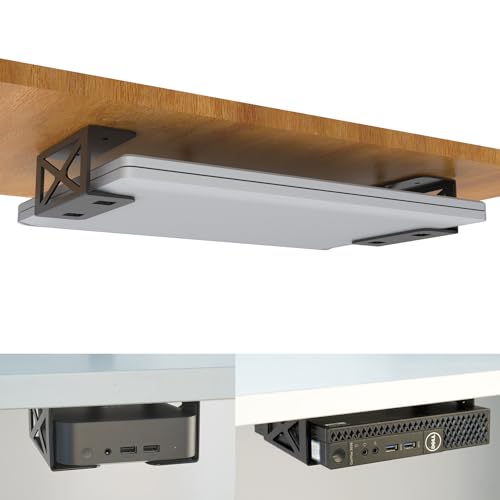 | bylitco storage mount | Laptop thickness: Under 1.85 in Desk minimum: 0.78 in Load claim: Not stated in checked bullets Best fit: Thicker laptop or mini PC | Check Price on Amazon |
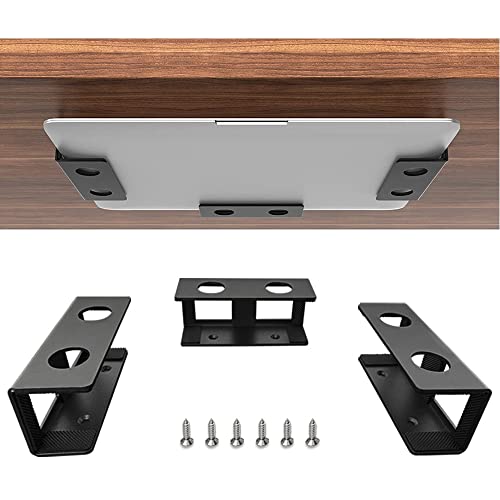 | IFCASE aluminum mount | Laptop thickness: Under 1.5 in Desk minimum: 0.75 in Load claim: Not stated in checked bullets Best fit: Padded aluminum brackets | Check Price on Amazon |
 | VI+AL Deluxe mount | Laptop thickness: Up to 1.7 in Desk minimum: 0.75 in Load claim: Not stated in checked bullets Best fit: Laptop plus side accessory storage | Check Price on Amazon |
 | VIVO Mount-UDLS1 | Laptop thickness: Adjustable spacing; measure Desk minimum: 0.75 in Load claim: Up to 11 lb Best fit: Open-front laptop access | Check Price on Amazon |
1. FOROIRON Three-Piece Mount — Best Custom Narrow Spacing
FOROIRON’s three brackets can be spaced to the laptop’s width, with felt contact surfaces and a cable opening. Its checked listing ends with a 1.15-inch device-thickness limit, although another bullet loosely says 1.2 inches. Use the smaller number until the seller clarifies. The seller also claims a 30-pound load, far above most laptops. The seller’s figure does not prove your desk or screws can carry 30 pounds.
The listing calls for screwed installation and a shake check before adding the laptop. The shake check is a sensible final step but not a substitute for the desk maker’s structural guidance. Measure where the closed laptop’s fans and ports are located so the brackets do not block them. The three-piece layout may leave more room for cables than a full tray. For a monitor and peripherals above, our DisplayLink hot-desk guide covers the other half of the workstation.
Our Take Choose FOROIRON for a laptop under 1.15 inches thick when bracket placement and cable access are priorities. Verify desk strength and the seller’s inconsistent thickness wording before installation.
- Three brackets allow custom spacing.
- Felt padding and cable opening are described.
- Open design leaves parts of the laptop visible for inspection.
- Listing conflicts between 1.2 and 1.15-inch thickness wording.
- Desk minimum and real installed load were not verified.
2. BYMECOST Under-Desk Mount — Best Vented-Bracket Claim
BYMECOST lists a 1.37-inch device-thickness ceiling, silicone pads and holes in the metal bracket. The openings may reduce obstruction where they line up with a laptop vent, but they do not establish safe cooling for a particular machine. Check the closed laptop’s inlet and exhaust locations against the actual mounted orientation. Its seller claims a 22-pound maximum load, also dependent on desk and screw installation.
The installation bullets mention an auxiliary positioning sticker and screws, with a minimum desk thickness of 0.4 inch. Treat the sticker as a placement aid, not the load-bearing connection. Before accepting that unusually thin desk minimum, confirm the desk material and screw length with the maker. Our USB-C hub guide can help with connected devices above the desk, but a hub does not provide cooling or mounting strength.
Vent holes in a bracket are not proof that the laptop’s actual intake and exhaust remain unobstructed.Our Take BYMECOST is a padded candidate for a closed laptop up to 1.37 inches thick if its holes align with the device’s vent pattern. Verify the desk and screws independently. Do not rely on adhesive for support.
- 1.37-inch thickness ceiling is stated.
- Silicone pads and bracket air holes are described.
- Seller distinguishes positioning sticker from screws.
- Vent holes do not prove cooling for every laptop.
- 0.4-inch desk minimum deserves structural verification.
3. bylitco Storage Mount — Best Clearance for Thicker Devices
bylitco says its bracket accepts devices under 1.85 inches thick, more clearance than the narrower choices above. The extra clearance may help with a thicker workstation laptop or a small computer under the same desk. The listing includes a paper mounting template, six screws and soft padding. The template, screws and padding are practical installation details, but the checked bullets do not give a reliable load ceiling.
bylitco asks for a tabletop at least 0.78 inch thick. Check that the tabletop is solid load-bearing material at the intended location, not merely a thick top with a hollow core. Use the supplied template to plan around an apron, cable tray and your knees before drilling. A thick laptop may also have side exhaust vents. Leave clearance beyond the bracket itself. Our best docking stations guide addresses display and power connections once the physical location is sound.
Extra thickness clearance does not establish the bracket’s load rating or the desk’s screw-holding strength.Our Take Consider bylitco for a thicker closed laptop only after the seller confirms an adequate load rating and the desk passes a material check. The template is helpful for positioning, not a substitute for safe fastening.
- Under-1.85-inch device limit allows thicker hardware.
- Mounting template and six screws are listed.
- Soft contact padding is included.
- Checked bullets lack a clear load limit.
- Requires at least 0.78-inch suitable desk material.
4. IFCASE Aluminum Mount — Best Padded Mid-Thickness Option
IFCASE describes an aluminum bracket set for a laptop or other device under 1.5 inches thick, with silicone anti-slip pads. It lists 5/8-inch screws and asks for a desk at least 3/4 inch thick. Those numbers should be checked against the actual underside material, especially where laminate, a cable channel or an apron changes the available drilling depth.
As with several mounts here, the listing uses an adhesive sticker to position the brackets before screws are installed. The screws should bear the load. Adhesive is not a stand-alone suspension method. Whether the bracket spacing leaves a particular laptop’s vents and charging port accessible remains unverified. Check the laptop model’s permitted closed-display setup before you hide it away. Our USB-C-to-HDMI adapter guide covers a possible display/power path, not the mount’s fastening strength.
Our Take IFCASE is a straightforward padded aluminum bracket for a measured mid-thickness laptop and approved solid desk. Its listed screw length is useful, but safe attachment must be checked on your desk.
- 1.5-inch device and 0.75-inch desk figures are listed.
- Silicone pads protect contact points.
- Screw length is specified.
- Checked bullets omit a clear load rating.
- Adhesive should not be confused with load-bearing hardware.
5. VI+AL Deluxe Mount — Best Side Accessory Storage
VI+AL adds a side compartment, hook and cable clips to an under-desk laptop holder. The listed device thickness reaches 1.7 inches, with a desk minimum of 3/4 inch. The compartment can keep a small charger or mouse close to a closed-lid laptop, but it also takes more underside space. Check knee clearance, chair movement and whether a cable can be unplugged without removing the computer.
The listing mentions tape and screws. Treat tape as a layout aid unless the maker explicitly supplies a rated load-bearing method. We have not verified its capacity. The extra hook should not be loaded with a heavy bag without a stated limit. Padding is described at contact points, but it should not cover vents. Our USB-C docking guide helps choose the actual dock if you want display, USB and charging functions. This bracket provides none of those.
Our Take VI+AL suits a closed-lid station that needs an organized shelf for small items as well as laptop storage. Verify the mounting hardware and keep the hook and pocket within any stated load limits.
- Side storage, hook and cable clips are included.
- 1.7-inch device thickness is stated.
- Padding is described around contact points.
- Extra storage occupies leg and cable space.
- Accessory load limits are not clear in checked bullets.
6. VIVO Mount-UDLS1 — Best Open-Front Access
VIVO lists a three-piece adjustable bracket with an open front, designed to leave the laptop reachable. It claims an 11-pound load limit and asks for at least a 0.75-inch-thick desk. The brackets use five screws and anti-slip padding. VIVO is a useful candidate for someone who takes the laptop out regularly, provided the insertion path is not blocked by a desk crossbar or cables.
The listing calls it an “under desk docking solution,” but it is only a physical holder. There are no ports, power delivery or display electronics. Plan a dock or direct cables separately. It does not specify a single fixed laptop thickness because bracket spacing is customizable. Measure the closed device and plan a fit that neither pinches it nor lets it slide. Our hot-desk dock guide covers how to handle changing laptop connections.
Open-front access helps removal, but a loose or blocked bracket path can still make daily docking awkward.Our Take VIVO is the accessible bracket option for a solid desk and a laptop below its stated 11-pound limit. Do not read “docking solution” as an electrical feature.
- Open front supports frequent laptop removal.
- Adjustable bracket spacing and 11-pound claim are stated.
- Desk minimum and five-screw installation are explicit.
- No electrical docking functions despite seller wording.
- Custom spacing requires a careful slip and vent check.
Buying Guide
1. Prove the Desk Can Hold a Screwed Mount
Check the underside’s solid material, thickness and clear area before drilling. A thick decorative top can hide hollow core, an apron or electrical channels. Several listings specify desk minimums from 0.4 to 0.78 inch, but the figures are seller claims for their hardware, not blanket approval for every desk. Do not screw into glass, a rental or a shared workplace desk without permission.
Use the correct screw length and pilot-hole method for the desk material. A positioning sticker is not a structural fastener. After installation, test the empty mount and then the loaded bracket without putting hands or feet under a potentially loose laptop. If the desk structure is uncertain, use a stand that needs no drilling rather than improvising.
2. Measure the Closed Laptop and Keep Vents Clear
Measure the laptop’s closed height, full width and mass, including feet or a case. Thickness limits here range from 1.15 to under 1.85 inches, while VIVO uses adjustable spacing. A fit that is too tight can pinch the lid or block exhaust. A fit that is too loose can allow the device to slide during cable handling. Mark the locations of ports, fan intakes and exhausts before setting bracket positions.
The mount does not guarantee safe thermal behavior. Follow the laptop maker’s closed-lid guidance and test normal workload temperatures after installation. Do not pack a hot laptop against insulation or paper under the desk. Leave room to remove it quickly if it throttles, sleeps unexpectedly or needs direct access.
3. Plan Display, Power and Daily Access Separately
A closed-lid station needs the laptop’s supported external monitor, keyboard, pointer and power path. None of these metal brackets supplies any of them. Check how the machine wakes, whether it stays on when the lid closes, and how cables connect without bending against the desk. Our USB-C docking guide is the place to choose electrical expansion.
Decide whether the laptop stays mounted or travels daily. Open-front access helps with frequent removal. VIVO emphasizes it, while accessory storage on VI+AL may complicate reach. Leave enough cable slack to unplug safely and keep the mounted device clear of knees, chair casters and cleaning equipment.
FAQ
Does an under-desk laptop mount also dock or charge my laptop?
No. These mounts are physical brackets or shelves. Even when a seller calls a holder a docking solution, it does not add USB, video, network, charging or a power button. You must supply a compatible dock, charger or direct laptop connections separately.
Check your laptop’s closed-display behavior before installing any holder. A machine that sleeps on lid closure or cannot drive the intended monitors will not be fixed by moving it under a desk.
Is adhesive enough to hold a laptop under the desk?
Do not assume so. The IFCASE and BYMECOST listings describe adhesive as an installation or positioning aid before screws are installed. A suspended laptop should use a maker-approved load-bearing mounting method on a suitable desk. We have not tested any adhesive-only approach here.
Follow the exact instructions, verify desk material and screw depth, then test the bracket before putting a laptop above your legs. If drilling is not allowed, choose storage that needs no drilling rather than treating tape as a substitute.
Will mounting a closed laptop under the desk make it overheat?
Whether it overheats depends on the laptop’s design, load, vent positions and air around it. No mount here was tested for temperature. Bracket holes and an open frame may leave space, but only if they align with the actual machine’s air path. A closed lid may also change cooling behavior on some devices.
Check the laptop maker’s closed-display instructions and watch temperatures during a normal sustained task after installation. If vents are blocked or the machine gets unusually hot, move it to a better-ventilated location rather than assuming the bracket is safe because it is metal.
Bottom Line
Only mount a closed laptop under a desk after verifying the desk, fasteners, laptop fit and airflow. VIVO offers open-front access, bylitco has extra device thickness clearance, and VI+AL adds storage for small items. None replaces a dock or proves closed-lid cooling for your machine.