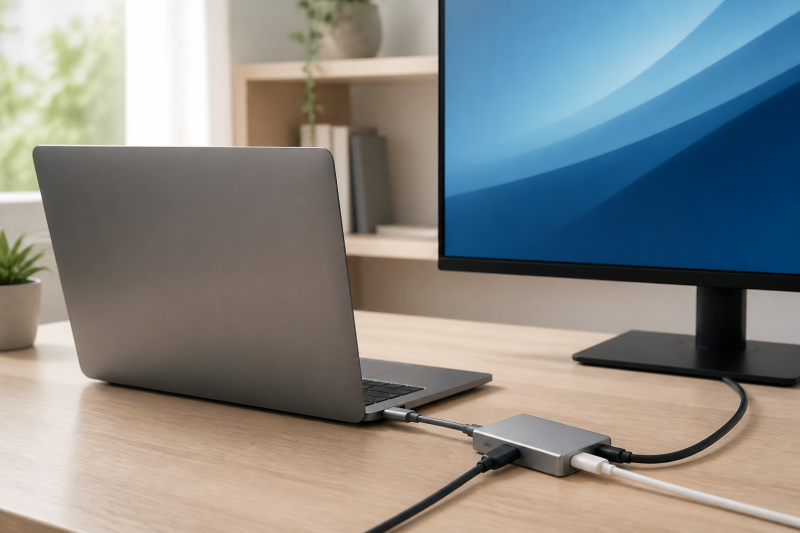
The best USB-C to HDMI adapter with 100W charging for most single-display desks is the Belkin Connect 5-Port USB-C Hub. Belkin lists HDMI 2.0 up to 4K at 60Hz, 100W Power Delivery to the host, and both USB-A and USB-C data ports. Buyers who need a small adapter with one USB-A port should instead consider the Plugable USB-C Multiport Adapter.
The number beside a power port is an input ceiling, not a promise that the laptop receives that amount. The charger must supply enough power, the adapter takes some power for its own operation, and the host must accept charging through USB-C. HDMI needs a separate capability check because a USB-C connector without DisplayPort Alt Mode does not send the video signal an HDMI adapter needs.
Quick picks
- Cable Matters 48Gbps USB-C to HDMI 2.1 Adapter with 140W Charging: Best for one qualified display when the purchase needs a higher charging ceiling and detailed display conditions.
- Plugable USB-C Multiport Adapter: Best compact choice for one HDMI display, one USB-A accessory, and charging input.
- Anker 332 USB-C Hub: Best for a small desk that needs HDMI plus three data ports and a clearly stated host-power limit.
- Belkin Connect 5-Port USB-C Hub: Best for a single 4K at 60Hz display plus USB-C data and USB-A accessories.
- Plugable USB-C Hub 7-in-1: Best when SD and microSD readers belong in the same single-display setup.
| Image | Product | Details | Check Price |
|---|---|---|---|
 | Cable Matters 48Gbps USB-C to HDMI 2.1 Adapter with 140W Charging | Buyer fit: One display with a higher charging ceiling Video boundary: USB-C host to HDMI display only, conditional Charging: Up to 140W pass-through | Check Price on Amazon |
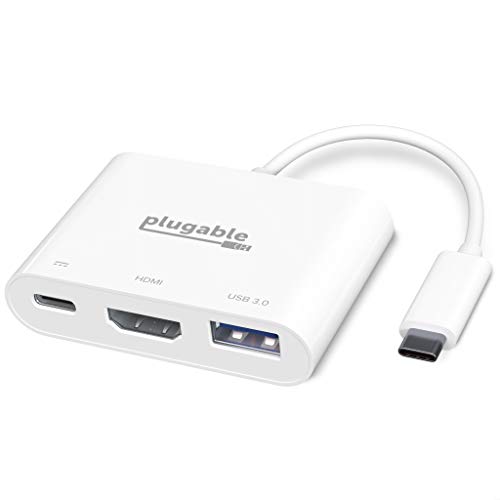 | Plugable USB-C Multiport Adapter | Buyer fit: Small HDMI, USB-A, and charging adapter Video boundary: One HDMI 1.4 display, up to 4K 60Hz on DP 1.4 Ports: 100W PD pass-through, one USB-A 5Gbps | Check Price on Amazon |
 | Anker 332 USB-C Hub | Buyer fit: Three data ports beside HDMI Video boundary: HDMI 1.4, up to 4K 30Hz Charging: 100W input, up to 85W laptop output | Check Price on Amazon |
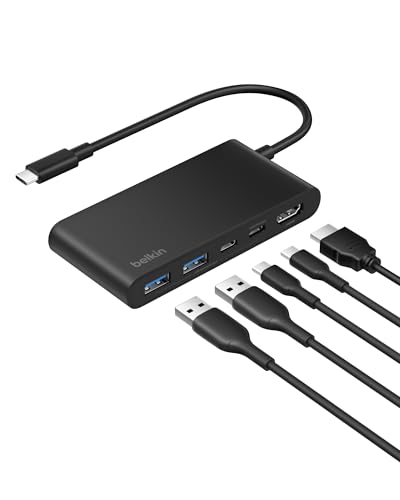 | Belkin Connect 5-Port USB-C Hub | Buyer fit: Single 4K 60Hz display with USB-C data Video boundary: HDMI 2.0, up to 4K 60Hz Ports: 100W PD 3.0, two USB-A and one USB-C data ports | Check Price on Amazon |
 | Plugable USB-C Hub 7-in-1 | Buyer fit: SD and microSD plus USB-A accessories Video boundary: One HDMI display on a qualified host Charging: 100W input, up to 92W host pass-through | Check Price on Amazon |
1. Cable Matters 48Gbps USB-C to HDMI 2.1 Adapter with 140W Charging — Best for a higher display and charging ceiling
Cable Matters identifies model 201438 as a USB-C-to-HDMI 2.1 adapter with up to 140W pass-through charging. The model is the pick for a buyer who has already checked the laptop’s USB-C charging input and wants one display without moving to a multiport hub. Cable Matters lists a range of display modes, but the company ties those ceilings to the host, graphics hardware, operating system, HDMI display, cable, and selected mode.
The adapter sends video from a USB-C host to an HDMI display, not from an HDMI source to a USB-C monitor. The USB-C power connection is for a compatible charger. A 100W charger can be a sensible match for a laptop that accepts 100W, while the adapter’s higher ceiling only leaves room for a host and charger that negotiate more power.
Our Take
Choose Cable Matters when one display and a carefully qualified power path are more useful than extra hub ports. Check the specific display mode before purchase and treat the cable as a one-way USB-C-host-to-HDMI-display connection.
- Cable Matters identifies model 201438 as an HDMI 2.1 adapter with up to 140W pass-through charging.
- The maker publishes display guidance that keeps the host, graphics, operating-system, display, cable, and selected-mode conditions visible.
- The focused one-display design avoids card readers and data ports when the desk does not need them.
- Cable Matters’ display ceilings do not replace checking the exact laptop and display path.
- The adapter is unidirectional, so it cannot convert an HDMI source into a USB-C display signal.
2. Plugable USB-C Multiport Adapter — Best small HDMI and charging adapter
Plugable’s USBC-MD103 is a three-port adapter with one HDMI connection for a display, one USB-A connection for an accessory, and one USB-C connection for a charger. Plugable lists HDMI 1.4, one USB-A port at 5Gbps, and USB-C Power Delivery 3.0 pass-through up to 100W. Its published display matrix lists one 4K at 60Hz display when the host provides a DisplayPort 1.4 path.
The small shape does not remove the host requirements. Plugable says HDMI and charging both need a host with DisplayPort Alt Mode and USB-C Power Delivery. A USB-C socket that transfers data but has no video capability will not create HDMI output, and a laptop that does not charge over USB-C cannot gain that ability through the adapter.
Our Take
Pick Plugable’s adapter when the desk needs one wired accessory beside one HDMI screen. The three-port layout is simple, but the laptop must support both the video and charging functions you plan to use.
- Plugable lists HDMI, one USB-A 5Gbps port, and USB-C PD 3.0 pass-through in a compact three-port layout.
- The maker’s matrix identifies one 4K at 60Hz display for a qualified DisplayPort 1.4 host.
- Plugable rates both the PD input and the self-powered host path up to 100W.
- The adapter has one USB-A port, so a desk with several accessories needs a larger hub.
- Plugable requires host DisplayPort Alt Mode for HDMI and USB-C Power Delivery for charging.
3. Anker 332 USB-C Hub — Best for data ports with a clear charging limit
Anker’s 332 USB-C Hub is for a laptop that needs an HDMI connection plus a small group of data ports. Anker identifies model A8355 with two USB-A ports and one USB-C data port, each at 5Gbps, HDMI 1.4 up to 4K at 30Hz, and a Power Delivery input rated at 100W. Anker also states that the hub uses part of the incoming power, leaving up to 85W for the laptop.
Anker’s stated split is the reason to choose this model over a vague 100W label. The PD port only accepts an external charger. The USB-C data port does not output video, so connecting a USB-C monitor there is not a substitute for the HDMI port. Anker also asks buyers to confirm DisplayPort Alt Mode when the HDMI output is part of the plan.
Our Take
Pick the Anker when a modest single-display desk needs keyboard, storage, or other data connections too. The 85W host ceiling is a useful boundary for a laptop that draws more power under load.
- Anker lists two USB-A and one USB-C data ports at 5Gbps for accessories that belong beside the display.
- The maker distinguishes 100W PD input from up to 85W laptop output, which helps with charger and host planning.
- Anker documents HDMI 1.4 up to 4K at 30Hz for a single qualified display.
- Anker’s HDMI ceiling is 4K at 30Hz, not the 60Hz mode some monitors and laptops can use.
- The PD port is charger input only, and the USB-C data port does not send video to a monitor.
4. Belkin Connect 5-Port USB-C Hub — Best 4K 60Hz single-display hub
Belkin’s AVC022 is the balanced single-display choice for buyers who want a stated 4K at 60Hz HDMI ceiling and a USB-C data port in the same compact hub. Belkin lists HDMI 2.0 up to 4K at 60Hz, two USB-A ports, one USB-C data port, USB-C PD 3.0 up to 100W to the host, and a tethered cable measuring 20cm. The product covers a laptop, monitor, and basic accessory set without claiming to be a dock for every desk.
Belkin does not include a charger, and an adapter cannot make a host accept more charging power than the host allows. The available display mode also depends on the computer’s video path, the monitor, and the HDMI connection. Buyers who use protected video should verify the exact host, display, and content path rather than assuming any HDMI adapter has a shared HDCP result.
Our Take
Choose Belkin when one 4K at 60Hz display, a USB-C data port, and two USB-A ports cover the desk. It is the strongest all-round one-screen hub in this group, provided the laptop supports the necessary video and charging functions.
- Belkin lists HDMI 2.0 up to 4K at 60Hz for a qualified single-display connection.
- The hub combines two USB-A ports with one USB-C data port for a small collection of wired accessories.
- Belkin documents USB-C PD 3.0 up to 100W to the host and a 20cm tethered cable.
- Belkin does not include the charger, so the power path needs a compatible external charger.
- The listed video and charging ceilings depend on the connected computer, display, cable, and selected mode.
5. Plugable USB-C Hub 7-in-1 — Best for cards and USB-A accessories
Plugable’s USBC-7IN1 is the single-display option for a desk that also handles camera cards and several USB-A accessories. Plugable lists one HDMI display, three USB-A ports, SD and microSD readers, and USB-C Power Delivery input up to 100W. The company states that up to 92W can reach the host when the hub has a compatible charger connected.
The PD port is not a spare USB-C expansion port. Plugable says the port accepts power for pass-through charging and does not carry USB data, video, or USB-C peripherals. HDMI and charging also require the host to support DisplayPort Alt Mode and USB-C Power Delivery. Those limits make the hub a better match for a reader-and-accessory desk than for a setup that needs a second display or a USB-C monitor output.
Our Take
Choose the 7-in-1 when card readers and several USB-A devices are part of a one-monitor work area. The 92W host figure is helpful, but verify the laptop’s accepted charging input before treating it as a full replacement for the original power supply.
- Plugable combines one HDMI display with three USB-A ports and both SD and microSD card readers.
- The maker lists 100W PD input and up to 92W pass-through to a compatible host.
- Plugable states that the PD port is charging-only and does not serve as a data port.
- The hub supports one HDMI display, so it is not the right product for a dual-screen desk.
- Plugable says the PD port cannot carry USB data, video, or a USB-C peripheral connection.
Check the power and video path before choosing an adapter
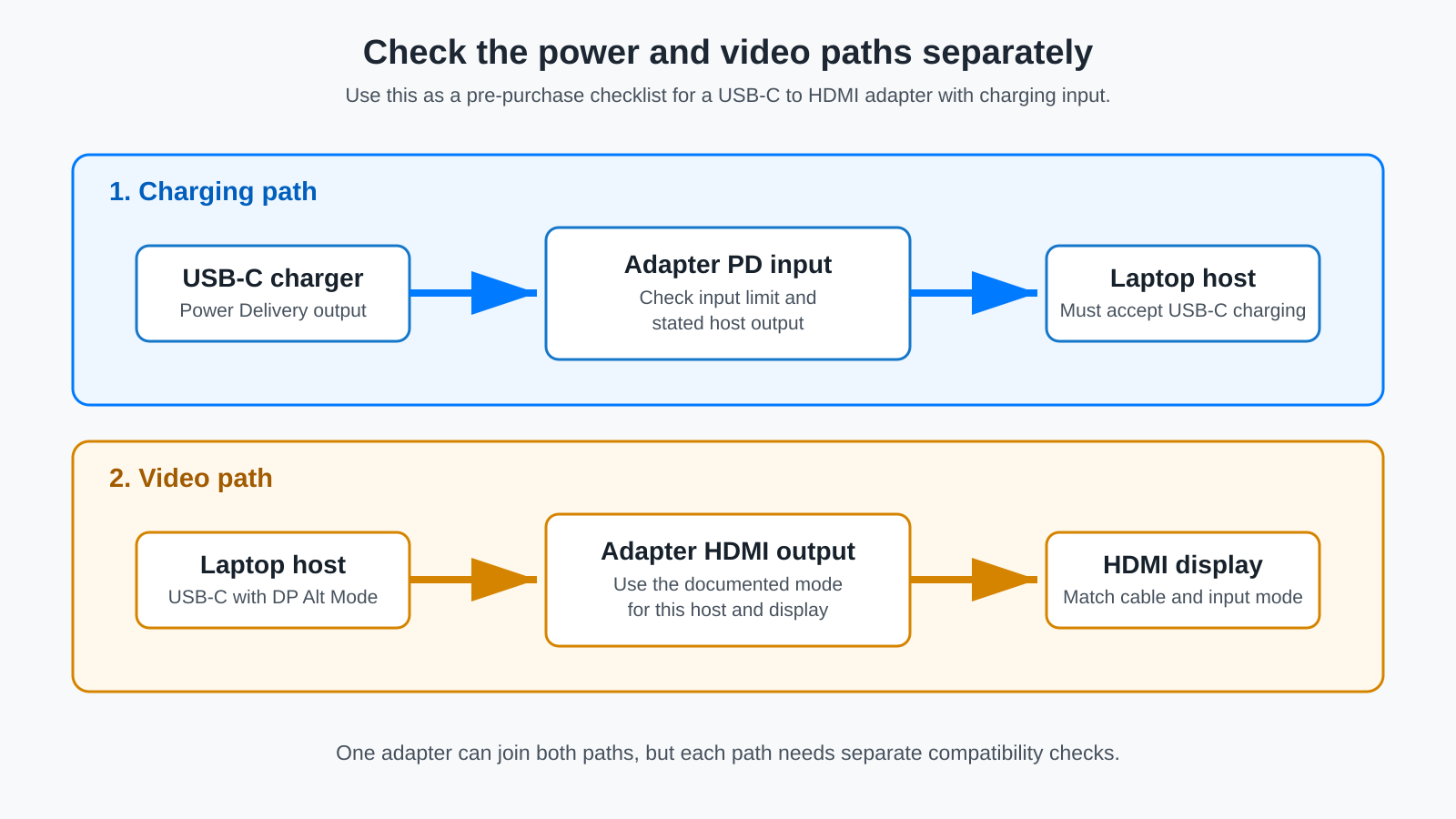
Separate the charging number from laptop power
A PD input label describes what the adapter can accept. It does not tell you how much the laptop receives. Start with the laptop maker’s USB-C charging requirement. Then check the charger output, the adapter’s stated input, and any stated amount the adapter keeps for its own operation. Anker states 100W input and up to 85W to the host. Plugable’s 7-in-1 states 100W input and up to 92W to the host.
Use the same caution with the Cable Matters 140W ceiling. A charger and laptop that negotiate 100W do not become a 140W charging pair because the adapter supports a higher maximum. A laptop that uses a separate barrel connector also may not charge through the adapter at all. Keep the original charger available until the host maker confirms USB-C charging support.
Confirm the host can send video through USB-C
HDMI output begins with the computer. The host USB-C port needs a video-capable route such as DisplayPort Alt Mode. A USB-C data port and a USB-C video port are not the same purchase condition. Plugable and Anker both document that their HDMI functions need a qualified host, and the DisplayPort over USB-C standard explains why the adapter cannot create video from a connector that lacks the video signal.
Use the laptop maker’s specification for the exact port. A dock label, a similar-looking USB-C socket, or a product review for a different laptop is not enough evidence. Mac behavior also follows the exact Mac and operating-system display support. An adapter can pass the signal available from the host, but it cannot add a display pipeline the computer does not provide.
Match the HDMI link to the screen you plan to use
The adapter is one part of the full connection between the laptop and the display. The HDMI cable and the display input must support the selected resolution and refresh setting. Belkin lists 4K at 60Hz for AVC022, while Anker lists 4K at 30Hz for the 332. Cable Matters lists multiple upper modes for model 201438 but makes those modes conditional on the complete path.
Use the display’s own input specification before ordering. A display that only accepts a lower mode will use that lower mode even if the adapter supports more. For protected video, keep the boundary narrow: check the complete host, display, cable, operating-system, and content path instead of inferring a shared HDCP result from the HDMI connector.
Check the labels before checkout
Power checklist
- Confirm the laptop accepts charging through the exact USB-C port.
- Compare the charger’s output with the adapter’s input limit and stated host output.
- Check whether the adapter’s PD port is charging-only or can also carry data.
Video checklist
- Confirm the host port supports the video route the adapter requires.
- Match the display’s input and HDMI cable to the mode you plan to select.
- Treat the adapter as a USB-C-host-to-HDMI-display connection unless its maker documents a different direction.
For a high-refresh single-display route, see our USB-C to HDMI 2.1 adapter guide. For two HDMI displays, use our USB-C to dual HDMI adapter guide. A DisplayPort monitor needs a different connector decision, covered in our USB-C to DisplayPort cables and adapters guide.
Frequently asked questions
Does a 100W USB-C HDMI adapter give a laptop 100W?
Not automatically. The charger, adapter, and laptop negotiate charging, and some adapters reserve part of the input power. Anker lists up to 85W host output from 100W input on the 332. Plugable lists up to 92W host pass-through from 100W input on its 7-in-1 hub. Check the laptop’s accepted USB-C charging input before treating either figure as a guaranteed outcome.
Can every USB-C port use an HDMI adapter?
No. The computer needs a video-capable USB-C route, such as DisplayPort Alt Mode, for these native HDMI adapters. A USB-C port used only for charging or data does not provide that video signal. Check the exact computer documentation rather than the connector shape.
Can the USB-C PD port connect a monitor or SSD?
Not on every model. Anker identifies the 332 PD port as charger input only, and Plugable identifies the 7-in-1 PD port as charging-only. Use the separately labeled data port only when the maker documents that function.