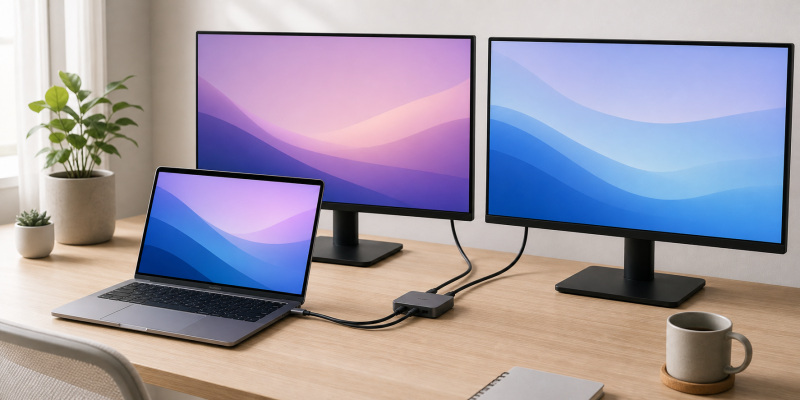
The best USB-C to dual HDMI adapter for a Windows laptop with a documented DisplayPort 1.4 path is the StarTech USB-C Dual HDMI MST Hub. Its manufacturer publishes a clear two-monitor resolution matrix and says exactly where macOS stops being a fit. A Mac owner who needs two extended HDMI displays has a different job. The Plugable USB-C Dual HDMI DisplayLink Dock uses DisplayLink software instead of relying only on the laptop’s native display paths.
Two HDMI sockets do not automatically create two independent desktop spaces. The laptop must provide digital video over USB-C, the operating system must permit the display arrangement, and the adapter’s technology must match both. A standard native MST adapter is often the cleaner choice for a qualified Windows machine. It can be the wrong choice for a Mac that mirrors external screens through that path.
Quick picks
- Cable Matters Foldable USB-C to Dual HDMI Adapter: Best compact option when the host documentation already supports the required native dual-display arrangement.
- Anker USB-C Hub (7-in-1, Dual Display): Best for a straightforward two-screen desk when 1080p at 60Hz is enough and macOS mirroring is acceptable.
- Plugable USB-C Dual HDMI DisplayLink Dock: Best when a Mac or Windows laptop needs two extended HDMI displays and installing DisplayLink is acceptable.
- UGREEN Revodok Pro 207 7-in-1 Docking Station: Best native dual-4K Windows-oriented desk hub with extra 10Gbps ports.
- StarTech USB-C Dual HDMI MST Hub: Best for a Windows-only MST route with an explicit DisplayPort 1.2 and 1.4 resolution matrix.
| Image | Product | Details | Check Price |
|---|---|---|---|
 | Cable Matters Foldable USB-C to Dual HDMI Adapter | Buyer fit: Compact native dual-HDMI adapter Display boundary: One 8K 30Hz or 4K 120Hz, or dual 4K, conditional Design: Foldable cable | Check Price on Amazon |
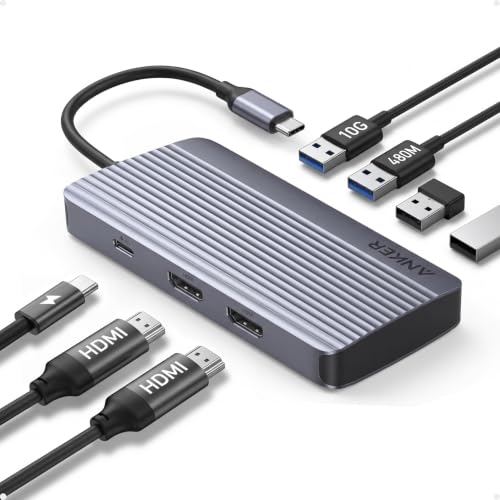 | Anker USB-C Hub (7-in-1, Dual Display) | Buyer fit: Simple two-screen 1080p desk Display boundary: Two 1080p 60Hz screens; Mac and iPad mirror Charging: 100W input, 85W output | Check Price on Amazon |
 | Plugable USB-C Dual HDMI DisplayLink Dock | Buyer fit: Two extended Mac or Windows displays Display boundary: Dual 4K 60Hz through DisplayLink Requirement: DisplayLink driver; not for HDCP, gaming, or 3D | Check Price on Amazon |
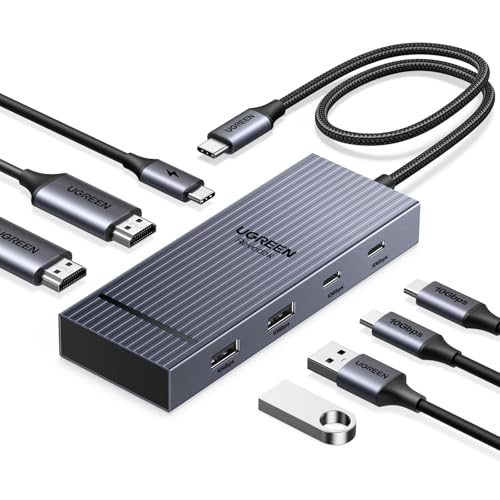 | UGREEN Revodok Pro 207 7-in-1 Docking Station | Buyer fit: Native dual 4K Windows desk Display boundary: Two 4K 60Hz stated; Mac mirrors Ports: 2 HDMI, 4 USB 10Gbps, 100W PD input | Check Price on Amazon |
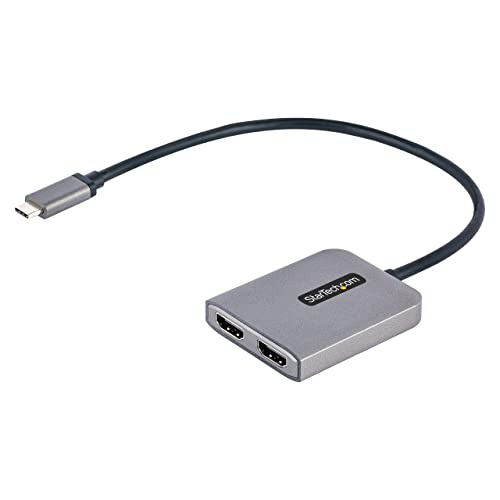 | StarTech USB-C Dual HDMI MST Hub | Buyer fit: Windows-only MST route Display boundary: Two 4K 60Hz needs DP 1.4 with DSC Requirement: DP Alt Mode and Windows; no macOS | Check Price on Amazon |
1. Cable Matters Foldable USB-C to Dual HDMI Adapter — Best compact native dual-HDMI adapter
Cable Matters’ model 201371-BLK is the compact option for a buyer who already knows the computer can deliver the needed native display arrangement. The maker lists one 8K at 30Hz display or one 4K at 120Hz display, as well as dual 4K displays. Its short cable folds back into the adapter, which makes more sense in a travel bag or on a shared desk than a hub with ports that will go unused.
The important limit is not hidden in the adapter. Cable Matters’ ceiling is a product capability, while the computer’s video path and operating system decide whether two attached displays can be extended. The product page does not establish a particular Mac dual-extended result, so it is the wrong purchase to make on connector shape alone. Treat it as a focused two-output adapter after the host documentation is already clear.
Our Take
Choose it when portability is important and the laptop already has a documented native dual-display path. It keeps the buying job narrow: two HDMI displays without paying for Ethernet, card readers, or charging features you will not use.
- Cable Matters lists dual 4K displays alongside single-display 8K at 30Hz and 4K at 120Hz modes for model 201371-BLK.
- The maker’s foldable cable design gives the adapter a compact storage advantage for a mobile two-screen kit.
- The focused two-HDMI design avoids adding unrelated hub functions to a simple display job.
- Cable Matters does not make the host operating-system decision for you, so the laptop must be checked before purchase.
- The product is a display adapter rather than a charging dock or peripheral hub.
2. Anker USB-C Hub (7-in-1, Dual Display) — Best for a simple two-screen desk
Anker’s A8374 is the pick for a modest desk setup where two 1080p at 60Hz external screens are sufficient and the extra hub ports have a clear job. Anker lists two-screen 1080p at 60Hz output, a 10Gbps data port, 100W charging input, and up to 85W output to the laptop. That combination is useful for a keyboard, mouse, and one fast accessory without turning a two-monitor purchase into a larger dock decision.
Its FAQ is the reason to read the model number before ordering. Anker says Windows supports SST and MST on this hub, while macOS and iPadOS use SST, so two attached external displays mirror one another. Mirroring can be useful for a duplicate presentation screen, but it is not the same result as a two-display extended workspace. Anker also requires a laptop with DisplayPort Alt Mode and Power Delivery and says the hub is not compatible with Linux.
Our Take
Pick the Anker when two matching 1080p at 60Hz displays solve the job and either a mirrored or extended outcome is acceptable. It is a practical choice for a basic Windows desk or a Mac presentation setup, not a way around the Mac native-display limit.
- Anker documents a two-screen 1080p at 60Hz configuration for this exact A8374 hub.
- The maker lists a 100W power input and up to 85W laptop output for a qualified charging path.
- Anker adds a 10Gbps data port for a desk that also needs one fast peripheral connection.
- Anker says two external displays mirror on macOS and iPadOS instead of becoming separate extended desktops.
- The hub requires a DP Alt Mode and Power Delivery-equipped laptop, and Anker excludes Linux compatibility.
3. Plugable USB-C Dual HDMI DisplayLink Dock — Best for two extended displays on a Mac
Plugable’s USBC-6950PDZ changes the technical path rather than asking a Mac to do native MST. According to Plugable, the dock uses DisplayLink technology for two extended 4K at 60Hz HDMI displays on Windows and macOS, including systems without native dual-video support. It also adds USB-C and USB-A ports, Gigabit Ethernet, an SD slot, and a USB-C charging input that the manufacturer rates to accept up to 100W and provide up to 82W to the host.
That extra flexibility comes with a firm requirement, not a footnote. Plugable requires the DisplayLink driver for dual-display operation. Its product page also excludes HDCP-protected playback, gaming, and 3D rendering. This dock is therefore the right route for an office, research, or productivity workspace where two independent screens justify a software dependency. It is not the catch-all answer for every kind of moving video or graphics workload.
Our Take
Choose this dock when two extended HDMI desktops outweigh a driver-free native path. It is the most useful option here for a Mac buyer who has confirmed that DisplayLink’s software and content boundaries fit the work.
- Plugable documents two extended 4K at 60Hz HDMI displays through DisplayLink on Windows and macOS.
- The maker combines the display route with Ethernet, an SD slot, USB-C and USB-A ports, and a qualified charging input.
- Plugable specifies up to 82W host pass-through from a 100W input for laptops that charge through USB-C.
- Plugable requires DisplayLink software for the dual-display function, so this is not a driver-free adapter.
- The maker excludes HDCP-protected playback, gaming, and 3D rendering from this DisplayLink dock’s intended use.
4. UGREEN Revodok Pro 207 7-in-1 Docking Station — Best native dual 4K Windows route
UGREEN’s Revodok Pro 207 is the fuller native Windows desk hub. UGREEN lists two HDMI ports with a dual 4K at 60Hz configuration, two USB-C ports and two USB-A ports rated at 10Gbps, plus a 100W Power Delivery input. The company says up to 85W reaches the laptop. That combination makes it a better fit than a bare video adapter when the desk also needs several high-speed peripheral ports.
The operating-system caveat is decisive. UGREEN says Windows can use an extended dual-screen display, whereas Mac devices are limited to mirror mode through this dock. Its PD port is for charging only and does not provide data or video output. Those two boundaries are useful because they prevent two common purchase mistakes: choosing the hub for a Mac two-extended-screen job, or treating its power input as another useful data port.
Our Take
Buy the Revodok Pro 207 for a Windows desk that needs native dual HDMI plus several 10Gbps accessory ports. Confirm the computer’s display capability and charging requirement first, then treat the Mac mirror note as a firm reason to choose another path when independent external screens are required.
- UGREEN lists two HDMI outputs and a stated dual 4K at 60Hz configuration for the Revodok Pro 207.
- The maker includes four 10Gbps USB data ports for a two-screen desk with storage or fast accessories.
- UGREEN documents a 100W Power Delivery input with up to 85W host charging for a qualified laptop path.
- UGREEN says Mac devices mirror the external screens, so the hub does not meet a Mac two-extended-display requirement.
- The Power Delivery port only accepts charging input and cannot serve as another data or video connection.
5. StarTech USB-C Dual HDMI MST Hub — Best Windows-only MST adapter
StarTech’s MST14CD122HD is the clearest choice when you want a native Windows MST adapter and prefer a published resolution matrix over a broad compatibility promise. StarTech says a DisplayPort 1.4 host with DSC can drive two 4K at 60Hz displays. Without DSC, its DisplayPort 1.4 row drops one display to 4K at 30Hz, and its DisplayPort 1.2 row lists two 4K at 30Hz displays. That matrix makes the adapter especially useful for an IT buyer who can identify the host’s actual DisplayPort version and DSC support before purchase.
It is bus-powered, has a 30cm attached cable, and needs no driver on the supported Windows path. StarTech is also unambiguous that it is not compatible with macOS. This clarity is a benefit, not a flaw in the documentation. A buyer who needs a Mac solution can rule it out early instead of learning about MST after setting up two monitors.
Our Take
Choose StarTech when a Windows laptop has documented DP Alt Mode and you need an explicit MST bandwidth matrix. It is the most transparent native choice for a buyer who can verify the host, but it is not a cross-platform answer.
- StarTech publishes the distinct DP 1.4 with DSC, DP 1.4, and DP 1.2 two-display resolution outcomes.
- The maker supports both extended and mirrored display arrangements on compatible Windows systems.
- StarTech documents bus power, a 30cm attached cable, and driver-free setup for this MST hub.
- StarTech excludes macOS compatibility, so this adapter cannot solve a Mac two-screen setup.
- Two 4K at 60Hz displays require the specified DP 1.4 with DSC host path rather than USB-C connector shape alone.
Check the laptop’s display path before choosing an adapter
Confirm whether two different desktops are required
Start by identifying the outcome you need. A mirrored setup repeats the same image on both external displays. An extended setup creates separate desktop areas, so windows can move from one monitor to the other. If the work only needs a duplicate screen for a presentation, Anker or UGREEN’s documented Mac mirror behavior may be fine. If the work needs two independent external desktops, the native host path or a documented DisplayLink route must support them.
Pick native MST or DisplayLink deliberately
Native MST sends the host’s display signal through the USB-C video path and separates it for the two HDMI monitors. StarTech’s matrix shows why the host’s DisplayPort version and DSC support change what the adapter can display. It is driver-free on its supported Windows path, but it does not work with macOS.
DisplayLink is a different route. Plugable’s dock needs its DisplayLink driver, but that driver requirement is also why it can provide two extended HDMI displays on supported Mac and Windows computers that lack native dual-video support. Do not call one universally better. Pick the path that matches the operating system, the workload, and the laptop’s documented limits.
Check each link in the chain
Use this short checklist before checkout:
- Confirm the exact USB-C port supports DisplayPort Alt Mode, Thunderbolt video, or the documented route the selected product needs.
- Confirm whether the laptop and operating system can extend two external screens, rather than only mirror them.
- Match each monitor’s resolution and refresh target to the maker’s stated adapter matrix, then use HDMI cables and display inputs that support the selected mode.
- If charging is important, compare the adapter’s input and host-output limits with both the charger and the laptop’s accepted charging input.
- For a DisplayLink dock, check the required driver and the maker’s stated content or workload exclusions before relying on it.
Choose extra ports only when they solve a real desk need
A small dual-HDMI adapter leaves fewer things to qualify and is easier to carry. A hub or dock is useful only when its other ports will replace a separate accessory. The Anker adds a modest data and charging set. The UGREEN adds four 10Gbps data ports. The Plugable adds Ethernet, an SD slot, and DisplayLink. Those extra-port choices are distinct buying jobs, not interchangeable bonuses.
For a single high-refresh HDMI display rather than two HDMI screens, use our USB-C to HDMI 2.1 adapter guide. For a DisplayPort monitor, our USB-C to DisplayPort cables and adapters guide keeps the display connector decision separate. If one HDMI display plus charging is the priority, see our USB-C to HDMI adapters with 100W charging guide.
Frequently asked questions
Can a USB-C to dual HDMI adapter make a Mac extend two external displays?
Sometimes, but it depends on the Mac, its native display support, and the adapter technology. The Anker and UGREEN sources for these exact native hubs say two external Mac screens mirror. Plugable documents a DisplayLink path for two extended HDMI screens and requires the DisplayLink driver. Check the product’s own route before treating any two-port hub as a Mac multi-display solution.
Is an MST adapter better than a DisplayLink adapter?
Neither is automatically better. A qualified Windows computer can use the StarTech MST adapter without a driver, but its output matrix depends on the host’s DisplayPort version and DSC. Plugable’s DisplayLink dock needs software and excludes particular workloads, while giving supported Macs and Windows systems a documented two-extended-display route. The required display outcome and the laptop’s capabilities decide the better fit.