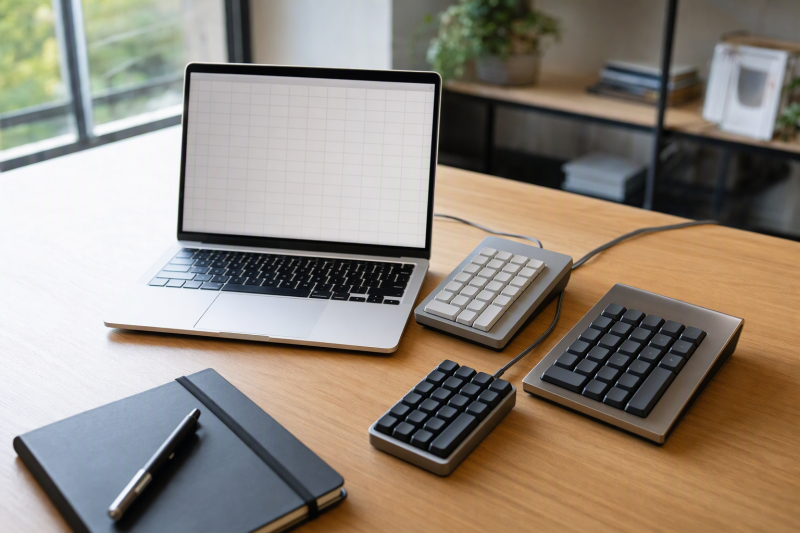
A compact laptop saves desk space until a long column of amounts needs entry. A separate numeric keypad restores the familiar grid without replacing the laptop. The first decision is the laptop’s available USB port. The second is whether the spreadsheet work needs only numbers or also Tab, navigation and calculator keys.
These six wired Amazon US keypads differ in ports, layouts and key feel. Speed and comfort were not tested. For a larger workstation, see the home-office monitor guide.
Check the actual connector and the keys you press between numbers. A keypad with the wrong plug or missing Tab key can slow a spreadsheet session down.Numeric Keypads Compared
| Image | Product | Details | Check Price |
|---|---|---|---|
 | CBUS USB-C 23-Key Numeric Keypad | Connection: Wired USB-C Keys: 23, per listing Extra controls: Tab, Home, Email, Calculator Best fit: USB-C laptop with spreadsheet navigation | Check Price on Amazon |
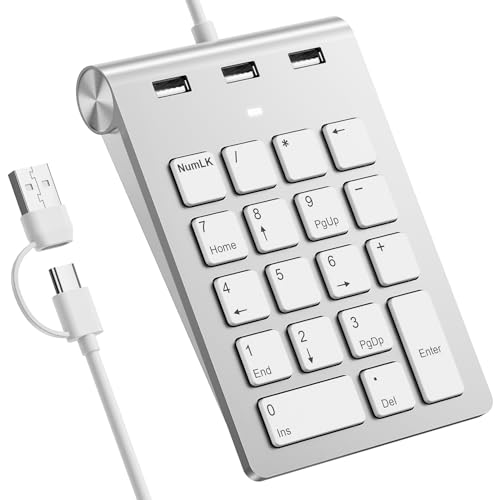 | Rytaki Pro USB-C/USB-A Numeric Keypad | Connection: USB-C and USB-A, per listing Keys: 18, per listing Extra controls: Three USB 2.0 hub ports Best fit: Shared desks with mixed ports | Check Price on Amazon |
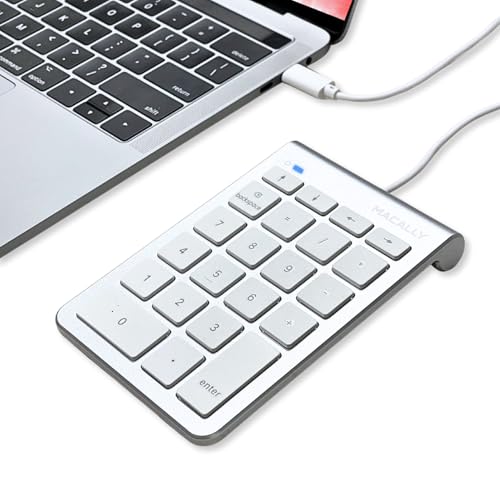 | Macally USB-C Number Pad | Connection: Wired USB-C Keys: Listing title and bullets disagree Extra controls: Not verified Best fit: MacBook USB-C desk | Check Price on Amazon |
 | Rottay Mechanical Numeric Keypad | Connection: Wired USB, connector not verified Keys: 22, per listing Extra controls: Backlight, Tab, Delete, calculator Best fit: Tactile Windows data entry | Check Price on Amazon |
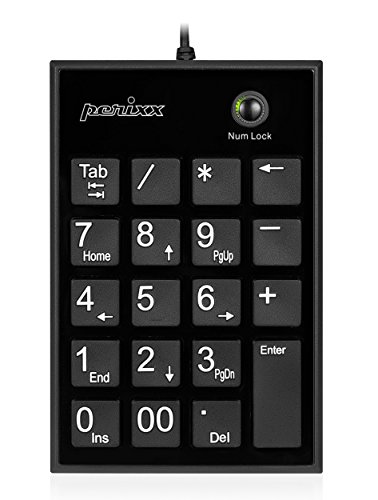 | Perixx PPD-202 | Connection: Wired USB 2.0 Keys: 19, per listing Extra controls: Tab, Num Lock Best fit: Slim Windows keypad | Check Price on Amazon |
 | TechGarden Wired Number Pad | Connection: Wired USB, connector not verified Keys: 19, per listing Extra controls: Num Lock, big-print keys Best fit: Simple big-print data entry | Check Price on Amazon |
1. CBUS USB-C 23-Key Numeric Keypad — Best for Spreadsheet Navigation
If your laptop has USB-C and you often move between fields, CBUS is the most spreadsheet-focused layout here. Its listing names a wired USB-C connection, 23 keys and extra Tab, Home, Email and Calculator controls. Tab and Home are the useful parts for sheets. Tab can advance to another cell, and Home can navigate depending on the app. Test the key behavior in your own spreadsheet, especially on macOS, rather than assuming every shortcut label means the same thing in every program.
The seller also names Num Lock and a five-foot cable. A cable gives a fixed desk connection with no battery to manage, but that length can leave excess wire beside a compact laptop. Compared with the simpler Perixx or TechGarden pads, CBUS makes sense only when you actually use the navigation controls. A USB-C laptop with few open ports might instead need a USB-C docking station for the rest of its desk devices.
Our Take Choose CBUS when a USB-C laptop needs a dedicated number grid and useful movement keys beside it. If your work is only number entry, a plainer 19-key pad is easier to justify. Verify the exact key mapping on your operating system before depending on the extra labels.
- USB-C connects directly to a compatible compact laptop without a USB-A adapter.
- Tab and Home add documented movement controls for sheet work.
- Wired operation avoids a battery or pairing step.
- Twenty-three keys take more desk space than a minimal number grid.
- The extra Email and Calculator labels may not match every app’s workflow.
2. Rytaki Pro USB-C/USB-A Numeric Keypad — Best for Mixed-Port Desks
A shared desk may alternate between USB-C and USB-A laptops. Rytaki Pro names both connectors and three downstream USB 2.0 ports on an 18-key pad. Those ports can hold basic peripherals, but USB 2.0 does not promise fast storage or charging. Check the connector arrangement before treating it as a dock substitute.
The seller calls out a 15-degree tilt, scissor keys and a Num Lock indicator. Those details help with layout, but comfort and key noise were not tested. The listing warns that macOS supports number keys but not its function keys. For Mac-only use, Macally’s USB-C pad below is narrower. If Windows and Mac share the desk, test both. The hot-desk docking guide covers mixed-host setups.
The three extra ports are listed as USB 2.0. Treat them as peripheral ports, not a substitute for a full-speed laptop dock.Our Take Pick Rytaki Pro when a shared desk needs both connector types and a small USB hub. Skip it if you only need a reliable number grid, or if the Mac function-key limitation removes the controls you wanted.
- The listing names both USB-C and USB-A host connections.
- Three listed USB 2.0 ports can hold basic desk peripherals.
- A Num Lock indicator helps diagnose an unexpected navigation mode.
- Function keys are not supported on macOS according to this exact listing.
- USB 2.0 hub ports do not answer a fast-storage or display need.
3. Macally USB-C Number Pad — Best for a MacBook Desk
Macally’s corded USB-C pad targets MacBook users who want a number cluster without a dongle. Its listing says it needs no driver and names Mac and Windows hosts with USB-C ports. It also describes full-size quiet keys, a tilted shape and a five-foot cable. Key sound and special-key behavior in Excel or Numbers were not independently tested.
The title calls it a 10-key pad, but the bullets say 22 keys. Inspect the listed product photos and layout before ordering. The MacBook Air monitor guide covers the rest of a Mac desk.
Our Take Choose Macally when a wired USB-C number pad is the specific missing piece on a MacBook desk. Its simple connection is the appeal, but the conflicting key count keeps us from recommending it for a required extra-key layout without a product-photo check.
- A documented USB-C cable fits compatible MacBooks directly.
- The seller says no driver is needed for basic operation.
- A tilted full-size-key layout is described for desk placement.
- The title and bullets disagree about how many keys this exact listing has.
- A five-foot fixed cable may be more wire than a portable setup wants.
4. Rottay Mechanical Numeric Keypad — Best for Tactile Windows Entry
For a Windows user who likes a distinct keypress, Rottay lists blue mechanical switches and a 22-key layout with Tab, Delete, Escape and a calculator shortcut. The tactile click is part of the stated design, not a quiet-office feature. If calls or shared-room work happen beside the spreadsheet, listen to a mechanical switch in person before selecting this over the scissor-key Perixx.
The listing names three blue-backlight modes and a 15-degree stepped design. The extra lighting can help locate keys in a dim room but does not improve spreadsheet function by itself. Rottay warns that MacBook and Chromebook users get number keys but not full function-key behavior. It is therefore best suited to Windows hosts. Choose by host compatibility, not by the attractive extra controls. For larger desk planning, see our office monitor roundup.
Test Num Lock, Tab and Delete in the target sheet. Mechanical feel does not make a mismapped shortcut useful.Our Take Buy Rottay for tactile Windows entry and the documented navigation keys, if an audible blue-switch click is acceptable. Choose Perixx for a slimmer scissor-key desk or CBUS when USB-C is non-negotiable.
- Mechanical blue switches provide the tactile feedback described in the listing.
- Tab, Delete and calculator controls can reduce reaches to the laptop keyboard.
- Backlight modes help identify keys at a dim desk.
- Its audible click can be unwelcome in a shared work area.
- MacBook and Chromebook function keys are limited according to the seller.
5. Perixx PPD-202 — Best Slim Windows Pad
Perixx’s PPD-202 is a slim 19-key pad with scissor keys, large-print legends, Tab and Num Lock. The listing gives a roughly 5.16-by-3.43-inch face and a short 80-centimeter USB 2.0 cable. That cable suits a pad parked close to the laptop. Measure the route if the laptop lives on a stand or behind a monitor. Perixx has a basic layout without Rottay’s backlight and extra keys.
The seller lists Windows 7 through 11 and later, not a verified Mac support path. It also calls the keys silent, but no acoustic measurement is supplied. Treat quietness as a seller description, not as proof for a library or recording room. If your workstation also needs a display and ports, a USB-C monitor hub may organize the wider desk.
Our Take Pick Perixx for straightforward Windows spreadsheet entry with a slim scissor-key layout. The short cable and Windows-focused compatibility are the two checks before purchase. TechGarden is the plainer big-print alternative if Tab is not important.
- Large-print keys and a slim 19-key layout make the number grid easy to locate.
- Tab and Num Lock support a common sheet-entry sequence.
- Plug-and-play wired use avoids charging and pairing.
- The 80-centimeter cable can be short when the laptop is raised or distant.
- The listing does not establish a Mac support path.
6. TechGarden Wired Number Pad — Best for Big-Print Basics
TechGarden sells a basic 19-key wired pad with large-print legends, a Num Lock control and seller-stated 19-millimeter keys. It suits number entry when extra macro or hub functions would add little. The listing claims a tilted, soft-touch design, but no independent comfort or noise test is available here. Compare it with Perixx on key layout, cable placement and the USB connector shown in the offer.
The listed OS compatibility emphasizes older Windows versions and Android. It does not establish macOS support. The saved text also does not clearly name the physical USB plug. Confirm the connector before ordering for a USB-C-only laptop. The USB-C docking-station guide explains when a dock solves too few ports better than an adapter for every accessory.
The saved description says wired USB, not a verified plug shape. Check the product photos against your laptop port.Our Take Choose TechGarden when a simple large-print number grid is enough and its USB plug matches the desk. Perixx offers a better-documented Tab key for row-by-row data work. CBUS is clearer for USB-C and navigation keys.
- Large-print key legends make the basic grid easier to locate visually.
- Nineteen keys cover the ordinary number-pad layout without added controls.
- A wired connection needs no battery or pairing.
- The saved text does not verify whether the plug is USB-A or USB-C.
- Mac compatibility is not established by the listing’s OS examples.
Buying Guide
1. Match the Connector to the Compact Laptop
Look at the laptop itself as well as the port name in a retailer filter. CBUS and Macally explicitly list USB-C. Rytaki Pro says it offers both USB-C and USB-A host connections. The saved descriptions for Rottay, Perixx and TechGarden say USB but do not establish a connector shape. Check the exact plug in product photos before adding an adapter to a USB-C-only laptop.
A keypad is a low-bandwidth peripheral, so a suitable dock or monitor hub can usually carry it alongside other office devices. The more important question is whether a free data port exists where the pad will sit. For a shared desk, our DisplayLink hot-desk guide separates port planning from the unrelated question of external-display drivers.
2. Pick the Keys Between the Numbers
If you type a value and move to the next field repeatedly, Tab can be as important as the digit grid. CBUS, Rottay and Perixx explicitly name Tab. CBUS adds Home, while Rottay names Delete. Write down your actual cell-entry sequence and compare it to the printed layout. A labeled Email or Calculator key is not a substitute for the navigation control you use every minute.
Test Num Lock behavior, because a pad that changes from numbers to navigation can appear broken. The listing is only a starting point. Try the exact spreadsheet on your operating system. macOS support may mean number entry works while special function keys do not, as Rytaki Pro and Rottay say. If a full-size keyboard would solve more than the keypad, our backlit keyboard overview shows that broader category.
3. Choose Key Feel and Cable Placement Deliberately
Rottay lists audible mechanical blue switches. Perixx and Rytaki Pro describe scissor mechanisms, while other listings use softer or quieter marketing terms. Do not infer measured noise from a switch label. Shared offices, calls and libraries may make a click more consequential than the seller’s durability number. If noise is a concern, try the key type before buying.
Place the pad where your number-entry hand rests naturally. Perixx’s listed 80-centimeter cable is short compared with the five-foot cables described for CBUS and Macally. Measure the path around stands and monitors, not just a straight line across the desk. For a larger display that keeps more columns visible, our monitor buying guide covers the next decision.
FAQ
Will an external number pad work with Excel on a Mac?
Basic numeric input may work, but special-key behavior varies by model and operating system. Macally lists Mac use with a USB-C port. Rytaki Pro and Rottay explicitly warn that their function keys are limited on macOS or MacBook, even when number keys work. Check the model’s support text and the keys you need in Excel.
Test Num Lock, decimal, Enter and any Tab or Home control in a copy of an actual worksheet. Do not treat a broad Mac compatibility claim as proof that every printed shortcut behaves identically to Windows.
Is a mechanical numpad better for spreadsheets?
Not automatically. Rottay offers the tactile, audible feedback of listed blue switches and extra controls, which some typists prefer. Data-entry accuracy depends on your habits and layout, not a switch-type promise. Speed and errors were not measured.
For a shared room, the Rottay click can be a downside. A scissor-key option such as Perixx may be easier to live with, but its seller’s quiet claim is still untested here. Choose by environment and key placement, then verify with normal work rather than a short showroom impression.
Do I need a dock to use a USB keypad with a USB-C laptop?
No, if a direct USB-C data port is free and the pad has a matching plug. CBUS and Macally name USB-C, while Rytaki Pro names both connector types. A matching connector is the immediate requirement. A dock is optional for the keypad alone.
A dock becomes useful when the same laptop must also carry a display, mouse, storage and network at the desk. Count those devices first and verify the dock’s data ports. Our USB-C docking-station roundup covers that larger choice.
Bottom Line
CBUS is the clearest fit for a USB-C spreadsheet laptop that needs Tab and Home. Rytaki Pro serves mixed-port desks with modest USB 2.0 hub needs. Perixx keeps a Windows number pad slim. Choose the required keys and plug before choosing a switch feel or extra lighting.