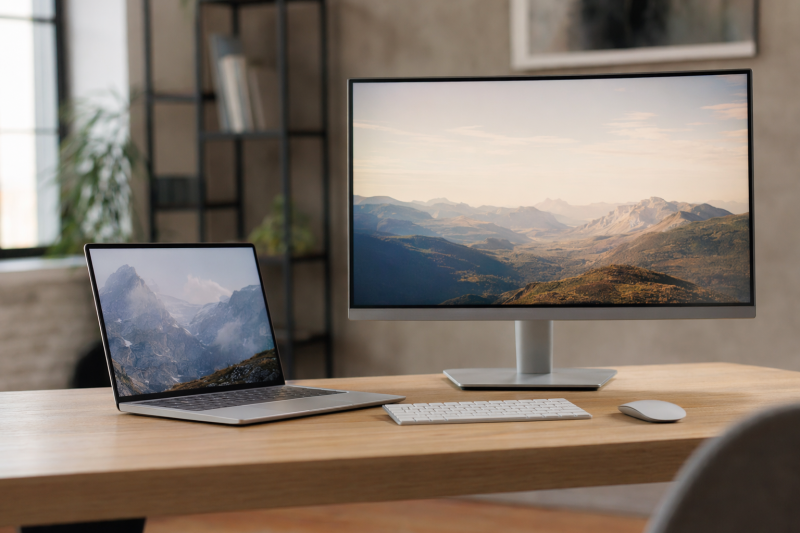
The Apple Studio Display is the best monitor for MacBook Air if you want 5K text clarity, reliable laptop charging, and a camera, speakers, and microphones in one Mac-focused package. The ASUS ProArt PA27JCV is the better-value 5K choice. It keeps the same 218 PPI density, supplies 96W over USB-C, adds a KVM and an adjustable stand, and leaves out Apple’s camera and audio system. The Dell S2725QC is our budget 4K pick because one USB-C cable carries video, USB data, and 65W charging while the panel reaches 120Hz.
This is a laptop guide, so panel quality is only half of the decision. A useful MacBook Air monitor should charge the computer, carry video, and connect desk peripherals through one cable. It should also fit the Air’s real external-display limit. Apple currently sells 13-inch and 15-inch MacBook Air models with the M5 chip. Both support two external displays while the built-in screen remains active, but older M1, M2, and M3 models behave differently.
Our seven picks cover 5K clarity, lower-cost 4K, travel, a 40-inch workspace, 4K OLED gaming, and Mac-oriented controls. Every exact US Amazon listing returned an active offer and primary image through the Amazon Creators API on July 15, 2026. Product specifications come from Apple, ASUS, Dell, and BenQ, not from guessed marketplace copy.
This post includes affiliate links, for which we may earn a commission at no extra cost to you should you make a purchase using our links. As an Amazon Associate, we can earn from qualifying purchases. Learn more.Recent Updates
July 2026: We rebuilt this guide around the currently sold 13-inch and 15-inch M5 MacBook Air, Apple’s March 2026 display guide, and Apple’s May 2026 USB-C charging guidance. We replaced ambiguous or unavailable monitor variants, selected seven materially different roles, and verified every final ASIN with both Creators SearchItems and GetItems.
Quick Picks for MacBook Air
- Best overall: Apple Studio Display, for 27-inch 5K clarity, up to 96W charging, and integrated camera and audio hardware.
- Best-value 5K: ASUS ProArt PA27JCV, for 218 PPI, 96W USB-C charging, a KVM, and a full ergonomic stand.
- Best budget 4K: Dell S2725QC, for 4K at 120Hz, 65W charging, a USB hub, speakers, and one-cable use.
- Best portable monitor: ASUS ZenScreen MB16NCG, for a 16-inch 2560 x 1600 travel screen at up to 155Hz.
- Best large productivity monitor: Dell UltraSharp U4025QW, for a 40-inch 5K2K workspace, Thunderbolt 4, a KVM, Ethernet, and charging.
- Best for gaming and HDR: ASUS ROG Swift OLED PG32UCDMR, for 4K QD-OLED at up to 240Hz with 90W USB-C charging.
- Best Mac-focused 4K: BenQ MA270U, for 90W USB-C, Mac brightness and volume controls, and a useful desk hub.
MacBook Air Monitor Comparison
| Image | Product | Details | Check Price |
|---|---|---|---|
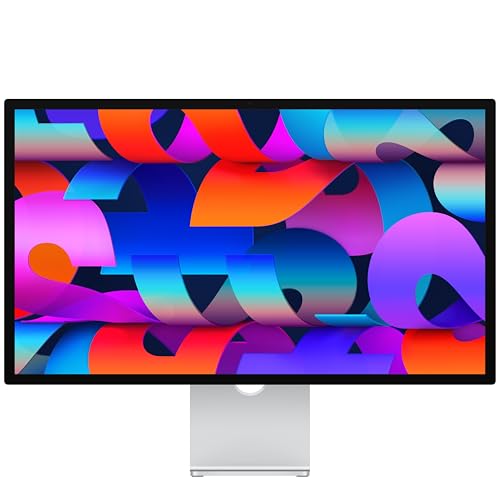 | Apple Studio Display | Size and resolution: 27-inch 5K, 5120 x 2880 at 60Hz Laptop connection: Thunderbolt, up to 96W charging MacBook Air value: 218 PPI, camera, speakers, microphones Stand: Tilt-adjustable stand Best for: Best overall MacBook Air monitor | Check Price on Amazon |
 | ASUS ProArt PA27JCV | Size and resolution: 27-inch 5K, 5120 x 2880 at 60Hz Laptop connection: USB-C DP Alt Mode, 96W charging MacBook Air value: 218 PPI, KVM, USB hub Stand: Height, tilt, swivel, pivot Best for: Best-value 5K monitor | Check Price on Amazon |
 | Dell 27 Plus 4K USB-C S2725QC | Size and resolution: 27-inch 4K, 3840 x 2160 at 120Hz Laptop connection: USB-C DP Alt Mode, 65W charging MacBook Air value: One-cable 4K, USB hub, speakers Stand: Height, tilt, swivel, pivot Best for: Best budget 4K monitor | Check Price on Amazon |
 | ASUS ZenScreen MB16NCG | Size and resolution: 16-inch 2560 x 1600 at up to 155Hz Laptop connection: Dual USB-C DP Alt Mode MacBook Air value: 1.98-pound travel screen, power pass-through Stand: Kickstand and tripod socket Best for: Best portable travel monitor | Check Price on Amazon |
 | Dell UltraSharp U4025QW | Size and resolution: 39.7-inch 5K2K, 5120 x 2160 at 120Hz Laptop connection: Thunderbolt 4, up to 140W charging MacBook Air value: KVM, 2.5GbE, broad USB hub Stand: Height, tilt, swivel Best for: Best large productivity monitor | Check Price on Amazon |
 | ASUS ROG Swift OLED PG32UCDMR | Size and resolution: 31.5-inch 4K QD-OLED at 240Hz Laptop connection: USB-C DP Alt Mode, 90W charging MacBook Air value: High refresh, OLED contrast, USB hub Stand: Height, tilt, swivel Best for: Best for gaming and HDR video | Check Price on Amazon |
 | BenQ MA270U | Size and resolution: 27-inch 4K, 3840 x 2160 Laptop connection: USB-C DP Alt Mode, 90W charging MacBook Air value: Mac controls, USB hub, speakers Stand: Height and tilt adjustment Best for: Best Mac-focused 4K monitor | Check Price on Amazon |
Current MacBook Air Display Support and One-Cable Charging
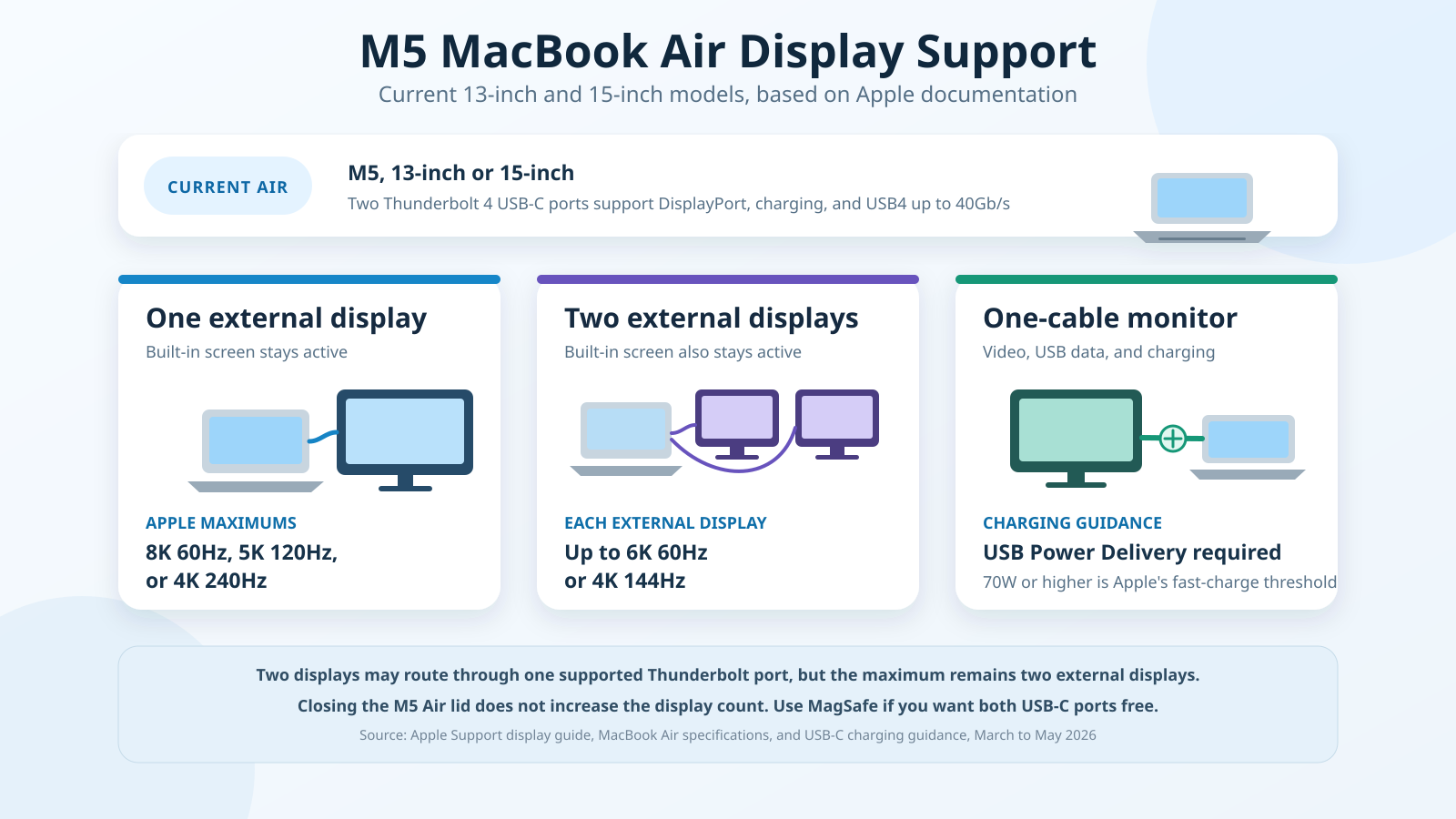
Apple currently sells the MacBook Air with the M5 chip in 13-inch and 15-inch sizes. Both have two Thunderbolt 4 USB-C ports that Apple lists for charging, DisplayPort, Thunderbolt 4 up to 40Gb/s, and USB4 up to 40Gb/s. Both also have MagSafe 3, so you can run one USB-C cable to the monitor for everything, or charge over MagSafe and keep both Thunderbolt ports free for data and displays.
With one external display, Apple lists a maximum of 8K at 60Hz, 5K at 120Hz, or 4K at 240Hz. With two external displays, Apple lists up to 6K at 60Hz or 4K at 144Hz on each. The built-in screen remains active at full native resolution in both arrangements. Apple also says a supported hub or daisy chain can route two displays through one Thunderbolt port, but it cannot raise the two-external-display limit.
On M5, closing the lid does not unlock another display. That is worth saying because older M3 models use a special closed-lid setup to reach two native external screens, and it is easy to assume the trick carries over. M5 and M4 already support two external displays with the panel open, so shutting the lid changes nothing about the count. Any hub, KVM, or downstream Thunderbolt port still has to fit within the Mac’s total.
Charging has a separate limit. Apple says a compatible USB-C display can charge a Mac laptop through USB Power Delivery. The current M5 Air ships with a 40W Dynamic Power Adapter with 60W Max, and Apple names a 70W or higher USB PD source for fast-charge capability. That puts the Dell S2725QC’s 65W in a useful spot for ordinary desk charging, but below the level Apple sets for fast charging. The 90W and 96W models provide more power headroom, though the Mac, display, and cable still negotiate the actual rate.
A monitor’s Power Delivery rating describes available power, not how fast the Air must accept it. A higher rating is safe when the display and cable follow USB PD because the laptop requests the supported level. For a deeper look at the connection itself, our USB4 versus Thunderbolt 4 guide explains why the same USB-C connector can carry different data and device capabilities.
Table of Contents
- Apple Studio Display, best overall
- ASUS ProArt PA27JCV, best-value 5K
- Dell S2725QC, best budget 4K
- ASUS ZenScreen MB16NCG, best portable
- Dell UltraSharp U4025QW, best large productivity monitor
- ASUS ROG Swift OLED PG32UCDMR, best for gaming
- BenQ MA270U, best Mac-focused 4K
1. Apple Studio Display — Best Overall Monitor for MacBook Air
The current Apple Studio Display is the most complete one-monitor desk for MacBook Air. Apple specifies a 27-inch 5120 x 2880 panel at 218 pixels per inch, 60Hz, and 600 nits. That density is the main attraction. It gives macOS enough pixels to draw comfortable controls while keeping text, icons, and image edges fine, which is why 27-inch 5K remains a stronger fit for Mac text than 27-inch 4K when budget allows.
One Thunderbolt cable handles the display connection, USB data, and up to 96W charging. That is well above the 70W USB PD level Apple names for M5 Air fast-charge capability, though the Mac controls the actual charging rate. The display also provides downstream Thunderbolt and USB-C connections for compatible peripherals. A current M5 Air can therefore arrive at the desk, connect one cable, and gain power, a large screen, and a small peripheral hub.
Apple also builds in the hardware that a laptop already has but may use less comfortably once it is docked. Its specifications list a 12MP Center Stage camera with Desk View, a six-speaker system, and a three-microphone array. Those features let you place the Air on a stand or close it without losing the camera and audio path used for calls. If you keep the Air open below the monitor, macOS can still use either set of devices.
The exact Amazon item matters. This ASIN is the standard-glass model with a tilt-adjustable stand. It is not Apple’s nano-texture version, height-adjustable version, or VESA configuration. If the screen must move vertically, choose the right Apple configuration at purchase or budget for a suitable riser. The listed model has no HDMI input and no two-computer KVM, so it is less flexible for a game console or shared work PC.
The 60Hz ceiling is the other clear limit. The Dell S2725QC looks smoother at 120Hz, and the ASUS OLED reaches 240Hz. The Studio Display wins on density, camera and audio integration, and a clean charging setup instead. Our guide to the best 5K monitors compares more options in this resolution class.
Our Take
Choose the Studio Display when you want one cable and the fewest separate desk accessories. Its 5K panel is the core reason to buy it; the camera, speakers, microphones, charging, and hub make it our best overall MacBook Air monitor. Skip this exact configuration if height adjustment, HDMI, a KVM, or refresh above 60Hz is required.
- 27-inch 5K panel at an Apple-specified 218 PPI
- Up to 96W charging through the host connection
- Integrated camera, microphones, and six-speaker system
- One-cable display, data, and power setup
- Limited to 60Hz
- This exact model tilts but does not adjust for height
- No HDMI input or two-computer KVM
2. ASUS ProArt PA27JCV — Best-Value 5K Monitor
The ASUS ProArt PA27JCV is the best-value route to the same 27-inch 5K density class. ASUS lists 5120 x 2880 resolution at 218 PPI and 60Hz. Text and fine interface elements get the pixel structure that makes 5K appealing on macOS, but you are not paying for Apple’s camera, microphone array, or six-speaker system.
Its USB-C input accepts DisplayPort Alt Mode, USB data, and supplies up to 96W. That is a strong one-cable match for current and older USB-C-charging Air models. The connection is not Thunderbolt, so do not expect downstream Thunderbolt devices or Thunderbolt bandwidth from the monitor. For a keyboard, mouse, card reader, or ordinary USB accessory, ASUS lists one downstream USB-C port and three USB-A ports.
The KVM gives this monitor a desk role the Studio Display does not fill. Connect the MacBook Air by USB-C, connect a second computer through its own upstream video and USB connection, and the attached keyboard and mouse can follow the selected source. This is useful when the Air shares the screen with a work laptop or desktop. HDMI 2.1 and DisplayPort 1.4 also make the input set less restrictive than Apple’s display.
ASUS positions the PA27JCV for color work. It specifies 99% DCI-P3, 95% Adobe RGB, and 100% sRGB coverage, Calman verification, and a factory color error below Delta E 2. These are manufacturer figures, not independent measurements. Color-managed work still needs the correct profile and periodic calibration rather than treating the factory sheet as permanent accuracy.
The stand adjusts for height, tilt, swivel, and pivot, and the chassis supports a 100 x 100mm VESA mount. Two 2W speakers cover basic system sound but are not a substitute for the Studio Display’s audio package. For buyers who already own a webcam and speakers, that trade is sensible. See our best USB-C monitors guide for more one-cable screens at other resolutions.
Our Take
Pick the PA27JCV when 5K text, 96W charging, a KVM, and proper stand adjustment matter more than an integrated camera and high-end speakers. It is the practical value choice for a MacBook Air desk that already has its media accessories.
- 27-inch 5K resolution at an ASUS-listed 218 PPI
- 96W USB-C charging and a useful USB hub
- KVM for a two-computer desk
- Height, tilt, swivel, pivot, and VESA support
- USB-C connection is not Thunderbolt
- Limited to 60Hz
- No integrated webcam and only basic speakers
3. Dell S2725QC — Best Budget 4K USB-C Monitor
The Dell S2725QC is our budget pick because it keeps the laptop features that matter. Dell specifies a 27-inch 3840 x 2160 IPS panel at up to 120Hz, USB-C video and data, 65W charging, a small USB hub, speakers, and a fully adjustable stand. It gives a MacBook Air one-cable desk behavior without paying for premium 5K density or a large docking system.
At 27 inches, 4K works out to about 163 PPI. That is not as fine as the 218 PPI Studio Display or PA27JCV, but it remains a substantial step above a 27-inch 1440p panel. macOS scaling lets you choose comfortable control size or more workspace. Start with the default choice, then compare text and app layout in the programs you use rather than picking a scaled mode from a forum screenshot.
The 120Hz refresh makes scrolling, pointer movement, and window animation look more fluid than a 60Hz productivity monitor. Current M5 and M4 Air models have enough documented single-display headroom for 4K 120Hz, but the USB-C cable and monitor mode must support it. Dell includes a USB-C cable in its documented package, and direct connection is the cleanest setup before adding adapters.
Dell rates the USB-C host port for up to 65W Power Delivery and 5Gb/s data. That output is useful for ordinary Air charging and exceeds the maximum output named for the current included 40W Dynamic adapter, but it is below Apple’s 70W fast-charge threshold. The right description is one-cable charging, not fast charging. One downstream USB-C and two USB-A connections cover a receiver, keyboard, or other modest peripherals.
Two 5W speakers and height, tilt, swivel, and pivot adjustment make the S2725QC unusually complete for its role. It has no Ethernet, KVM, webcam, or downstream display path. Those omissions are acceptable if the goal is a clean personal desk rather than replacing a full dock. Our best 4K monitors guide covers choices where laptop charging is not mandatory.
The S2725QC is the value point where charging, 4K, 120Hz, speakers, and stand adjustment all remain in the package.
Our Take
Choose the S2725QC when you want a sensible one-cable 4K desk and can accept lower pixel density than 5K. Its 65W output is appropriate for steady Air charging, while 120Hz and a real stand improve daily use more than a bare budget panel.
- 27-inch 4K panel at up to 120Hz
- USB-C video, 5Gb/s data, and 65W charging
- USB hub and two 5W speakers
- Height, tilt, swivel, pivot, and VESA support
- 65W does not meet Apple’s 70W fast-charge threshold
- Lower text density than 27-inch 5K
- No KVM, Ethernet, or webcam
4. ASUS ZenScreen MB16NCG — Best Portable Monitor
The ASUS ZenScreen MB16NCG is the travel pick for adding a real second workspace without packing a desktop panel. ASUS specifies a 16-inch 16:10 IPS screen at 2560 x 1600, up to 155Hz, and 1.98 pounds. Its shape sits naturally beside a 13-inch or 15-inch Air, and the extra vertical room is useful for documents, code, research, and communication windows.
Two USB-C ports accept DisplayPort Alt Mode. In the simplest arrangement, one cable from the Air carries video and power to the portable display, so the monitor draws from the laptop battery. When an external USB-C power source is attached to the second port, ASUS lists power pass-through up to 65W. That can reduce battery drain and charge the Air, but it adds a wall adapter and second cable to the travel kit.
The panel’s up-to-155Hz mode is a welcome change from portable screens that stop at 60Hz. ASUS labels the maximum as an overclocked refresh rate, and the exact available rate depends on the input and host. Current M5 Air supports far higher single-display ceilings than this panel needs, but a direct USB-C path is still the best starting point. Mini HDMI is available for another source, though a USB-C Air setup is cleaner.
ASUS rates the panel for 400 nits, 100% sRGB, and a 1500:1 contrast ratio. Those are manufacturer specifications, not measurements. There are no speakers, no internal desktop-class hub, and no height-adjustable stand. The integrated support and tripod socket give you placement choices, but a portable screen remains easier to knock or position poorly than a weighted desktop monitor.
Portability also changes the charging question. A bus-powered screen reduces the Air’s battery runtime because the laptop powers two panels. Power pass-through can reverse that flow only when the portable monitor itself receives adequate USB-C power. If travel means outlets are uncertain, lower brightness and refresh can be more useful than chasing maximum motion smoothness.
Our Take
Pick the MB16NCG when the monitor must fit in the same travel routine as the MacBook Air. Its sharp 16:10 panel, low weight, dual USB-C inputs, and high refresh make it a credible mobile workspace. It is not a desktop dock, and one-cable bus power consumes the Air’s battery rather than charging it.
- 16-inch 2560 x 1600 travel-friendly panel
- Up to 155Hz refresh
- Two USB-C DisplayPort Alt Mode inputs
- ASUS-listed 1.98-pound weight and 65W pass-through
- Bus-powered use drains the laptop battery
- No speakers or desktop-style peripheral hub
- Pass-through charging needs an external power source
5. Dell UltraSharp U4025QW — Best Large Productivity Monitor
The Dell UltraSharp U4025QW turns one Thunderbolt connection into a broad workstation. Dell specifies a 39.7-inch curved 5120 x 2160 IPS Black panel at 120Hz. Its 21:9 canvas can hold a large primary application beside documents, chat, or a preview without a bezel in the middle. For a MacBook Air used as the only computer at a permanent desk, it replaces both a second monitor and much of a separate dock.
The upstream Thunderbolt 4 port carries video, USB data, and up to 140W EPR Power Delivery. A MacBook Air will request only the power it supports, so the large headline does not force 140W into the laptop. It simply gives ample headroom. Dell also lists a downstream Thunderbolt 4 port, several 10Gb/s USB connections, 2.5Gb Ethernet, an audio output, and a KVM for sharing attached devices with a second computer.
The panel is wide rather than Retina-dense. Dell lists 140 PPI, far below a 27-inch 5K screen’s 218 PPI. You gain continuous physical space and smooth 120Hz motion, not the finest small text. A 39.7-inch curved display also demands more desk width and depth than its diagonal suggests. The stand adjusts for height, tilt, and swivel but does not pivot, which is appropriate for this shape.
Dell specifies DisplayHDR 600, a typical 2000:1 contrast ratio, built-in speakers, and broad manufacturer-rated color coverage. These are product specifications, not independent performance findings. IPS Black can improve contrast over ordinary IPS, but it does not produce OLED’s per-pixel black or remove edge-lit HDR limits.
Apple lists 5K at 120Hz as a supported one-display ceiling for current M5 Air, but that host limit is not a guarantee for every 5120 x 2160 route. Use the included Thunderbolt cable, connect directly, confirm the offered resolution and refresh in macOS, and only then add downstream displays or adapters. Dell’s direct US page was sold out during research, while this exact Amazon ASIN returned an active offer, a marketplace scope difference recorded in the source ledger.
The U4025QW is the best dock monitor here, but it is not the default recommendation for everyone. If you need only a keyboard receiver and speakers, the Dell S2725QC is much simpler. If text density matters more than width, either 5K 27-inch model is the better choice. Our guide to monitors with built-in docking stations explains when paying for the integrated hub makes sense.
Our Take
Choose the U4025QW when one wide screen should also charge the Air, connect Ethernet and USB devices, and switch peripherals between two computers. It is a complete desk system, not a compact monitor, and its 140 PPI text is the main trade against 5K at 27 inches.
- 39.7-inch 5120 x 2160 workspace at 120Hz
- Thunderbolt 4 with ample charging headroom
- KVM, 2.5Gb Ethernet, and broad USB hub
- Built-in speakers and adjustable stand
- Needs a wide and deep desk
- 140 PPI is less text-dense than 27-inch 5K
- Exact high-refresh mode depends on the complete connection
6. ASUS ROG Swift OLED PG32UCDMR — Best for Gaming and HDR
The ASUS ROG Swift OLED PG32UCDMR is the specialist choice for games, fast motion, and HDR video. ASUS specifies a 31.5-inch 3840 x 2160 QD-OLED panel at up to 240Hz, with a manufacturer-rated 0.03ms response time and 99% DCI-P3 coverage. OLED controls light per pixel, so black areas can sit beside bright detail without an IPS backlight lifting the entire scene.
The USB-C input accepts DisplayPort Alt Mode and supplies up to 90W. That lets a current Air use one cable for the display, hub data, and charging. ASUS also lists DisplayPort 2.1, two HDMI 2.1 inputs, and three USB-A hub ports. A console or gaming PC can stay connected beside the MacBook Air, though input and USB switching are less central here than on the Dell dock monitor.
Current M5 and M4 Air support one 4K display up to 240Hz according to Apple. That makes this panel’s headline mode relevant, not merely a Windows specification. It still depends on the selected input, cable, monitor firmware, macOS, and whether another display is active. Set up the OLED as the only external display first, choose the USB-C or suitable HDMI route, and confirm the refresh macOS actually offers.
At 32 inches, 4K is about 140 PPI. It is less suited to the finest static text than 27-inch 5K, and OLED brings a second productivity concern. Menu bars, browser tabs, application chrome, and dock icons can remain fixed for hours, creating image-retention and burn-in risk. ASUS lists OLED Care features and a three-year warranty that includes panel burn-in, but mitigation and warranty coverage do not make permanent retention impossible.
The stand adjusts for height, tilt, and swivel, and the display supports a 100 x 100mm VESA mount. There are no built-in speakers. Buyers who mostly write, code, or work in spreadsheets should favor an IPS model. Buyers who divide the Air between ordinary work and games gain much more from 240Hz and OLED contrast. Our best OLED monitors guide examines this panel type across more use cases.
Our Take
Buy the PG32UCDMR when gaming and HDR contrast justify OLED ownership care. It combines a Mac-supported 4K 240Hz class with 90W USB-C charging and useful inputs. Skip it for an all-day static office desktop where 5K text and lower burn-in risk matter more.
- 31.5-inch 4K QD-OLED at up to 240Hz
- USB-C video, hub data, and 90W charging
- DisplayPort 2.1 and two HDMI 2.1 inputs
- Three-year ASUS warranty includes panel burn-in
- Static desktop content creates burn-in risk
- Lower text density than 27-inch 5K
- No built-in speakers or Ethernet
7. BenQ MA270U — Best Mac-Focused 4K Monitor
The BenQ MA270U is the Mac-focused 4K option for buyers who want laptop controls and charging without stepping up to 5K. The exact Creators listing identifies a 27-inch 3840 x 2160 model for MacBook Pro and Air, and BenQ lists USB-C DisplayPort Alt Mode, data, and 90W Power Delivery on its official specification page.
BenQ’s Display Pilot 2 software is the distinguishing feature. The company says it lets Mac users control monitor brightness and volume from familiar controls, while ICCsync coordinates the selected monitor profile with the source. These are BenQ features and claims, not proof that the MA270U exactly matches every built-in Air panel. Color appearance still depends on the chosen mode, profile, lighting, and individual panel.
The USB-C connection carries the main display signal, hub data, and charging. BenQ also lists two 5Gb/s USB-A ports, a downstream USB-C port with up to 15W, and two HDMI 2.0 inputs. That is enough for common desk peripherals and a second source, though there is no Ethernet or Thunderbolt expansion. The 90W power rating gives current Air models ample headroom above Apple’s 70W fast-charge source threshold.
At 27 inches, 4K provides about 163 PPI. It is sharp, but the Studio Display and PA27JCV remain visibly denser at 218 PPI. Choose the BenQ for its Mac control behavior, one-cable hub, and lower resolution class, not because marketing language makes 4K equivalent to 5K. Buyers doing fine typography or long hours of small-text work should compare both density classes before deciding.
The exact Amazon title promises height and tilt adjustment, and BenQ lists 100 x 100mm VESA support. We do not add stand movements that were not established for this exact item during research. The monitor is easiest to justify when the Air is the primary computer and software control is more valuable than 120Hz refresh, a KVM, or a wired network port.
Our Take
Choose the MA270U when you want a Mac-oriented 4K desk with 90W charging and a practical USB hub. It is easier to integrate with Mac controls than a generic monitor, but the ASUS PA27JCV is sharper and the Dell S2725QC is faster.
- 27-inch 4K panel with Mac-focused control software
- 90W USB-C charging and 5Gb/s hub data
- Two USB-A, downstream USB-C, and two HDMI inputs
- VESA support and adjustable stand
- Lower density than 27-inch 5K
- No Thunderbolt, Ethernet, or KVM
- Mac color-match language remains a manufacturer claim
How to Choose the Best Monitor for MacBook Air
Start with your MacBook Air generation
The current M5 Air supports up to two external displays while its built-in display remains active. M4 behaves the same way under Apple’s current guide. M3 supports one external display with the lid open and two only in Apple’s documented closed-lid setup. M1 and M2 support one native external display. This host rule matters more than the number of video outputs printed on a monitor or dock.
If your goal is one external monitor, every product in this guide fits the native count of every Apple-silicon Air generation. Resolution and refresh still vary by Mac. If your goal is two external displays, current M4 and M5 models are the simplest native hosts. An M3 needs the closed-lid conditions. M1 and M2 need a software graphics technology such as DisplayLink for a second independent external screen, which has driver and protected-content tradeoffs. Our guide to supporting more external monitors on M-series Macs covers that separate route.
Treat charging as part of the monitor, not a bonus
A laptop monitor connection should remove a cable. USB-C or Thunderbolt can carry video, USB data, and USB Power Delivery at the same time, but only when the exact monitor port supports all three. A USB-C socket that exists only for downstream data or service is not a host charging input.
For current M5 Air, Apple’s included adapter is rated at 40W with 60W maximum output, and Apple names 70W or higher USB PD for fast charging. That makes 65W enough for a useful desk charge but below the named fast-charge threshold. The 90W and 96W picks have more headroom. Power delivery above the Air’s requirement is normal under USB PD because the computer negotiates what it accepts.
Choose 5K for fine text or 4K for value and refresh
At 27 inches, 5K is about 218 PPI and 4K about 163 PPI. The 5K class gives macOS more pixels for the same physical interface size, which improves fine text and detailed graphics. That is why the Studio Display and PA27JCV lead this list. A 4K 27-inch screen remains sharp and can cost less, add faster refresh, or include a better hub.
Screen size changes the calculation. The 32-inch ASUS OLED is about 140 PPI, so its advantage is motion and contrast rather than fine text. The 40-inch Dell is also 140 PPI, using 5120 horizontal pixels to create width rather than Retina-class density. Decide whether you want smaller text rendered more finely or more physical room for large windows.
Match refresh rate to work and play
Sixty hertz is appropriate for documents, photo editing, calls, and most video work. One hundred twenty hertz makes scrolling and general interaction look smoother. The Dell S2725QC and U4025QW provide that middle ground. The ASUS OLED’s 240Hz ceiling is mainly for games and fast motion.
Apple’s current one-display ceiling reaches 4K 240Hz, but monitor support still depends on the complete path. USB-C DisplayPort mode, HDMI version, cable capability, firmware, and other active screens can lower the available choices. Connect the main display directly and verify its refresh before adding a hub or second monitor. Our best Thunderbolt monitors guide covers displays where the high-speed hub is part of the purchase.
Decide whether the monitor should replace a dock
The Studio Display provides a modest peripheral hub. The PA27JCV adds a KVM and several USB ports. The Dell U4025QW goes much further with 2.5Gb Ethernet, KVM switching, downstream Thunderbolt, and numerous USB connections. A monitor with the right hub can remove a separate box and its power supply.
A separate dock can be easier to replace and may offer a better port layout. An integrated monitor hub reduces cables and keeps switching close to the display. Our comparison of docking stations and monitors with built-in docks explains the ownership trade.
Account for the laptop’s own screen, camera, and keyboard
Closing the lid creates a cleaner desktop but removes the built-in camera, keyboard, trackpad, and Touch ID surface from immediate use. The Studio Display replaces the camera and audio pieces; other monitors may need a webcam and speakers. An external keyboard with Touch ID is a separate purchase. Add those costs before calling a bare panel the cheaper setup.
Frequently Asked Questions
What is the best monitor for the current M5 MacBook Air?
The Apple Studio Display is our best overall choice because its 27-inch 5K panel, up to 96W charging, camera, microphones, speakers, and peripheral connections form a complete one-cable desk. The ASUS PA27JCV is the stronger value if you already own a camera and speakers. The Dell S2725QC is the lower-cost 4K 120Hz option.
How many monitors can an M5 MacBook Air support?
Apple says M5 MacBook Air supports two external displays in addition to the built-in display. One external can run up to 8K 60Hz, 5K 120Hz, or 4K 240Hz. Two can run up to 6K 60Hz or 4K 144Hz each. A supported hub can route both through one Thunderbolt port, but it cannot raise the total.
Does closing the M5 MacBook Air lid allow a third external display?
No. Apple explicitly says closing the M5 lid does not increase the number of supported external displays. The same is true for M4 under Apple’s current guide. The closed-lid rule that changes display count belongs to the M3 generation, not M4 or M5.
What are the M1 and M2 MacBook Air monitor limits?
Apple’s M1 and M2 specifications list the built-in display plus one external display up to 6K at 60Hz. They do not document a second native external display when the lid closes. A second independent external screen generally requires a software graphics solution such as DisplayLink, which is different from native USB-C or Thunderbolt video.
How does the M3 MacBook Air dual-monitor setup work?
With the lid open, M3 supports the built-in display plus one external display up to 6K 60Hz. Apple permits two external displays when the lid is closed, the Mac is connected to power, an external keyboard and mouse or trackpad are connected, and macOS Sonoma 14.3 or later is installed. Apple lists the first display up to 6K 60Hz or 4K 144Hz and the second up to 5K 60Hz or 4K 100Hz. Opening the lid makes the second external display go dark or disconnect.
Is 65W enough to charge a MacBook Air from a monitor?
It is useful for ordinary charging on a current Air. Apple’s current M5 Air includes a 40W Dynamic Power Adapter with 60W Max, while Apple names 70W or higher USB PD for fast-charge capability. A 65W monitor therefore should not be described as an Apple fast-charge source. Workload, connected devices, cable, and battery state also affect charging behavior.
Is USB-C the same as Thunderbolt on a monitor?
No. USB-C describes the connector. A USB-C monitor can use DisplayPort Alt Mode for video and may provide USB data and charging, but that does not make its hub Thunderbolt. Thunderbolt monitors can offer a higher-capability device path and downstream Thunderbolt connections. Check the exact upstream port specification.
Should I buy 4K or 5K for a 27-inch MacBook Air setup?
Choose 5K when fine text and Retina-class density are the priority. A 27-inch 5K screen is about 218 PPI, while 27-inch 4K is about 163 PPI. Choose 4K when value, 120Hz refresh, or a particular hub matters more. Both work with macOS scaling, but they do not have the same pixel density.
Can a portable monitor charge the MacBook Air?
It depends on the portable monitor and power arrangement. The ASUS MB16NCG can run from one USB-C cable connected to the Air, but that bus-powered setup draws from the laptop battery. ASUS lists pass-through up to 65W when the monitor receives external USB-C power. That arrangement adds an adapter and second cable.
How We Chose These Monitors
We started with Apple’s current MacBook Air sales page, the separate 13-inch and 15-inch M5 technical specifications, the March 2026 display-support guide, and the May 2026 USB-C power guidance. Those sources fixed the current lineup, port capabilities, lid behavior, display count, resolution and refresh ceilings, and charging thresholds before any monitor was ranked.
Each product then needed an exact official manufacturer page for its important specifications. We prioritized one-cable laptop behavior, charging, useful hub ports, portability, and fit with the Air’s display engines. The seven roles are intentionally different: integrated 5K, value 5K, budget 4K, portable, large dock monitor, OLED gaming, and Mac-focused 4K. Manufacturer brightness, gamut, contrast, and response figures are attributed as specifications rather than presented as measurements.
Finally, every exact item was found through Amazon Creators SearchItems and checked with GetItems on July 15, 2026. Each returned the requested ASIN, matching identity, active offer, and primary image. Article cards and the table sidecar use those exact images in the same ASIN order. We did not inherit an identifier from an older guide, hardcode a live price, or claim personal testing.
Also Considered and Excluded
The Dell UltraSharp U2725QE was excluded after Amazon returned two active exact-model listings and the official specification capture was incomplete at the manager’s research cutoff. The older ASUS ZenScreen MB16QHG was excluded because SearchItems did not return an exact active match; the MB16NCG earned the portable role only after its own exact verification.
We also rejected close variants that would blur product identity. Apple Studio Display nano-texture, height-adjustable, VESA, and older-generation listings are separate items. ASUS PG32UCDM and PG32UCDP are not the PG32UCDMR used here. BenQ MA270UP and renewed MA270U listings are not the selected MA270U. Alternate Dell U4025QW marketplace entries were left out in favor of the clean exact-model ASIN.
No monitor was added merely to reach a larger count. Seven defensible roles are more useful than a list padded with another 27-inch 4K screen. Amazon availability, Apple support documents, firmware, and macOS can change, so the manager should rerun the full audit immediately before publication.