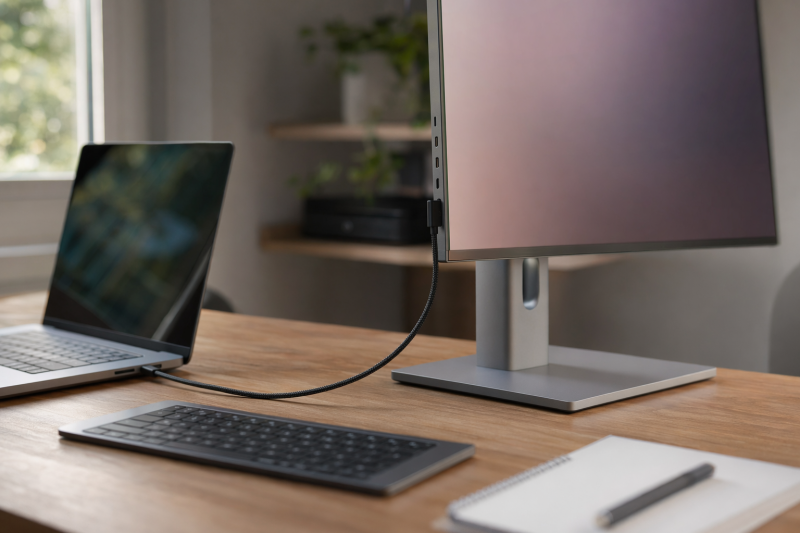
The Dell UltraSharp U3225QE is the best home-office monitor when you want one large 4K screen that also works as a laptop dock. Its 120Hz panel, Thunderbolt 4 connection, up to 140W Power Delivery, KVM, 2.5Gb Ethernet, and broad USB hub add up to a premium desk in a single unit. The other eight picks below cover smaller desks, tighter budgets, video calls, creative work, coding, travel, and wide-screen workflows.
We checked current manufacturer specifications and confirmed each exact Amazon listing through catalog search and item lookup. Begin with the work area and how the screen fits your desk, then decide how much a one-cable connection, charging, KVM, webcam, or network port is worth to you.
Recent Updates
July 2026: We built this guide from current manufacturer pages and the live home-office monitor field. All nine ranked picks and both honorable mentions cleared exact Amazon listing checks and carry usable official sources. Candidates that returned only bundles, model mismatches, no exact listing, or no normally accessible official source were left out.
Quick Picks by Home-Office Setup
- Best overall: Dell UltraSharp U3225QE, for a premium 32-inch 4K desk with a full Thunderbolt hub.
- Best 27-inch 4K monitor: ASUS ProArt PA279CRV, for sharp text, strong adjustment, and 96W USB-C charging.
- Best compact value pick: BenQ GW2486TC, for a small desk that still needs USB-C, charging, and a proper stand.
- Best 34-inch ultrawide: Dell UltraSharp U3425WE, for two large work areas without a center bezel.
- Best for video calls: Dell P2724DEB, for its camera, microphones, speakers, KVM, Ethernet, and USB-C dock features.
- Best for creative work: BenQ PD2730S, for a 27-inch 5K canvas with Thunderbolt 4 and wide manufacturer-rated color coverage.
- Best dual-monitor replacement: Dell UltraSharp U4924DW, for a single 49-inch 5120 x 1440 desktop.
- Best for coding: BenQ RD280U, for a tall 3:2 screen and a two-computer KVM setup.
- Best portable second screen: Lenovo ThinkVision M14t Gen 2, for 14-inch touch and pen work away from the main desk.
Home-Office Monitor Comparison
| Image | Product | Details | Check Price |
|---|---|---|---|
 | Dell UltraSharp U3225QE | Size and resolution: 31.5-inch 4K, 3840 x 2160 at 120Hz Connection: Thunderbolt 4 Laptop charging: Up to 140W EPR Office features: KVM, 2.5GbE, USB hub, daisy-chain output Best for: Premium 32-inch one-cable desk | Check Price on Amazon |
 | ASUS ProArt PA279CRV | Size and resolution: 27-inch 4K, 3840 x 2160 at 60Hz Connection: USB-C with DisplayPort Alt Mode Laptop charging: Up to 96W Office features: USB hub, DP output, full ergonomic stand Best for: Mainstream 27-inch 4K desk | Check Price on Amazon |
 | BenQ GW2486TC | Size and resolution: 23.8-inch Full HD, 1920 x 1080 at 100Hz Connection: USB-C with DisplayPort Alt Mode Laptop charging: Up to 60W Office features: Noise-canceling mic, speakers, USB hub, DP output Best for: Compact or value-conscious desk | Check Price on Amazon |
 | Dell UltraSharp U3425WE | Size and resolution: 34.14-inch ultrawide, 3440 x 1440 at 120Hz Connection: Thunderbolt 4 Laptop charging: Up to 90W Office features: KVM, 2.5GbE, USB hub, daisy-chain output Best for: One-screen ultrawide workflow | Check Price on Amazon |
 | Dell P2724DEB | Size and resolution: 27-inch QHD, 2560 x 1440 at 60Hz Connection: USB-C with DisplayPort Alt Mode Laptop charging: Up to 90W Office features: 4MP IR camera, dual mics, speakers, KVM, 1GbE Best for: Video calls and shared workspaces | Check Price on Amazon |
 | BenQ PD2730S | Size and resolution: 27-inch 5K, 5120 x 2880 at 60Hz Connection: Thunderbolt 4 Laptop charging: Up to 90W Office features: KVM, 10Gbps USB hub, TB4 output, speakers Best for: Creative work and very fine text | Check Price on Amazon |
 | Dell UltraSharp U4924DW | Size and resolution: 49-inch Dual QHD, 5120 x 1440 at 60Hz Connection: USB-C with DisplayPort Alt Mode Laptop charging: Up to 90W Office features: 2.5GbE, USB hub, dual-source layout, speakers Best for: Replacing two 27-inch QHD monitors | Check Price on Amazon |
 | BenQ RD280U | Size and resolution: 28.2-inch 3:2, 3840 x 2560 at 60Hz Connection: USB-C with DisplayPort Alt Mode Laptop charging: Up to 90W Office features: KVM, USB hub, USB-C MST output, speakers Best for: Coding and tall documents | Check Price on Amazon |
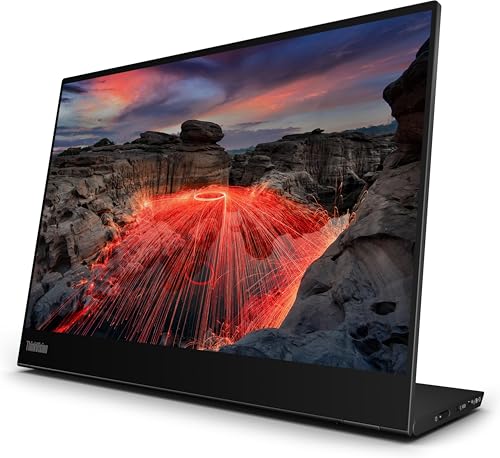 | Lenovo ThinkVision M14t Gen 2 | Size and resolution: 14-inch 16:10, 2240 x 1400 at 60Hz Connection: Dual USB-C with DisplayPort Alt Mode Laptop charging: Up to 65W pass-through Office features: 10-point touch, included passive pen, folding stand Best for: Portable second-screen work | Check Price on Amazon |
27-Inch 4K, 32-Inch 4K, Ultrawide, or Dual Monitors?
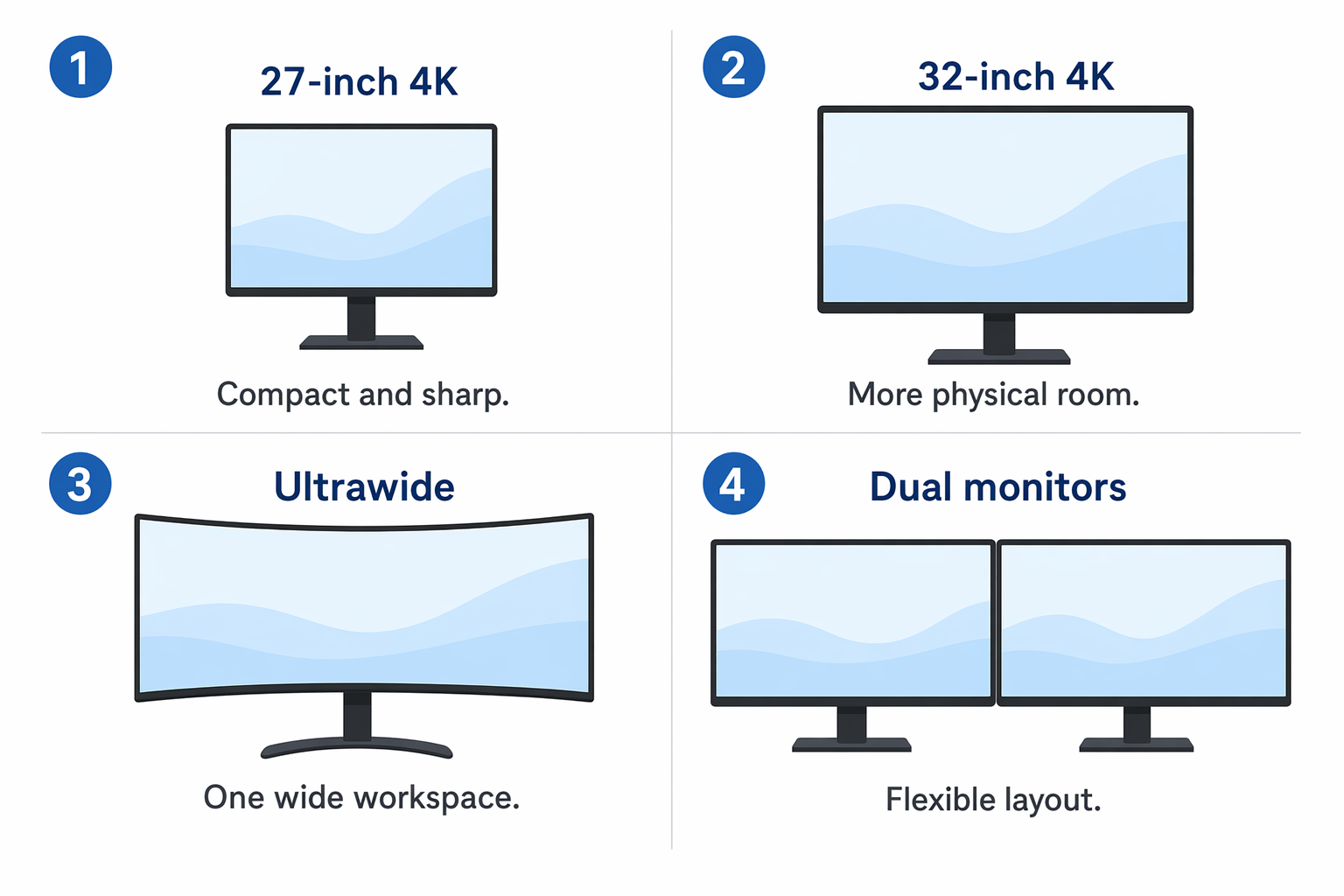
A 27-inch 4K monitor is the safest starting point for most home offices. It renders text with a fine pixel structure, leaves room for a laptop or notebook alongside it, and plays well with operating-system scaling. Step up to 32-inch 4K when you want larger physical windows, plan to sit a little farther back, or would rather center one display than manage two.
A 34-inch 3440 x 1440 ultrawide wins when your day revolves around two apps side by side. It offers more horizontal room than a 27-inch QHD monitor, though it is not as dense as a 27-inch 4K panel. A 49-inch 5120 x 1440 monitor is the single-screen counterpart to two 27-inch QHD displays: it drops the middle bezel and stands on one base, but it asks for a wide desk and careful window management.
Two separate monitors stay the flexible option when you want different sizes, one screen in portrait position, or one display reserved for calls. The trade is more cables, more stand space, and a host or dock that can drive both. Our dual-monitor docking-station guide walks through that signal path in more detail, and if size and viewing distance are still up in the air, start with our guide to choosing a computer monitor.
Table of Contents
- Dell UltraSharp U3225QE, best overall
- ASUS ProArt PA279CRV, best 27-inch 4K
- BenQ GW2486TC, best compact value pick
- Dell UltraSharp U3425WE, best 34-inch ultrawide
- Dell P2724DEB, best for video calls
- BenQ PD2730S, best for creative work
- Dell UltraSharp U4924DW, best dual-monitor replacement
- BenQ RD280U, best for coding
- Lenovo ThinkVision M14t Gen 2, best portable second screen
1. Dell UltraSharp U3225QE — Best Overall Home-Office Monitor
The Dell UltraSharp U3225QE is our first choice for a home office built around one capable laptop. Its 31.5-inch 3840 x 2160 IPS Black panel gives documents and interface text a fine 4K pixel structure while making windows physically larger than they look on a 27-inch 4K display. Dell rates it for up to 120Hz, so scrolling, pointer movement, and window animation look smoother than they do on a standard 60Hz office monitor. Treat that as a comfort bonus for daily desktop work rather than a reason to call this a gaming display.
The hub is what seals it. Dell specifies a Thunderbolt 4 upstream port with up to 140W EPR Power Delivery, a 15W downstream Thunderbolt 4 port, a DisplayPort output, a separate USB-C KVM upstream connection, 2.5Gb Ethernet, and a mix of 10Gbps USB-A and USB-C ports. One cable can carry a compatible laptop’s display, charging, network, keyboard, mouse, storage, and other USB devices. The downstream Thunderbolt and DisplayPort output hand a supported host extra display-expansion options on top.
The stand adjusts for height, tilt, swivel, and pivot, which makes a panel this large easier to set at eye level than a fixed 32-inch screen. Dell leaves out a built-in webcam. That helps if you already own a better camera or want the monitor to outlast changing camera standards, but it does mean one more device perched on top of the panel or sitting on the desk.
It makes the most sense when a monitor and a separate high-end dock would otherwise fight for the same desk. Through the KVM, a desktop PC and a work laptop can share the display and every attached USB device. If you need neither Thunderbolt nor the network and hub ports, the ASUS PA279CRV saves money. If you want calls handled inside the monitor, the P2724DEB is the pick.
Our Take
Choose the U3225QE when one 32-inch 4K screen will anchor a premium laptop desk. Its value is the combination: a smooth office panel plus charging, fast wired networking, USB expansion, KVM control, and downstream display options. Skip that bundle if your laptop already lives on a dock.
- Large 32-inch 4K work area with 120Hz refresh
- Thunderbolt 4 with up to 140W EPR charging
- KVM, 2.5GbE, and a broad 10Gbps USB hub
- Full stand adjustment including pivot
- Premium hub features are unnecessary on a docked desktop
- No integrated webcam
- Large panel needs more viewing distance than a 27-inch model
2. ASUS ProArt PA279CRV — Best 27-Inch 4K Home-Office Monitor
The ASUS ProArt PA279CRV is the balanced 27-inch choice. Its 3840 x 2160 IPS panel packs 163 pixels per inch, so text and thin interface lines look finer than they do on a same-size QHD screen. At a normal desk distance, operating-system scaling keeps controls comfortable without throwing away that detail. A 27-inch frame also leaves more room for speakers, a laptop stand, or paper than our 32-inch and ultrawide picks do.
ASUS gives the monitor a single USB-C input that carries DisplayPort, USB data, and up to 96W Power Delivery. Alongside it sit two HDMI 2.0 inputs, DisplayPort 1.4 input and output, three downstream USB-A ports, one downstream USB-C port, and a headphone jack. The DisplayPort output can anchor a supported daisy chain, but the computer, operating system, connection, and second display all have to back the chosen path. There is no Ethernet and no KVM, so read this as a monitor with a practical hub rather than a full network dock.
The ProArt extras earn their keep when office work overlaps with photo, design, or video tasks. ASUS rates the panel for 99% DCI-P3 and 99% Adobe RGB coverage, ships a pre-calibration report, and lists Calman verification. Those manufacturer ratings do not stand in for profiling on paid color work, but they make the PA279CRV a better mixed-use fit than a basic office panel. The stand offers 130mm of height adjustment plus tilt, swivel, and pivot, and the 100 x 100mm VESA mount leaves the door open for an arm later.
The ceiling is 60Hz. That covers documents, spreadsheets, calls, and most creative work, but pointer and scrolling motion will not feel as fluid as on the 100Hz GW2486TC or the 120Hz Dell models. For more sizes and interface options, see our separate best 4K monitors roundup.
Our Take
The PA279CRV is the sensible default for a 27-inch 4K home office. It spends its budget on sharp text, strong stand adjustment, useful color modes, 96W USB-C charging, and enough hub ports for everyday peripherals. Go with a Dell hub monitor instead if wired Ethernet or two-computer KVM switching has to live inside the display.
- Fine 4K pixel structure in a desk-friendly 27-inch size
- USB-C with up to 96W charging
- Full ergonomic stand and VESA support
- Manufacturer-rated wide color coverage and factory pre-calibration
- Limited to 60Hz
- No KVM or Ethernet
- USB hub is smaller than Dell’s premium hub monitors
3. BenQ GW2486TC — Best Compact Value Home-Office Monitor
The BenQ GW2486TC fits a small desk without stripping out the features that make an office monitor comfortable. BenQ specifies a 23.8-inch IPS panel running 1920 x 1080 at a 100Hz refresh rate. Full HD is not as crisp as 4K, especially on small text viewed up close, but it asks less of the computer and sidesteps the scaling questions a high-resolution screen can raise. That 100Hz ceiling also makes routine scrolling and pointer movement feel more immediate than a basic 60Hz display.
The exact Amazon listing rates the USB-C input for video, data, and up to 60W Power Delivery. That offered power can suit many thin-and-light office laptops, though a larger laptop or mobile workstation may charge slowly or need its own adapter. BenQ rounds it out with HDMI, a DisplayPort input, a DisplayPort MST output, and two downstream USB-A ports. That output can cut cable clutter in a supported Windows daisy chain, but do not read it as a promise of two independent screens on every Mac or PC.
BenQ builds in two 2W speakers and a noise-canceling microphone. The microphone can lift a basic call setup, but there is no webcam, so video still leans on the laptop camera or a separate USB model. The stand is the quieter reason to pick this one: BenQ specifies 130mm of height adjustment, tilt, swivel, and a 90-degree pivot, which suit a full workday far better than the tilt-only stands bundled with many low-cost displays.
This is the pick for an office where desk space and practical connectivity matter more than maximum resolution, and it doubles nicely as one half of a compact two-monitor setup. If your real goal is one-cable laptop connectivity across more sizes, our best USB-C monitors guide keeps its focus on that interface.
Our Take
Pick the GW2486TC for a compact office, a first work-from-home desk, or a two-screen setup that does not need 4K. The 100Hz panel, Amazon-listed 60W USB-C connection, output for a supported second display, USB hub, and proper stand are what lift it above an ordinary 24-inch Full HD monitor.
- Compact 23.8-inch footprint
- 100Hz refresh rate for smoother desktop motion
- USB-C video, data, and up to 60W charging
- Height, tilt, swivel, and pivot adjustment
- Full HD text is less fine than 4K
- No integrated webcam or Ethernet
- 60W may be low for larger laptops
4. Dell UltraSharp U3425WE — Best 34-Inch Ultrawide for Home Office
The Dell UltraSharp U3425WE splits the difference between a standard 16:9 monitor and the enormous 49-inch U4924DW. Its 34.14-inch curved IPS Black panel shows 3440 x 1440 pixels at up to 120Hz. That width suits a document beside a browser, a spreadsheet beside a call, or a timeline beside its controls. The 120Hz refresh keeps everyday movement smooth, and the curve angles the far edges toward you on a normal desk.
Thunderbolt 4 carries display, USB data, and up to 90W Power Delivery from a compatible laptop. Dell surrounds it with a downstream Thunderbolt 4 port, a separate USB-C data upstream port, five downstream USB-A connections across the hub, two downstream USB-C ports, 2.5Gb Ethernet, audio output, HDMI, and DisplayPort. The KVM shares the attached keyboard, mouse, and other USB devices between two computers. That makes this the strongest fit on our list for anyone who switches between a company laptop and a personal computer on the same ultrawide.
The stand covers 150mm of height and adds tilt and swivel. It does not pivot, which is normal for a curved ultrawide. A 100 x 100mm VESA pattern opens the door to an arm, but check the arm’s weight rating and the panel’s wide balance before you pull the supplied stand. Dell lists a three-year Advanced Exchange service and Premium Panel Exchange on the current product page.
The trade against 4K is text density. This panel carries the vertical resolution of a QHD monitor stretched across a wider shape, so small text does not look as fine as it does on the PA279CRV or the U3225QE. It wins when unbroken horizontal work area matters more than maximum pixels per inch. Our best ultrawide monitors guide digs into more format-led choices.
Our Take
Choose the U3425WE when two major windows have to stay visible and a single 34-inch panel fits the desk better than two monitors. The Thunderbolt dock, KVM, 2.5GbE, 90W charging, and 120Hz refresh add up to a polished two-computer work station.
- Useful 3440 x 1440 width without a center bezel
- 120Hz refresh rate
- Thunderbolt 4, KVM, 2.5GbE, and broad USB hub
- 90W laptop charging and downstream Thunderbolt
- Lower text density than 27-inch or 32-inch 4K
- No webcam
- Wide panel needs more desk width than a standard monitor
5. Dell P2724DEB — Best Home-Office Monitor for Video Calls
The Dell P2724DEB turns a laptop into a call-ready desk over one USB-C connection. It pairs a 27-inch 2560 x 1440 IPS panel with a 4MP RGB and infrared camera, two digital microphones, and two 5W speakers. Dell specifies camera modes up to 2K at 30 frames per second or Full HD at 60 frames per second. The infrared hardware supports compatible sign-in workflows, but the everyday office win is simpler: the camera sits at the top of the main display instead of peering up from a low laptop screen.
The USB-C upstream port carries DisplayPort video, USB data, and up to 90W Power Delivery. The hub adds 1Gb Ethernet, two downstream USB-A ports, a charging USB-A port, a downstream USB-C port with up to 15W, and a DisplayPort MST output. A separate USB-B upstream path and auto KVM let two connected computers share the USB devices, and HDMI and DisplayPort inputs cover systems that do not send video over USB-C.
QHD at 27 inches is a practical office resolution. It gives more room than Full HD without the scaling that 27-inch 4K usually calls for. Text is not as fine as on the ASUS PA279CRV, and 60Hz is ordinary, but you buy this model for the calls and the dock, not the panel. The stand offers 150mm of height movement plus tilt, swivel, and pivot, which helps bring the camera closer to eye level.
A built-in conferencing system earns its cost when calls happen daily, when desk cables need to stay under control, or when several people share the same work area. A separate webcam is still easier to replace and can offer a different field of view, so occasional callers should not buy this monitor for the camera alone.
Our Take
The P2724DEB is the clear choice for a call-heavy role that also needs a laptop dock. Each piece of that package stands on its own: camera, microphones, speakers, USB-C charging, Ethernet, USB hub, KVM, and an ergonomic stand. Choose the PA279CRV instead when 4K text matters more than integrated conferencing.
- Integrated 4MP RGB and IR camera
- Dual microphones and two 5W speakers
- 90W USB-C, 1GbE, USB hub, and auto KVM
- Fully adjustable stand
- QHD is less detailed than 4K at 27 inches
- Limited to 60Hz
- Integrated camera adds little for infrequent callers
6. BenQ PD2730S — Best Creative Home-Office Monitor
The BenQ PD2730S is built for a home office where design, photography, layout, or video work shares the day with ordinary documents and communication. Its 27-inch IPS panel runs 5120 x 2880, or 218 pixels per inch. That fine pixel structure gives text and detailed artwork more room for clean edges than 27-inch 4K, while operating-system scaling holds controls at a usable size.
BenQ rates the panel for 100% sRGB, 100% Rec.709, and 98% P3 coverage, with a 2000:1 native contrast ratio, and includes a calibration report and the Hotkey Puck G3 controller. Those figures come from BenQ rather than an independent lab, so paid color work should still run its own profiling and viewing process. The value here is 5K density paired with creator-focused modes and controls, not a blanket promise that every unit nails every workflow out of the box.
The main laptop input is Thunderbolt 4 with up to 90W Power Delivery. A downstream Thunderbolt 4 port supports a documented Thunderbolt chain and offers up to 15W. HDMI 2.1, DisplayPort 1.4, a second USB-C upstream data connection, several 10Gbps downstream USB ports, a KVM, headphone output, and two 3W speakers keep it practical for two computers and a handful of peripherals. The stand moves 150mm in height and handles tilt, swivel, and pivot, with 100 x 100mm VESA mounting as a further option.
The 60Hz ceiling suits color and layout work but feels less fluid than Dell’s 120Hz office panels. If you only need documents, you will pay for pixels and color features you may never touch. Our dedicated best 5K monitors article compares the format across more systems and sizes.
Our Take
Choose the PD2730S when 5K text and image detail, manufacturer-rated wide color coverage, Thunderbolt expansion, and a KVM all need to live in the same 27-inch display. It is a work tool for mixed creative and office use, not a cost-effective upgrade for email alone.
- Very fine 27-inch 5K pixel structure
- Thunderbolt 4 input and downstream connection
- 90W charging, KVM, and 10Gbps USB hub
- Full ergonomic stand and included control puck
- 60Hz maximum refresh rate
- Creative features add cost for ordinary office work
- No Ethernet or webcam
7. Dell UltraSharp U4924DW — Best Dual-Monitor Replacement
The Dell UltraSharp U4924DW swaps two 27-inch QHD monitors for one continuous 49-inch panel. Its 5120 x 1440 IPS Black display uses a 32:9 shape at 60Hz. The number that matters is the 1440-pixel height: this is a very wide QHD work area, not a 5K display in the sense the 5120 x 2880 BenQ is. It is built for several columns, large spreadsheets, editing timelines, dashboards, and remote sessions that all need to stay visible together.
USB-C carries DisplayPort video, data, and up to 90W Power Delivery. Dell adds a separate USB-C data upstream connection, four downstream USB-A ports, two downstream USB-C ports, another USB-A charging port, 2.5Gb Ethernet, audio output, two HDMI inputs, DisplayPort, and built-in speakers. The multi-input and USB layout can put two computer sources on the same panel and share attached devices, handy when a work laptop and a personal desktop both need to stay active.
The stand handles height, tilt, and swivel, and Dell lists 100 x 100mm and 200 x 100mm mounting patterns. At about 47.8 inches wide, the display wants a deep desk and a centered seat. Any monitor arm has to explicitly support its size and load.
The U4924DW clears the center bezel and cuts stand clutter, but two separate monitors still win when one screen needs portrait position or each panel has to angle on its own. It also tops out at 60Hz. Buy it for layout continuity and one-cable desk control, not for high-refresh motion.
Our Take
Pick the U4924DW when your desk already runs two 27-inch QHD screens and the bezel, stands, or cables are the problem. It is overkill on a narrow desk, but the single curved canvas, 90W USB-C, 2.5GbE, broad hub, and dual-source options suit a command-center style office.
- Continuous 5120 x 1440 work area
- Can replace two 27-inch QHD displays
- 90W USB-C, 2.5GbE, and extensive USB hub
- Useful multi-input arrangement for two computers
- Needs an unusually wide and deep desk
- 60Hz maximum refresh rate
- Cannot reproduce the independent positioning of two monitors
8. BenQ RD280U — Best Home-Office Monitor for Coding
The BenQ RD280U reshapes the office monitor instead of stretching it sideways. Its 28.2-inch IPS panel uses a 3:2 aspect ratio and 3840 x 2560 resolution. Next to a 16:9 display of similar width, the taller canvas keeps more lines of code, documentation, a long web page, or a portrait-oriented document on screen. It also suits writers and researchers who value vertical context over room for a third side-by-side window.
The USB-C input carries video, data, and up to 90W Power Delivery. BenQ adds a USB-C MST output, DisplayPort 1.4, HDMI 2.0, USB-B upstream, three downstream USB-A ports, one downstream USB-C port, a headphone jack, two 2W speakers, and a KVM. A desktop can take the USB-B path while a laptop takes USB-C, with the monitor switching the shared input devices between them. As with any MST output, the host, operating system, cable, and second screen decide whether the extended arrangement you want actually works.
BenQ lists coding light and dark modes, an ePaper mode, ambient-light adjustment, and a low-reflection treatment. Treat those as options to try, not a replacement for sensible brightness, font size, room lighting, and breaks. The panel refreshes at 60Hz. The stand gives 110mm of height movement plus tilt and swivel, but no pivot. That omission stings less on a screen already shaped for vertical content, though anyone who needs a true portrait monitor should reach for a VESA arm or a different panel.
Our Take
The RD280U is the specialist pick for code, long documents, and reading-heavy work. Its tall 3840 x 2560 area changes how much context fits on screen, and 90W USB-C, KVM switching, and hub ports keep a two-computer desk manageable.
- Tall 3:2 panel shows more vertical content
- 3840 x 2560 resolution
- 90W USB-C, KVM, and practical USB hub
- USB-C MST output for a supported display chain
- Limited to 60Hz
- Stand does not pivot
- No Ethernet or webcam
9. Lenovo ThinkVision M14t Gen 2 — Best Portable Second Screen
The Lenovo ThinkVision M14t Gen 2 adds a second work area for the days when the home office moves to a dining table, a shared room, a client site, or a hotel. Its 14-inch IPS panel has a 16:10 shape, 2240 x 1400 resolution, and a 60Hz refresh rate. Lenovo lists 189 pixels per inch, so text can still look fine at a sensible scaling level despite the panel being far smaller than a desktop monitor.
Two USB-C ports accept DisplayPort Alt Mode, and the monitor can pass through up to 65W under Lenovo’s stated device and configuration conditions. That lets a compatible charger feed the monitor while the other USB-C connection carries the laptop. The computer’s USB-C port has to support video output: a port that only charges or moves ordinary USB data will not drive the screen, and HDMI-only computers need a compatible active path rather than a plain shape adapter.
Lenovo specifies 10-point touch, an included passive pen, 0-to-90-degree stand tilt, a small lift range, and horizontal or vertical placement; functions vary across Windows, Windows on Arm, and macOS. Its current PSREF lists approximately 0.7kg (1.5 lb) and a two-hole 100mm VESA mount. Amazon’s catalog for ASIN B0D58LQ7X4 instead lists 2.0 lb and omits VESA. Verify the exact package and listing if weight or mounting matters.
This is a supplement, not the main display for a permanent desk. There is no Ethernet, no large peripheral hub, no built-in speakers, and no desktop-style height stand. Its whole appeal is carrying a high-density second screen and note surface in the laptop bag.
Our Take
Choose the M14t Gen 2 when portable two-screen work matters more than desktop docking. The 16:10 panel, fine resolution, dual USB-C path, touch input, and included pen make it handy for reference material, calls, notes, or a second app beside the laptop.
- Fine 2240 x 1400 resolution in a 14-inch size
- 10-point touch and included passive pen
- Dual USB-C connections with pass-through power support
- Light enough for a laptop bag
- Not a substitute for a large permanent desktop display
- Touch and pen functions vary by operating system
- Requires a video-capable USB-C host path
What Monitor Size and Resolution Work Best for a Home Office?
At a normal-depth desk, 27 inches is the easiest size to place. QHD gives useful room with little scaling, while 4K draws text more finely. A 32-inch 4K display spreads that same resolution across a physically larger area. Full HD stays workable at 24 inches when budget or older hardware matters more than fine text.
Resolution is only one factor. Pixel density, scaling, eyesight, and viewing distance all shape the result. A 49-inch 5120 x 1440 display has the height of two QHD work areas, not the detail of a 5120 x 2880 5K monitor.
Is One 4K Monitor, an Ultrawide, or Two Monitors Better?
One 4K screen gives the simplest cable path and keeps the main work directly ahead. An ultrawide suits pairs of related apps and long timelines with no center bezel in the way. Two monitors win when each screen needs a different angle, size, input, or orientation, and they make it easy to keep a call full-screen on one panel while work stays visible on the other.
Measure width and depth, not just the diagonal. A wide panel can crowd speakers and lamps, and two stock stands can eat more surface than one ultrawide stand. Monitor arms buy back desk space, but their load and VESA ratings have to match the exact display.
USB-C vs Thunderbolt for a One-Cable Desk
USB-C with DisplayPort Alt Mode can carry the screen image, USB data, and Power Delivery through one connector. That covers a keyboard, mouse, webcam, and ordinary office network adapter when the monitor includes the required hub ports. Thunderbolt adds a certified high-speed path, which pays off for fast storage, downstream Thunderbolt devices, higher-end docks, or a supported display chain.
Choose Thunderbolt for the expansion you will use, not because the connector looks different. The ASUS, BenQ GW2486TC, Dell P2724DEB, U4924DW, and RD280U already build useful one-cable desks over USB-C. The U3225QE, U3425WE, and PD2730S earn their Thunderbolt with downstream connections and richer hub roles. Our Thunderbolt monitor guide ranks that narrower category, and Thunderbolt 3 vs 4 vs 5 explains the interface generations.
How Much Laptop Charging Power Do You Need?
Check the wattage of the laptop’s normal adapter and the USB Power Delivery profiles it supports. A 60W output can suit some thin office notebooks, while many larger laptops do better with 90W or 96W. Dell’s 140W EPR output can serve systems that negotiate a higher current profile, but it does not push 140W into every computer.
Text Clarity, Scaling, Panel Type, and Eye Comfort
Fine text depends on pixel density, scaling, subpixel structure, font rendering, and viewing distance. IPS panels fill this guide because they give useful viewing angles and predictable office behavior. IPS Black models carry higher manufacturer-rated contrast than the conventional IPS examples here, though room light and screen coating still shape the black levels you actually see.
Scaling is normal on 4K and 5K monitors. Pick a setting that keeps text comfortably sized rather than chasing the largest possible workspace. macOS and Windows handle scaling differently, so do not copy a percentage from one platform to the other. Mac owners can start with our best monitor for MacBook Pro guide. OLED can deliver much deeper blacks, but static desktop elements and text behavior bring their own tradeoffs, which we cover in our best OLED monitor roundup.
When Are KVM, Webcam, Ethernet, and a USB Hub Worth Paying For?
A KVM matters when two computers regularly share one keyboard and mouse. Ethernet matters when the desk has a reliable wired connection or moves large files to local storage. A webcam, microphones, and speakers earn their place when calls come often enough that opening the laptop or plugging in several devices turns into a daily nuisance. Count USB ports by speed, location, and upstream path, not by the raw total.
These features do not come as a set. The U3225QE has KVM and Ethernet but no webcam. The GW2486TC has a microphone and speakers but no camera and no network port. The P2724DEB is our conferencing choice because its official specification confirms every one of those parts individually.
Stand Ergonomics, VESA Mounts, and Small-Desk Fit
Height adjustment is the first stand feature to look for. The top of the active image should sit near eye level so your neck never has to crane upward. Tilt helps manage reflections, swivel helps on a shared desk, and pivot supports long documents on a standard 16:9 panel. The curved ultrawides do not pivot, and the RD280U leans on its naturally tall 3:2 shape instead.
A good stand can improve a workday more than an extra input you never connect. If the supplied base is deep or wide, a VESA arm can win back space and place the screen more precisely. Confirm the mounting pattern, panel weight, arm capacity, and clamp clearance before buying, and do not assume every 100 x 100mm monitor is light enough for the same arm.
Frequently Asked Questions
Is 27-inch 4K too small for a home office?
No. Most people run scaling so text and controls stay comfortable while the fine 4K pixel structure remains. It is a strong choice for a normal-depth desk. Move to 32-inch 4K if you want larger physical windows, sit farther back, or still find the 27-inch presentation cramped after adjusting scaling.
Is a 32-inch monitor too big for office work?
It can be too large on a shallow desk. At a suitable distance, 32-inch 4K gives a useful one-screen workspace without the extreme width of an ultrawide. Measure the stand depth and set the panel far enough back that the corners do not demand constant head movement.
Is 60Hz enough for spreadsheets and office work?
Yes. Documents, calls, email, and spreadsheets all run well at 60Hz. A 100Hz or 120Hz screen makes scrolling and pointer movement look smoother, which is pleasant over a long day, but it is no substitute for better text size, stand position, or room lighting.
Can one USB-C cable charge a laptop and run the monitor?
Yes, when the laptop port supports DisplayPort Alt Mode and USB Power Delivery, the monitor offers both, and the cable handles the required modes and wattage. The USB-C shape alone proves none of that. A power-hungry laptop may also draw less power than its original adapter supplies.
Do MacBooks support monitor daisy-chaining?
It depends on the Mac, the connection protocol, the display arrangement, and operating system behavior. Do not assume a DisplayPort MST output creates two independent extended Mac desktops. Thunderbolt display paths follow different rules. Confirm the exact Mac model and monitor chain before you plan a one-port multi-display desk.
Is an ultrawide better than two monitors for working from home?
An ultrawide is better for an uninterrupted center workspace and fewer stands. Two monitors are better for independent positioning, mixed screen sizes, portrait use, or keeping one display walled off for calls. A 49-inch 5120 x 1440 model comes closest to replacing two 27-inch QHD panels, while a 34-inch 3440 x 1440 screen is the smaller compromise.
How We Research and Select Home-Office Monitors
We reviewed the current exact-match search field and office-monitor roundups to map the setups buyers are trying to solve. We then built the candidate list from current Dell, ASUS, BenQ, Lenovo, HP, Philips, and other manufacturer pages. Each ranked monitor had to serve a distinct office outcome instead of duplicating another pick at a nearby size.
Official product pages and manuals provide the size, native resolution, panel type, refresh rate, connection, charging, hub, Ethernet, KVM, conferencing, stand, VESA, and warranty claims. Manufacturer ratings stay labeled as such wherever they could be mistaken for lab results. This guide uses no third-party measurement and makes no claim of hands-on testing.
Amazon catalog search found each exact listing, and an Amazon item lookup confirmed the exact ASIN for all nine ranked monitors and both honorable mentions. Bundle-only results, exact-model misses, mismatched listings, and candidates without a normally accessible official source were removed. This page stays focused on complete work-from-home decisions, so it does not replace our interface-led, Mac-specific, 4K, 5K, OLED, or ultrawide guides.
Honorable Mentions
- ASUS ProArt PA278CFRV: Reach for this 27-inch QHD alternative when 100Hz motion, 96W USB-C charging, and creator-oriented controls matter more to you than the finer 4K text of the PA279CRV.
- Dell UltraSharp U2725QE: The smaller 27-inch counterpart to our top Dell. It suits a tighter desk that still wants 4K, 120Hz, Thunderbolt 4, and a high-end hub.
About the Author
The ThunderboltLaptop editorial team covers monitors, docks, laptop connections, and related accessories. Our buying guides lead with current manufacturer documentation, exact product identity checks, and the desk outcome a reader is trying to solve.