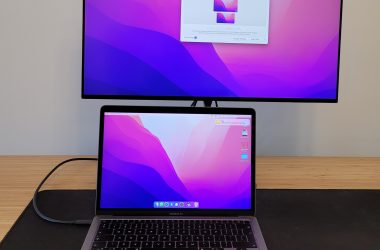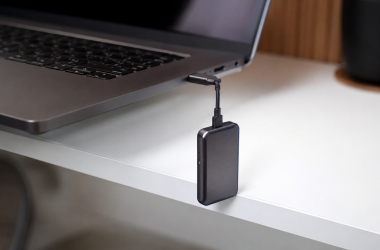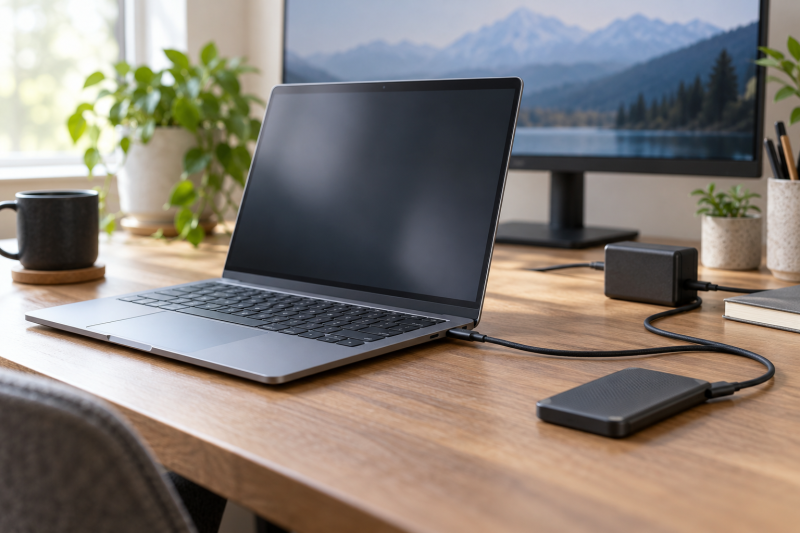
A USB-C socket does not always mean a laptop takes power through it. Each laptop below has a maker page that lists a USB-C or Type-C power adapter or USB-C charging, along with Thunderbolt 4 or USB4 ports.
Pick the machine whose charger fits your travel bag, then check that enough high-speed ports are left for a dock and a drive.
Charging through USB-C and carrying a 40Gbps Thunderbolt or USB4 port are two separate facts, so check both before planning a one-cable desk.Laptops With USB-C Charging and Thunderbolt or USB4 Compared
| Image | Product | Details | Check Price |
|---|---|---|---|
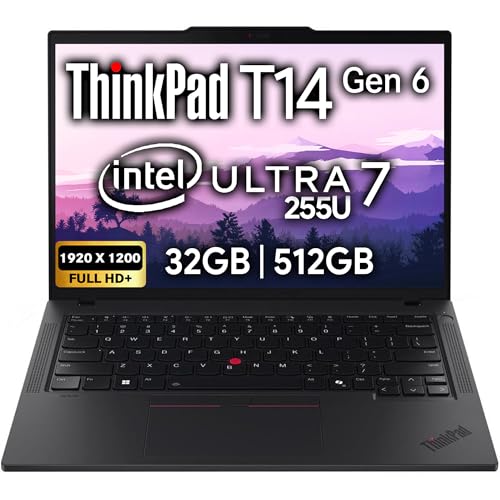 | Lenovo ThinkPad T14 Gen 6 | Processor: Intel Core Ultra 7 255U USB-C charging: 65W USB-C adapter, PD 3.0 Thunderbolt or USB4 ports: 2 Thunderbolt 4 / USB4 Screen: 14-inch 1920 x 1200 IPS Best for: Balanced business desk | Check Price on Amazon |
 | Acer Swift Go 14 SFG14-72T-718K | Processor: Intel Core Ultra 7 155H USB-C charging: Type-C DC-in, 100W at 20V source Thunderbolt or USB4 ports: Thunderbolt 4 / USB4, listing counts 2 Screen: 14-inch 1920 x 1200 touch IPS Best for: Owners of a 100W USB-C charger | Check Price on Amazon |
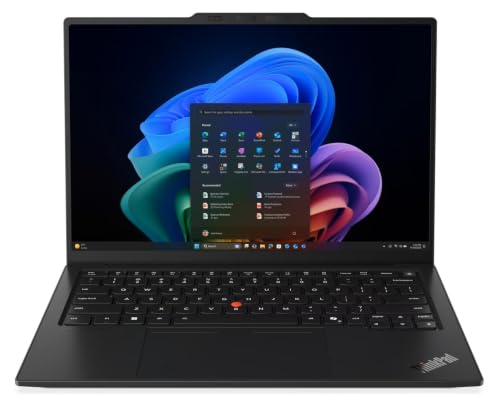 | Lenovo ThinkPad X1 Carbon Gen 14 Aura Edition | Processor: Intel Core Ultra 5 335 USB-C charging: 65W USB-C adapter, PD 45-65W ports Thunderbolt or USB4 ports: 3 Thunderbolt 4 Screen: 14-inch 2.8K OLED Best for: Windows desk needing three ports | Check Price on Amazon |
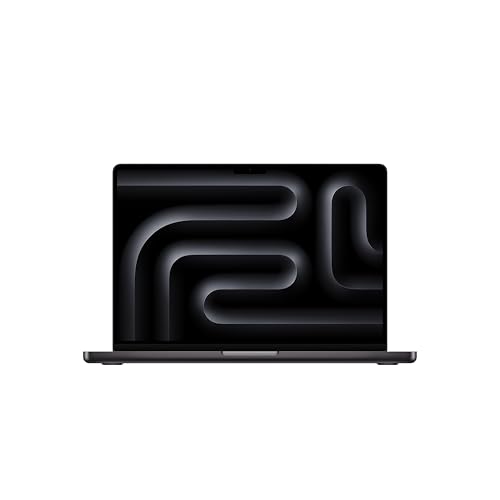 | Apple MacBook Pro 14-inch with M5 | Processor: Apple M5, 10-core CPU USB-C charging: 70W USB-C adapter, charges via USB-C or MagSafe Thunderbolt or USB4 ports: 3 Thunderbolt 4 / USB4 Screen: 14.2-inch Liquid Retina XDR Best for: Mac with USB-C charging | Check Price on Amazon |
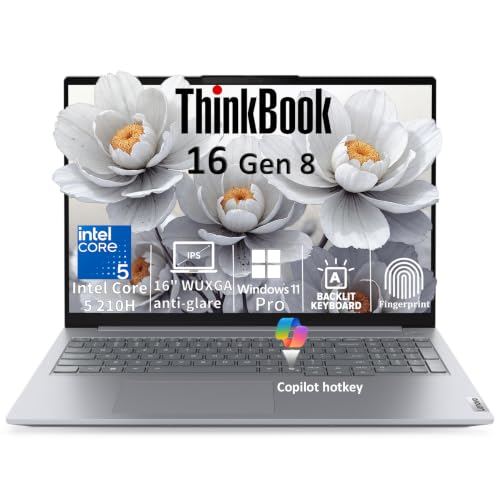 | Lenovo ThinkBook 16 Gen 8 | Processor: Intel Core 5 210H USB-C charging: 65W USB-C adapter, PD 3.0 Thunderbolt or USB4 ports: 1 Thunderbolt 4 / USB4 Screen: 16-inch 1920 x 1200 Best for: 16-inch one-dock desk | Check Price on Amazon |
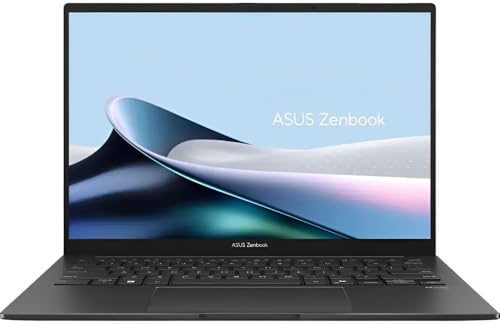 | ASUS Zenbook 14 OLED UX3405CA | Processor: Intel Core Ultra 7 255H USB-C charging: Type-C 65W adapter, 20V 3.25A Thunderbolt or USB4 ports: 2 Thunderbolt 4 Screen: 14-inch 1920 x 1200 touchscreen Best for: ASUS buyer with a 65W charger | Check Price on Amazon |
1. Lenovo ThinkPad T14 Gen 6 — Best Overall Business USB-C Charging Pick
The ThinkPad T14 Gen 6 is the easiest starting point for a business laptop that charges from USB-C and plugs into a dock. Lenovo lists a 65W USB-C AC adapter that supports PD 3.0, and two of its ports are Thunderbolt 4 / USB4 40Gbps connections with USB PD 3.0 and DisplayPort 2.1. It also has two USB-A ports, HDMI 2.1, and Ethernet.
The Amazon listing is the Core Ultra 7 255U model with 32GB of memory and a 512GB SSD. Lenovo’s T14 Gen 6 Intel page lists the 255U, and memory and storage vary by model. Lenovo says models with a U or H series processor drive the built-in screen plus three external monitors through HDMI and Thunderbolt, so the 255U is covered. The display limit describes the laptop, and the dock and monitors set the final resolution and refresh rate.
Our Take Choose the ThinkPad T14 Gen 6 for a compact business laptop that charges over USB-C and has two 40Gbps ports. It suits a desk where a dock takes one port and a drive or display takes the other.
- Lenovo lists a 65W USB-C adapter with PD 3.0 for charging.
- Lenovo lists two ports as Thunderbolt 4 / USB4 40Gbps with USB PD 3.0 and DisplayPort 2.1.
- Lenovo says models with a U or H series processor drive the built-in screen plus three external monitors through HDMI and Thunderbolt.
- Lenovo lists two USB-A ports, HDMI 2.1, and Ethernet on the laptop itself.
- The 32GB memory and 512GB SSD belong to this Amazon listing, and Lenovo says memory and storage vary across T14 Gen 6 models.
- Lenovo’s two Thunderbolt 4 ports do not guarantee a particular dock, resolution, or refresh rate.
2. Acer Swift Go 14 SFG14-72T-718K — Best Fit for a 100W USB-C Charger
The Acer Swift Go 14 is a compact Windows laptop built around a USB-C port that takes power and carries data. Acer’s manual says the USB Type-C port with DC-in connects to the provided USB-C power adapter and supports Thunderbolt 4, and that the same port is compatible with USB4. The manual adds that DC-in needs an adapter or power source providing 100W at 20V, and Acer recommends a certified Acer adapter or a USB Power Delivery device.
Acer’s manual covers the SFG14-72 and SFG14-72T line. The Amazon listing is the SFG14-72T-718K with a Core Ultra 7 155H, 16GB of memory, a 512GB SSD, and a touch display. It counts two USB-C ports with Thunderbolt 4, USB4, and Power Delivery up to 100W. Acer’s manual lists one Type-C port with DC-in and no second Type-C port, so confirm the second port with the seller before counting on two.
Acer says DC-in needs a source providing 100W at 20V, so a 65W travel charger falls below its requirement.Our Take Choose the Swift Go 14 if you already own a 100W USB-C charger, or plan to buy one, and want Thunderbolt 4 in a compact Windows laptop. Choose a 65W model from this list if you would rather carry a 65W charger.
- Acer says the USB Type-C port with DC-in connects to the provided USB-C power adapter.
- Acer says the same port supports Thunderbolt 4 and is compatible with USB4.
- Acer names a certified Acer adapter or a USB Power Delivery device as the right power source.
- The Amazon listing counts two USB-C ports with Power Delivery up to 100W.
- Acer’s manual says DC-in requires a power adapter or power source providing 100W at 20V.
- Acer’s manual lists one Type-C port with DC-in and no second Type-C port, while the Amazon listing counts two.
- The Core Ultra 7 155H, memory, SSD, and touch display belong to this Amazon listing.
3. Lenovo ThinkPad X1 Carbon Gen 14 Aura Edition — Best Windows Laptop With Three Thunderbolt 4 Ports
The ThinkPad X1 Carbon Gen 14 Aura Edition has three Thunderbolt 4 ports, which Lenovo lists with USB PD 45-65W and DisplayPort 2.1, and Lenovo lists 65W USB-C adapters with PD 3.0. It adds one USB-A 5Gbps port, HDMI 2.1, and a headphone jack. With a charger in one port and a dock in another, a third Thunderbolt 4 port is free.
The Amazon listing is the 21V7006DUS model with a Core Ultra 5 335, 32GB of memory, a 512GB SSD, and a 2.8K OLED display. Lenovo’s page lists the Core Ultra 5 335 and 2.8K OLED panels. Lenovo says the laptop drives the built-in screen plus three external monitors through HDMI and Thunderbolt, and the dock and screens set the result. The listing gives the Power Delivery range as 15-65W, while Lenovo’s page says 45-65W, so plan around Lenovo’s 65W USB-C adapter.
Three Thunderbolt 4 ports leave one free after a charger and a dock, but the dock’s own limits also set the desk.Our Take Pick the X1 Carbon Gen 14 when you want a charger, a dock, and a direct drive all on Thunderbolt 4 ports in a Windows laptop. The MacBook Pro also has three, but it runs macOS.
- Lenovo lists three Thunderbolt 4 ports with USB PD 45-65W and DisplayPort 2.1.
- Lenovo lists 65W USB-C adapters with PD 3.0 for the laptop.
- Lenovo says the laptop drives the built-in screen plus three external monitors through HDMI and Thunderbolt.
- Lenovo lists a USB-A 5Gbps port, HDMI 2.1, and a headphone jack on the laptop itself.
- The Core Ultra 5 335, 32GB memory, 512GB SSD, and OLED panel belong to this Amazon listing, and other Gen 14 models differ.
- Plan around Lenovo’s 65W USB-C adapter, because the Amazon listing says 15-65W for the ports while Lenovo says 45-65W.
4. Apple MacBook Pro 14-inch with M5 — Best Mac for USB-C Charging
The 14-inch MacBook Pro with M5 charges two ways. Apple lists three Thunderbolt 4 (USB-C) ports with support for charging, plus a MagSafe 3 port. The 70W USB-C Power Adapter in the box connects with a USB-C to MagSafe 3 cable, and Apple says the laptop is fast-charge capable with a 96W or higher USB PD source.
The Amazon listing is the model with the M5 chip, a 14.2-inch Liquid Retina XDR display, 16GB of unified memory, and a 1TB SSD. Apple lists 16GB, 24GB, and 32GB options, so other configurations differ. Apple says the laptop supports up to two external displays over any combination of Thunderbolt and HDMI, and a dock has to supply those outputs.
Our Take Choose the MacBook Pro with M5 if you need macOS and want to charge from a Thunderbolt 4 port or MagSafe. The box includes a 70W adapter for the MagSafe route, and a USB-C dock gives a one-cable desk if it supplies enough power.
- Apple lists charging on all three Thunderbolt 4 (USB-C) ports.
- Apple includes a 70W USB-C Power Adapter with a USB-C to MagSafe 3 cable for the MagSafe route.
- Apple says the MacBook Pro is fast-charge capable with a 96W or higher USB PD source.
- Apple says the MacBook Pro supports two external displays over Thunderbolt and HDMI.
- Apple states a limit of two external displays, while Lenovo states three external monitors for the ThinkPad X1 Carbon Gen 14.
- The 16GB memory and 1TB SSD belong to this Amazon listing, and Apple lists other configurations.
5. Lenovo ThinkBook 16 Gen 8 — Best 16-Inch Pick for a One-Dock Desk
The ThinkBook 16 Gen 8 is the 16-inch choice for a desk built around one dock. Lenovo lists a 65W USB-C AC adapter that supports PD 3.0. Of its two USB-C ports, one is Thunderbolt 4 / USB4 40Gbps with USB PD 3.0 and DisplayPort 2.1, and the other is a 10Gbps USB-C port with USB PD 3.0 and DisplayPort 1.4.
The Amazon listing is the Core 5 210H model with 16GB of memory, a 512GB SSD, and a 16-inch 1920 x 1200 display. Lenovo’s ThinkBook 16 G8 IRL page lists the Core 5 210H. Lenovo says the laptop drives the built-in screen plus three external monitors through HDMI, USB-C, and Thunderbolt. Only the Thunderbolt 4 port runs at 40Gbps, so the other USB-C port suits slower accessories.
Our Take Pick the ThinkBook 16 Gen 8 when a 16-inch screen and a 65W USB-C charger count for more than a second Thunderbolt 4 port. It suits a one-dock desk, and buyers who need a second direct 40Gbps connection should look at the T14, X1 Carbon, or ASUS.
- Lenovo lists a 65W USB-C adapter with PD 3.0 for charging.
- Lenovo lists one USB-C port as Thunderbolt 4 / USB4 40Gbps with PD 3.0 and DisplayPort 2.1.
- Lenovo lists a second USB-C port at 10Gbps with PD 3.0 and DisplayPort 1.4.
- Lenovo says the laptop drives the built-in screen plus three external monitors through HDMI, USB-C, and Thunderbolt.
- Lenovo lists only one Thunderbolt 4 / USB4 port, and a dock takes the only 40Gbps connection.
- The 16GB memory and 512GB SSD belong to this Amazon listing.
6. ASUS Zenbook 14 OLED UX3405CA — Best Zenbook With a 65W Type-C Charger
The ASUS Zenbook 14 OLED UX3405CA comes with a Type-C adapter and has two Thunderbolt 4 ports. ASUS lists a Type-C 65W AC adapter with 20V, 3.25A output, and lists two Thunderbolt 4 ports with support for display and power delivery at up to 40Gbps. Its other ports are one USB-A 5Gbps port, HDMI 2.1, and an audio jack, so the Type-C adapter plugs into a Thunderbolt 4 port.
ASUS’s UX3405 page lists the Core Ultra 7 255H for the UX3405CA. The Amazon listing is the 255H model with 16GB of memory, a 1TB SSD, and a 14-inch 1920 x 1200 touchscreen. ASUS’s power delivery wording describes the ports and not any dock, so check the dock’s output and display modes.
Our Take Choose the Zenbook 14 if you prefer ASUS and want a 65W Type-C adapter with two Thunderbolt 4 ports. Check the dock’s power output and display limits before you buy.
- ASUS lists a Type-C 65W adapter with 20V, 3.25A output.
- ASUS lists two Thunderbolt 4 ports with display and power delivery support up to 40Gbps.
- ASUS lists a USB-A 5Gbps port and HDMI 2.1 as well.
- ASUS’s port list shows two Thunderbolt 4 ports and no separate power jack.
- The 255H processor, 16GB memory, and 1TB SSD belong to this Amazon listing, and ASUS lists other processors for the UX3405CA.
- ASUS’s power delivery wording describes the ports and does not give a dock charging output or display result.
Buying Guide
1. Confirm USB-C charging before you count ports
A USB-C shape does not prove charging. Look for a USB-C or Type-C adapter, DC-in, or USB Power Delivery on the laptop itself. Lenovo lists a 65W USB-C adapter for the T14 Gen 6, X1 Carbon Gen 14, and ThinkBook 16 Gen 8, ASUS lists a 65W Type-C adapter, and Acer’s Type-C DC-in port needs a source providing 100W at 20V.
Apple is the odd one out. The MacBook Pro 14-inch with M5 lists charging on its three USB-C ports and ships a 70W adapter with a MagSafe cable. Match the laptop’s own power wording first, then check the charger, cable, and dock.
2. Decide how many high-speed ports stay free
A dock can take your only 40Gbps connection. The ThinkBook 16 Gen 8 has one Thunderbolt 4 / USB4 port, which suits one dock but leaves no second direct 40Gbps link. Its other USB-C port runs at 10Gbps.
The ThinkPad T14 Gen 6 and ASUS Zenbook 14 have two Thunderbolt 4 ports. The Acer Swift Go 14 listing counts two, though Acer’s manual lists one. The ThinkPad X1 Carbon Gen 14 Aura Edition and the MacBook Pro have three. Count the ports left after charging if you plan to attach a dock and a direct drive.
3. Treat dock charging as a separate specification
A laptop’s charging input and a dock’s output are different limits. Lenovo’s 65W adapters, Acer’s 100W at 20V requirement, ASUS’s 65W adapter, and Apple’s 70W adapter show what each laptop expects. A lower-powered hub can run accessories yet be the wrong power source for a laptop that expects more.
Read a Thunderbolt 4 docking-station guide for the ports and power figures docks offer, then read the dock’s own host notes. The charger, cable, dock, and laptop form one power chain, so a dock’s charging label cannot replace the laptop maker’s power wording.
4. Do not turn a display ceiling into a desk promise
A display limit describes the laptop, not the whole desk. Lenovo says the T14 Gen 6 (with a U or H series processor), X1 Carbon Gen 14, and ThinkBook 16 Gen 8 drive the built-in screen plus three external monitors. Apple says the M5 MacBook Pro supports two external displays over Thunderbolt and HDMI. Acer’s manual and ASUS’s specifications list ports and do not state a multi-display count for these models.
A USB4 hubs and docks guide cannot override a laptop’s graphics, operating system, cable, dock, and monitor limits. Compare the whole connection path before buying monitors, especially for a set resolution or refresh rate.
5. Match the exact configuration at checkout
Processor, memory, and storage vary by model inside one family. Another listing of the same family can carry other chips and capacities.
Use the Thunderbolt laptop list for wider context, then match the exact model number at checkout. Check the processor and model code against the maker’s page, because charging and port figures can differ between processor variants.
FAQ
Does a USB-C port always charge a laptop?
No. A USB-C connector alone does not prove laptop charging. The laptops here qualify because Lenovo and ASUS list USB-C or Type-C adapters, Acer lists a Type-C DC-in port, and Apple lists charging on its USB-C ports. On other laptops, a port labeled only USB-C may carry data and no power, so read the port wording.
The Acer Swift Go 14 is a clear case, because Acer names its Type-C port as DC-in and gives a 100W at 20V source requirement. Look for DC-in, Power Delivery, and adapter wording together if you want to travel with one USB-C charger.
What wattage USB-C charger do these laptops use?
Lenovo lists a 65W USB-C adapter for the T14 Gen 6, X1 Carbon Gen 14, and ThinkBook 16 Gen 8, and ASUS lists a 65W Type-C adapter for the Zenbook 14. Acer’s DC-in port needs a source providing 100W at 20V, and Apple ships a 70W USB-C Power Adapter with the 14-inch M5 MacBook Pro.
The MacBook Pro 14-inch with M5 charges from its USB-C ports or MagSafe, and Apple says a 96W or higher USB PD source gives fast charging. Use a charger that matches the laptop maker’s wattage, and confirm the cable and dock carry it.
Is Thunderbolt 4 the same as USB4 for buying a dock?
Not always. A Thunderbolt or USB4 label is a starting point, not a full compatibility answer. Lenovo lists its ports as Thunderbolt 4 / USB4 40Gbps, Apple lists Thunderbolt 4 and USB4 at up to 40Gb/s, and Acer says its Type-C port is compatible with USB4. A dock can add its own display, power, driver, and operating-system conditions.
The USB4 laptop list helps find systems with USB4 ports. Before buying a dock, compare its host-support table with your laptop’s port wording and your monitors. Do not choose from connector shape or port count alone.
Can I charge and use a dock with one USB-C cable?
Often, but only if the laptop accepts USB-C power and the dock delivers a suitable USB PD profile. The ThinkBook 16 Gen 8 has one Thunderbolt 4 / USB4 port, so that port is the natural dock connection, and Lenovo’s 65W USB-C adapter shows the power level the laptop expects.
The ThinkPad T14 Gen 6, ASUS Zenbook 14, and X1 Carbon Gen 14 each have a second Thunderbolt 4 port to spare. Check the dock’s wattage and display limits before treating one cable as a complete desk.
Which laptop works with a 65W USB-C travel charger?
The T14 Gen 6, X1 Carbon Gen 14, ThinkBook 16 Gen 8, and ASUS Zenbook 14 each list a 65W USB-C or Type-C adapter, so a 65W USB PD travel charger matches the wattage their makers list. Acer’s Swift Go 14 asks for 100W at 20V, which a 65W charger does not meet.
Size and weight depend on the charger and the model, so compare both on the maker pages. Pick the charger by the laptop’s listed wattage, then confirm the cable and dock before packing.
Bottom Line
The ThinkPad T14 Gen 6 is the best all-round choice because Lenovo lists a 65W USB-C adapter alongside two Thunderbolt 4 / USB4 40Gbps ports. Choose the X1 Carbon Gen 14 for three Thunderbolt 4 ports on Windows, the Acer Swift Go 14 if you own a 100W USB-C charger, the ASUS Zenbook 14 for a 65W Type-C adapter with two Thunderbolt 4 ports, the ThinkBook 16 Gen 8 for a 16-inch one-dock desk, or the MacBook Pro with M5 for macOS with charging on its USB-C ports.