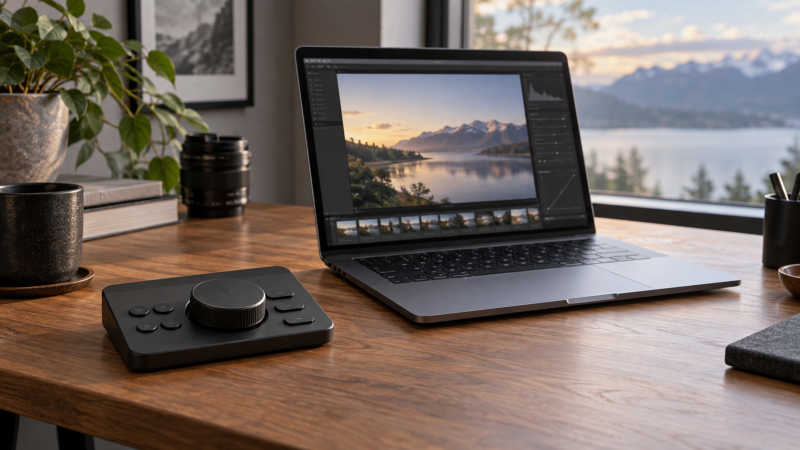
Turning a physical dial to change exposure or brush size sounds simpler than moving a mouse through panels. It can be, but only when the controller’s software maps the specific parameter in your editing app. A rotating control that merely sends generic scroll commands is a different tool from a console with dedicated photo-editing integrations. We did not independently test these five devices or measure editing speed.
Start with the computer and software you actually use. TourBox Elite Plus is the only pick here whose listing explicitly includes iPadOS. TourBox Elite and NEO focus on desktop creative software. Xencelabs Quick Keys combines labeled shortcuts with one dial, and Contour ShuttleXpress is a simpler jog-wheel and shortcut controller. Every selected Amazon US listing had an active New offer when checked on September 29, 2026.
Choose the controller for one repeatable adjustment in your actual editor, not for a promise that every dial will automatically control every slider.Photo Editing Controllers Compared
| Image | Product | Details | Check Price |
|---|---|---|---|
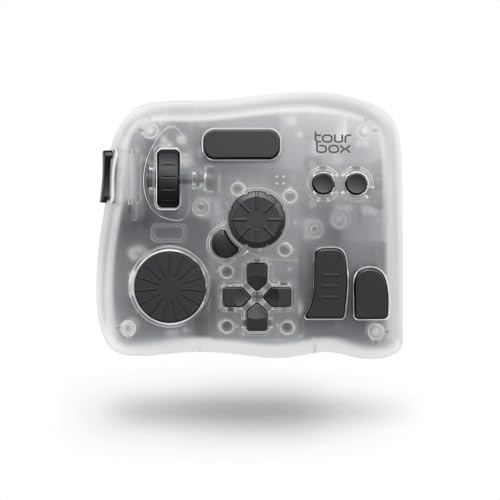 | TourBox Elite Plus | Control: Knob, dial and buttons Connection: Bluetooth Host: iPadOS, macOS, Windows Buyer fit: Tablet and desktop editing | Check Price on Amazon |
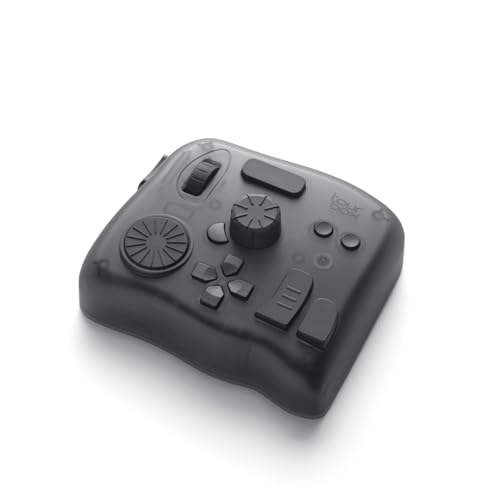 | TourBox Elite | Control: Haptic knob and buttons Connection: Bluetooth or USB-C Host: macOS, Windows; not iPadOS Buyer fit: Wireless desktop parameter control | Check Price on Amazon |
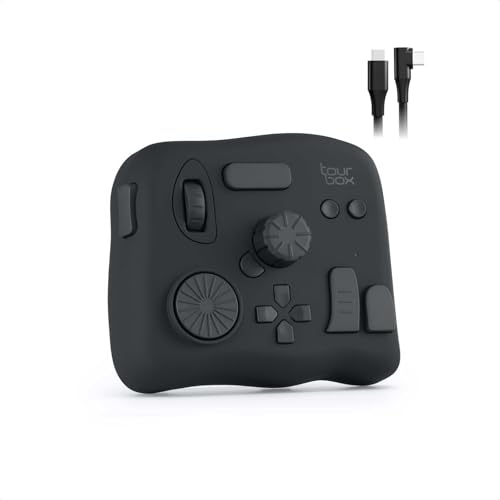 | TourBox NEO | Control: 14 listed controls, including dial Connection: Wired Host: macOS, Windows; not iPadOS Buyer fit: Wired desktop control | Check Price on Amazon |
 | Xencelabs Quick Keys | Control: 8 keys, OLED and one dial Connection: USB or wireless dongle Host: Windows, macOS, Linux listed Buyer fit: Visible shortcuts plus one dial | Check Price on Amazon |
 | Contour ShuttleXpress | Control: Jog dial, ring and 5 buttons Connection: USB Host: PC and Mac listed Buyer fit: Budget shortcut and image navigation | Check Price on Amazon |
1. TourBox Elite Plus — Best for iPad and Desktop Editing
The Elite Plus listing names Bluetooth operation on iPadOS, macOS and Windows, along with knob controls and built-in workflows for Lightroom and Photoshop. That platform span is its main reason to exist in this comparison. An editor moving between a tablet and a desktop can keep a familiar physical layout. The seller also names Procreate and LumaFusion on the iPad side, but those are app-specific claims, not proof that the same control maps to the same parameter in every version.
It uses two AA batteries, so factor battery replacement into a portable setup. Before buying for a particular iPad, verify the exact app, operating-system version and TourBox Console support. A USB-C monitor for photo editing may help you see more of the image on a desktop, but display quality and dial mapping solve different problems. If you never edit on iPad, the TourBox Elite or NEO may be a more focused choice.
Our Take Choose Elite Plus when iPad editing is a regular part of your week, and confirm the exact app controls before depending on them. The broad compatibility list is promising, but it is not evidence that every editing action is equally well integrated.
- Listing explicitly includes iPadOS as well as macOS and Windows.
- Bluetooth avoids a permanent cable across a tablet desk.
- Seller names Lightroom and Photoshop workflows.
- App and operating-system compatibility needs an exact version check.
- Two AA batteries add a replacement step.
2. TourBox Elite — Best Haptic Wireless Desktop Control
The standard Elite listing describes haptic feedback, a knob, Bluetooth and USB-C wired use. It specifically discusses exposure, color and image-parameter adjustments, and names Lightroom, Capture One and Camera Raw. Haptics might help a user feel a step while turning, but no measured precision or speed advantage is established by the listing. Treat it as an interface preference to test, not an editing-quality guarantee.
The distinction from Elite Plus is important. This listing expressly excludes iPadOS, iOS, Linux and Android. The desktop-oriented Bluetooth/USB-C choice is useful if you alternate between a laptop and a stationary workstation. Map a safe, reversible action first, such as moving through images or adjusting a non-destructive slider, and check whether the controller keeps its profile after reconnecting. If a fixed wired setup is fine, NEO removes the wireless decision.
Our Take Elite makes sense for a Mac or Windows editor who wants a tactile dial and the option to work wirelessly. Buy it for the desktop software you can verify, not for the seller’s unmeasured productivity or fatigue promises.
- Haptic feedback offers a different feel from a plain rotary encoder.
- Bluetooth and USB-C give two listed connection routes.
- Listing discusses Lightroom, Capture One and Camera Raw use.
- The listing excludes iPadOS and mobile operating systems.
- Haptic feedback is not proof of more accurate edits.
3. TourBox NEO — Best Wired Desktop Starting Point
NEO’s listing specifies fourteen dedicated controls, including a dial and D-pad, in a wired desktop device. It names Lightroom, Photoshop and other creative applications, with presets and TourBox Console customization. Unlike a pad with one rotary encoder, the mixture of controls can put a photo-selection command, a tool change and a parameter adjustment in separate places. That mixture only helps if you can remember the mapping, and more buttons are not automatically better.
Windows and macOS are listed, while iPadOS, iOS, Linux and Android are expressly not supported. That platform limit makes NEO a clear choice for someone who already works at one computer and does not need Bluetooth. Check the editor’s supported preset and your host’s software-installation permissions before buying. On a managed computer, a physical USB connection alone does not mean the full controller software can run. Our shortcut-keypad guide covers a different, key-first approach when dials are not the main need.
A wired device still depends on the right software profile, and the cable only solves the connection.Our Take Start with NEO if you want TourBox’s desktop control layout without paying for a wireless feature you will not use. Assign two or three commands first, then expand only when the profile feels predictable.
- Fourteen listed controls give separate places for several editing actions.
- Wired operation avoids wireless pairing and batteries.
- Seller provides desktop creative-app presets.
- Not listed for iPadOS or Linux.
- Configuration software and learning the layout remain necessary.
4. Xencelabs Quick Keys — Best Labeled Shortcuts with a Dial
Xencelabs takes a different approach: eight programmable keys, an OLED label display and one rotary keydial with four listed modes. The listing describes up to forty shortcuts across five key sets and gives zoom, brush size and canvas rotation as examples for the dial. The visible labels can be more useful than another unmarked button when you switch between photo applications or tool sets. It lists Lightroom and Photoshop support, but verify the exact action and current software version yourself.
The listing says USB wired or wireless-dongle connection is available, and names Windows, macOS and Linux. It also explicitly says macro commands, scripts and third-party plugin integration are not supported. That limit applies if your desired workflow is a complex sequence rather than individual shortcuts and dial modes. Compared with the TourBox NEO, Quick Keys prioritizes visible shortcut identification over a larger collection of differently shaped controls. Its one dial is enough only if you can organize your changing parameters into the listed modes.
Do not confuse forty accessible shortcuts with forty physical keys. The listing specifies eight keys across five sets.Our Take Quick Keys is for an editor who wants to see what the buttons do and needs one dial for a handful of gradual adjustments. It is a poor choice if scripts or multi-action macros are central to the plan.
- OLED labels can identify the active shortcut set.
- One dial has four listed programmable modes.
- USB and wireless-dongle connection are both listed.
- Eight physical keys require switching sets for a larger command list.
- Listing says it does not support macro or script automation.
5. Contour ShuttleXpress — Best Simple Jog-Wheel Alternative
ShuttleXpress has a jog dial, a seven-speed ring and five programmable buttons. Its listing mentions photography and image editing alongside video and audio work, plus PC and Mac support. The shape is attractive for moving through a set of photos, repeating a zoom command or sending keyboard shortcuts. It is not evidence of dedicated exposure-slider integration in a specific photo editor. A ring built for timeline navigation may be less natural for precise color work.
ShuttleXpress is the minimalist option for someone who wants a physical jog control and a few buttons, not an elaborate control surface. Check the included preset for the exact application, then test whether clockwise and counterclockwise movement do what you expect. If the goal is several named parameters, a TourBox Elite Plus or NEO is a closer fit on paper. Do not buy this just because the listing calls it a controller for many creative fields.
Our Take ShuttleXpress is a sensible experiment for image browsing and a handful of shortcuts. It is the weakest pick for someone expecting a turn to directly adjust a named photo parameter without setup.
- Jog dial, ring and five buttons form a compact physical layout.
- Listing names PC and Mac use plus image-editing workflows.
- Specific photo-parameter integration is not established by the listing.
- Only five buttons leave little room for a large shortcut map.
Buying Guide
Check the app before the hardware
Write down the exact editor, version and adjustment you want under a dial. Lightroom, Photoshop, Capture One and an iPad app may expose different controls even when a seller lists all of them. A preset is a starting point. It does not guarantee that the parameter behaves identically after a software update. If the controller’s public compatibility notes do not name your combination, ask the maker before ordering.
Next, separate native integration from keyboard emulation. A control surface might talk to an app plugin, or it might simply send a hotkey or scroll event. Both can be useful, but only the first implies a dedicated relationship with an on-screen slider. Start with a reversible edit, turn the control slowly, and check the resulting value. Keep mouse and keyboard access while learning the mapping.
Choose controls for the job
For photo work, one dial may be enough if the app changes its assignment when you switch tools. Xencelabs lists one rotary dial with four modes, while the TourBox devices spread actions across knobs, buttons and other controls. Ask whether you need fast access to several parameters at once, or whether visible labels and one active adjustment would reduce errors. More physical controls can increase memorization work.
A jog wheel is not automatically a fine-adjustment dial. The Contour ring is described for navigation and variable-speed scrubbing, and it may help move through media but does not establish precise Lightroom slider steps. The way the software interprets a turn counts more than the hardware’s shape. Test the step size and direction for exposure, brush size or zoom before building an entire editing routine around it.
Confirm platform and connection
iPadOS support is a hard dividing line in this list. Elite Plus includes it, while Elite and NEO explicitly exclude it. Xencelabs Quick Keys excludes iOS and Android tablets in its listing. A computer-compatible USB or Bluetooth device is not automatically useful on a tablet. Verify the exact iPad app as well as the operating system before buying an accessory for mobile editing.
On a Mac or Windows workstation, choose wired or wireless based on the desk, not a blanket assumption that one is faster. A wired NEO or ShuttleXpress keeps connection planning simple. Elite has Bluetooth and USB-C, and Xencelabs lists a wireless dongle as well as USB. Check available ports, reconnect behavior after sleep and installation rights for the configuration software. A USB-C dock can provide ports, but cannot fix an unsupported app profile.
Build a safe first profile
Map only two or three actions on day one. Try image navigation, zoom and one non-destructive adjustment. Label each control and record its reset behavior. Then switch applications, reopen the editor and check that the profile follows the right window. A surprising profile switch can make the same dial change something entirely different from what the label suggests.
For important files, keep undo and version history available. Seller productivity claims do not replace a reliable review step. Avoid putting export, overwrite or delete commands on an easily brushed button until you have tested focus and confirmation behavior. A controller should make a known workflow easier to repeat, not hide what happened to the image.
FAQ
Will a dial change exposure in Lightroom automatically?
Not necessarily. A seller may list Lightroom compatibility while the dial’s behavior still depends on a preset, plugin or custom shortcut. The TourBox listings describe integration, and Xencelabs gives examples of adjustable modes, but neither listing proves the exact behavior of your installed editor version.
Check the controller software’s current Lightroom instructions, map one test image and observe the displayed value. Save a reversible edit so you can compare the before and after. If you cannot verify that path, do not buy on the assumption that turning the dial will find the exposure slider by itself.
Which of these works with an iPad?
TourBox Elite Plus is the pick whose Amazon listing explicitly includes iPadOS and names iPad creative apps. iPadOS support does not mean every iPad application accepts every control. Verify the exact app and operating-system release before relying on a particular adjustment.
The regular Elite and NEO listings expressly exclude iPadOS. The Xencelabs listing says it is not supported on iOS or Android tablets. The Contour listing speaks to PC and Mac, but it does not establish iPad support. Do not infer tablet compatibility from Bluetooth or USB alone.
Do I need a large control surface for photo editing?
No. A few well-mapped actions can be more useful than many controls whose assignments you cannot remember. Xencelabs pairs eight labeled keys with one dial, and ShuttleXpress offers five buttons and a jog control. Both are smaller starting points if the workflow is simple.
If you repeatedly move between navigation, crop, color and brush work, the extra TourBox controls may earn their desk space. List the actions first and test a small profile before filling every button. We did not independently measure speed or fatigue for any device here.
Bottom Line
TourBox Elite Plus stands out for an actual iPad and desktop workflow. NEO is the straightforward wired desktop choice, and regular Elite adds wireless and haptics for a desktop editor. Xencelabs Quick Keys favors visible labels and one dial, while ShuttleXpress is a simpler jog-wheel experiment. The best buy is the one whose current software maps your exact editing adjustment reliably on your actual computer.