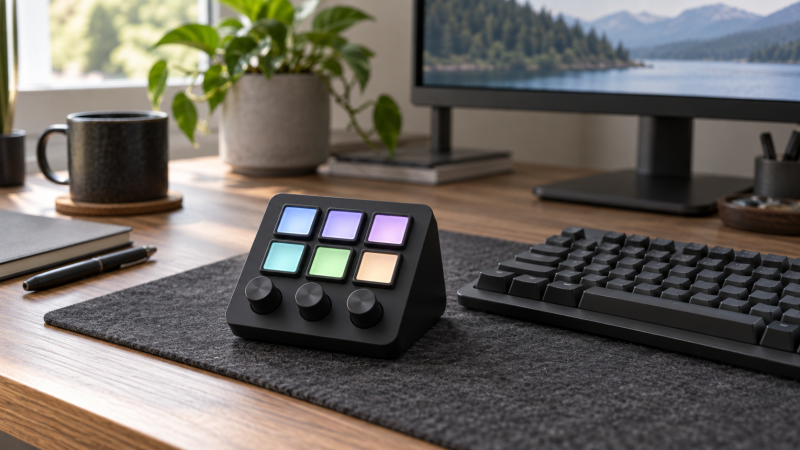
A shortcut keypad helps when a few commands keep interrupting work: muting a microphone, opening a file, switching a view, or starting a sequence. Its value comes from software and layout, not the number of keys. We did not test these devices for reliability or saved time.
List three repeated actions, then decide whether each needs a label, a tactile key, or a dial. The Elgato Stream Deck MK.2 has fifteen LCD keys and VSD Mini has six. ActionRing adds three dials. EezBotFun uses mechanical keys and a separate display, while VSD M18 combines LCD keys with physical buttons.
Buy the control layout for the actions you actually repeat. A programmable device cannot rescue a workflow whose shortcuts and software permissions are still unknown.Shortcut Keypads Compared
| Image | Product | Details | Check Price |
|---|---|---|---|
 | Elgato Stream Deck MK.2 | Controls: 15 customizable LCD keys Connection: USB Actions: Hotkeys, plugins, multi-actions Buyer fit: Many labeled app commands | Check Price on Amazon |
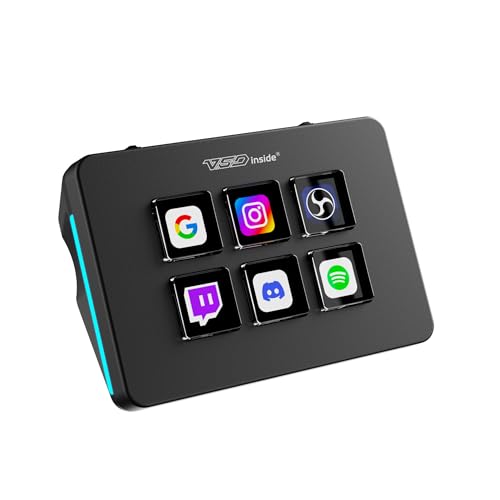 | VSD Mini | Controls: 6 customizable LCD keys Connection: USB Actions: Single and serial shortcuts Buyer fit: Small first shortcut set | Check Price on Amazon |
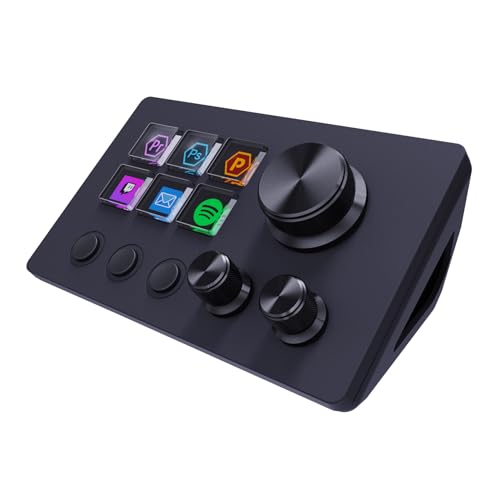 | ActionRing Stream Controller | Controls: 6 LCD keys and 3 dials Connection: USB, seller-stated Actions: Macros, text, media adjustments Buyer fit: Keys plus gradual controls | Check Price on Amazon |
 | EezBotFun 8-Key Macropad | Controls: 8 mechanical keys, 3.5-inch TFT Connection: USB HID on Windows, seller-stated Actions: Script files and profile display Buyer fit: Physical keys, one profile screen | Check Price on Amazon |
 | VSD M18 | Controls: 15 LCD keys and 3 physical buttons Connection: USB, seller-stated Actions: Single and multi-step commands Buyer fit: Visual keys plus fixed buttons | Check Price on Amazon |
1. Elgato Stream Deck MK.2 — Best Labeled 15-Key Layout
The MK.2 listing gives you fifteen customizable LCD keys. Its hotkey actions and plugins can launch apps, control audio, mute a microphone, and trigger single or multiple actions. The visual labels are useful when a desk has several software contexts. A button can show its current purpose instead of relying on a printed keycap or memory. The listing names support for several creator platforms, but each specific integration should still be checked against the app version you use.
Fifteen keys occupy more desk area than a six-key pad. That extra area is justified only if the actions are genuinely useful and you can keep their labels legible. Begin with one row of repeatable commands before filling every page with rarely used options. Compared with the VSD M18, the MK.2 is the clearer choice when dedicated physical buttons or an RGB border are not priorities. A stable USB-C dock may be part of a laptop desk’s port plan, but it does not establish plugin compatibility.
Our Take Choose the MK.2 when you already have several repeated actions and will maintain their labels and app profiles. Its plugin ecosystem is a practical reason to consider it, but verify the exact action in your software before making it a critical control.
- Fifteen LCD keys can show the current command rather than relying on memorized positions.
- Hotkey and multi-action support covers both simple shortcuts and short sequences.
- The listing names plugins for common creator applications and services.
- A fifteen-key deck needs more permanent desk space than a six-key pad.
- An app-specific action still depends on a compatible, maintained plugin or shortcut.
2. VSD Mini — Best Six-Key Starting Point
The VSD Mini listing names six customizable LCD keys and USB connection. It says each key can carry a custom image, and that a tap can launch an app, open a page, enter text, control media or run a sequence. Six keys are enough for a first set of repetitive actions without asking you to reorganize the whole keyboard. A tiny pad is most useful when it can stay within reach, so measure the space between keyboard and monitor rather than trusting a product photo.
The listing says full configuration requires VSD Craft software. Check installation rights on a work computer. It describes Windows and macOS support plus a route for Linux adaptation, not full native Linux setup. Compared with the Elgato MK.2, the Mini asks you to prioritize six actions.
Our Take Pick the Mini if a small group of labeled shortcuts will solve the problem. Its limited key count is an advantage when you want a focused layout, but it also puts more pressure on pages or profiles if your command list grows.
- Six labeled LCD keys make a focused first command set.
- The seller lists text, app-launch, media and multi-step actions.
- VSD Craft installation is needed for full configuration.
- Six visible actions may require profile switching in a complex workflow.
3. ActionRing Stream Controller — Best Keys Plus Three Dials
ActionRing’s exact listing combines six customizable LCD keys with three dials. That arrangement has a different use from a grid of buttons. One dial can be assigned to a gradual control such as volume or media position while keys handle discrete actions. The seller describes one-click macros, text entry, file and website launching, and multi-action flows. Its Windows and macOS compatibility is seller-stated, and no independent app-specific behavior was checked here.
Ask whether three continuous controls truly belong on your desk. A dial may be useful for audio level or scrolling, but many office tasks are simple on/off commands and gain nothing from rotation. If most actions are discrete, the VSD Mini may be the cleaner six-key purchase. If you edit audio or video, test the exact mapping in your application rather than assuming a generic volume example translates to a timeline control. Our USB-C audio-interface guide covers recording connections separately from desktop shortcuts.
Three dials are worthwhile only when you can name three controls that benefit from a physical turn rather than another tap.Our Take Consider ActionRing when six labeled buttons are enough and the dials serve repeatable adjustments. Its listed macro breadth is not a substitute for verifying the operating-system permissions and the target app’s shortcut mapping.
- Six LCD keys and three dials separate tap commands from gradual controls.
- The listing describes multi-action flows and text-entry shortcuts.
- Windows and macOS support is listed for the device.
- Dials add little value when the workflow consists only of fixed shortcuts.
- The seller’s broad app claims need checking against your exact software version.
4. EezBotFun 8-Key Macropad — Best Mechanical Keys with One Display
This pad takes a different route from a grid of tiny screens. Its listing describes eight mechanical keys and one 3.5-inch TFT display for icons and profile names. The seller says it presents itself as a standard USB HID device on Windows and can use scripts copied to its USB drive for automation. That route deserves a look for a computer where a background configuration driver is undesirable, but it does not prove that every scripted action is allowed by workplace policy.
The display does not put an individual screen on every key, so check how quickly you can identify the eight physical positions from the shown profile. Scripting also demands more setup care than dragging an action onto a visual key. The Elgato MK.2 is the more direct visual-key choice, while this pad is for someone who values mechanical keys and can manage its profile or script files. Confirm host compatibility before ordering for macOS, because the saved listing expressly establishes Windows HID use, not a comparable Mac workflow.
Driver-free pointer recognition does not mean every workplace will permit user scripts or automated actions.Our Take Pick the EezBotFun only when physical key feel and a single profile display suit the job. Its Windows HID claim is useful, but script setup and platform limits deserve an exact check before it becomes a daily work control.
- Eight mechanical keys provide a different tactile layout from LCD-key decks.
- The single TFT can show profile names and icons.
- The seller describes Windows standard-HID operation without a background driver.
- Copying scripts to a USB drive is more work than assigning a simple hotkey.
- The saved listing does not establish an equivalent macOS workflow.
5. VSD M18 — Best LCD Keys Plus Physical Buttons
The M18 listing specifies eighteen programmable controls: fifteen LCD visual keys and three physical buttons. It describes single actions, multi-step sequences, text input, app launches and media control. That mix is useful when a desk needs labeled actions but also a few fixed commands that do not need their own tiny screens. The seller’s RGB surround light is decorative, not a productivity reason to choose it.
Compared with the Elgato MK.2, the M18 adds those physical buttons but does not gain extra LCD positions. Ask whether you have three constant commands to assign to them. Compared with the VSD Mini, it needs more permanent desk space and more layout planning. The listing says it works with PC and Mac, so verify its required software and any app integration before relying on a long automation sequence. Keep each multi-step action reversible when it touches files or posts.
Our Take The M18 suits someone who can name both a large labeled command set and a few always-on physical shortcuts. If you cannot, the extra controls become clutter. Buy for the mapped workflow, not the illuminated border.
- Fifteen LCD keys can label changing app actions.
- Three separate buttons can carry commands that should stay in one place.
- The seller lists both single actions and ordered macro sequences.
- The larger control surface needs a clear permanent spot beside the keyboard.
- RGB lighting does not improve shortcut reliability or app compatibility.
Buying Guide
Start with three repetitive actions
Before comparing key counts, write down three actions that interrupt work every day. A useful first set might be microphone mute, opening a project folder and inserting a recurring text block. Verify that each target application exposes a shortcut or supported action. Some actions need operating-system permission, and a pad cannot bypass those restrictions. This small test prevents a fifteen-key purchase whose visible buttons are mostly unused.
Then ask whether each action needs a visible label or a tactile position. LCD keys can display a changing app context, and mechanical or plain physical buttons work well when the action never changes. The EezBotFun pad combines physical keys with one profile screen, while the Elgato and VSD decks place labels on individual keys. Choose from actual recognition needs.
Check software, permissions and the host
A keypad’s USB connection only proves that the hardware can be attached. Confirm its configuration software runs on the exact work computer and that installation is permitted. The VSD Mini listing explicitly requires VSD Craft for full setup, and the EezBotFun listing describes Windows HID operation and script files. Those setups are different administration paths. On a managed laptop, ask what can be installed before treating either as a sure fit.
Next, test the actual target app and its current version. A seller may list OBS, Photoshop or office software broadly while a particular command depends on a plugin, an update or a keyboard shortcut you configure yourself. Keep the ordinary keyboard path available until the pad behaves reliably for a week. If the device connects through a hub or dock, also verify it returns after sleep and reconnection.
Decide whether dials are useful
Rotary controls are different from extra keys. Name the continuous parameter before buying a dial-based pad: volume, zoom, scroll position or another setting that responds well to turning. ActionRing gives three dials alongside six LCD keys. If the workflow is launching apps or typing repeated text, a dial is unlikely to help. A grid of labeled keys may be simpler and easier to audit.
For a creative app, verify the direction and step size of the mapped control. A dial that scrolls system volume does not automatically adjust a photo parameter inside the application. Test the actual mapping and keep a reset or undo path for overshoots. The physical control should reduce switching attention, not add another setting to troubleshoot.
Keep multi-step actions safe
Single hotkeys are relatively easy to understand. A multi-step macro can also delete, move or publish something if it runs in the wrong window. Start with harmless commands such as opening a folder or inserting a test string. Confirm window focus, timing and the exact result before assigning a consequential workflow. Do not place irreversible file or account actions on an unguarded key.
For shared desks, use clear labels and separate profiles so another person can tell what a key will do. The LCD decks can display icons, the EezBotFun listing describes a profile screen, and a physical button may need a nearby label. Test a profile switch while the target app is closed, then open it and repeat. A wrong profile is a more plausible daily failure than too few advertised macros.
FAQ
Do I need fifteen keys to save time at work?
No. A six-key pad can cover the few actions repeated most often. Fifteen keys make sense when the commands vary by application and clear labels help you find them. More hardware is not useful if the same three shortcuts handle most of the job.
Write a short list before buying, then count how many actions remain after ordinary keyboard shortcuts are considered. If the list is still long, a larger deck may be worthwhile. If it is short, leave desk space for the keyboard and mouse.
Can a shortcut keypad work without installing software?
It depends on the exact device and the actions required. The EezBotFun listing says it can present itself as a standard HID device on Windows, but its automation route involves script files. The VSD Mini explicitly requires VSD Craft for full function setup. Ordinary USB recognition is not the same as a complete configured workflow.
Check both device setup and the target application’s permissions on the actual host. A managed work computer may restrict drivers, scripts or plugins separately. Verify one harmless action before investing time in a full profile.
Should I put file deletion or publishing on one key?
Usually not without an additional confirmation step. A physical button can be pressed accidentally or run under the wrong profile. Multi-action flows can make that harder to notice before the last step executes.
Start with reversible actions, keep a visible undo route and test focus changes. If an action is materially destructive or public-facing, use the application’s confirmation flow rather than relying on a keypad macro to make the decision for you.
Bottom Line
The Elgato MK.2 is the broad labeled-key option. Start smaller with VSD Mini when six useful actions are enough. ActionRing makes sense only if three dials have parameters to control. EezBotFun trades per-key screens for mechanical keys and a single display, while VSD M18 adds fixed physical buttons to a fifteen-key visual grid. List the actions, check software access, and test one safe mapping before expanding the setup.