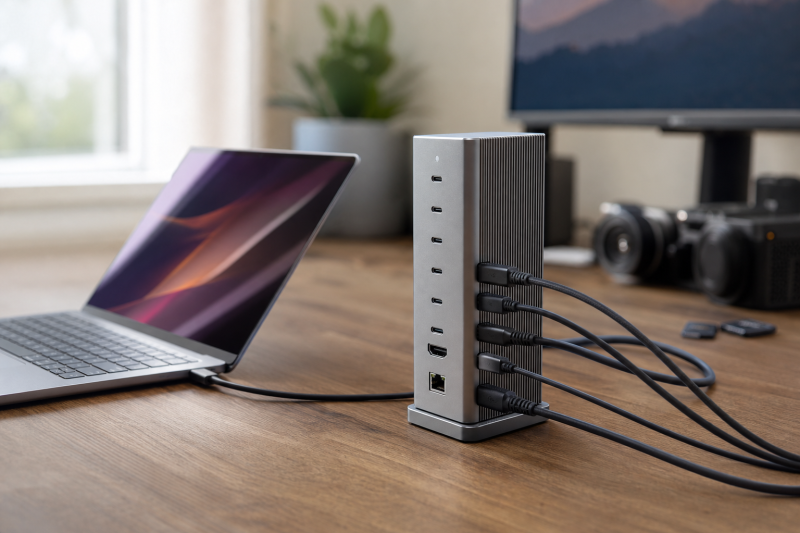
The CalDigit TS5 is a strong match for a Thunderbolt-heavy or USB-C-heavy desk, especially when three downstream Thunderbolt ports, two simultaneous UHS-II card readers, 2.5GbE, and up to 140W host charging would all get regular use. Its central tradeoff is just as clear. There is no built-in HDMI or DisplayPort. Every monitor connects through a spare Thunderbolt port, either directly or through a suitable USB-C video adapter.
The TS5 is therefore less of a generic laptop dock and more of a high-capacity expansion point. The purchase makes sense when the host can expose its capabilities and the desk actually needs its port mix. It makes less sense when a native video connector, several fast USB-A ports, or broad low-end USB-C compatibility is the priority.
This CalDigit TS5 review is based on CalDigit’s current product page, English manual, and model-specific display guidance, plus a current marketplace identity and offer check. It does not claim hands-on testing, measured performance, or long-term reliability results.
CalDigit TS5 verdict
Buy the TS5 if your laptop has a full Thunderbolt 5 or USB4 v2 connection and your workflow uses several fast USB-C or Thunderbolt devices. Skip it if you want built-in HDMI or DisplayPort, if most of your peripherals are USB-A, or if you have not confirmed your exact computer’s display support.
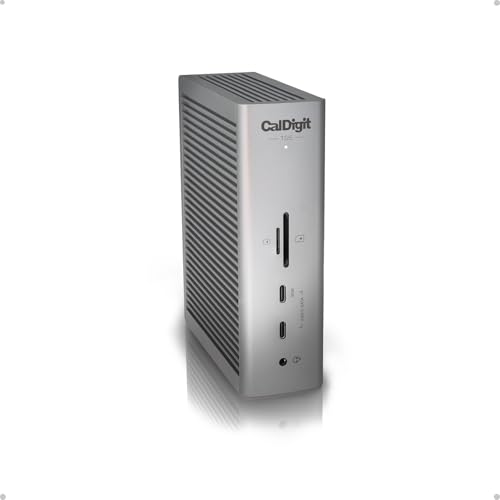
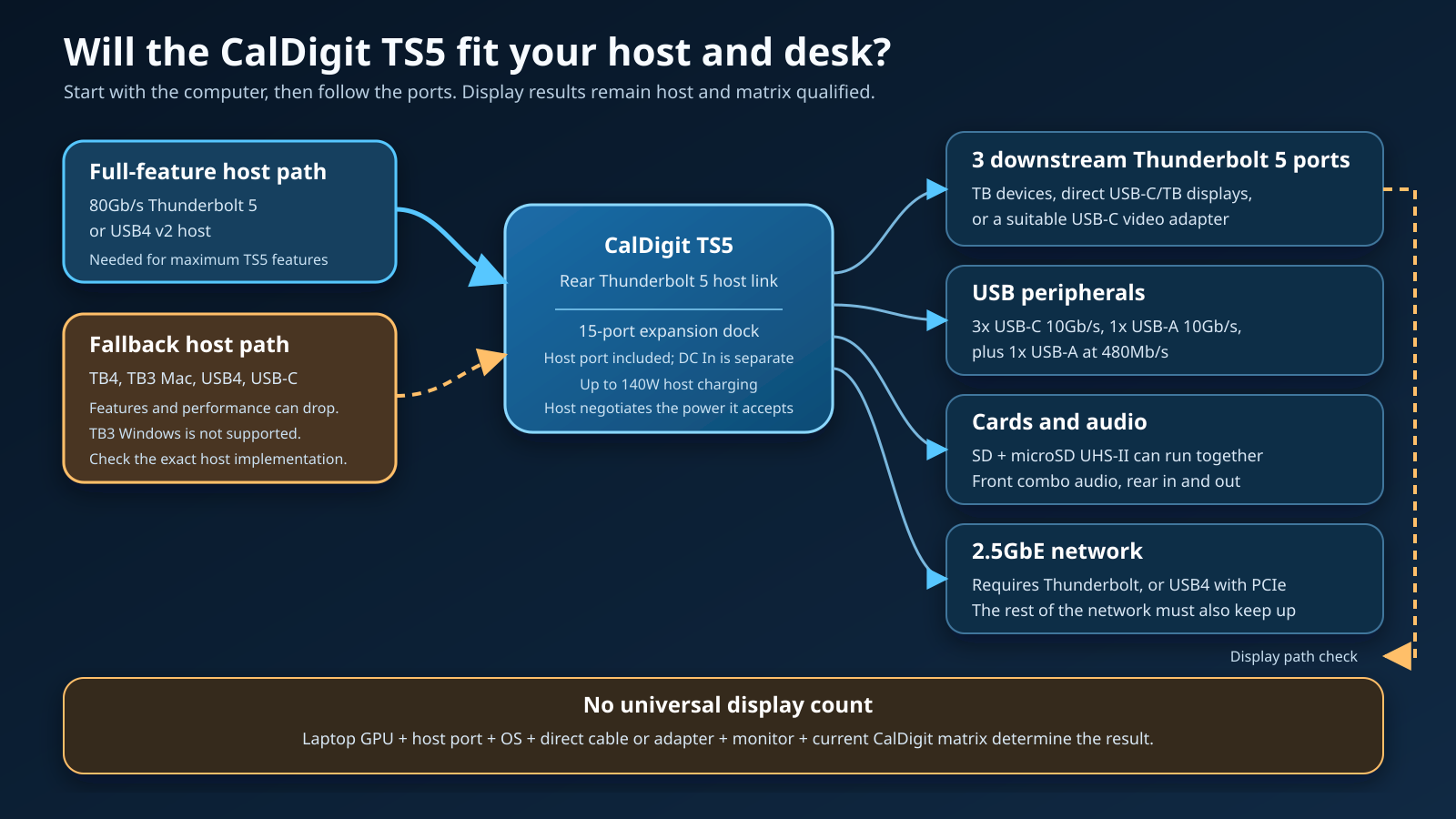
CalDigit lists 15 ports that can be used at the same time. That count includes one Thunderbolt 5 host port and excludes the separate DC In power connector. The practical highlights are three downstream Thunderbolt 5 ports, three 10Gb/s USB-C ports, simultaneous SD and microSD UHS-II readers, 2.5GbE, and up to 140W host charging. That combination suits a creator desk with fast storage, card media, a networked storage system, and one or more displays.
The specifications do not mean that every connected device receives a dedicated slice of headline Thunderbolt bandwidth. They also do not promise a universal monitor count. The laptop GPU, host-port implementation, operating system, cable or adapter, monitor, and CalDigit’s current compatibility matrix still control what the display path can do.
| Decision point | What CalDigit specifies | What it means before checkout |
|---|---|---|
| Host connection | Thunderbolt 5 host port; full features require 80Gb/s Thunderbolt 5 or USB4 v2 | Confirm the exact laptop port, not just the USB-C connector shape |
| Expansion | Three downstream Thunderbolt 5 ports and three 10Gb/s USB-C ports | Strong fit for fast storage, capture, audio, and other USB-C-heavy setups |
| Legacy USB | One 10Gb/s USB-A port and one USB-A port listed at 480Mb/s | Weak fit for a desk with several fast USB-A devices |
| Displays | No HDMI or DisplayPort; displays use downstream Thunderbolt ports | Budget for an adapter if the monitor lacks USB-C or Thunderbolt input |
| Media | SD and microSD UHS-II readers can work simultaneously | Useful for dual-card camera or drone workflows |
| Network | 2.5GbE | Requires Thunderbolt or USB4 with PCIe support |
| Host charging | Up to 140W | Check the laptop’s accepted USB Power Delivery and workload requirements |
| Minimum systems | macOS 15 or later; Windows 11 or later | Older systems are outside the current minimum requirements |
Who should buy the CalDigit TS5?
The TS5 is built for a desk that has run out of high-capability ports, not merely a desk that needs one HDMI output and a few basic USB connections.
Buy it for a USB-C-heavy production desk
Three downstream Thunderbolt 5 ports and three separate 10Gb/s USB-C ports create useful separation between device classes. A display can take one downstream Thunderbolt port while fast storage and another Thunderbolt peripheral use the remaining two. The regular USB-C ports can then serve devices that need 10Gb/s data but not a full Thunderbolt connection.
Buyers still need to think about the complete data path. A fast drive attached to a downstream port does not automatically deliver its advertised maximum, and multiple active devices share the host connection. CalDigit states interface ceilings, not measured results for every combination of laptop, enclosure, drive, and simultaneous workload.
For more context on the host link itself, the site’s Thunderbolt 5 specification guide explains why signaling capability and everyday device use are related but not identical.
Buy it for dual-card media intake
The front SD and microSD readers both support UHS-II, and CalDigit says they can operate at the same time. Running both readers at once helps workflows that routinely return with media in both formats. A camera card and a drone or action-camera card do not have to take turns in one reader, and neither consumes one of the external USB-C ports.
Buy it when one cable must provide substantial host power
CalDigit specifies up to 140W Power Delivery from the host port. The stated ceiling suits compatible workstations and larger laptops that accept Extended Power Range charging over USB-C. The included 240W power supply also leaves CalDigit able to state the full host-power figure without treating the power adapter’s total rating as the laptop’s charging rate.
The host still decides what it will accept. The manual warns that Windows laptops with proprietary charging or ports without Power Delivery will not charge through the dock. It also advises connecting the laptop’s own charger during CPU-intensive or GPU-intensive work when more power is required. A gaming laptop that ships with a much larger proprietary adapter is the obvious case where one-cable convenience may not replace the original power brick.
Buy it for a mixed network and storage desk
The 2.5GbE port is useful when the rest of the network can exceed Gigabit Ethernet. That could include a 2.5GbE router or switch and a NAS with a matching interface. It is also backward compatible with ordinary Gigabit Ethernet equipment.
There is an important host qualification. CalDigit says Ethernet works on Thunderbolt hosts and on USB4 hosts that support PCIe. A USB4 logo alone is not enough proof. Buyers with a USB4 PC should confirm PCIe tunneling with the computer maker before treating the network port as guaranteed.
Who should skip the CalDigit TS5?
The TS5 is not the most convenient dock for every port mix, even when the computer has Thunderbolt 5.
Skip it if a native monitor connector is essential
There is no built-in HDMI or DisplayPort. A USB-C or Thunderbolt monitor can connect directly to a downstream Thunderbolt port. An HDMI or DisplayPort monitor needs a suitable USB-C adapter attached to one of those ports.
That extra adapter is not automatically a problem, but it adds another compatibility decision. The adapter must support the requested resolution, refresh rate, color depth, and any needed Display Stream Compression. On some Macs, CalDigit also warns that HDMI output over the Thunderbolt path can have stricter limits than a direct USB-C or DisplayPort connection.
A buyer who wants one obvious video cable from dock to monitor may prefer the Anker alternative later in this review. The site’s Thunderbolt monitor guide is also useful when choosing a display that can connect directly instead of through HDMI adaptation.
Skip it if most fast peripherals use USB-A
The TS5 has two USB-A ports, but only one is listed at 10Gb/s. The other is listed at 480Mb/s and is best treated as a keyboard, mouse, receiver, printer, or other low-bandwidth connection. A desk with several USB-A SSDs, capture devices, or high-speed card readers would quickly need another hub or adapters.
For a cheaper and simpler peripheral layer, compare the port requirements against the site’s best USB-C hubs before deciding that a full desktop dock is necessary.
Skip it if the host is basic USB-C
The connector can fit while the capability does not. CalDigit lists broad fallback support, but it also says maximum performance and features require an 80Gb/s Thunderbolt 5 or USB4 v2 connection. A plain USB-C host can expose fewer features, lower data rates, or more limited displays depending on its implementation.
The official manual lists Thunderbolt 3 Mac support but not Thunderbolt 3 PC support. This distinction is particularly important for older Windows systems. A buyer moving the same dock between an older Mac and an older Windows laptop should not assume identical fallback behavior.
The site’s guide to Thunderbolt 4 and USB4 differences can help identify which capabilities are required rather than merely optional on a host.
Port layout and desk fit
The TS5 is a compact vertical rectangle that can also lie horizontally using the included rubber feet. CalDigit lists dimensions of 141.0mm high, 42.0mm wide, and 113.4mm long, with a dock weight of 0.64kg. The body itself occupies little desk width in the upright orientation, although the external 240W power supply and its cables need space elsewhere.
The rear host connection keeps the laptop cable away from the front edge. The front places the SD and microSD readers, a combo audio jack, and a USB-C port with up to 20W device charging within reach.
The remaining USB-C ports, Ethernet, audio in/out, host link, power input, and longer-lived device connections belong at the rear. This division supports a tidy permanent installation, but only if the planned devices match the connector balance.
CalDigit’s count of 15 includes connections that buyers may mentally categorize differently. The exact manual list is:
- One Thunderbolt 5 host port
- Three downstream Thunderbolt 5 ports
- Three 10Gb/s USB-C ports
- One 10Gb/s USB-A port
- One USB-A port listed at 480Mb/s
- One SD 4.0 UHS-II reader
- One microSD 4.0 UHS-II reader
- One 2.5 Gigabit Ethernet port
- One front 3.5mm combo audio connection
- One rear 3.5mm audio output
- One rear 3.5mm audio input
Those 15 functional ports include the host link. The DC In power connector is separate and does not count toward CalDigit’s marketed total. The number of freely assignable peripheral connections is therefore lower than a quick reading of “15 ports” might suggest, and the exact list is the useful comparison.
Buyers still deciding between a compact hub and a fixed desktop dock can compare the broader USB-C docking station guide.
Host compatibility and fallback behavior
Host capability is the first TS5 buying decision. CalDigit says full performance and features require an 80Gb/s Thunderbolt 5 or USB4 v2 host connection. That is the clean path for the dock’s current generation of Thunderbolt ports.
The compatibility list is broader than that full path. CalDigit lists Thunderbolt 4 computers, Thunderbolt 3 Macs, USB4 computers, USB-C computers, supported tablets, and phones. Broad compatibility does not mean equal behavior. Lower-capability hosts can reduce transfer performance, display options, charging, Ethernet support, or the number of active features.
The official minimum operating systems are macOS 15 or later and Windows 11 or later. The product page also names supported Apple silicon families and current Windows host types, but the exact computer still matters. A laptop manufacturer can wire similar-looking USB-C ports differently across models, configurations, or even ports on the same chassis.
Before purchase, confirm the protocol exposed by the exact port, the host’s PCIe and display capabilities, and the laptop’s accepted USB Power Delivery. Look for Thunderbolt 5 or USB4 v2 if the goal is the full TS5 path.
A broad list of laptops with Thunderbolt can narrow the search, but the final proof should come from the exact laptop manufacturer’s specification and support pages.
The generation labels can also be confusing. The site’s Thunderbolt 3 vs 4 vs 5 comparison explains the generational differences, while the USB4 explainer covers why two USB4 systems can expose different optional capabilities.
Charging analysis
The TS5 host port is rated for up to 140W Power Delivery. Each downstream Thunderbolt port is rated for 15W. The front high-power USB-C port is rated for up to 20W, the other USB-C ports for 7.5W, and the USB-A ports for 7.5W in the current manual.
Those figures answer different questions. The 140W figure concerns the connected computer. The other figures concern attached devices. They should not be added together as a claim about what one device receives, and the 240W rating of the included power supply should not be described as 240W laptop charging.
CalDigit says the dock can maintain its stated host-power ceiling while devices are connected. That is a manufacturer claim about power design, not an independent electrical measurement. The laptop still negotiates the amount it accepts, and lower-power devices draw only what they require.
Confirm that the laptop accepts USB-C Power Delivery on the chosen port and check its maximum accepted rate. Keep the original charger available for systems that need proprietary or higher-power input under load. Treat peripheral figures as port ceilings, not guaranteed charging speeds for every accessory.
Display support: follow the complete path
The TS5 has no dedicated display connector, so every display begins at a spare downstream Thunderbolt port. A Thunderbolt or compatible USB-C monitor can connect directly. HDMI and DisplayPort monitors need a suitable USB-C adapter.
CalDigit’s manual describes up to three external displays on supported Thunderbolt 5 Windows PCs and up to two on hosts that support dual displays. Its current product page and Mac matrix also describe newer, chip-specific Apple cases. These are ceilings for named host situations, not a single promise that applies to every computer.
The safest display decision uses the complete chain:
Laptop GPU and chip -> exact laptop port -> operating system -> TS5 downstream Thunderbolt port -> direct cable or video adapter -> monitor.
Any weak or incompatible link can lower the result. Higher resolutions and refresh rates may require Display Stream Compression on both the host GPU and monitor. HDMI adaptation can introduce another limit. CalDigit also notes that operating-system updates can change results.
Before checkout, open CalDigit’s current matrix and match the exact Mac chip or Windows computer capability. Then verify the intended resolution, refresh rate, cable, and adapter. A dock passes display streams that the host provides; it does not create additional native GPU outputs.
Storage, cards, network, and audio
The TS5’s strongest use case is not one isolated feature. It is the ability to keep several device classes connected without consuming every laptop port.
For storage, the three downstream Thunderbolt ports can host fast enclosures, RAID devices, or other Thunderbolt peripherals. CalDigit publishes interface and PCIe ceilings, but actual file transfer depends on the drive, enclosure, workload, thermal behavior, host, and simultaneous dock activity. No independent storage result is claimed here.
For removable media, the two UHS-II readers are more distinctive. Both can work at the same time, so the dock can ingest SD and microSD media without swapping cards through one slot. That is a workflow advantage supported by the official product page, not a claim about a measured transfer rate.
For networking, 2.5GbE can raise the ceiling beyond ordinary Gigabit Ethernet when the router, switch, cabling, server, and storage also support the faster link. On USB4 hosts, PCIe support is mandatory for the Ethernet function according to CalDigit.
For audio, the TS5 includes a front combo connection plus separate rear input and output. The front jack favors a temporary headset. The rear connections suit speakers and another fixed audio source. Buyers using a dedicated USB or Thunderbolt audio interface may value the port separation more than the built-in analog connections.
What the official specifications prove, and what they do not
CalDigit’s current documentation is detailed enough to make a compatibility-led buying decision. It establishes the connector list, protocol ceilings, charging ratings, system requirements, physical dimensions, included cable and power supply, warranty term, and model-specific display qualifications.
It does not establish independent benchmark results. A statement such as “up to 6,200MB/s” on a manufacturer page describes a supported ceiling or selected configuration, not what every SSD enclosure will deliver on every laptop. This review therefore avoids converting interface ratings into measured storage performance.
The same rule applies to network speed. A 2.5GbE interface cannot make a Gigabit router, slow NAS, congested network, or low-performance storage path operate at 2.5Gb/s. It only removes the dock’s Ethernet port as a one-gigabit ceiling when the rest of the path can go faster.
Charging ratings also need context. Up to 140W is a negotiated Power Delivery ceiling. It is not proof that every laptop accepts 140W, that every workload can run without the original charger, or that the dock delivers the same charging behavior through a port that lacks Power Delivery.
Finally, the display matrix is a compatibility guide, not a substitute for checking the exact host. CalDigit explicitly ties display outcomes to computer capability and notes that software updates can change results.
CalDigit TS5 alternatives
The TS5 should stay the focus of this review. The three alternatives below answer specific reasons to skip it. For a wider category view, see the site’s current best Thunderbolt 5 docks comparison or the broader Thunderbolt docking station guide.
| Product | Choose it over the TS5 when… | Main compromise versus the TS5 |
|---|---|---|
| CalDigit TS5 | You want the most USB-C-heavy expansion here, dual simultaneous UHS-II readers, and three downstream Thunderbolt ports | No native HDMI or DisplayPort; only one fast USB-A port |
| OWC Thunderbolt 5 Dock | You need more USB-A connections while keeping three downstream Thunderbolt ports | Fewer total ports and less USB-C data expansion |
| Anker Prime TB5 Docking Station | You want native HDMI or DisplayPort selection | Only two downstream Thunderbolt ports; HDMI and DisplayPort cannot be used together |
| Plugable TBT-UDT3 | You value an upright, narrow 11-in-1 layout | Fewer total connections and a less expansive USB-C group |
OWC Thunderbolt 5 Dock: better for more USB-A
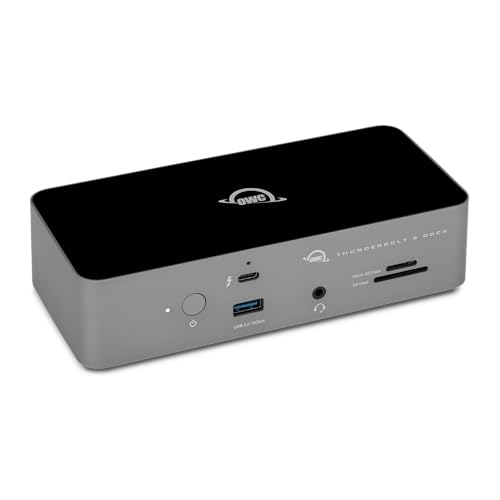
The OWC Thunderbolt 5 Dock is the closest alternative when three downstream Thunderbolt ports remain important but the desk has more USB-A gear. Frozen manufacturer evidence for the current Thunderbolt 5 dock comparison lists three USB-A ports, SD and microSD readers, 2.5GbE, and up to 140W host charging in an 11-port layout.
Choose OWC when adapting several existing USB-A peripherals would erase the TS5’s USB-C advantage. Choose the TS5 when the three additional 10Gb/s USB-C data ports and simultaneous UHS-II readers better match the workflow.
OWC’s advertised display figures still depend on the host. Switching docks does not remove the need to check the GPU, operating system, and display chain.
Anker Prime TB5: better for native HDMI or DisplayPort
The Anker Prime TB5 Docking Station directly addresses the TS5’s most obvious inconvenience. It includes HDMI 2.1 and DisplayPort 2.1, although Anker says only one of those two outputs can be used at a time. That can produce a cleaner single-monitor desk when the display lacks USB-C input.
The tradeoff is downstream Thunderbolt expansion. The frozen Article 104 evidence lists two downstream Thunderbolt 5 ports for Anker, compared with three on the TS5. Anker also publishes specific operating-system guidance and exclusions that must be checked against the intended host.
Choose Anker for the built-in conventional video path. Choose TS5 when another downstream Thunderbolt port, more USB-C data ports, and simultaneous UHS-II readers matter more than native HDMI or DisplayPort.

Plugable TBT-UDT3: better for a narrow upright footprint
The Plugable TBT-UDT3 keeps three downstream Thunderbolt 5 ports in an upright 11-in-1 design. Its narrower desktop footprint can matter on a small desk or beside a monitor stand. Frozen manufacturer evidence also records SD and microSD readers, 2.5GbE, and up to 140W host charging.
The TS5 provides more total expansion and a stronger USB-C data group. Plugable is the more focused alternative when physical placement matters more than maximizing port count.
Plugable’s display support varies by system specification and Mac chip. As with the TS5, a Thunderbolt logo does not replace a host-specific display check.

Frequently asked questions
Is the CalDigit TS5 worth buying for a Thunderbolt 4 laptop?
It can be, but only when the TS5’s port layout has value beyond Thunderbolt 5 performance. CalDigit lists Thunderbolt 4 compatibility, so the dock can serve as a high-capacity expansion point for a Thunderbolt 4 computer. The connection will not become an 80Gb/s Thunderbolt 5 link, and some display or performance capabilities will remain limited by the older host.
Buying the TS5 for a Thunderbolt 4 laptop makes the most sense when three downstream Thunderbolt ports, three USB-C data ports, dual card readers, and the charging layout are useful now, while a future host upgrade is realistic. It makes less sense when a less expansive Thunderbolt 4 dock already covers the desk.
Does the CalDigit TS5 support two, three, or four monitors?
There is no safe universal number. CalDigit documents different ceilings for different Windows hosts and Mac chips. Some supported hosts can expose two displays, some Thunderbolt 5 Windows systems can expose three, and newer named Mac configurations have their own matrix cases.
The exact answer depends on the laptop GPU, chip, port implementation, operating system, connection type, cable or adapter, monitor, resolution, refresh rate, and DSC support. Check the current CalDigit matrix for the exact computer before buying.
Can an HDMI monitor connect to the TS5?
Yes, through a suitable USB-C to HDMI adapter connected to a spare downstream Thunderbolt port. There is no HDMI connector on the dock itself.
Choose the adapter for the intended resolution, refresh rate, color depth, and host. On some Macs, an HDMI adapter can impose a lower limit than a direct USB-C or DisplayPort path. A USB-C or Thunderbolt monitor can connect directly without that HDMI conversion.
Will the TS5 charge every laptop at 140W?
No. CalDigit rates the host port for up to 140W, but the laptop negotiates the power it accepts. A computer without USB Power Delivery on the connected port will not charge through the dock. Some high-performance Windows laptops also need their proprietary charger during demanding CPU or GPU workloads.
Check the laptop’s charging specification, the exact port, and whether the manufacturer supports high-wattage USB-C input. Treat 140W as the dock’s host-output ceiling, not a promise that every computer draws that amount.
Does 2.5GbE work on a USB4 laptop?
Only if that USB4 host supports the PCIe capability required by the dock’s Ethernet function. CalDigit explicitly tells USB4 buyers to confirm PCIe support with the host manufacturer.
The link also runs only as fast as the rest of the network path allows. A 2.5GbE dock connected to a Gigabit switch remains limited by that switch, and a slow NAS or storage volume can become the next bottleneck.
What is the difference between the CalDigit TS5 and TS5 Plus?
They are separate products. This review covers the 15-port TS5 and exact ASIN B0F2GMPJYB. The TS5 Plus has a different port count and feature set. Search results and marketplace copy sometimes mix the two names, so confirm the exact model and ASIN before checkout.
The safest identity check is the product title, model name, port diagram, and ASIN together. Do not transfer a TS5 Plus specification to the TS5 merely because both are Thunderbolt 5 docks from CalDigit.
Sources and Methodology
This review uses CalDigit’s live TS5 product page, the current English TS5 manual, and CalDigit’s Mac multi-monitor support page. Those sources establish identity, port layout, compatibility, power ratings, physical specifications, included items, and the limits around displays and Ethernet. All three returned HTTP 200 during the July 28, 2026 research pass.
Amazon’s Creators API was used separately to verify that the exact TS5 ASIN and the three contextual alternative ASINs returned exact identities with active US offer listings. Marketplace data was not used for technical claims, and no returned price is included.
Current Bing CLI snapshots were used to judge whether the exact model has standalone review intent and to identify result ambiguity between TS5 and TS5 Plus. Keywords Everywhere supplied US Google Ads/GKP demand and CPC proxies. Those values are not Bing search volume and are not added across overlapping variants.
No product was personally tested, measured, benchmarked, or scored for long-term reliability in this review. The verdict is a buyer-fit analysis based on current manufacturer documentation and verified product identity. Specifications, software behavior, display matrices, and marketplace offer state can change, so confirm the current manufacturer pages and exact listing before purchase.