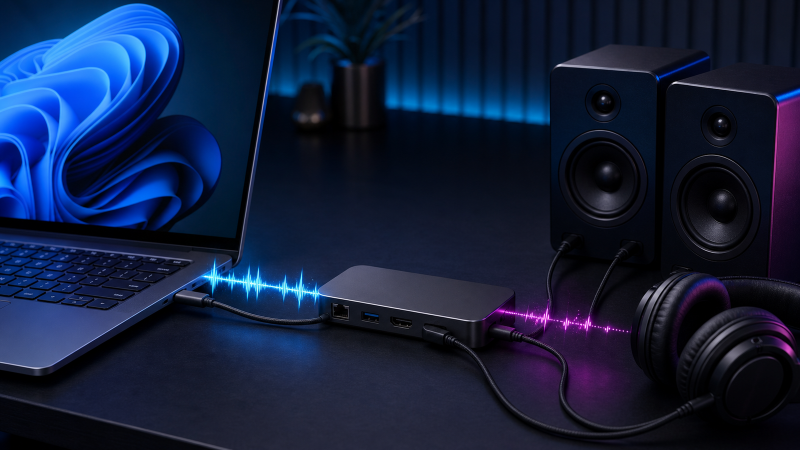
If Windows 11 lists the intended dock-route audio endpoint and it produces sound, but playback crackles, pops, stutters, becomes choppy, or drops, keep one known local audio file and one output device fixed. Compare the same device on a supported direct route, then rebuild the docked path with no other dock devices.
The endpoint must exist and sound must play before any of this applies. Complete silence or a missing endpoint belongs to a no-sound path. Continuous hum, hiss, buzz, or ground-loop noise belongs to the dock audio-interference guide. Transient crackle and dropouts need their own comparison, because the Windows endpoint, audio processing, dock route, and physical output can all stay present while playback quality changes.
Do not disable USB power management, edit the registry, uninstall every audio or USB device, or use a driver scanner. Broad system changes alter several layers before the fault is isolated.
Match the playback state
| What you hear or see | What it proves | Next check |
|---|---|---|
| The endpoint exists, sound plays, and crackle repeats in one local file | A repeatable sample is available | Play the same sample through a direct route |
| The same USB headset is clean directly but crackles through the dock | The headset and sample work on one route | Isolate the dock host link, data port, and other devices |
| The dock analog output crackles, but the same headphones are clean from another output | The headphones can play cleanly on another output | Keep the headphones fixed and inspect the dock analog endpoint |
| Monitor audio is clean directly but crackles through the docked display path | The monitor can play the sample cleanly on one route | Isolate the dock display-audio path and the selected endpoint |
| Crackle starts when one dock device is added | The added route changes playback state | Remove it, repeat once, and read both device manuals |
| Several dock functions disconnect along with audio | The fault is wider than audio quality | Leave this guide and diagnose the whole dock |
| The sound is a steady hum, hiss, or buzz | The symptom is continuous interference | Use the interference guide instead |
Use a safe volume. Stop if a plug, cable, dock, power adapter, speaker, or headset is hot, loose, deformed, or physically damaged.
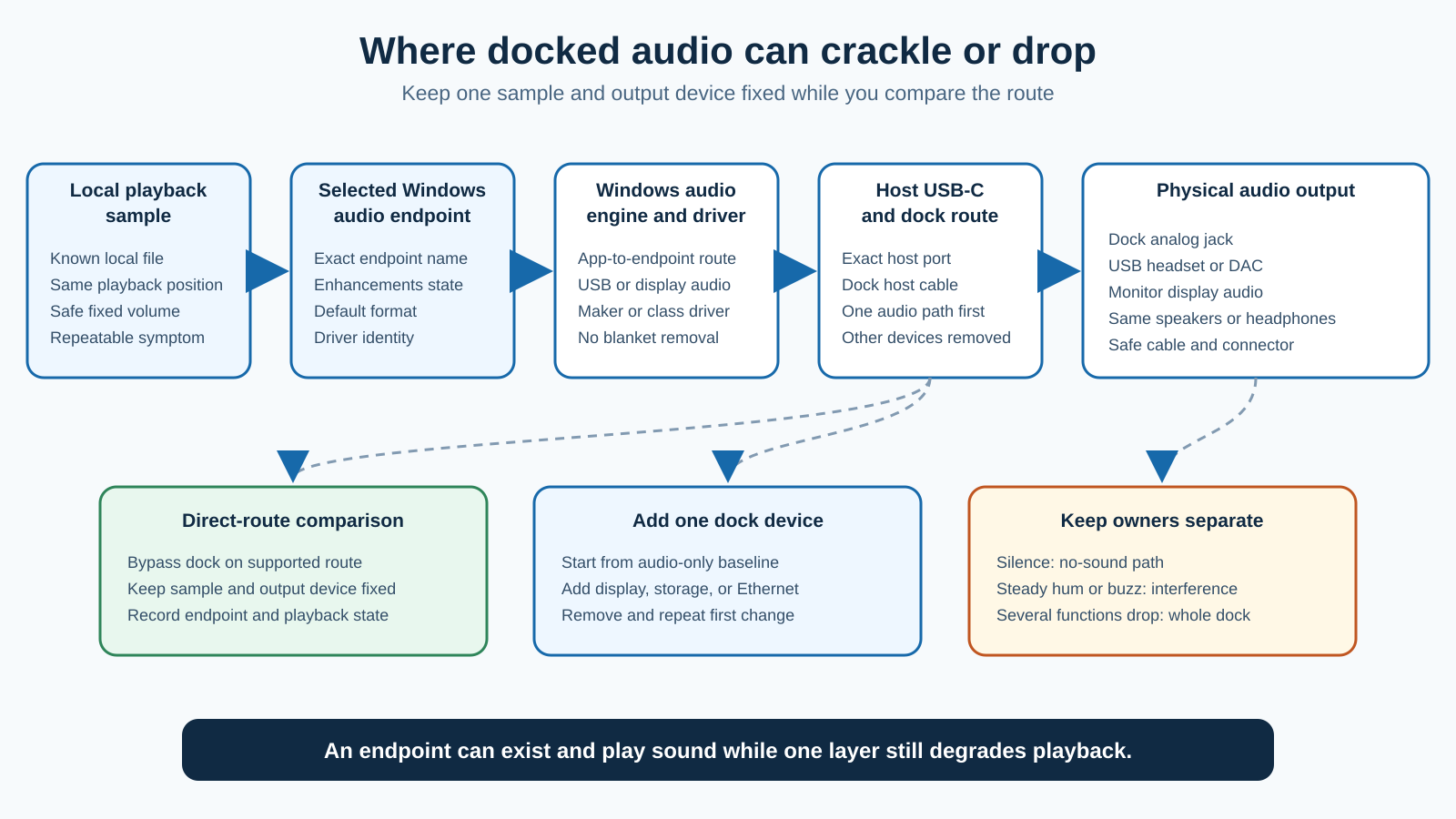
Use the shortest safe sequence
- Record the selected endpoint, connection type, dock model, host port, output device, Windows format, and enhancements state.
- Play one known local audio file and record where the crackle, pop, stutter, or dropout occurs.
- Compare the same output device on a supported direct route.
- Reconnect the dock with no other downstream device.
- Add one display, drive, network cable, receiver, or USB device at a time.
- Turn off audio enhancements for the selected endpoint and retest.
- Try another Windows-listed default format and restore the original if nothing changes.
- Check Windows Update and exact computer, dock, and audio-device support.
- Apply a firmware advisory only when it names the exact model and revision.
- Escalate or replace only from a repeated route result.
Name the endpoint and physical output
Open Settings > System > Sound and select the endpoint that produces the affected sound. Record its exact name before you change anything.
The docked route can end in different hardware:
- headphones or speakers connected to the dock’s analog jack
- a USB headset, USB DAC, or USB speakers connected to a dock data port
- a monitor’s speakers reached through a dock display output
- a dock’s integrated USB audio endpoint
- a receiver connected through a documented digital output
The listed paths do not share the same last step. A USB headset appears as a USB audio device. Monitor audio can appear under a graphics or digital-display name. An analog dock jack can appear under a dock USB audio name. Keep the endpoint name attached to every result.
Open Device Manager and record the related entries under Sound, video and game controllers, Audio inputs and outputs, and Universal Serial Bus devices when relevant. Do not uninstall them.
If the endpoint disappears at the same moment as Ethernet, USB storage, and other dock devices, use the whole Thunderbolt or USB4 detection guide when that is the host path. Audio crackling alone cannot explain a wider dock disconnect.
Build a repeatable local sample
Use one local audio file that plays cleanly from another output. A local file rules out a network stream, web player, account, and connection quality in the first comparison.
Keep fixed:
- playback app
- file and playback position
- Windows output volume
- endpoint volume
- headphones or speakers
- removable audio cable
- default format
- audio enhancements
- dock host port and cable
Write down the time in the file when the fault occurs. If the sound changes at random, play the same section several times and describe only what repeats.
Do not use a game or a video call as the first sample. Games and video calls add graphics load, network traffic, microphone processing, and app-specific audio choices. Test them later, after the basic route is known.
The sample is a diagnostic reference, not a benchmark. Do not claim a latency, buffer, or bandwidth cause from the sound alone.
Choose the matching direct comparison
The direct test depends on the endpoint type.
USB headset, DAC, or USB speakers
Disconnect the USB audio device from the dock and connect it to a documented computer USB data port. Keep its removable cable and the local sample fixed. Select the same endpoint name in Windows and replay the same section.
If Windows reports a different name, save both names. Do not assume that both routes loaded the same driver.
Monitor speakers
Bypass the dock with a supported direct display connection. Keep the monitor, the selected input when possible, the resolution, refresh rate, local file, and volume fixed. Select the monitor endpoint again.
Dock analog output
Use the same headphones or powered speakers on another documented output. The direct output uses different conversion hardware, so a clean result proves only that the headphones, cable, and sample can play cleanly elsewhere. It does not prove that the dock’s analog stage is defective.
If the output device crackles on every direct and docked route, the dock is not isolated. Check the audio device, cable, computer, and Windows audio path.
Rebuild the docked route with no other device
Reconnect the dock with its documented power supply and host cable. Remove storage, the network cable, displays, receivers, capture devices, KVMs, and other USB equipment.
Connect only the affected audio path. Select its endpoint and play the same local section.
If playback is clean, add one item at a time and stop at the first item that brings the fault back. Remove it and repeat the comparison once.
If the added item is storage, safely eject it before disconnecting. If it is a display, keep the display mode fixed during the next comparison. If it is Ethernet, keep the network cable and switch port fixed.
Do not conclude that the dock “ran out of bandwidth” from one changed result. The added device can change USB routing, power use, display topology, software, or physical cable placement. The exact product documentation decides which explanation is supported.
If one dock data port is clean and another crackles with the same USB audio device, record both physical port positions. The result applies to those ports and that dock state.
Check the selected endpoint in Windows
Open Settings > System > Sound and choose the affected endpoint. Confirm that the local file still plays through it.
Microsoft’s current crackling-audio guidance gives two reversible endpoint checks.
Turn off audio enhancements
Open the endpoint’s properties and set Audio enhancements to Off. Replay the same section.
If the sound becomes clean, save the original and the new setting. The changed result supports an interaction with processing on that endpoint. It does not identify which enhancement caused it.
If nothing changes, restore the original setting unless you prefer it off for another documented reason.
Try another listed default format
Open the endpoint’s advanced properties. Record the current default format, choose another format that Windows lists for that device, and replay the same section.
If the sound changes, record both exact formats and the app. Do not claim that 44.1 kHz, 48 kHz, or any other format is universally correct. The device and the content decide which formats are supported.
Restore the original when the comparison does not help. Do not force a format with an unofficial utility.
Identify the endpoint driver without replacing it
Microsoft’s Windows audio architecture separates the app, the audio engine, endpoint discovery, drivers, and hardware. The layers explain why an endpoint can exist while playback quality is poor. They do not show which layer is faulty.
For a USB audio device, open Device Manager, view Properties, and record the driver provider, version, and date. Microsoft includes a USB Audio 2.0 class driver in Windows, and a hardware maker can supply its own preferred driver.
Do not replace a maker driver with the Windows class driver by guess, and do not install a generic USB audio package. Use the exact device and computer support pages.
The Windows USB-version guide can help identify the reported USB device path. The USB-C cable testing guide can compare data behavior after a cable is isolated. A storage transfer result does not prove clean audio.
Apply exact-model firmware advice only
Check the computer, dock, and audio-device support pages with their full model and revision. Read the release notes before you install anything.
Dell documents USB audio noise or distortion on named WD19, WD22TB4, and HD22Q dock families at named firmware revisions. The advisory identifies the affected revision and a later resolving firmware floor.
Use that branch only when:
- the dock is one of the listed models
- the installed dock firmware matches the affected range
- the affected audio device and symptom match the advisory
- Dell’s prerequisites are met
Do not apply Dell’s firmware package to another dock, and do not turn one exact advisory into a claim that all dock crackling comes from firmware.
Dell’s WD19 manual also has an exact power and audio sequence for that model. Use it only on a WD19 covered by the manual. Other docks need their own procedure.
For every update, keep power stable, close active work, and do not disconnect the device during an approved firmware process.
Keep continuous interference separate
A steady hum, hiss, buzz, or background electrical noise is not the same state as transient pops, stutter, or dropouts.
If moving an analog audio cable away from power equipment changes a continuous sound, record that state and use the interference article. Do not prescribe ground-loop hardware for a USB headset that drops samples, or for a digital monitor endpoint that stutters.
Physical coil noise from the dock itself is also separate from sound in the speakers. Listen near the dock only from a safe distance, and do not open the power adapter or the dock.
Interpret the result
| Repeated result | What it supports | Next action |
|---|---|---|
| The same USB audio device is clean directly and crackles through the dock | The docked USB route changes playback | Compare dock ports, host cable, and exact support |
| The dock analog output crackles while the same headphones are clean elsewhere | The headphones and sample work on another output | Contact dock support with endpoint and route evidence |
| Monitor audio is clean directly and crackles through the dock | The docked display-audio route changes playback | Check output, display mode, and exact dock support |
| Removing one device restores clean playback | The added device changes the dock state | Repeat once and contact the relevant maker |
| Turning off enhancements restores clean playback | Endpoint processing changes the result | Keep the recorded setting and report it |
| Another listed format restores clean playback | Endpoint format changes the result | Keep the exact device-supported setting |
| Direct and docked routes both crackle | The dock is not isolated | Check the output device, cable, app, and computer path |
| Audio crackles while several dock functions disconnect | The fault is wider than audio | Diagnose the whole dock path |
If a removable host cable is isolated, choose one documented for the dock’s full host connection. Use the USB-C cable guide only after the comparison.
If the dock cannot provide clean audio on any documented route and support confirms the fault or limitation, compare a replacement in the USB-C dock guide, the Thunderbolt dock guide, or the USB-C hub guide. Match the host protocol and the audio output you need.
If only the audio device is isolated, compare a supported USB-C headset or USB-C earbuds after you check the device’s exact computer and dock support.
Escalation and replacement boundary
Give support:
- exact computer, dock, and audio-device models
- endpoint name, driver provider, version, and date
- host port, dock port, host cable, and dock firmware
- the local sample and the repeatable time in the file
- direct and docked results
- enhancements and default-format results
- the first added device that changes playback
- whether other dock functions stay stable
Contact the dock maker when the same audio device is clean directly and fails across documented dock ports. Contact the audio-device maker when it crackles directly and through the dock on more than one computer. Contact the computer maker when several supported audio endpoints fail on direct ports.
Replace only after the exact support path cannot restore or explain a repeated isolated fault.
Frequently asked questions
Why does dock audio crackle even though Windows sees the device?
Enumeration proves that Windows created an endpoint. It does not prove clean playback through the app, Windows processing, driver, host route, dock, and output hardware. Compare a local sample directly and through the dock.
Should I disable audio enhancements?
Use it as a reversible comparison for the selected endpoint. Record the current state, turn enhancements off, replay the same section, and restore the setting if nothing changes.
Which default audio format should I use?
Use a format Windows lists for the exact endpoint, and try one other listed format as a comparison. No sample rate is universally correct for every dock and audio device.
Can another dock device cause audio stutter?
Adding a device can change the dock state. Remove all other devices, confirm a clean or failing baseline, then add one item at a time. A repeated state change is evidence, but it does not prove a universal bandwidth cause.
Is crackling the same as a ground loop?
No. Use the interference guide for a steady hum or buzz. Transient crackle, pops, stutter, choppy playback, and dropouts after sound already works belong here.
Should I update dock firmware?
Only when the official support page names the exact dock, the installed revision, the symptom, the prerequisites, and the target version. Dell’s current USB audio advisory is limited to the listed Dell families and firmware.
Can I test with streaming music?
Use a local file first, because streaming adds network and web-player variables. After the local route is stable, test the streaming app without changing the hardware.
When should I replace the dock?
Replace or service it after the same audio device and sample are clean on a supported direct route, fail on documented dock routes with other devices removed, and exact maker support cannot restore or explain the state.
Sources and Methodology
Current official sources were checked on July 28, 2026. Microsoft documents reversible enhancement, default-format, driver, and service branches for crackling audio, the Windows audio layers and endpoint model, and the Windows USB Audio 2.0 class driver boundary. Dell documents an exact USB audio firmware issue on named dock families and WD19-specific audio and power steps.
No dock, computer, endpoint, driver, cable, headphones, speakers, or audio file was tested. The method fixes one sample and output device, compares direct and docked routes, and changes one endpoint or dock condition at a time.


![[All Fixes] Discord Voice Connection Issues – No Route/RTC/ICE](https://thunderboltlaptop.com/wp-content/uploads/2020/10/All-Fixes-Discord-Voice-Connection-Issues-–-No-Route_RTC_ICE-380x250.png)