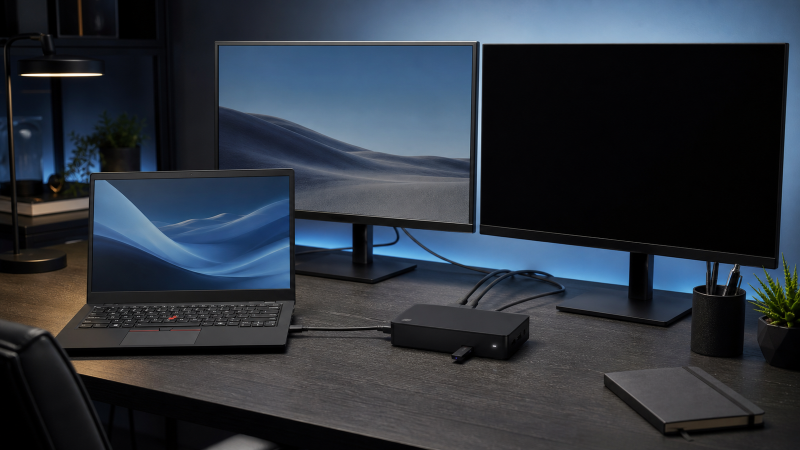
If Windows does not detect a monitor on your ThinkPad dock, record the complete dock part number and laptop machine type first. 40B0 alone is not an identity. Lenovo uses that type for both the Universal Thunderbolt 4 Dock and the Thunderbolt 4 Workstation Dock, which have different power and upstream arrangements.
Next, find your exact laptop and connection situation in Lenovo’s dock video-output matrix. Test one monitor on one listed output before changing software. A working USB device, Ethernet link, or charging state confirms only that part of the dock is active.
The Lenovo matrix row, not the dock’s marketing name, defines the display topology you can test.
This article covers an identified Lenovo Thunderbolt 4 dock that is at least partly present. The generic USB-C monitor guide owns an unknown dock or ordinary USB-C display path. The Thunderbolt detection guide owns a dock that is completely absent.
Identify all three parts of the Lenovo path
Photograph the label on the bottom of the dock. Record:
- the full dock product name;
- the complete part number, not only
40B0; - the power-adapter rating and model;
- the supplied upstream cable or workstation split-cable assembly;
- the laptop’s full marketing name;
- the laptop machine type, usually the first four characters of the product identifier;
- the monitor model and physical input;
- each cable or adapter between dock and monitor.
| Identity you find | Why it changes the diagnosis | First document to use |
|---|---|---|
Universal Thunderbolt 4 Dock, 40B00135xx family |
Uses the Universal dock’s standard Thunderbolt 4 connection and port map | Universal 40B0 brochure plus Lenovo matrix |
| Thunderbolt 4 Workstation Dock, 40B0 family | Uses a distinct workstation power and host-cable arrangement | Workstation 40B0 brochure plus Lenovo matrix |
| Another ThinkPad USB-C, Hybrid, USB 3.0, or Thunderbolt dock | Port roles and display engine can differ | Exact product guide |
| Laptop machine type found in Lenovo matrix | Exact connection situation and outputs can be checked | Matching matrix row |
| Laptop not found in current matrix | Capability is not proved | Current Lenovo support for that machine type |
| First display works, only second is missing | Basic display path exists | Multi-display topology owner |
The Universal 40B0 brochure lists two DisplayPort 1.4 outputs, one HDMI 2.1 output, and a downstream Thunderbolt 4 port. The Workstation 40B0 brochure identifies a different connection package for high-power mobile workstations. Both can be called 40B0, which is why a type-only search can lead you to the wrong cable and diagram.
If you are choosing rather than troubleshooting a dock, use the ThinkPad docking-station guide. This article does not compare products.
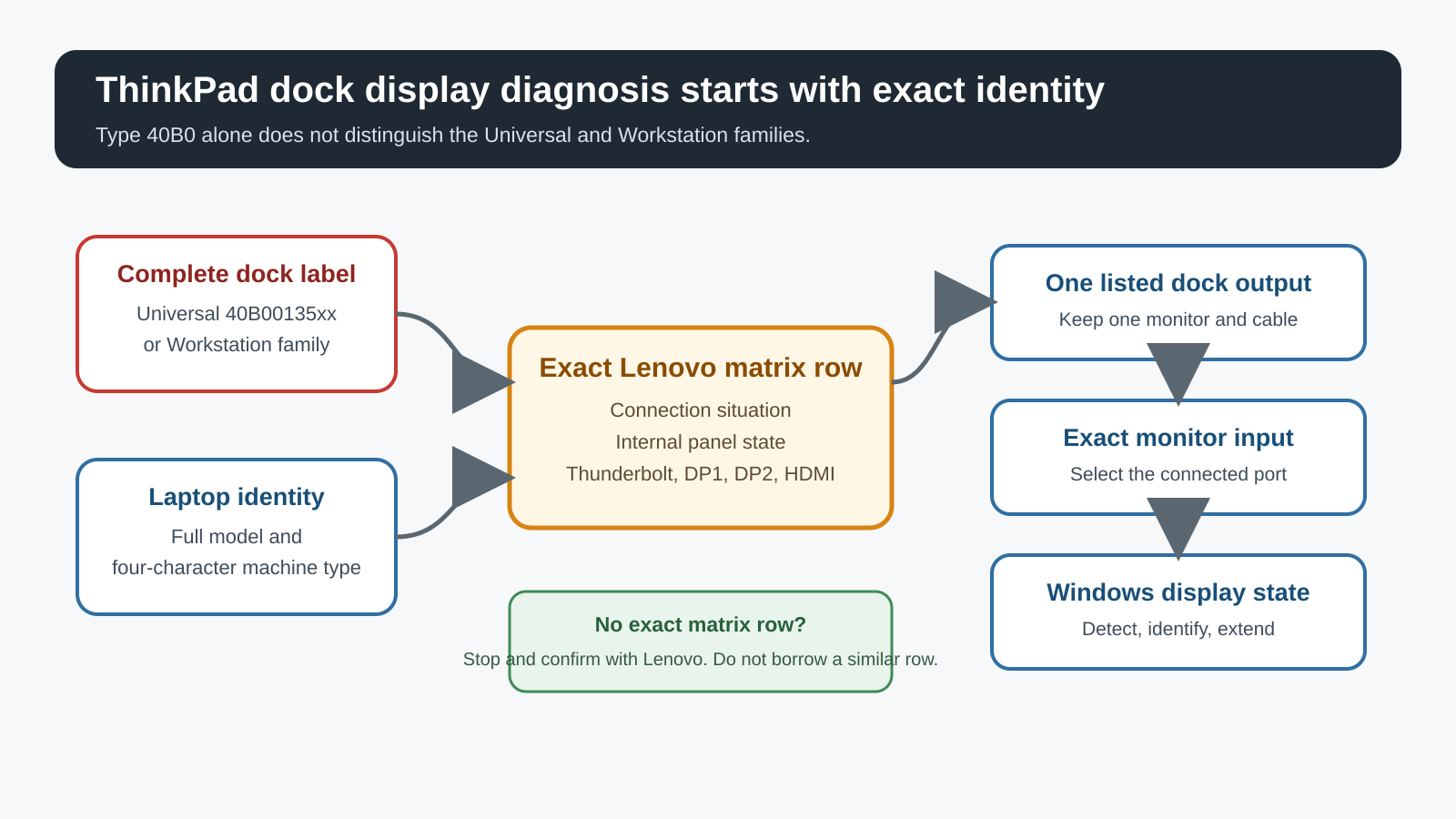
Use this one-variable order
- Resolve the complete dock part number and exact laptop machine type.
- Confirm the correct Lenovo power supply and upstream cable arrangement.
- Match the laptop and connection situation in Lenovo’s display matrix.
- Disconnect extra screens, adapters, KVMs, and daisy chains.
- Test one monitor on one native output listed in that matrix row.
- Select the monitor’s matching physical input.
- Check Windows projection and Display settings.
- Test one other listed output without changing the monitor or cable.
- Use exact Lenovo updates only after the failed layer is narrowed.
- Rebuild the intended display arrangement one screen at a time.
Mark each tested output as works or absent. A short written record like that is more useful than changing several display settings at once.
Step 1: match the complete dock family
The words ThinkPad Dock are not a technical specification. Lenovo has sold native USB-C docks, Thunderbolt docks, hybrid docks, and USB graphics docks. They can share a similar enclosure while using different display paths.
For the Universal Thunderbolt 4 Dock, confirm the full 40B00135xx family number and the standard upstream Thunderbolt cable. For the Workstation dock, confirm the complete label and the Lenovo workstation cable arrangement shown in its brochure.
Do not substitute:
- an ordinary USB-C charging cable for the supplied upstream cable;
- only one plug from a workstation connection assembly when the exact laptop requires the documented arrangement;
- an upstream port chosen by shape rather than the laptop manual;
- a power adapter from a similar dock.
Connect the dock directly to the laptop during diagnosis. Remove USB-C extenders, KVMs, another dock, and monitor-side USB-C daisy chains. Each adds a negotiation or conversion boundary.
If the laptop has more than one USB-C-shaped port, use the one identified for Thunderbolt or docking in the exact laptop guide. The DisplayPort Alt Mode explainer explains the general connector problem, but the ThinkPad manual controls.
Step 2: find the laptop’s exact Lenovo matrix row
Lenovo’s dock video-output display matrix is not a one-line maximum-resolution claim. It has separate columns for:
- system and machine type;
- connection situation;
- maximum display quantity;
- number of displays in the listed arrangement;
- notebook display state;
- downstream Thunderbolt;
- DP1;
- DP2;
- HDMI.
Search the current file for your four-character machine type. Then confirm the dock and connection situation. A row for another generation of the same marketing family is not a substitute.
For example, the matrix separates machine types within X1 Carbon and T14 generations. The fact that one T14 row supports a combination does not prove it for every T14. Graphics generation, port wiring, and connection situation can differ.
Record the row you plan to test. If the laptop is missing from the matrix:
- check that you have the latest Lenovo matrix;
- confirm the region-independent machine type;
- open Lenovo support for that exact machine;
- ask Lenovo to confirm the dock and output combination.
Do not choose the nearest-looking row. An evidence gap is not a compatibility result.
Step 3: reduce the topology to one monitor
Disconnect every external display and reconnect one monitor through one native dock output listed for your row. Prefer a direct DisplayPort or HDMI cable for the first pass.
Leave the laptop panel active unless your exact matrix row or intended test says otherwise. Closing the lid can change the Windows power and display state, so keep that variable out of the first test.
Use a resolution and refresh rate that both the monitor and listed path support. Do not start at an unverified maximum. You are testing enumeration, not proving the dock’s marketing ceiling.
If the one-monitor path works, the dock is not in a universal no-display state. Add the second screen later and compare the complete combination with the matrix. If only the second disappears, hand the state to the multi-display topology owner instead of repeating this article.
The dual-monitor docking guide covers buying capability. Your installed dock still needs the exact Lenovo row.
Step 4: prove the monitor input and cable
Use the monitor’s buttons to select the exact physical input. Do not rely on auto selection while another source remains attached.
Reseat both cable ends. Inspect for a loose latch, bent connector shell, or adapter that can be removed. Then make one comparison:
- test the same monitor and cable on another known video source; or
- keep the monitor and cable unchanged and move to a second output listed in the Lenovo row.
Interpret the result narrowly:
| Comparison | What it isolates | What it does not prove |
|---|---|---|
| Monitor and cable fail on another source | The dock is not yet the leading suspect | Which of the monitor or cable failed |
| Same monitor and cable work on one dock output | Host-to-dock display path can function | Every other output or display combination |
| Same monitor and cable fail on every listed output | Upstream, host support, dock firmware, or dock hardware remains | That the dock must be replaced |
| Another monitor works on the same output | First monitor path needs closer input and timing checks | Universal monitor incompatibility |
If a cable comparison identifies the cable, replace it with one that explicitly supports the connector and timing required. The USB-C cable guide is a later selection route, not the first step.
Step 5: check Windows only after the path is plausible
Press Windows + P and choose Extend or Duplicate. Then open Settings > System > Display, expand Multiple displays, and select Detect.
Use Identify when Windows shows more than one rectangle. Match the numbers to the physical monitors before rearranging them. A stale arrangement can make a working screen appear off to one side, but it does not create a missing hardware endpoint.
Record one of these states:
- no external display rectangle appears;
- a rectangle appears but is disabled;
- a display appears under an unexpected name;
- the display appears only at a lower timing;
- the display appears on one dock output but not another;
- one display works until another is attached.
Microsoft’s multiple-monitor guidance controls these settings. Lenovo’s matrix still controls whether the requested combination exists. Windows Detect cannot add a display lane or output that the exact connection situation does not support.
Do not install a generic driver utility. Do not remove devices repeatedly from Device Manager. When the dock and display path are clear, use Windows Update and the exact Lenovo support page for the laptop and dock.
Step 6: rebuild the matrix combination
Keep the first working screen attached. Add one second display on the next output named in the exact row. Do not simultaneously change its cable, timing, and adapter.
Compare:
- active laptop panel state;
- downstream Thunderbolt, DP1, DP2, and HDMI columns;
- resolution and refresh rate of each screen;
- number of external screens;
- upstream connection situation.
If the full arrangement fails, return to the last working state. Lower one requested timing or remove one adapter. The first single change that restores the display set points to the constraint.
Do not convert a direct-output test into a daisy-chain test halfway through. A monitor chain introduces MST and its own port roles. The USB-C daisy-chain monitor guide owns that buying and capability boundary.
If the requested arrangement is absent from the matrix, ask Lenovo before buying cables or replacing the dock. A row can change with laptop generation even when the dock label remains the same.
Step 7: apply exact Lenovo support after isolation
Open Lenovo support for both the laptop machine type and full dock part number. Record current versions before changing anything:
- Windows build;
- graphics driver package;
- laptop BIOS and platform firmware;
- Thunderbolt or USB4 components applicable to the host;
- exact dock firmware;
- current Lenovo matrix revision.
Use Lenovo Vantage, Commercial Vantage, Lenovo System Update, or the exact support page only when the machine’s official documentation names that path. Install one relevant package at a time. Repeat the same one-monitor test afterward.
Do not flash a package because it mentions 40B0 while the complete dock product differs. Do not use an update from a community attachment. Do not reset BIOS defaults or reduce Thunderbolt security as a generic repair.
If the failure started after sleep, capture that exact state. A wake-only fault is distinct from a display that never enumerates after a cold connection. Follow Lenovo’s exact support item for that laptop and dock when available.
Escalation matrix
| Confirmed state | Escalate to | Evidence to send |
|---|---|---|
| Full dock absent | Laptop or dock support | Machine type, dock part number, power supply, upstream cable, ports tried |
| Dock USB works, one known monitor fails on every listed native output | Lenovo dock support | Matrix row, output labels, monitor and cable comparison |
| Same monitor and cable work on one output only | Lenovo dock support | Repeated A/B output result |
| Monitor and cable fail on another source | Monitor or cable maker | Monitor model, selected input, second-source result |
| One display works and only the second fails | Display-topology owner | Matrix row, panel state, each output and timing |
| Laptop is missing from current matrix | Lenovo system support | Machine type, dock part number, desired display set |
| Exact firmware change restores the path but failure returns | Lenovo support | Before and after versions, reconnect or wake sequence |
Give support the exact nouns. ThinkPad dock has no display is too broad. 40B00135US on machine type 21CB, dock USB works, one known-good DP monitor is absent on both matrix-listed outputs is actionable.
Replacement boundary
Replacement is premature when the wrong dock family, wrong upstream cable, wrong monitor input, unsupported matrix row, or Windows projection state explains the result.
Consider replacing or servicing the dock only after:
- the full dock and machine type are identified;
- the exact Lenovo matrix supports the tested one-monitor path;
- the correct power and upstream connection are used;
- a known monitor and cable fail on more than one listed native output;
- the same laptop display port works in a separate supported comparison;
- exact Lenovo host and dock software is current;
- Lenovo confirms the hardware boundary.
Replace the display cable only when the cable comparison changes the state. Service the monitor when it fails on another source. Choose a different dock only when the current matrix cannot provide the topology you need.
For a confirmed product mismatch, use the ThinkPad dock buying guide or the broader Thunderbolt 4 dock guide.
Frequently asked questions
Is every Lenovo 40B0 dock the same?
No. Lenovo’s official Universal and Workstation Thunderbolt 4 dock brochures both use type 40B0. Resolve the complete part number and supplied cable arrangement before using a guide or firmware package.
Why does the dock charge my ThinkPad but show no monitor?
Power and display are separate branches. Confirm the exact host port, upstream cable, matrix row, native output, monitor input, and Windows state.
Can I use another ThinkPad generation’s matrix row?
No. Match the full machine type and connection situation. A similar marketing name does not prove the same graphics path.
Should I close the laptop lid during the test?
Keep it open for the first one-monitor test. Lid state can change Windows power and display behavior. Compare the internal-panel state with the matrix only after a direct display works.
Should I update every Lenovo package first?
No. Identify the exact dock and failed layer first. Then use only the packages for that laptop machine type and complete dock part number.
Why does one screen work but not two?
The basic display path works. Compare the internal panel, connection situation, physical outputs, and each requested timing with the exact Lenovo matrix row. That state is no longer generic no-image troubleshooting.
Sources and methodology
This article uses Lenovo’s directly retrievable brochures for the Universal and Workstation Thunderbolt 4 docks, Lenovo’s July 2024 display-output matrix, Microsoft’s multiple-monitor guidance, and VESA connector context. The matrix was read without converting or modifying it.
No device was physically tested. Lenovo may publish a newer matrix after the evidence cutoff. Recheck the current file for your exact machine type and full dock part number before changing hardware.