If a USB-C dock works but its Ethernet port does not, do not reset every network device at once. First decide which failure you actually have: Windows cannot see the Ethernet adapter, the adapter has an error, the port has no physical link, the link has no usable IP address, names or Internet access fail, Ethernet drops intermittently, or the negotiated link rate is lower than expected.
The safe order is physical path first, then Windows state, then IP configuration, then exact driver and firmware support. Confirm the dock’s power supply, the laptop’s documented host port, the correct upstream cable, one known-good Ethernet cable, and one known-good router or switch port. After that, record the adapter name, Device status, link state, IP address, gateway, and DNS servers before changing anything.
A link light, a valid IP address, Internet access, and a fast file transfer are four different results. Keeping them separate is the fastest way to stop guessing.
Start here: which symptom do you have?
| Symptom | What to check next |
|---|---|
| Ethernet adapter is absent, but the dock or another dock function works | Confirm the exact dock, its power, the documented laptop port, and the upstream host cable. Then inspect Device Manager and the exact dock support page. |
| Adapter appears with a warning icon | Open Properties, copy the full Device status message and exact code, then follow Microsoft’s resolution for that code and the hardware maker’s support path. |
| Adapter is present but the Ethernet port has no link light | Test one known-good Ethernet cable directly to one known-good enabled router or switch port. Do not start with DNS or Windows Network reset. |
| Link light is on but there is no normal IP address | Record ipconfig /all and check DHCP, gateway, network authentication, VLAN, and upstream router or switch configuration. |
| Valid IP address exists but websites or names fail | Separate DNS from local and upstream reachability. Record the DNS server fields before clearing any cache. |
| Ethernet alone disconnects intermittently | Keep the rest of the dock unchanged and correlate the drop with link light, adapter status, cable, switch port, and exact driver or firmware updates. |
| Windows reports a lower link speed than expected | Compare the dock adapter, switch port, cable path, and both endpoints’ supported rates. A printed 2.5GbE or 10GbE label is not a negotiated-rate promise. |
This guide assumes Windows can see the dock or some dock function. If the entire device is missing or repeatedly reconnects, the problem is broader than its Ethernet subcomponent. Verify the computer port, host cable, dock power, and full device path before using the network checks below.
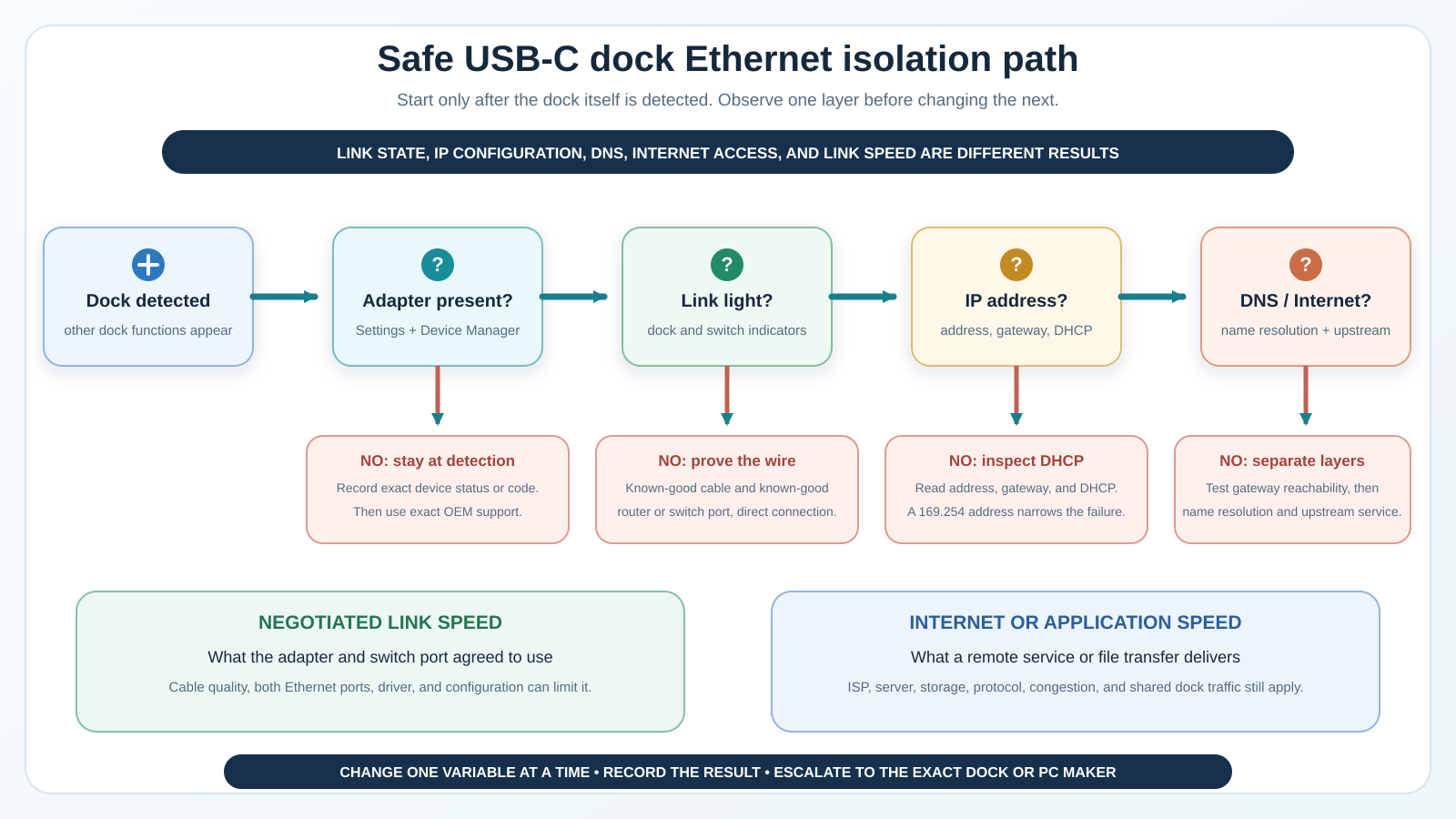
The safe diagnostic order
Use this order because each result narrows the next step without destroying useful evidence.
- Write down the laptop model, dock model, Windows edition and build, and the exact laptop port in use.
- Confirm the dock is on its documented power adapter and that the host cable is connected to the dock’s upstream port.
- Connect the dock directly to the computer while testing. Remove an intermediate hub, extension, adapter, or monitor passthrough.
- Use one Ethernet cable already known to work and one enabled router or switch port already known to work.
- Read the Ethernet jack’s link indicators at both ends.
- Check Windows Settings and Device Manager without uninstalling anything.
- Record the exact adapter name, Device status, error code, link speed, IP address, gateway, and DNS servers.
- Run Windows Update and review applicable optional driver updates.
- Use the exact laptop and dock support pages for model-specific drivers, dock firmware, and prerequisites.
- Escalate the one layer that remains unproved.
Do not lead with registry edits, firmware flashing, blanket BIOS changes, removing every USB controller, or disabling every power-saving option. Those actions can add a second fault, erase the original evidence, or break a working Wi-Fi, VPN, virtual-switch, or static network configuration.
Step 1: confirm the exact dock-to-host path
A USB-C plug does not tell you what the computer port supports. A dock may need USB4 or Thunderbolt, a full-featured USB-C data port, a particular upstream port on the dock, or the supplied host cable. It may also need its own power adapter before the Ethernet controller enumerates reliably.
Start with the laptop maker’s I/O specification and the dock’s port map. Confirm that the cable is in the host-facing Upstream, computer, or laptop port, not a downstream USB-C peripheral port. Use the supplied host cable when the maker requires it. If you need a replacement, choose it by the required data protocol and length, not by charging wattage alone. The USB-C cable guide explains why two identical-looking cables can support different data and display paths.
For the first test, connect the dock directly to the laptop. Bypass an extension cable, KVM, monitor passthrough, or second dock. Leave the dock’s own approved power supply connected. If USB ports, video, or charging work while only Ethernet is missing, you have useful evidence that at least part of the dock path is working.
If nothing on the dock appears, stop. Ethernet troubleshooting cannot fix a host link that never enumerated.
Step 2: prove the copper link before touching TCP/IP
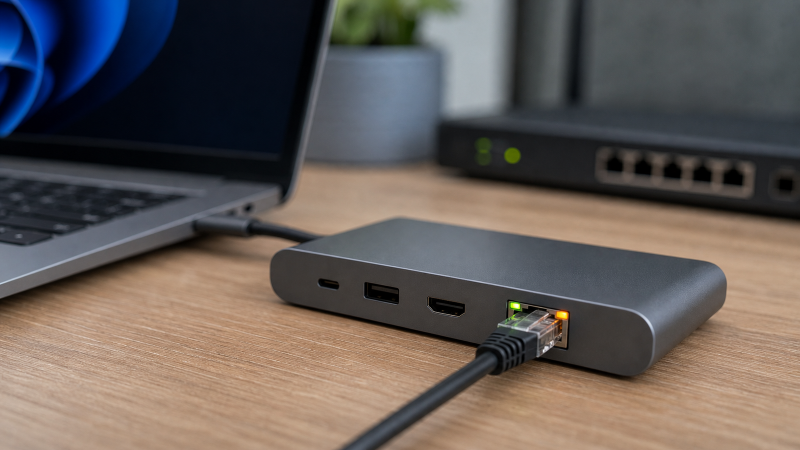
An Ethernet link light is the quickest way to separate the physical network path from the software layers above it. Check the LEDs on the dock jack and the router or switch port. LED behavior varies, so use the dock and network-device manuals to interpret color and blinking.
For a no-light result:
- Disconnect the current patch cable.
- Connect one cable that is already known to work between another computer and this network.
- Use one known-good, enabled router or switch port.
- Make the path direct. Remove wall adapters, couplers, patch panels, and intermediate switches where practical for the test.
- Reconnect the dock to its approved power and laptop host port.
If the light appears, add the removed segment back one at a time. If it still does not appear, the remaining suspects are the dock Ethernet interface, its Windows state, the link partner, a disabled switch port, or a model-specific issue.
Do not run ipconfig /flushdns for a no-link-light symptom. DNS is several layers above a physical Ethernet negotiation. It cannot light a dead port.
Step 3: check Windows Settings and Device Manager without changing anything
Open Settings > Network & internet > Ethernet. Windows can show whether it sees an Ethernet connection. Then open Device Manager and expand Network adapters.
Record the exact adapter name. Dock Ethernet may appear under a controller maker’s name rather than the dock brand. Do not infer the right driver from the logo alone. The exact dock support page should identify the controller or package that belongs to that model.
If the adapter has a warning icon:
- Right-click that exact adapter and choose Properties.
- On the General tab, copy the full Device status message.
- Record the number, such as Code 10, Code 28, Code 31, or Code 43.
- Use Microsoft’s current Device Manager error-code page for the resolution attached to that exact code.
- Compare it with the exact laptop and dock maker’s support instructions.
Code 10 and Code 43 are not two names for one fault. A warning code describes what Windows observed at the device boundary. It does not prove that the dock hardware, the driver package, or the laptop port is the root cause.
If the Ethernet adapter is completely absent while other dock functions work, use View > Show hidden devices only as an observation. A faded historical entry does not prove the current device is active. Return to the dock power, host cable, exact port, Windows Update, and manufacturer support path.
Step 4: record the adapter and IP state
Open Windows Terminal or PowerShell. The following commands observe state and do not rewrite the network configuration:
Get-NetAdapter
Get-NetIPConfiguration
ipconfig /all
Get-NetAdapter shows the adapter’s name, interface description, status, MAC address, and reported link speed. If the list is crowded, Get-NetAdapter -Physical limits the view to physical adapters. Use the exact interface name from that result when reading IP configuration.
Get-NetIPConfiguration connects the interface with its IP and DNS information. ipconfig /all gives a fuller view of DHCP, address, gateway, and DNS server fields. Save the output or take a screenshot before changing a driver or network setting.
What the common results mean:
- Media disconnected or adapter Down: return to link light, cable, switch port, dock power, and exact adapter state.
- An IPv4 address beginning
169.254: Windows assigned itself an automatic private address after it did not receive the expected DHCP address. The physical link may exist, but the result does not say whether the dock, switch, authentication, VLAN, router, or DHCP service caused the failure. - A normal private address but no default gateway: the interface has an address but may lack the route needed to leave the local network.
- A private address, gateway, and DNS servers: local configuration is farther along. It still does not prove name resolution or upstream Internet reachability.
Do not publish the output unedited. It can include adapter identifiers, internal addresses, DNS servers, and other network details useful only to you or your administrator.
Step 5: separate DHCP, DNS, and Internet failures
When link is present but no usable address arrives, check the environment before treating the dock as broken. A managed office port may require authentication or a particular VLAN. A home router may have exhausted its DHCP pool or a mesh node may have lost its upstream connection. A static-IP network may require settings that Windows cannot invent.
Do not use ipconfig /release and ipconfig /renew until you know the interface is intended to use DHCP. Those commands ask a DHCP-configured adapter to release and request a lease. They do not repair a missing physical link, install a driver, or restore a disabled switch port.
When a normal address and gateway exist, test in layers:
- Can the computer reach the local gateway?
- Can it reach a known service by address?
- Can it resolve a known hostname through the configured DNS servers?
- Is a VPN, proxy, endpoint-security client, or captive portal changing the path?
- Does another computer on the same cable and switch port reach the same destination?
ipconfig /flushdns clears the local DNS resolver cache. It is relevant only after the evidence points toward cached name resolution. It is not a general Ethernet repair and should not be used to hide the difference between DNS and upstream reachability.
Step 6: use Windows Update, then the exact maker pages
Microsoft’s normal driver route is Windows Update. Open Windows Update, check for updates, and review optional driver updates where Windows offers them. Install only a package that matches the current device and system.
Next, use the support page for the exact laptop and dock. Laptop makers can customize USB4, Thunderbolt, power, firmware, and network behavior for a platform. A validated package for one model may not apply to another computer with the same processor or a similar USB-C port.
Plugable provides a useful scoped example. For the exact TBT4-UDZ, Plugable documents 2.5GbE, says Windows 11 can obtain the Ethernet driver through Windows Update or Optional Updates, and offers an optional Realtek route for that dock. It also says 2.5Gbps operation needs compatible 2.5GbE network equipment. That is evidence for TBT4-UDZ, not permission to install its driver on a different dock.
Dell maintains an Ethernet support path for the exact WD22TB4. A WD22TB4 owner should follow the current Dell page for that dock and the service-tagged computer. Do not copy a Dell BIOS setting or driver sequence to an HP, Lenovo, Plugable, CalDigit, or generic dock.
Use Realtek’s own download surface only when the dock maker identifies a Realtek controller and directs you to the matching package. Do not obtain network drivers from an unofficial download site.
Firmware comes last in this sequence because it has prerequisites and failure consequences. Confirm exact model, power, host connection, operating-system requirement, and installation order before starting. Never interrupt dock firmware or laptop BIOS power.
Step 7: diagnose intermittent Ethernet without resetting the whole dock
If displays, charging, and USB peripherals remain stable while Ethernet drops, keep those working functions unchanged. Watch the Ethernet link light and adapter status at the moment of failure.
Record:
- whether the link LEDs go dark;
- whether
Get-NetAdapterchanges from Up to Disconnected or Down; - whether the adapter disappears from Device Manager;
- whether the IP address or gateway changes;
- whether the failure follows one cable or switch port;
- whether it begins only after sleep, resume, sustained transfer, or connecting another dock device;
- the exact Windows, driver, dock firmware, and laptop firmware versions.
This record tells the maker whether the failure is physical link loss, device disappearance, address renewal, or higher-layer reachability. “Ethernet is flaky” does not.
Avoid disabling every device’s power-management setting. If the exact laptop or dock maker documents a named setting for the exact hardware and symptom, record the original value and change only that item. Restore it if the result does not improve.
Link speed is not Internet speed
Windows may report 1Gbps, 2.5Gbps, 5Gbps, or 10Gbps for the local Ethernet link. That number describes the rate negotiated between the dock adapter and the immediate switch, router, or peer. Both endpoints and the cable path must support the same rate.
It does not describe:
- the Internet plan or modem rate;
- the router’s WAN capacity;
- Wi-Fi on another leg of the route;
- VPN or security inspection overhead;
- server capacity;
- storage read and write speed;
- file-sharing protocol overhead;
- the performance of one application.
A 2.5GbE dock connected to a 1GbE switch port should normally negotiate no faster than the shared 1GbE capability. A 10GbE adapter attached through the wrong host protocol can be limited before traffic reaches the network. For shopping after the diagnosis, compare current USB-C docks with 2.5GbE or dedicated Thunderbolt and USB4 10GbE adapters by their complete host and network requirements.
Reported link speed is also not an application benchmark. Ethernet framing, TCP/IP, encryption, storage, thermals, and workload all consume time or bandwidth. Use a controlled local transfer between capable endpoints when you need to measure the LAN, and keep that result separate from an Internet speed test.
Escalation matrix
| Evidence after the safe checks | Best escalation owner | Evidence to provide |
|---|---|---|
| Dock absent or all dock functions unstable | Laptop and dock makers | Exact models, host port, host cable, dock power, Windows build, device state, and direct-connection result |
| Ethernet adapter absent while other dock functions work | Dock maker first, laptop maker if host-specific | Exact adapter views, dock firmware, laptop driver/firmware versions, and known-good physical-link test |
| Exact Device Manager error persists | Owner named by the exact code and maker support | Full Device status text, code, hardware IDs if requested, driver source and version |
| No link on known-good cable and known-good enabled port | Dock maker or network administrator | LED state at both ends, cable and port substitution result, adapter status |
| Link exists but DHCP address does not | Network administrator or router owner | ipconfig /all, interface name, VLAN/authentication context, DHCP and gateway fields |
| Local network works but DNS or Internet does not | Network, DNS, VPN, proxy, ISP, or security owner | Gateway reachability, DNS server fields, affected names, VPN/proxy state, comparison device |
| Link rate is below the planned rate | Dock and switch makers or network administrator | Adapter model, negotiated rate, switch-port standard/configuration, cable path and length |
| Only Ethernet drops after sleep or load | Laptop and dock makers | Timestamp, event correlation, LED and adapter transition, driver/firmware versions |
When contacting support, describe the first failed checkpoint. “The adapter is visible and Up, link lights are on, DHCP returns 169.254.x.x, and another PC works on the same cable and port” is much more useful than “the dock has no Internet.”
When replacement hardware is the right conclusion
Replacement becomes reasonable after a controlled substitution isolates the fault: the same known-good cable and switch port work with another computer, the exact dock adapter is absent or cannot form link on supported hosts, the dock is on current validated software, and the maker confirms the symptom.
Do not buy a different dock to repair a DNS outage or disabled switch port. If the dock is otherwise a poor fit, compare current USB-C docking stations and Thunderbolt docking stations by exact host protocol, power, displays, and network rate. A new connector does not remove the need to verify the whole path.
Frequently asked questions
Why does Wi-Fi work while dock Ethernet does not?
Wi-Fi and dock Ethernet are separate adapters with separate physical paths, drivers, addresses, and network policies. Working Wi-Fi proves that Windows and at least one upstream path can reach the network. It does not prove the dock adapter, Ethernet cable, switch port, DHCP policy, or wired authentication.
What does a 169.254 address mean?
Windows assigned an automatic private address because it did not obtain the expected address from DHCP. The result is useful, but it does not name the failed component. Check link, DHCP, VLAN or authentication requirements, router or server state, and comparison devices.
Should I uninstall the Ethernet adapter?
Not as the first step. Record the exact Device status and code, use Windows Update and the exact maker support page, and follow Microsoft’s reinstall instruction only when it applies to that code and device. Never remove every USB and network controller as a generic ritual.
Should I use Windows Network reset?
Treat it as a last resort, not an opening move. Microsoft warns that it removes installed network adapters and resets their settings. Record static IP, DNS, VPN, virtual-switch, proxy, and other configuration first, and involve an administrator on a managed computer.
Why does a 2.5GbE dock show a 1Gbps link?
The adapter and immediate link partner negotiate a shared rate. A 1GbE switch port, cable path that cannot sustain the higher mode, manual switch configuration, or an endpoint limitation can hold the link at 1Gbps. Check both endpoints and the full cable path.
Can I download the newest Realtek driver from any driver site?
No. Start with Windows Update and the exact laptop or dock support page. Use Realtek’s official route only when the maker identifies the controller and directs you to the matching package. A third-party download can be wrong, modified, or unsupported.
Does a link light prove that the Internet should work?
No. It proves that the two Ethernet endpoints formed some physical link. IP addressing, gateway routing, DNS, VPN or proxy policy, ISP service, and the destination are separate.
Sources and methodology
This guide was checked against Microsoft’s current Ethernet troubleshooting, Device Manager error-code, Windows Update driver, Device Manager driver, ipconfig, Get-NetAdapter, and Get-NetIPConfiguration documentation on July 23, 2026. Plugable’s exact TBT4-UDZ page supplies the scoped 2.5GbE and driver example. Dell’s exact WD22TB4 support route and Realtek’s official download surface are escalation references only.
The method is evidence preserving: identify the first failed checkpoint, make one controlled substitution, record the result, and use the owner of that layer. No personal test result, universal success rate, or guaranteed fix is claimed.