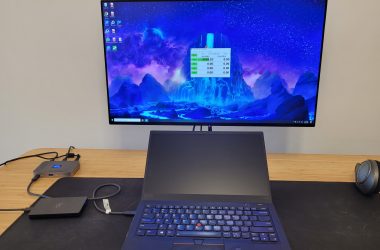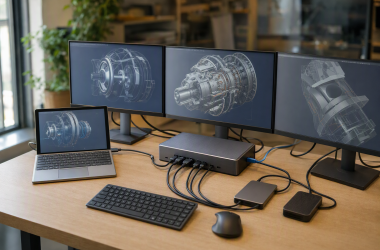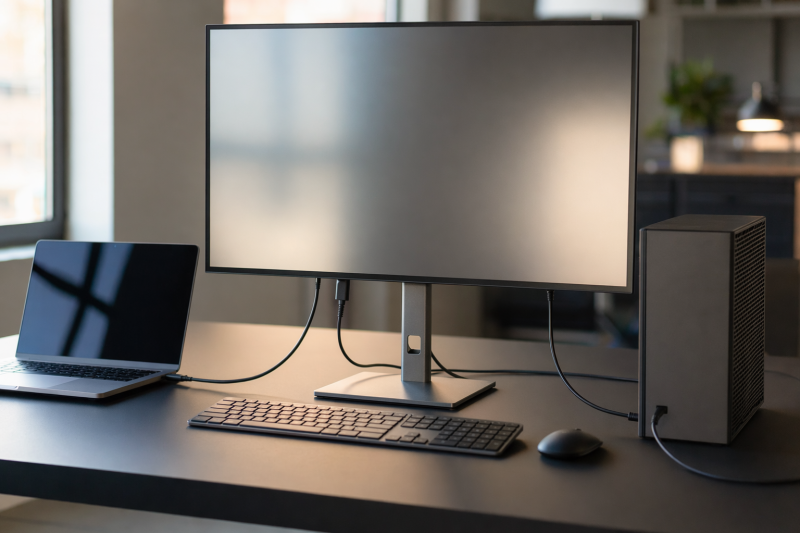
The Dell P2724DEB is the best monitor with a built-in KVM for most office desks because it gives a laptop a USB-C video, data, and charging path while a second computer uses HDMI or DisplayPort for video plus USB-B for peripherals. Dell’s auto KVM then assigns the monitor’s downstream USB hub to the active computer. You also get a 27-inch QHD panel, Ethernet, and an integrated conferencing system instead of paying for a KVM that does only one job.
The other four picks solve different desks. The BenQ RD280U uses a tall 3:2 panel for code and long documents. The Philips 49B2U5900CH/27 replaces a very wide multi-monitor layout and adds SmartKVM keyboard control. The ASUS PG32UCDM combines a 32-inch 4K QD-OLED panel with a documented KVM hotkey. The Gigabyte MO27Q28GR is the compact QHD high-refresh option with a physical KVM button. Every recommendation has two proven host paths. We excluded monitors that offered only two video inputs, PBP/PIP, or a USB hub without a second USB upstream route.
This post includes affiliate links, for which we may earn a commission at no extra cost to you should you make a purchase using our links. As an Amazon Associate, we can earn from qualifying purchases. Learn more.Updated July 17, 2026
We verified the exact US Amazon identity and a New offer for all five picks through one ordered Amazon Creators API request. Product facts come from captured manufacturer pages, manuals, support material, and exact current model records. We make no claim of personal testing, quote no price, and do not assume that video, USB data, or charging moves over a cable unless the documented host path says it does.
If you actually need a box that controls two separate displays, start with our dual-monitor KVM switch guide. For a compact external switch where USB-C is the main host connection, the USB-C KVM guide owns that category. This article is only about the KVM inside one monitor.
Quick Picks
- Best overall: Dell P2724DEB for a QHD office desk that needs auto KVM, 90W USB-C charging, Ethernet, and conferencing hardware.
- Best for coding and long documents: BenQ RD280U for its 28.2-inch 3:2 panel and clearly documented USB-C versus DisplayPort/HDMI plus USB-B topology.
- Best 49-inch ultrawide: Philips 49B2U5900CH/27 for 5120 x 1440 space, PBP/PIP, and SmartKVM switching with a triple-Ctrl command.
- Best 32-inch 4K high-refresh OLED: ASUS ROG Swift OLED PG32UCDM for a QD-OLED panel, USB-C charging, and a documented KVM hotkey.
- Best compact high-refresh OLED: Gigabyte MO27Q28GR for 27-inch QHD, two downstream USB-A ports, and a dedicated KVM button.
Built-In KVM Monitor Comparison
| Image | Product | Details | Check Price |
|---|---|---|---|
 | Dell P2724DEB | Best for: Office KVM, conferencing, Ethernet, and USB-C charging in one QHD display Exact model/part: P2724DEB Panel size/type: 27-inch IPS Native resolution: 2560 x 1440 Refresh ceiling: 60Hz Primary video inputs: USB-C with DisplayPort Alt Mode; DisplayPort; HDMI Host A video: USB-C DisplayPort Alt Mode Host A USB upstream: Same USB-C connection carries USB data Host B video: DisplayPort or HDMI Host B USB upstream: USB-B upstream cable Switched downstream USB: Three downstream USB-A positions and one downstream USB-C hub path KVM switching control: Dell auto KVM USB PD host path: Up to 90W on the USB-C host path only Ethernet: 1GbE PBP/PIP: Not established in the captured cutoff evidence; not claimed Stand/VESA: 150mm height, tilt, swivel, pivot; 100 x 100mm VESA Strongest topology limitation: DisplayPort and HDMI carry no USB data; the second host needs USB-B Evidence gate: PASS for complete two-host KVM topology; PBP/PIP is intentionally withheld and VESA is verified in current Dell documentation | Check Price on Amazon |
 | BenQ RD280U | Best for: Tall 3:2 workspaces for code, long documents, and research Exact model/part: RD280U Panel size/type: 28.2-inch 3:2 IPS Native resolution: 3840 x 2560 Refresh ceiling: 60Hz Primary video inputs: USB-C; DisplayPort 1.4; HDMI 2.0 Host A video: USB-C DisplayPort Alt Mode Host A USB upstream: Same USB-C connection carries 5Gbps USB data Host B video: DisplayPort 1.4 or HDMI 2.0 Host B USB upstream: USB-B 5Gbps upstream cable Switched downstream USB: Three USB-A 5Gbps ports and one USB-C 5Gbps downstream port KVM switching control: Function key cycles KVM sources; KVM menu can select USB-C upstream USB PD host path: Up to 90W on the USB-C host path only Ethernet: No PBP/PIP: Both documented Stand/VESA: 110mm height, tilt, swivel, no pivot; 100 x 100mm VESA Strongest topology limitation: USB-C MST output is separate from KVM routing and does not charge the USB-B host Evidence gate: PASS: exact manual documents USB-C versus DP/HDMI plus USB-B and the switching control | Check Price on Amazon |
 | Philips 49B2U5900CH/27 | Best for: A 49-inch super-ultrawide desk with keyboard-controlled SmartKVM Exact model/part: 49B2U5900CH/27 Panel size/type: 48.8-inch curved VA Native resolution: 5120 x 1440 Refresh ceiling: Up to 75Hz Primary video inputs: USB-C; DisplayPort; two HDMI inputs Host A video: USB-C video input Host A USB upstream: Same USB-C connection carries USB data Host B video: DisplayPort or HDMI Host B USB upstream: USB-B upstream cable Switched downstream USB: Monitor USB hub for keyboard, mouse, and attached USB peripherals KVM switching control: SmartKVM triple-Ctrl keyboard command or OSD Auto, USB-C, and USB-UP selection USB PD host path: Charging applies to the USB-C host path only Ethernet: 1GbE PBP/PIP: Both documented Stand/VESA: 150mm height, tilt, swivel, no pivot; 100 x 100mm VESA Strongest topology limitation: PBP/PIP does not remove the USB-B upstream requirement for the non-USB-C host Evidence gate: PASS: exact US identity plus official KVM wiring diagram and SmartKVM control | Check Price on Amazon |
 | ASUS ROG Swift OLED PG32UCDM | Best for: A 32-inch 4K high-refresh OLED desk with a documented KVM hotkey Exact model/part: PG32UCDM Panel size/type: 31.5-inch QD-OLED Native resolution: 3840 x 2160 Refresh ceiling: Up to 240Hz Primary video inputs: USB-C; DisplayPort 1.4; two HDMI 2.1 inputs Host A video: USB-C DisplayPort Alt Mode Host A USB upstream: Same USB-C connection carries USB data Host B video: DisplayPort 1.4 or HDMI 2.1 Host B USB upstream: USB-B upstream cable Switched downstream USB: Monitor downstream USB hub assigned to USB-C or USB-B upstream KVM switching control: OSD KVM selection or Ctrl+Alt+Q keyboard hotkey USB PD host path: Up to 90W on the USB-C host path only Ethernet: No PBP/PIP: Both documented Stand/VESA: Height, tilt, swivel, no panel pivot; 100 x 100mm VESA Strongest topology limitation: Hotkey requires a connected upstream and a keyboard on the monitor's downstream USB Evidence gate: PASS: exact manual states USB-C or USB-B KVM assignment and the hotkey conditions | Check Price on Amazon |
 | Gigabyte MO27Q28GR | Best for: A compact QHD high-refresh OLED with a dedicated KVM button Exact model/part: MO27Q28GR Panel size/type: 27-inch glossy WOLED Native resolution: 2560 x 1440 Refresh ceiling: Up to 280Hz Primary video inputs: USB-C; DisplayPort 1.4; two HDMI 2.1 inputs Host A video: USB-C DisplayPort Alt Mode Host A USB upstream: Same USB-C connection carries USB data Host B video: DisplayPort 1.4 or HDMI 2.1 Host B USB upstream: USB-B upstream cable Switched downstream USB: Two USB-A 3.2 downstream ports KVM switching control: Dedicated KVM button with OSD KVM configuration USB PD host path: USB-C host only; 18W with documented dynamic 45W Smart PD mode Ethernet: No PBP/PIP: Both exposed in the manual Stand/VESA: 130mm height, tilt, swivel, clockwise pivot; 100 x 100mm VESA Strongest topology limitation: USB-C charging is not workstation-class; HDMI or DisplayPort still needs USB-B for shared peripherals Evidence gate: PASS: exact product page and manual document KVM button, USB-C DP Alt, USB-B, and two USB-A ports | Check Price on Amazon |
1. Dell P2724DEB — Best Overall Monitor with Built-In KVM

The Dell P2724DEB is the most complete answer for a normal office desk. Its 27-inch IPS panel has a native 2560 x 1440 resolution and a 60Hz ceiling. QHD at this size gives you more working room than Full HD without making interface scaling as central a decision as it can be on 27-inch 4K. The display is not the highest-resolution or highest-refresh option here. It wins because its monitor, dock, KVM, network, and call features fit together around a clear two-computer route.
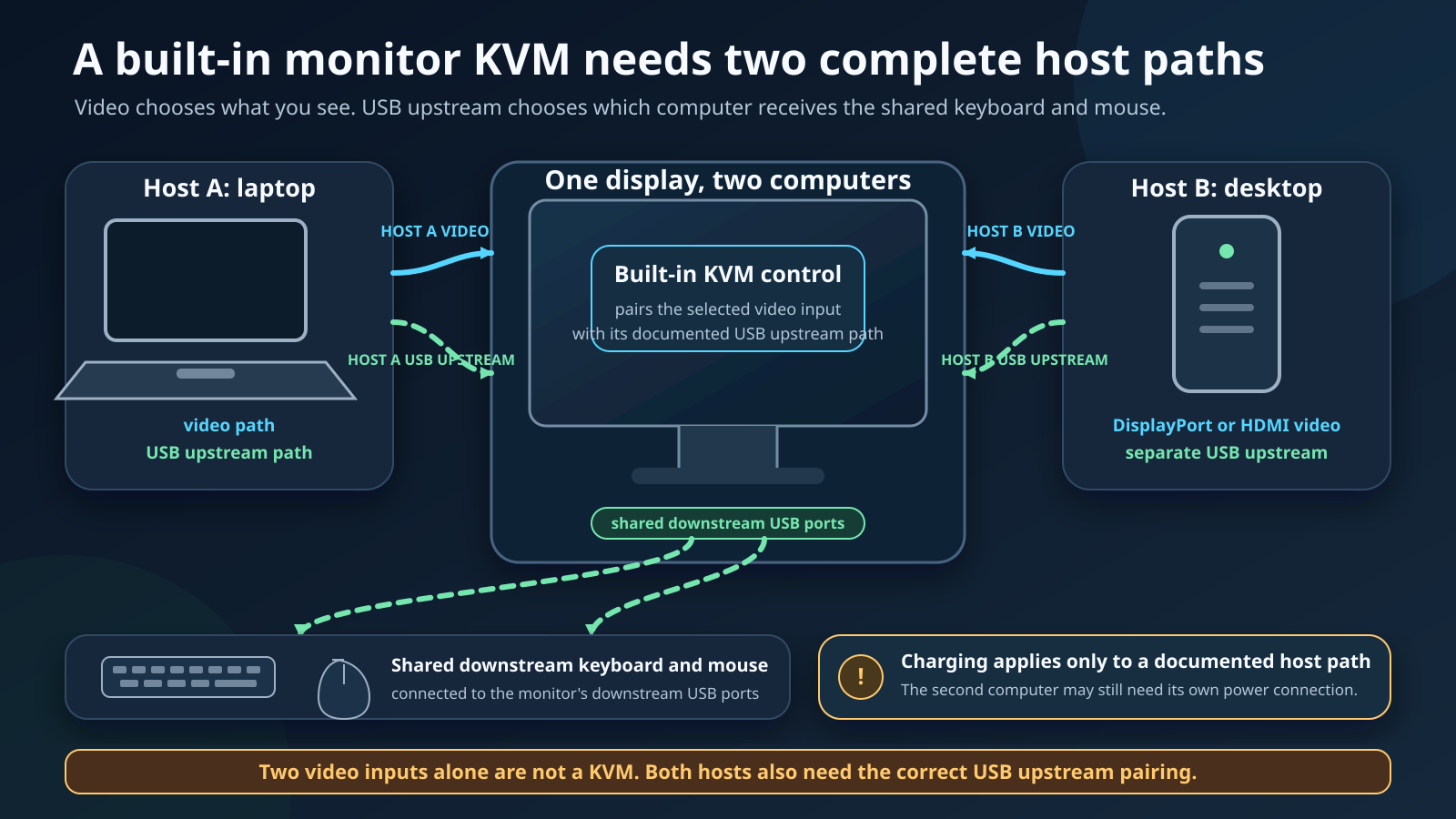
Dell documents USB-C as the laptop path. That connection carries DisplayPort video, USB data, and up to 90W Power Delivery. A desktop or second laptop can send video through DisplayPort or HDMI, but those connectors do not carry the USB data needed by a keyboard and mouse. The second computer therefore also needs a USB-B upstream cable. Once both routes exist, Dell’s auto KVM can move the downstream USB hub between them.
An HDMI cable by itself can make the desktop visible, yet leave the keyboard and mouse assigned to the USB-C laptop. The fix is not another video cable. It is the missing USB-B upstream connection or an incorrect upstream assignment. Our broader KVM switch versus docking station guide explains why those are different jobs even when both products reduce cable swapping.
The shared hub gives you two standard downstream USB-A ports, another charging-capable USB-A position, and a downstream USB-C port rated by Dell for up to 15W. Dell also specifies 1Gb Ethernet. The monitor can therefore move a keyboard, mouse, and other documented USB devices with the selected upstream path while keeping the wired network at the desk. Do not assume every storage or audio workflow behaves the way a basic keyboard does. Save files before switching and check the device’s own requirements.
The conferencing hardware is the second reason to choose this model. Dell specifies a 4MP camera, digital microphones, two 5W speakers, and camera modes up to 2K at 30 frames per second or Full HD at 60 frames per second. The stand provides 150mm of height movement plus tilt, swivel, and pivot. That makes it easier to put the camera near eye level than it would be on a fixed stand.
This is not our recommendation for a huge canvas or an unusually fluid panel. It is the practical integrated-workstation pick. It also overlaps our home-office monitor guide because the camera, network, charging, and ergonomics are legitimate office reasons to buy it. Here, its award is narrower. Dell documents both USB host paths and an auto KVM rather than merely listing a collection of ports.
Our Take
Choose the P2724DEB when video calls and two-computer switching happen at the same desk. Give the USB-C host one cable, give the second host a video cable plus USB-B, and connect the shared keyboard and mouse to the monitor. Skip it when panel resolution or refresh matters more than conferencing and dock functions.
- Clear USB-C and USB-B host topology
- Up to 90W USB-C charging
- Auto KVM and 1Gb Ethernet
- Integrated camera, microphones, and speakers
- Limited to QHD and 60Hz
- Second host needs separate video and USB-B cables
- No PBP/PIP claim in the captured evidence package
2. BenQ RD280U — Best KVM Monitor for Coding
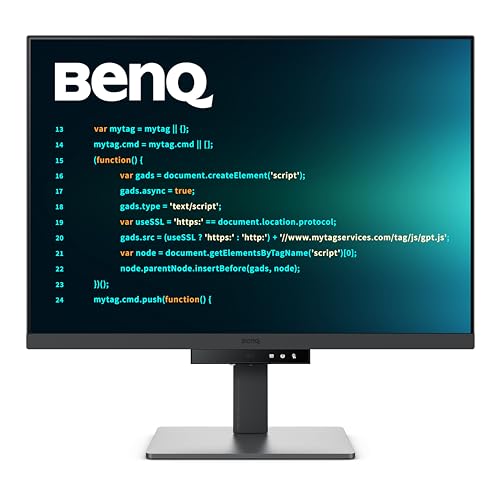
The BenQ RD280U is the specialist choice when vertical workspace matters more than cinematic width. Its 28.2-inch IPS panel uses a 3:2 shape and a native 3840 x 2560 resolution at up to 60Hz. Compared with a 16:9 monitor of similar width, the extra height keeps more code, documentation, a long article, or a portrait-oriented document visible. It is a different buyer job from the Dell, not a slightly larger substitute.
BenQ provides one of the clearest KVM diagrams in this group. Computer one can connect through USB-C, which carries video, 5Gbps USB data, and up to 90W Power Delivery. Computer two uses DisplayPort 1.4 or HDMI 2.0 for video and USB-B for 5Gbps upstream data. BenQ’s manual says the KVM becomes available after those connections are made correctly. The monitor’s function key cycles the available KVM sources, while the KVM menu can hold the USB assignment on the USB-C upstream when that is what the setup needs.
Three downstream USB-A 5Gbps ports and one downstream USB-C 5Gbps port form the shared peripheral side. BenQ rates the downstream USB-C port for 7.5W rather than laptop charging. The 90W charging path belongs to the upstream USB-C host. The DisplayPort or HDMI plus USB-B host needs its own power source. That is the exact cable boundary to keep in mind when moving a work laptop and a desktop onto the same monitor.
The RD280U also includes a USB-C MST output for a supported downstream display. That port does not create a third KVM host, and it does not turn the desktop’s USB-B cable into a charging connection. MST behavior depends on the source, operating system, cables, and second display. Our DisplayPort HBR explainer gives the bandwidth background without promising a particular multi-display mode here.
BenQ documents both PBP and PIP for viewing two sources. Those viewing modes remain separate from peripheral control. Seeing two inputs at once does not prove that the keyboard can control both at once, and this article makes no simultaneous-control claim. Use the function key or the documented KVM menu to choose which upstream owns the USB devices.
The stand offers 110mm of height adjustment plus tilt and swivel. It does not pivot, which is less limiting on a panel already shaped to show more vertical material. BenQ provides a 100 x 100mm VESA pattern for a compatible arm. There is no Ethernet, so a wired network needs another documented adapter or dock path.
Our Take
Buy the RD280U for the 3:2 workspace first and its well-explained KVM second. The complete USB-C versus DP/HDMI plus USB-B route makes it easy to plan the desk before ordering cables. Skip it if you need Ethernet, a webcam, or refresh above 60Hz.
- Tall 3840 x 2560 work area
- Explicit USB-C and USB-B KVM wiring
- Three USB-A and one USB-C downstream ports
- Up to 90W on the USB-C host
- 60Hz refresh ceiling
- No Ethernet connection
- Stand does not pivot
3. Philips 49B2U5900CH/27 — Best 49-Inch KVM Monitor
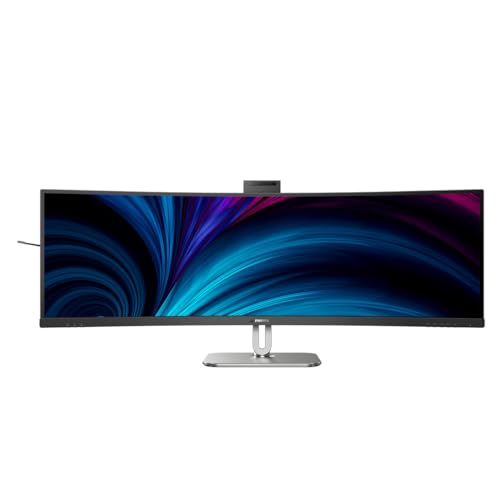
The Philips 49B2U5900CH/27 is for the desk that needs one unbroken horizontal canvas. Philips identifies a 48.8-inch curved VA panel with a native 5120 x 1440 resolution and a refresh ceiling of up to 75Hz. The 32:9 shape can keep several large windows visible without the physical center gap of two separate monitors. It also needs far more desk width than the other picks, so measure the surface and viewing distance rather than judging by the diagonal alone.
The KVM topology follows the same two-route rule on a larger scale. One host uses USB-C for video and USB data. The second uses HDMI or DisplayPort for video and USB-B for its upstream peripheral path. The official quick-start diagram shows USB-C and USB-B as the two KVM routes, then places the keyboard, mouse, and other shared peripherals on the monitor’s USB hub. Charging applies to the documented USB-C host path, not the HDMI or DisplayPort cable.
Philips calls the control SmartKVM. With the connections set correctly, the official product material says you can press the Ctrl key three times to change sources. The OSD also exposes Auto, USB-C, and USB-UP choices. That is useful when a keyboard command would conflict with another shortcut or when you want an explicit upstream assignment. It is not evidence of EDID emulation, instant switching, or window persistence, so we make none of those claims.
The panel supports PBP and PIP, and the quick-start material lists HDMI 1, HDMI 2, DisplayPort, and USB-C as input choices for the viewing layouts. This is the pick where simultaneous viewing has the clearest practical appeal because each half of a 5120 x 1440 panel remains substantial. Even here, the visual layout and KVM ownership are separate. PBP can show two sources while the USB hub still belongs to only the selected upstream.
Philips includes 1Gb Ethernet in the dock section, which lets the active USB upstream use a wired network path through the monitor. The stand has 150mm of height movement, tilt, and swivel, but no pivot. Philips specifies a 100 x 100mm VESA pattern. A compatible arm must handle the monitor’s width and weight, not merely match the hole pattern.
This is a format-led choice. If a standard monitor and dock would fit better, compare that architecture in our guide to docking stations versus monitors with built-in docks. The Philips earns its place when the very wide panel, dock functions, and exact SmartKVM route are all useful at once.
Our Take
Choose the 49B2U5900CH/27 when two computers need to share one enormous desktop and you want the KVM command on the keyboard. Budget the physical space and wire USB-B for the non-USB-C host. Skip it when a 49-inch panel would force an uncomfortable viewing distance or an undersized arm.
- Wide 5120 x 1440 work area
- Triple-Ctrl SmartKVM control
- Documented USB-C and USB-B routes
- PBP/PIP and 1Gb Ethernet
- Requires a very wide desk
- USB-B remains mandatory for the second host
- Stand cannot pivot
4. ASUS ROG Swift OLED PG32UCDM — Best 32-Inch 4K High-Refresh KVM Monitor

The ASUS PG32UCDM is the 32-inch 4K high-refresh choice. ASUS specifies a 31.5-inch QD-OLED panel with a native 3840 x 2160 resolution and a refresh ceiling of up to 240Hz. Those headline values describe the panel ceiling, not every cable and host combination. USB-C bandwidth mode, the source GPU, the selected input, and the video format can all set a lower practical limit.
For the KVM, host A can use USB-C for DisplayPort Alt Mode video, USB data, and up to 90W Power Delivery. Host B uses one of the HDMI 2.1 inputs or DisplayPort 1.4 for video, plus USB-B for upstream data. ASUS’s manual states that the KVM assigns downstream USB to either the USB-C upstream or the USB-B upstream. This is the proof that separates the feature from a basic input selector.
The OSD can change that KVM assignment. ASUS also documents Ctrl+Alt+Q as a keyboard shortcut for KVM and PIP switching. The shortcut works only when the upstream is connected and the keyboard is attached to the monitor’s downstream USB. A keyboard connected directly to one computer cannot command the monitor’s USB hub through that same documented route.
PBP and PIP are available for showing two sources, but the hotkey does not prove simultaneous keyboard control of both. Treat the main question as ownership: which upstream currently owns the downstream hub? If video changes but the keyboard does not, inspect the USB-C or USB-B assignment before changing display settings.
The PG32UCDM has no Ethernet port, so it does not replace a dock for a wired network. Its stand covers height, tilt, and swivel but does not rotate the panel into portrait orientation. ASUS specifies a 100 x 100mm VESA pattern. If your priority is the 4K format rather than the KVM, the broader best 4K monitors guide includes displays with different panel and connectivity priorities.
This model also demonstrates why the phrase one-cable monitor needs a host label. USB-C can carry video, data, and charging for one computer. The desktop on HDMI or DisplayPort still needs USB-B for the keyboard and mouse, and it receives no laptop charging from the monitor. The KVM makes the peripheral handoff convenient after the topology is correct. It does not erase the topology.
Our Take
Choose the PG32UCDM when a 32-inch 4K QD-OLED panel and a documented KVM hotkey belong in the same setup. Use USB-C for the host that benefits from charging, then pair the other video input with USB-B. Skip it if Ethernet or a simple office dock matters more than the panel ceiling.
- 31.5-inch 4K QD-OLED panel
- Refresh ceiling up to 240Hz
- Documented USB-C or USB-B KVM assignment
- OSD and keyboard-hotkey control
- No Ethernet port
- Hotkey requires monitor-connected keyboard and upstream
- Maximum refresh depends on the exact host path
5. Gigabyte MO27Q28GR — Best Compact High-Refresh KVM Monitor
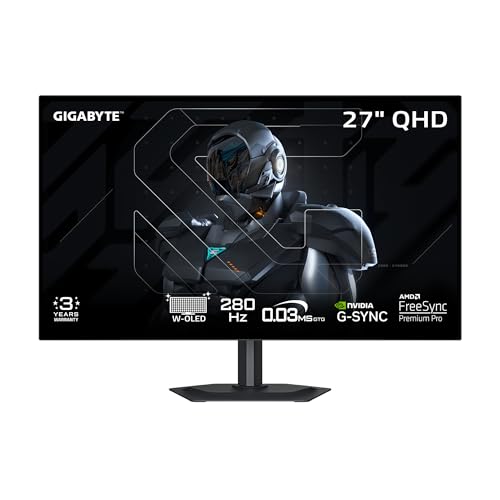
The Gigabyte MO27Q28GR is the compact high-refresh alternative. Gigabyte specifies a 27-inch glossy WOLED panel with a native 2560 x 1440 resolution and a ceiling of up to 280Hz. QHD asks less of the video link than 4K at a similar refresh, while the smaller panel occupies much less space than the Philips. That does not establish a specific performance result through every input, so match the source, cable, and mode to Gigabyte’s current manual.
Gigabyte’s official port diagram identifies two HDMI 2.1 inputs, DisplayPort 1.4, USB-C with DisplayPort Alt Mode, USB-B upstream, and two downstream USB-A ports. The KVM uses USB-C as one combined video and data path. The other computer uses HDMI or DisplayPort for video and USB-B for upstream data. The two USB-A ports are where the shared keyboard and mouse belong.
The physical KVM button is the reason to choose this topology over a software-led design. Gigabyte says the KVM feature controls multiple devices through one set of keyboard, video, and mouse, and the manual exposes a KVM configuration in the OSD. A button is easy to find when the active host is unavailable, but it still depends on correct upstream cabling. It cannot move USB devices to a computer that has only a video connection.
USB-C Power Delivery is modest. Gigabyte documents 18W and a dynamic Smart PD mode up to 45W on the USB-C path. That can be useful for a lower-power device, but it is not the 90W class offered by the Dell, BenQ, or ASUS. The HDMI or DisplayPort plus USB-B host receives no charging from that video cable.
The manual exposes PIP/PBP, and the stand provides 130mm of height movement, tilt, swivel, and clockwise pivot. A 100 x 100mm VESA mount is available. There is no Ethernet. If you want the broader connection standard context before deciding whether USB-C or Thunderbolt belongs at the desk, see our Thunderbolt monitor list.
The MO27Q28GR and ASUS are not duplicate picks. The Gigabyte uses a smaller QHD WOLED panel, two downstream USB-A ports, lower USB-C charging, and a physical KVM button. The ASUS uses a larger 4K QD-OLED panel, a higher charging ceiling, and a documented keyboard hotkey. Choose by the complete desk job rather than one refresh number.
Our Take
Choose the MO27Q28GR when you want the KVM control on the monitor itself and 27-inch QHD fits the desk. Treat USB-C charging as a modest convenience, not a workstation power source. Skip it when you need Ethernet, 4K, or high-power laptop charging.
- Compact 27-inch QHD WOLED panel
- Refresh ceiling up to 280Hz
- Dedicated physical KVM button
- Height, swivel, tilt, and pivot stand
- USB-C charging tops out below office-dock picks
- Only two downstream USB-A ports
- No Ethernet port
How Does a Monitor KVM Actually Work?
A KVM has three jobs in its name: keyboard, video, and mouse. In a monitor, the display electronics already handle video input selection. The extra KVM function assigns a downstream USB hub to one of at least two USB upstream connections. Your keyboard and mouse plug into downstream ports on the monitor. Each computer needs a route into that hub.
USB-C can combine a video route and a USB upstream route in one connector when the monitor and host both document DisplayPort Alt Mode and data. HDMI and DisplayPort are video connections, not general USB upstream connections. A desktop using either one normally needs a second cable from a USB port on the computer to the monitor’s USB-B upstream input. That is why a built-in KVM can still require three cables across two hosts.
The monitor then needs a documented way to decide which upstream owns the hub. The Dell can use auto KVM. BenQ ties the assignment to its function key and KVM menu. Philips provides SmartKVM keyboard and OSD controls. ASUS provides OSD and a keyboard hotkey. Gigabyte provides a dedicated button and KVM menu. Those methods are not interchangeable, and this guide does not infer a hotkey or automatic behavior where the manufacturer did not document one.
Our guide to monitors with built-in docking stations covers the wider hub-and-dock category. Many of those displays charge a laptop and provide Ethernet or USB ports, yet a monitor with only one USB upstream cannot switch those peripherals between two computers. The second upstream is the decisive KVM feature.
Which Host Should Get the USB-C Path?
Give USB-C to the computer that benefits most from monitor-supplied charging. On the Dell, BenQ, and ASUS, that can be a laptop that would otherwise need its own power adapter. The Philips also limits monitor charging to its documented USB-C host route. The Gigabyte offers much less power, so the connected computer may still need its normal charger.
The other host can use HDMI or DisplayPort for video plus USB-B for data. A desktop is a natural fit because it already has separate power. A second laptop can use that route too, but it will need its charger unless the monitor documents another charging connection. Do not assume a USB-B upstream cable charges the computer. Its job here is data.
Keep the video and data pairs easy to identify. A short label on each cable can prevent the common mistake of assigning HDMI from computer two while leaving USB-B attached to computer one. Some monitors let you configure which USB upstream follows which input. Record that choice before changing inputs or resetting the OSD.
How Should You Choose Panel Size, Resolution, and Type?
Start with the work area, not the KVM. Dell’s 27-inch QHD panel is the conventional office choice. BenQ’s 28.2-inch 3:2 panel adds vertical room. Philips uses a 49-inch 32:9 canvas for very wide arrangements. ASUS pairs 32-inch 4K with QD-OLED. Gigabyte pairs 27-inch QHD with WOLED. Our general computer monitor buying guide explains viewing distance, pixel density, and desk fit in more detail.
Panel type also changes the buyer job. IPS provides broad viewing angles and is common in office displays. VA emphasizes a different contrast profile and works well in large curved formats. OLED controls light at each pixel but brings its own static-content care considerations. The LCD panel type guide covers IPS and VA without pretending they make one monitor universally better.
Treat refresh as a ceiling. A panel rated up to 240Hz or 280Hz does not prove that USB-C, every HDMI source, and every DisplayPort source can all reach that ceiling under every resolution and color setting. It also says nothing about KVM switch time. Confirm the exact input chart for your source hardware and planned display mode.
Are PBP and PIP the Same as KVM?
No. PBP places two video sources beside each other. PIP places one source inside another. Neither feature proves a second USB upstream path. A monitor can display two computers while its keyboard and mouse remain connected to only one of them.
BenQ, Philips, ASUS, and Gigabyte document PBP/PIP, but the USB hub still belongs to the selected upstream. We do not claim simultaneous control of both sources. The Dell remains selected for its complete KVM route even though this captured evidence package does not establish a PBP/PIP mode for that exact model.
If your real goal is independent control over two external displays, one built-in monitor KVM may not be the right architecture. Revisit the external KVM category or use the category boundary in our USB-C monitor guide, where USB-C ownership matters even when KVM is only one supporting feature.
How to Wire and Configure a Built-In Monitor KVM
First, connect the shared keyboard and mouse to the downstream USB ports on the monitor. Do not connect them directly to either computer. Add other USB devices only after basic switching works, especially storage that could be busy when you change hosts.
Second, connect host A through the documented USB-C upstream route. Confirm separately that the computer sends video, exposes USB devices, and accepts the monitor’s documented charging level. One working function does not prove the other two. A charge-only or data-limited cable can make the failure confusing.
Third, connect host B’s video through HDMI or DisplayPort. Then add the USB-B upstream cable from that same computer to the monitor. If host B shows an image but cannot use the keyboard, inspect USB-B before replacing the video cable.
Fourth, configure the manufacturer’s switching method. Select auto KVM on the Dell if the current configuration calls for it. Use BenQ’s function key and KVM menu, Philips SmartKVM or OSD choice, ASUS KVM menu or documented hotkey, or Gigabyte’s KVM button and menu. Do not assume that changing video always changes USB. Verify the active host with a harmless keyboard input before opening a workflow that could lose data.
Finally, connect Ethernet or other hub devices and repeat the switch. Safely eject removable storage before changing upstream ownership. The KVM is a USB routing function, not proof that every peripheral tolerates an abrupt disconnect. Decide separately whether the monitor should absorb every dock duty or leave network, storage, and display expansion to replaceable hardware.
Frequently Asked Questions
Can one USB-C cable connect both computers to a monitor KVM?
Not with these documented two-host topologies. One computer can use USB-C for video and USB data, and it may receive charging on that path. The second computer uses HDMI or DisplayPort for video plus USB-B for upstream data. A monitor would need two separately documented USB-C video-and-data upstream routes before you could plan one cable per host, and this article does not generalize that design.
Why does the picture switch but the keyboard and mouse do not?
Video selection and USB upstream selection are separate. The usual causes are a missing USB-B cable on the HDMI/DisplayPort host, a keyboard connected directly to one computer, or a KVM assignment that still points to the other upstream. Check the monitor’s documented KVM menu or control after confirming the physical data cable.
Does a monitor KVM charge both computers?
No product in this slate documents charging for both hosts. Charging belongs to the USB-C host path. USB-B carries data, while HDMI and DisplayPort carry video. The second computer needs its own power. Even on USB-C, compare the monitor’s documented wattage with the computer’s input requirements instead of assuming full-rate charging.
Can PBP show both computers while one keyboard controls both?
PBP can show two video sources, but it does not prove simultaneous peripheral control. The KVM assigns the downstream USB hub to one upstream at a time in the documented configurations here. Switch the KVM ownership when you need to type on the other computer. We make no claim that moving the pointer across PBP panes changes hosts.
Should I buy a monitor KVM or an external KVM?
Buy the integrated design when one monitor is the center of the desk and its panel, charging, hub, and switch all fit your needs. Buy an external KVM when you need to keep an existing monitor, control more display outputs, or replace the switching hardware independently. An external device adds another box and cable layer, but it separates the switch lifecycle from the display.
Will every keyboard, mouse, storage device, and webcam switch correctly?
Do not assume universal peripheral behavior. The manufacturers document downstream USB switching, but devices can have their own power, driver, bandwidth, or disconnect requirements. Start with a keyboard and mouse. Add storage, cameras, audio, and other devices one at a time, and safely eject storage before moving the hub to another host.
How We Research and Select
We started from the controlling July 16 demand and deconfliction gate, then refreshed the five adjacent WordPress owners without editing them. The live home-office inventory and live USB-C monitor inventory set hard caps of two exact overlaps each. This slate uses Dell P2724DEB and BenQ RD280U from the home-office page and no exact product from the USB-C monitor page.
Candidate discovery closed when the supervised context cutoff was reached. We reconciled every saved Amazon SearchItems result and excluded bundles, regional variants, color duplicates, refreshed duplicate chassis, wrong models, and monitors whose captured evidence did not prove the second-host video/data pair or documented switch control. EIZO EV3240X and Gigabyte M27UP are examples of plausible products we omitted because the frozen evidence did not preserve the complete required topology.
For the five survivors, captured official manufacturer pages, manuals, diagrams, and support material supplied the host routes, downstream USB paths, switching methods, charging boundaries, panel facts, and limitations. One final Amazon Creators API GetItems call requested all five ASINs in article order. It returned the same five in the same order, each with one active New listing. No price resource was requested. We did not run the normal Amazon audit afterward because that would have created additional item calls after the assignment’s single final validation.
Conclusion
The Dell P2724DEB is the best starting point for most office buyers because its 27-inch QHD panel, 90W USB-C path, USB-B second-host route, auto KVM, Ethernet, and conferencing hardware form one coherent desk. Choose the BenQ RD280U for vertical workspace, Philips 49B2U5900CH/27 for a 49-inch canvas, ASUS PG32UCDM for 32-inch 4K QD-OLED, or Gigabyte MO27Q28GR for compact QHD WOLED and a physical switch.
Whichever monitor you choose, draw the two routes before you buy cables. Host A needs video and USB upstream. Host B needs video and USB upstream. Shared devices belong on downstream USB. Charging applies only to the documented host path. If a product description cannot answer those four wiring questions and name the switching control, two video inputs alone are not enough to call it a KVM.