A laptop can have a fast port shaped like USB-C and yet be a poor fit for a two-monitor desk. The useful starting point is a laptop whose exact listing names Thunderbolt or USB4 and whose maker publishes an external-display limit. Then the dock, cables, operating system, and monitor modes complete the plan.
The six picks below cover a Dell with three Thunderbolt 4 ports, two Apple display ceilings, compact ThinkPads, and a 16-inch business option. They all have a documented path to at least two external displays, but none makes a dock’s own manual optional.
Choose the laptop for its documented port and display ceiling. Choose the dock for the exact monitor arrangement you need.Laptops for a Docking Station and Dual Monitors Compared
| Image | Product | Details | Check Price |
|---|---|---|---|
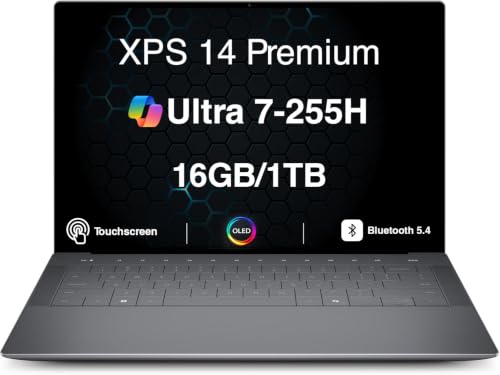 | Dell XPS 14 DA14250 | Best fit: Windows desk with three displays High-speed ports: 3x Thunderbolt 4 Maker display support: 3 external with Intel Arc 140T and internal display on Docking note: Confirm dock modes and cables | Check Price on Amazon |
 | Apple MacBook Pro 14-inch with M5 Pro | Best fit: Mac desk with three displays High-speed ports: 3x Thunderbolt 5 Maker display support: Up to 3 external displays Docking note: Uses Thunderbolt or HDMI | Check Price on Amazon |
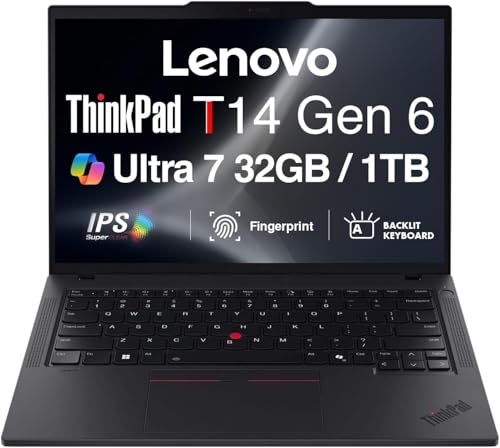 | Lenovo ThinkPad T14 Gen 6 (Intel) | Best fit: Compact Windows business desk High-speed ports: 2x Thunderbolt 4 / USB4 40Gbps Maker display support: 3 external plus native Docking note: Maker states Thunderbolt/USB-C docking | Check Price on Amazon |
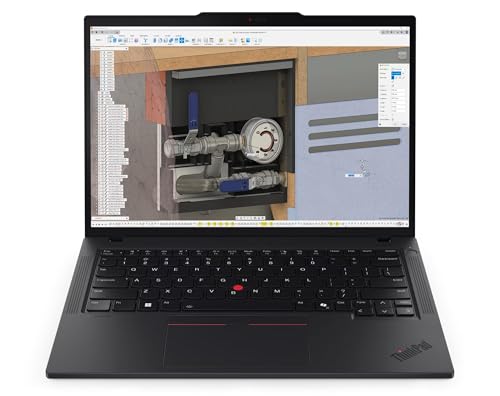 | Lenovo ThinkPad P14s Gen 6 AMD | Best fit: Compact workstation desk High-speed ports: 2x Thunderbolt 4 / USB4 40Gbps Maker display support: 3 external plus native Docking note: Maker states Thunderbolt/USB-C docking | Check Price on Amazon |
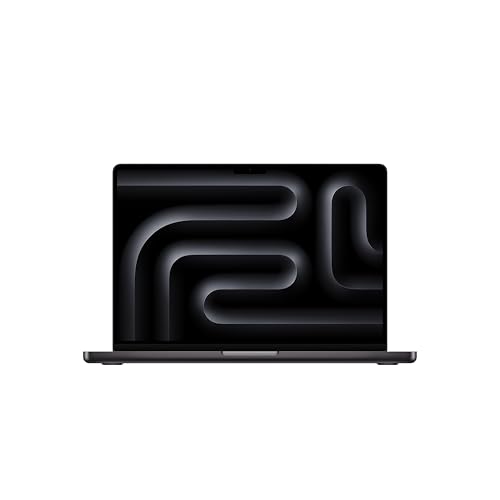 | Apple MacBook Pro 14-inch with M5 | Best fit: Mac desk with two displays High-speed ports: 3x Thunderbolt 4 Maker display support: Up to 2 external displays Docking note: Uses Thunderbolt or HDMI | Check Price on Amazon |
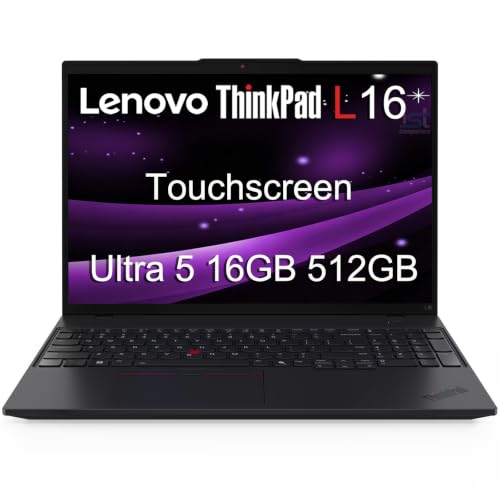 | Lenovo ThinkPad L16 Gen 2 (Intel) | Best fit: 16-inch Windows business desk High-speed ports: 2x Thunderbolt 4 / USB4 40Gbps Maker display support: 3 external plus native Docking note: Maker states Thunderbolt docking | Check Price on Amazon |
1. Dell XPS 14 DA14250 — Best Windows Dock-and-Three-Monitor Pick
The Dell XPS 14 DA14250 is the strongest Windows starting point here when the desk may need three external screens. Its exact listing identifies the DA14250 family, an Intel Core Ultra 7 255H, and three Thunderbolt 4 ports. Dell’s DA14250 display table says an Intel Arc 140T configuration supports three external displays while the built-in display stays on. Dell’s table gives an unusually direct laptop-side answer for someone planning more than a basic pair of screens.
The listing’s 14.5-inch 3.2K OLED panel, 16GB memory, and 1TB SSD describe that seller configuration. The maker’s three-display figure is a ceiling for the laptop configuration, not a promise that every dock can split one cable into three independent displays at the same mode. Confirm the dock’s host requirements and every monitor’s resolution before treating the desk as settled.
Our Take Pick the XPS 14 when a compact Windows laptop must return to a desk with three independently supported external displays. Use the ThinkPad T14 if you prefer a more traditional business-port layout and Lenovo’s explicit docking language.
- Dell states three external displays with Intel Arc 140T and the laptop screen enabled.
- The exact listing names three Thunderbolt 4 ports for a flexible desk connection.
- Its listed 14.5-inch OLED panel can be useful when working away from the dock.
- The display ceiling does not define the modes a particular dock, cable, or monitor combination will achieve.
- Memory, storage, and panel details are seller-configuration facts, not guarantees for every DA14250.
2. Apple MacBook Pro 14-inch With M5 Pro — Best Mac for Three External Displays
Apple’s M5 Pro MacBook Pro is the direct Mac choice when the desk needs more than two external screens. The exact 14.2-inch listing names three Thunderbolt 5 ports and support for three external displays. Apple likewise says an M5 Pro MacBook Pro can connect up to three external displays through Thunderbolt or HDMI, including up to three through one Thunderbolt port.
Apple’s one-port statement helps a dock buyer understand the laptop’s capability, but it does not remove the need to choose a Mac-compatible dock. A dock may expose a different mix of HDMI, DisplayPort, or downstream Thunderbolt, and the displays’ resolution and refresh targets need checking too. The listed 24GB unified memory and 1TB SSD are exact-purchase details rather than a claim about every M5 Pro configuration.
The M5 Pro ceiling is three external displays, while the base M5 MacBook Pro below is explicitly a two-display choice.Our Take Choose this MacBook Pro when the desk needs three external displays and macOS is the desktop platform. Choose the base M5 model if two displays are enough and its lower capability is a better match for the desk.
- Apple states support for up to three external displays through Thunderbolt or HDMI.
- Three Thunderbolt 5 ports give the laptop a high-speed desk connection.
- Apple explicitly says three displays can connect through a single Thunderbolt port.
- Dock selection needs to match macOS, monitor inputs, and the desired display modes.
- The listed memory and storage belong to this Amazon configuration.
3. Lenovo ThinkPad T14 Gen 6 (Intel) — Best Compact Business Dock Laptop
The ThinkPad T14 Gen 6 keeps the Windows business-laptop route compact without leaving the monitor question vague. The exact listing is a Core Ultra 7 255U model and states two Thunderbolt 4 ports. Lenovo’s Intel T14 Gen 6 sheet says U- and H-series versions support the native display plus three external monitors through HDMI and Thunderbolt, and it describes two Thunderbolt 4 / USB4 40Gbps ports with Thunderbolt or USB-C docking support.
The listing names 32GB memory and a 1TB SSD, but calls out a professionally upgraded configuration. Treat those as facts about this listing, not a shortcut for every T14 Gen 6. The useful family facts for a desk are the two named high-speed ports, the three-external-display ceiling for this U-series processor class, and Lenovo’s stated docking support.
The T14’s documented display ceiling is three external monitors plus its own screen, but the selected dock decides the practical two-monitor layout.Our Take Choose the T14 Gen 6 when you want a smaller Windows business laptop with a maker-described dock path and a clear U-series display limit. Choose the XPS 14 when three Thunderbolt ports are more valuable than ThinkPad business conventions.
- Lenovo documents two Thunderbolt 4 / USB4 40Gbps ports and Thunderbolt/USB-C docking.
- Its U-series display statement covers three external monitors plus the native display.
- The 14-inch format suits a desk that also has to travel.
- The three-external-display ceiling depends on the U-series family match and does not promise every dock topology.
- The listed 32GB and 1TB were seller-upgraded, so verify the exact purchase terms.
4. Lenovo ThinkPad P14s Gen 6 AMD — Best Compact Workstation Route
The ThinkPad P14s Gen 6 is the compact workstation route. The exact listing calls it a mobile workstation with Ryzen AI 7 PRO 350 and names two USB-C Thunderbolt 4 / USB4 40Gbps ports. Lenovo’s AMD P14s documentation says the family supports the native panel and three external monitors through two Thunderbolt 4 ports and HDMI, then separately says various docking solutions work via Thunderbolt or USB-C.
The listed 32GB memory, 1TB SSD, and 500-nit WUXGA panel can be useful if this exact configuration fits the work, but they should not become universal P14s claims. What makes the P14s useful here is the direct match between its workstation-family identity, its exact port wording, and its maker-stated external-display capacity.
Our Take Pick the P14s Gen 6 if a compact workstation family and Lenovo’s explicit three-external-monitor statement are what the desk needs. Pick the T14 when the less specialised business route is the better fit.
- Lenovo states two Thunderbolt 4 / USB4 40Gbps ports with Power Delivery and DisplayPort.
- The maker specifies three external monitors plus the native display through Thunderbolt and HDMI.
- The exact listing identifies a mobile-workstation family and its Ryzen AI 7 PRO 350 processor.
- A workstation label does not make a dock’s own display modes automatic.
- The exact memory, storage, and panel are listing-specific facts.
5. Apple MacBook Pro 14-inch With M5 — Best Mac for Two External Displays
The base M5 MacBook Pro is a more focused Mac desk option. Its exact listing says it has three Thunderbolt 4 ports and supports up to two external displays. Apple confirms that an M5 MacBook Pro can connect up to two external displays through Thunderbolt or HDMI, including two displays through one Thunderbolt port.
Two external displays are enough for the common two-monitor desk, but the base model is not the place to economize if you know a third external screen is part of the plan. The M5 Pro model has a different three-display ceiling. The listed 16GB unified memory and 1TB SSD describe the Amazon configuration rather than every base-M5 machine.
Our Take Choose the base M5 MacBook Pro for a straightforward Mac desk with two external displays. Move to M5 Pro before buying if the desk needs a third display rather than hoping a dock changes the computer’s ceiling.
- Apple explicitly states support for two external displays.
- Three Thunderbolt 4 ports provide a documented high-speed connection path.
- Apple allows two external displays through a single Thunderbolt port.
- It is not a maker-documented three-external-display Mac.
- Dock and cable choices determine the ports and modes available at the desk.
6. Lenovo ThinkPad L16 Gen 2 (Intel) — Best 16-Inch Business Desk Pick
The ThinkPad L16 Gen 2 suits a buyer who wants a larger business laptop at the desk without giving up explicit docking facts. The exact listing names two Thunderbolt 4 ports, while Lenovo lists two USB-C Thunderbolt 4 / USB4 40Gbps connections and states Thunderbolt docking support. Lenovo also says the L16 can run its own panel plus three external monitors through HDMI and Thunderbolt.
The L16 is a pick here for external-display capability and a dock, not for number-entry ergonomics. The exact listing’s 16GB memory and 512GB SSD are seller-configuration details. Buyers who expect a dock to stay connected all day should compare its host charging and video modes before ordering.
Our Take Pick the L16 Gen 2 when a 16-inch business machine is the better desk-and-travel balance and you want two high-speed ports. Pick the compact T14 when bag space is more important than the larger built-in work area.
- Lenovo documents two Thunderbolt 4 / USB4 40Gbps ports and Thunderbolt docking.
- The maker states three external monitors in addition to the native display.
- The 16-inch platform offers a larger built-in workspace when away from the desk.
- A larger laptop is less convenient to carry than either 14-inch ThinkPad.
- The seller’s 16GB and 512GB configuration is not a universal L16 specification.
Buying Guide
1. Start with the laptop’s documented display ceiling
Count the displays the laptop maker says it can drive, not the sockets on a dock. Dell says the listed Intel Arc 140T XPS 14 supports three external displays with the internal display on. Lenovo gives the T14, P14s, and L16 a native-plus-three-external description, while Apple distinguishes two external displays on M5 from three on M5 Pro. Those published ceilings are the first filter for a desk that needs two or more screens.
A ceiling is not a recommended desk diagram. Resolution, refresh rate, HDR, charging, and cable length consume different parts of the connection budget. If the requirement is two ordinary office displays, every model here has a maker-stated path. If it is a particular high-refresh or high-resolution pair, the exact dock and monitor mode must be checked alongside the laptop.
2. Match the dock protocol to the laptop
Thunderbolt 4, Thunderbolt 5, and USB4 are not interchangeable labels for every accessory decision. The XPS and the Lenovo models have Thunderbolt 4 or Thunderbolt 4 / USB4 40Gbps wording, while the M5 Pro listing says Thunderbolt 5. Start with the host connection named by the laptop, then read the dock’s host compatibility rather than choosing it by its number of downstream ports.
The Thunderbolt 4 docking-station guide, USB-C dock guide, and USB4 hubs and docks guide are useful for narrowing dock types. The dock must support the laptop and operating system, then its outputs must support the actual monitors. Checking in that order keeps a one-cable desk from becoming an adapter chain.
3. Decide whether two monitors are enough
Two external displays are a complete setup for many people. Apple’s base M5 MacBook Pro is deliberately the two-screen Mac choice, and Apple says those two displays can connect through one Thunderbolt port. The base M5 is a clear fit when two external displays are the fixed requirement and you do not expect the desk to grow.
Buy for three external screens only when the desk needs three now. M5 Pro, XPS 14, T14, P14s, and L16 have a three-external-display ceiling, but that capability does not create value if the desk will always use only two monitors. A lower required count can simplify the dock, cables, and monitor choices.
4. Keep laptop facts separate from dock facts
The laptop decides its maximum display capability and host ports. The dock decides its own video connectors, power delivery, compatibility rules, and sometimes whether it relies on a particular graphics or driver path. A dock advertising three display outputs is not a promise that a two-display laptop will suddenly gain a third independent screen. The host computer’s maker-stated display ceiling is the limit.
Read the maker documentation for the dock, then compare it with the laptop and monitors. The dual-monitor dock guide and how to identify a Thunderbolt port guide help frame that check. If the plan uses one display over HDMI and another through the dock, confirm both active video paths together.
5. Buy the exact configuration, not the family name
Laptop families contain different processors, panels, memory capacities, and sometimes different graphics. The XPS display table applies to the Intel Arc 140T route, while the T14’s three-external-screen statement applies to U- and H-series models. The exact listing here is a Core Ultra 7 255U. Match the model code and processor before carrying a family capability into a purchase decision.
Amazon configurations may also include seller-selected memory and storage. The Thunderbolt laptop list, USB4 laptop guide, and laptops for eGPU guide can help with category research, but the checkout listing and maker specification identify the exact computer. Compatibility depends on the exact processor, graphics, and port configuration. Do not let a similar product title substitute for that comparison.
FAQ
Can any Thunderbolt laptop run two monitors through a dock?
No. Thunderbolt is a useful connection standard, but the laptop’s graphics and maker-stated display support are also important. The models here all have a maker statement of at least two external displays, which is a stronger starting point than a port label alone.
The dock needs compatible video outputs and support for the operating system. Check laptop, dock, cable, and monitors as one chain, especially when using high resolutions or high refresh rates.
Is Thunderbolt 5 necessary for a dual-monitor desk?
No. The Thunderbolt 4 and USB4-capable models here have maker-stated support for two or three external displays. A well-matched Thunderbolt 4 dock can be the right answer for a two-monitor desk when its published modes meet the monitor requirements.
Thunderbolt 5 is a high-speed option on the M5 Pro MacBook Pro, not a universal requirement. Buy the connection level that matches the dock and displays you will actually use, rather than treating the newest label as an automatic display upgrade.
Why can a dock have more video outputs than my laptop supports?
A dock can expose several HDMI, DisplayPort, or USB-C outputs, but it cannot increase the graphics paths the host laptop supports natively. Apple’s M5 MacBook Pro is a two-external-display computer even when attached to a dock with more output sockets.
The maker display ceiling therefore comes before the dock list. More connectors are not more independent displays unless the host and the dock documentation both support the arrangement.
Should I use a MacBook Pro M5 or M5 Pro for three monitors?
Use M5 Pro. Apple states that M5 Pro supports up to three external displays, while M5 supports up to two. The difference is in the laptop’s capability, so a different dock does not turn the base M5 limit into the M5 Pro limit.
For a fixed two-monitor desk, the M5 can be a cleaner fit. Choose the chip tier from the external-display count first, then choose a compatible dock and connection layout.
Which Windows pick is best for a desk that grows later?
The Dell XPS 14 is the most direct Windows answer when the plan may reach three external displays because Dell publishes the Intel Arc 140T limit with the internal panel on. The T14, P14s, and L16 also have maker-stated three-external-display family ceilings.
Choose among them based on the laptop itself: XPS for three Thunderbolt 4 ports, T14 for compact business use, P14s for a compact workstation family, or L16 for a larger business chassis. Then validate the exact dock and monitor modes before purchasing.
Bottom Line
For a Windows docked desk that may need three external displays, the Dell XPS 14 DA14250 has the clearest published laptop-side limit. For a Mac desk, choose M5 Pro when three external displays are necessary and the base M5 when two are enough. The ThinkPad T14, P14s, and L16 are strong business alternatives because Lenovo documents both their high-speed ports and their external-display ceilings.