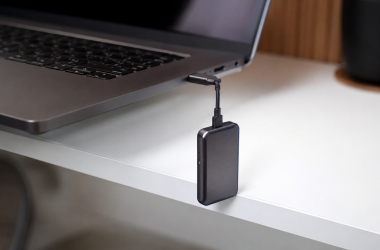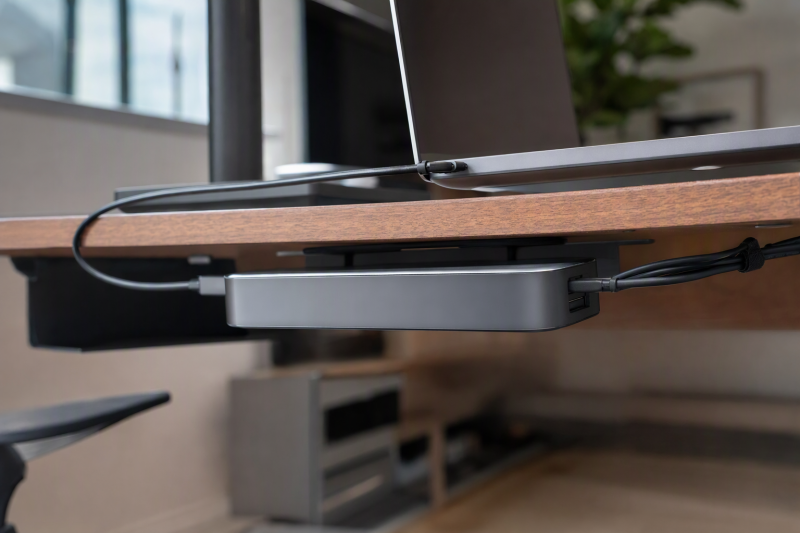
Moving a USB-C dock below the desktop can reclaim working space and keep power, display, network, and peripheral cables away from the laptop area. A good mount fits the exact dock, leaves ports and buttons reachable, keeps ventilation open, anchors safely to the desk, and avoids pulling on the host cable whenever the laptop moves.
The eight mounts below split into two groups. Model-specific brackets fit listed Dell or HP docks and may also hold the power adapter. Adjustable mounts accept a wider range of devices but require careful measurement. A universal label does not mean every dock will fit: width, thickness, cable exits, ventilation openings, and the position of rubber feet can all change the result.
For a mixed-device workspace, the VIVO MOUNT-DS01 offers the widest mounting choice through VESA, clamp, pole, and under-desk hardware. Dell owners who want dock and power-brick storage together should start with Varghesyla, CENYIDU, or IFCASE after checking the exact model. HP USB-C Dock G5 and G6 owners have separate custom-fit brackets, so the generation must match.
Dock Mount Comparison
| Image | Product | Details | Check Price |
|---|---|---|---|
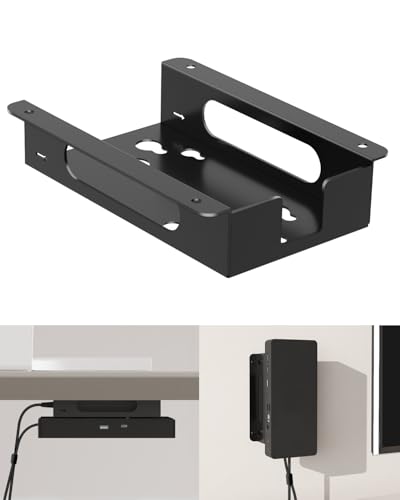 | Varghesyla Dell Dock and Power Mount | Best fit: Listed Dell dock plus power-supply mounting Mount locations: Under desk or wall Material: Cold-rolled steel Dock support: UD22; WD19 family; WD22TB4; WD25; SD25 Cable management: Included cable ties | Check Price on Amazon |
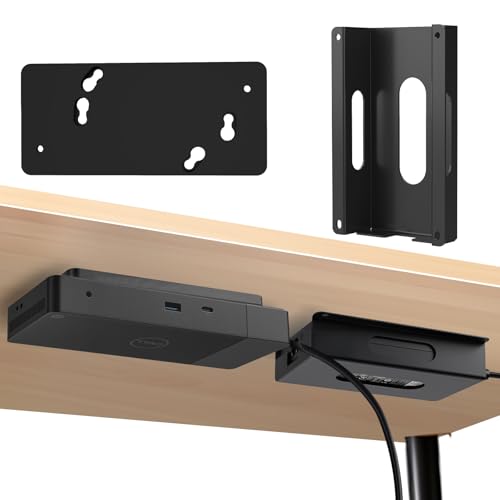 | CENYIDU Dell Dock and Power-Brick Kit | Best fit: Dell setup needing quick dock removal Dock support: UD22 and listed WD19/WD22 models Power support: Original 130 W and 180 W bricks Dock material: Nylon plastic Power-rack material: Coated carbon steel | Check Price on Amazon |
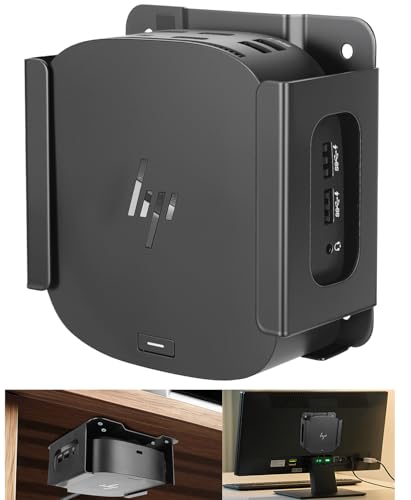 | JinLunar HP USB-C Dock G5 Mount | Best fit: HP USB-C Dock G5 with VESA flexibility Mount locations: VESA; wall; under desk VESA patterns: 75 x 75; 100 x 100 mm Material: Steel Padding: Built-in EVA foam | Check Price on Amazon |
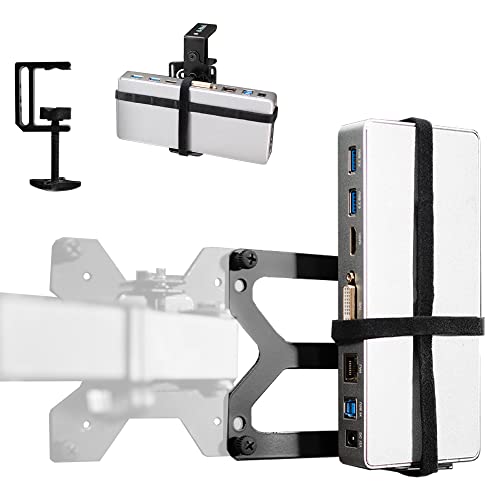 | VIVO MOUNT-DS01 | Best fit: Universal dock placement without one fixed mounting method Device limit: Up to 10 in wide/tall; 1 in thick Straps: 25 inches Clamp capacity: Up to 1.8 inches Mount locations: VESA; clamp; pole; under desk | Check Price on Amazon |
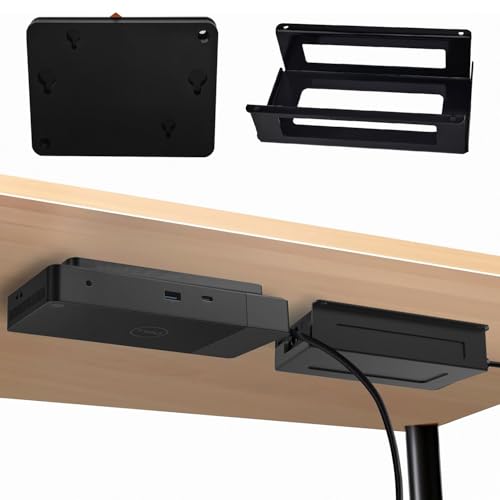 | IFCASE Dell Dock Mount | Best fit: Fixed Dell dock and adapter setup Dock support: WD25; SD25; UD22; WD22TB4; WD19 family Power support: 130 W and 180 W adapters Mount location: Under desk Minimum desk thickness: 0.75 inch | Check Price on Amazon |
 | CENYIDU HP USB-C Dock G6 Mount | Best fit: Custom under-desk fit for HP USB-C Dock G6 Dock support: G6 Thunderbolt 4 and USB-C models listed Material: Powder-coated carbon steel Mount locations: Under desk or shelf Retention: Removable blocker plate | Check Price on Amazon |
 | bylitco Under-Desk Storage Mount | Best fit: Padded slot for a taller universal dock Device thickness: Less than 1.85 inches Minimum desk thickness: 0.78 inch Fasteners: 6 screws Protection: Soft padding | Check Price on Amazon |
 | VIVO MOUNT-UDLS1 | Best fit: Custom spacing around ports and vents Configuration: 3 separate brackets Weight capacity: 11 lb Minimum desk thickness: 0.75 inch Protection: Anti-skid padding | Check Price on Amazon |
Measure the dock and desk before drilling. Check the product dimensions and compatibility list to see whether the hardware can hold the dock. Then check the cable bend radius and port access to see whether the installed position will be usable every day.
1. Varghesyla Dell Dock and Power Mount — Best Combined Steel Bracket
Varghesyla lists this bracket as compatible specifically with Dell UD22, WD19, WD19S, WD19TB, WD19TBS, WD22TB4, WD25, and SD25-series docks. It is not presented as universal. The vertical arrangement holds both the dock and its power supply, so you need fewer separate mounting points under the desk or on a wall.
According to the manufacturer, the frame uses cold-rolled steel and includes screw kits, illustrated instructions, and cable ties for routing power and display leads. Under-desk and wall orientations are supported. Because the dock and adapter occupy one assembly, buyers should plan enough clearance for power-brick heat, connector bends, and access to the dock’s front and rear ports.
Our Take: The Varghesyla bracket is the most direct steel solution for a listed Dell dock when the power adapter also needs a defined place. Check the model name carefully because the custom fit is the advantage and the main limitation.
[su_box title=”PROS” style=”soft” box_color=”#2e7d32″] – The custom bracket supports eight named Dell dock families instead of relying on straps. – Storing the dock and power supply together means fewer separate holes and less loose hardware. – Cold-rolled steel construction is intended to resist bending during daily cable changes. – Included cable ties help keep HDMI and power leads against the mounted assembly. [/su_box] [su_box title=”CONS” style=”soft” box_color=”#c62828″] – The fixed geometry excludes docks outside the listed Dell models. – Stacking the adapter with the dock needs enough clearance for heat and cable bends. [/su_box]2. CENYIDU Dell Dock and Power-Brick Kit — Best Quick-Release Dell Mount
CENYIDU states this kit fits Dell UD22, WD19, WD19S, WD19TB, WD19TBS, WD19DCS, and WD22TB4 docks, plus original 130 W and 180 W power bricks. Its dock holder uses two thumb screws that engage existing threads on the back of the dock. You release the unit from the mounting base with a firm rotation when it needs to move to another workspace.
The main dock mount is nylon plastic, while the power-brick holder uses rust-resistant coated carbon steel. A side opening keeps the adapter accessible, and cables can wrap around the base. The package includes the dock mount, adapter rack, three thumb screws, eight self-tapping screws, three adapter nuts for UD22, and instructions.
Our Take: Pick the CENYIDU kit when a listed Dell dock moves occasionally and you want tool-free removal. Measure the 130 W or 180 W adapter before ordering, as the seller explicitly requires a power-brick size check.
[su_box title=”PROS” style=”soft” box_color=”#2e7d32″] – Two thumb screws use the dock’s existing threads for a secure custom fit. – A rotating release makes occasional dock moves between workstations easier. – The separate steel rack holds listed original 130 W and 180 W adapters. [/su_box] [su_box title=”CONS” style=”soft” box_color=”#c62828″] – The mixed nylon and steel assembly is not an all-metal dock enclosure. – Power-brick dimensions still require measurement before installation. – The custom mounting interface does not accommodate unrelated dock models. [/su_box]3. JinLunar HP USB-C Dock G5 Mount — Best G5 VESA Option
JinLunar’s steel holder is designed specifically for the HP USB-C Dock G5. It supports three locations: behind a monitor through what JinLunar lists as 75 x 75 mm or 100 x 100 mm VESA holes, on a wall, or under a desk. That flexibility is useful when an under-desk position makes the dock’s power button inconvenient but the monitor has an unused VESA mounting path.
The bracket uses a hollow design and precise cutouts intended to keep the power button, output jacks, cables, and airflow accessible. An elevated base promotes airflow, while built-in EVA foam reduces slipping, resonance, and scratching. This listing is for the holder only, so the HP dock and any separate VESA sharing hardware are not implied.
Our Take: The JinLunar holder is the strongest placement choice for an HP USB-C Dock G5 because it supports VESA, wall, and under-desk installation. Confirm that the monitor’s VESA pattern can accept the mount without interfering with its stand or arm plate.
[su_box title=”PROS” style=”soft” box_color=”#2e7d32″] – Custom G5 cutouts preserve access to the button, ports, and connected cables. – Both 75 x 75 mm and 100 x 100 mm VESA patterns are supported according to the manufacturer. – High-strength steel gives the model-specific holder a rigid structure. – EVA foam cushions the dock and reduces movement inside the bracket. [/su_box] [su_box title=”CONS” style=”soft” box_color=”#c62828″] – The custom holder is not intended for the newer HP USB-C Dock G6. – VESA installation depends on available holes behind the monitor or mounting plate. – The package contains the holder rather than the HP dock itself. [/su_box]4. VIVO MOUNT-DS01 — Best Multi-Position Universal Mount
VIVO’s MOUNT-DS01 uses 25-inch hook-and-loop straps for docks up to 10 inches wide or tall and 1 inch thick. Unlike a custom shell, it can adapt to many rectangular docks when their dimensions fall inside those limits. The straps need a stable, flat path that does not cover ports, buttons, or ventilation slots.
Mounting choices include a VESA-compatible plate behind a monitor or current VESA plate, a heavy-duty C-clamp for desks, monitor arms, and poles up to 1.8 inches thick, plus hardware for under-desk installation. Three clamp orientations provide further adjustment. This breadth makes it useful when drilling the desktop is undesirable or the dock location may change.
Our Take: MOUNT-DS01 is the best universal pick for a dock under 10 x 10 x 1 inches when you want placement flexibility. Measure thickness first, since the one-inch limit can exclude taller desktop docks.
[su_box title=”PROS” style=”soft” box_color=”#2e7d32″] – Twenty-five-inch straps accommodate many docks within the stated size limits. – VESA, clamp, pole, and under-desk hardware support several workspace layouts. – The C-clamp accepts surfaces and poles up to 1.8 inches thick. – A holder with straps can move to a different compatible dock later. [/su_box] [su_box title=”CONS” style=”soft” box_color=”#c62828″] – Docks thicker than one inch fall outside the stated holder limit. – Straps can obstruct ports or vents unless their path is planned carefully. [/su_box]5. IFCASE Dell Dock Mount — Best for Thick Dell Power Bricks
IFCASE states the mount supports Dell WD25, SD25, UD22, WD22TB4, WD19, WD19S, WD19TB, WD19TBS, and WD19DCS docks. According to the manufacturer, a dedicated area holds 130 W and 180 W power adapters, keeping the dock and brick together beneath the work surface. The layout is designed to keep ports accessible rather than enclosing the dock completely.
The listing specifies a desktop at least 3/4 inch thick so the mounting screws have enough material. That minimum should be checked against the desk’s actual construction, not just its edge profile. Hollow-core tops, cable channels, and metal frames can change where fasteners can be placed even when the visible edge looks thick enough.
Our Take: IFCASE is the straightforward Dell under-desk choice when both common 130 W and 180 W adapters need storage. Because IFCASE states the desk thickness it needs, installation is easier to plan than with mounts that omit an anchor minimum.
[su_box title=”PROS” style=”soft” box_color=”#2e7d32″] – Nine named Dell dock families give the bracket broad custom-fit coverage. – Dedicated space supports both 130 W and 180 W power adapters. – The under-desk layout keeps dock ports accessible after installation. [/su_box] [su_box title=”CONS” style=”soft” box_color=”#c62828″] – The desk must be at least 3/4 inch thick at the mounting points. – A custom Dell shape cannot adapt to unrelated HP or universal docks. – The listing gives no quick-release method for frequent dock removal. [/su_box]6. CENYIDU HP USB-C Dock G6 Mount — Best Custom G6 Bracket
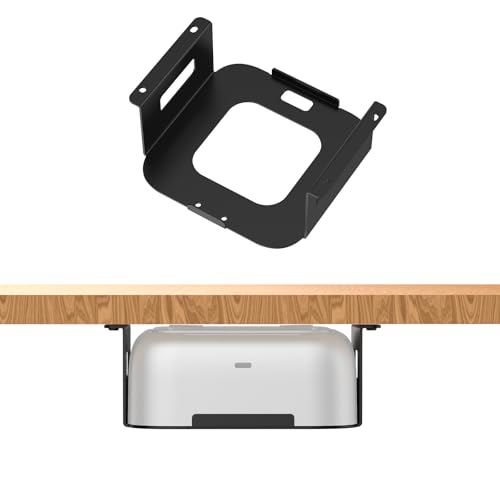
This carbon-steel bracket is shaped for HP USB-C Dock G6 versions, including Thunderbolt 4 models listed by HP at 100 W, 180 W, and 280 W plus the USB-C 100 W model. It mounts below desks, shelves, and other horizontal surfaces. The custom profile is intended to give the dock a snug, stable fit.
The powder-coated mount includes pre-drilled holes, screws, and a removable blocker plate. That plate secures the dock during use but allows removal when the unit needs to move. Open areas promote airflow around the dock and power adapter rather than placing them in a closed compartment.
Our Take: Choose the CENYIDU G6 bracket only for the HP USB-C Dock G6 family. It is the custom option for newer G6 hardware, while the JinLunar bracket serves the physically different G5.
[su_box title=”PROS” style=”soft” box_color=”#2e7d32″] – The bracket covers listed G6 Thunderbolt 4 and USB-C power variants. – Powder-coated carbon steel resists scratches and deformation during normal use. – A removable blocker plate balances secure holding with intentional dock removal. – Open construction preserves an airflow path around the mounted equipment. [/su_box] [su_box title=”CONS” style=”soft” box_color=”#c62828″] – The exact-fit design does not support the HP USB-C Dock G5. – Under-shelf or under-desk installation still requires drilling into the surface. [/su_box]7. bylitco Under-Desk Storage Mount — Best Padded Universal Slot
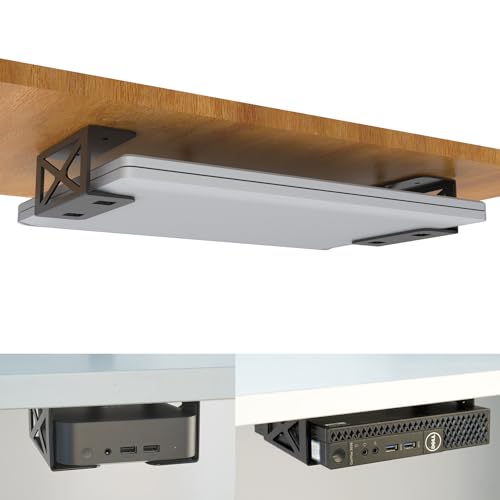
The bylitco mount is rated for devices less than 1.85 inches thick, making it suitable for many docks as well as the listed laptops and mini PCs. Its open slot avoids dependence on one brand’s housing shape. Soft padding protects the inserted device from scratches and helps reduce movement inside the bracket.
Installation uses six screws and includes a drilling template, manual, and hardware. According to the manufacturer, the desktop must be at least 0.78 inch thick for proper anchoring. Buyers should also compare the dock’s width and cable positions with the bracket opening, since the thickness limit alone does not guarantee port or ventilation clearance.
Our Take: The bylitco mount is the universal padded slot for a dock too thick for VIVO MOUNT-DS01’s one-inch limit. It needs a slightly thicker desk, and it holds the device less flexibly than a holder with straps.
[su_box title=”PROS” style=”soft” box_color=”#2e7d32″] – The 1.85-inch thickness limit accepts many taller docks and compact computers. – Soft padding protects the dock housing from direct bracket contact. – An included template helps place the six under-desk screw holes accurately. [/su_box] [su_box title=”CONS” style=”soft” box_color=”#c62828″] – The desktop must be at least 0.78 inch thick at the anchor area. – The listing does not state width or port-clearance limits. – Six screws create more desk holes than several other mounting approaches. [/su_box]8. VIVO MOUNT-UDLS1 — Best Adjustable Three-Bracket Holder
VIVO MOUNT-UDLS1 uses three separately spaced brackets rather than a fixed-width tray. VIVO rates the arrangement to hold a laptop, tablet, keyboard, multimedia device, or docking station weighing up to 11 pounds. Custom spacing helps the installer avoid ports and vents while supporting a dock whose footprint does not match a molded holder.
Anti-skid padding protects the device and helps it stay in place. The open front keeps equipment accessible, and the manufacturer specifies attaching the brackets with five screws to a desk at least 0.75 inch thick. Because placement is adjustable, the installer is responsible for giving the dock enough support that it cannot slide out during cable changes.
Our Take: MOUNT-UDLS1 is the best open universal holder when you need custom bracket spacing and a manufacturer-rated 11-pound capacity. It needs more layout judgment than a custom shell, but it accommodates devices with unusual widths.
[su_box title=”PROS” style=”soft” box_color=”#2e7d32″] – Three independent brackets can be spaced around ports and ventilation areas. – The stated 11-pound capacity comfortably exceeds typical dock weight. – Anti-skid padding protects the device and improves grip under the desk. – An open front preserves access for insertion, removal, and cable changes. [/su_box] [su_box title=”CONS” style=”soft” box_color=”#c62828″] – Correct spacing and orientation depend on careful installer judgment. – Five screws require a desktop at least 0.75 inch thick. – The open design does not provide the exact enclosure of a model-specific bracket. [/su_box]Buying Guide: Mount a USB-C Dock Under a Desk
Start with Exact Dock Compatibility
Model-specific mounts reduce movement and fitting guesswork. Varghesyla, CENYIDU’s Dell kit, and IFCASE name compatible Dell docks. JinLunar targets HP G5, while CENYIDU’s HP bracket targets G6. Similar brand names do not make those generations interchangeable.
Universal mounts require three measurements. Check dock width, height, and thickness, then map every port and vent. VIVO MOUNT-DS01 specifies up to 10 inches wide or tall and one inch thick, while bylitco rates its mount for devices under 1.85 inches thick.
Check the Desk Before Drilling
Desk thickness is an anchor requirement. IFCASE and VIVO MOUNT-UDLS1 call for at least 0.75 inch, while bylitco calls for 0.78 inch. Store loose fasteners in a desk drawer organizer so the correct screws stay with the mount during layout.
Inspect what is inside and below the drilling area. Hollow-core sections, metal crossbars, sit-stand mechanisms, and cable channels can make an apparently thick edge unsuitable. A nearby rolling file cabinet should remain clear of the mounted dock and cables throughout its travel. Leave the same clearance around a desk foot hammock so feet cannot strike the dock or pull its leads.
Preserve Port Access and Airflow
Mount orientation should follow the ports used most often. Host USB-C, power, Ethernet, display, and audio cables need enough room to enter without sharp bends. VIVO MOUNT-UDLS1 uses separate brackets that can avoid connector zones, while custom mounts provide model-specific openings.
Do not cover ventilation with a strap or desk surface. JinLunar uses a hollow G5 design, and the CENYIDU G6 bracket promotes airflow. Leave space around the power brick as well. A desktop fan can improve room comfort but should not be used to compensate for blocked dock vents.
Control Cable Strain and Daily Reach
The laptop lead needs slack for normal movement. Fix heavier display and power cables to the desk, but avoid pulling the short host cable tight between the mounted dock and laptop. A USB-C port lock is for a different security problem and is not a substitute for strain relief.
Keep frequently used controls reachable. A mount far behind the desk may hide the power button, headset jack, or removable-media slot. Position a USB conference speakerphone and other movable call equipment so its cable does not tug on the dock during meetings. Route a USB headset where chair movement cannot transfer force to the mounted hub.
Choose Between Fixed and Removable Mounting
A fixed bracket is best for a dock that stays with one desk. Varghesyla and IFCASE organize Dell docks with their power adapters, while model-specific steel shells resist shifting during cable changes. Fixed brackets suit a permanent workstation with consistent cable routing.
A release mechanism helps shared or mobile docks. CENYIDU’s Dell mount rotates off its base, and the G6 bracket uses a removable blocker plate. MOUNT-DS01 offers clamp and VESA choices when desk drilling is undesirable. Keep a wireless charging desk mat clear of metal mounting hardware and power-brick cabling.
Frequently Asked Questions
Can Any USB-C Dock Use a Universal Mount?
Only when the dock fits the holder’s dimensions and layout. VIVO states the MOUNT-DS01 accepts devices up to 10 inches wide or tall and one inch thick. Bylitco accepts devices under 1.85 inches thick, while VIVO rates the MOUNT-UDLS1 for up to 11 pounds.
Ports, vents, and controls can still disqualify a physical fit. A strap across a power button or intake is not acceptable. Draw the holder contact points on the measured dock before installing hardware.
Is It Safe to Screw a Dock Mount Under a Desk?
It is safe only when the surface and fasteners suit the load. IFCASE and MOUNT-UDLS1 require at least 0.75 inch of desk thickness, while bylitco specifies 0.78 inch. Those numbers do not confirm that a hollow or damaged desktop can hold screws.
Check screw length and hidden desk hardware before drilling. Avoid sit-stand mechanisms, wiring, metal rails, and the top surface. Follow the mount’s included hardware and instructions rather than substituting a longer screw without confirming clearance.
Should the Power Brick Be Mounted with the Dock?
Combined storage can make cable routing cleaner. Varghesyla, CENYIDU, and IFCASE all provide places for a compatible Dell dock and power supply. CENYIDU and IFCASE identify support for 130 W and 180 W adapters.
The brick still needs fit and airflow checks. CENYIDU tells buyers to measure adapter dimensions before ordering. Leave space around the adapter and keep its mains lead from carrying the assembly’s weight.
Can I Mount a Dock Behind a Monitor Instead?
Yes, if the mount and monitor provide a compatible path. JinLunar supports 75 x 75 mm and 100 x 100 mm VESA patterns for the HP G5. MOUNT-DS01 includes a VESA-compatible plate and can also clamp to monitor arms or poles up to 1.8 inches thick.
Confirm that the VESA holes are available. A monitor stand or arm may already occupy them, and stacking plates can affect screw length or clearance. Check the mount instructions before sharing a VESA interface.
How Do I Keep the Host Cable from Pulling on the Laptop?
Place the dock close enough for a relaxed cable path. The host lead should reach the laptop without tension at the normal working position. Avoid a sharp bend immediately at either USB-C plug.
Anchor heavy downstream cables separately. Display, network, power, and peripheral leads can transfer their weight to the dock. Route them to the desk structure with service loops so moving the laptop does not move the mounted dock.
Final Recommendation
VIVO MOUNT-DS01 is the best general-purpose choice for a dock within its 10-inch and one-inch limits because it supports VESA, clamp, pole, and under-desk placement. For listed Dell models, Varghesyla provides a strong combined steel bracket, while CENYIDU adds quick dock removal. HP owners should match the JinLunar G5 or CENYIDU G6 bracket to the exact generation.
Measure the dock and desk, map every cable and vent, and choose the final position before drilling. A clean under-desk setup works when the dock leaves the work surface without making ports, cooling, or the host cable harder to manage.